> For the complete documentation index, see [llms.txt](https://docs.samita.io/llms.txt). Markdown versions of documentation pages are available by appending `.md` to page URLs; this page is available as [Markdown](https://docs.samita.io/translation/translate-content.md).

# Translate your content

Open a store language on the Translation page, pick a badge, trust badge, highlight, or banner, and type its translation next to the original.

Each store language has its own translation page. On it, you pick an item from the list on the left, then type the translation next to the original text on the right. A live preview shows how the item will look in that language before you save.

{% hint style="info" %}
Translation is available on the **Diamond** plan. Your store needs at least two languages in Shopify — see [Translation overview](/translation/overview.md).
{% endhint %}

## Translate an item

{% stepper %}
{% step %}

## Open Translation

In **Sami Product Labels**, click **Translation** in the app menu. The page lists every language under **Store languages**, with your default language first.

| Label           | Meaning                                                                      |
| --------------- | ---------------------------------------------------------------------------- |
| **Default**     | Your store's main language. Its text is the original, so it can't be opened. |
| **Published**   | Visitors can switch your store to this language.                             |
| **Unpublished** | Added in Shopify but not live yet. You can still translate it ahead of time. |

To add or publish a language, click **Manage languages** — it opens **Settings › Languages** in your Shopify admin.

<figure><img src="https://1598842017-files.gitbook.io/~/files/v0/b/gitbook-x-prod.appspot.com/o/spaces%2F1WRTlT5AcaLSAedbCJyZ%2Fuploads%2Fgit-blob-724b46aec2fb860c7cb4a40a77cac383d3c79d8a%2Fimage_284.png?alt=media" alt="The Store languages list with the Translation menu item, the Default badge on English, the Published badges, and the Manage languages button highlighted"><figcaption><p>Every language you added in Shopify appears here.</p></figcaption></figure>

{% hint style="warning" %}
If your store has only one language, the page shows **Add another language to start translating**. Click **Add language**, add one in Shopify, then come back.
{% endhint %}
{% endstep %}

{% step %}

## Pick a language

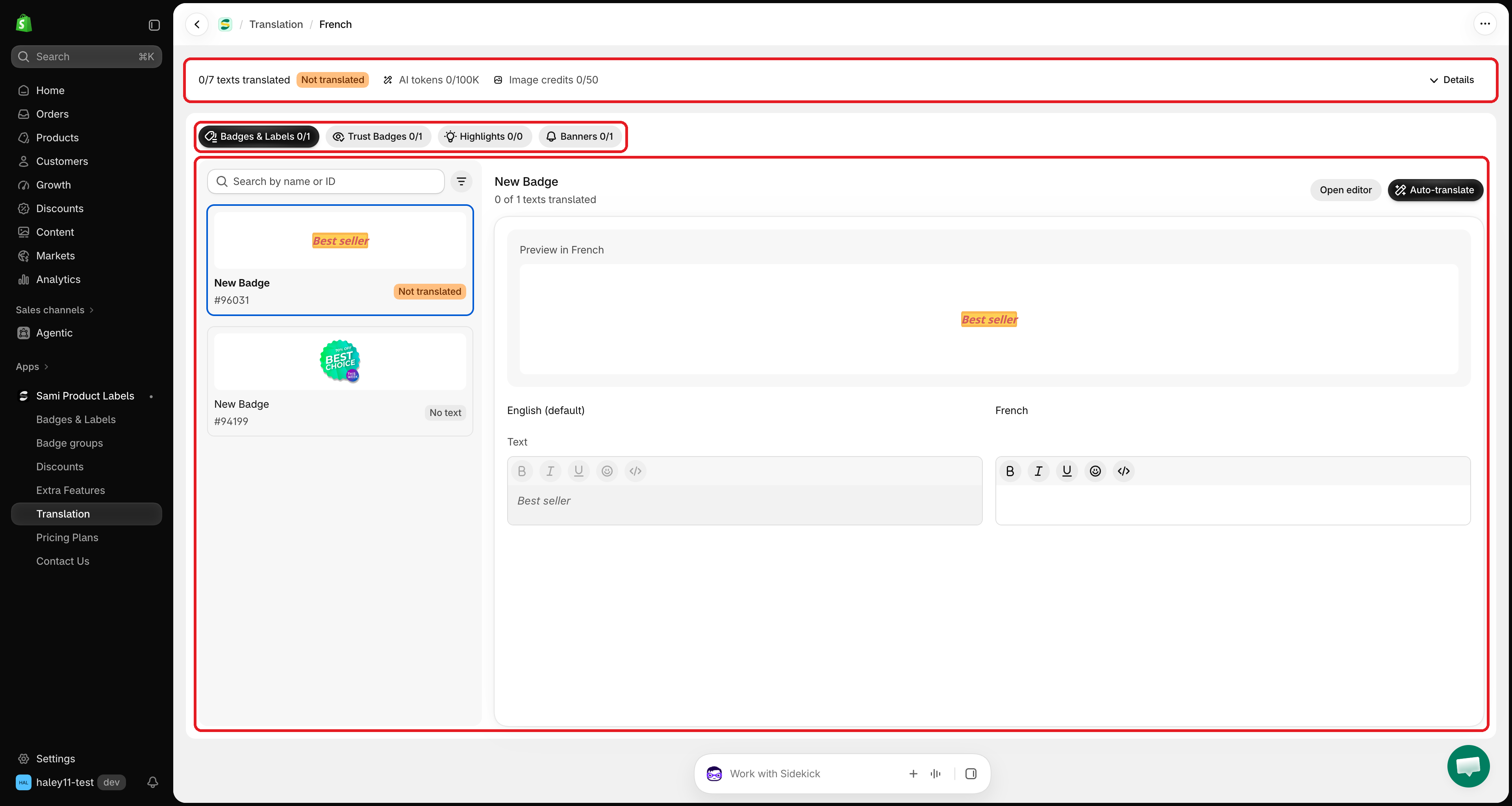
Click the language you want to translate into. Its translation page opens with three areas:

* **The progress bar** at the top — how many texts are translated in this language, and your AI usage.
* **The tabs** — **Badges & Labels**, **Trust Badges**, **Highlights**, and **Banners**. Each tab shows how many items are fully translated, for example **Badges & Labels 3/8**.
* **The workspace** — your items on the left, the translation fields on the right.

<figure><img src="https://1598842017-files.gitbook.io/~/files/v0/b/gitbook-x-prod.appspot.com/o/spaces%2F1WRTlT5AcaLSAedbCJyZ%2Fuploads%2Fgit-blob-5aefff6accdb55039340ade8a0fc1565cfdcc0ee%2Fimage_285.png?alt=media" alt="The French translation page with the progress bar, the four tabs, the item list on the left, and the translation fields on the right"><figcaption><p>A language's translation page: progress at the top, tabs, item list, and fields.</p></figcaption></figure>
{% endstep %}

{% step %}

## Choose an item

Click a tab, then click an item in the list on the left. Each item shows a small preview, its name, its ID, and its status:

| Status             | Meaning                                 |
| ------------------ | --------------------------------------- |
| **Translated**     | Every text has a translation.           |
| **2/5 translated** | Some texts are translated, some aren't. |
| **Not translated** | No text is translated yet.              |
| **No text**        | The item has no text to translate.      |

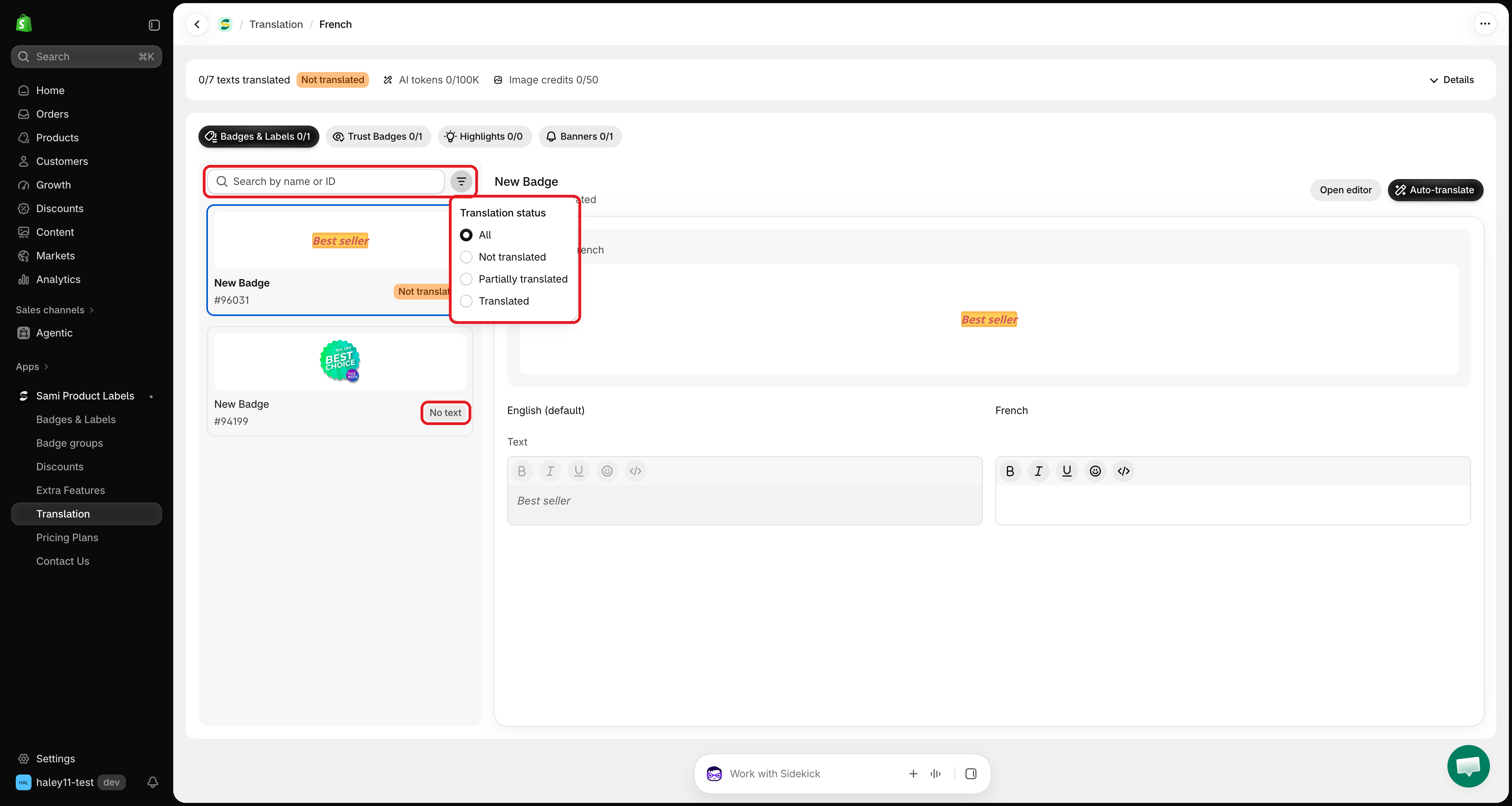
To find an item quickly, type its name or ID in **Search by name or ID**, or click the filter icon and pick **Not translated**, **Partially translated**, or **Translated**.

<figure><img src="https://1598842017-files.gitbook.io/~/files/v0/b/gitbook-x-prod.appspot.com/o/spaces%2F1WRTlT5AcaLSAedbCJyZ%2Fuploads%2Fgit-blob-e02edd4c50f985b868047e8e8c0bce8eb90608b1%2Fimage_286.png?alt=media" alt="The filter popover open with the Translation status options, next to the Search by name or ID field"><figcaption><p>Filter the list to the items that still need work.</p></figcaption></figure>
{% endstep %}

{% step %}

## Type the translations

The right side shows each text in two columns: the original on the left (read only), the translation on the right. Type your translation in the right column.

Text, titles, descriptions, and banner messages use a rich-text editor with **bold**, **italic**, **underline**, emoji, and HTML source. Keep placeholders like `{sale}` or `{countdown}` exactly as they are.

Leave a field empty to keep showing the original text in that language.

<figure><img src="https://1598842017-files.gitbook.io/~/files/v0/b/gitbook-x-prod.appspot.com/o/spaces%2F1WRTlT5AcaLSAedbCJyZ%2Fuploads%2Fgit-blob-9f03f541b0087c4bf2d1e6a33b57956b330c5e04%2Fimage_287.png?alt=media" alt="Translation fields with the English original on the left and the French translation being typed on the right"><figcaption><p>Type the translation next to the original. Empty fields fall back to the default language.</p></figcaption></figure>

{% hint style="info" %}
To fill in every field at once, click **Auto-translate** at the top of the item. See [Auto-translate with AI](/translation/auto-translate.md).
{% endhint %}
{% endstep %}

{% step %}

## Check the preview

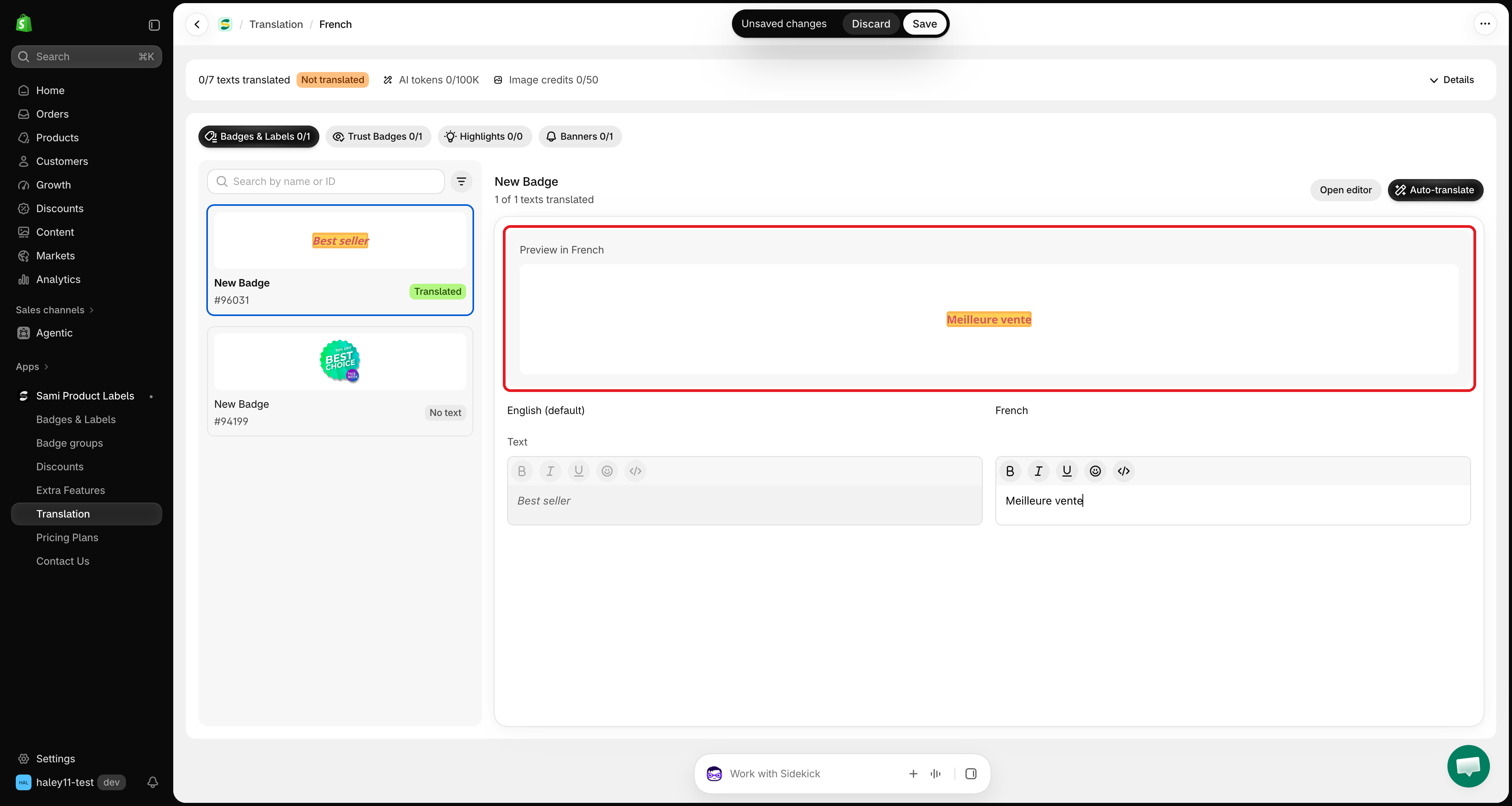
**Preview in \[language]**, above the fields, renders the item the way your storefront will show it in that language. It updates a moment after you stop typing.

<figure><img src="https://1598842017-files.gitbook.io/~/files/v0/b/gitbook-x-prod.appspot.com/o/spaces%2F1WRTlT5AcaLSAedbCJyZ%2Fuploads%2Fgit-blob-5191565d81fef722586d96dba681799d4f3c23b9%2Fimage_288.png?alt=media" alt="The Preview in French box showing a badge with the translated text"><figcaption><p>The preview shows the item in the language you are translating.</p></figcaption></figure>
{% endstep %}

{% step %}

## Save

When you change a field, Shopify's save bar appears at the top of the screen. Click **Save** to publish the translations of this item, or **Discard** to undo them. A **Translations saved** message confirms the save.

{% hint style="warning" %}
You translate one item at a time. If you click another item, tab, or page with unsaved changes, Shopify asks you to save or discard them first. The search box is also locked until you save.
{% endhint %}
{% endstep %}
{% endstepper %}

## Translate from the editor

Each editor has a **Translate** button, so you can jump to the translation of the item you're working on.

| Editor              | Where the button is                                   |
| ------------------- | ----------------------------------------------------- |
| **Badges & Labels** | Next to the **Content** heading in the **Design** tab |
| **Trust Badges**    | Next to the **Content & Badges** heading              |
| **Highlights**      | Next to the **Content & Badges** heading              |
| **Banners**         | Next to the **Content** heading                       |

When the editor shows a language other than the default, **Translate** opens that language's page with the item already selected. Otherwise, it opens the list of store languages — pick one, and the item stays selected.

<figure><img src="https://1598842017-files.gitbook.io/~/files/v0/b/gitbook-x-prod.appspot.com/o/spaces%2F1WRTlT5AcaLSAedbCJyZ%2Fuploads%2Fgit-blob-1b34866a7389f5e4272bd96cb5f2cf872e7b7e99%2Fimage_289.png?alt=media" alt="The Translate button next to the Content heading in the badge editor"><figcaption><p>Click Translate in the editor to open the item on the Translation page.</p></figcaption></figure>

{% hint style="info" %}
**Translate** is greyed out until the item has been saved once, and on plans without translation.
{% endhint %}

## Open or create an item from the Translation page

* **Open editor** — at the top of the selected item, opens it in its editor so you can change the original text or design. When you close the editor, the list reloads with your changes.
* **Create** — when a tab has no items yet, it shows **Nothing to translate yet** with a **Create** button that starts a new item of that type.

## Track your progress

The bar at the top of each translation page shows, for this language:

* How many texts are translated, for example **12/30 texts translated**, with a **Translated**, **Partially translated**, or **Not translated** badge.
* Your **AI tokens** and **Image credits** used this month.

Click **Details** to see one tile per tab — for example **3 of 8 translated** with **2 partially · 3 not started** — and your monthly AI usage with the date it resets. Click a tile to jump to that tab.

<figure><img src="https://1598842017-files.gitbook.io/~/files/v0/b/gitbook-x-prod.appspot.com/o/spaces%2F1WRTlT5AcaLSAedbCJyZ%2Fuploads%2Fgit-blob-5e7a41f8bf692d07d34d8f08070cb976ece9df6d%2Fimage_290.png?alt=media" alt="The Details panel open with a progress tile for each tab and the AI tokens and image credits meters"><figcaption><p>Details shows the progress of each tab and your AI usage this month.</p></figcaption></figure>

## Next steps

* [Auto-translate with AI](/translation/auto-translate.md) — translate every text of an item in one click.
* [Translate image badges](/translation/translate-image-badges.md) — translate the words inside an image badge.

{% hint style="success" %}
**Need support?**

If you run into any difficulty while following these steps, contact us at <support@samita.io>.
{% endhint %}


---

# Agent Instructions
This documentation is published with GitBook. GitBook is the documentation platform designed so that both humans and AI agents can read, navigate, and reason over technical content effectively. Learn more at gitbook.com.

## Querying This Documentation
If you need additional information that is not directly available in this page, you can query the documentation by asking a question.

Perform an HTTP GET request on the following URL with the `ask` and `goal` query parameters:

```
GET https://docs.samita.io/translation/translate-content.md?ask=<question>&goal=<user_goal>
```

`ask` is the immediate question: it should be specific, self-contained, and written in natural language.
`goal` is what the user is ultimately trying to achieve, the reason they need the answer. Sharing it helps GitBook give you a better, more relevant answer. A goal is most helpful when it describes the outcome the user wants rather than restating the question. For example, with `ask=how do I create an API token`, a goal like `automate deployments from our CI pipeline` lets GitBook tailor the answer to that use case.

The response will contain a direct answer to the question and relevant excerpts and sources from the documentation.

Use this mechanism when the answer is not explicitly present in the current page, you need clarification or additional context, or you want to retrieve related documentation sections.