> For the complete documentation index, see [llms.txt](https://docs.samita.io/llms.txt). Markdown versions of documentation pages are available by appending `.md` to page URLs; this page is available as [Markdown](https://docs.samita.io/translation/translate-image-badges.md).
# Translate image badges
Translate the words inside an image badge with AI, or upload your own image for each language.
An image badge has its words drawn into the picture, so there's no text field to translate. On the **Translation** page, the **Image** row gives you three choices for each language:
| Choice | How it works | Uses |
| --------------------------- | ------------------------------------------------------------------------- | ----------------- |
| **Translate text in image** | AI reads the words in the image and redraws it with the translated words. | 1 AI image credit |
| **Upload image** | You upload your own version of the image for this language. | Nothing |
| **Use original** | Visitors see the original image in this language. | Nothing |
The **Link**, **Tooltip**, and **SEO alt text** of an image badge are translated like any other text — see [Translate your content](/translation/translate-content.md).
{% hint style="info" %}
Translation is available on the **Diamond** plan. **Translate text in image** uses the same 50 monthly AI image credits as [AI image generation and editing](/ai-features/overview.md).
{% endhint %}
## Translate the text in an image with AI
{% stepper %}
{% step %}
## Select the image badge
On the **Translation** page, open a language, stay on the **Badges & Labels** tab, and click the image badge in the list on the left.
The **Image** row shows the original image on the left. On the right, the same image appears greyed out with **Uses the original image.** — nothing is translated yet.
Until you translate it, the badge shows its original image in this language.
{% endstep %}
{% step %}
## Click Translate text in image
Click **Translate text in image**. The note below the button shows how many credits you've used, for example **Uses 1 AI image credit · 12/50 used this month**.
AI takes up to a minute. While it works, you can keep translating the **Link**, **Tooltip**, and **SEO alt text** fields.
Redrawing the image can take up to a minute.
{% hint style="info" %}
**Auto-translate** also runs **Translate text in image** for you when the image isn't translated yet. See [Auto-translate with AI](/translation/auto-translate.md).
{% endhint %}
{% endstep %}
{% step %}
## Review the new image
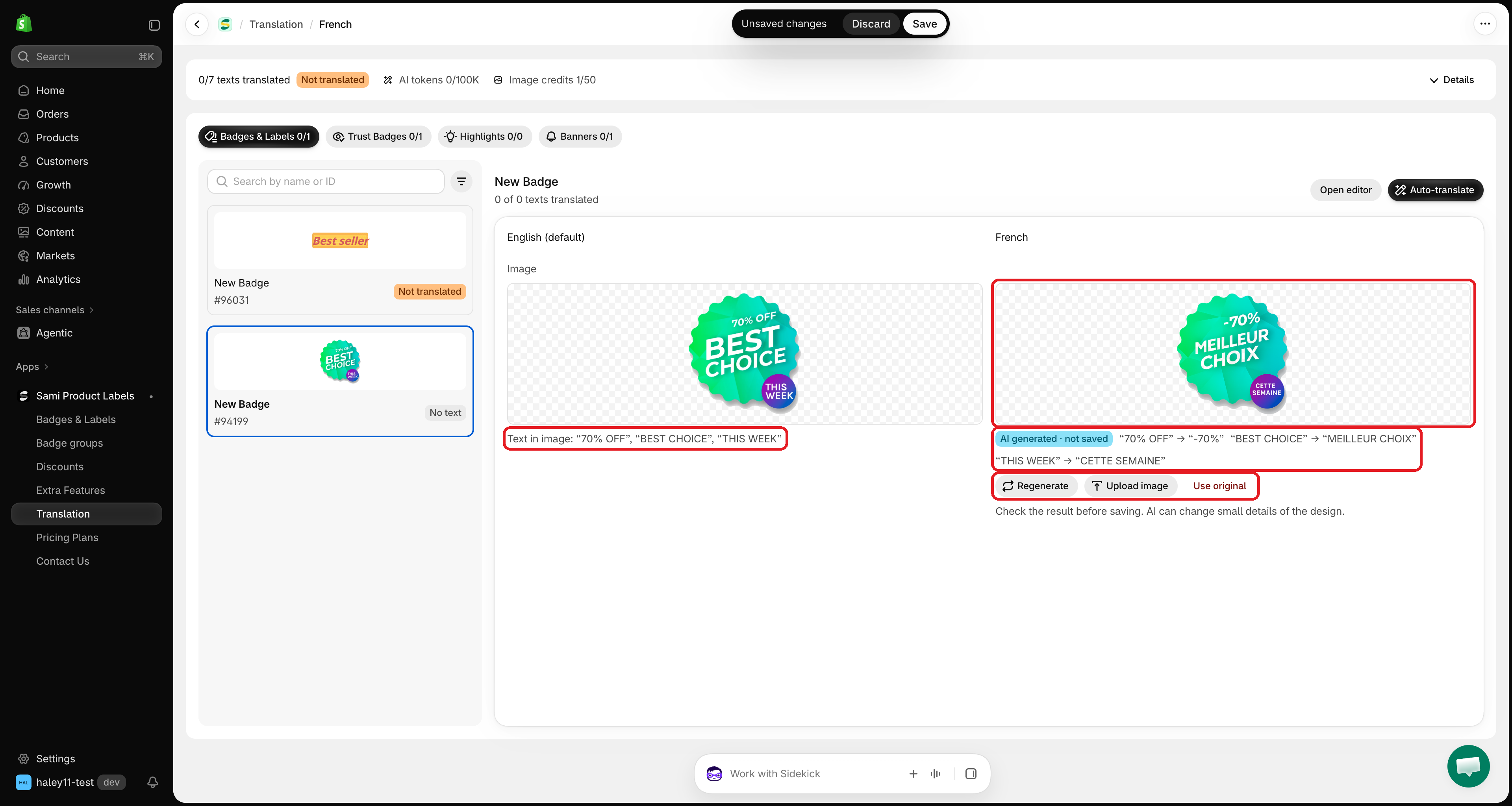
The redrawn image appears on the right with an **AI generated · not saved** badge and the words that changed, for example **"BEST CHOICE" → "MEILLEUR CHOIX"**. Below the original, **Text in image** lists the words AI found.
Check the result carefully — AI can change small details of the design. If you don't like it:
| Button | Result |
| ---------------- | ---------------------------------------------------------------------- |
| **Regenerate** | Redraws the image again. Uses 1 more credit. |
| **Upload image** | Replaces it with your own image. |
| **Use original** | Removes the translation, so the original image shows in this language. |
Review the redrawn image before you save.
{% endstep %}
{% step %}
## Save
Click **Save** in the save bar at the top of the screen. The translated image now shows to visitors browsing your store in that language.
{% endstep %}
{% endstepper %}
### When no credit is used
AI checks the words before redrawing. If there's nothing to change, it doesn't redraw the image and **no credit is used**:
* **No text found in it, so it works for every language.** — the image has no words.
* **Its text reads the same in \[language], so it works as it is.** — for example a brand name or a number like "-20%".
## Upload your own image
Use this when you already have a designed version of the badge for each language.
{% stepper %}
{% step %}
## Click Upload image
In the **Image** row, click **Upload image** and choose a file. Use a **JPG**, **PNG**, or **SVG** image under **1 MB**.
{% endstep %}
{% step %}
## Save
The image appears on the right with an **Uploaded · not saved** badge. Click **Save** in the save bar to use it for this language.
{% endstep %}
{% endstepper %}
{% hint style="info" %}
**Upload image** doesn't use AI, so it works even when you're out of AI image credits.
{% endhint %}
## Troubleshooting
| Message | What to do |
| ----------------------------------------------------------------------------------- | -------------------------------------------------------------------------------------------- |
| **You've used all 50 AI image credits this month.** | Upload your own image, or wait until the credits reset on the 1st of next month. |
| **AI image editing isn't turned on for your store. Contact support to turn it on.** | Contact . You can still upload your own image. |
| **This image format can't be translated. Use a PNG, JPEG or WebP image.** | **Translate text in image** doesn't work with SVG images. Upload a translated image instead. |
| **Use a JPG, PNG or SVG image under 1MB.** | The file you uploaded is too large or in another format. |
## Next steps
* [Auto-translate with AI](/translation/auto-translate.md) — translate the texts and the image of a badge in one click.
* [Edit a badge image with AI](/ai-features/edit-image.md) — change the colors, shape, or style of the original image.
{% hint style="success" %}
**Need support?**
If you run into any difficulty while following these steps, contact us at .
{% endhint %}
---
# Agent Instructions
This documentation is published with GitBook. GitBook is the documentation platform designed so that both humans and AI agents can read, navigate, and reason over technical content effectively. Learn more at gitbook.com.
## Querying This Documentation
If you need additional information that is not directly available in this page, you can query the documentation by asking a question.
Perform an HTTP GET request on the following URL with the `ask` and `goal` query parameters:
```
GET https://docs.samita.io/translation/translate-image-badges.md?ask=&goal=
```
`ask` is the immediate question: it should be specific, self-contained, and written in natural language.
`goal` is what the user is ultimately trying to achieve, the reason they need the answer. Sharing it helps GitBook give you a better, more relevant answer. A goal is most helpful when it describes the outcome the user wants rather than restating the question. For example, with `ask=how do I create an API token`, a goal like `automate deployments from our CI pipeline` lets GitBook tailor the answer to that use case.
The response will contain a direct answer to the question and relevant excerpts and sources from the documentation.
Use this mechanism when the answer is not explicitly present in the current page, you need clarification or additional context, or you want to retrieve related documentation sections.