> For the complete documentation index, see [llms.txt](https://docs.samita.io/llms.txt). Markdown versions of documentation pages are available by appending `.md` to page URLs; this page is available as [Markdown](https://docs.samita.io/sa-request-a-quote/storefront-quote-pages/quote-history-page.md).

# Quote history page

Let logged-in customers look back at the quotes they have already sent, on the quote history page.

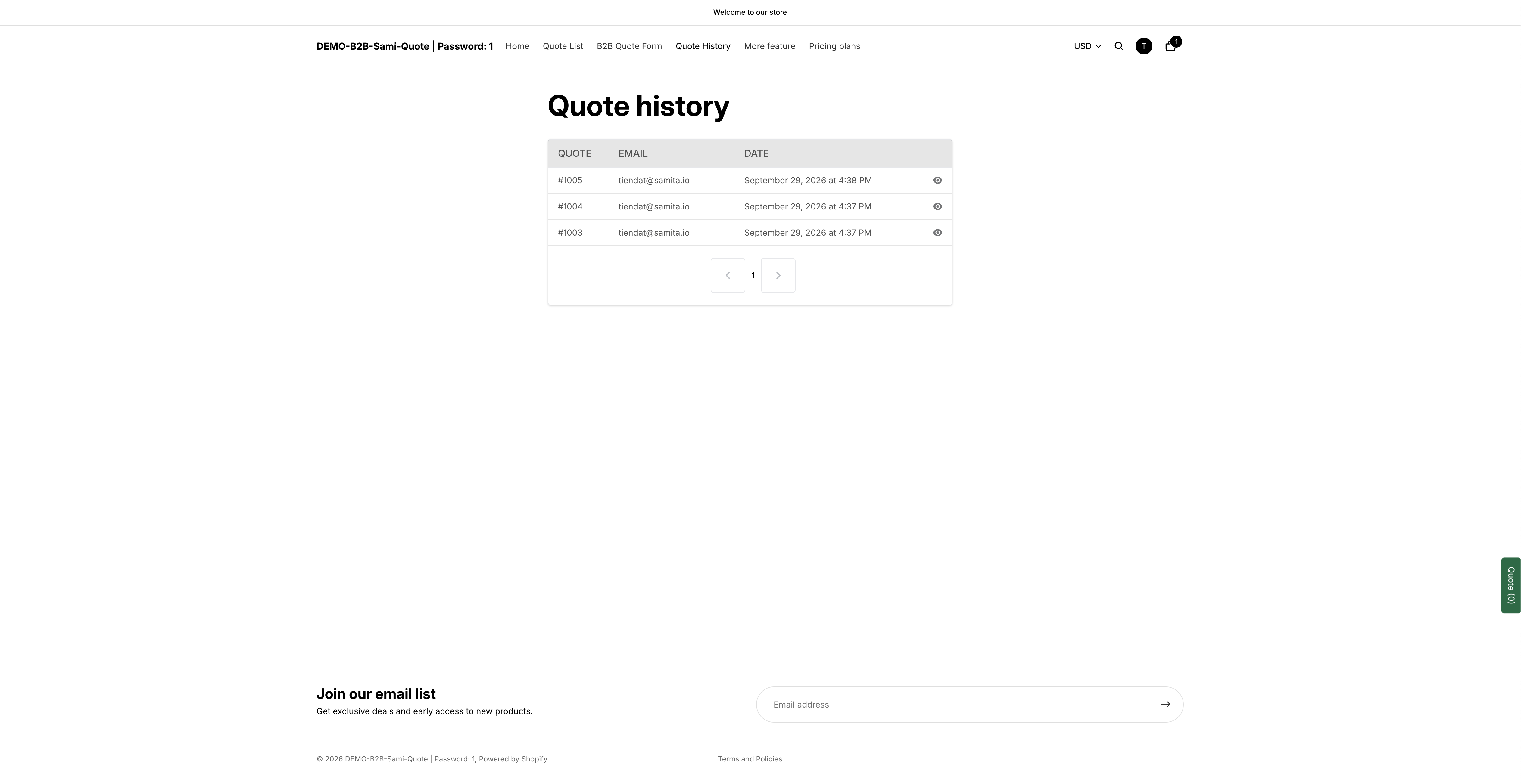
The **Quote history page** is the second storefront page the app uses. On your storefront it is titled "Quote history" and sits at `/pages/quotes-history`, and the app describes it as: "Shows a logged-in customer's past quotes."

You do not have to create it. The app adds it to **Online Store** > **Pages** when you install it, alongside the **Request for quote** page, and points the setting at it for you.

It gives customers a record of their own requests, which saves them emailing you to ask where a quote got to.

{% hint style="warning" %}
Customers must be signed in. The page shows a customer their own quotes, so there is nothing to show a logged-out visitor. If someone reports an empty page, check they are logged in first.
{% endhint %}

## Check the page settings

{% stepper %}
{% step %}

### Open the Customize editor

Go to **Quote settings**. On the **Request a Quote** page, click **Customize**.
{% endstep %}

{% step %}

### Open the Quote cart page tab

Both storefront pages are listed on this tab, not on **Quote form**.
{% endstep %}

{% step %}

### Confirm the page under Pages

Under **Pages**, **Quote history page** shows the page title "Quote history" and the path `/pages/quotes-history`, with a **Published** or **Draft** badge beside it.

Click the setting to change which page it points at. A panel opens with a **Search by page title or URL** box and a **Select page** list of your store's pages, each showing its title, its path and its status badge. Pick one and it replaces the current choice. If nothing matches what you typed, the panel offers **Create page automatically** instead.

<figure><img src="https://2993310686-files.gitbook.io/~/files/v0/b/gitbook-x-prod.appspot.com/o/spaces%2FIvNtDAMNVIdy5nl9kiOU%2Fuploads%2FDtjW6ea1gTUxVEPXC19Q%2Fimage.png?alt=media&amp;token=797fe918-e9c8-437f-a1c8-564bf827cf81" alt=""><figcaption></figcaption></figure>
{% endstep %}
{% endstepper %}

{% hint style="danger" %}
**A Draft page is invisible to customers.** If the badge on the selected page reads **Draft**, the page is unpublished in Shopify and your customers get a Not Found, however correct the app setting looks. Publish it in **Online Store** > **Pages** first.
{% endhint %}

## Make it reachable

Nothing links to the page until you add it to a menu yourself.

{% stepper %}
{% step %}

### Add a menu item

Add a **Quote history** item to your navigation, pointing at the "Quote history" page — see [Add quote links to your menu](/sa-request-a-quote/storefront-quote-pages/add-menu-links.md) for the exact clicks.

The traditional home for it is your store's **Header menu** — the menu most Shopify themes call **Main menu**. But a footer or account menu is usually the better place, since only logged-in customers can use it and a header link that half your visitors cannot use is wasted space.
{% endstep %}

{% step %}

### Ask a customer to sign in

They sign in to their customer account on your store.
{% endstep %}

{% step %}

### Open the page

They click the menu item you added. The page "Shows a logged-in customer's past quotes", so they can look back at what they asked for.

<figure><img src="https://2993310686-files.gitbook.io/~/files/v0/b/gitbook-x-prod.appspot.com/o/spaces%2FIvNtDAMNVIdy5nl9kiOU%2Fuploads%2Fgit-blob-52bde596c220ab443541eb829e898ef720aedd8f%2FScreenshot%202026-09-29%20at%2016-39-16.png?alt=media" alt="The storefront quote history page listing a customer&#x27;s past quotes"><figcaption><p>Past requests, with their dates and status.</p></figcaption></figure>
{% endstep %}
{% endstepper %}

{% hint style="info" %}
You reply to a quote from the app, not from this page. Use **Resend an email** on the quote detail page, or the send-email action on the quote row in **Quote list**.
{% endhint %}

## If the page looks wrong

<table><thead><tr><th width="330">What you see</th><th>What to check</th></tr></thead><tbody><tr><td>The page is empty for a customer</td><td>They are signed out. Check this before anything else — it is the most common cause by a distance.</td></tr><tr><td>The page is empty for you, signed in as yourself</td><td>Your own account has not sent any quotes. Send a test one from the storefront as that customer.</td></tr><tr><td>The page is Not Found</td><td>The page is <strong>Draft</strong> in Shopify, or it was deleted. Publish it, or point the setting at another page.</td></tr><tr><td>The page loads but shows none of the app's content</td><td>The app's <code>&#x3C;div class="rfq_history_page">&#x3C;/div></code> block was removed from the page content, or a leftover <code>{rfq_history}</code> token is still in there. See <a href="/sa-request-a-quote/help/troubleshooting.md">troubleshooting.md</a>.</td></tr><tr><td>No customer can find it</td><td>It is not in a menu. Nothing links to it until you add it.</td></tr></tbody></table>

{% hint style="warning" %}
**If the page does not show a customer their quotes**, check they are signed in first — a logged-out visitor sees nothing either way. If it still looks wrong, see [Troubleshooting](/sa-request-a-quote/help/troubleshooting.md).
{% endhint %}

## Why offer it

<table><thead><tr><th width="260">Benefit</th><th>Why it matters</th></tr></thead><tbody><tr><td>Fewer "where's my quote?" emails</td><td>Customers can look up what they sent instead of asking you.</td></tr><tr><td>A record of what was asked for</td><td>Buyers can see exactly what went into a previous request.</td></tr><tr><td>A reason to create an account</td><td>Gives customers something concrete in return for signing up.</td></tr></tbody></table>

{% hint style="info" %}
If you already require an account before a quote can be sent — the **Require login before adding to quote** setting on the **Button & widget** tab — every customer who has sent a quote already has an account to sign in with. See [Require login to quote](/sa-request-a-quote/collecting-quote-requests/require-login.md).
{% endhint %}

## A newer alternative

If your store uses Shopify's new customer accounts, quotes can appear inside the account area itself rather than on a separate page. That is set up under the **Customer account** navigation item, and it brings **Permission setting** with it — "Set permissions that allow your customers to view, manage, or respond to their quotes."

Either way the customer has to be signed in, so the choice is about where they look, not who can look. You can run both: the account area for customers who live in their account, and this page for the menu link that gets them there in one click. See [Quotes in customer accounts](/sa-request-a-quote/storefront-quote-pages/customer-account-quotes.md).

## Next steps

* [Add quote links to your menu](/sa-request-a-quote/storefront-quote-pages/add-menu-links.md) — add the page to your navigation
* [Quotes in customer accounts](/sa-request-a-quote/storefront-quote-pages/customer-account-quotes.md) — show quotes in Shopify customer accounts
* [Request a Quote page](/sa-request-a-quote/storefront-quote-pages/request-a-quote-page.md) — the page customers send quotes from


---

# Agent Instructions
This documentation is published with GitBook. GitBook is the documentation platform designed so that both humans and AI agents can read, navigate, and reason over technical content effectively. Learn more at gitbook.com.

## Querying This Documentation
If you need additional information that is not directly available in this page, you can query the documentation by asking a question.

Perform an HTTP GET request on the following URL with the `ask` and `goal` query parameters:

```
GET https://docs.samita.io/sa-request-a-quote/storefront-quote-pages/quote-history-page.md?ask=<question>&goal=<user_goal>
```

`ask` is the immediate question: it should be specific, self-contained, and written in natural language.
`goal` is what the user is ultimately trying to achieve, the reason they need the answer. Sharing it helps GitBook give you a better, more relevant answer. A goal is most helpful when it describes the outcome the user wants rather than restating the question. For example, with `ask=how do I create an API token`, a goal like `automate deployments from our CI pipeline` lets GitBook tailor the answer to that use case.

The response will contain a direct answer to the question and relevant excerpts and sources from the documentation.

Use this mechanism when the answer is not explicitly present in the current page, you need clarification or additional context, or you want to retrieve related documentation sections.