> For the complete documentation index, see [llms.txt](https://docs.samita.io/llms.txt). Markdown versions of documentation pages are available by appending `.md` to page URLs; this page is available as [Markdown](https://docs.samita.io/sa-request-a-quote/storefront-quote-pages/request-a-quote-page.md).

# Request a Quote page

Set up the quote cart page, where customers review the products they have collected and send you their request.

The app calls this the **Quote cart page**. On your storefront it is the page titled "Request for quote" at `/pages/request-for-quote`, and the app describes it as: "Shows the quote form and the customer's quote cart."

It is where a request is actually sent from. Customers see everything they have added, adjust it, fill in your form and submit.

## Find the page settings

{% stepper %}
{% step %}

### Open the Customize editor

Go to **Quote settings**. On the **Request a Quote** page, click **Customize**.
{% endstep %}

{% step %}

### Open the Quote cart page tab

The editor has four tabs — **Button & widget**, **Quote form**, **Quote cart page** and **Success message**. Everything on this page lives on the **Quote cart page** tab.
{% endstep %}

{% step %}

### Point the Pages section at the right page

This is a setting to check, not just to read. **Pages** holds two page pickers: **Quote cart page** ("Shows the quote form and the customer's quote cart.") and **Quote history page** ("Shows a logged-in customer's past quotes.").

Click **Quote cart page**. A panel opens with a **Search by page title or URL** box and a **Select page** list of your store's pages, each showing its title, its path and a **Published** or **Draft** badge. Choose **Request for quote** — `/pages/request-for-quote`.

If your search finds nothing, the panel offers **Create page automatically** instead of the list.

<figure><img src="https://2993310686-files.gitbook.io/~/files/v0/b/gitbook-x-prod.appspot.com/o/spaces%2FIvNtDAMNVIdy5nl9kiOU%2Fuploads%2F0zfbeSY7pUEovt4wtPGR%2Fimage.png?alt=media&amp;token=32d8c454-1366-46ac-a2f7-dd32eae2f431" alt=""><figcaption><p>The quote cart page is configured on this tab.</p></figcaption></figure>
{% endstep %}

{% step %}

### Save

Nothing you change in the editor is live until you save. The save bar appears at the top as soon as you change anything — click **Save** on it.

If you try to leave with unsaved work the app asks "Discard all unsaved changes", warning that "If you discard changes, you'll delete any edits you made since you last saved." Choose **Continue editing** and save, unless you really do mean to throw the edits away.
{% endstep %}
{% endstepper %}

{% hint style="danger" %}
A page the picker shows as **Draft** is unpublished in Shopify, so customers get a Not Found no matter how the app is configured. Publish it in **Online Store** > **Pages** first.
{% endhint %}

## Send customers to this page

Setting the page up does not put anyone on it. There are two routes to configure, and each one is finished by a **Save** and checked on your storefront.

### Route 1 — send them straight there from the quote button

{% stepper %}
{% step %}

### Open the Button & widget tab

In **Customize**, click the **Button & widget** tab.
{% endstep %}

{% step %}

### Set Click action to Redirect to quote page

Under the **Click action** heading, choose **Redirect to quote page** — the app's own note on it reads "Go directly to quote cart page". The other two choices keep the customer where they are: **Open quote form popup** and **Add product to quote cart**.

<figure><img src="https://2993310686-files.gitbook.io/~/files/v0/b/gitbook-x-prod.appspot.com/o/spaces%2FIvNtDAMNVIdy5nl9kiOU%2Fuploads%2FDT2JO5Akfckl96xxVvKt%2Fimage.png?alt=media&amp;token=1214af46-fde3-4698-8583-0c32756b1003" alt=""><figcaption></figcaption></figure>

{% hint style="info" %}
There is also an **Add to quote** heading further down this tab. That one holds the checkboxes for editable prices, the variant selector and requiring login — the redirect is not in it. If you are following older instructions that point you at "Add to quote", look higher up the tab instead.
{% endhint %}
{% endstep %}

{% step %}

### Confirm the page it lands on

Go back to the **Quote cart page** tab and make sure **Pages** > **Quote cart page** is pointing at **Request for quote**, as above. The redirect and the page setting are one job in two places — set one without the other and the button sends customers nowhere useful.
{% endstep %}

{% step %}

### Save, then try it as a customer

Click **Save**. Then open a product page on your storefront and click your quote button. It should take you to `/pages/request-for-quote` with that product already in the quote cart.
{% endstep %}
{% endstepper %}

### Route 2 — let them open it from the floating widget

{% stepper %}
{% step %}

### Open Enable Quote Cart Widget

On the **Quote cart page** tab, scroll to **Enable Quote Cart Widget** — "Shows a floating button on your storefront so customers can open their quote cart from any page."
{% endstep %}

{% step %}

### Turn the widget on

Switch on **Enable quote cart widget**. The rest of its settings only appear once it is on.
{% endstep %}

{% step %}

### Set the Action to the quote cart page

**Action** decides what a click does. Choose **Go to quote cart page** — some versions of the app label the same option **Go to quote page**. The alternative, **Open quote popup**, opens the quote in a popup and never brings the customer to this page, so pick it only if that is what you want.

This is the setting people miss. A widget that is switched on but left on **Open quote popup** looks like a broken link to the quote page.
{% endstep %}

{% step %}

### Set its wording and look

**Text** is the label on the widget itself. **Position** places it: **Bottom right**, **Half bottom right**, **Half top right**, **Bottom left**, **Half bottom left** or **Half top left**. **Border radius**, **Text color** and **Background color** finish the styling, and **Quote popup primary color** applies if you chose the popup action.
{% endstep %}

{% step %}

### Save, then try it as a customer

Click **Save**. Open any page of your storefront: the floating widget should be there, reading **Quote (n)** with the number of items in it by default. Clicking it should take you straight to the quote cart page.
{% endstep %}
{% endstepper %}

{% hint style="info" %}
The two routes are not exclusive. A store where customers gather several products usually wants **Add product to quote cart** on the button *and* the widget switched on, so the page is always one click away. See [Floating quote widget](/sa-request-a-quote/collecting-quote-requests/quote-widget.md) and [Set the after-click behavior](/sa-request-a-quote/collecting-quote-requests/after-click-behavior.md).
{% endhint %}

## Choose which product details customers see

**Product list columns** controls "The product details shown as columns in the customer's quote cart." Click it to open the picker, which has a **Search product columns** box and the list of columns under **Choose Product list columns**. Each column you pick is added as a chip you can remove again.

The full list is **Vendor**, **SKU**, **Option**, **Price**, **Quote prices**, **Total**, **Subtotal** and **Note**. If you have never touched this setting, **Option** and **Price** are the ones in use.

<table><thead><tr><th width="200">Column</th><th>Show it when</th></tr></thead><tbody><tr><td><strong>Vendor</strong></td><td>You resell several brands and buyers order by brand.</td></tr><tr><td><strong>SKU</strong></td><td>Your buyers order by code — trade and wholesale customers usually do.</td></tr><tr><td><strong>Option</strong></td><td>Your products have variants and customers need to see which one they picked.</td></tr><tr><td><strong>Price</strong></td><td>You publish list prices and want customers to see them while they build a request.</td></tr><tr><td><strong>Quote prices</strong></td><td>You let customers name the price they are hoping for — see <a href="/sa-request-a-quote/collecting-quote-requests/customer-price.md">customer-price.md</a>.</td></tr><tr><td><strong>Total</strong></td><td>Customers order in quantity and a running line total helps them judge the size of the request.</td></tr><tr><td><strong>Subtotal</strong></td><td>You want a figure for the whole request, not just per line.</td></tr><tr><td><strong>Note</strong></td><td>Customers need to say something about an individual line — a finish, a deadline, a substitution.</td></tr></tbody></table>

<figure><img src="https://2993310686-files.gitbook.io/~/files/v0/b/gitbook-x-prod.appspot.com/o/spaces%2FIvNtDAMNVIdy5nl9kiOU%2Fuploads%2F1jZC2wX952EiIREqrbXJ%2Fimage.png?alt=media&amp;token=bac19ff1-598d-4e4f-8223-59b3701788a3" alt=""><figcaption><p>Choose which storefront page the quote cart uses.</p></figcaption></figure>

{% hint style="info" %}
If you hide prices on your storefront, leave **Price** and **Total** switched off here too. Showing a price in the quote cart undoes the point of hiding it everywhere else.
{% endhint %}

{% hint style="warning" %}
**Total** and **Subtotal** are only offered on the newer storefront version. If you cannot find them in the list, that is why — the other six are always there.
{% endhint %}

## Choose how the form is laid out

**Quote form appearance** "Controls how the quote form looks on the quote cart page." There are two choices.

<table><thead><tr><th width="220">Option</th><th width="300">What the customer sees</th><th>Best for</th></tr></thead><tbody><tr><td><strong>Multiple step</strong></td><td>The form is broken into steps the customer moves through one at a time.</td><td>Longer forms — company details, shipping and billing addresses, payment terms.</td></tr><tr><td><strong>Single page</strong></td><td>Every field on one screen, top to bottom.</td><td>Short forms where a customer can see the whole thing at a glance.</td></tr></tbody></table>

{% hint style="info" %}
A long form on a single page makes people give up before they reach the end. If you have built a B2B form with company and address sections, choose **Multiple step**.
{% endhint %}

{% hint style="warning" %}
If **Single page** is locked with the message "This feature requires the new storefront version", that is not your plan and not a fault — the choice needs the app's newest storefront version, and until then the page uses **Multiple step**. Contact support if you want to be moved over.
{% endhint %}

<figure><img src="https://2993310686-files.gitbook.io/~/files/v0/b/gitbook-x-prod.appspot.com/o/spaces%2FIvNtDAMNVIdy5nl9kiOU%2Fuploads%2F5nSPrl8PJGz2HTm0pLfI%2Fimage.png?alt=media&amp;token=fb8b7b6e-6740-457e-8acc-863d36e71ce5" alt=""><figcaption></figcaption></figure>

<figure><img src="https://2993310686-files.gitbook.io/~/files/v0/b/gitbook-x-prod.appspot.com/o/spaces%2FIvNtDAMNVIdy5nl9kiOU%2Fuploads%2Fgit-blob-a767234130c9b65f64c15dff220ef491d9c7da79%2FScreenshot%202026-09-30%20at%2023-27-13.png?alt=media" alt=""><figcaption></figcaption></figure>

## What the Multiple step form looks like

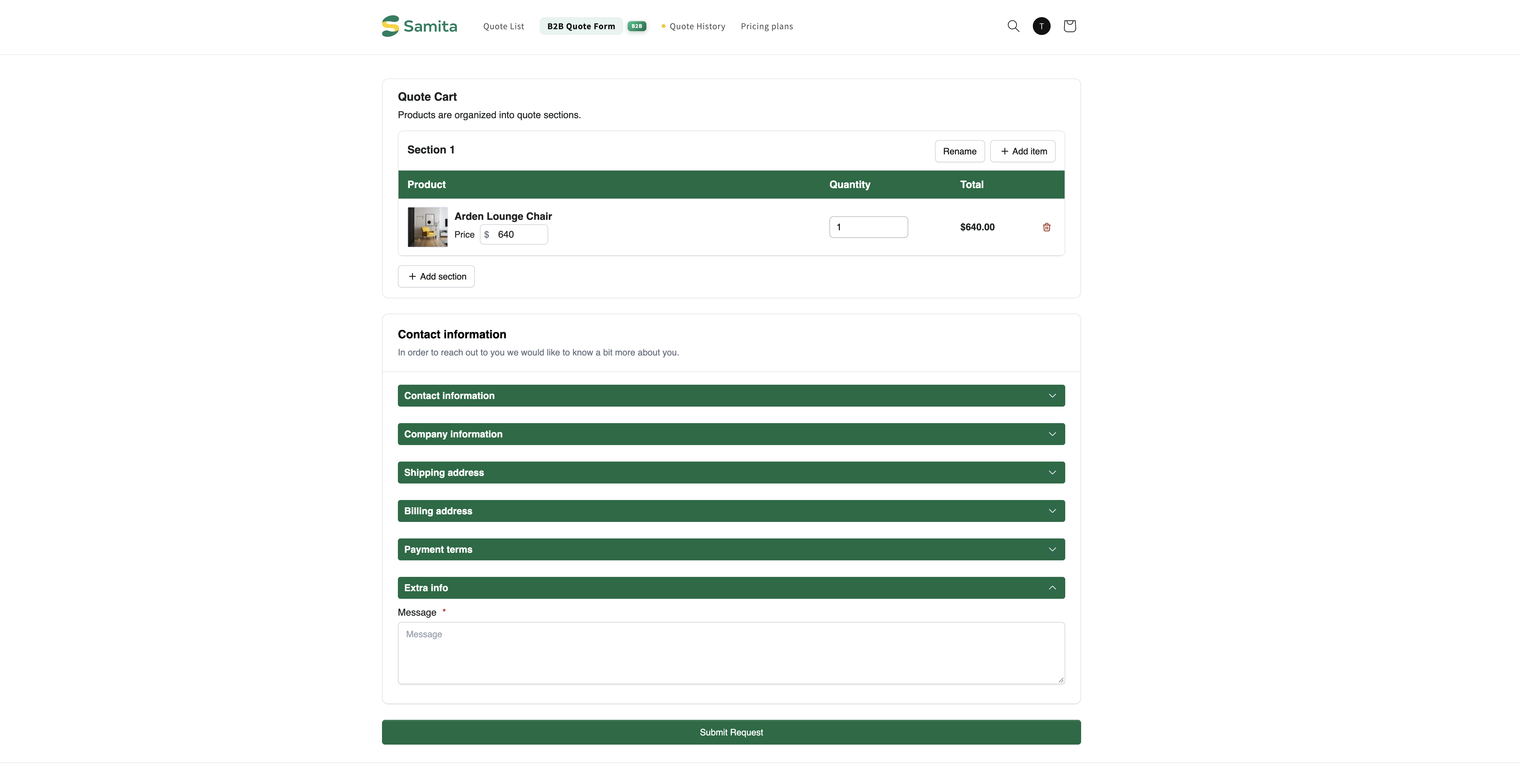
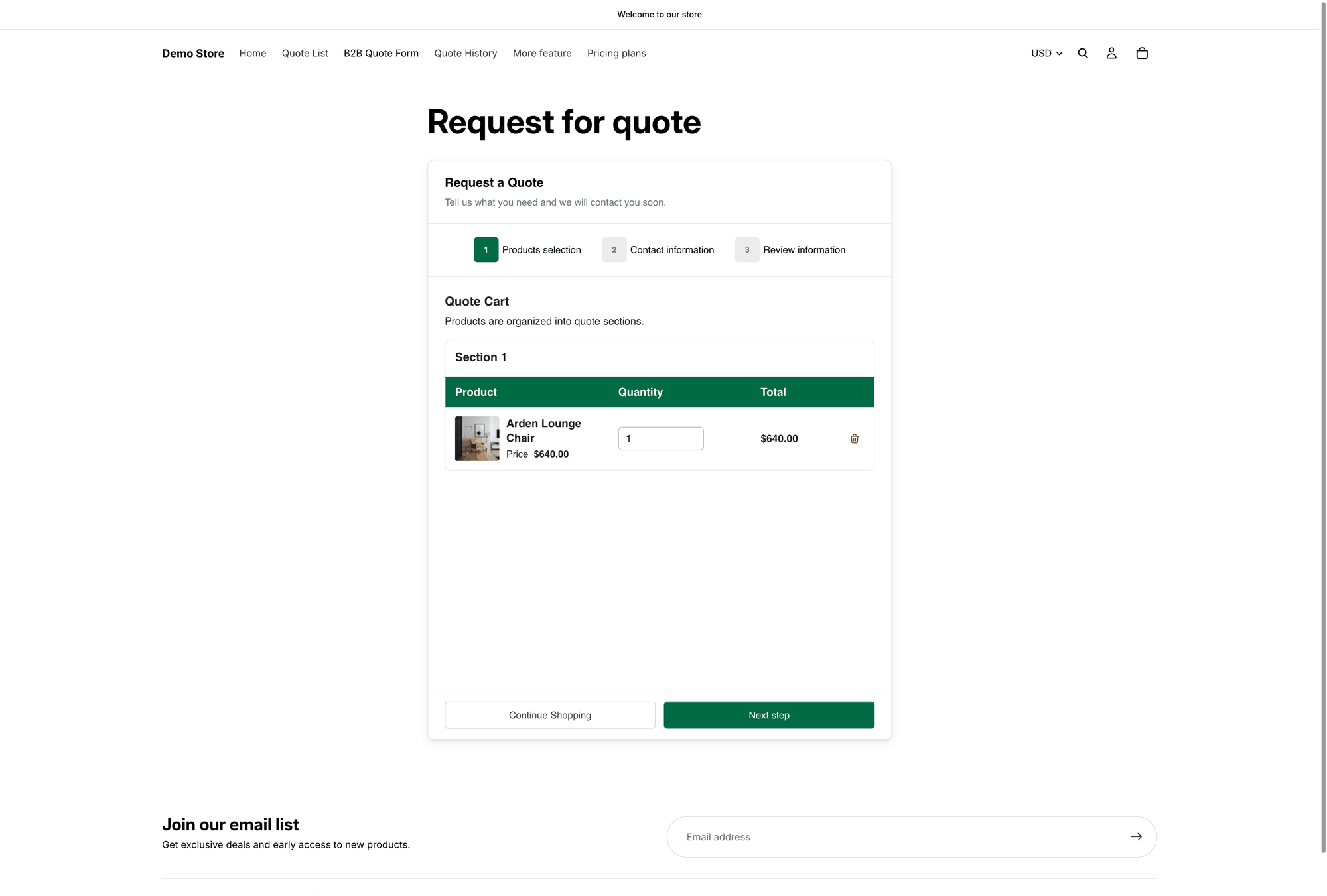
With **Multiple step** selected, the storefront page opens with the heading **Request a Quote** and the line "Tell us what you need and we will contact you soon.", followed by three numbered steps.

{% stepper %}
{% step %}

### Products selection

**Quote Cart** lists everything the customer has collected, with the columns **Product**, **Quantity**, **Price** and **Total**. With **Enable Quote Sections** switched on, the cart is introduced with "Products are organized into quote sections." and the first group is named **Section 1**.

The step ends with **Continue Shopping** and **Next step**.

<figure><img src="https://2993310686-files.gitbook.io/~/files/v0/b/gitbook-x-prod.appspot.com/o/spaces%2FIvNtDAMNVIdy5nl9kiOU%2Fuploads%2Fgit-blob-ef137568cadb4c0f6bc373a3c56cc21055ebee52%2Fscreenshot-storefront-quote-cart-page.png?alt=media" alt="Step 1 of the quote cart page on a storefront, showing the Quote Cart with Section 1 and the Product, Quantity, Price and Total columns"><figcaption><p>Step 1, <strong>Products selection</strong>, at <code>/pages/request-for-quote</code>.</p></figcaption></figure>
{% endstep %}

{% step %}

### Contact information

This step shows the sections you built in **Form builder** — **Contact information**, **Company information** and **Shipping address**.

Above them sits the prompt "Already have an account? Log in to auto-fill your contact and company information." with a **Login** link.

<figure><img src="https://2993310686-files.gitbook.io/~/files/v0/b/gitbook-x-prod.appspot.com/o/spaces%2FIvNtDAMNVIdy5nl9kiOU%2Fuploads%2Fgit-blob-2976b596c3f61b6cabff854b0722778b7ee7e706%2Fscreenshot-storefront-quote-form-contact.png?alt=media" alt="Step 2 of the quote cart page, showing the log in to auto-fill prompt above the Contact information fields"><figcaption><p>Step 2, <strong>Contact information</strong>, with the log-in prompt above the fields.</p></figcaption></figure>
{% endstep %}

{% step %}

### Review information

The last step is **Review information**, where the customer checks the products and the details they typed before sending the request.

<figure><img src="https://2993310686-files.gitbook.io/~/files/v0/b/gitbook-x-prod.appspot.com/o/spaces%2FIvNtDAMNVIdy5nl9kiOU%2Fuploads%2Fgit-blob-978a65440a89d8536172aa6f7882d4e7cb994e89%2FScreenshot%202026-09-30%20at%2011-13-47.png?alt=media" alt="The storefront quote cart at step three, Review information, listing the products and the contact details before submission"><figcaption><p>The customer checks the request before it is sent.</p></figcaption></figure>
{% endstep %}
{% endstepper %}

{% hint style="success" %}
The prompt "Already have an account? Log in to auto-fill your contact and company information." is for customers who have **not** signed in yet — it invites them to log in so the app can fill the fields for them. A customer who is already signed in has nothing to log in to.
{% endhint %}

## What the customer sees after submitting

Once the request is sent, the app shows your success message — by default **Thank you**, "Thank you for submitting a request a quote!" and a **Continue Shopping** button.

That wording is not part of this tab. It lives on the **Success message** tab of the same **Customize** editor, which also has **After submit** with **Redirect to custom URL** if you would rather send customers to a page of your own.

<figure><img src="https://2993310686-files.gitbook.io/~/files/v0/b/gitbook-x-prod.appspot.com/o/spaces%2FIvNtDAMNVIdy5nl9kiOU%2Fuploads%2Fgit-blob-acf7fcbb70ea759132db29fb4814922c7ed31723%2FScreenshot%202026-09-30%20at%2023-27-48.png?alt=media" alt=""><figcaption></figcaption></figure>

{% hint style="info" %}
The emails are separate again. As the **Success message** tab puts it: "Customer confirmation and admin notification emails are managed in Other settings." See [Emails sent to customers](/sa-request-a-quote/emails/emails-to-customers.md).
{% endhint %}

## The rest of the tab

<table><thead><tr><th width="280">Setting</th><th>What it does</th></tr></thead><tbody><tr><td><strong>Enable Quote Sections</strong></td><td>"Lets customers group the products in their quote cart into named sections." See <a href="/sa-request-a-quote/quote-form/product-group.md">product-group.md</a></td></tr><tr><td><strong>Enable Quote Cart Widget</strong></td><td>"Shows a floating button on your storefront so customers can open their quote cart from any page." Set up in <strong>Route 2</strong> above, and covered in full in <a href="/sa-request-a-quote/collecting-quote-requests/quote-widget.md">quote-widget.md</a></td></tr></tbody></table>

Turning on **Enable quote sections** opens a few more controls: **Default section name**, and under **Customer options**, **Add new sections** and **Rename sections**. Two further options, **Move products between sections** and **Add note per section**, are marked **Coming soon**.

## How customers get to the page

<table><thead><tr><th width="300">Route</th><th>Best when</th></tr></thead><tbody><tr><td><strong>Click action</strong> set to <strong>Redirect to quote page</strong></td><td>Customers usually quote one product at a time, so there is nothing to collect first.</td></tr><tr><td><strong>Click action</strong> set to <strong>Add product to quote cart</strong>, then the floating widget</td><td>Customers gather several products as they browse, then review the lot together.</td></tr><tr><td>The popup's <strong>Primary button</strong>, default <code>View Quote</code></td><td>You show a confirmation each time a product is added.</td></tr><tr><td>A link in your navigation menu</td><td>Always worth adding as well, so customers can return at any time.</td></tr></tbody></table>

Set the first three on the **Button & widget** tab — see [Set the after-click behavior](/sa-request-a-quote/collecting-quote-requests/after-click-behavior.md). The menu link is a Shopify setting — see [Add quote links to your menu](/sa-request-a-quote/storefront-quote-pages/add-menu-links.md).

{% hint style="warning" %}
**If the page does not show the quote form and the quote cart**, see [Troubleshooting](/sa-request-a-quote/help/troubleshooting.md).
{% endhint %}

## Next steps

* [Quote history page](/sa-request-a-quote/storefront-quote-pages/quote-history-page.md) — where customers find quotes they have already sent
* [Add quote links to your menu](/sa-request-a-quote/storefront-quote-pages/add-menu-links.md) — link to the page from your navigation
* [Edit quote page text](/sa-request-a-quote/storefront-quote-pages/edit-page-text.md) — add your own wording to the page


---

# Agent Instructions
This documentation is published with GitBook. GitBook is the documentation platform designed so that both humans and AI agents can read, navigate, and reason over technical content effectively. Learn more at gitbook.com.

## Querying This Documentation
If you need additional information that is not directly available in this page, you can query the documentation by asking a question.

Perform an HTTP GET request on the following URL with the `ask` and `goal` query parameters:

```
GET https://docs.samita.io/sa-request-a-quote/storefront-quote-pages/request-a-quote-page.md?ask=<question>&goal=<user_goal>
```

`ask` is the immediate question: it should be specific, self-contained, and written in natural language.
`goal` is what the user is ultimately trying to achieve, the reason they need the answer. Sharing it helps GitBook give you a better, more relevant answer. A goal is most helpful when it describes the outcome the user wants rather than restating the question. For example, with `ask=how do I create an API token`, a goal like `automate deployments from our CI pipeline` lets GitBook tailor the answer to that use case.

The response will contain a direct answer to the question and relevant excerpts and sources from the documentation.

Use this mechanism when the answer is not explicitly present in the current page, you need clarification or additional context, or you want to retrieve related documentation sections.