> For the complete documentation index, see [llms.txt](https://docs.samita.io/llms.txt). Markdown versions of documentation pages are available by appending `.md` to page URLs; this page is available as [Markdown](https://docs.samita.io/sami-b2b-onboarding/application-forms/application-forms.md).

# Application forms overview

Collect wholesale applications from buyers who don't have a business account yet.

An application form is what a buyer fills in to ask for a business account. Buyers use it before they have an account: they open the form on your store, answer your questions and submit. Each submission becomes an application that you review in **Companies › Applications**.

Sami B2B Onboarding creates a ready-to-use form, **Wholesale application**, when you install the app. It asks for the company, the contact person, a shipping address and a billing address, and it is published from the start. You can edit it, or build more forms beside it.

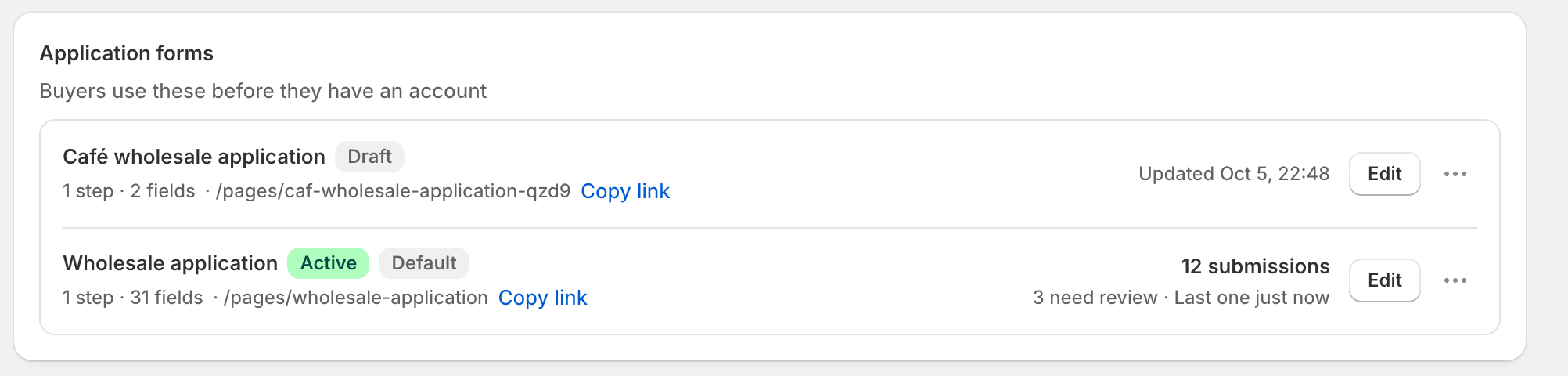
<figure><img src="https://3844812229-files.gitbook.io/~/files/v0/b/gitbook-x-prod.appspot.com/o/spaces%2FRrf4pQPgjvb3GW7IN3Ci%2Fuploads%2Fgit-blob-4ba3ffad3db6ca9675c58fd03cb98b03dc998333%2Fscreenshot-forms-application-forms-list.png?alt=media" alt="The Application forms card listing Café wholesale application marked Draft, and Wholesale application marked Active and Default with 12 submissions."><figcaption><p>Each row shows the form's status, its page address with a Copy link button, and its submission count, or when it was last updated if it has no submissions.</p></figcaption></figure>

## How it fits together

* **Several forms, one default.** You can have as many application forms as you need, for example one per region or per type of buyer. One of them is the **Default** form. The app uses the default wherever you haven't picked a specific form: the form block in the theme editor when its **Form** setting is left empty, the **Apply for an account** button on a locked store, and the customer account pages. To change it, open **…** (More actions) on a published form and choose **Set as default**.
* **Two statuses.** **Active** means the form is published and buyers can open it. **Draft** means it is unpublished: its page is taken off your store and buyers can't apply through it. Use **Publish** and **Unpublish** to switch.
* **A page for every form.** The app creates a page on your Online Store for each application form. Its address is shown under the form's name on the **Forms** page. The form shows on that page once the app embed is on.
* **Account forms live here too.** The **Forms** page also lists four **Account forms**. Approved buyers use those in their customer account to edit their company details. See [Account forms](/sami-b2b-onboarding/customer-accounts/account-forms.md).

Only staff with the admin role can create or change forms. Reviewers can see the list and copy links. See [Team and roles](/sami-b2b-onboarding/settings/team-and-roles.md).

## What you can do from the Forms page

Each form row has these actions.

| Action                                           | Where                                       | What it does                                                                                                                                  |
| ------------------------------------------------ | ------------------------------------------- | --------------------------------------------------------------------------------------------------------------------------------------------- |
| **Edit**                                         | Button on the row, or click the form's name | Opens the form in the builder.                                                                                                                |
| **Copy link**                                    | Under the form's name                       | Copies the full address of the form's page on your store.                                                                                     |
| Submissions count, for example **3 submissions** | Right side of the row                       | Opens **Companies › Applications**, showing only this form's applications. A form with no submissions shows when it was last updated instead. |
| **View applications**                            | **…** (More actions)                        | Same as the submissions link.                                                                                                                 |
| **Copy embed code**                              | **…** (More actions)                        | Copies a snippet you can paste into a page of your theme.                                                                                     |
| **Add block in theme editor**                    | **…** (More actions)                        | Opens the theme editor, ready to add the form block to a page.                                                                                |
| **Duplicate form**                               | **…** (More actions)                        | Makes a Draft copy of the form and opens it in the builder.                                                                                   |
| **Set as default**                               | **…** (More actions)                        | Makes this form the default. Shown only on Active forms that aren't already the default.                                                      |
| **Publish** / **Unpublish**                      | **…** (More actions)                        | Switches the form between Active and Draft. Takes effect at once.                                                                             |
| **Delete form**                                  | **…** (More actions)                        | Deletes the form. Applications you already received are kept. Not available when it's your only application form.                             |

## In this section

<table data-view="cards"><thead><tr><th></th><th></th><th data-hidden data-card-target data-type="content-ref"></th></tr></thead><tbody><tr><td><strong>Create and publish a form</strong></td><td>Make a new form, publish it and check it on your store.</td><td><a href="/sami-b2b-onboarding/application-forms/create-and-publish-a-form.md">Create and publish a form</a></td></tr><tr><td><strong>Build your form</strong></td><td>Add fields, rows and pages, and set up each field.</td><td><a href="/sami-b2b-onboarding/application-forms/build-your-form.md">Build your form</a></td></tr><tr><td><strong>Show, require or disable fields with rules</strong></td><td>Change the form based on what the buyer answers.</td><td><a href="/sami-b2b-onboarding/application-forms/field-rules.md">Show, require or disable fields with rules</a></td></tr><tr><td><strong>Map answers to Shopify</strong></td><td>Choose where each answer goes when you approve an application.</td><td><a href="/sami-b2b-onboarding/application-forms/map-answers-to-shopify.md">Map answers to Shopify</a></td></tr><tr><td><strong>Design the form</strong></td><td>Set the layout, fonts and colors of the form.</td><td><a href="/sami-b2b-onboarding/application-forms/design-the-form.md">Design the form</a></td></tr><tr><td><strong>After the buyer submits</strong></td><td>Show a thank-you message or send buyers to another page.</td><td><a href="/sami-b2b-onboarding/application-forms/after-the-buyer-submits.md">After the buyer submits</a></td></tr></tbody></table>

## Next steps

* [Create and publish a form](/sami-b2b-onboarding/application-forms/create-and-publish-a-form.md) — make your first form of your own, or check the default one.
* [Build your form](/sami-b2b-onboarding/application-forms/build-your-form.md) — change the questions on the Wholesale application.
* [Add a form to your store](/sami-b2b-onboarding/add-a-form-to-your-store/add-a-form-to-your-store.md) — choose where buyers find the form.
* [Applications](/sami-b2b-onboarding/reviewing-applications/applications.md) — review what buyers send.


---

# Agent Instructions
This documentation is published with GitBook. GitBook is the documentation platform designed so that both humans and AI agents can read, navigate, and reason over technical content effectively. Learn more at gitbook.com.

## Querying This Documentation
If you need additional information that is not directly available in this page, you can query the documentation dynamically by asking a question.

Perform an HTTP GET request on the current page URL with the `ask` query parameter, and the optional `goal` query parameter:

```
GET https://docs.samita.io/sami-b2b-onboarding/application-forms/application-forms.md?ask=<question>&goal=<endgoal>
```

`ask` is the immediate question: it should be specific, self-contained, and written in natural language.
`goal` is optional and describes the broader end goal you are ultimately trying to accomplish on behalf of the user. GitBook uses it to tailor the answer towards what is most useful for that goal.

The response will contain a direct answer to the question and relevant excerpts and sources from the documentation.

Use this mechanism when the answer is not explicitly present in the current page, you need clarification or additional context, or you want to retrieve related documentation sections.
