> For the complete documentation index, see [llms.txt](https://docs.samita.io/llms.txt). Markdown versions of documentation pages are available by appending `.md` to page URLs; this page is available as [Markdown](https://docs.samita.io/sami-b2b-onboarding/companies/companies.md).

# Companies overview

See every B2B company your team works with, where each one came from, and the documents buyers uploaded.

The **Companies** directory in Sami B2B Onboarding lists every company your team works with: the ones you approved, the ones you brought in from Shopify, and the ones you imported from a spreadsheet. Open a company to give it a sales rep, pause its ordering, update its terms and keep notes about it.

To find it, open **Sami B2B Onboarding** in the Shopify admin, click **Companies** in the app menu, then click the **Companies** tab. The same screen holds the **Applications** and **Documents** tabs.

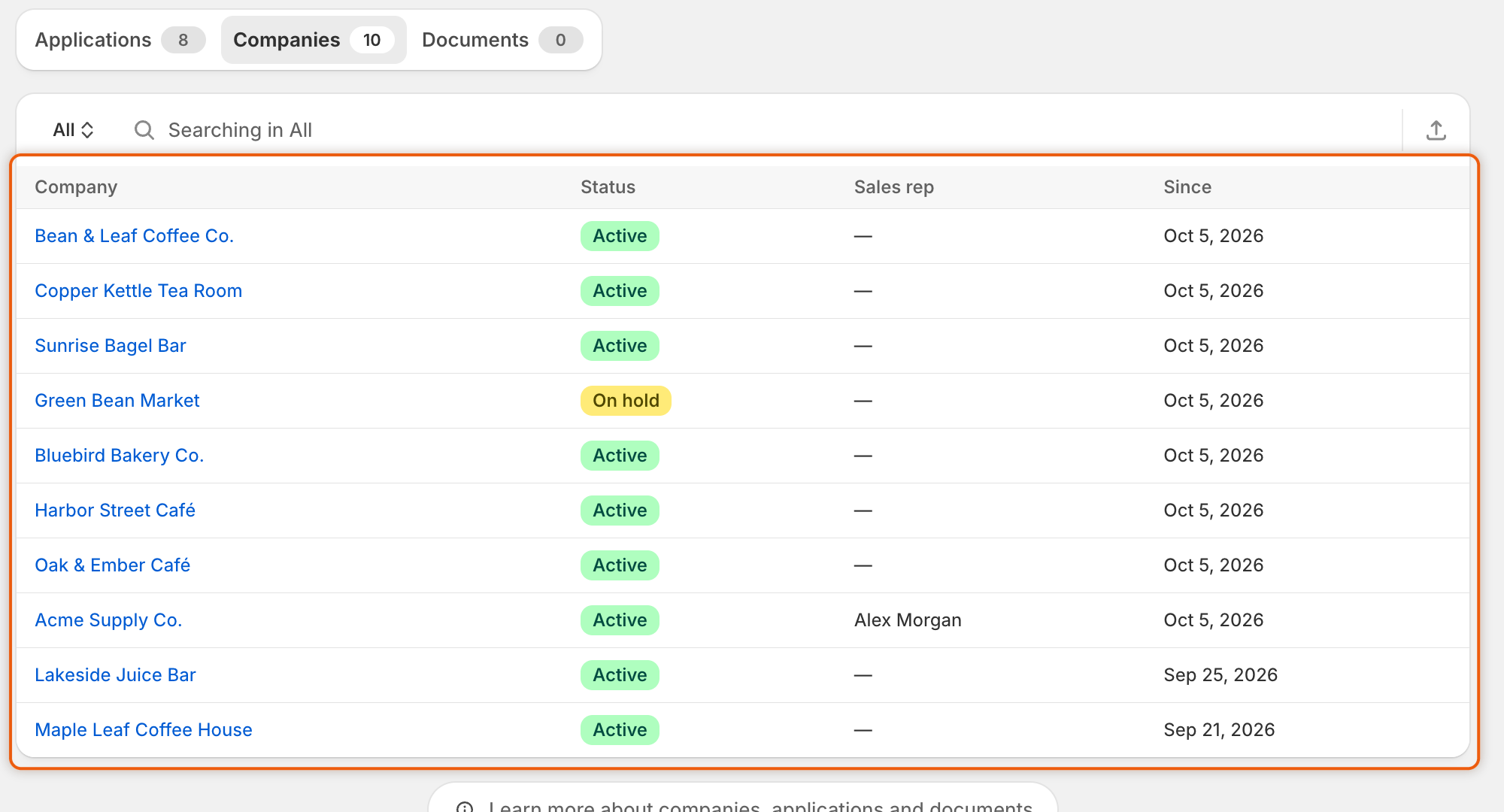
<figure><img src="https://3844812229-files.gitbook.io/~/files/v0/b/gitbook-x-prod.appspot.com/o/spaces%2FRrf4pQPgjvb3GW7IN3Ci%2Fuploads%2Fgit-blob-c460be206c27ddf4b6a6c181d4183a3229becaf1%2Fscreenshot-companies-hub-directory.png?alt=media" alt="The Companies tab listing companies with Status, Sales rep and Since columns; Green Bean Market is On hold, and only Acme Supply Co. has a sales rep while the others show a dash."><figcaption><p>Each row shows the company's status, its sales rep and when it was added to the app, and you click a name to open the company.</p></figcaption></figure>

## What the list shows

| Column        | What it shows                                                   |
| ------------- | --------------------------------------------------------------- |
| **Company**   | The company's name. Click it to open the company's page.        |
| **Status**    | **Active**, **On hold** or **Removed from B2B**.                |
| **Sales rep** | The person on your team who looks after the company, or a dash. |
| **Since**     | The date the company was added to the app.                      |

Every company has one of three statuses:

| Status               | What it means for the company's buyers                                                                                                               |
| -------------------- | ---------------------------------------------------------------------------------------------------------------------------------------------------- |
| **Active**           | They can check out. Every new company starts here.                                                                                                   |
| **On hold**          | Checkout is blocked until you let the company order again.                                                                                           |
| **Removed from B2B** | Checkout is blocked. The company is also left out of duplicate checks on new applications and out of the yearly tax ID re-check. Nothing is deleted. |

Checkout can't be held for a company imported from a CSV file, because Shopify has no company or customer for it.

To narrow the list, click the view button at the start of the search field (**All** to start with) and pick a status. Each status shows how many companies have it. Type in the search field to find a company by its name, its contact or tax ID, or its sales rep's name.

To download the list, click the **Export** icon beside the search field. Choose **Current page**, **All companies** or **Matching your search**, pick a file format, and click **Export companies**. The CSV file has the company, country, status, sales rep, tax ID, payment terms and the date it was added.

## Where companies come from

A company reaches the directory in one of three ways:

| Way in                       | What happens                                                                 | What it means in Shopify                                                                                      |
| ---------------------------- | ---------------------------------------------------------------------------- | ------------------------------------------------------------------------------------------------------------- |
| **Approving an application** | The approval adds the company, with the terms you approved.                  | The app creates the company in Shopify when your plan includes B2B. Otherwise the company is kept in the app. |
| **Sync from Shopify**        | Companies that already exist in Shopify are added to the list, or refreshed. | Nothing is changed in Shopify.                                                                                |
| **Importing a CSV file**     | One company is added, or updated, per row of your file.                      | Nothing is created in Shopify. The companies live in the app only.                                            |

Only admins see **Sync from Shopify** and **Import companies**. Reviewers can open companies, change their status, terms, details and sales rep, and leave comments.

The **Documents** tab lists every file buyers uploaded through a document field on your form, such as a business license or a reseller certificate. You can search them, download them and export the list.

## In this section

<table data-view="cards"><thead><tr><th></th><th></th><th data-hidden data-card-target data-type="content-ref"></th></tr></thead><tbody><tr><td><strong>Manage a company</strong></td><td>Read a company's figures, locations and orders, and change its terms, details and sales rep.</td><td><a href="/sami-b2b-onboarding/companies/manage-a-company.md">Manage a company</a></td></tr><tr><td><strong>Put a company on hold or remove it from B2B</strong></td><td>Stop a company's buyers at checkout, and let them order again later.</td><td><a href="/sami-b2b-onboarding/companies/hold-or-remove-a-company.md">Put a company on hold or remove it from B2B</a></td></tr><tr><td><strong>Sync companies from Shopify</strong></td><td>Bring the companies you already have in Shopify into the list.</td><td><a href="/sami-b2b-onboarding/companies/sync-from-shopify.md">Sync companies from Shopify</a></td></tr><tr><td><strong>Import companies from a CSV file</strong></td><td>Add the companies you already sell to from a spreadsheet.</td><td><a href="/sami-b2b-onboarding/companies/import-companies-from-csv.md">Import companies from a CSV file</a></td></tr><tr><td><strong>Documents</strong></td><td>Find, download and export the files buyers uploaded.</td><td><a href="/sami-b2b-onboarding/companies/documents.md">Documents</a></td></tr></tbody></table>

## Next steps

* [Approve an application](/sami-b2b-onboarding/reviewing-applications/approve-an-application.md) — the usual way a company joins the directory.
* [Sync companies from Shopify](/sami-b2b-onboarding/companies/sync-from-shopify.md) — fill the list with the companies you already have.
* [Manage a company](/sami-b2b-onboarding/companies/manage-a-company.md) — see everything the company page lets you do.


---

# Agent Instructions
This documentation is published with GitBook. GitBook is the documentation platform designed so that both humans and AI agents can read, navigate, and reason over technical content effectively. Learn more at gitbook.com.

## Querying This Documentation
If you need additional information that is not directly available in this page, you can query the documentation dynamically by asking a question.

Perform an HTTP GET request on the current page URL with the `ask` query parameter, and the optional `goal` query parameter:

```
GET https://docs.samita.io/sami-b2b-onboarding/companies/companies.md?ask=<question>&goal=<endgoal>
```

`ask` is the immediate question: it should be specific, self-contained, and written in natural language.
`goal` is optional and describes the broader end goal you are ultimately trying to accomplish on behalf of the user. GitBook uses it to tailor the answer towards what is most useful for that goal.

The response will contain a direct answer to the question and relevant excerpts and sources from the documentation.

Use this mechanism when the answer is not explicitly present in the current page, you need clarification or additional context, or you want to retrieve related documentation sections.
