> For the complete documentation index, see [llms.txt](https://docs.samita.io/llms.txt). Markdown versions of documentation pages are available by appending `.md` to page URLs; this page is available as [Markdown](https://docs.samita.io/sa-request-a-quote/storefront-quote-pages/overview.md).

# Storefront quote pages overview

The two storefront pages the app adds — the quote cart page customers send requests from, and the quote history page they look back at.

The app adds two pages to your storefront. Both are set up in one place: the **Quote cart page** tab of the Customize editor.

<table><thead><tr><th width="200">Setting</th><th width="210">Page and path</th><th width="270">What it shows</th><th>Set it up</th></tr></thead><tbody><tr><td><strong>Quote cart page</strong></td><td>"Request for quote" at <code>/pages/request-for-quote</code></td><td>"Shows the quote form and the customer's quote cart."</td><td><a href="/sa-request-a-quote/storefront-quote-pages/request-a-quote-page.md">request-a-quote-page.md</a></td></tr><tr><td><strong>Quote history page</strong></td><td>"Quote history" at <code>/pages/quotes-history</code></td><td>"Shows a logged-in customer's past quotes."</td><td><a href="/sa-request-a-quote/storefront-quote-pages/quote-history-page.md">quote-history-page.md</a></td></tr></tbody></table>

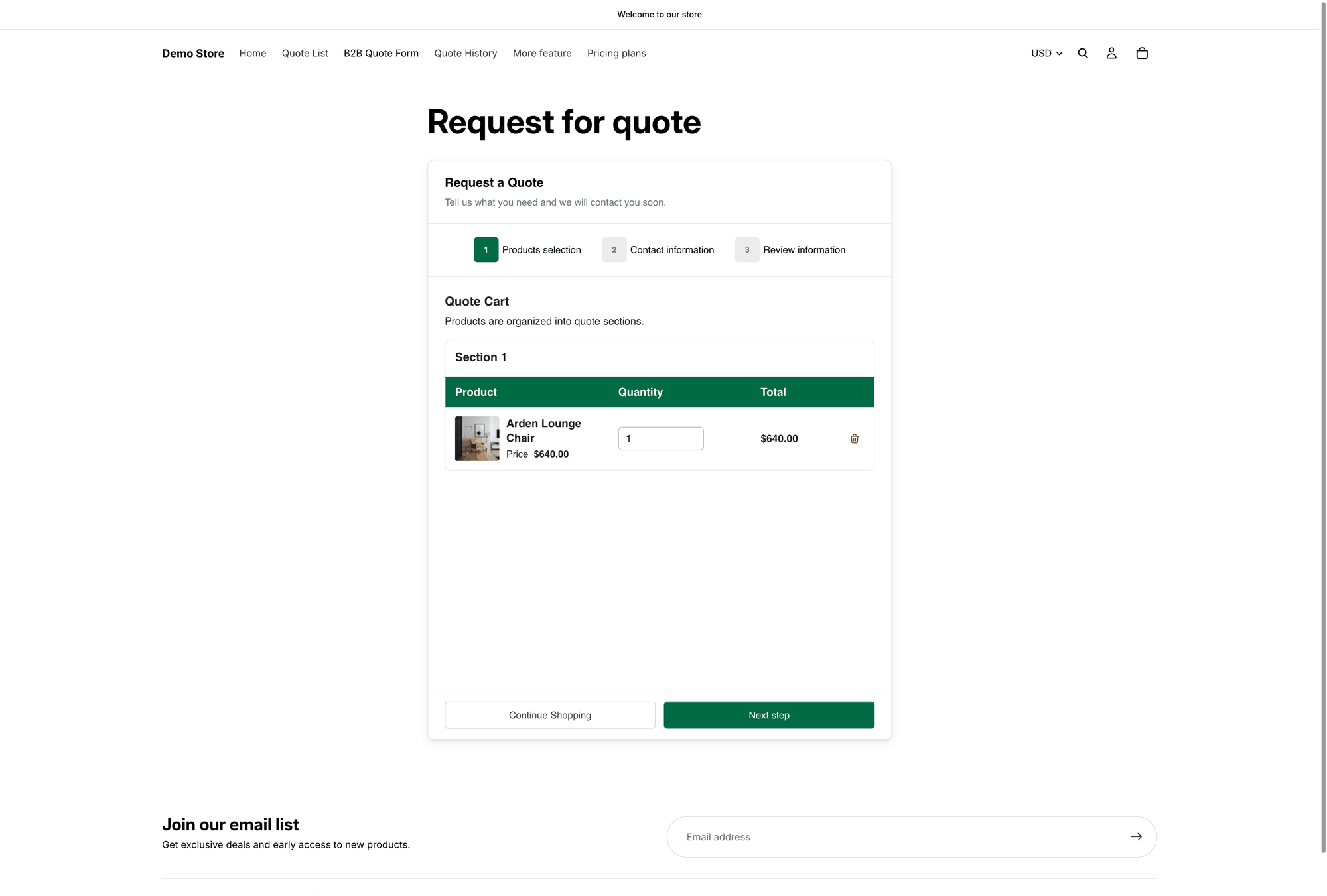
<figure><img src="https://2993310686-files.gitbook.io/~/files/v0/b/gitbook-x-prod.appspot.com/o/spaces%2FIvNtDAMNVIdy5nl9kiOU%2Fuploads%2Fgit-blob-ef137568cadb4c0f6bc373a3c56cc21055ebee52%2Fscreenshot-storefront-quote-cart-page.png?alt=media" alt="The quote cart page on a live storefront, listing the products a customer has collected with the quote form below"><figcaption><p>The quote cart page at <code>/pages/request-for-quote</code>.</p></figcaption></figure>

## Where you configure them

{% stepper %}
{% step %}

### Open Quote settings

In the app, go to **Quote settings**. The page heading is **Request a Quote**.
{% endstep %}

{% step %}

### Click Customize

**Customize** opens a full-screen editor with four tabs.
{% endstep %}

{% step %}

### Open the Quote cart page tab

Both pages are listed under **Pages** on this tab, along with everything else that controls how the quote cart looks.
{% endstep %}
{% endstepper %}

The same tab holds **Product list columns**, **Quote form appearance**, **Enable Quote Sections** and **Enable Quote Cart Widget**.

With **Quote form appearance** set to **Multiple step**, the quote cart page runs as a three-step wizard — **Products selection**, then **Contact information**, then **Review information**. See [Request a Quote page](/sa-request-a-quote/storefront-quote-pages/request-a-quote-page.md).

## How customers reach the pages

A page nobody can find is a page nobody uses. Customers get there in four ways:

<table><thead><tr><th width="290">Route</th><th>How you set it up</th></tr></thead><tbody><tr><td><strong>Click action</strong> set to <strong>Redirect to quote page</strong></td><td>The quote button takes customers straight to the quote cart page — see <a href="/sa-request-a-quote/collecting-quote-requests/after-click-behavior.md">after-click-behavior.md</a></td></tr><tr><td>The popup's <strong>Primary button</strong></td><td>Shown after a product is added. Its default wording is <code>View Quote</code>.</td></tr><tr><td><strong>Enable Quote Cart Widget</strong></td><td>A floating button on your storefront, labelled <strong>Quote (n)</strong> — see <a href="/sa-request-a-quote/collecting-quote-requests/quote-widget.md">quote-widget.md</a></td></tr><tr><td>Your navigation menu</td><td>You add this yourself in Shopify — see <a href="/sa-request-a-quote/storefront-quote-pages/add-menu-links.md">add-menu-links.md</a></td></tr></tbody></table>

{% hint style="info" %}
Adding a menu link is the step most stores forget. It is the one route above that you set up in Shopify rather than in the app.
{% endhint %}

{% hint style="warning" %}
**On a modern theme, the collection-page button may only appear on hover.** Where a theme has its own quick-add control on the product card, the quote button attaches to it: it is invisible until the shopper hovers the card, and then shows as a small icon rather than a labelled button. If you switched it on and your collection grid looks unchanged, hover a card before assuming something is wrong — see [Quote button on collection pages](/sa-request-a-quote/collecting-quote-requests/button-on-collection-pages.md).
{% endhint %}

## They are ordinary Shopify pages

Both live in your Shopify admin alongside your other pages, so you can retitle them and add your own wording — see [Edit quote page text](/sa-request-a-quote/storefront-quote-pages/edit-page-text.md).

## Quotes inside customer accounts

If your store uses Shopify's new customer accounts, you can also show a customer's quotes in the account area itself. That is a separate part of the app, under the **Customer account** navigation item, and it holds three settings: **New customer account settings**, **Translation** and **Permission setting**.

Like the quote history page, it only shows a customer anything once they have signed in — see [Quotes in customer accounts](/sa-request-a-quote/storefront-quote-pages/customer-account-quotes.md).

## Next steps

* [Request a Quote page](/sa-request-a-quote/storefront-quote-pages/request-a-quote-page.md) — the page customers send quotes from
* [Quote history page](/sa-request-a-quote/storefront-quote-pages/quote-history-page.md) — where customers find past quotes
* [Add quote links to your menu](/sa-request-a-quote/storefront-quote-pages/add-menu-links.md) — make both pages findable


---

# Agent Instructions
This documentation is published with GitBook. GitBook is the documentation platform designed so that both humans and AI agents can read, navigate, and reason over technical content effectively. Learn more at gitbook.com.

## Querying This Documentation
If you need additional information that is not directly available in this page, you can query the documentation by asking a question.

Perform an HTTP GET request on the following URL with the `ask` and `goal` query parameters:

```
GET https://docs.samita.io/sa-request-a-quote/storefront-quote-pages/overview.md?ask=<question>&goal=<user_goal>
```

`ask` is the immediate question: it should be specific, self-contained, and written in natural language.
`goal` is what the user is ultimately trying to achieve, the reason they need the answer. Sharing it helps GitBook give you a better, more relevant answer. A goal is most helpful when it describes the outcome the user wants rather than restating the question. For example, with `ask=how do I create an API token`, a goal like `automate deployments from our CI pipeline` lets GitBook tailor the answer to that use case.

The response will contain a direct answer to the question and relevant excerpts and sources from the documentation.

Use this mechanism when the answer is not explicitly present in the current page, you need clarification or additional context, or you want to retrieve related documentation sections.
