> For the complete documentation index, see [llms.txt](https://docs.samita.io/llms.txt). Markdown versions of documentation pages are available by appending `.md` to page URLs; this page is available as [Markdown](https://docs.samita.io/sami-b2b-onboarding/customer-accounts/customer-accounts.md).

# Customer accounts overview

Add the app's pages and banners to your Shopify customer accounts, so buyers can apply, follow their application and manage their company.

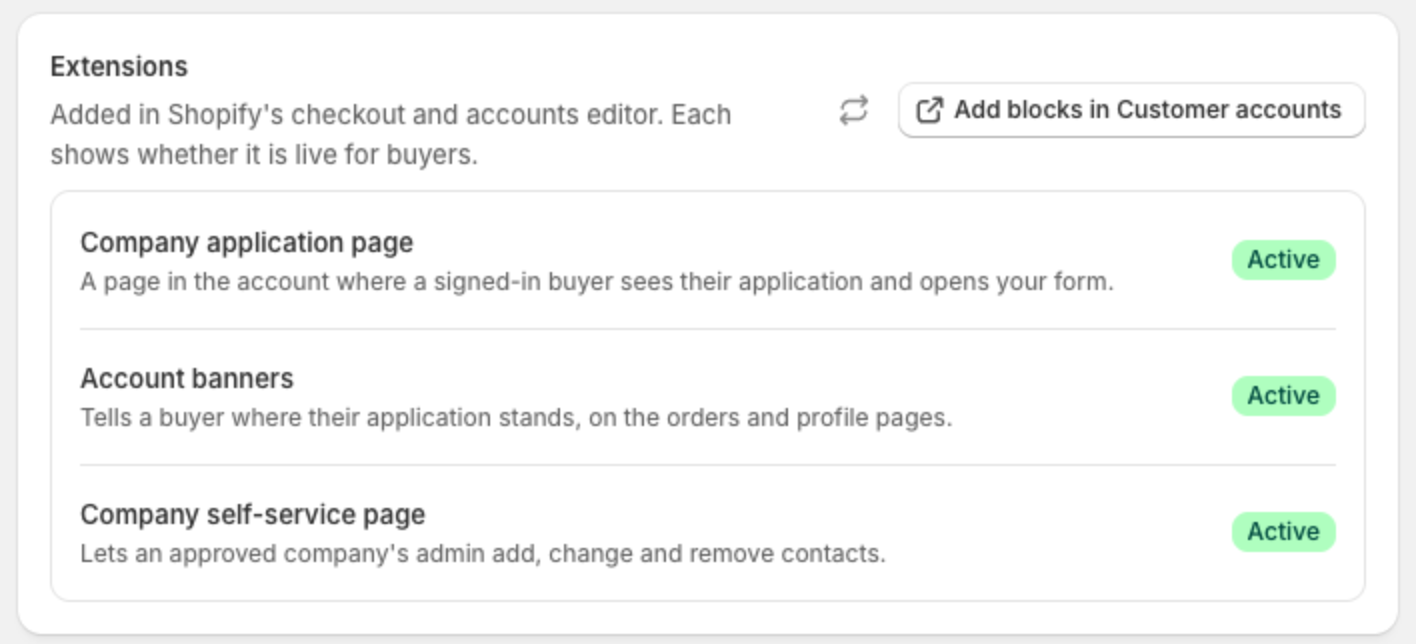
Sami B2B Onboarding adds three pieces to your store's customer accounts. A signed-in buyer can see where their application stands, find your application form, and, once approved, look after their own company. Nothing shows until you place each piece in Shopify's checkout and accounts editor.

| What the app adds             | Where buyers see it                                            | What it's for                                                                                          |
| ----------------------------- | -------------------------------------------------------------- | ------------------------------------------------------------------------------------------------------ |
| **Company application page**  | A page of its own in the account, linked from the account menu | Shows where the buyer's application stands, with a button to your form.                                |
| **Account banners**           | The Orders page and the Profile page                           | Invites a buyer to apply, shows their application status, or links an approved buyer to their company. |
| **Company self-service page** | A page of its own in the account, linked from the account menu | Lets an approved buyer update their company's details and add, change or remove colleagues.            |

{% hint style="info" %}
Before you start:

* Your store must use Shopify's customer accounts, not legacy customer accounts. You choose this in Shopify admin under **Settings › Customer accounts**.
* Publish at least one application form. The **Wholesale application** form the app creates at install is published from the start.
* The self-service page works for buyers who are contacts of a Shopify company. Creating a company in Shopify needs a plan that includes B2B.
  {% endhint %}

## How it fits together

* **One place to check.** In the app, **Settings › Customer accounts** lists the three pieces with a status for each (**Active** or **Not added**). Its **Add blocks in Customer accounts** button opens Shopify's checkout and accounts editor, where you add them. Only admins see this section of Settings.
* **The form stays on your store.** The account pages never show the form itself. They link to the form's own page on your store. A buyer signed in to their account is signed in on the store too, so the application is filed under their account and their email is filled in for them.
* **Self-service runs on account forms.** The details a buyer can edit there come from the **Account forms** on the **Forms** page. You choose their fields, and you decide which edits wait for your approval.
* **Edits you approve.** Buyer edits that need approval, and new locations while you approve them first, wait on the **Change requests** page until someone on your team approves or rejects them.

<figure><img src="https://3844812229-files.gitbook.io/~/files/v0/b/gitbook-x-prod.appspot.com/o/spaces%2FRrf4pQPgjvb3GW7IN3Ci%2Fuploads%2Fgit-blob-12482b90a3215c082efe6c88b1e591dc387aa9df%2Fscreenshot-accounts-hub-extensions-card.png?alt=media" alt="The Extensions card in Settings, listing Company application page, Account banners and Company self-service page, each marked Active."><figcaption><p>Each row tells you whether that piece is live for buyers in their customer account.</p></figcaption></figure>

## In this section

<table data-view="cards"><thead><tr><th></th><th></th><th data-hidden data-card-target data-type="content-ref"></th></tr></thead><tbody><tr><td><strong>Company application page</strong></td><td>Add the page where signed-in buyers apply and follow their application.</td><td><a href="/sami-b2b-onboarding/customer-accounts/company-application-page.md">Company application page</a></td></tr><tr><td><strong>Account banners</strong></td><td>Show application status and an apply link on the Orders and Profile pages.</td><td><a href="/sami-b2b-onboarding/customer-accounts/account-banners.md">Account banners</a></td></tr><tr><td><strong>Company self-service page</strong></td><td>Let approved buyers manage their company and its people.</td><td><a href="/sami-b2b-onboarding/customer-accounts/company-self-service-page.md">Company self-service page</a></td></tr><tr><td><strong>Account forms</strong></td><td>Choose what buyers can edit about their company, location and themselves.</td><td><a href="/sami-b2b-onboarding/customer-accounts/account-forms.md">Account forms</a></td></tr><tr><td><strong>Account change requests</strong></td><td>Approve or reject the edits and new locations that wait for you.</td><td><a href="/sami-b2b-onboarding/customer-accounts/account-change-requests.md">Account change requests</a></td></tr></tbody></table>

## Next steps

* [Company application page](/sami-b2b-onboarding/customer-accounts/company-application-page.md) — start here, so signed-in buyers can find your form.
* [Account banners](/sami-b2b-onboarding/customer-accounts/account-banners.md) — point buyers to the application page from the pages they already visit.
* [Account forms](/sami-b2b-onboarding/customer-accounts/account-forms.md) — turn on the forms the self-service page shows.


---

# Agent Instructions
This documentation is published with GitBook. GitBook is the documentation platform designed so that both humans and AI agents can read, navigate, and reason over technical content effectively. Learn more at gitbook.com.

## Querying This Documentation
If you need additional information that is not directly available in this page, you can query the documentation dynamically by asking a question.

Perform an HTTP GET request on the current page URL with the `ask` query parameter, and the optional `goal` query parameter:

```
GET https://docs.samita.io/sami-b2b-onboarding/customer-accounts/customer-accounts.md?ask=<question>&goal=<endgoal>
```

`ask` is the immediate question: it should be specific, self-contained, and written in natural language.
`goal` is optional and describes the broader end goal you are ultimately trying to accomplish on behalf of the user. GitBook uses it to tailor the answer towards what is most useful for that goal.

The response will contain a direct answer to the question and relevant excerpts and sources from the documentation.

Use this mechanism when the answer is not explicitly present in the current page, you need clarification or additional context, or you want to retrieve related documentation sections.
