
Set product conditions
The Samita Order Limit app gives you full control over which products a rule applies to. You can target all products, specific collections, individual items, or products with certain tags. This makes it easy to create product-specific order restrictions - like limiting pre-order items or controlling access to high-demand products.
Follow this guide to set up product-based targeting for your order limit rules.
🎯 Why Use Product Conditions?
Section titled “🎯 Why Use Product Conditions?”Product conditions help you:
- Apply limits only to selected items (e.g., “Max 2 per customer” for limited-edition products)
- Enforce bulk ordering requirements for specific collections (e.g., “Minimum 10 units” for wholesale products)
- Control how different products are sold without affecting your entire store
👣 How to Set Product Conditions
Section titled “👣 How to Set Product Conditions”When creating or editing a rule:
- Open the Samita Order Limit app in your Shopify admin
- Click an existing rule or click Create new order limit rule button
- Scroll to the Customer conditions section
- Choose one of the following options:
1. Apply to All Products (Default)
Section titled “1. Apply to All Products (Default)”- Simply choose All products option apply the rule to all products in your store.
📝 Example:
Use this option for sitewide minimum order requirements (e.g., “Minimum $20 per order”).
—
2. Apply to Specific Products
Section titled “2. Apply to Specific Products”- Choose Specific products option
- Click Select Products or Browser button
- Use the search box to select individual products that should be affected by this rule
- Click Select
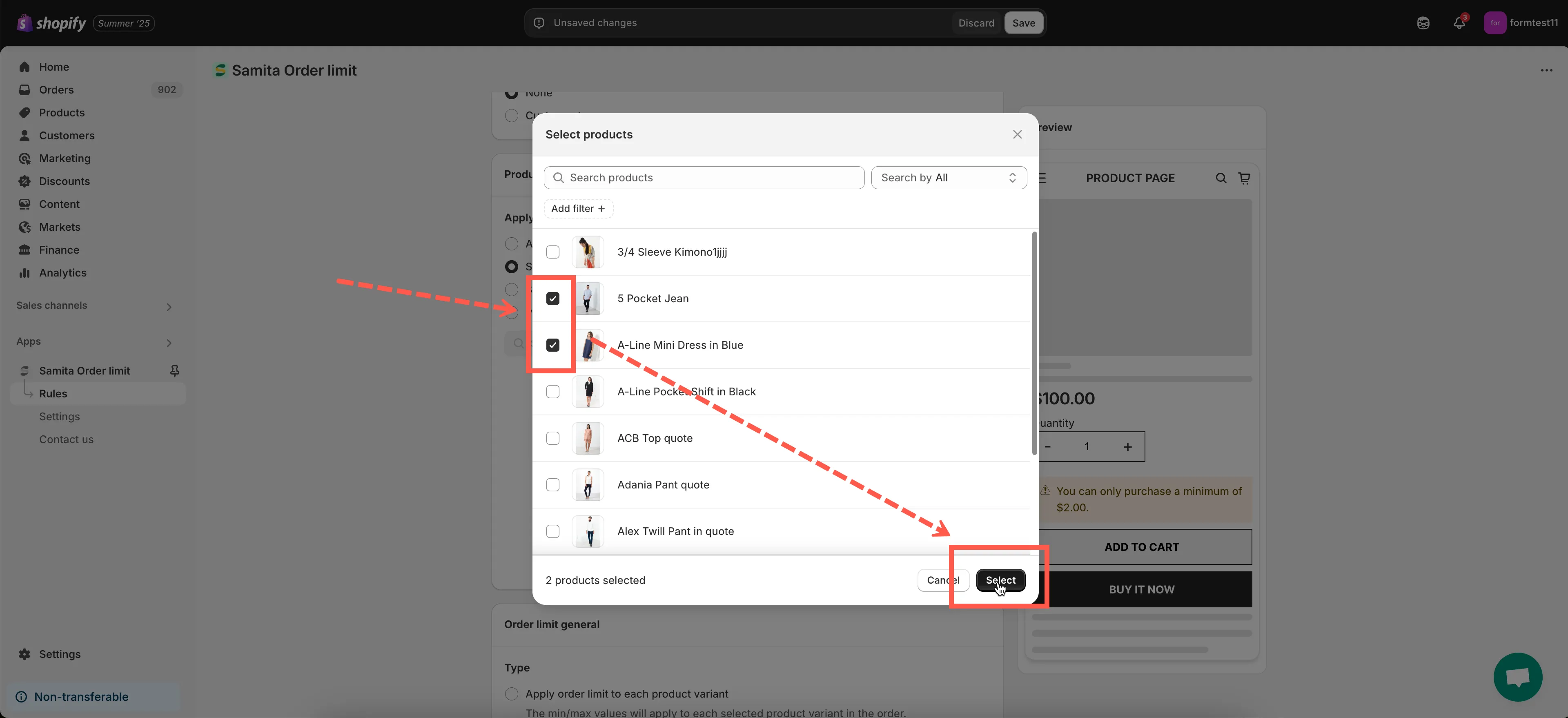
📝 Example:
Apply a limit only to specific items like “Limited Edition Hoodie” or “Pre-Order Laptop”.
—
3. Apply to Collections
Section titled “3. Apply to Collections”- Choose Specific collections option
- Click Select Collections field or Browse button
- Choose one or more Shopify collections from your store
- Click Select
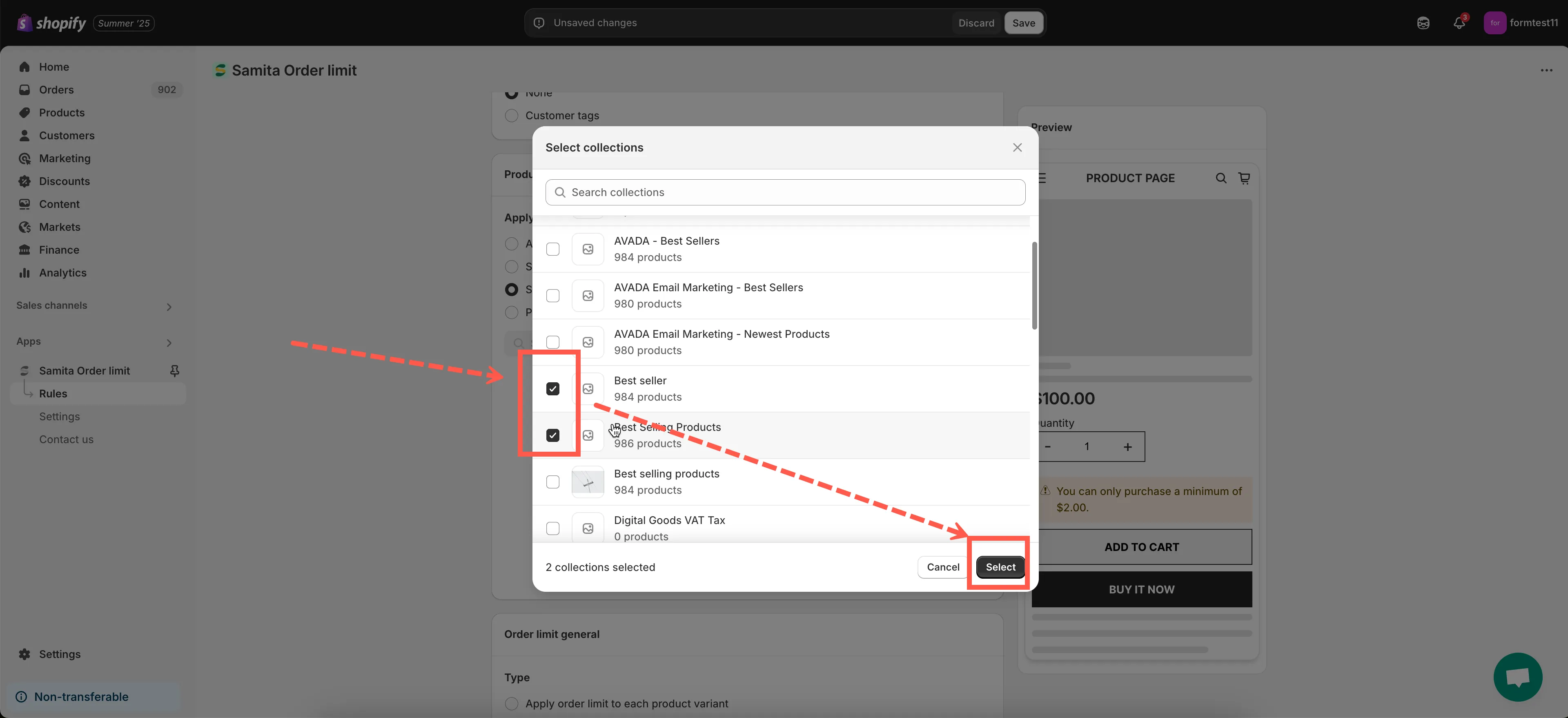
📝 Example:
Set a “Minimum 5 units” rule for the entire “Wholesale” collection.
—
4. Apply to Products with Specific Tags
Section titled “4. Apply to Products with Specific Tags”- Enter one or more product tags in the “Product Tags” field
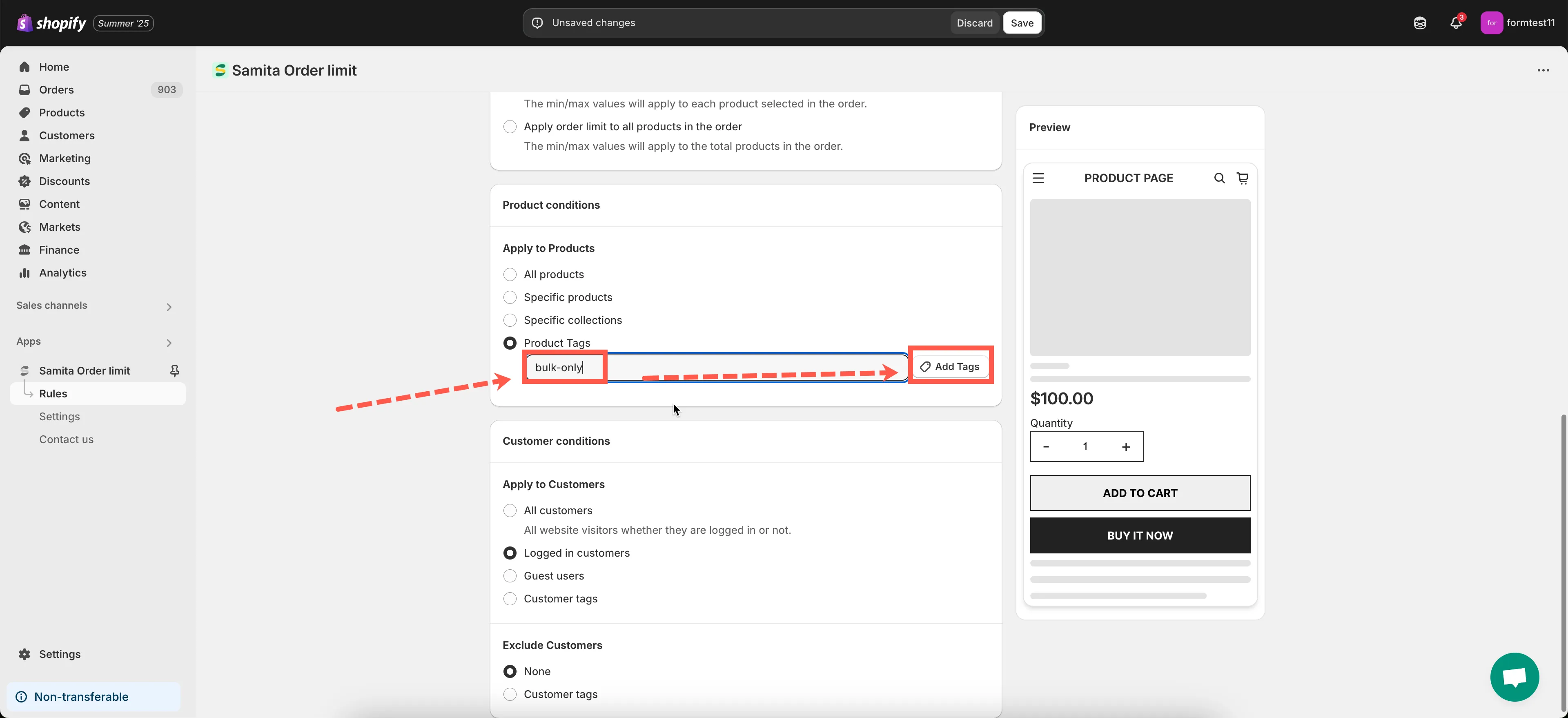
📝 Example:
If you tag all bulk-order-only products with “bulk-only”, simply enter that tag here. The rule will apply only to those tagged products.
💡 Tip: You can manage tags on products by going to Products > [Select product] > Tags in your Shopify admin.
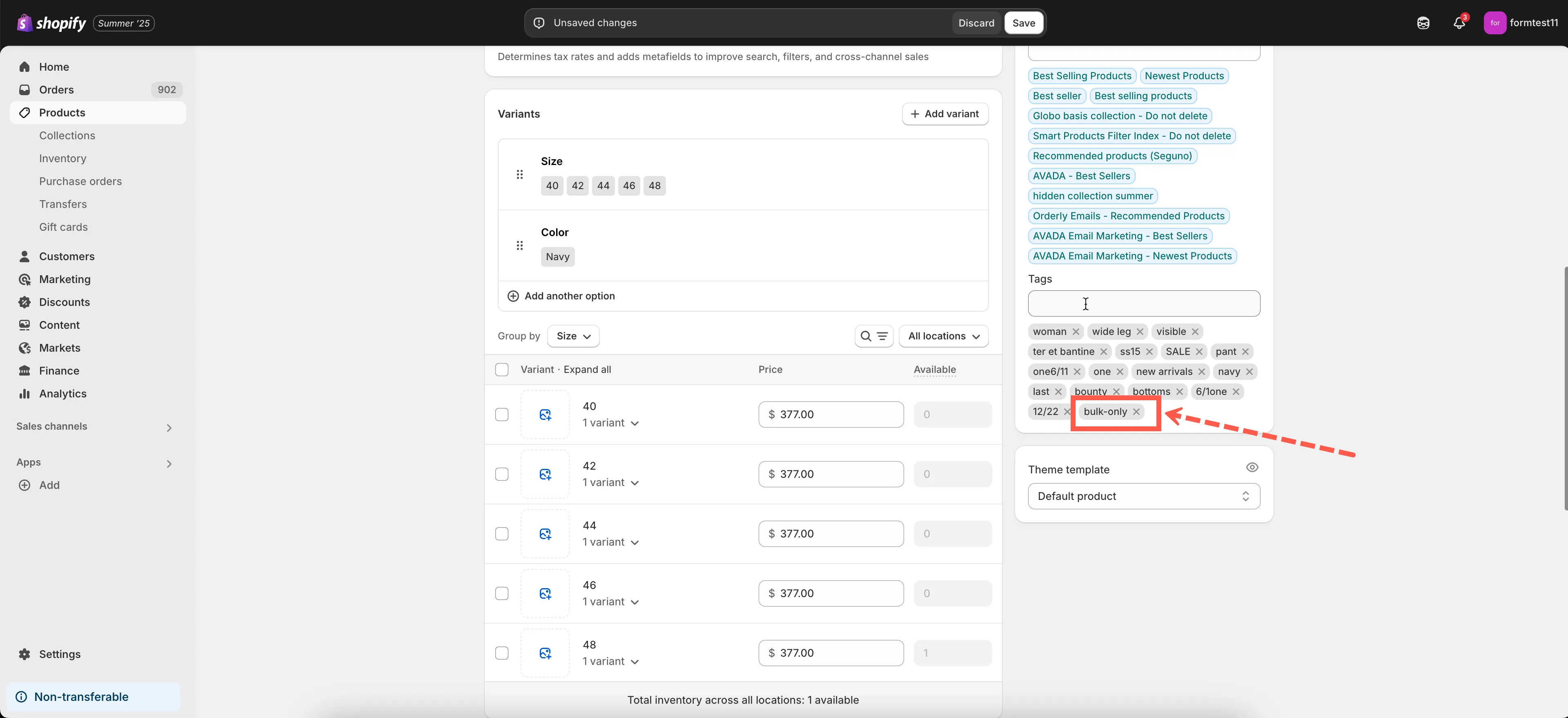
🔎 Testing Product-Based Rules
Section titled “🔎 Testing Product-Based Rules”To test your rule:
- Visit the product or collection page on your storefront
- Add items that match the product conditions to the cart
- Try placing an order that breaks the rule
- Confirm the error message appears or checkout is blocked
—
Need help selecting the right products or conditions? Contact us at [email protected] and we’ll be happy to assist!