
Adjust warning banner on PDP
The Samita Order Limit app displays a warning banner on product pages to alert customers when a product is subject to order limits. You can fully customize this banner’s appearance to match your store’s branding and preferences.
This guide explains how to enable, disable, and style the banner directly from your rule settings.
🧭 How to Adjust the Warning Banner
Section titled “🧭 How to Adjust the Warning Banner”- From your Shopify admin, open the Samita Order Limit app.
- In the app dashboard, find the rule you want to edit and click to open it.
- Go to the Customize tab at the top of the rule editor.
- In the Customize tab, you can modify the following settings:
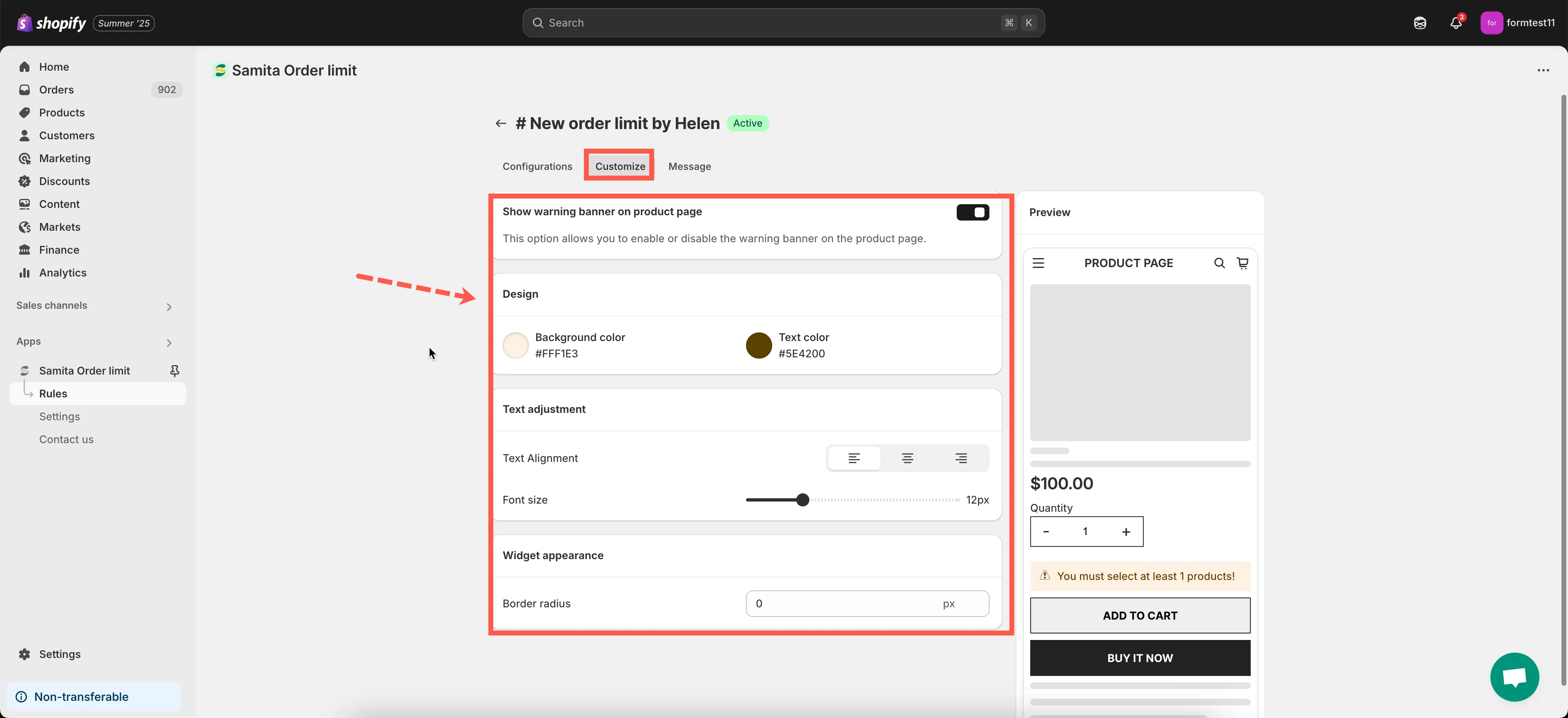
✅ Enable or Disable the Banner
Section titled “✅ Enable or Disable the Banner”- Use the toggle to enable or disable the warning banner on the Product Detail Page.
- When enabled, the banner will appear for any product included in this rule.
🎨 Customize the Banner Style
Section titled “🎨 Customize the Banner Style”You can adjust the look and feel of the banner using these options:
- Background Color
Choose any color using the color picker or enter a hex code (e.g., #FFDDDD). - Font Size
Set the text size for the banner content (e.g., 14px, 16px, 18px). - Border Radius
Add rounded corners to the banner by setting the radius (e.g., 4px, 8px, 12px).
These settings allow you to match the banner design with your storefront’s style.
- Click Save to apply your changes.
🎉 Your banner will now appear with the updated style on applicable product pages.
Need help matching your design or testing banner visibility? Contact our team at [email protected] - we’re happy to assist!