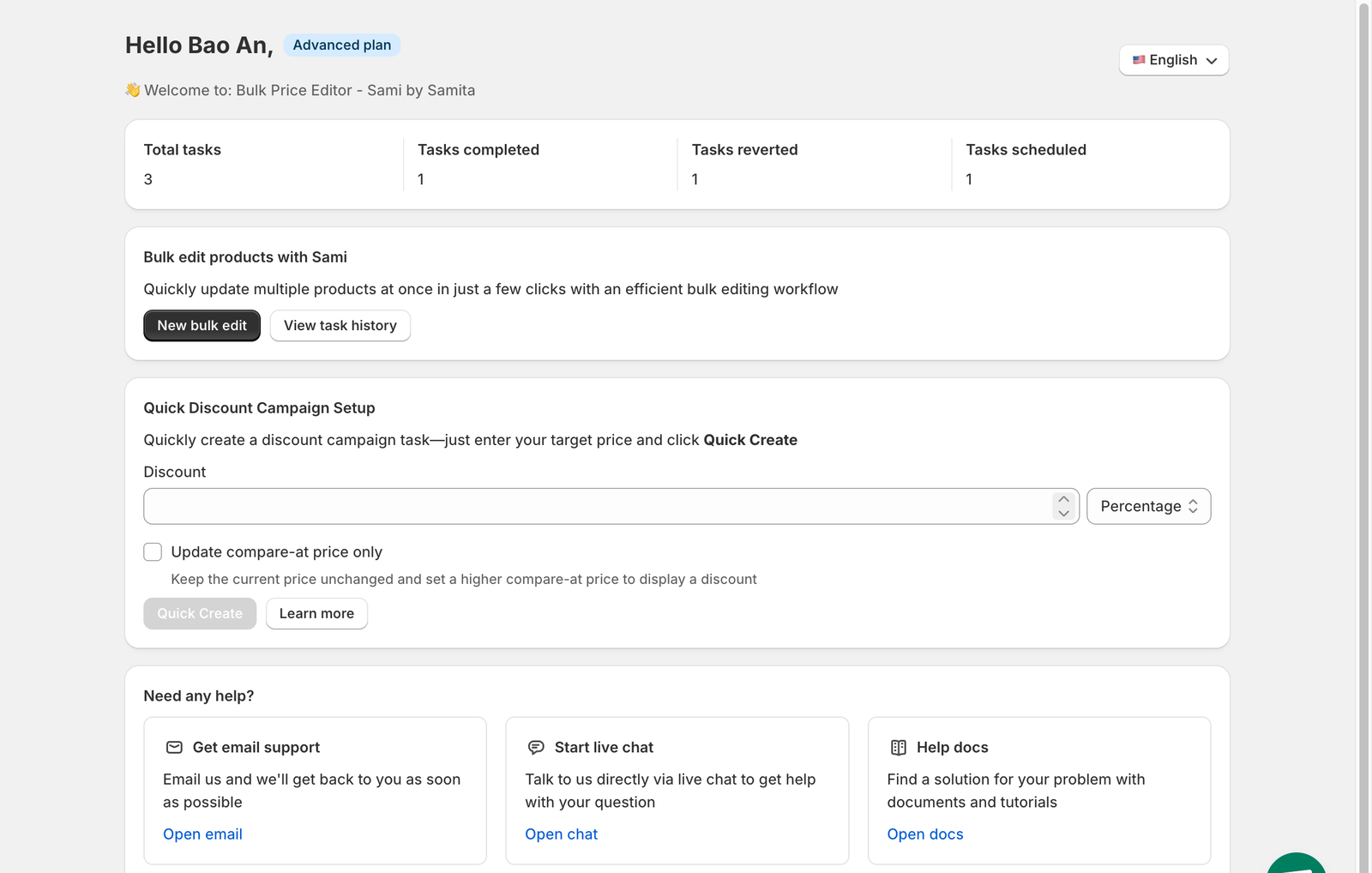
# Welcome to Samita Bulk Price Editor

## 🛠️ Get Started with **Sami Bulk Price Editor**

Welcome to the **Sami Bulk Price Editor** app by [samita.io](https://samita.io)! 🎉 This powerful tool simplifies bulk **price updates**, **title and description edits**, and **status changes** for your Shopify products.

Designed for **flash sales**, **seasonal promotions**, and **inventory updates**, it lets you schedule price changes and revert them automatically—saving time and avoiding manual errors.

This guide will help you **install and set up the app** so you can start managing your product catalog efficiently.

***

### 📖 Overview

The **Sami Bulk Price Editor** is a user-friendly Shopify app by Samita.io . It enables quick and powerful bulk editing for product-related data.

***

### ✅ Key Features:

* ✏️ Bulk edit **product prices**, **compare-at prices**, **titles**, **descriptions**, and **statuses**
* 🎯 Advanced filtering by **tags**, **collections**, **vendors**, or **product types**
* 🗓️ Schedule price changes and **auto-rollback** to original values after sales
* 👀 Preview edits before applying to avoid errors
* ⚡ Fast updates — modify **thousands of products in minutes**
* ➕ Support for both **percentage** and **fixed-amount** price changes (e.g., `+15%`, `-$10`)

> 🛍️ Ideal for merchants managing large catalogs, sales events, or regular pricing workflows.

***

### 🛒 Step 1: Install the App

1. 🌐 **Visit the App Store**\
   👉 <https://apps.shopify.com/bulk-price-editor-sami>\
   🟢 Click **Add app**
2. 🔑 **Log in to Shopify**
   * Enter your Shopify admin credentials if prompted
3. 📥 **Install the App**
   * Review the app permissions (e.g., access to products/inventory)
   * Click **Install app**
4. 📂 **Access the App**
   * Go to the **Apps** section in your Shopify admin
   * Click **Sami Bulk Price Editor** to open the dashboard

***

### ⚙️ Step 2: Configure Basic Settings

#### 🚀 Enable Bulk Editing

* Go to `Settings > General Settings`
* Make sure **bulk editing** is enabled

#### 🗂️ Select Products for Editing

* Go to **Edit Products**
* Use filters to target by:
  * **Tags**
  * **Collections**
  * **Vendors**
  * **Product Types**
* 👁Preview selected products before making changes

#### 💰 Set Price Adjustments

* Go to **Price Editor**
* Choose:
  * `%` **Percentage adjustments** (e.g., +15%, -20%)
  * **Fixed-amount** changes (e.g., +$10, -$5)
* Optionally adjust **compare-at prices**
* Apply rounding options if needed

#### 🗓️ Schedule Changes (Optional)

* Go to **Schedule Tasks**
* Set:
  * Start and end times
  * Enable **auto-rollback** to original pricing after campaign ends

#### 🧪 Review and Apply

* Use **Preview Changes** to confirm edits
* Click **Apply Changes** to update products instantly

***

### 🔍 Step 3: Test the Bulk Editing Process

#### 🧪 Test Price Changes

* Select a small group of items (e.g., 5–10)
* Apply a **test discount** (e.g., -10%)
* &#x20;Check changes on your storefront

#### 📊 Check the Admin Dashboard

* Go to **Edit History** in the dashboard
* Confirm the updates applied correctly

#### 🧭 Test Scheduled Changes

* Set up a test campaign (e.g., a flash sale for tomorrow)
* After the start time, check that:
  * Prices updated on storefront
  * &#x20;Prices reverted automatically if rollback was enabled

***

### 🚀 Step 4: Explore Advanced Features

Take your editing to the next level with these tools:

* **Advanced Filtering**: Combine filters (e.g., Tags + Collection) for precise targeting
* **Progress Tracking**: See real-time updates and logs of changes
* **Revert Option**: Manually undo edits or use scheduled rollback
* **Recurring Tasks**: Automate weekly or monthly sales like "Flash Friday" promos

***

### 🔍 Resources & Help

Dive deeper with these docs:

📚 Explore more guides:

* [Bulk edit product title](broken://pages/3OWz8bUUI20elZubiMnM)
* [Bulk edit product price](broken://pages/8YrGChelfJeyY18WlvCA)
* [Bulk edit product status](broken://pages/fIR68LbS25c82fziop4H)
* [Manage task](broken://pages/0hsaqhdrH3JUAPlNVHar)

***

### 💬 Need Help? <a href="#need-help" id="need-help"></a>

If you run into any issues or have questions, reach out to our support team via the in-app **Help** button or contact us at **<support@samita.io>**.


---

# Agent Instructions: Querying This Documentation

If you need additional information that is not directly available in this page, you can query the documentation dynamically by asking a question.

Perform an HTTP GET request on the current page URL with the `ask` query parameter:

```
GET https://docs.samita.io/bulk-price-editor-sami/welcome-to-samita-bulk-price-editor.md?ask=<question>
```

The question should be specific, self-contained, and written in natural language.
The response will contain a direct answer to the question and relevant excerpts and sources from the documentation.

Use this mechanism when the answer is not explicitly present in the current page, you need clarification or additional context, or you want to retrieve related documentation sections.
