> For the complete documentation index, see [llms.txt](https://docs.samita.io/llms.txt). Markdown versions of documentation pages are available by appending `.md` to page URLs; this page is available as [Markdown](https://docs.samita.io/b2b-lock-password-protect/quick-start/quickstart.md).
# Create your first lock
Build and verify your first lock in a few minutes, using a real example — hiding a product's price from guests.
This walkthrough builds one simple, common lock: hide the price and **Add to cart** button on a single product so only logged-in customers can see them. It's a good first lock because it uses the three pieces every lock is built from — content to lock, an access rule, and a lock behavior — without any extra complexity.
Make sure you've already [enabled the app embed](/b2b-lock-password-protect/quick-start/enable-app-embed.md) on your theme, or the lock you create here won't take effect on your storefront yet.
{% stepper %}
{% step %}
### Open Locks and start a new lock
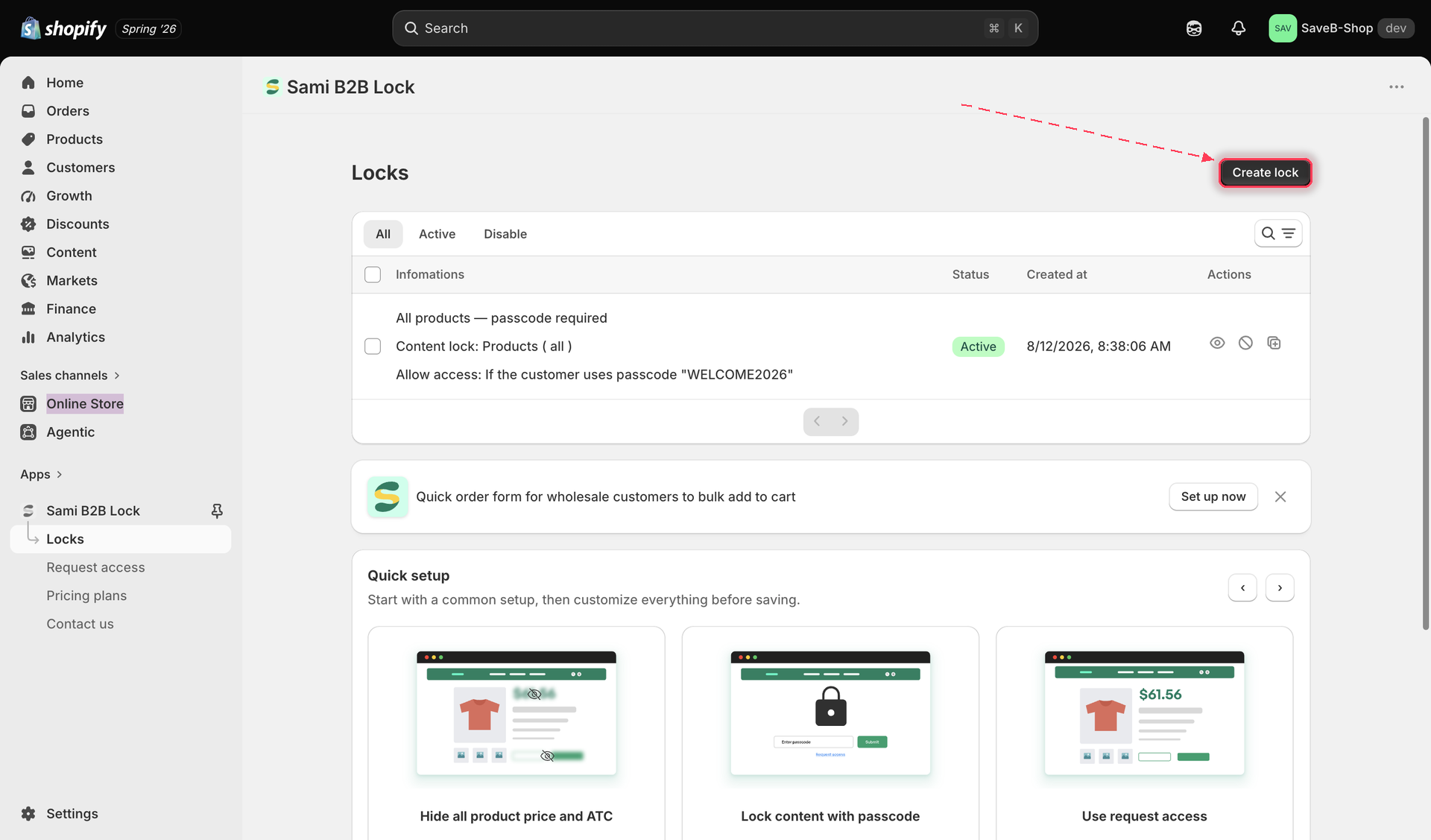
Open the app and go to the **Locks** page, then click **Create Lock**.
Start a new lock from the Locks page.
{% endstep %}
{% step %}
### Name your lock
Give the lock a name you'll recognize later, for example "Members-only pricing." This name is only for your own reference in the admin — shoppers never see it.
{% endstep %}
{% step %}
### Choose Products as the content to lock
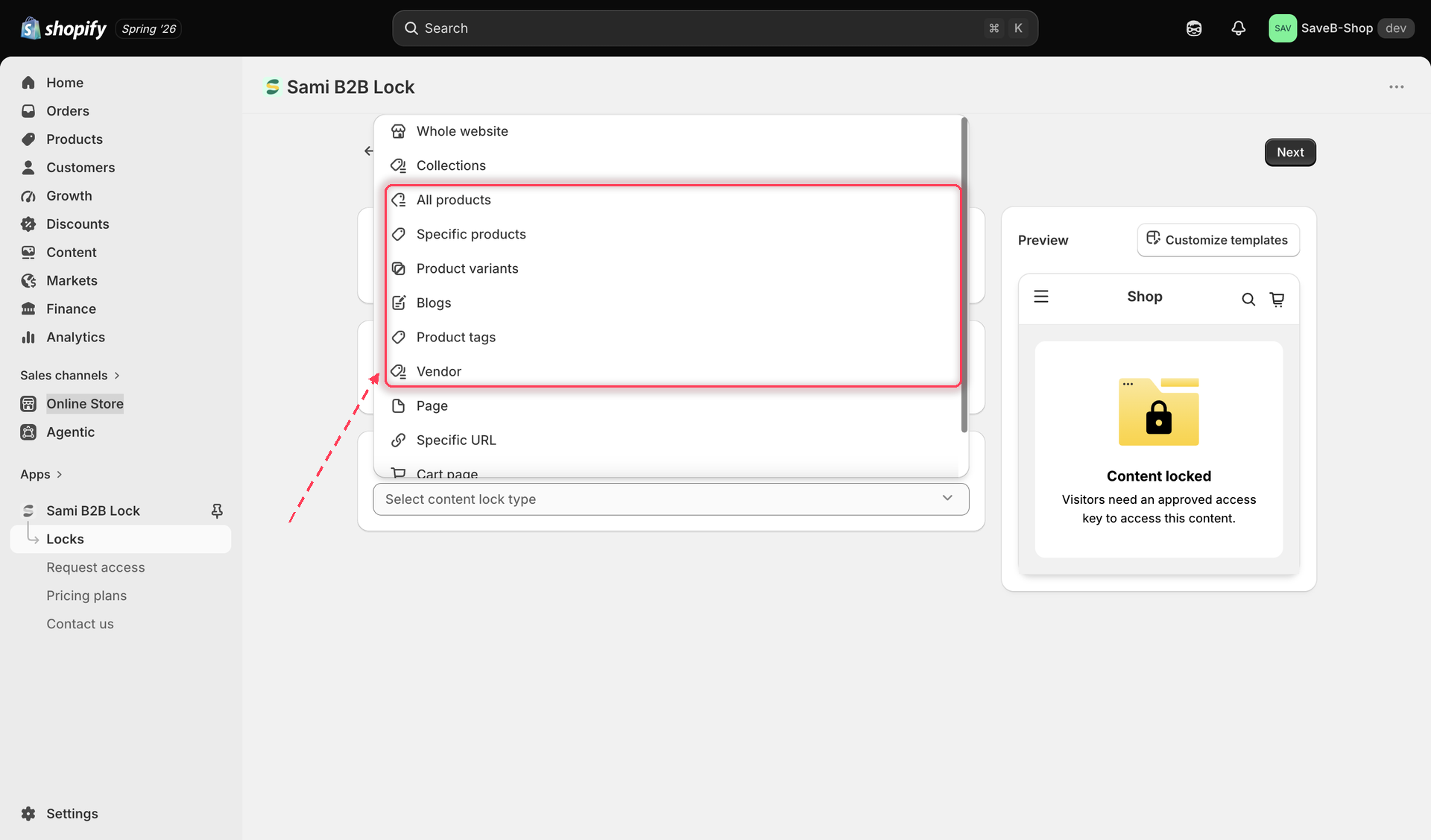
Set **Content to lock** to **Products**, then pick the single product you want to protect from the product picker.
Pick Products as the content type, then choose the specific product to protect.
{% endstep %}
{% step %}
### Add the Logged-in customers access rule
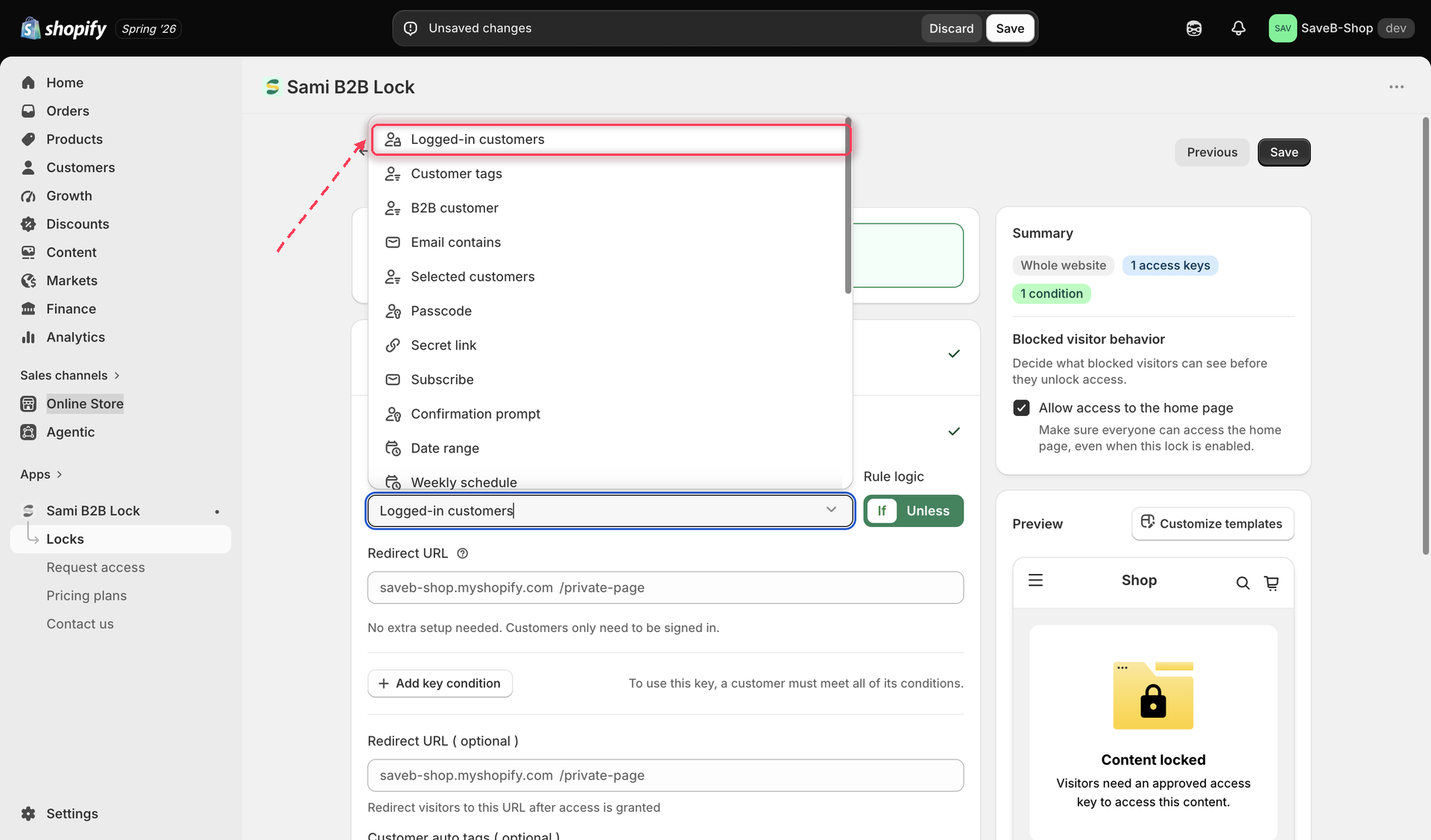
Add an access rule and choose **Logged-in customers**. Leave it set to match **If** the visitor is signed in — this is the default and the setting this example needs.
Add the Logged-in customers access rule to the lock.
{% endstep %}
{% step %}
### Turn on Hide price and Add to cart
In the lock's behavior settings, turn on both **Hide price** and **Hide Add to cart**. Guests who don't pass the access rule will see the product page with the price and button replaced, instead of being blocked entirely.
{% endstep %}
{% step %}
### Save the lock
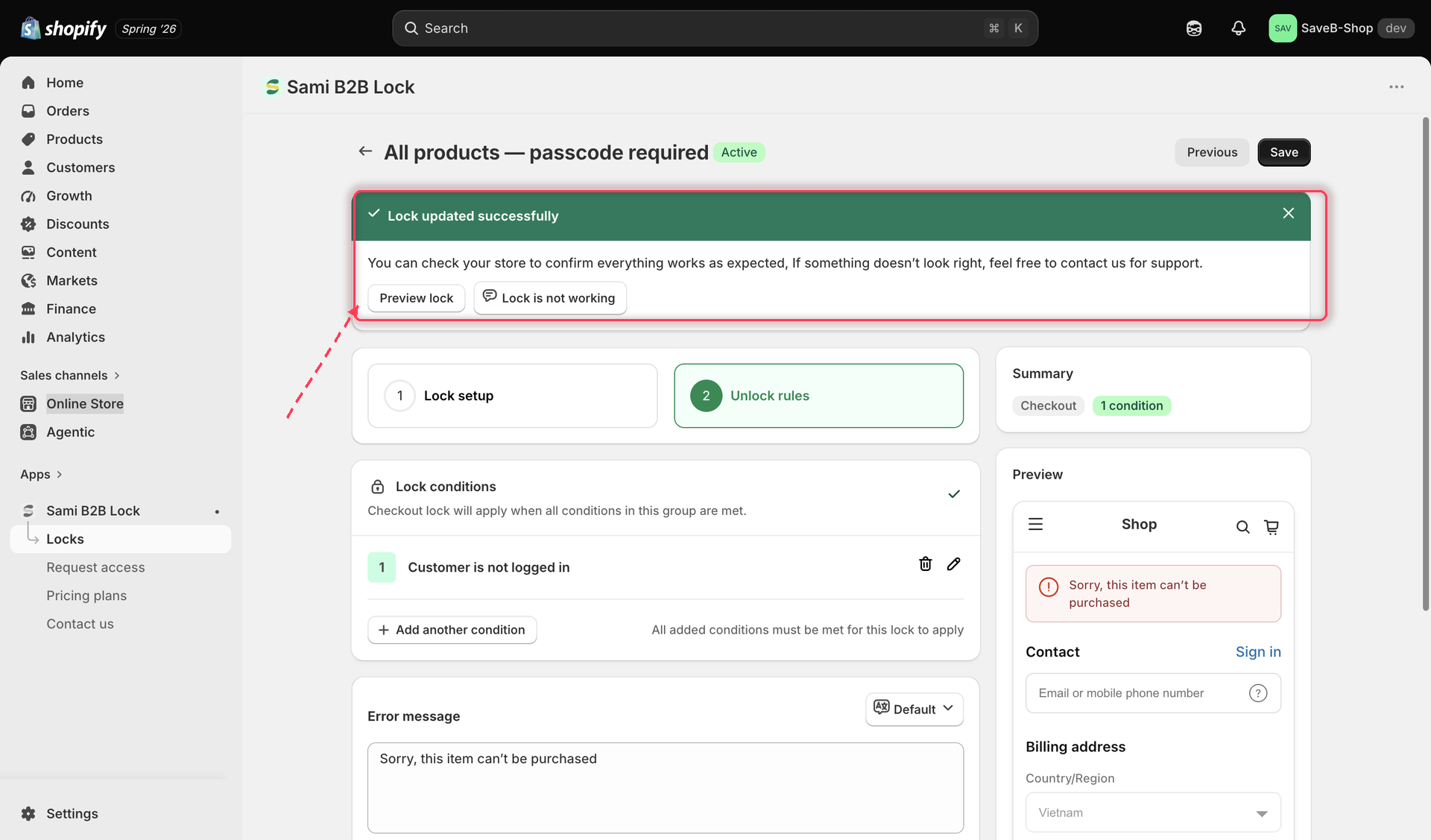
Review the summary of what you've configured — content, access rule, and behavior — then click **Save**.
Review the lock summary before saving.
{% endstep %}
{% step %}
### Verify it on your live storefront
Open an incognito or private browser window and visit the product page on your live storefront. You should see the price and **Add to cart** button replaced with a "Login to see price" / "Login to Add to cart" prompt instead of the normal buy box.
Now log in with a customer account (in that same window, or any browser where you're signed in) and reload the product page. The price and **Add to cart** button should reappear normally, since you now pass the Logged-in customers rule.
{% endstep %}
{% endstepper %}
{% hint style="success" %}
If the price and Add to cart button stayed hidden for the signed-out visitor and reappeared once you logged in, your first lock is working correctly on both sides — denied and allowed.
{% endhint %}
## Next steps
* [How locks work](/b2b-lock-password-protect/quick-start/how-locks-work.md)
* [Locks overview](/b2b-lock-password-protect/locks/overview.md)
---
# Agent Instructions
This documentation is published with GitBook. GitBook is the documentation platform designed so that both humans and AI agents can read, navigate, and reason over technical content effectively. Learn more at gitbook.com.
## Querying This Documentation
If you need additional information that is not directly available in this page, you can query the documentation dynamically by asking a question.
Perform an HTTP GET request on the current page URL with the `ask` query parameter, and the optional `goal` query parameter:
```
GET https://docs.samita.io/b2b-lock-password-protect/quick-start/quickstart.md?ask=&goal=
```
`ask` is the immediate question: it should be specific, self-contained, and written in natural language.
`goal` is optional and describes the broader end goal you are ultimately trying to accomplish on behalf of the user. GitBook uses it to tailor the answer towards what is most useful for that goal.
The response will contain a direct answer to the question and relevant excerpts and sources from the documentation.
Use this mechanism when the answer is not explicitly present in the current page, you need clarification or additional context, or you want to retrieve related documentation sections.