
Variants
Lock down to specific variants — one size or color — instead of the whole product.
Choose Variants when only some options of a product should be locked — for example, a limited-edition color, or a size reserved for wholesale customers — while the rest of the product stays open to everyone.
Create the lock
Section titled “Create the lock”- Open Locks in the app’s navigation.
- Click Create lock.
- Give the lock a descriptive name, for example “Reserved size — wholesale only.”
- On the Lock setup tab, in the Content to lock dropdown, choose Product variants.
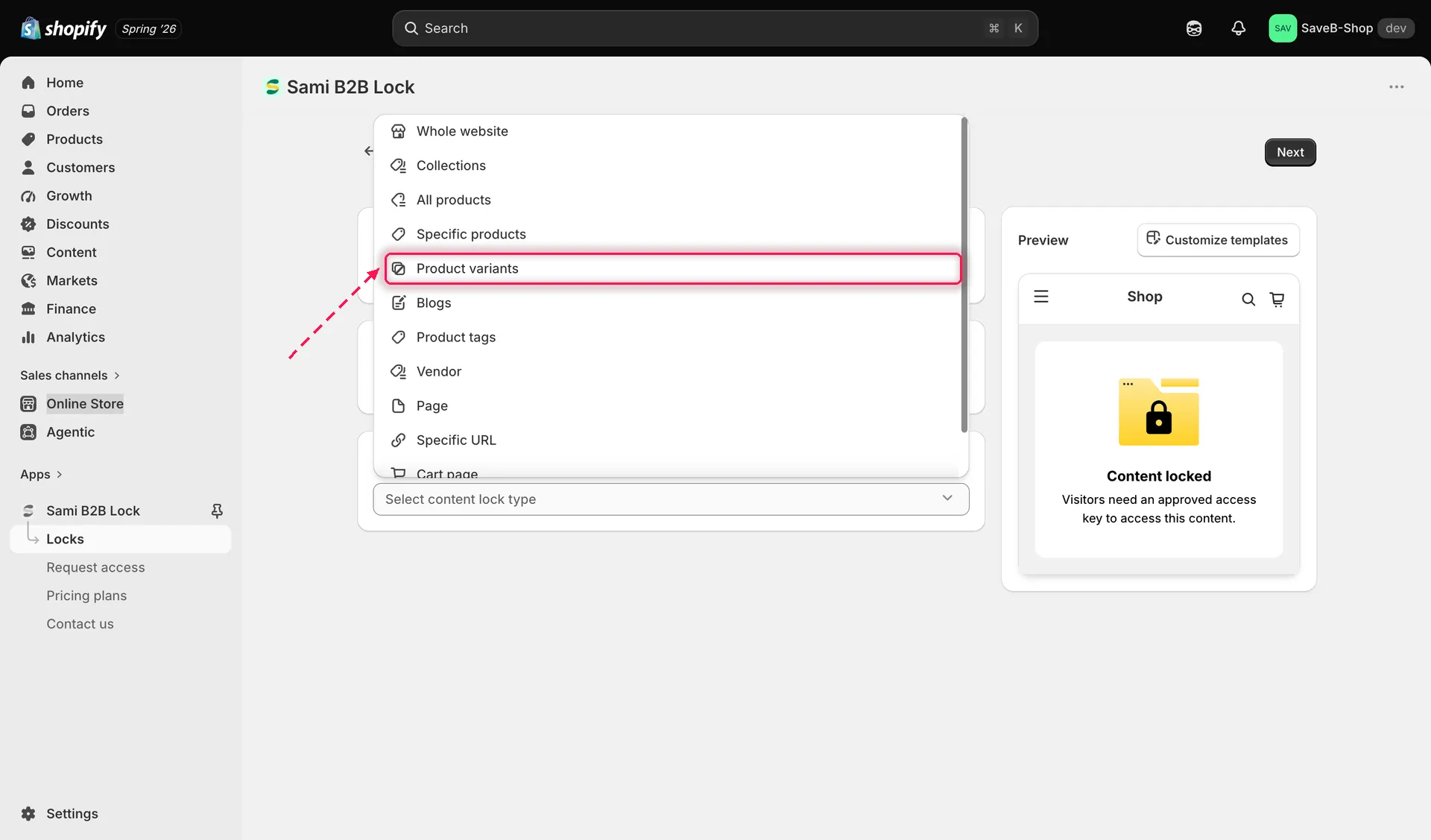
Choose Product variants to lock down to individual product options.
- Use the picker to search for the product, then select the specific variant or variants you want to lock. You can select variants across multiple products in the same lock.
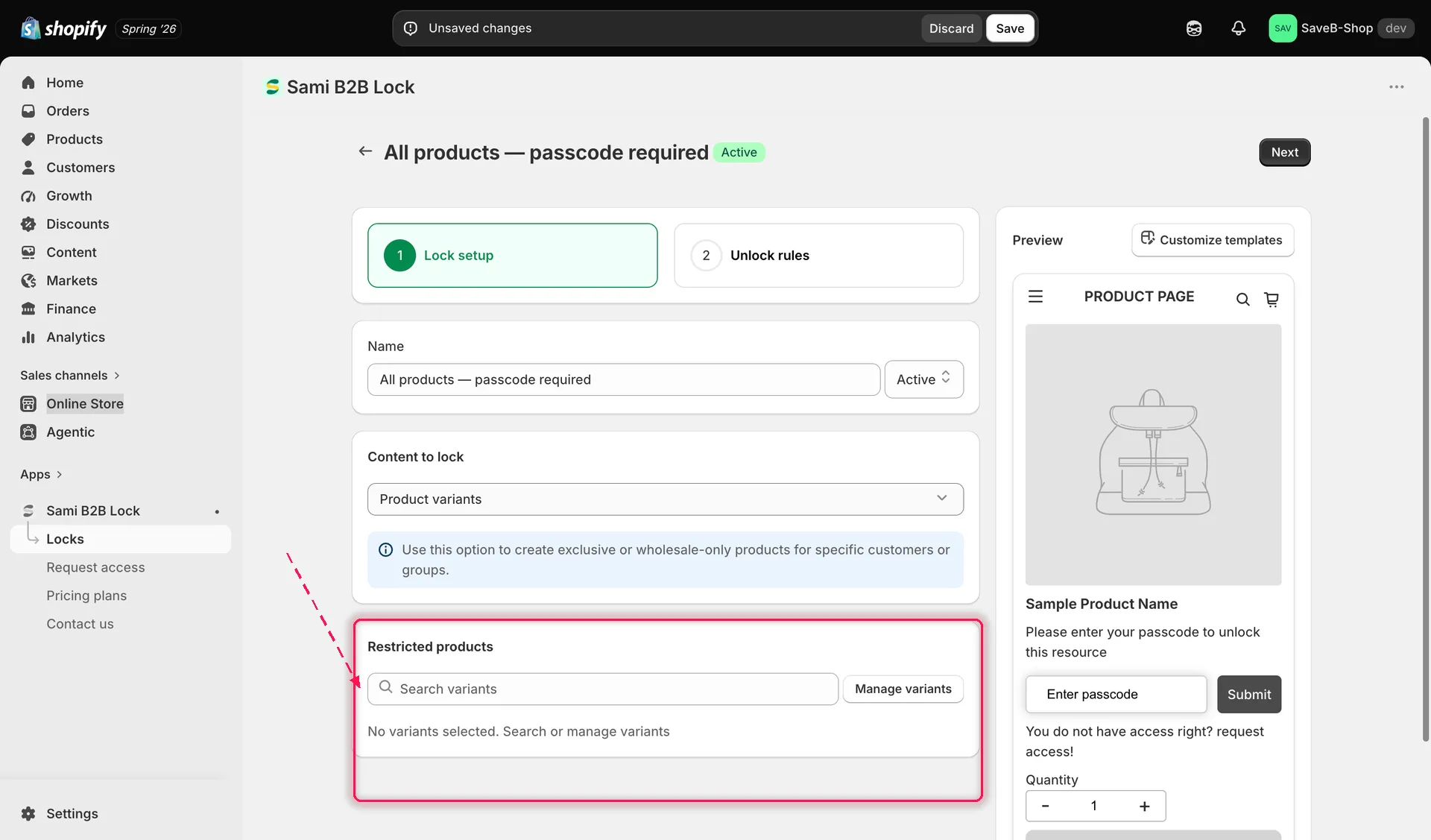
Search for a product, then select the specific variants to lock.
- Click the Unlock rules tab to continue.
Add an access rule
Section titled “Add an access rule”- Add at least one rule. See Access rules overview for the full catalogue.
- Add every required condition to the access key. All conditions must be satisfied. See Combining rules.
Choose a lock behavior
Section titled “Choose a lock behavior”On the same Unlock rules tab, the right-hand sidebar has a Blocked visitor behavior panel — configure it alongside your rule:
- Hide price and Add to cart is the natural fit here — the rest of the product stays fully visible while only the locked variant’s price or Add to cart control is affected. Review Lock behavior overview for all the available options.
- Click Save. The lock takes effect on your storefront as soon as the app embed is enabled.