
Selected customers
Hand-pick specific individual customers who can access a lock, without relying on tags or emails.
The Selected customers rule lets you choose exactly which customer accounts should pass — a hand-picked list rather than anything based on tags, email, or B2B status. It’s the right tool when access comes down to a short, specific list of named people rather than a pattern you can describe with a rule.
How it works
Section titled “How it works”You search for and select individual customers directly from your store’s customer list inside the rule. Only the customers you’ve explicitly added to the list are checked — there’s no tag or email pattern involved, so keeping the list current is entirely manual.
Adding the rule
Section titled “Adding the rule”-
Open the lock you want to protect and click the Unlock rules tab.
-
Add an access rule and choose Selected customers from the Condition type dropdown.
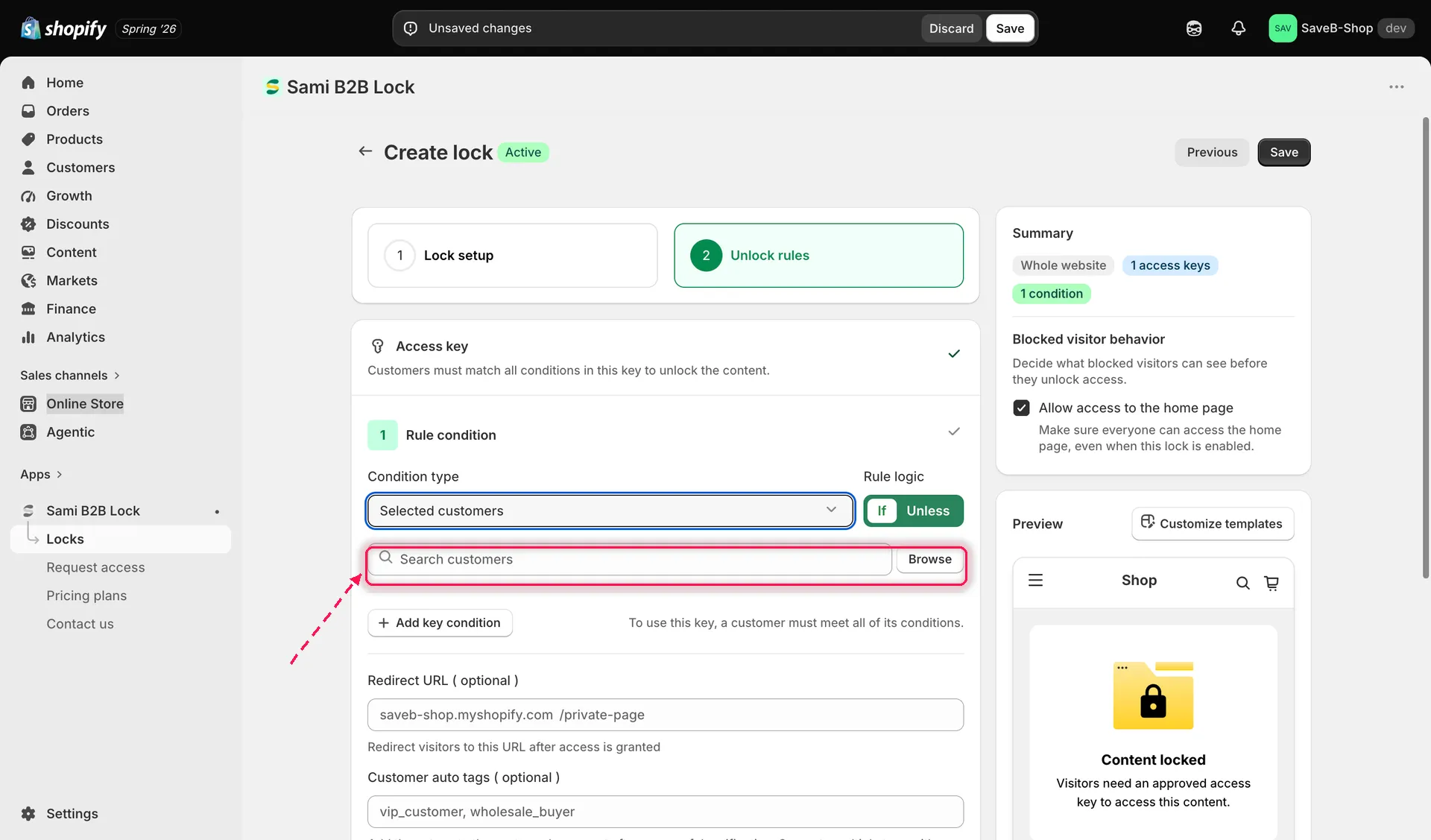
Searching for and selecting specific customers to add to the rule.
-
Use Search customers to find customers by name or email, or click Browse to pick them from a list of your store’s customers. Each one you add appears as a row you can remove later.
-
Choose whether the rule should match If (the customer is on the list) or Unless (they are not).
-
Optionally set a per-rule Redirect URL.
-
Save the lock.
When to use this rule
Section titled “When to use this rule”Selected customers is a good fit for VIP or one-off access — for example, giving a handful of press contacts early access to a product page, or granting a single long-standing customer a permanent discount page, without tagging their account or generating a passcode just for them. For anything that grows past a short, manually maintained list, Customer tags or B2B customer will scale better.
Example: Give two customers early access
Section titled “Example: Give two customers early access”Suppose a pre-release page should only be available to Alex and Jamie, two customer accounts selected from your Shopify customer list.
- Select the Pre-release preview page as the content to protect.
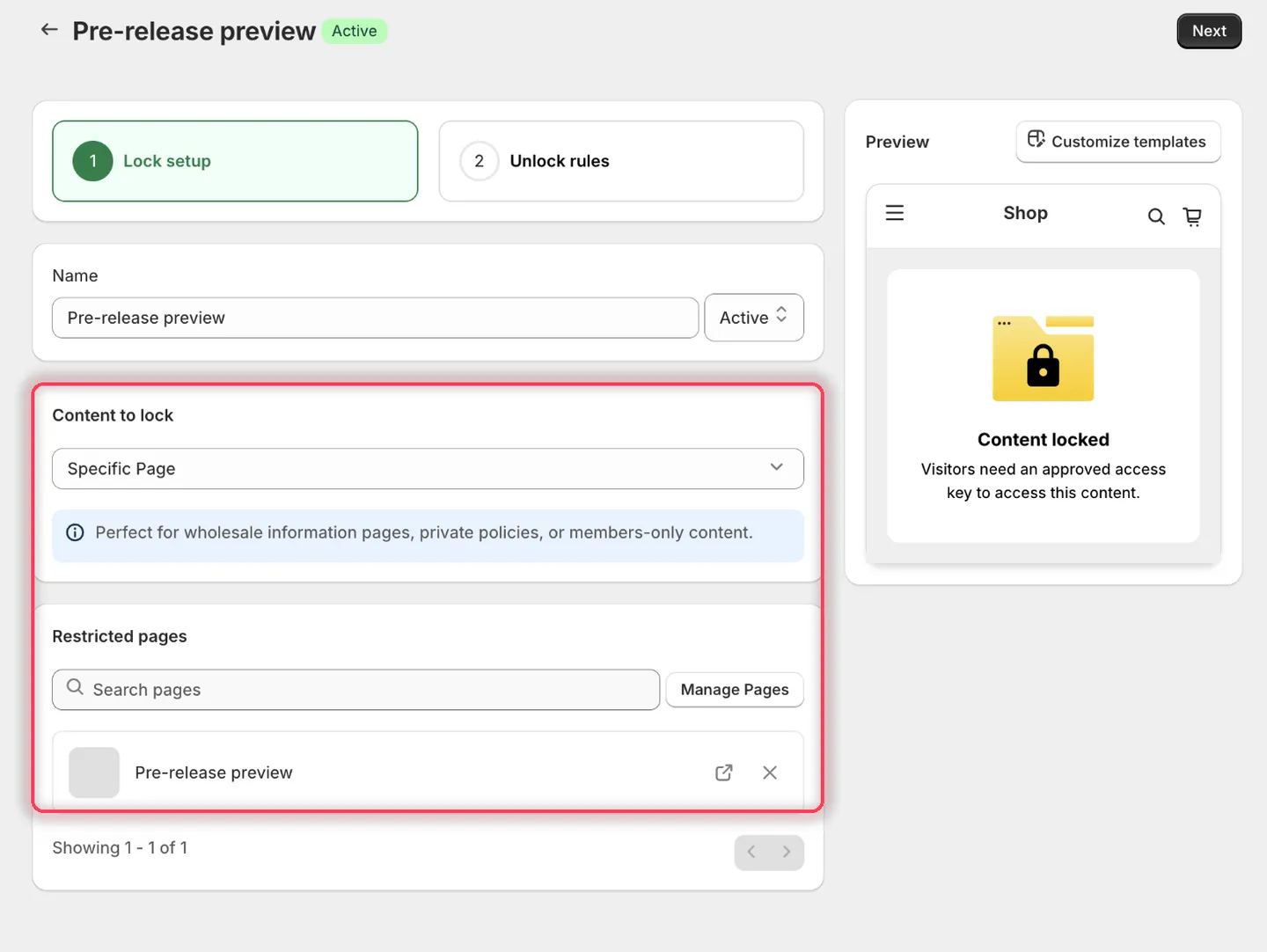
Pick the page the two customers should get early access to.
- On the Unlock rules tab, set Condition type to Selected customers and leave Rule logic on If.
- Click Browse, tick Alex Morgan and Jamie Chen in the Add customers dialog, then click Add. Both accounts appear as rows under the search field.
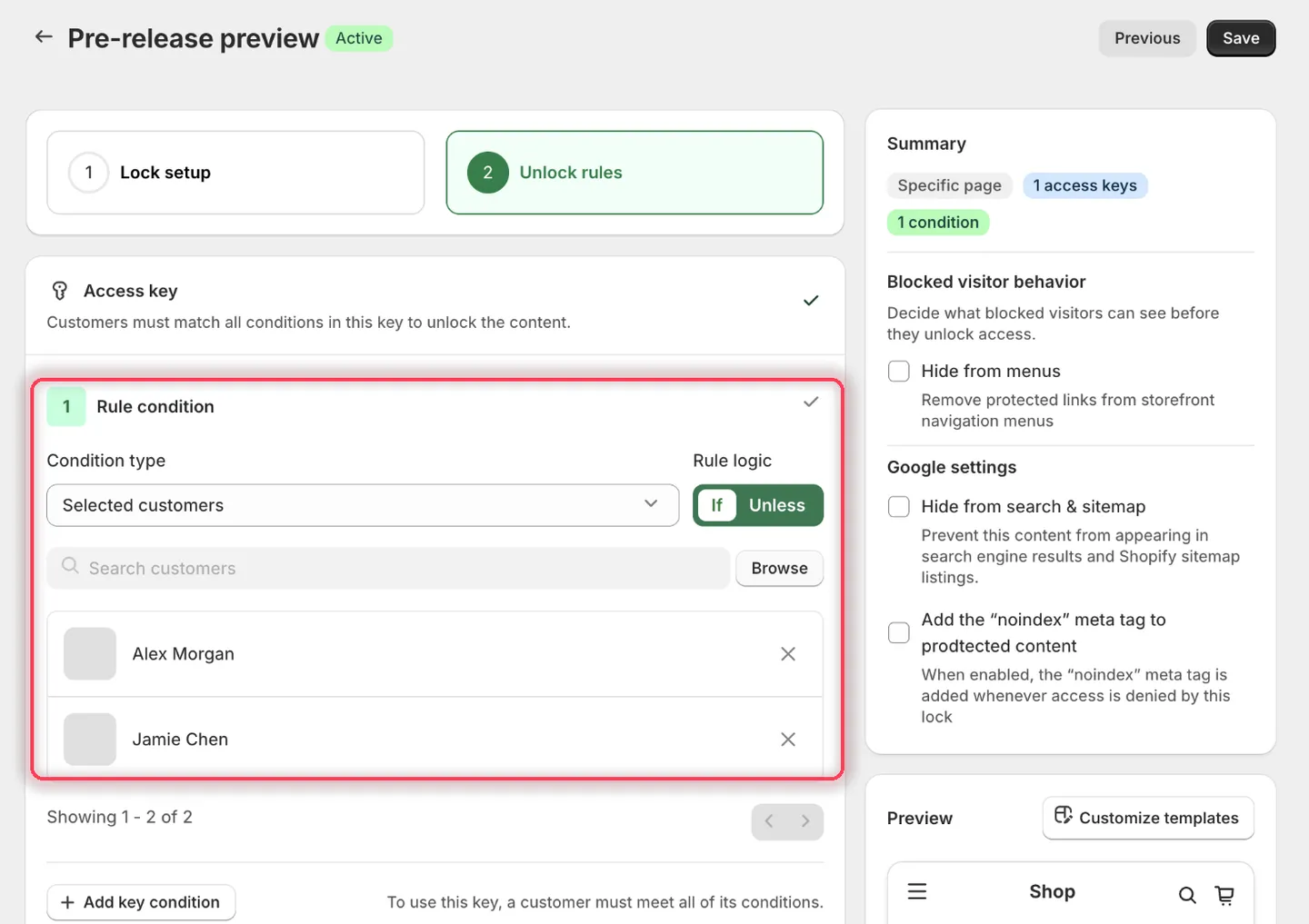
The two hand-picked accounts are the whole rule — there’s no tag or pattern behind it.
-
Leave the rule’s Redirect URL empty.
-
Set the messages to:
- Guest message content:
Sign in to check whether your account has early access. - Access denied message:
Your account is not included in this early-access group.
- Guest message content:
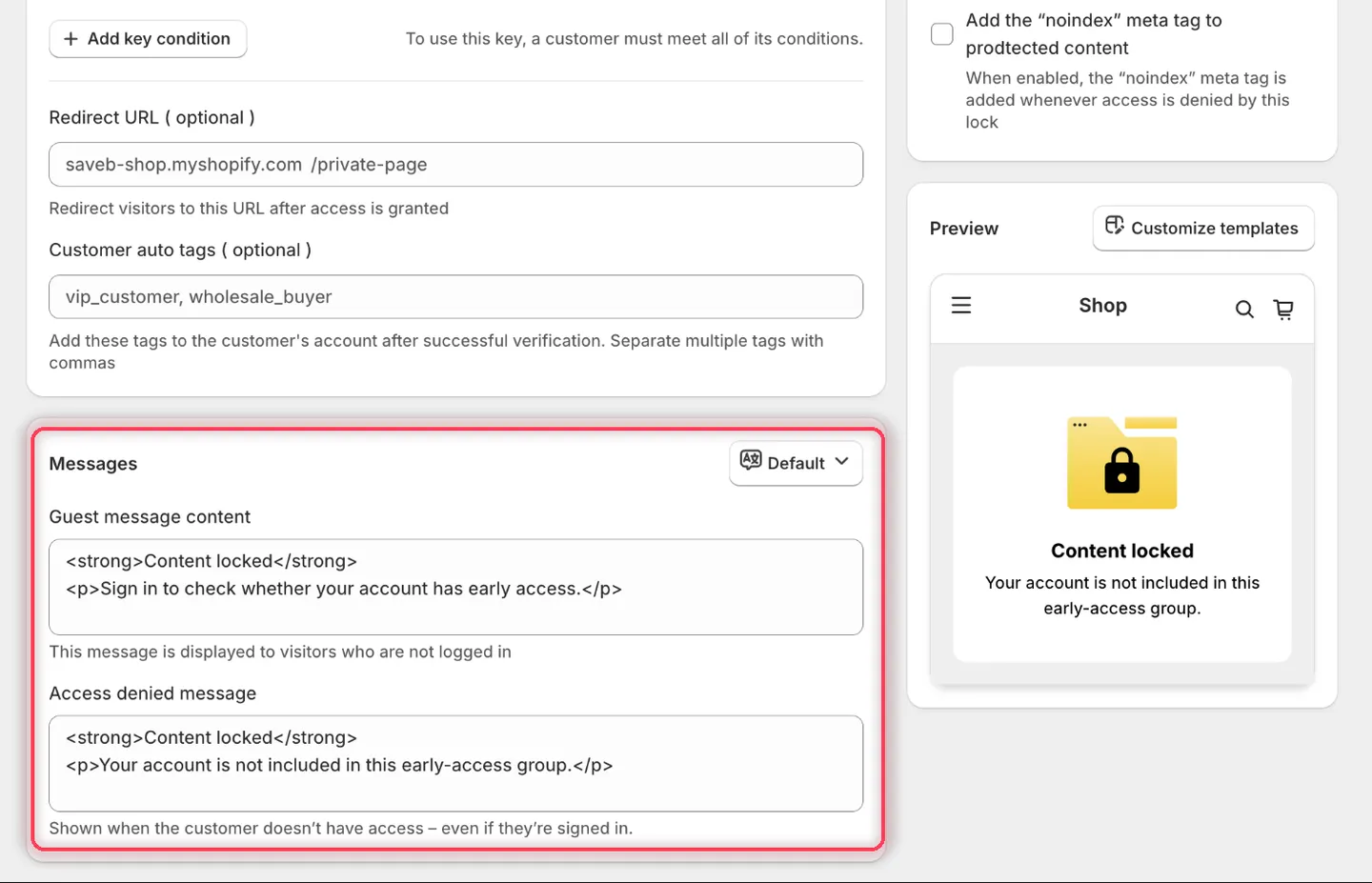
This rule needs both messages, because either kind of visitor can be blocked.
- Click Save.
Result on the storefront
Section titled “Result on the storefront”Alex and Jamie can open the page after signing in with the selected accounts. A signed-out visitor sees the Guest message. A different signed-in customer sees the Access denied message because their account is not on the selected list.
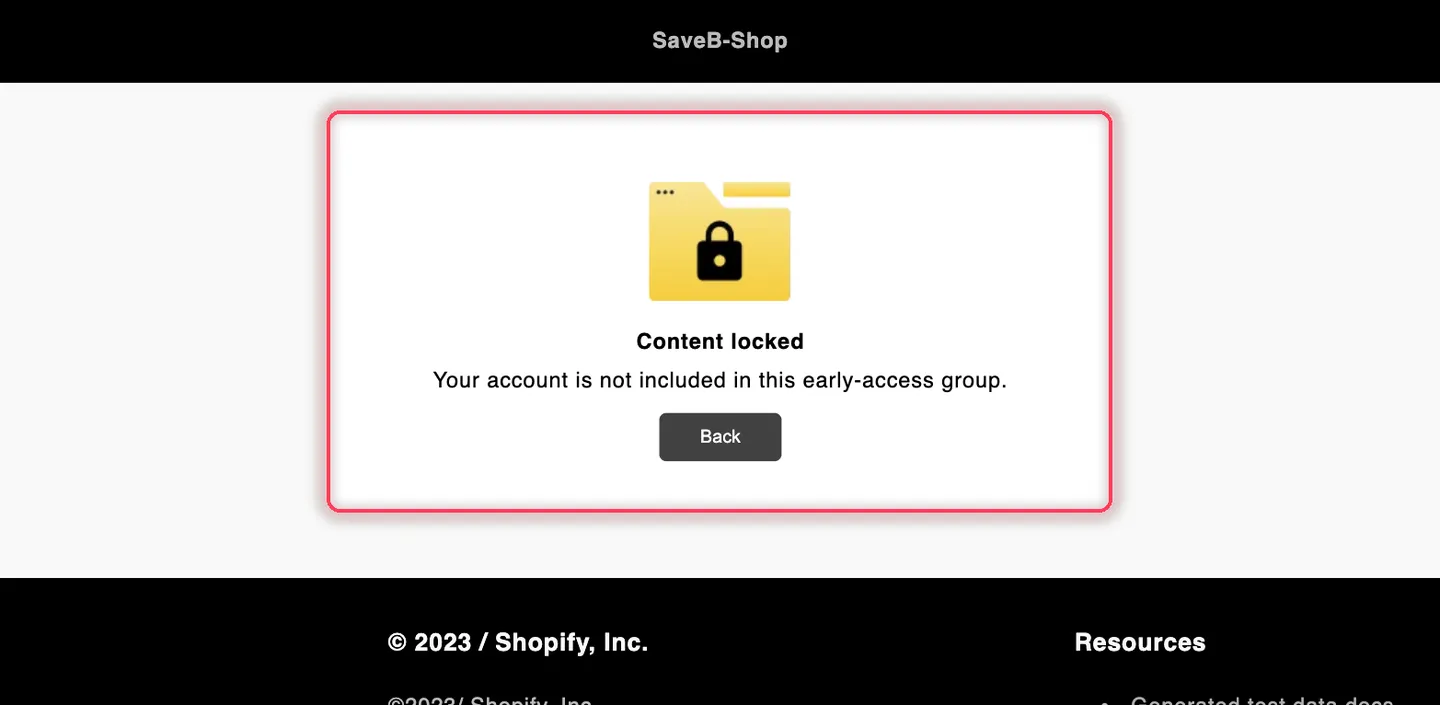
A signed-in customer outside the selected list sees the Access denied message from this example.