
Add customer tags after access
Automatically tag a signed-in customer's account after they satisfy an access key.
This behavior automatically adds one or more tags to a signed-in customer’s Shopify account after they satisfy the access key where the tags are configured. It works with any rule type in that key, not only action-based rules. For example, you can add a tag after a customer satisfies Customer tags and Order quantity, or after they complete a Passcode rule.
Why a merchant would use this:
- Segmentation — build a customer segment of customers who passed a particular access flow (for example, “wholesale-verified” or “vip-access”).
- Marketing flows — trigger an email flow or automation in your marketing platform when the tag is added, without needing a separate integration for that specific rule.
- Reporting — see at a glance, from the customer’s profile in Shopify admin, which access flow they came through.
Reach this setting
Section titled “Reach this setting”- Open Locks and create a new lock, or open an existing one to edit it.
- On the Lock setup tab, pick a content type.
- Click the Unlock rules tab and add the access rules that the customer must satisfy.
- Below that access key’s rules, in the same main column, find the Customer auto tags (optional) field. This is a per-access-key setting, not part of the Blocked visitor behavior sidebar panel.
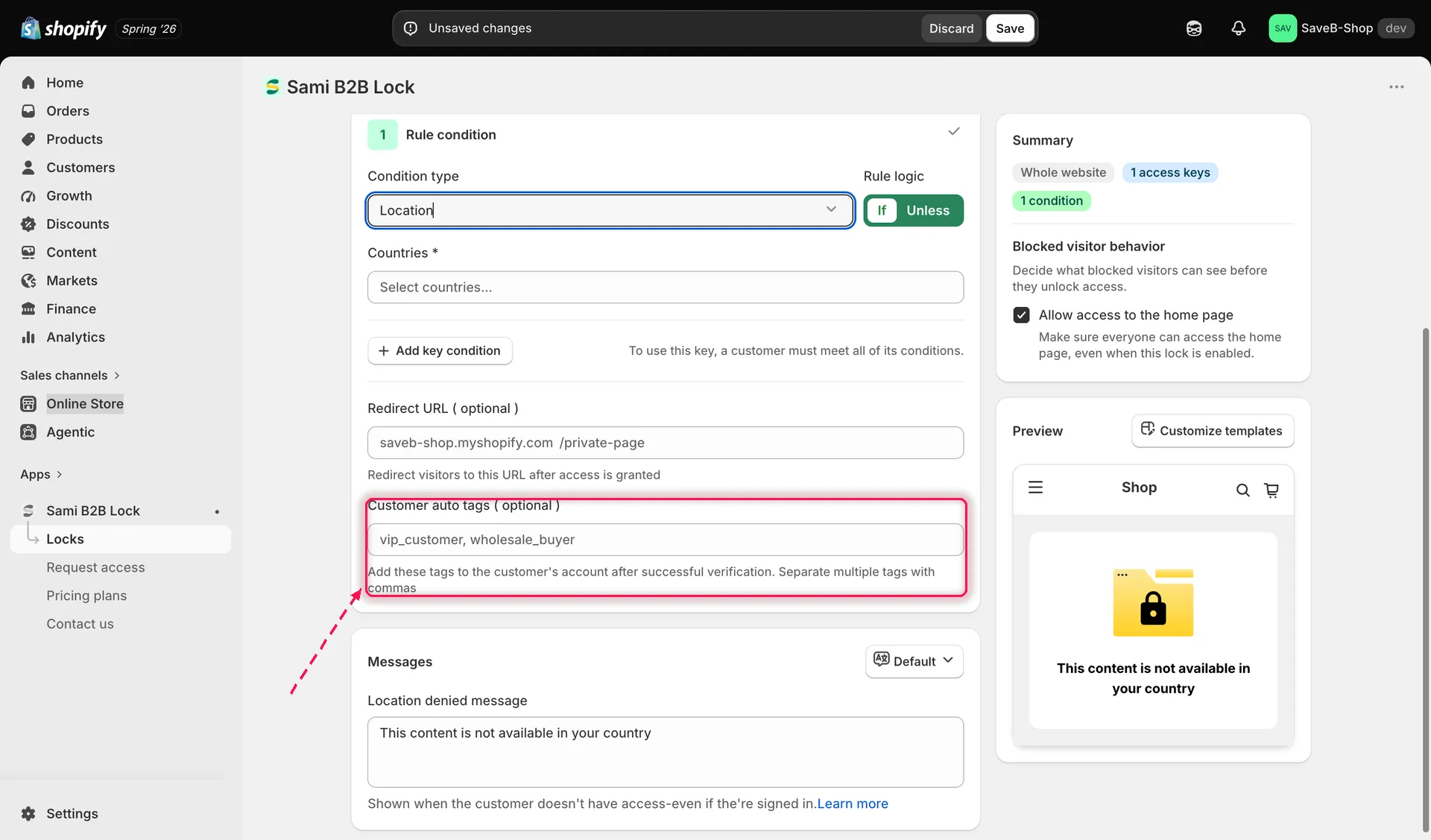
Enter one or more tags to add to the customer’s account once they pass this access key.
- Enter the tag or tags you want applied, separated by commas (for example,
vip_customer, wholesale_buyer). - Click Save.
Save your lock
Section titled “Save your lock”Once saved, a customer who is signed in and satisfies this access key has the tag(s) added to their Shopify customer account. A guest visitor can satisfy a rule such as Passcode or Secret link, but cannot receive customer tags until they are signed in to a Shopify customer account.