
Secret link
Protect content so only visitors arriving via a URL with a valid access token can unlock it.
The Secret link rule protects content so it can only be unlocked by arriving through a specific URL — one that carries a valid ?access= token at the end. There’s no field for the shopper to fill in; the link itself is the key. It’s a good fit for sending a private preview or an invite-only offer straight to someone’s inbox, where you’d rather they just click through than type a code.
How Secret link works
Section titled “How Secret link works”Secret link is one of the app’s action-based rules, so it doesn’t have an If/Unless toggle. Instead, the app checks the URL a visitor used to arrive at the locked page: if it ends in ?access= followed by one of this rule’s active tokens, the visitor is let straight in. Arriving at the same page without that token — or with an old, deleted one — shows the locked experience instead.
You can keep more than one secret link active at once, so you can hand out a different link to different recipients (or campaigns) while they all unlock the same content.
Steps to manage
Section titled “Steps to manage”-
Open the app and go to Locks, then open the lock you want to protect (or create a new one).
-
On the Lock setup tab, set Content to lock to whatever you’re protecting.
-
Click the Unlock rules tab to continue.
-
Add an access rule and set the condition type to Secret link.
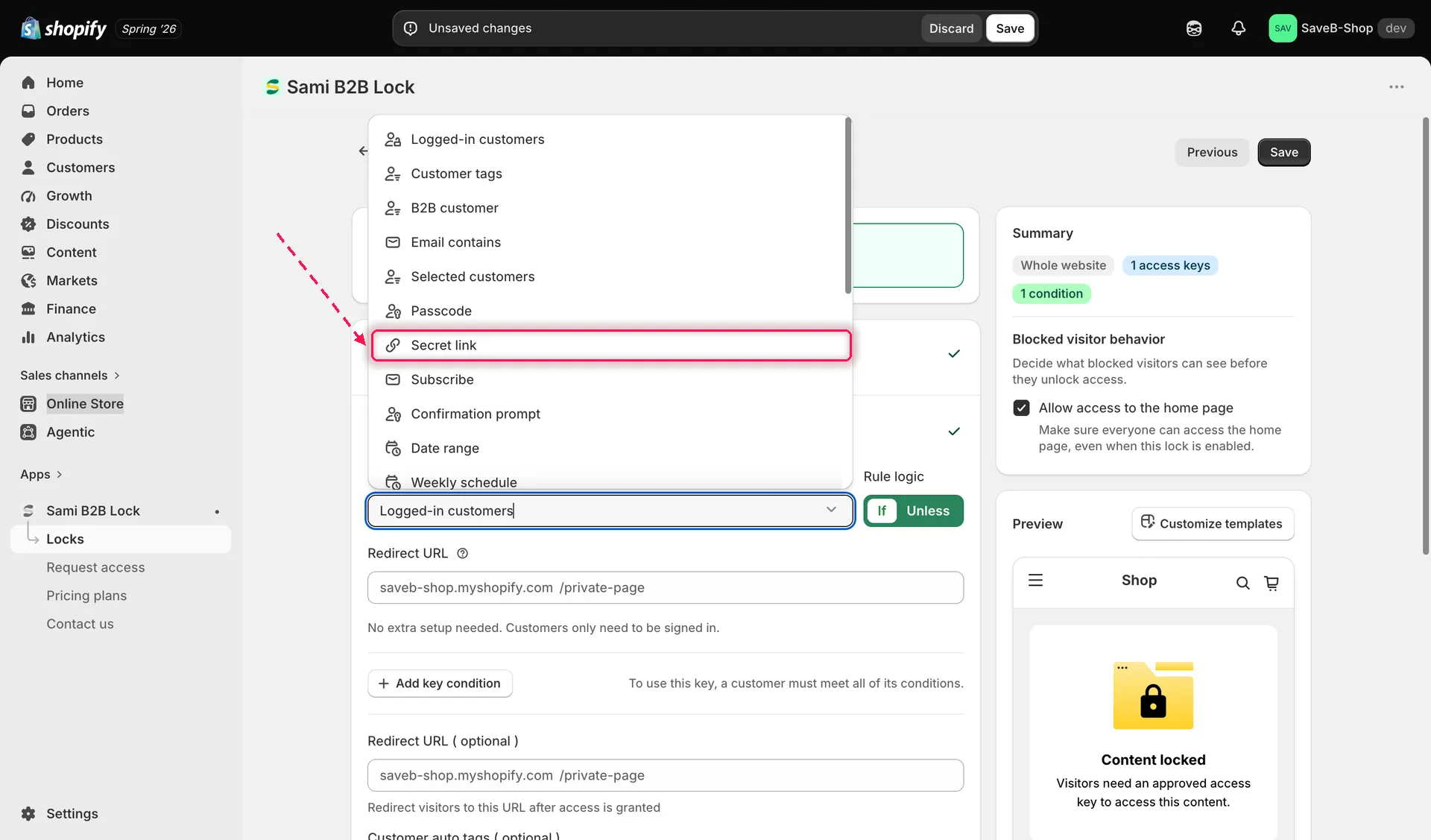
Choosing Secret link as the condition type for a new access rule.
-
Type a code into the field and click Generate link — or leave the field empty and click the same button to have the app generate a random token for you automatically. The app shows the token with the
?access=prefix already in place, and appends it to your lock’s preview URL so you can see the full link to share.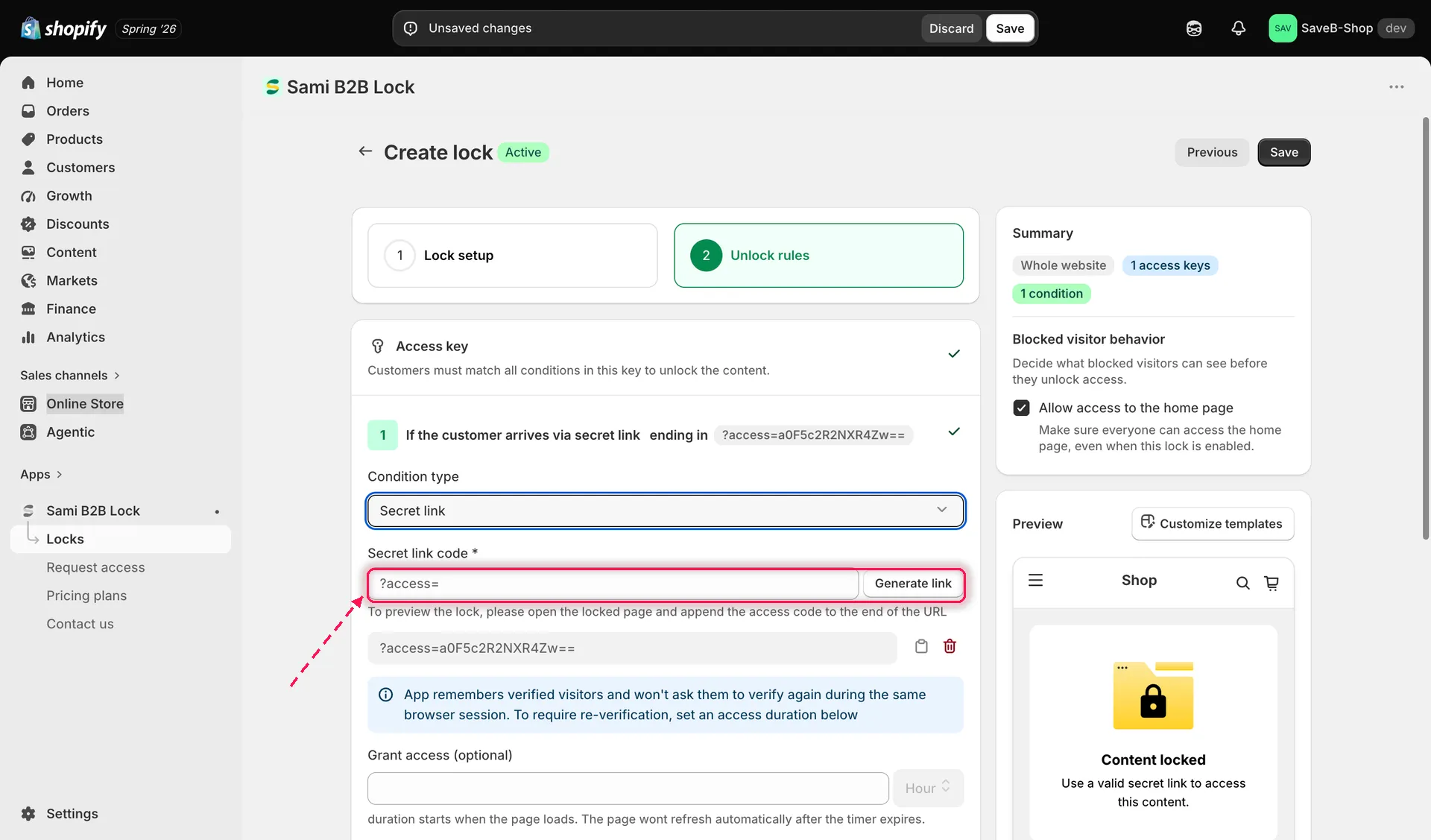
Generating a secret link token, shown with the full URL it produces.
-
Repeat step 5 to add more secret links if you want several active at once — each one independently unlocks the same content.
-
Each link in the list has its own Copy and Delete buttons: copy the full link to share it, or delete a link you want to revoke.
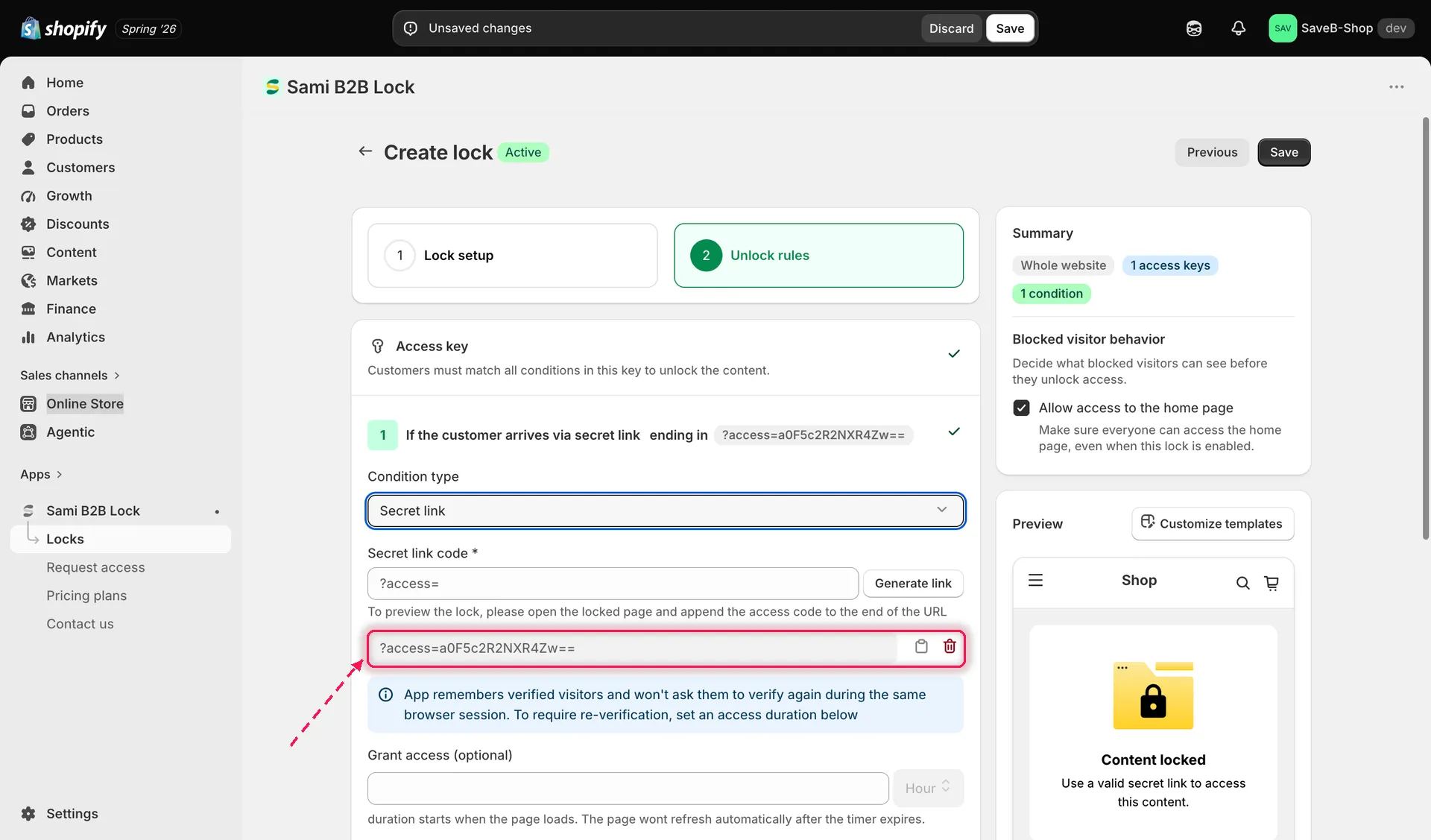
Managing the list of active secret links — copy one to share it, or delete one to revoke it.
-
Configure Grant access (optional) — leave it blank to remember a verified visitor only for their current browser session, or enter a number and choose a unit (minutes, hours, or days) to keep them remembered for a fixed duration instead.
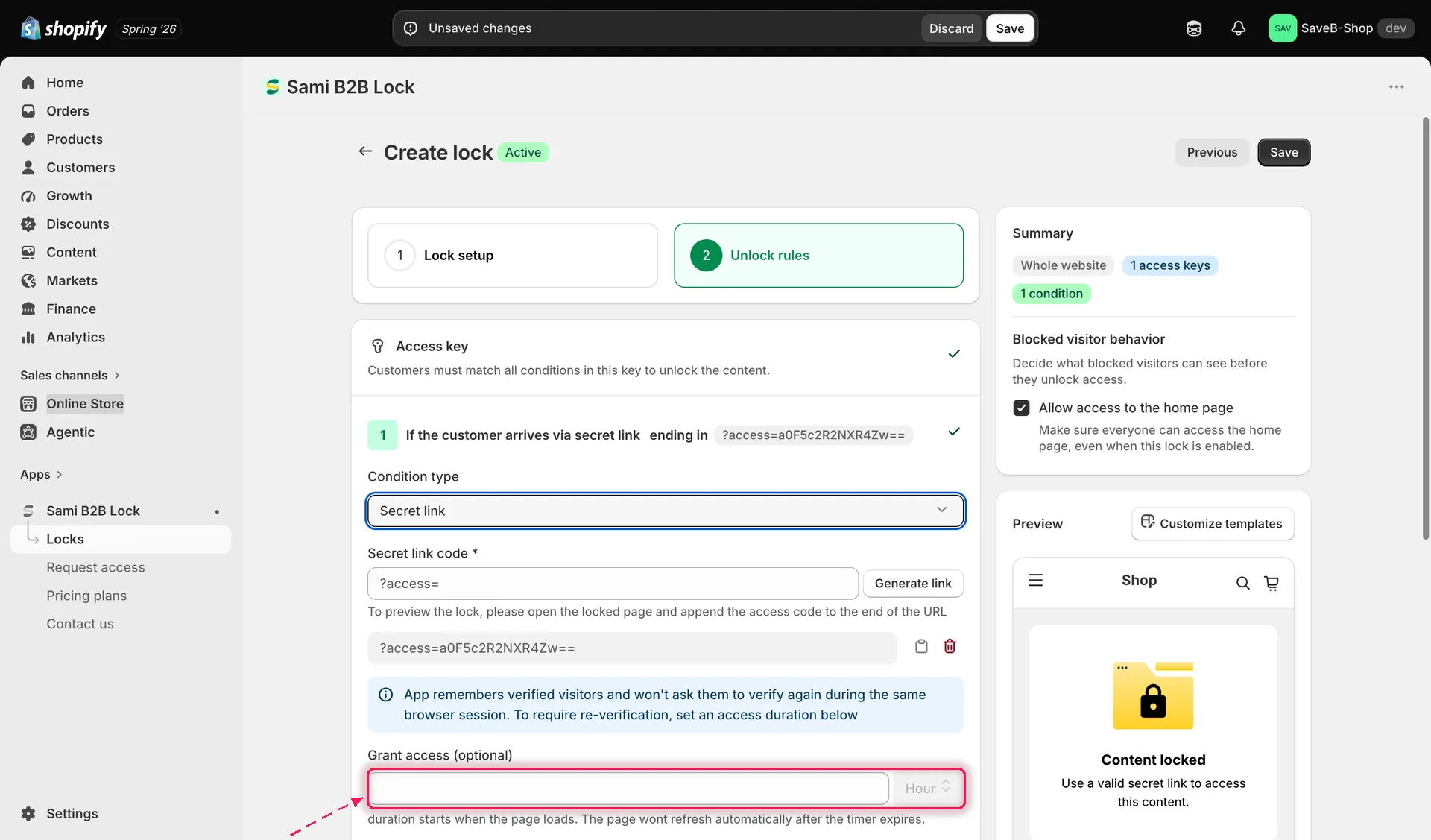
Setting how long a verified visitor stays unlocked before needing the link again.
-
Customize the secret-link message and any other translated copy for this lock, per storefront language, from the lock’s Messages section.
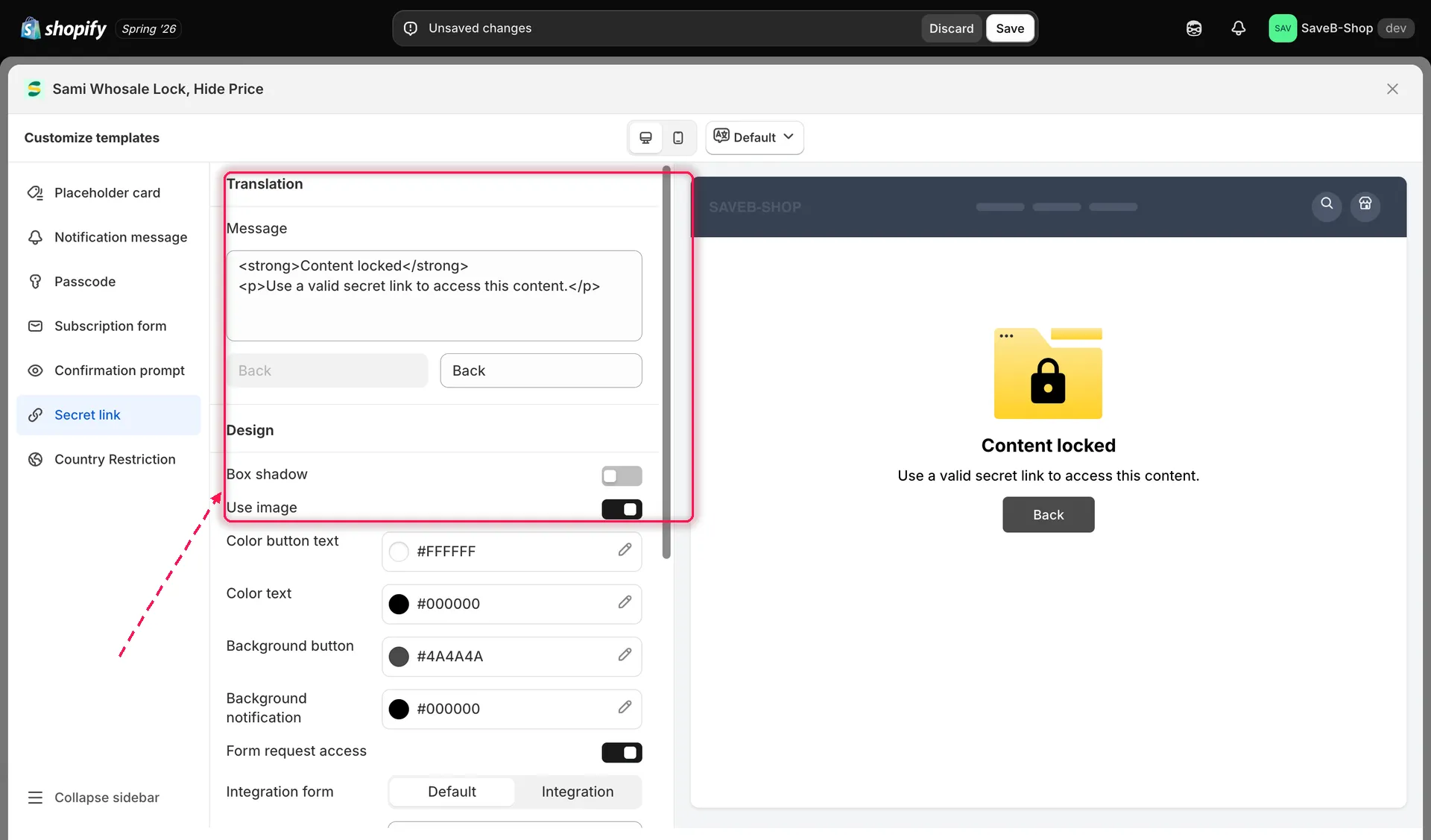
Editing the copy shown to shoppers who arrive without a valid secret link.
-
Customize the design of the lock screen shown to visitors without a valid link (colors, button style) from the lock’s Design section if you want it to match your theme.
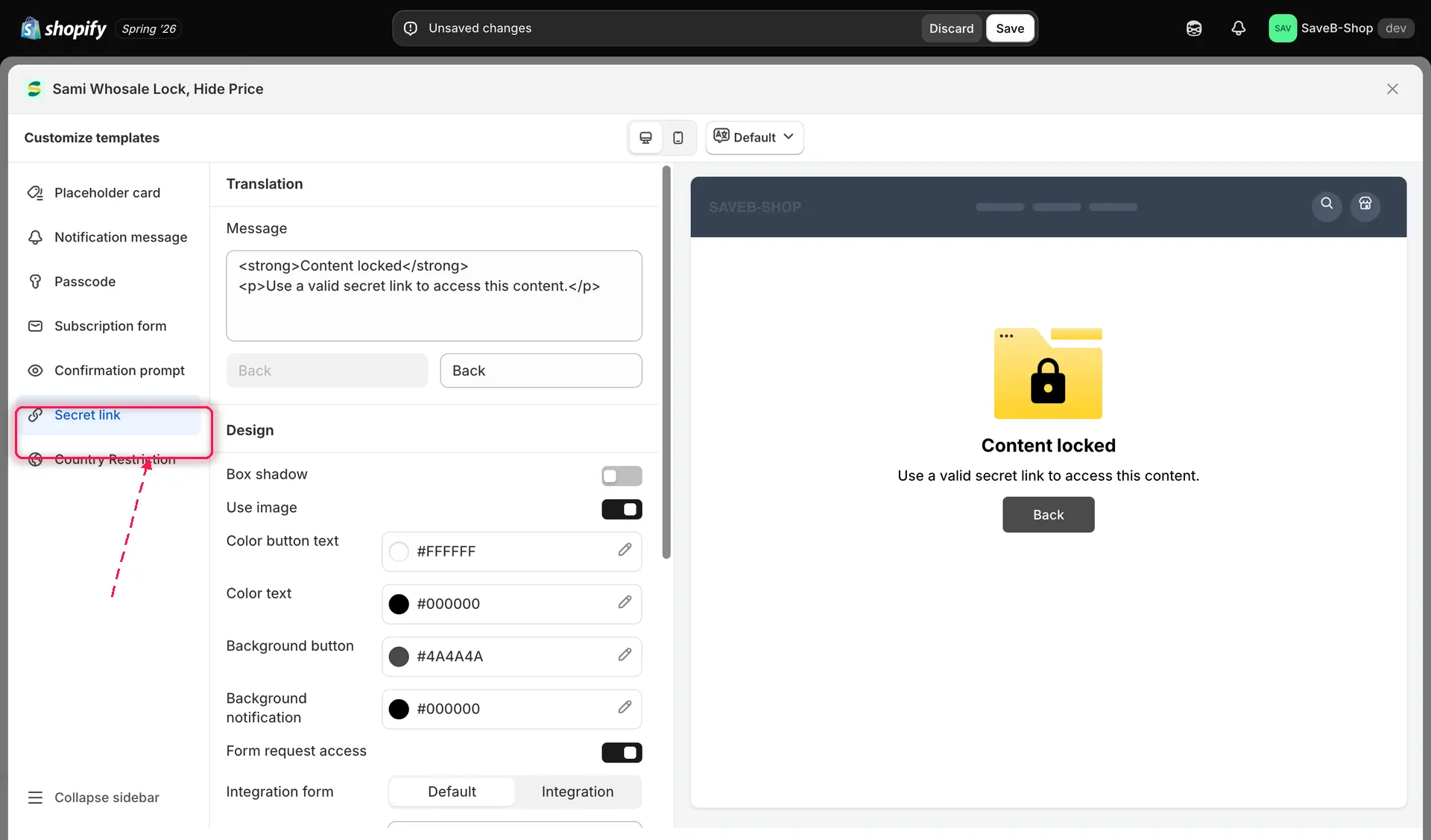
Adjusting the lock screen’s colors from the lock’s Design settings.
-
Click Save.
Customer experience on the storefront
Section titled “Customer experience on the storefront”A shopper who reaches secret-link-protected content without a valid token in the URL sees a “Content locked” message: “Use a valid secret link to access this content.” A shopper who arrives with a valid token in the URL is let straight through — there’s no form to fill in. Once verified, the app remembers them for the rest of their session (or for your configured grant-access duration), so revisiting the same page without the token in the URL still works while that memory lasts.
All of this copy is editable per lock and per storefront language from the Messages section — see Translate lock messages.
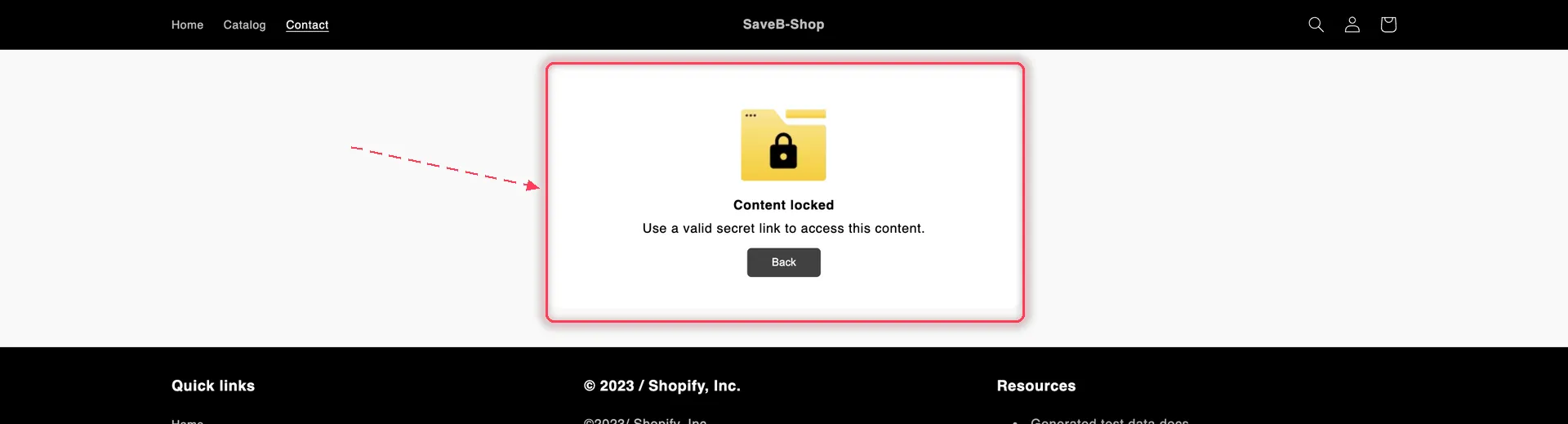
Without a valid token in the URL, the visitor gets this card instead of the page.