
Email contains
Match logged-in customers whose email address contains a given string, such as a company domain.
The Email contains rule checks whether the logged-in customer’s email address contains a specific piece of text. It’s most useful for matching an entire company by their email domain, without needing to tag every individual account.
How it works
Section titled “How it works”The rule only looks at the email of a customer who is currently signed in — a guest without a session has no email for the rule to check. You give it one or more strings to look for; the rule matches if the customer’s email contains any of them.
To match more than one string, separate them with the word or in the same field — for example, entering @wholesaleco.com or @partnerco.com matches any customer whose email contains either domain.
Adding the rule
Section titled “Adding the rule”-
Open the lock you want to protect and click the Unlock rules tab.
-
Add an access rule and choose Email contains from the Condition type dropdown.
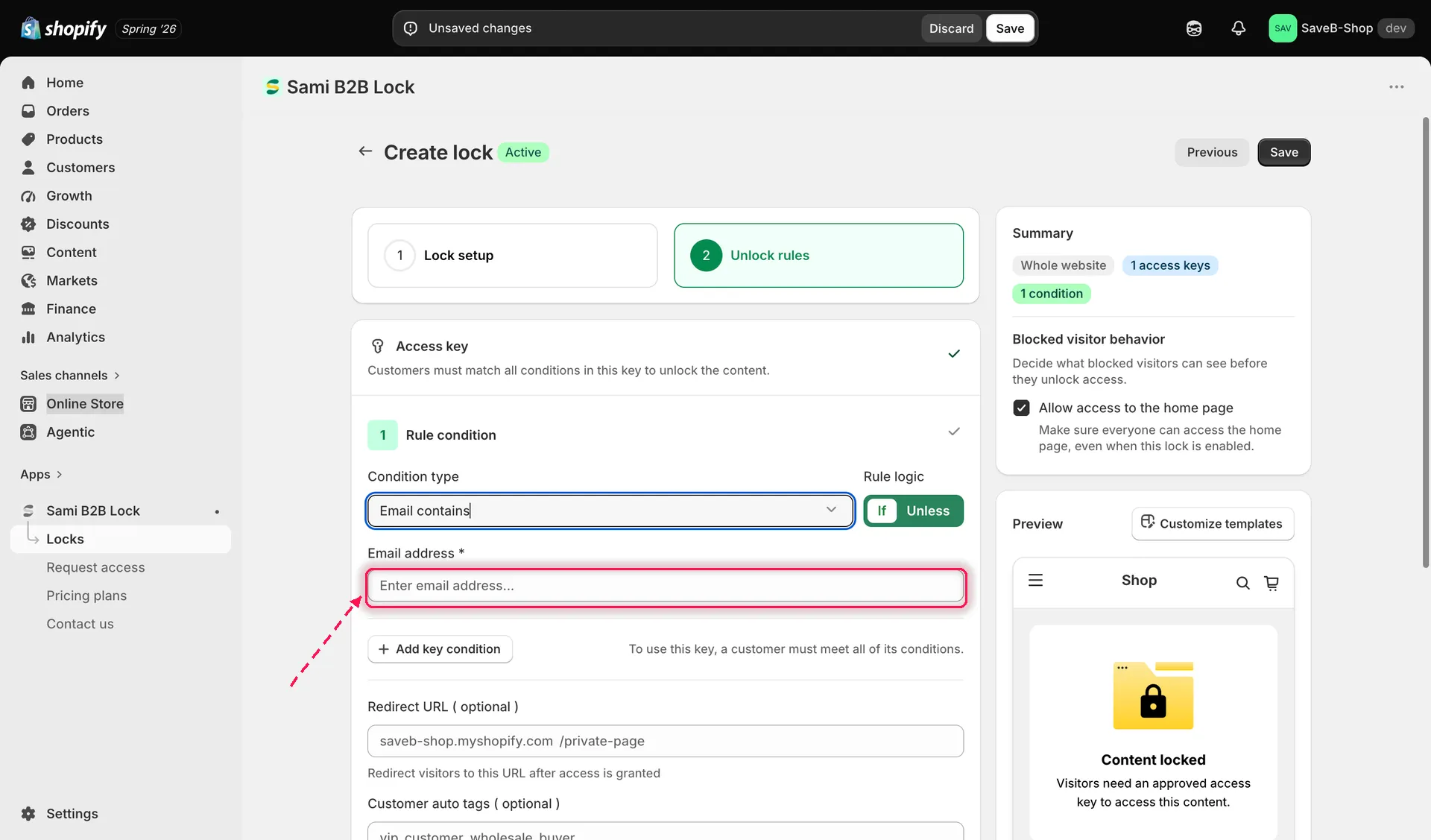
Adding the Email contains rule and entering the text to match.
-
Enter the text to match — for example a company email domain like
@wholesaleco.com. Add more strings separated by “or” if you need to match several domains or addresses. -
Choose whether the rule should match If (the email contains the string) or Unless (it doesn’t).
-
Optionally set a per-rule Redirect URL.
-
Save the lock.
Example: Allow employees with an approved company email
Section titled “Example: Allow employees with an approved company email”Suppose an internal resources page should only be available to signed-in customers whose email address contains @acme.com.
- Select the Company resources page as the content to protect.
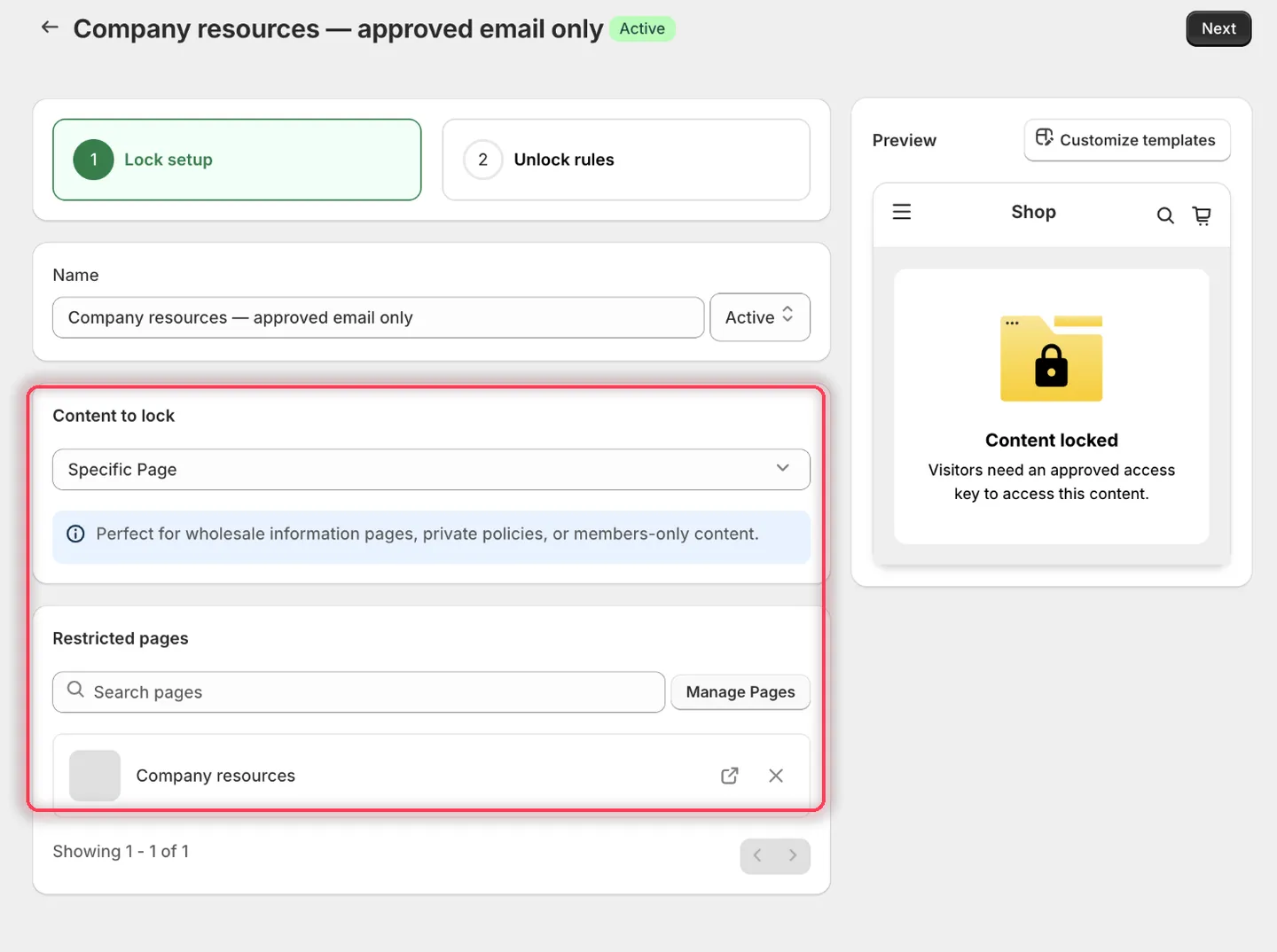
Pick the internal page you want to gate.
- On the Unlock rules tab, the first condition already defaults to Logged-in customers — leave it. Click Add key condition to add a second condition in the same access key and set it to Email contains.
- For Email contains, choose If and enter
@acme.comin the Email address field.
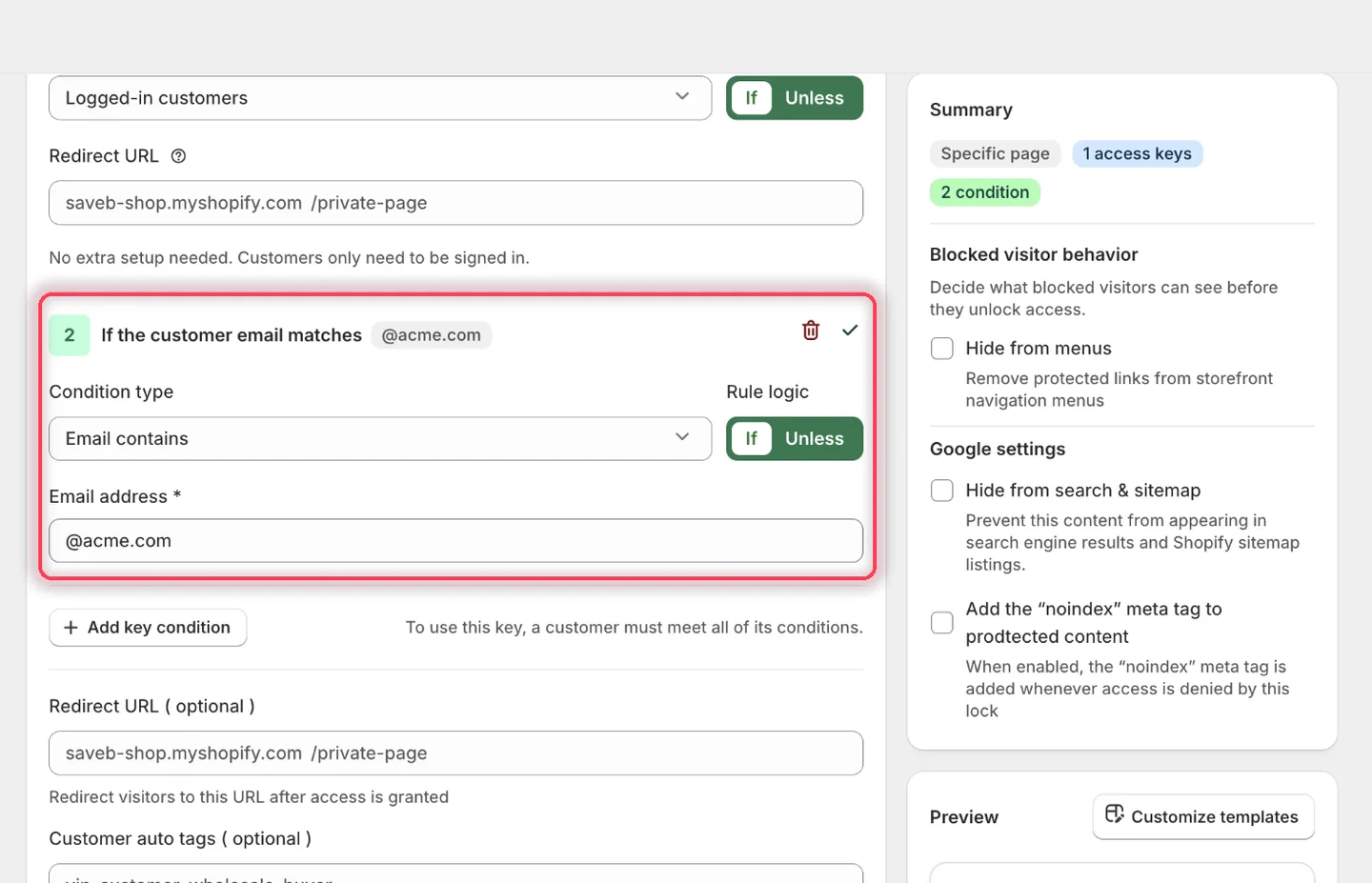
The condition heading confirms it: If the customer email matches @acme.com.
-
Leave the rules’ Redirect URL fields empty.
-
Set the messages to:
- Guest message content:
Sign in with your approved company email to continue. - Access denied message:
Your email address is not approved for this resource.
- Guest message content:
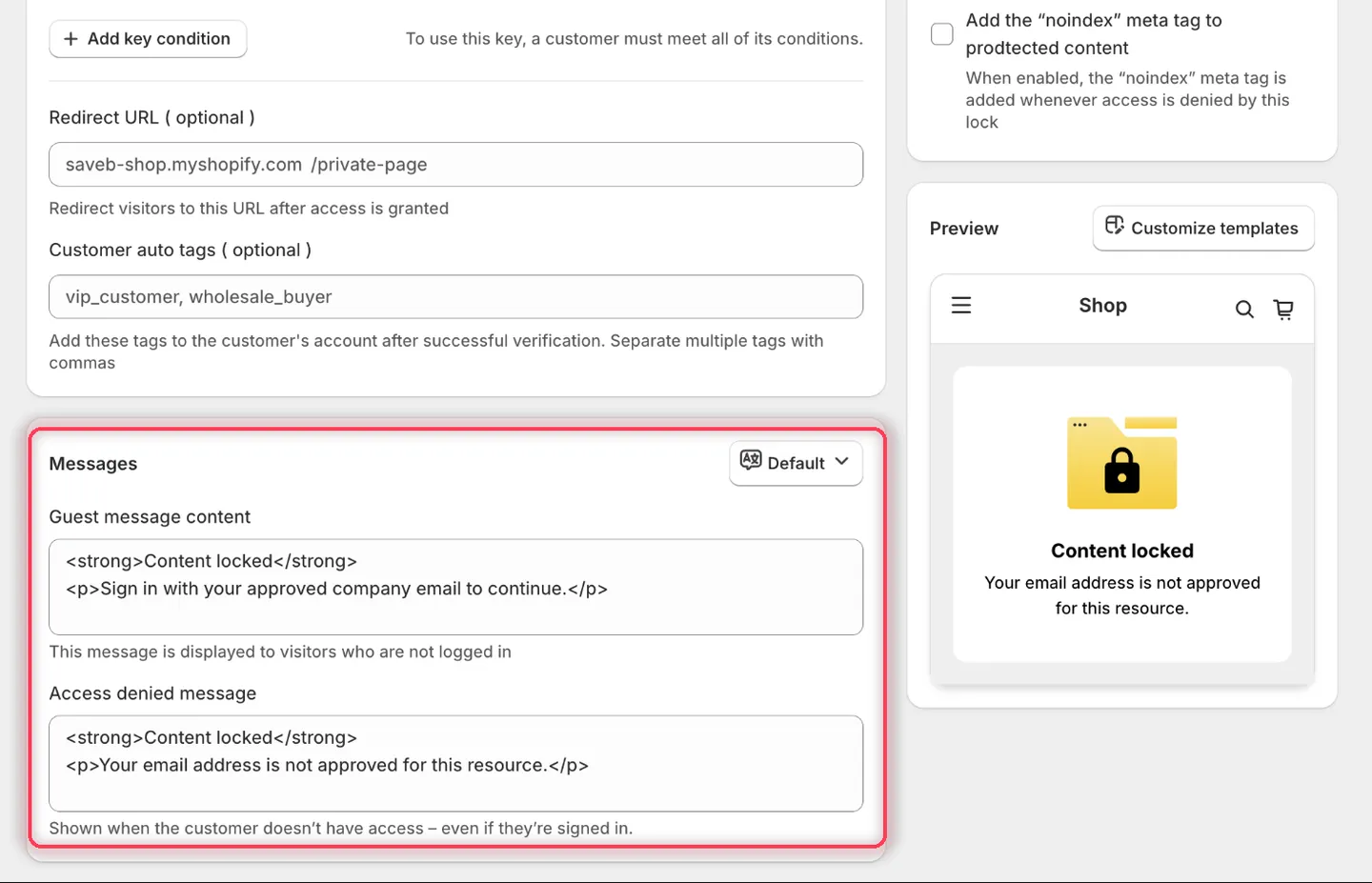
This rule needs both messages, because either kind of visitor can be blocked.
- Click Save.
Result on the storefront
Section titled “Result on the storefront”- A signed-out visitor sees the Guest message and the sign-in option.
- A signed-in customer such as
[email protected]passes both conditions and can open the page. - A signed-in customer such as
[email protected]sees the Access denied message because their email does not contain@acme.com.
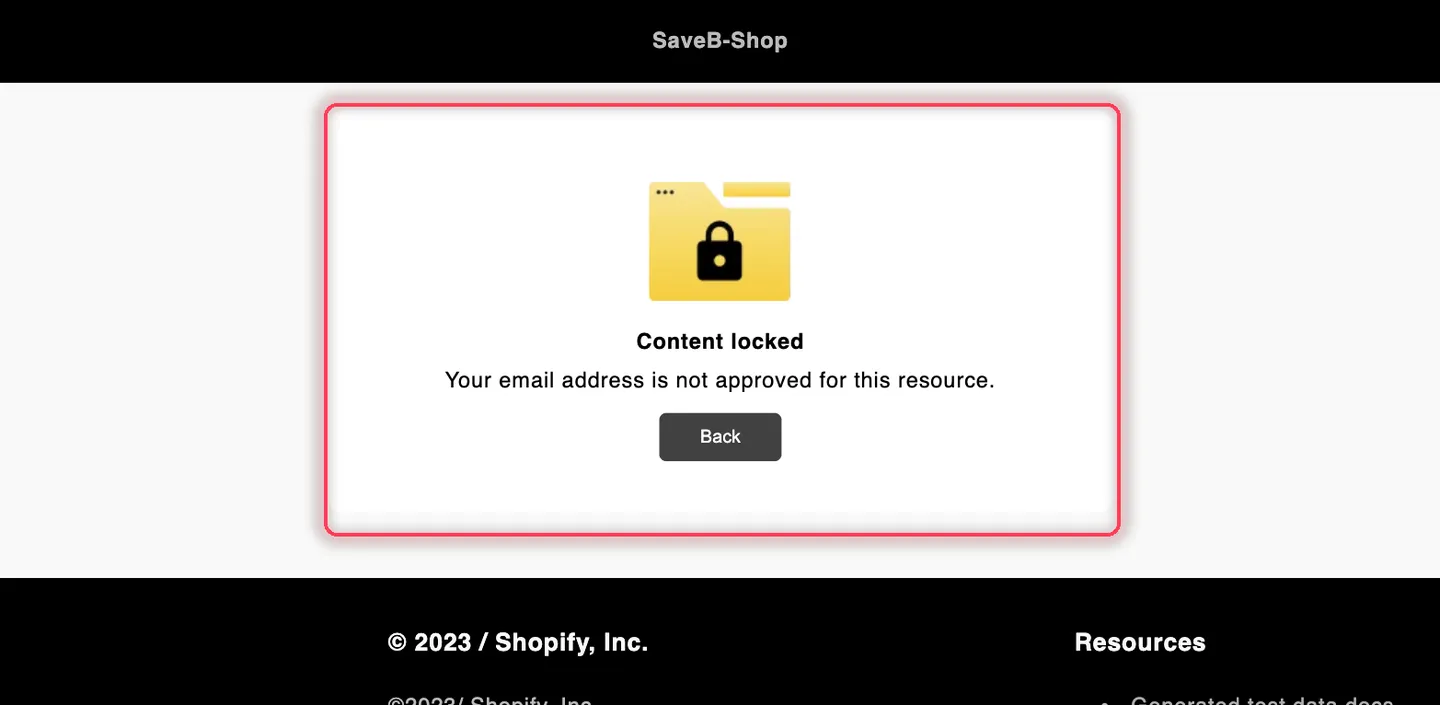
A signed-in customer using an email outside the approved domain sees the Access denied message from this example.