> For the complete documentation index, see [llms.txt](https://docs.samita.io/llms.txt). Markdown versions of documentation pages are available by appending `.md` to page URLs; this page is available as [Markdown](https://docs.samita.io/b2b-lock-password-protect/access-rules/custom-liquid.md).

# Custom liquid

Write your own Liquid snippet to decide access, with customer, cart, product, and storefront variables.

The Custom liquid rule lets you write your own Liquid code snippet to decide whether a visitor gets access. It's the most flexible rule in the app — anything you can express as a Liquid condition against the customer, their cart, the current product or collection, or the storefront itself, you can use to gate content — but it's also the one rule where a mistake in the snippet has real consequences, covered below.

## How it works

Custom liquid is an action-based rule, so it doesn't have an If/Unless toggle. Instead, the app runs your snippet for each visitor and reads its final result. The result must be exactly `true` or `false` (surrounding whitespace is ignored): `true` passes the rule and `false` fails it. Other output, such as `true - customer is eligible`, is not a valid result. Your snippet has access to the same kind of data a Shopify theme would have about the current visitor and page.

## Adding the rule

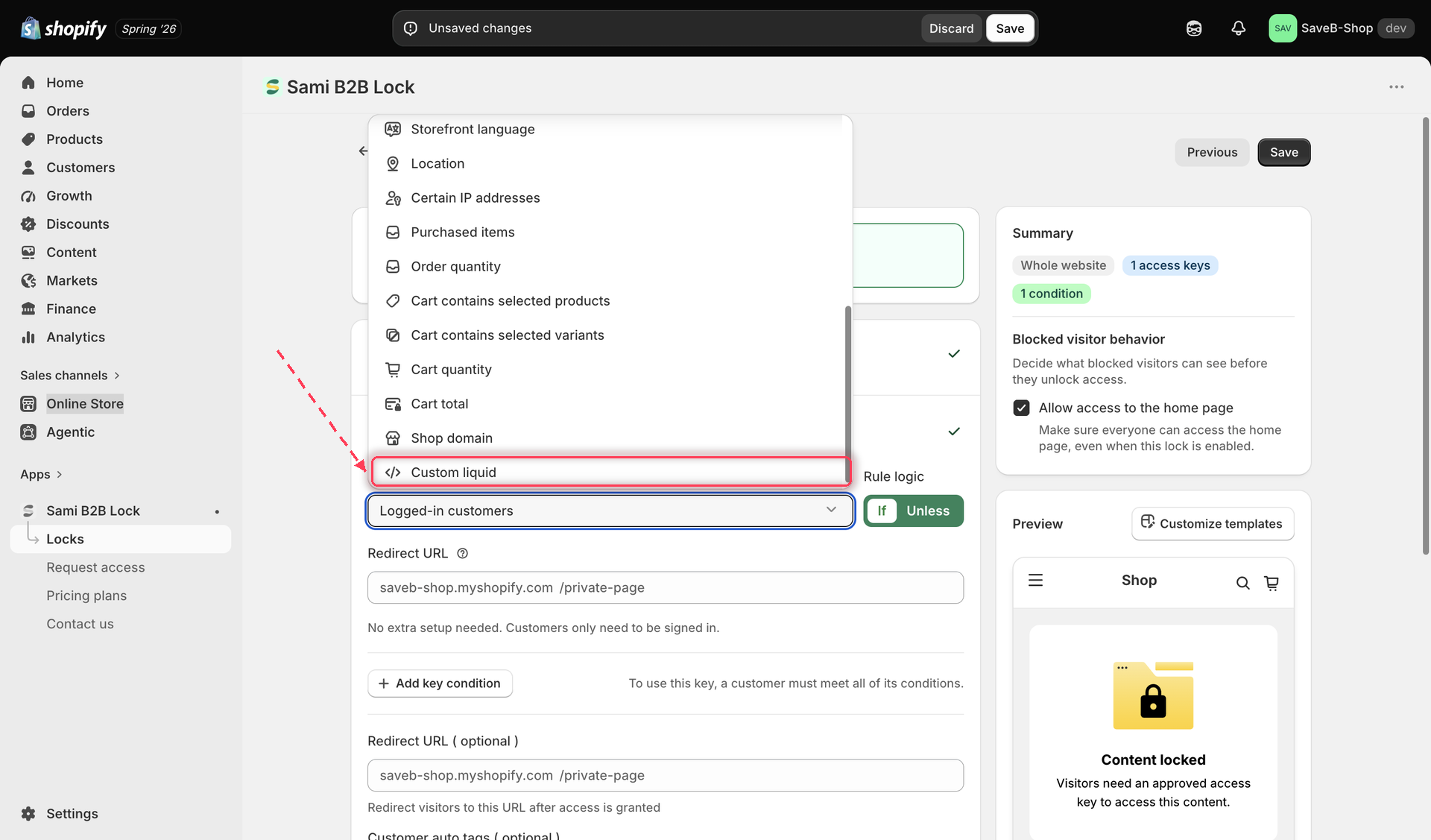
Open the lock, click the **Unlock rules** tab, and choose **Custom liquid** from the **Condition type** dropdown.

<figure><img src="https://27754559-files.gitbook.io/~/files/v0/b/gitbook-x-prod.appspot.com/o/spaces%2FF4qMYopXntYz9YgUqZSo%2Fuploads%2Fgit-blob-fee64ef143f2c32c5bf87de7b39dbc7236fd7561%2Fscreenshot-access-rules-custom-liquid-picker.png?alt=media" alt="The Condition type dropdown with Custom liquid selected"><figcaption><p>Select Custom liquid from the Condition type dropdown on the Unlock rules tab.</p></figcaption></figure>

## The code editor

The rule's condition type opens a dedicated Liquid code editor with syntax highlighting, autocomplete, and real-time syntax validation — errors in your Liquid are flagged directly in the editor as you type, before you even save.

<figure><img src="https://27754559-files.gitbook.io/~/files/v0/b/gitbook-x-prod.appspot.com/o/spaces%2FF4qMYopXntYz9YgUqZSo%2Fuploads%2Fgit-blob-5bbaad34fcf37966ac957bebd0f6cf6b610ae1d4%2Fscreenshot-access-rules-custom-liquid-editor.png?alt=media" alt="Custom liquid code editor with a snippet and a syntax validation indicator"><figcaption><p>Writing and validating a Liquid snippet in the code editor.</p></figcaption></figure>

### Available variables

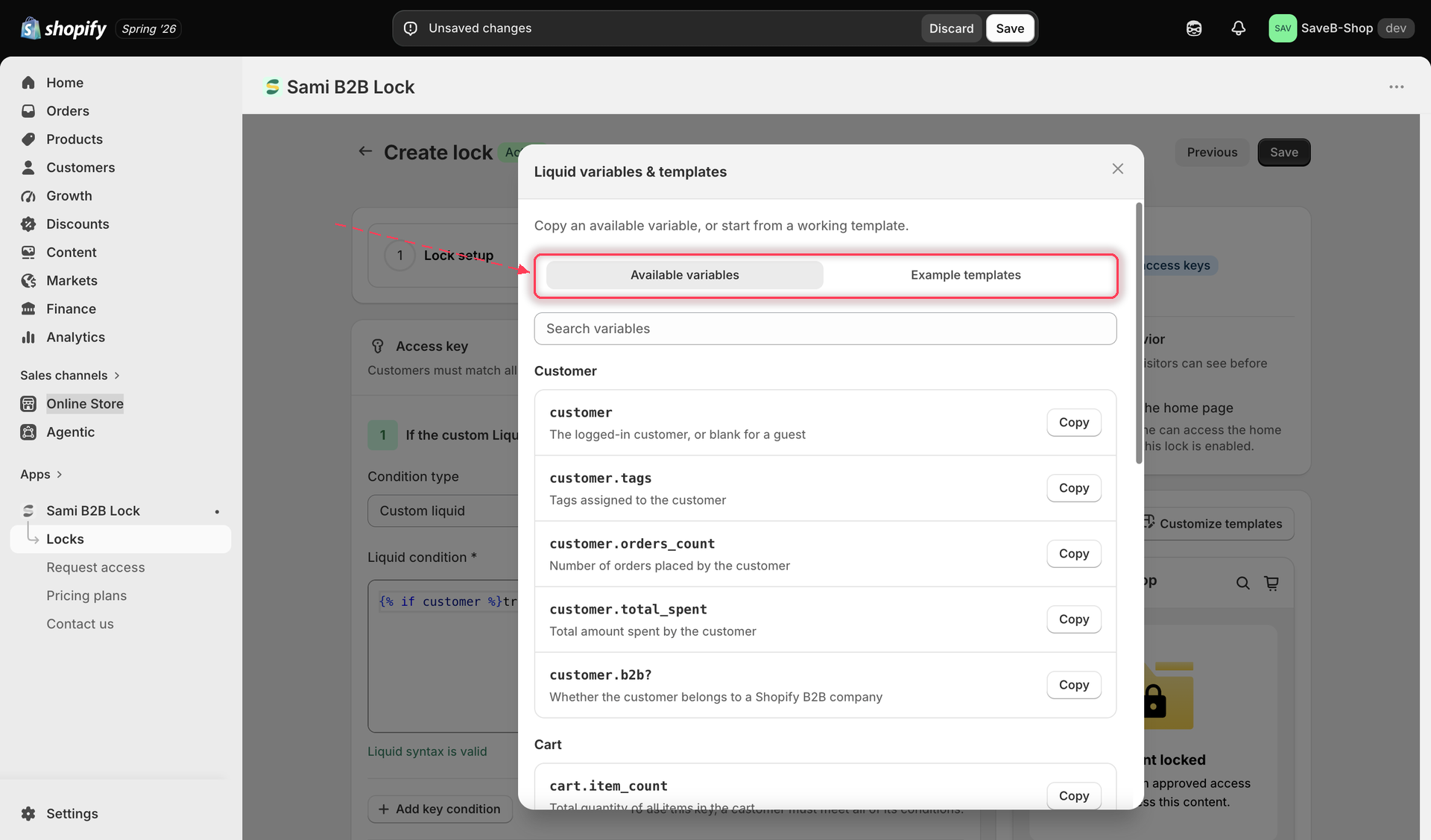
The editor exposes a library of variables you can insert, grouped by what they describe:

| Group                | Variables                                                                                              |
| -------------------- | ------------------------------------------------------------------------------------------------------ |
| Customer             | `customer`, `customer.tags`, `customer.orders_count`, `customer.total_spent`, `customer.b2b?`          |
| Cart                 | `cart.item_count`, `cart.total_price`, `cart.items`                                                    |
| Product & collection | `product.tags`, `product.vendor`, `product.metafields`, `collection.handle`                            |
| Storefront           | `request.path`, `request.page_type`, `localization.country.iso_code`, `localization.language.iso_code` |

<figure><img src="https://27754559-files.gitbook.io/~/files/v0/b/gitbook-x-prod.appspot.com/o/spaces%2FF4qMYopXntYz9YgUqZSo%2Fuploads%2Fgit-blob-817a2e10113b570e358e018cf2f503175c250c02%2Fscreenshot-access-rules-custom-liquid-variables.png?alt=media" alt="Variables and templates panel showing the available Liquid variables grouped by category"><figcaption><p>Browsing the available variables from the Variables and templates panel.</p></figcaption></figure>

### Starter templates

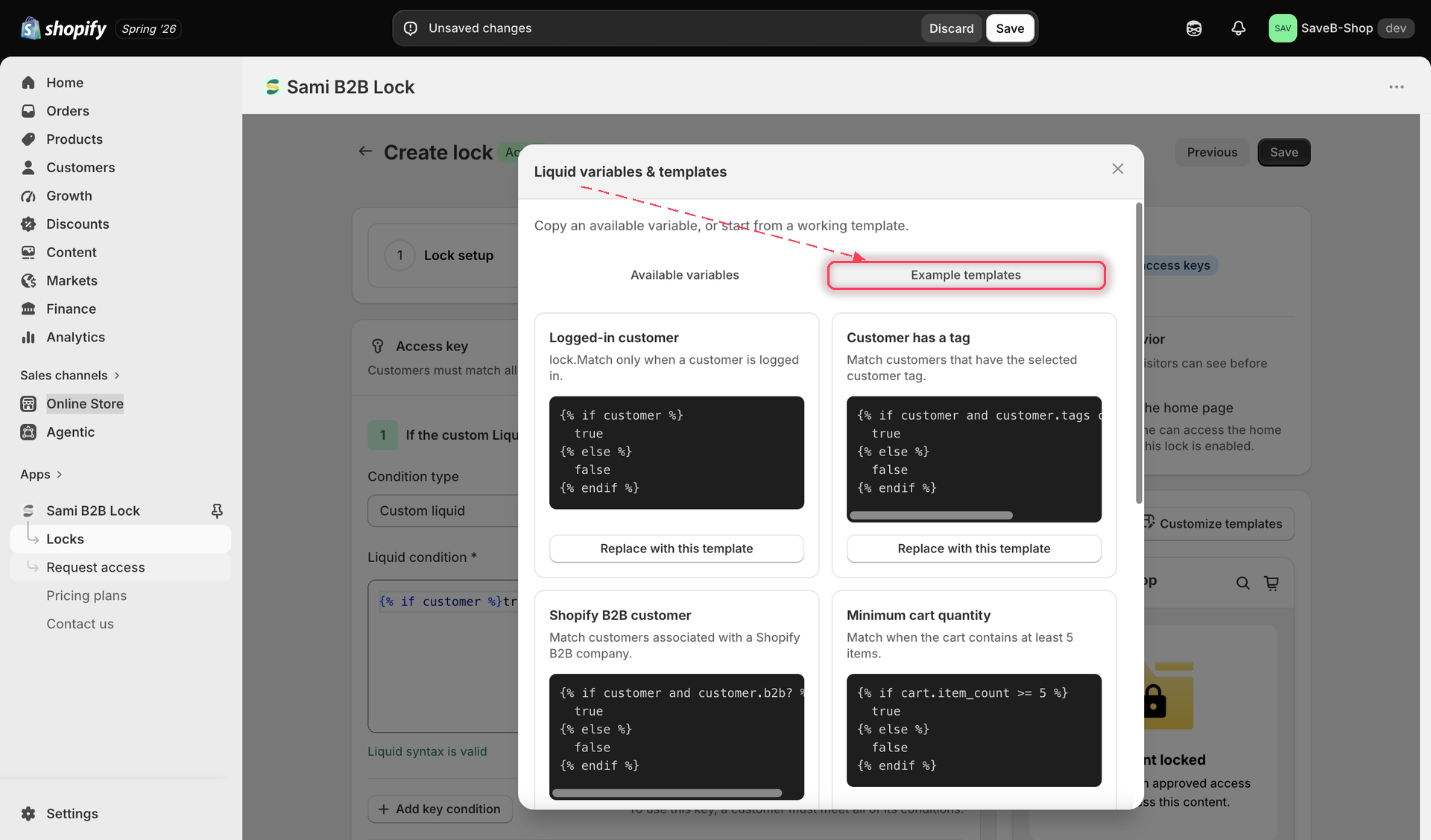
If you'd rather start from something working than an empty editor, the same panel includes ready-made templates you can drop in and adjust, including a logged-in customer check, a customer-tag check, a cart quantity or cart total minimum, a product-tag check, a visitor-country check, a URL-path check, and a ready-made **Shopify B2B customer** template that checks `customer.b2b?` directly.

<figure><img src="https://27754559-files.gitbook.io/~/files/v0/b/gitbook-x-prod.appspot.com/o/spaces%2FF4qMYopXntYz9YgUqZSo%2Fuploads%2Fgit-blob-251849b7a480887aac4b3b4dd5af291d402d40ab%2Fscreenshot-access-rules-custom-liquid-templates.png?alt=media" alt="Example templates panel with a list of ready-made Liquid snippets to use as a starting point"><figcaption><p>Choosing a starter template, including the ready-made Shopify B2B template.</p></figcaption></figure>

## Steps to manage

1. Open the lock you want to protect and click the **Unlock rules** tab.
2. Add an access rule and set the condition type to **Custom liquid**.
3. Write your snippet directly in the editor, or open **Variables and templates** to copy a variable or start from one of the ready-made templates.
4. Make sure your snippet's final output is exactly `true` for visitors who should pass and exactly `false` for everyone else. Do not add explanatory text, HTML, or other output around the value. The editor flags basic syntax problems, but you still need to confirm the logic matches what you intend.
5. Optionally set a per-rule **Redirect URL**, used only if this specific rule denies the visitor.
6. Save the lock.

## Fail-open behavior

{% hint style="warning" %}
If a Custom liquid snippet is missing, broken, or fails to render a clear `true`/`false` result, the app fails **open** — it grants access instead of blocking the visitor. This is deliberate, but it also means a broken snippet doesn't fail safe: a merchant who assumes "no result means still locked" would be wrong. Always confirm your snippet actually renders and test it before relying on it to protect anything sensitive.
{% endhint %}

## Example: Allow signed-in customers with a VIP tag

Suppose a private page should only be available to signed-in customers whose account has the `vip` tag.

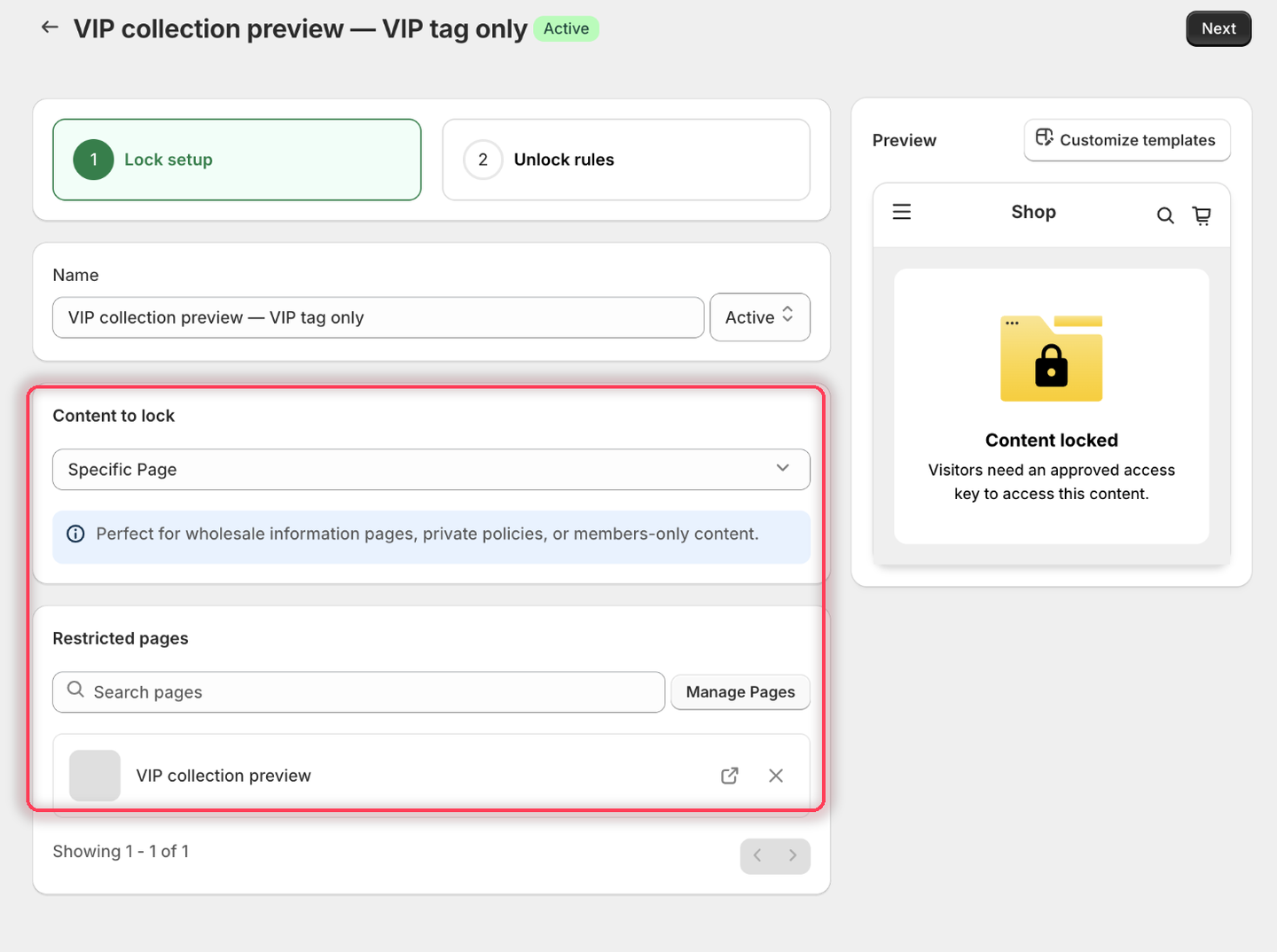
1. Select the **VIP collection preview** page as the content to protect.

<figure><img src="https://27754559-files.gitbook.io/~/files/v0/b/gitbook-x-prod.appspot.com/o/spaces%2FF4qMYopXntYz9YgUqZSo%2Fuploads%2Fgit-blob-e6ce845234ade2fd4380b60f0eaf21e468ae42d6%2Fscreenshot-example-custom-liquid-content.png?alt=media" alt="The Lock setup tab with Specific Page as the content type and the VIP collection preview page listed under Restricted pages."><figcaption><p>Pick the page you want to keep for VIP customers.</p></figcaption></figure>

2. Add **Custom liquid** and replace the starter snippet with:

```liquid
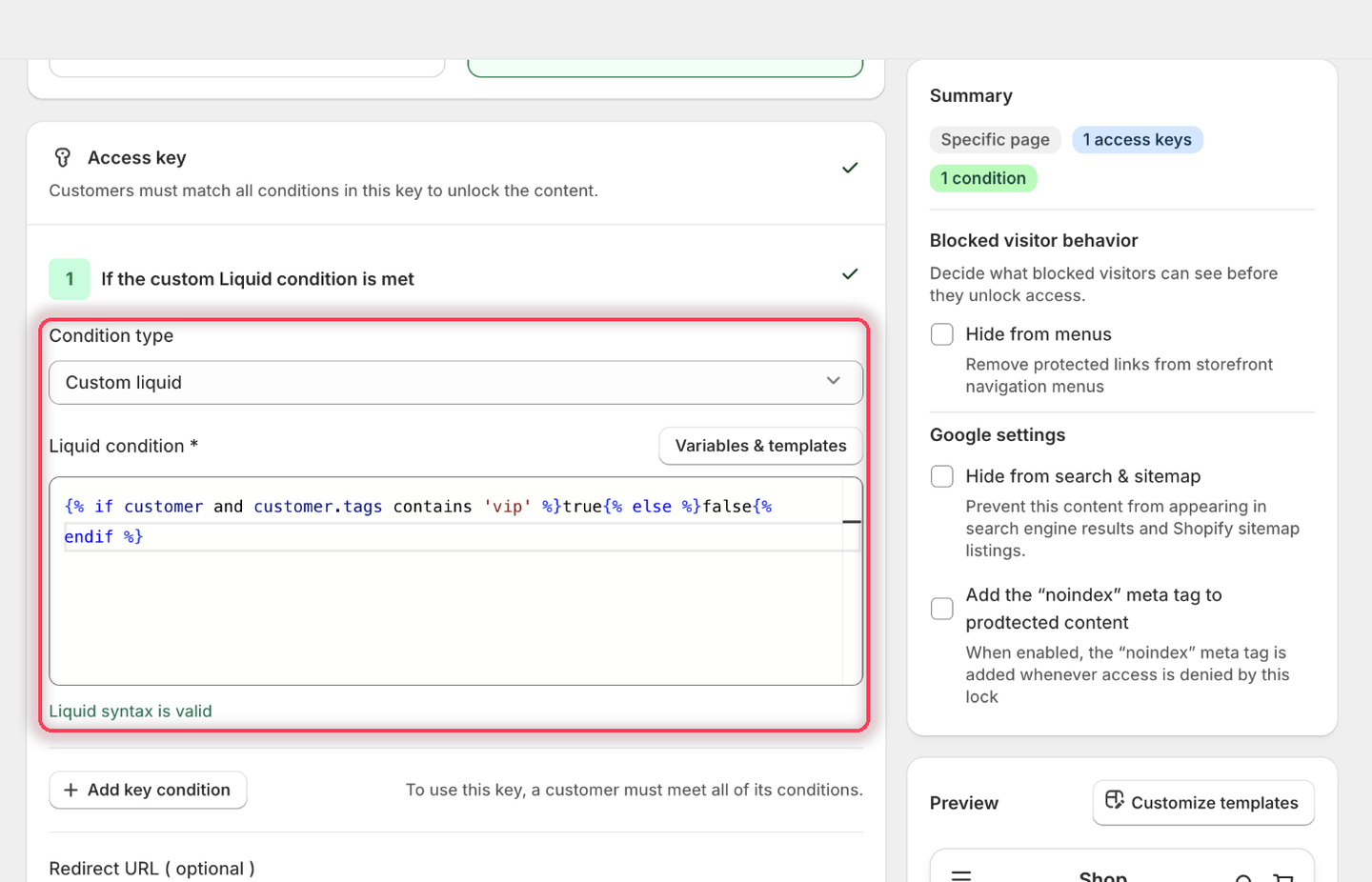
{% if customer and customer.tags contains 'vip' %}true{% else %}false{% endif %}
```

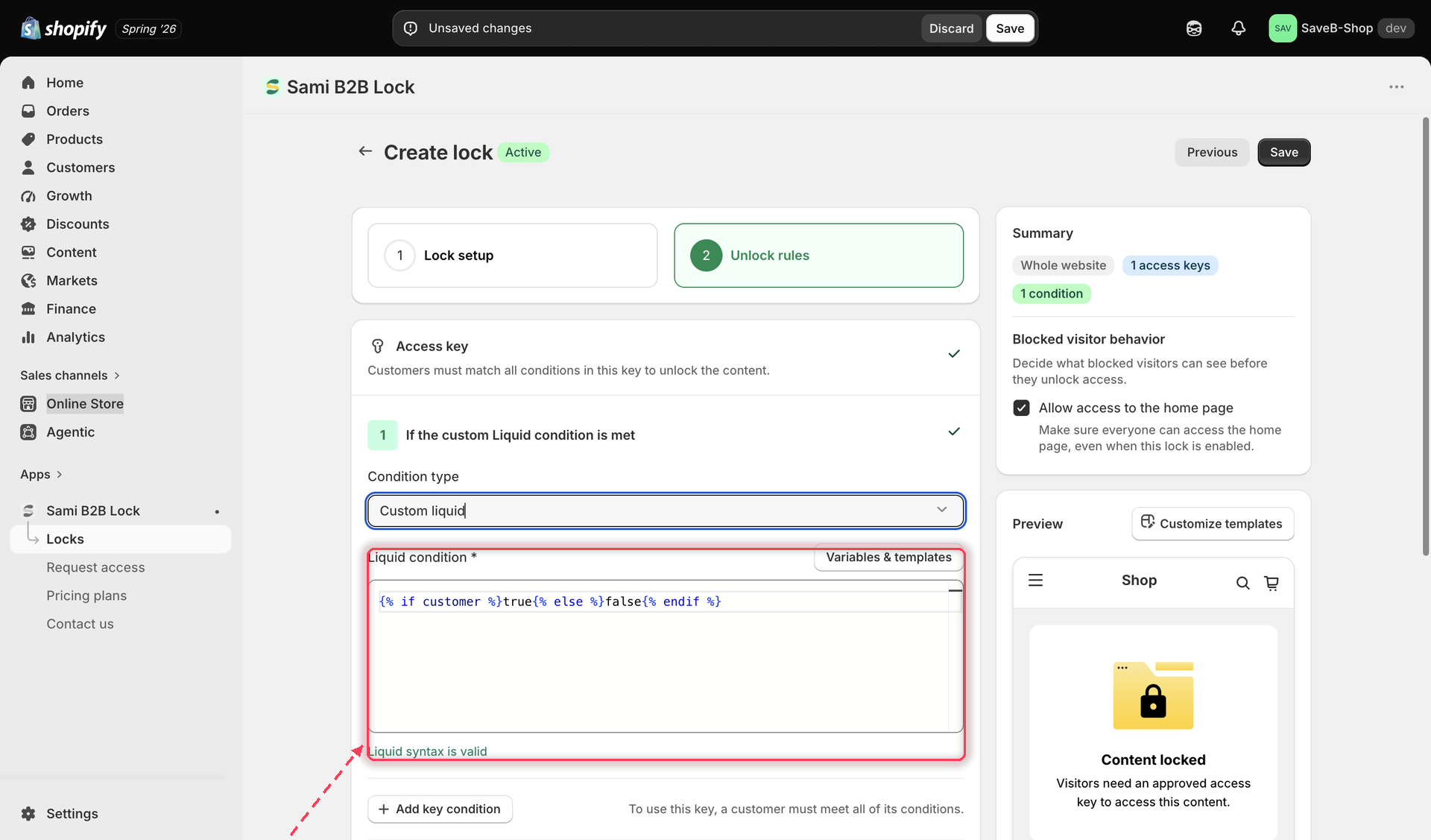
The editor confirms **Liquid syntax is valid** underneath as you type.

<figure><img src="https://27754559-files.gitbook.io/~/files/v0/b/gitbook-x-prod.appspot.com/o/spaces%2FF4qMYopXntYz9YgUqZSo%2Fuploads%2Fgit-blob-c4dadc5d1bec68455c98b4b7fb9085f169c6ca47%2Fscreenshot-example-custom-liquid-rule.png?alt=media" alt="The Custom liquid condition with the VIP tag snippet in the Liquid condition editor and the Liquid syntax is valid confirmation below it."><figcaption><p>The editor highlights the Liquid and validates the syntax before you save.</p></figcaption></figure>

3. Leave the rule's **Redirect URL** empty.
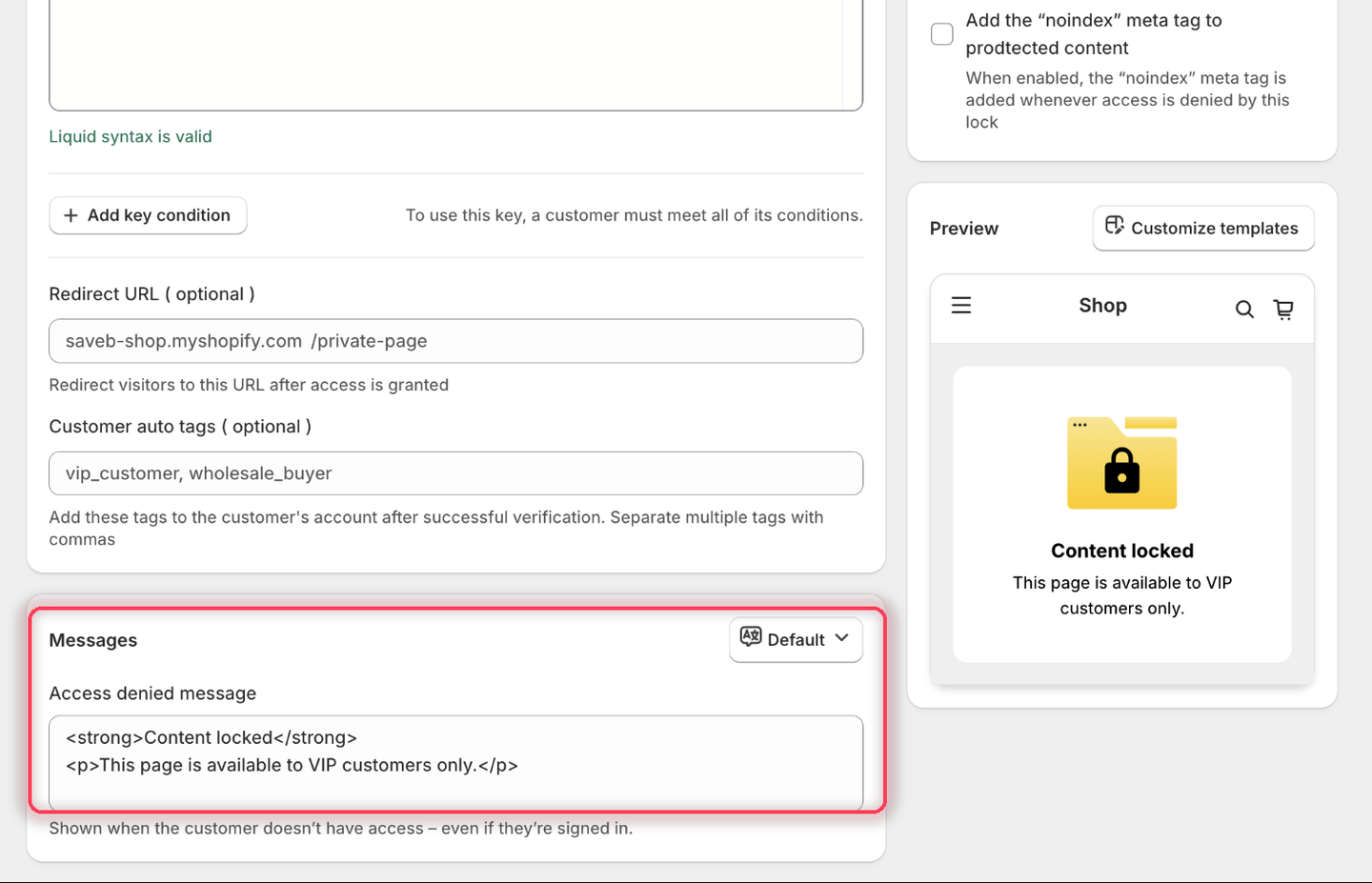
4. Set the **Access denied message** to:

> This page is available to VIP customers only.

<figure><img src="https://27754559-files.gitbook.io/~/files/v0/b/gitbook-x-prod.appspot.com/o/spaces%2FF4qMYopXntYz9YgUqZSo%2Fuploads%2Fgit-blob-ff725178c43340c56f6981c4776598442c95fff0%2Fscreenshot-example-custom-liquid-message.png?alt=media" alt="The Messages card with the Access denied message set to the VIP-customers-only wording, and the Preview panel rendering it."><figcaption><p>Custom liquid has a single message field, shown to everyone the snippet rejects.</p></figcaption></figure>

5. Click **Save**.

### Result on the storefront

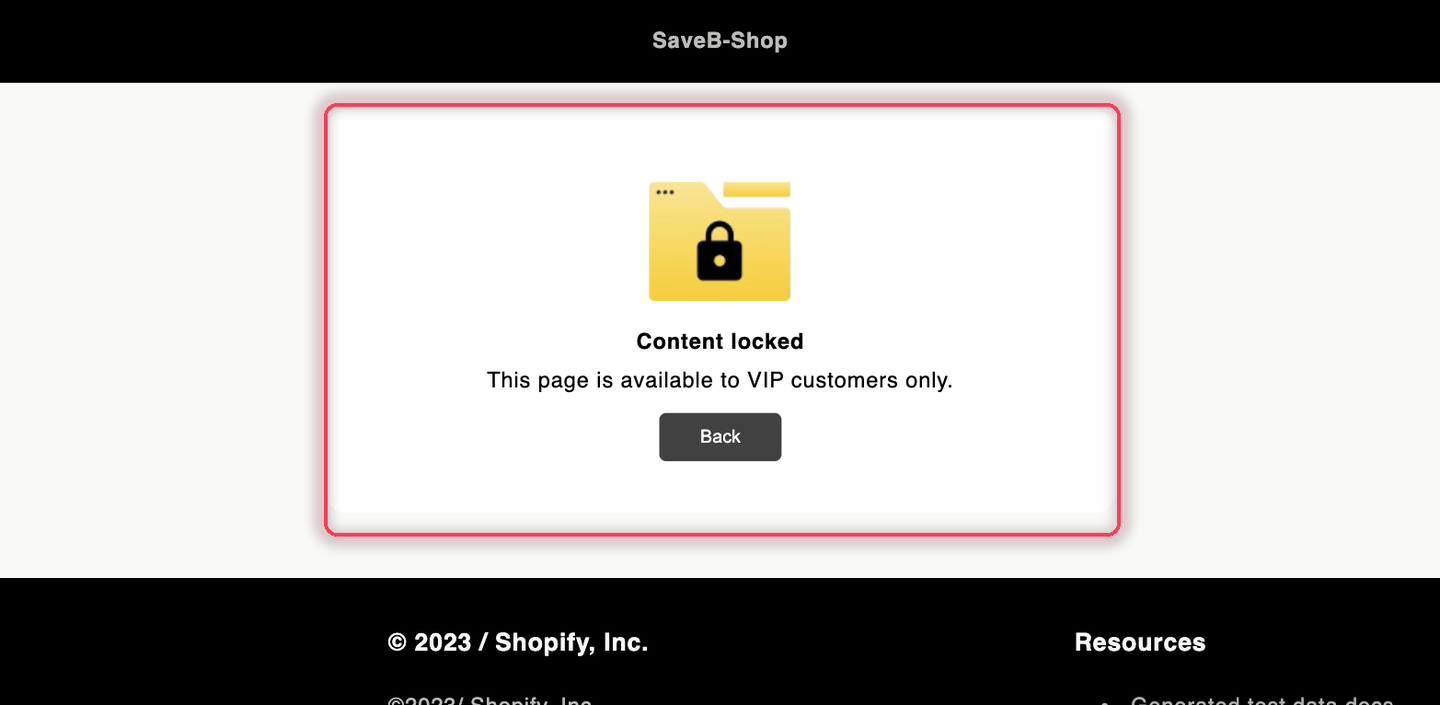
The snippet outputs exactly `true` for a signed-in customer with the `vip` tag, so the page opens normally. It outputs exactly `false` for guests and customers without that tag, so they see the message above. Do not add text before or after `true` or `false` in the snippet output.

<figure><img src="https://27754559-files.gitbook.io/~/files/v0/b/gitbook-x-prod.appspot.com/o/spaces%2FF4qMYopXntYz9YgUqZSo%2Fuploads%2Fgit-blob-2840cd9a7e5462491285d34322be2b3b256a3f8b%2Fscreenshot-example-custom-liquid-result.png?alt=media" alt="The VIP collection preview page displaying the configured VIP-customers-only message."><figcaption><p>When the Liquid snippet returns false, the visitor sees the Access denied message from this example.</p></figcaption></figure>

## Related docs

* [Combining rules](/b2b-lock-password-protect/access-rules/combining-rules.md)
* [B2B customer](/b2b-lock-password-protect/access-rules/b2b-customer.md)
* [Lock not working](/b2b-lock-password-protect/help/lock-not-working.md)
* [How it works](/b2b-lock-password-protect/reference/how-it-works.md)


---

# Agent Instructions
This documentation is published with GitBook. GitBook is the documentation platform designed so that both humans and AI agents can read, navigate, and reason over technical content effectively. Learn more at gitbook.com.

## Querying This Documentation
If you need additional information that is not directly available in this page, you can query the documentation dynamically by asking a question.

Perform an HTTP GET request on the current page URL with the `ask` query parameter, and the optional `goal` query parameter:

```
GET https://docs.samita.io/b2b-lock-password-protect/access-rules/custom-liquid.md?ask=<question>&goal=<endgoal>
```

`ask` is the immediate question: it should be specific, self-contained, and written in natural language.
`goal` is optional and describes the broader end goal you are ultimately trying to accomplish on behalf of the user. GitBook uses it to tailor the answer towards what is most useful for that goal.

The response will contain a direct answer to the question and relevant excerpts and sources from the documentation.

Use this mechanism when the answer is not explicitly present in the current page, you need clarification or additional context, or you want to retrieve related documentation sections.