> For the complete documentation index, see [llms.txt](https://docs.samita.io/llms.txt). Markdown versions of documentation pages are available by appending `.md` to page URLs; this page is available as [Markdown](https://docs.samita.io/b2b-lock-password-protect/access-rules/b2b-customer.md).

# B2B customer

Restrict a lock to customers who belong to a Shopify B2B company account.

The B2B customer rule checks Shopify's own native company-account status for the visitor — it's a genuine platform check against Shopify's B2B customer flag, not something the app tracks on its own. If a customer is associated with a company account in your store's B2B setup, this rule recognizes them as a B2B customer automatically.

## How it works

The rule reads whether the currently logged-in customer is linked to a Shopify B2B company account. There's nothing to configure beyond adding the rule and choosing If/Unless — no tag to type, no list to maintain. That also means the rule is only as accurate as your store's own B2B setup in Shopify: if a wholesale buyer hasn't been added to a company account in Shopify admin, this rule won't recognize them as B2B, no matter how you configure it here.

## Adding the rule

1. Open the lock you want to protect and click the **Unlock rules** tab.
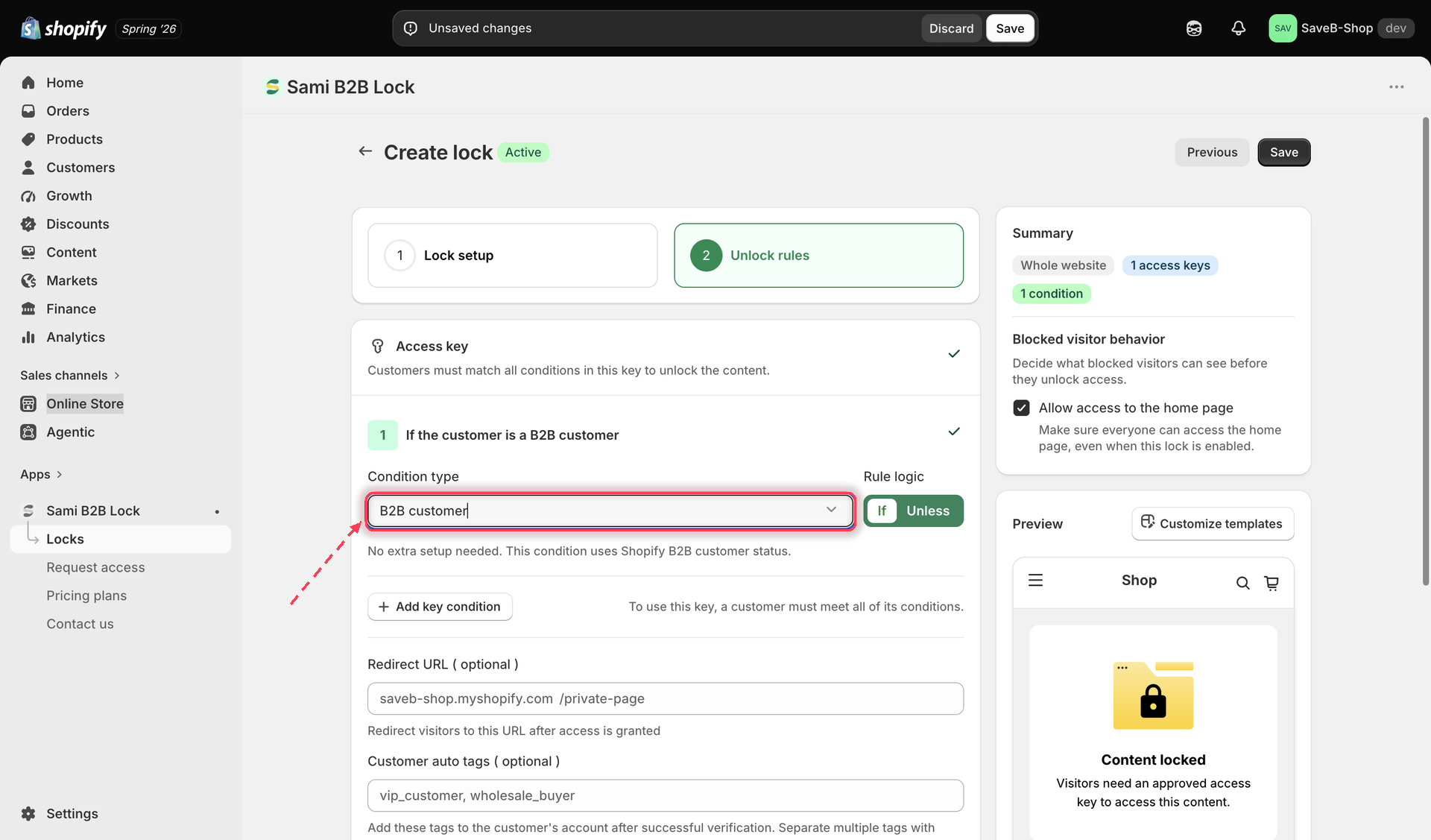
2. Add an access rule and choose **B2B customer** from the **Condition type** dropdown.

   <figure><img src="https://27754559-files.gitbook.io/~/files/v0/b/gitbook-x-prod.appspot.com/o/spaces%2FF4qMYopXntYz9YgUqZSo%2Fuploads%2Fgit-blob-f7cf25bb82bb77cfb864107c5e254f5a8447f134%2Fscreenshot-access-rules-b2b-customer-add.png?alt=media" alt="Access rule picker with B2B customer selected as the condition type"><figcaption><p>Adding the B2B customer rule — no extra setup needed beyond If/Unless.</p></figcaption></figure>
3. Choose whether the rule should match **If** (the customer belongs to a B2B company account) or **Unless** (the customer does not).
4. Optionally set a per-rule **Redirect URL**.
5. Save the lock.

## Common use: hide retail pricing from non-B2B visitors

A typical setup pairs this rule with [Hide price and Add to cart](/b2b-lock-password-protect/lock-behavior/hide-price-and-add-to-cart.md):

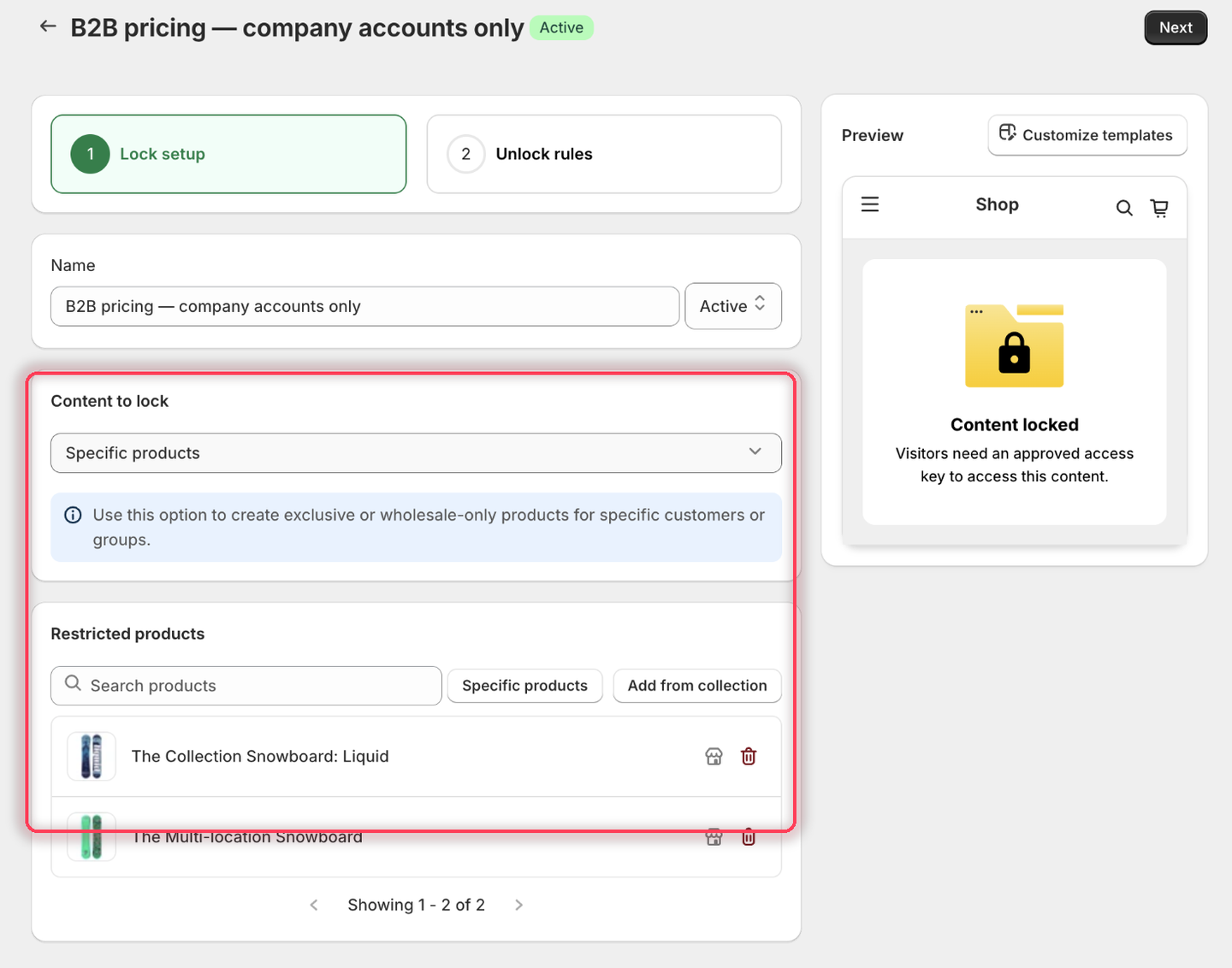
1. On the **Lock setup** tab, set the content to lock to the products or collection with B2B-only pricing.

<figure><img src="https://27754559-files.gitbook.io/~/files/v0/b/gitbook-x-prod.appspot.com/o/spaces%2FF4qMYopXntYz9YgUqZSo%2Fuploads%2Fgit-blob-cdb7b0e7c05e9af7cca00eb9f7ad99db8bd76cfc%2Fscreenshot-example-b2b-content.png?alt=media" alt="The Lock setup tab with Specific products chosen as the content type and two products listed under Restricted products."><figcaption><p>Pick the products whose pricing should stay B2B-only.</p></figcaption></figure>

2. Click the **Unlock rules** tab to continue.
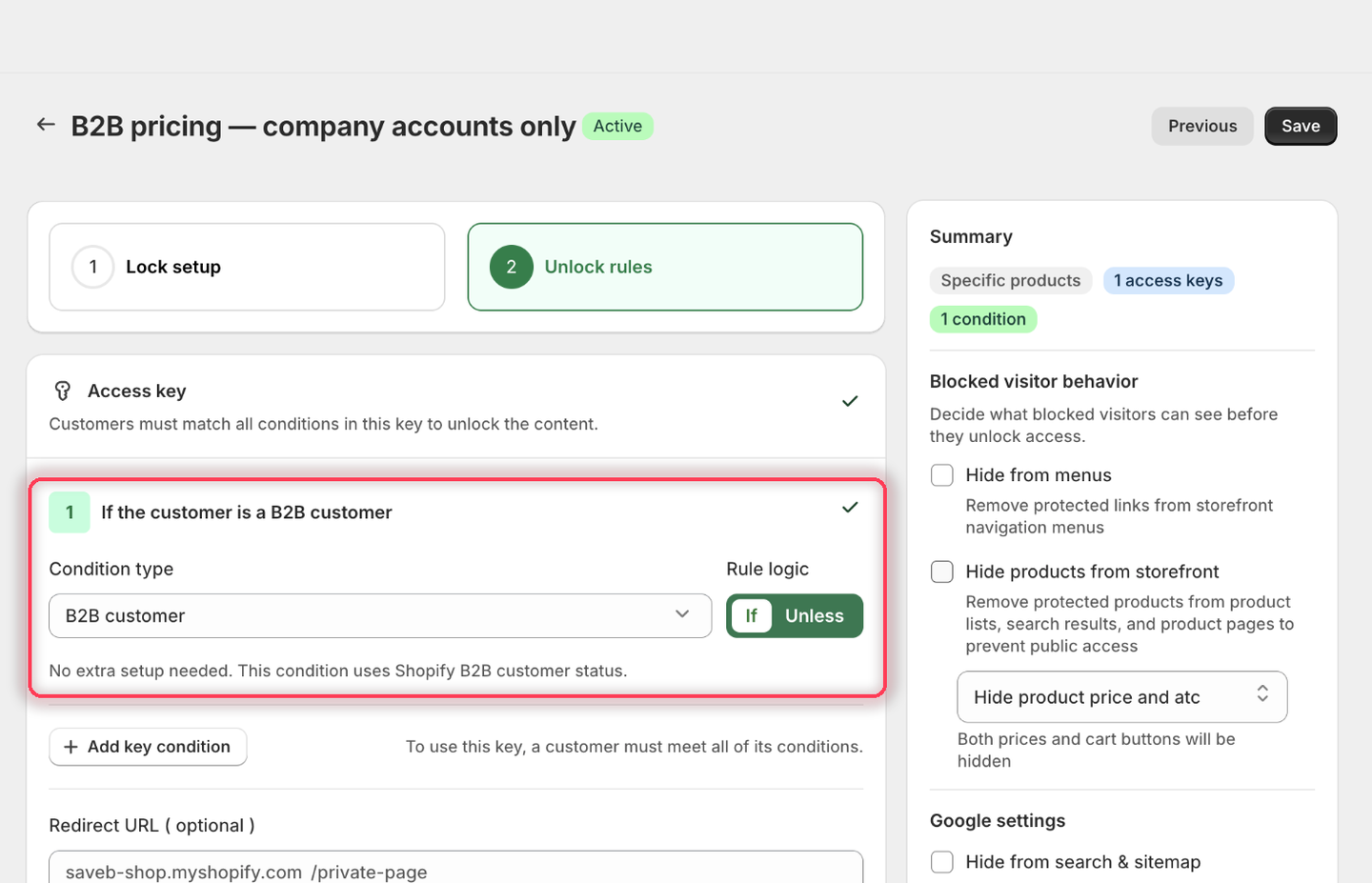
3. Add the B2B customer rule, matching **If**. There's nothing more to fill in — the app notes "No extra setup needed. This condition uses Shopify B2B customer status."

<figure><img src="https://27754559-files.gitbook.io/~/files/v0/b/gitbook-x-prod.appspot.com/o/spaces%2FF4qMYopXntYz9YgUqZSo%2Fuploads%2Fgit-blob-2110f67e42c274c35663407aff1bb351d4757089%2Fscreenshot-example-b2b-rule.png?alt=media" alt="The B2B customer condition with Rule logic set to If and a note that the condition uses Shopify B2B customer status."><figcaption><p>The condition heading confirms what you built: If the customer is a B2B customer.</p></figcaption></figure>

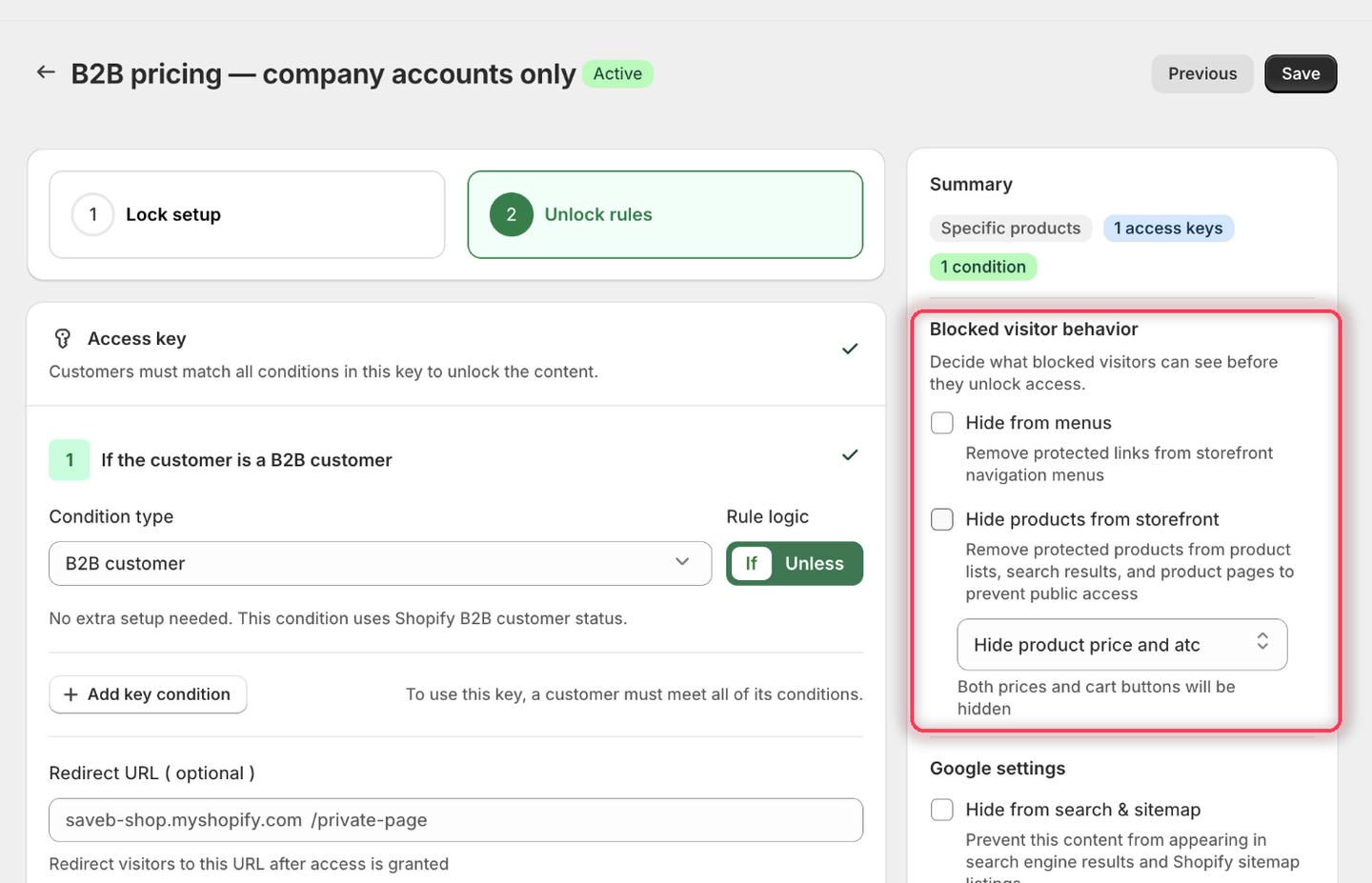
4. In the same tab's right-hand sidebar, under **Blocked visitor behavior**, leave **Hide products from storefront** off and pick a hide option from the dropdown instead — so non-B2B visitors see the page without the retail price or buy button, rather than a hard block.

<figure><img src="https://27754559-files.gitbook.io/~/files/v0/b/gitbook-x-prod.appspot.com/o/spaces%2FF4qMYopXntYz9YgUqZSo%2Fuploads%2Fgit-blob-c345d2db915dd6b4a7f6a48aa7e0c905ec4f0411%2Fscreenshot-example-b2b-hide-price.png?alt=media" alt="The Blocked visitor behavior panel with Hide products from storefront unchecked and Hide product price and atc selected in the dropdown."><figcaption><p>Hide product price and atc keeps the page visible while the pricing stays private.</p></figcaption></figure>

5. Save.

{% hint style="info" %}
If you're segmenting purely by a customer tag rather than genuine Shopify B2B company status, the [Customer tags](/b2b-lock-password-protect/access-rules/customer-tags.md) rule and the built-in Quick Setup **Wholesale-only products** template on the Locks page are a faster shortcut. Reach for this B2B customer rule specifically when you want the check tied to real B2B company accounts in Shopify, not a tag you maintain yourself.
{% endhint %}

## Result on the storefront

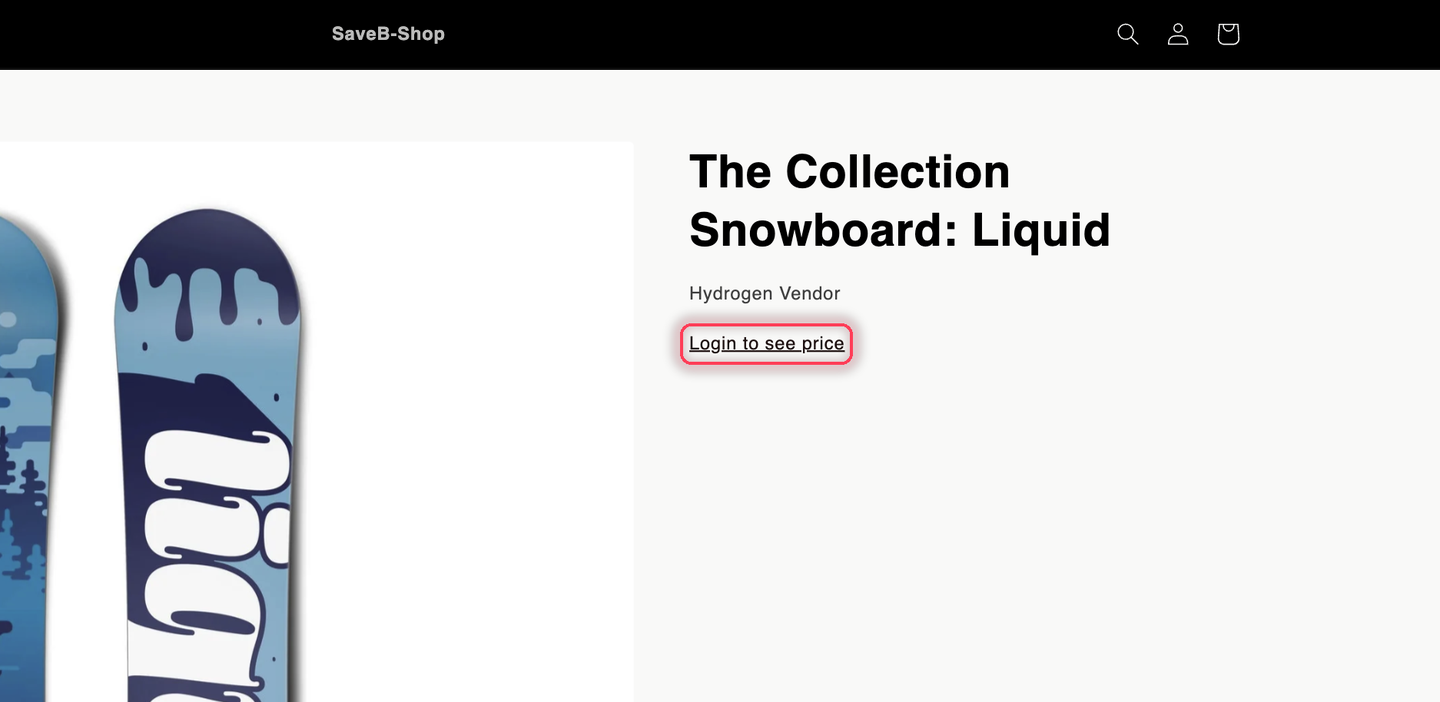
With the example above, customers linked to a Shopify B2B company account see the normal price and buy box. Guests and signed-in retail customers can still browse the product page, but the price and buy buttons are replaced with the configured lock message.

<figure><img src="https://27754559-files.gitbook.io/~/files/v0/b/gitbook-x-prod.appspot.com/o/spaces%2FF4qMYopXntYz9YgUqZSo%2Fuploads%2Fgit-blob-4c0a196017eebc548b3bf4201ac1570d70b1e501%2Fscreenshot-storefront-b2b-hide-price.png?alt=media" alt="A live storefront product page seen by a non-B2B visitor: product image, title, and vendor are visible, with a Login to see price link where the price would be and no Add to cart button."><figcaption><p>The result of the example: non-B2B visitors can browse the product, but the price and buy buttons are replaced.</p></figcaption></figure>

{% hint style="info" %}
The default replacement text may say **"Login to see price"**. Because a signed-in retail customer can still fail the B2B condition, consider changing it to something more specific, such as **"Company account required"**. See [Hide price and Add to cart](/b2b-lock-password-protect/lock-behavior/hide-price-and-add-to-cart.md).
{% endhint %}

## Related docs

* [Customer tags](/b2b-lock-password-protect/access-rules/customer-tags.md)
* [Hide price and Add to cart](/b2b-lock-password-protect/lock-behavior/hide-price-and-add-to-cart.md)
* [Combining rules](/b2b-lock-password-protect/access-rules/combining-rules.md)
* [Custom liquid](/b2b-lock-password-protect/access-rules/custom-liquid.md)


---

# Agent Instructions
This documentation is published with GitBook. GitBook is the documentation platform designed so that both humans and AI agents can read, navigate, and reason over technical content effectively. Learn more at gitbook.com.

## Querying This Documentation
If you need additional information that is not directly available in this page, you can query the documentation dynamically by asking a question.

Perform an HTTP GET request on the current page URL with the `ask` query parameter, and the optional `goal` query parameter:

```
GET https://docs.samita.io/b2b-lock-password-protect/access-rules/b2b-customer.md?ask=<question>&goal=<endgoal>
```

`ask` is the immediate question: it should be specific, self-contained, and written in natural language.
`goal` is optional and describes the broader end goal you are ultimately trying to accomplish on behalf of the user. GitBook uses it to tailor the answer towards what is most useful for that goal.

The response will contain a direct answer to the question and relevant excerpts and sources from the documentation.

Use this mechanism when the answer is not explicitly present in the current page, you need clarification or additional context, or you want to retrieve related documentation sections.