> For the complete documentation index, see [llms.txt](https://docs.samita.io/llms.txt). Markdown versions of documentation pages are available by appending `.md` to page URLs; this page is available as [Markdown](https://docs.samita.io/b2b-lock-password-protect/content-to-lock/checkout.md).

# Checkout

Block checkout for specific customers or products using a dedicated condition builder enforced by Shopify itself.

The **Checkout lock** content type blocks checkout itself, rather than a page or product. It's the right choice when you need to stop specific customers from completing a purchase — for example, guests without an account, customers missing a required tag, or customers whose email or phone matches a pattern you want to exclude.

{% hint style="info" %}
Checkout lock uses its own condition builder, separate from the access rules used by every other content type. Rules like Passcode, Secret link, or Date range don't apply here — checkout has its own set of customer conditions, described below.
{% endhint %}

## Create the lock

1. Open **Locks** in the app's navigation.
2. Click **Create lock**.
3. Give the lock a descriptive name, for example "Block checkout for guests."

## Choose Checkout as the content to lock

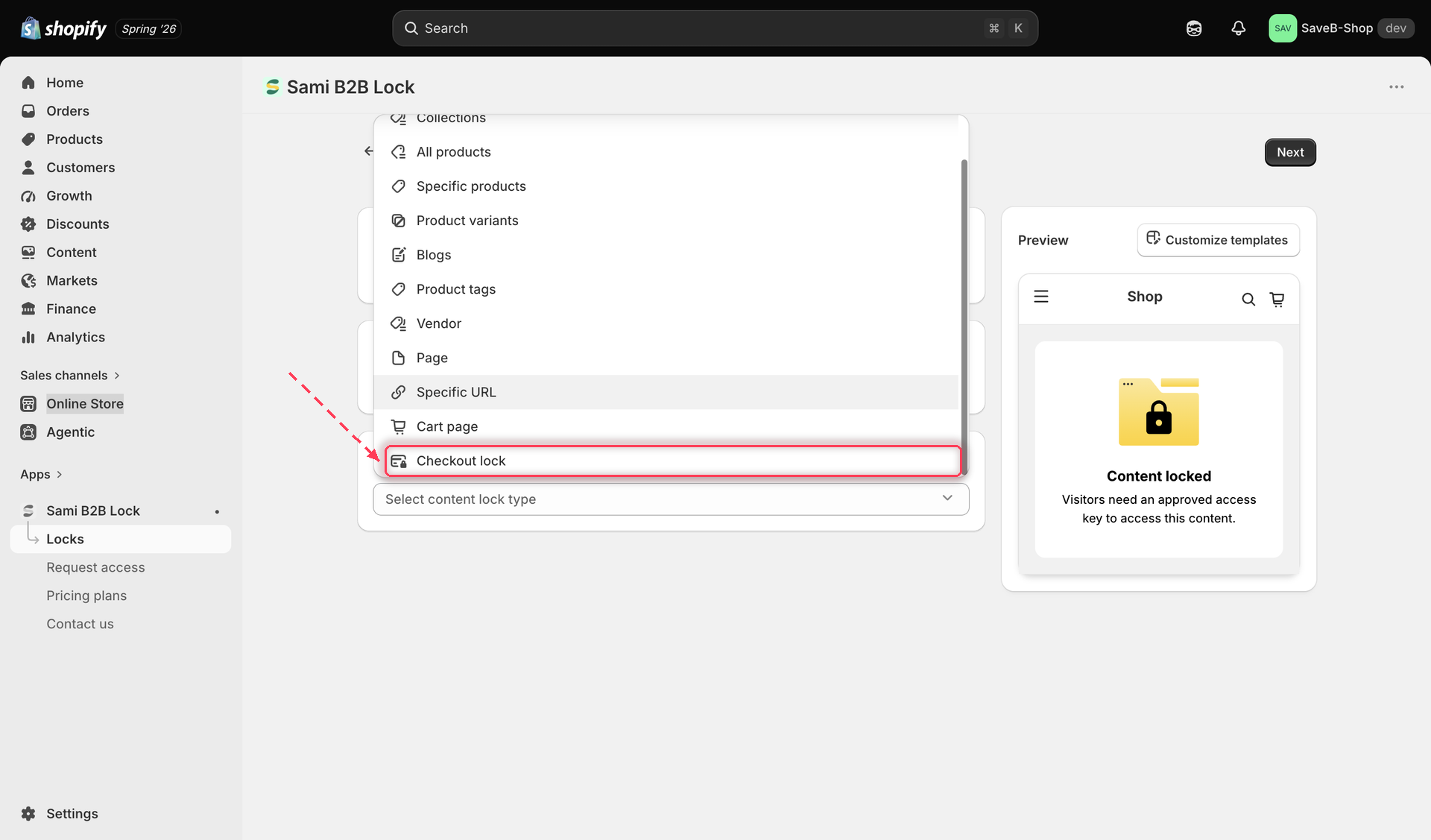
4. On the **Lock setup** tab, in the content picker, select **Checkout lock**.

<figure><img src="https://27754559-files.gitbook.io/~/files/v0/b/gitbook-x-prod.appspot.com/o/spaces%2FF4qMYopXntYz9YgUqZSo%2Fuploads%2Fgit-blob-7466f327d77f16b7aa9bef780277d950dcc08f1f%2Fscreenshot-locks-content-picker-checkout.png?alt=media" alt="The content picker with Checkout lock selected as the content type to lock."><figcaption><p>Select Checkout lock in the content picker to build a checkout condition.</p></figcaption></figure>

## Choose the product scope

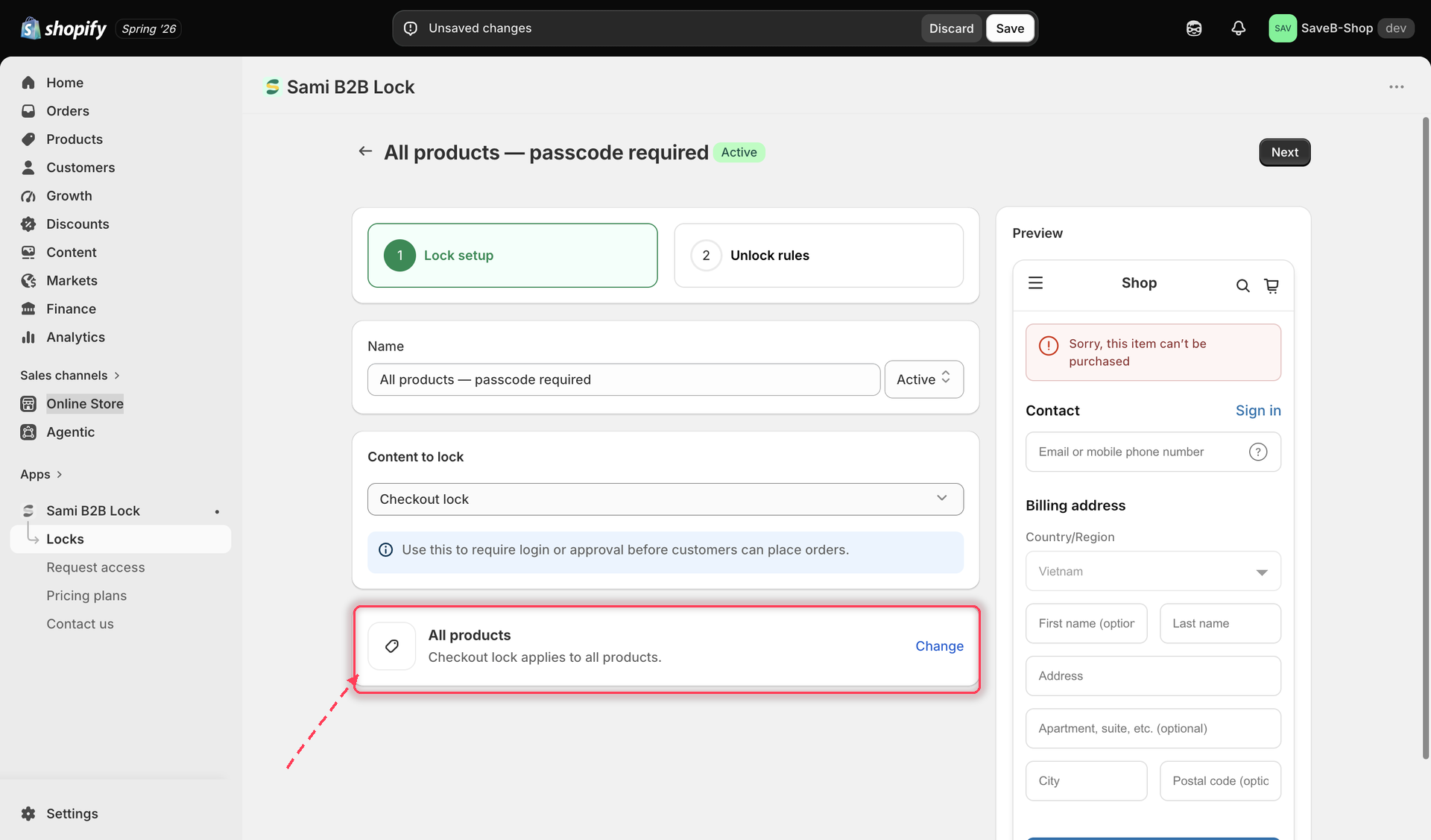
5. Still on the **Lock setup** tab, a card below the content picker shows which products the lock covers. It starts at **All products** — "Checkout lock applies to all products." Click **Change** to narrow it to specific products instead.

<figure><img src="https://27754559-files.gitbook.io/~/files/v0/b/gitbook-x-prod.appspot.com/o/spaces%2FF4qMYopXntYz9YgUqZSo%2Fuploads%2Fgit-blob-cf652cb8d0d0f725e3df6cbb2c2f6631e571baf0%2Fscreenshot-checkout-product-scope.png?alt=media" alt="The product scope card for a Checkout lock, set to All products, with a Change action."><figcaption><p>Checkout lock starts covering all products; use Change to narrow the scope.</p></figcaption></figure>

6. Click the **Unlock rules** tab to continue.

## Build the condition

{% hint style="warning" %}
**Checkout conditions read the opposite way to other locks.** For every other content type, an access rule describes who gets *through*. Here, the panel is called **Lock conditions** and it describes when the lock *applies* — in other words, who gets **blocked**. A condition of "Customer is not logged in" means guests are blocked from checking out.
{% endhint %}

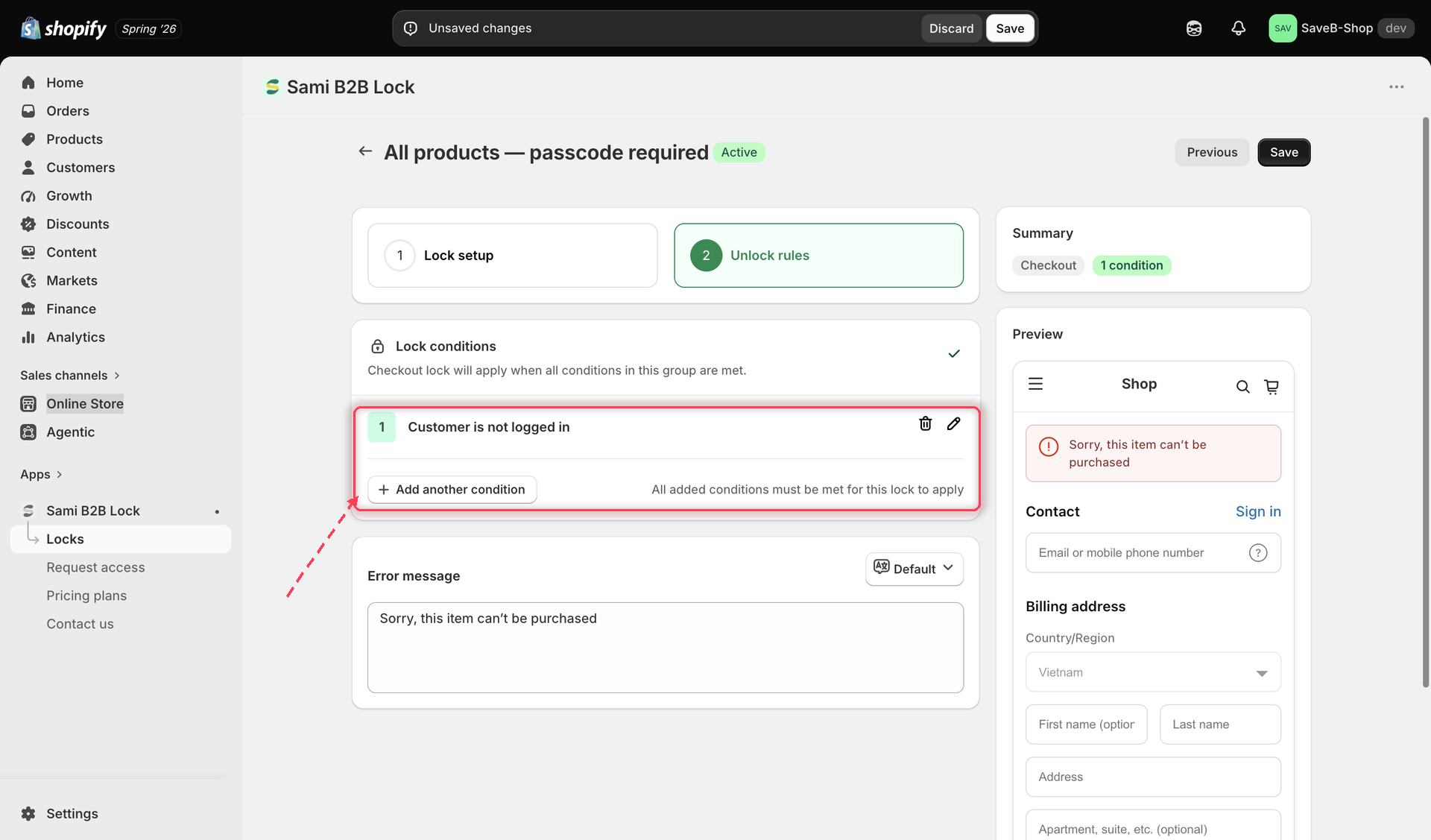
7. On the **Unlock rules** tab, the **Lock conditions** card replaces the standard rule builder. Add a customer condition — each has a type and a rule:

| Condition type | Rules available                          |
| -------------- | ---------------------------------------- |
| Customer login | Is logged in / Is not logged in          |
| Customer tag   | Has tag / Does not have tag              |
| Customer phone | Is equal to / Is not equal to            |
| Customer email | Is equal to / Is not equal to / Contains |

Each condition row has a pencil icon to edit it and a bin icon to remove it.

<figure><img src="https://27754559-files.gitbook.io/~/files/v0/b/gitbook-x-prod.appspot.com/o/spaces%2FF4qMYopXntYz9YgUqZSo%2Fuploads%2Fgit-blob-fe1b22136945b9133ae2f71c209262f4f801bc8e%2Fscreenshot-checkout-condition-builder.png?alt=media" alt="The Lock conditions card for a Checkout lock, showing one condition with edit and delete icons and an Add another condition button."><figcaption><p>The Lock conditions card sets when the checkout lock applies.</p></figcaption></figure>

8. Click **Add another condition** to add more. Conditions are always combined with **AND** — as the card says, "All added conditions must be met for this lock to apply." Adding conditions makes the lock narrower because every condition must match.

## Set the error message

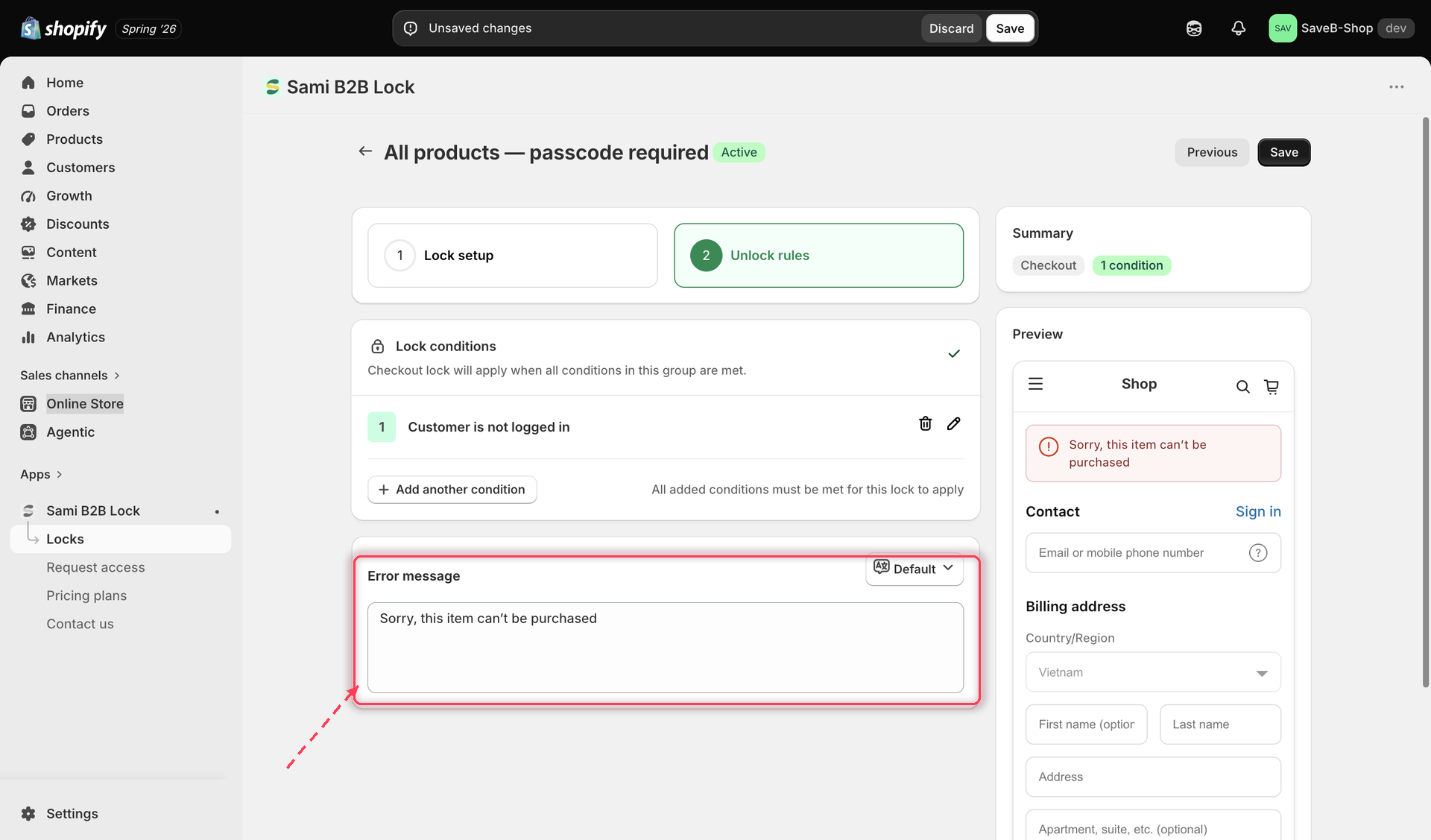
9. Below the conditions, edit the **Error message** a blocked customer sees at checkout. The default is `Sorry, this item can't be purchased`. Use the language selector on that card to set the message per storefront language.

<figure><img src="https://27754559-files.gitbook.io/~/files/v0/b/gitbook-x-prod.appspot.com/o/spaces%2FF4qMYopXntYz9YgUqZSo%2Fuploads%2Fgit-blob-1e19ae663bf2276b971f697a949f9585de05f21e%2Fscreenshot-checkout-error-message.png?alt=media" alt="The Error message field for a Checkout lock with its per-language selector."><figcaption><p>The Error message is what a blocked customer sees at checkout.</p></figcaption></figure>

The **Preview** panel on the right shows a real checkout with your error message in place, so you can see how it reads before saving.

## Save

10. Click **Save**.

{% hint style="success" %}
Checkout lock is enforced by Shopify itself at checkout — there's nothing extra to configure in your theme or the app embed. Once saved, the condition applies the moment a matching customer reaches checkout.
{% endhint %}

## Related docs

* [Access rules overview](/b2b-lock-password-protect/access-rules/overview.md)
* [Lock behavior overview](/b2b-lock-password-protect/lock-behavior/overview.md)
* [Manage locks](/b2b-lock-password-protect/locks/manage-locks.md)


---

# Agent Instructions
This documentation is published with GitBook. GitBook is the documentation platform designed so that both humans and AI agents can read, navigate, and reason over technical content effectively. Learn more at gitbook.com.

## Querying This Documentation
If you need additional information that is not directly available in this page, you can query the documentation dynamically by asking a question.

Perform an HTTP GET request on the current page URL with the `ask` query parameter, and the optional `goal` query parameter:

```
GET https://docs.samita.io/b2b-lock-password-protect/content-to-lock/checkout.md?ask=<question>&goal=<endgoal>
```

`ask` is the immediate question: it should be specific, self-contained, and written in natural language.
`goal` is optional and describes the broader end goal you are ultimately trying to accomplish on behalf of the user. GitBook uses it to tailor the answer towards what is most useful for that goal.

The response will contain a direct answer to the question and relevant excerpts and sources from the documentation.

Use this mechanism when the answer is not explicitly present in the current page, you need clarification or additional context, or you want to retrieve related documentation sections.