> For the complete documentation index, see [llms.txt](https://docs.samita.io/llms.txt). Markdown versions of documentation pages are available by appending `.md` to page URLs; this page is available as [Markdown](https://docs.samita.io/b2b-lock-password-protect/lock-behavior/redirect-after-access.md).

# Redirect after access

Send a visitor to a chosen URL after they pass a lock, or after a specific rule denies them.

Redirecting is available in two places on a lock, and they trigger at opposite moments:

* **Redirect on access** — sends a visitor to a URL you choose once they satisfy an entire access key (all of that key's rules).
* **Redirect on deny** — sends a visitor to a URL you choose when one specific rule fails, configured per rule.

Both are optional. If you leave them blank, an allowed visitor simply sees the unlocked content, and a blocked visitor sees the lock's normal access-denied message instead of being sent anywhere.

{% hint style="warning" %}
A lock can use **redirect on access** or [Add customer tags on verification](/b2b-lock-password-protect/lock-behavior/customer-auto-tags.md), but not both at once. Setting a redirect URL on an access key disables that key's customer auto-tag field, since a visitor who is redirected away never sees the confirmation that would normally trigger the tag.
{% endhint %}

## Redirect on access

### Reach this setting

1. Open **Locks** and create a new lock, or open an existing one to edit it.
2. On the **Lock setup** tab, pick a content type.
3. Click the **Unlock rules** tab, then add at least one access key with its rules in the main column.
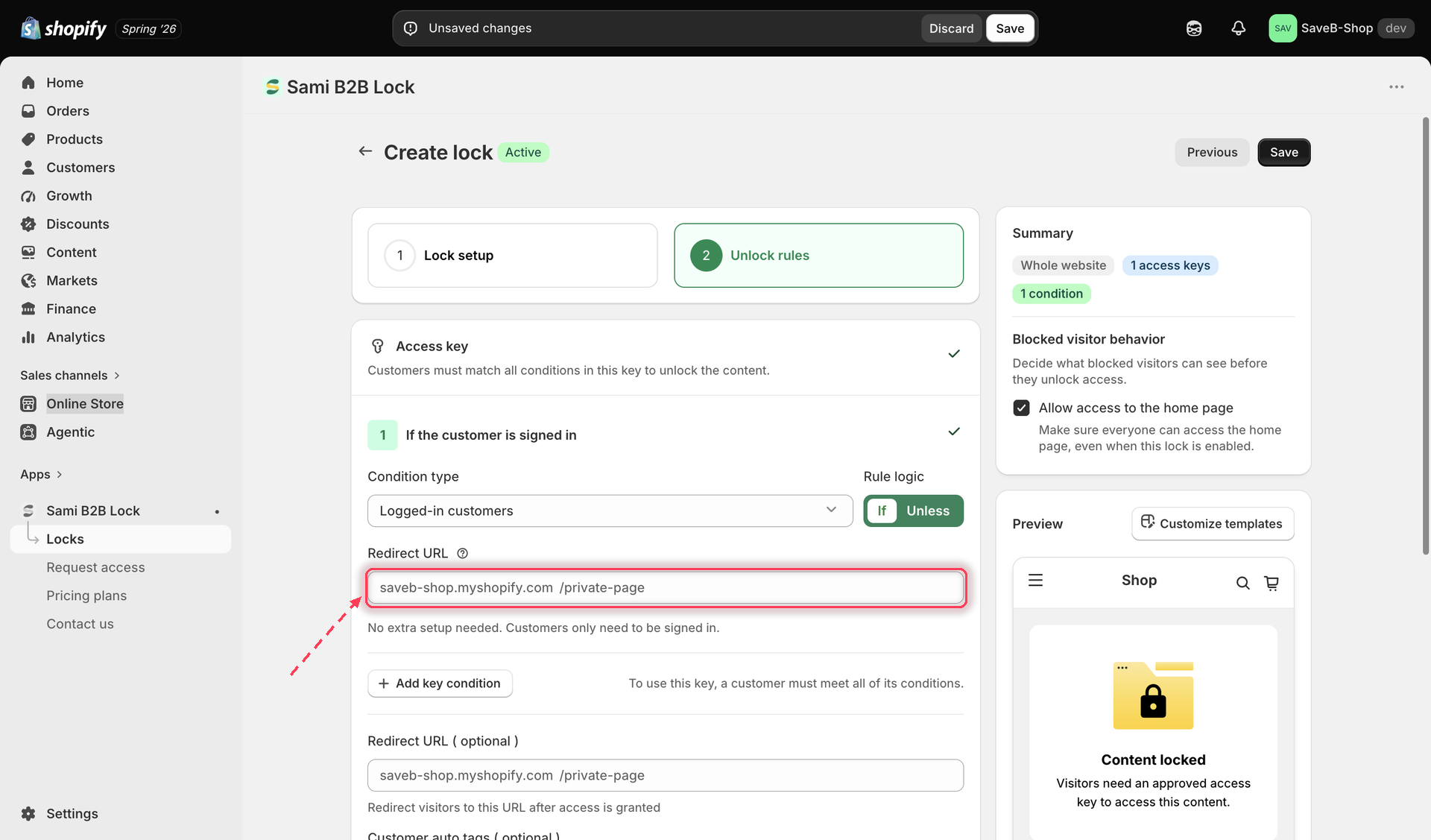
4. Below that key's rules, in the same main column, find the **Redirect URL (optional)** field. This is a per-access-key setting, not part of the **Blocked visitor behavior** sidebar panel.

<figure><img src="https://27754559-files.gitbook.io/~/files/v0/b/gitbook-x-prod.appspot.com/o/spaces%2FF4qMYopXntYz9YgUqZSo%2Fuploads%2Fgit-blob-7f18f521e3b2d1a4002715f716fbfc6359d5b8ca%2Fscreenshot-lock-behavior-redirect-on-access.png?alt=media" alt="The Redirect URL field below an access key&#x27;s rules, with helper text explaining it redirects visitors after access is granted."><figcaption><p>Set a Redirect URL on an access key to send visitors elsewhere once they satisfy all of that key's rules.</p></figcaption></figure>

5. Choose or enter the destination page or URL.
6. Click **Save**.

Once a visitor satisfies every rule in that access key, they're sent to the URL you set instead of staying on the unlocked content.

## Redirect on deny

### Reach this setting

1. In the same lock, on the **Unlock rules** tab, open an individual rule inside an access key in the main column.
2. Find that rule's own **Redirect URL** field.

<figure><img src="https://27754559-files.gitbook.io/~/files/v0/b/gitbook-x-prod.appspot.com/o/spaces%2FF4qMYopXntYz9YgUqZSo%2Fuploads%2Fgit-blob-3baeeaa1be71d23a8b79d1a120dea960924e725f%2Fscreenshot-lock-behavior-redirect-on-deny.png?alt=media" alt="A rule&#x27;s individual Redirect URL field with a tooltip explaining that visitors without access will be redirected there."><figcaption><p>Each rule has its own Redirect URL, used only when that specific rule denies the visitor.</p></figcaption></figure>

3. Choose or enter a destination for visitors who fail that rule specifically.
4. Click **Save**.

If a rule's Redirect URL is left blank, a visitor who fails it simply sees the lock's default access-denied message instead of being redirected. Because each rule has its own redirect, you can send visitors to different destinations depending on exactly which condition they failed — for example, a "must be logged in" rule could redirect to your login page, while a "must be a wholesale customer" rule redirects to your wholesale application form.

## Related docs

* [Lock behavior overview](/b2b-lock-password-protect/lock-behavior/overview.md)
* [Add customer tags on verification](/b2b-lock-password-protect/lock-behavior/customer-auto-tags.md)
* [Combining rules](/b2b-lock-password-protect/access-rules/combining-rules.md)
* [Access rules overview](/b2b-lock-password-protect/access-rules/overview.md)


---

# Agent Instructions
This documentation is published with GitBook. GitBook is the documentation platform designed so that both humans and AI agents can read, navigate, and reason over technical content effectively. Learn more at gitbook.com.

## Querying This Documentation
If you need additional information that is not directly available in this page, you can query the documentation dynamically by asking a question.

Perform an HTTP GET request on the current page URL with the `ask` query parameter, and the optional `goal` query parameter:

```
GET https://docs.samita.io/b2b-lock-password-protect/lock-behavior/redirect-after-access.md?ask=<question>&goal=<endgoal>
```

`ask` is the immediate question: it should be specific, self-contained, and written in natural language.
`goal` is optional and describes the broader end goal you are ultimately trying to accomplish on behalf of the user. GitBook uses it to tailor the answer towards what is most useful for that goal.

The response will contain a direct answer to the question and relevant excerpts and sources from the documentation.

Use this mechanism when the answer is not explicitly present in the current page, you need clarification or additional context, or you want to retrieve related documentation sections.