
Edit a scheduled or manual task
Change the rules, products or schedule of a task that has not run yet.
Tasks that have not run yet can be edited freely. That includes tasks with the status Manual start and Scheduled.
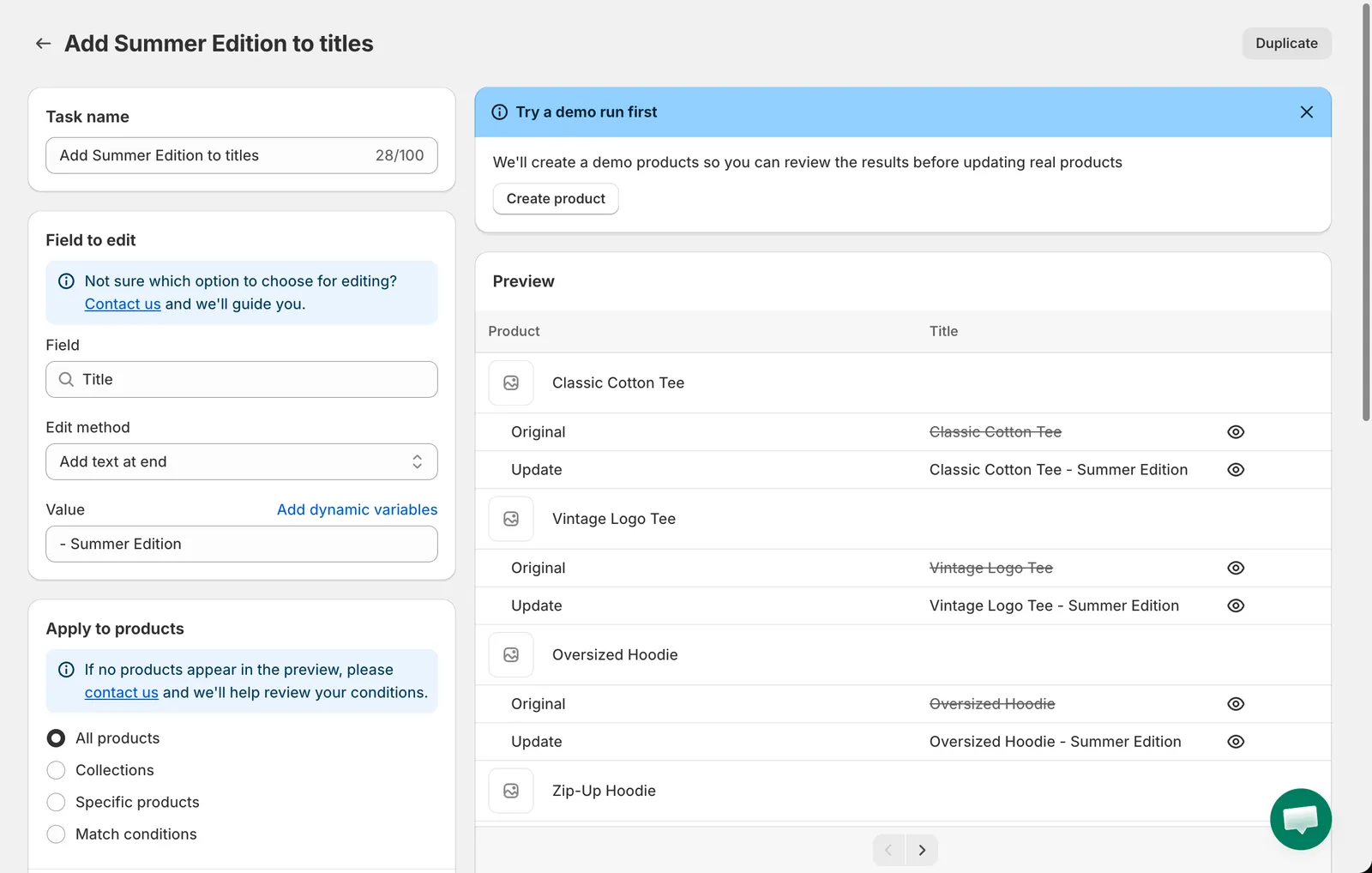
Editing a scheduled task
- Open Tasks and click the task row. It opens in the same form you used to create it.
- Change the name, the edit method, the value, the products, the variants or the schedule. The Preview updates as you go.
- Click Save in the top bar. The confirmation dialog appears only if you switched the start time to Now.
Tasks that have already run
Section titled “Tasks that have already run”Once a task has started, its rules are locked and the row opens the task details page instead. To run the same change again, or a variation of it, use Duplicate. See Duplicate a task.