
What's New
New features and improvements in each release of Sami Bulk Price Editor.
September, 2026
Section titled “September, 2026”Version 1.9
Section titled “Version 1.9”🎉 NEW FEATURES
Many more product fields
Section titled “Many more product fields”The Choose a Field to Edit page now groups fields into Product fields, Variant fields and Google Shopping, with search and a Recently used list. New product fields you can bulk edit:
- Handle, Vendor, Product type and Category (Shopify product taxonomy)
- Theme template and Search engine visibility (seo.hidden), plus SEO title and SEO description
- Collections: add products to, or remove them from, manual collections in one task
- Sales channels: publish or unpublish products on Online Store, POS and other channels
- Product options: rename an option by position or by name, add values to an existing option, or create a brand-new option with values (with a safety check against Shopify’s 2048-variant limit)
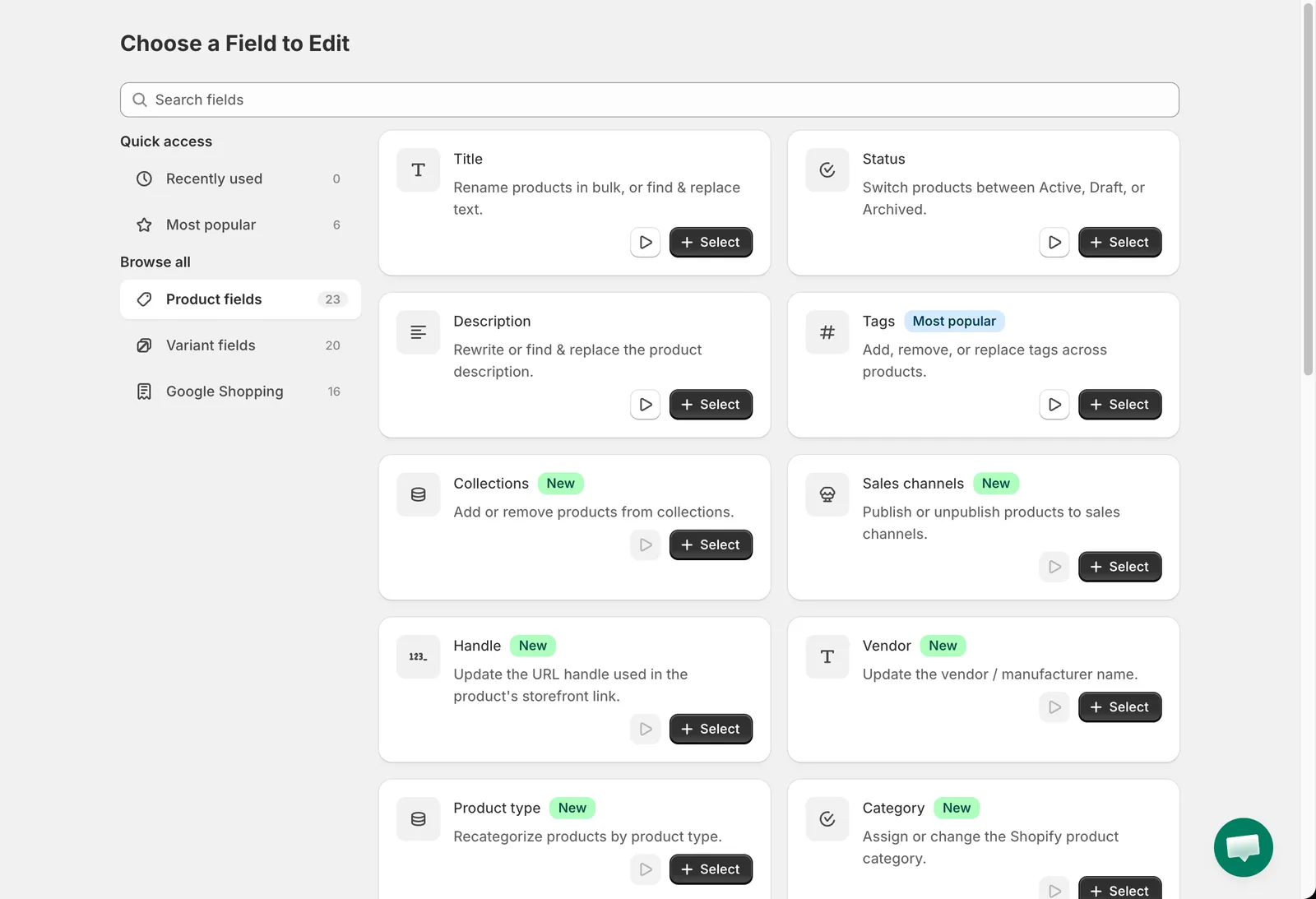
See Choose a field to edit for the full list.
Danger zone: delete products, options and variants
Section titled “Danger zone: delete products, options and variants”Three destructive edits are available for catalog clean-up: Delete product, Remove product options and Delete variants by option value. They run in small batches for safety, show a red warning on the task form, ask for a separate confirmation, and cannot be reverted. See Delete products and variants.
New variant fields
Section titled “New variant fields”- Inventory tracked and Continue selling when out of stock
- Charge tax
- Is physical product
- Country code of origin, Province code of origin and Harmonized System (HS) code
- Weight (value and unit) and Unit price (measurement and reference unit)
- Option value 1, 2, 3
See Inventory, tax, shipping and customs.
Google Shopping fields
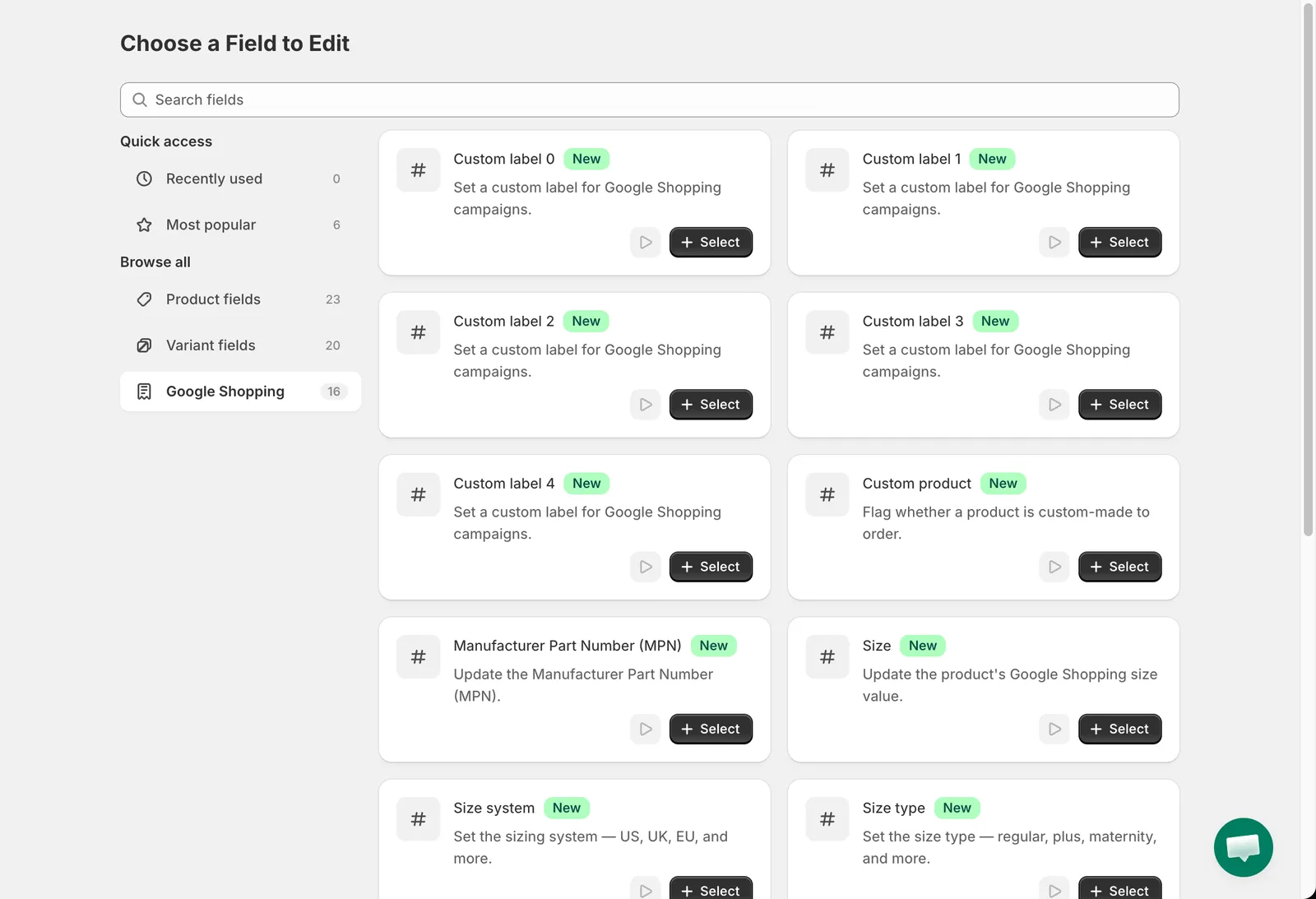
Section titled “Google Shopping fields”All Google Shopping metafields can now be bulk edited: Custom label 0–4, Custom product, MPN, Size, Size system, Size type, Color, Material, Google product category, Gender, Age group and Condition. See Google Shopping fields.
Custom metafields for products and variants
Section titled “Custom metafields for products and variants”Bulk edit any metafield that has a definition in your store, at product level (Custom product metafield) or variant level (Custom variant metafield). Supported types now cover almost the whole Shopify range:
- text, numbers, dates, URLs, booleans, colors, money, ratings
- Measurement types (weight, volume, dimension and more)
- Reference types: product, variant, collection, page, blog post, order, company, customer, metaobject and mixed references, plus file references with an upload/picker
- JSON, Rich text and List types (set the whole list, or add and remove values)
The edit method list adapts to the metafield type, and Set to null/blank removes the metafield. See Custom metafields.
More rounding options for prices
Section titled “More rounding options for prices”Besides Round to nearest .01, whole number, .99 and a custom ending, price tasks can now use:
- Round whole number up
- Keep decimals, rounding down
- Round to nearest multiple of a number, with rounding up and keep decimals variants
- Replace last digit(s) with a number, with a rounding up variant
See Rounding rules.
Weekly and monthly recurring tasks
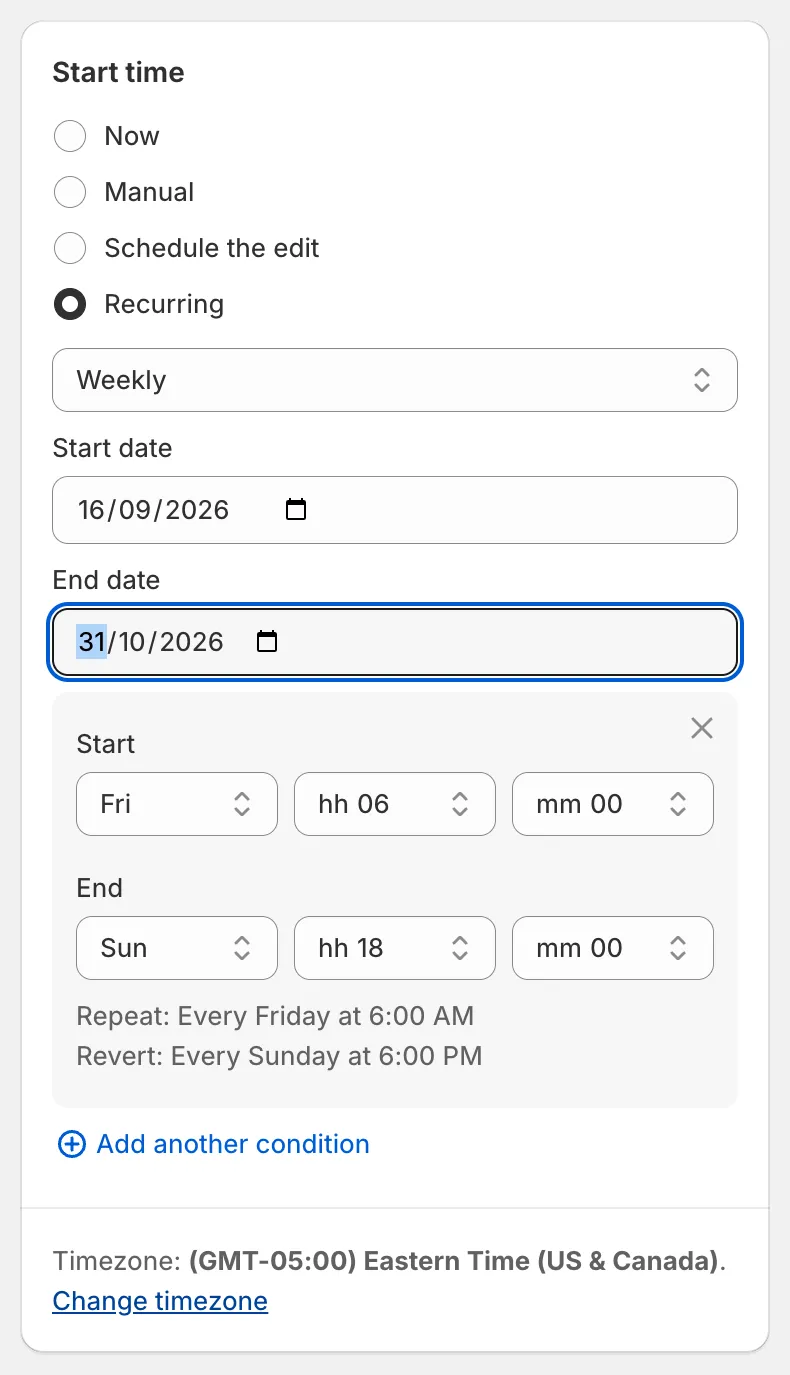
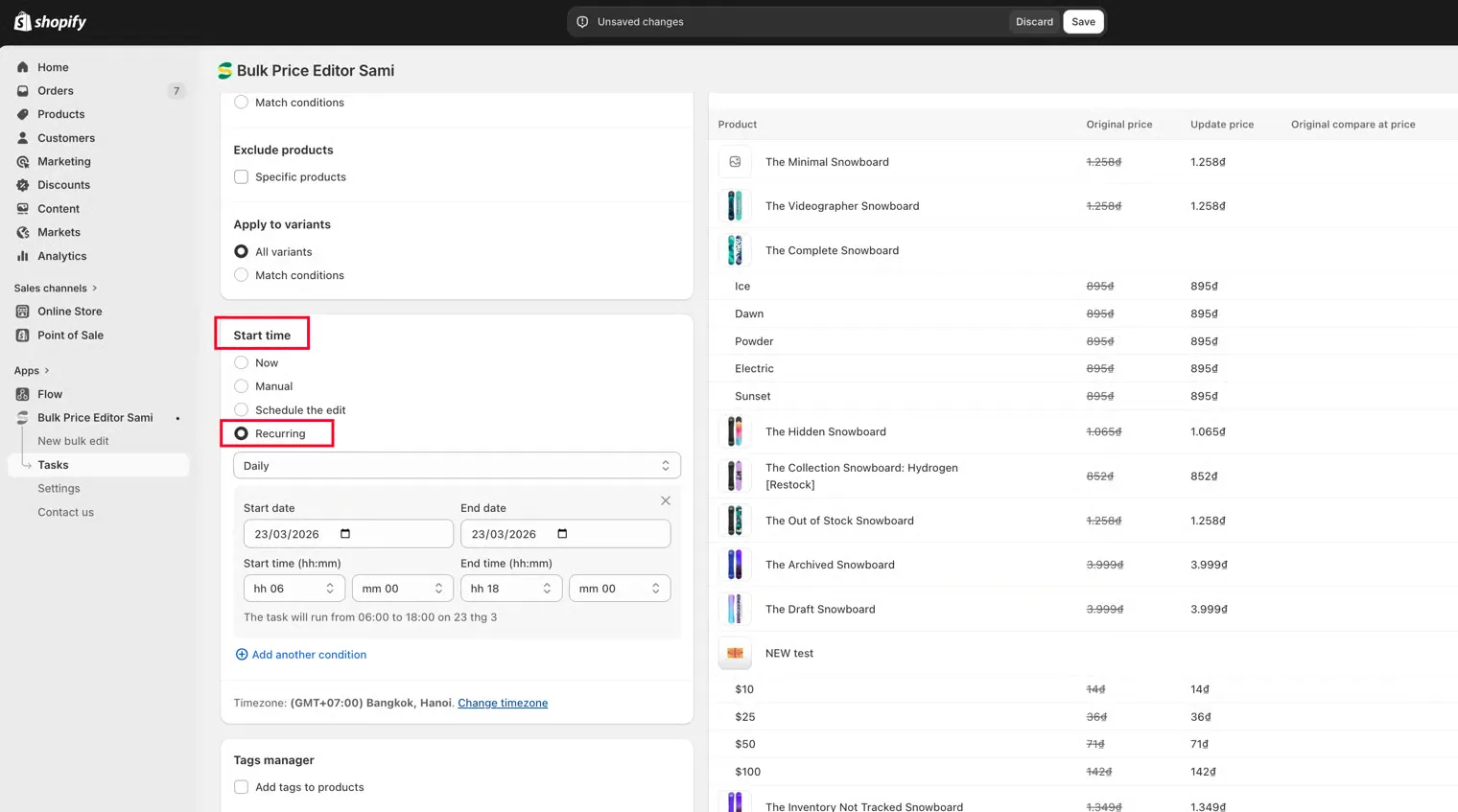
Section titled “Weekly and monthly recurring tasks”Recurring tasks are no longer limited to Daily. Choose Weekly (start and end weekday, for example Friday 06:00 to Sunday 18:00) or Monthly (start and end day of month, including Last day of month). See Recurring tasks.
New pricing plans
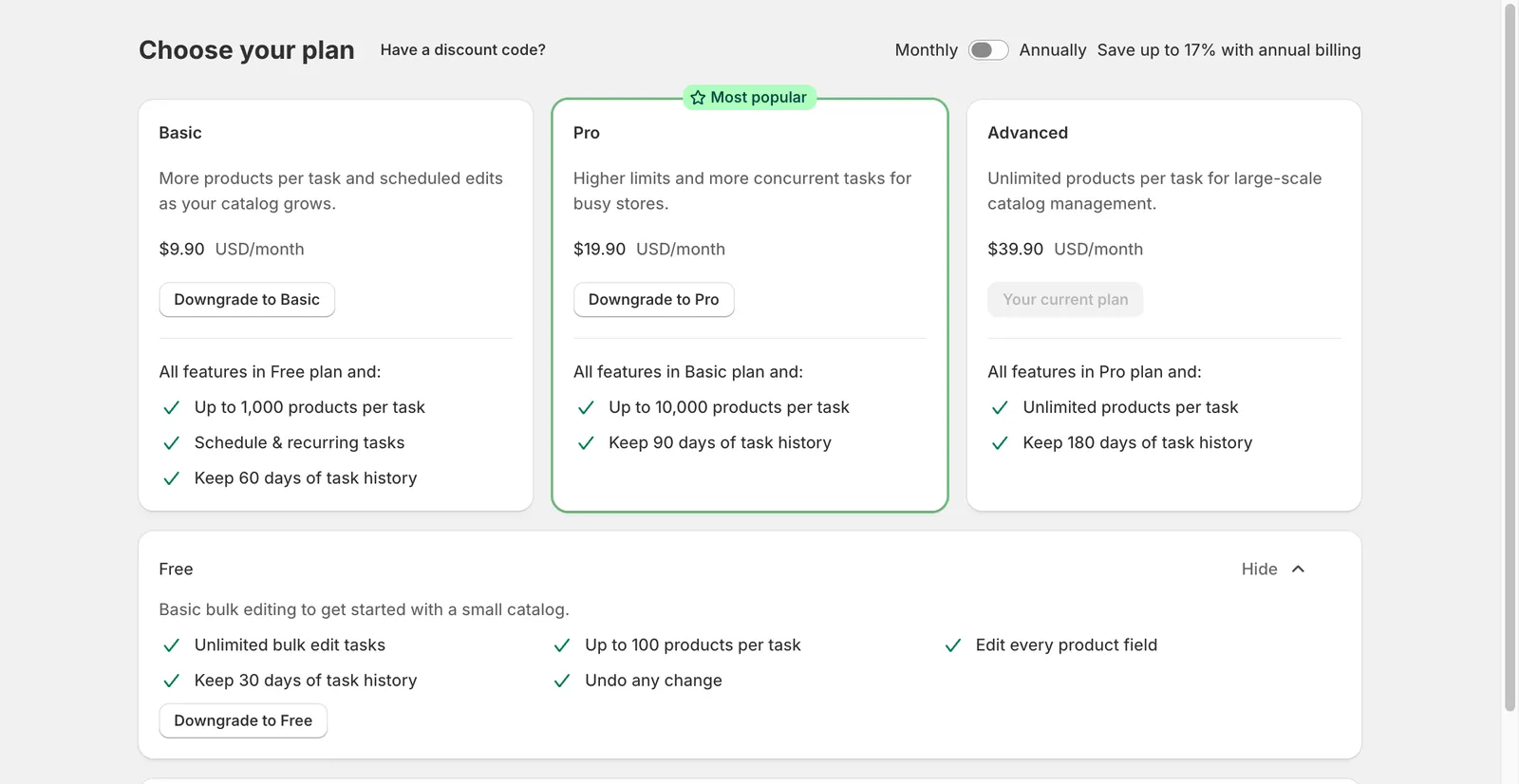
Section titled “New pricing plans”The app now offers four plans: Free, Basic ($9.90/month or $99/year), Pro ($19.90/month or $199/year) and Advanced ($39.90/month or $399/year). Paid plans include a 14-day free trial and accept discount codes.
- Plans differ by products per task (100 / 1,000 / 10,000 / unlimited) and task history kept (30 / 60 / 90 / 180 days). Scheduling and recurring tasks require a paid plan.
- A task that stopped at the plan limit finishes as Partially complete; after upgrading, choose Continue change to process the remaining products.
- Trial days already used are remembered if you uninstall and reinstall within about 90 days. Reinstalling within 30 days restores your tasks and settings.
See Plans and pricing.
April, 2026
Section titled “April, 2026”Version 1.2
Section titled “Version 1.2”🎉 NEW FEATURES
Bulk Edit Price and Compare-at price by Shopify Market.
Section titled “Bulk Edit Price and Compare-at price by Shopify Market.”We have updated how price-related tasks work to improve performance and reliability. The “Apply Markets” option has been removed from the Price update task.
Instead, we have introduced new dedicated fields:
- Price by Market – allows updating price for a specific market
- Compare-at Price by Market – allows updating compare-at price for a specific market
Each task can now target only one market at a time when using these fields.
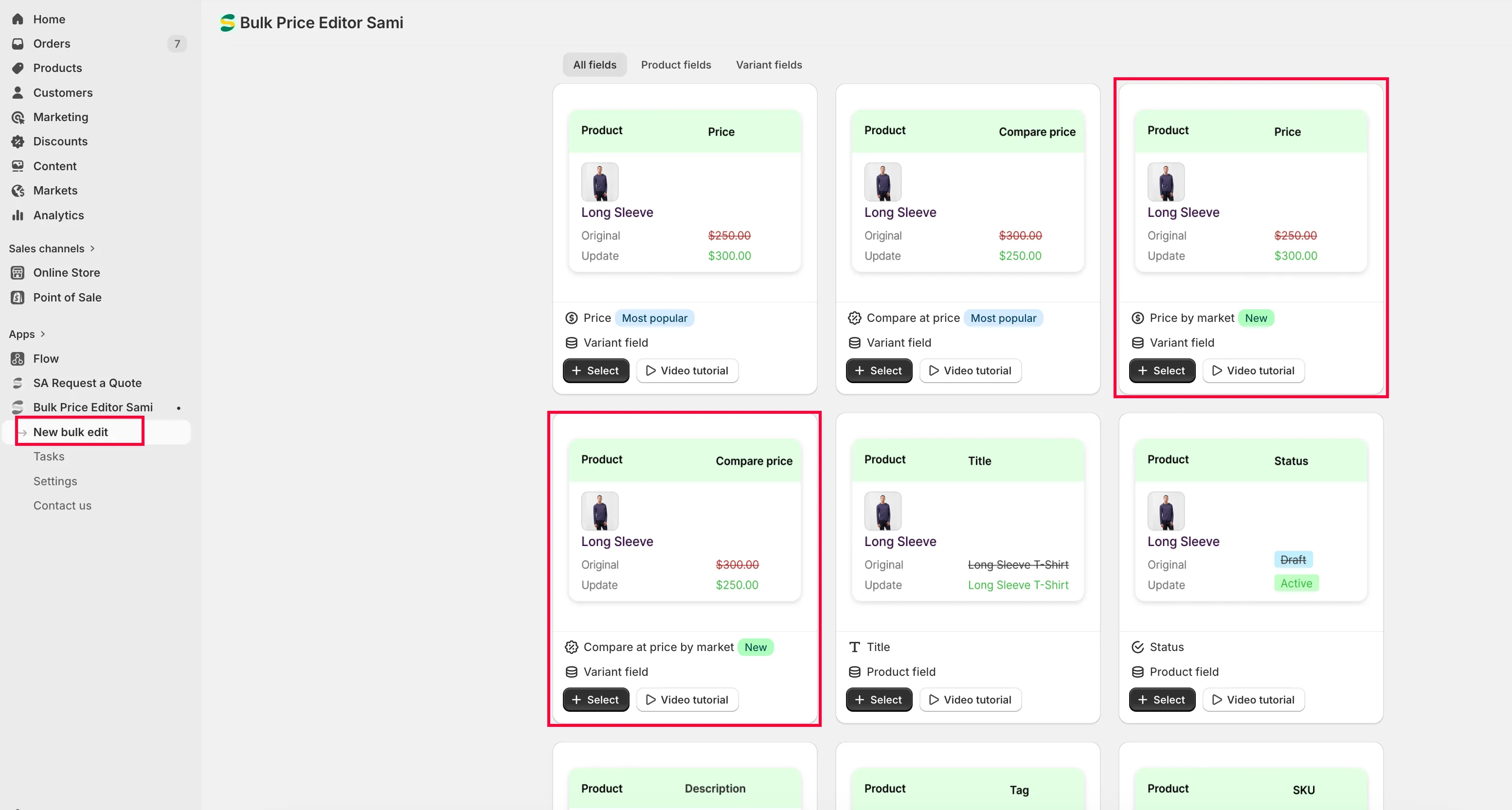
This update is designed to:
- Reduce task processing time
- Improve performance and stability
- Avoid Shopify API limits when updating a large number of products across multiple markets simultaneously
Previously, updating multiple markets in a single task could lead to delays or errors due to platform limitations.
By separating this into individual market-based updates, tasks can now run faster and more reliably.
Version 1.2
Section titled “Version 1.2”🎉 NEW FEATURES
Quick update Compare-at price for Products to create Sale.
Section titled “Quick update Compare-at price for Products to create Sale. ”-
If you want to display your current product price as a sale price without modifying it, your products need to have a compare-at price set. You’ll also need to calculate the appropriate compare-at price to reflect the discount you want.
This feature helps you quickly create a task to automatically update the compare-at price for your products.
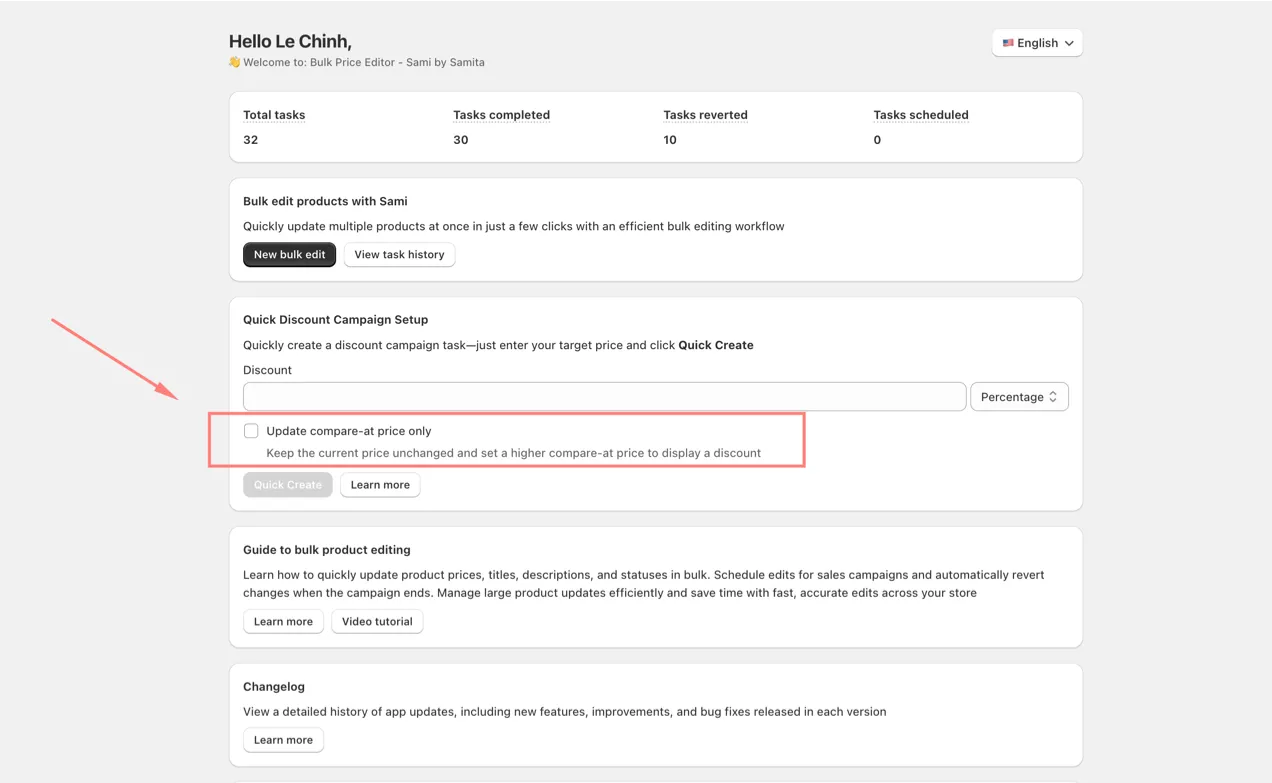
For example, you want to have a 10% off sale in the store without changing the current price, you need to create a Compare-at price that is 10% greater than the current price.
You can quickly use the setting above and enter the discount value you want to have. In this case, kindy write: “10” as 10% off.
You will receive a task setup as below:
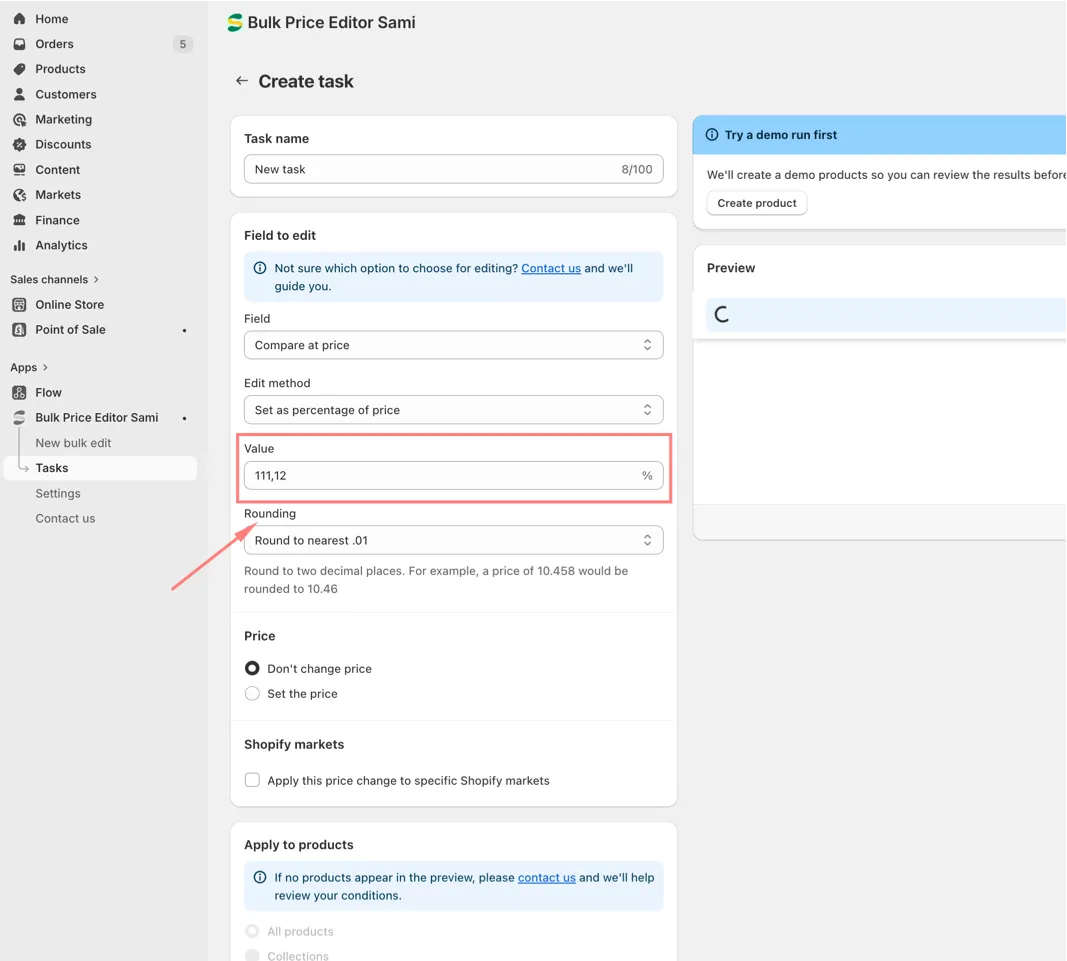
The task is automatically set up with correct condition + value of the Compare-at price that should be used.
March, 2026
Section titled “March, 2026”Version 1.2
Section titled “Version 1.2”🎉 NEW FEATURES
Bulk edit Cost price of Products
Section titled “Bulk edit Cost price of Products”-
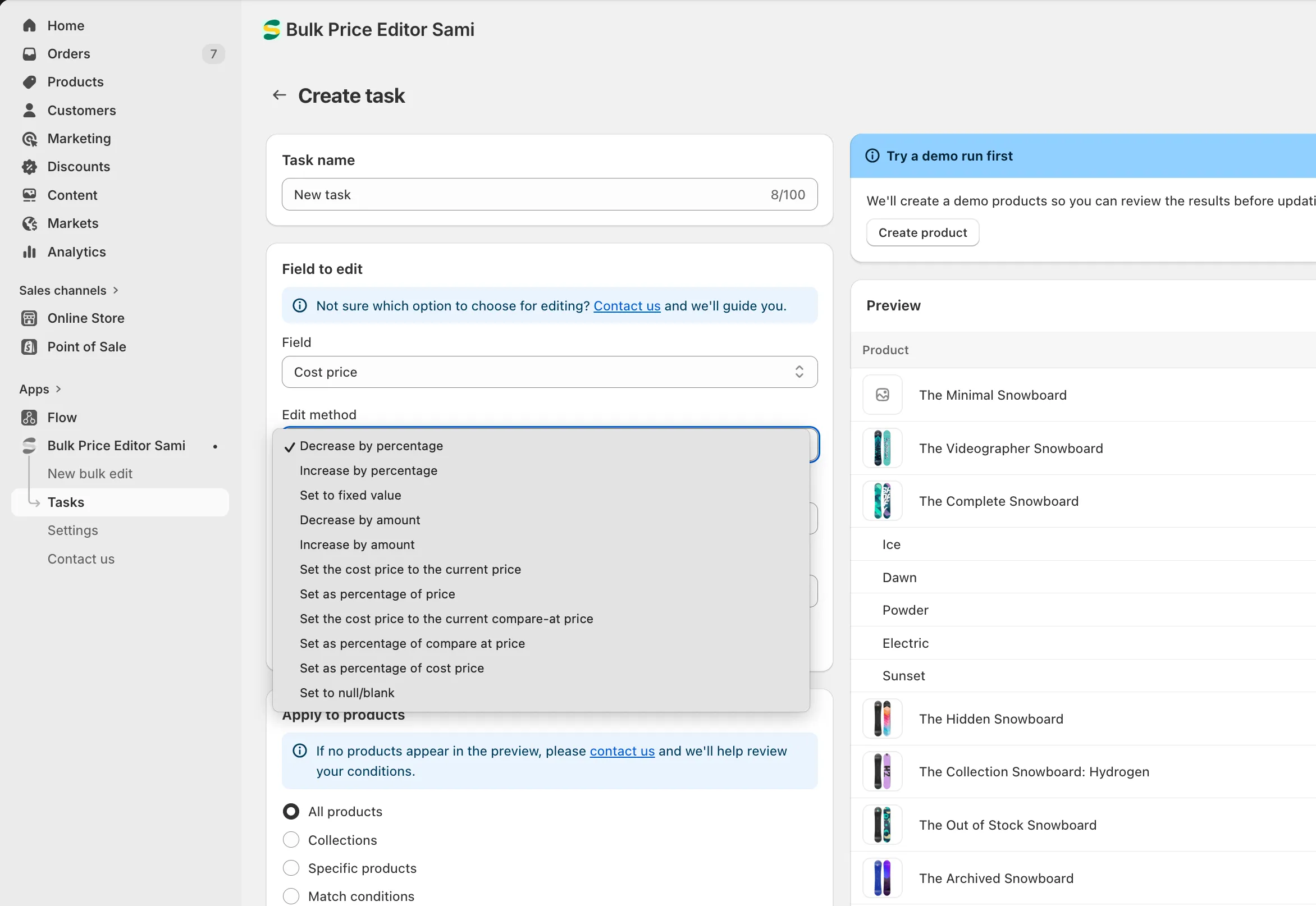
The app now supports bulk editing of Cost Price, allowing merchants to efficiently update the purchase cost of products across their store.
Cost Price represents the product’s purchase cost and is only visible to the merchant. It is commonly used for profit tracking and financial reporting.
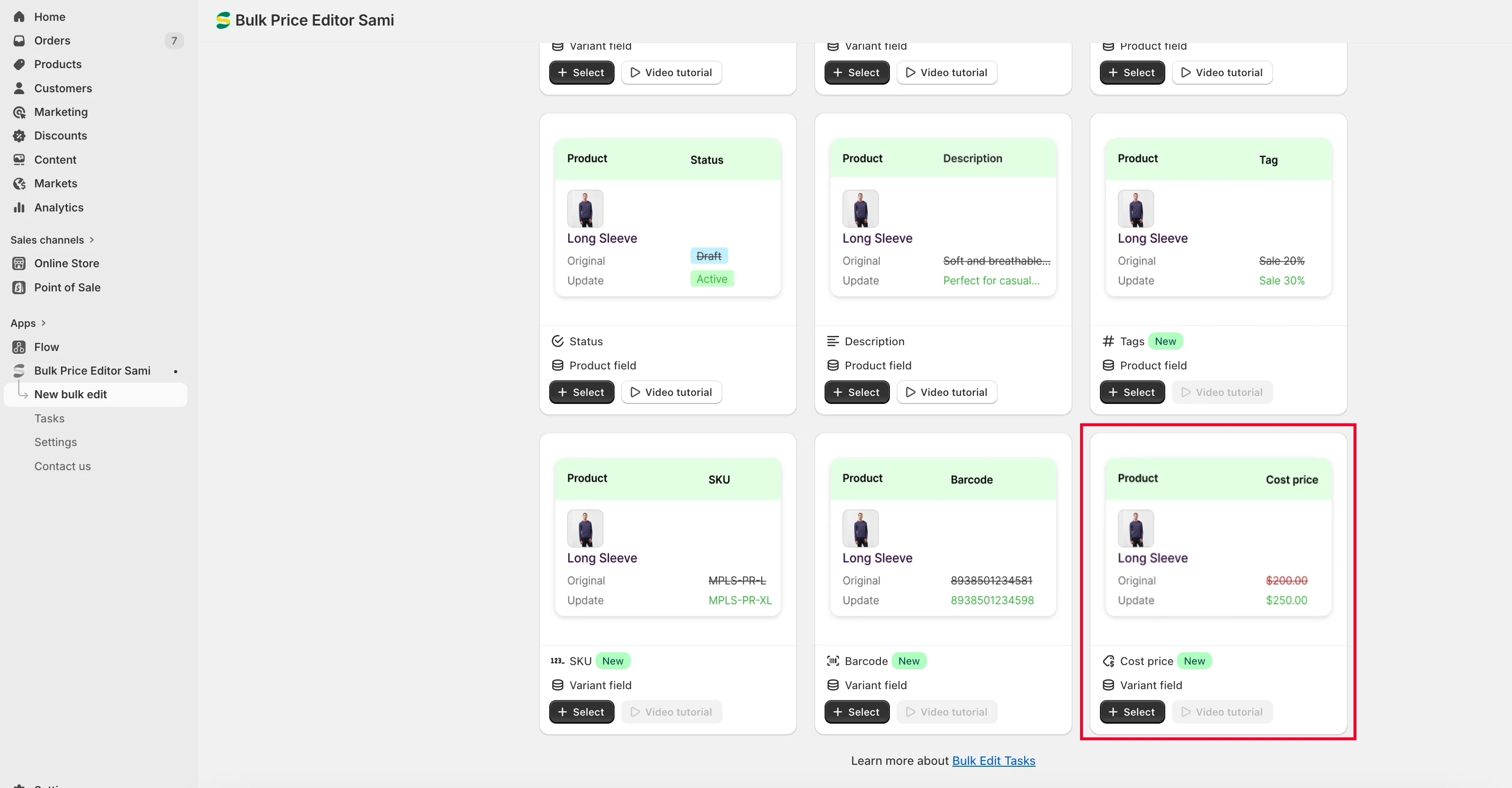
The setting options are the same availale for Price and Compare-at price. The app also enable a new option which allows you to set Cost price to null (empty value).
Add Dynamic Variables
Section titled “Add Dynamic Variables”-
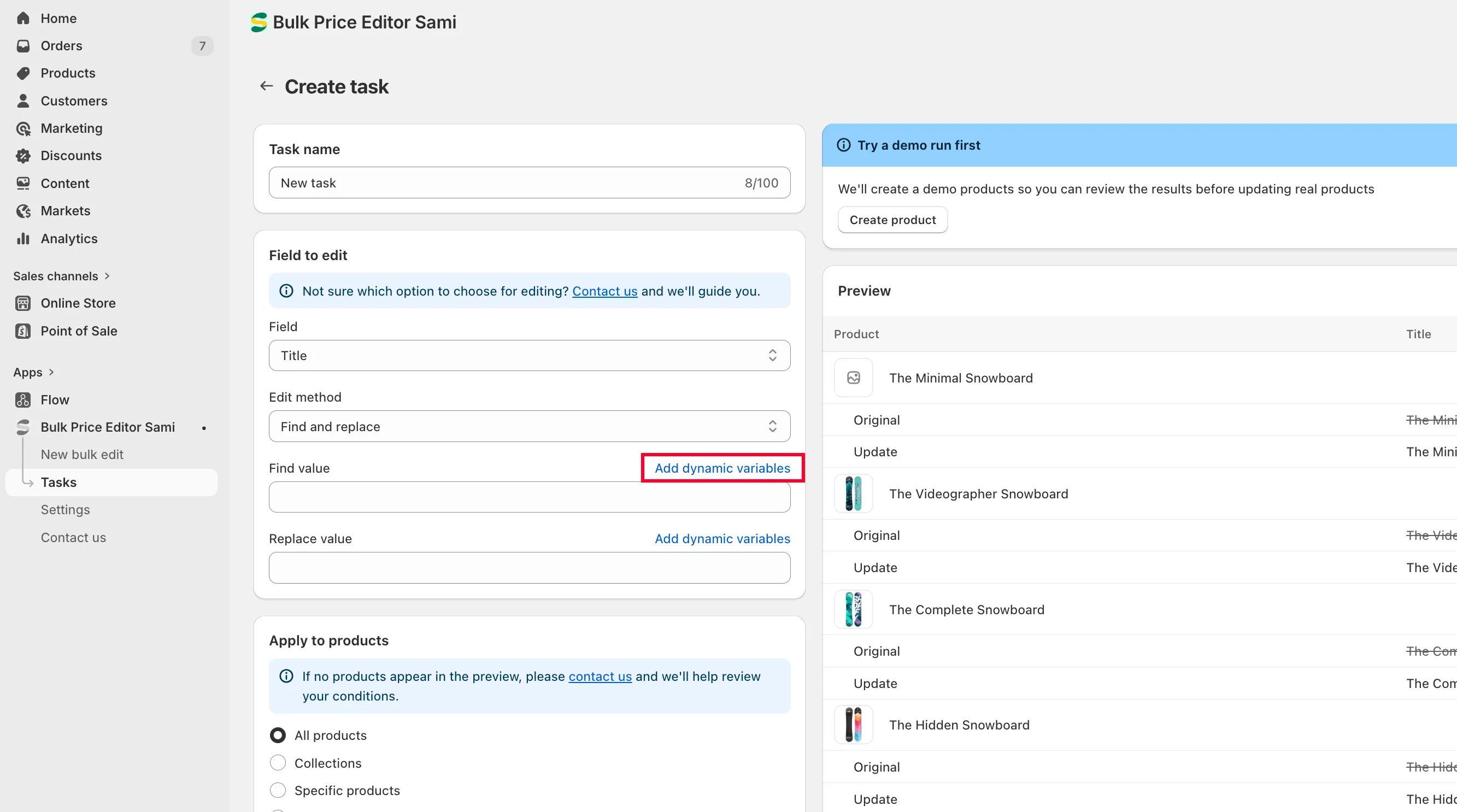
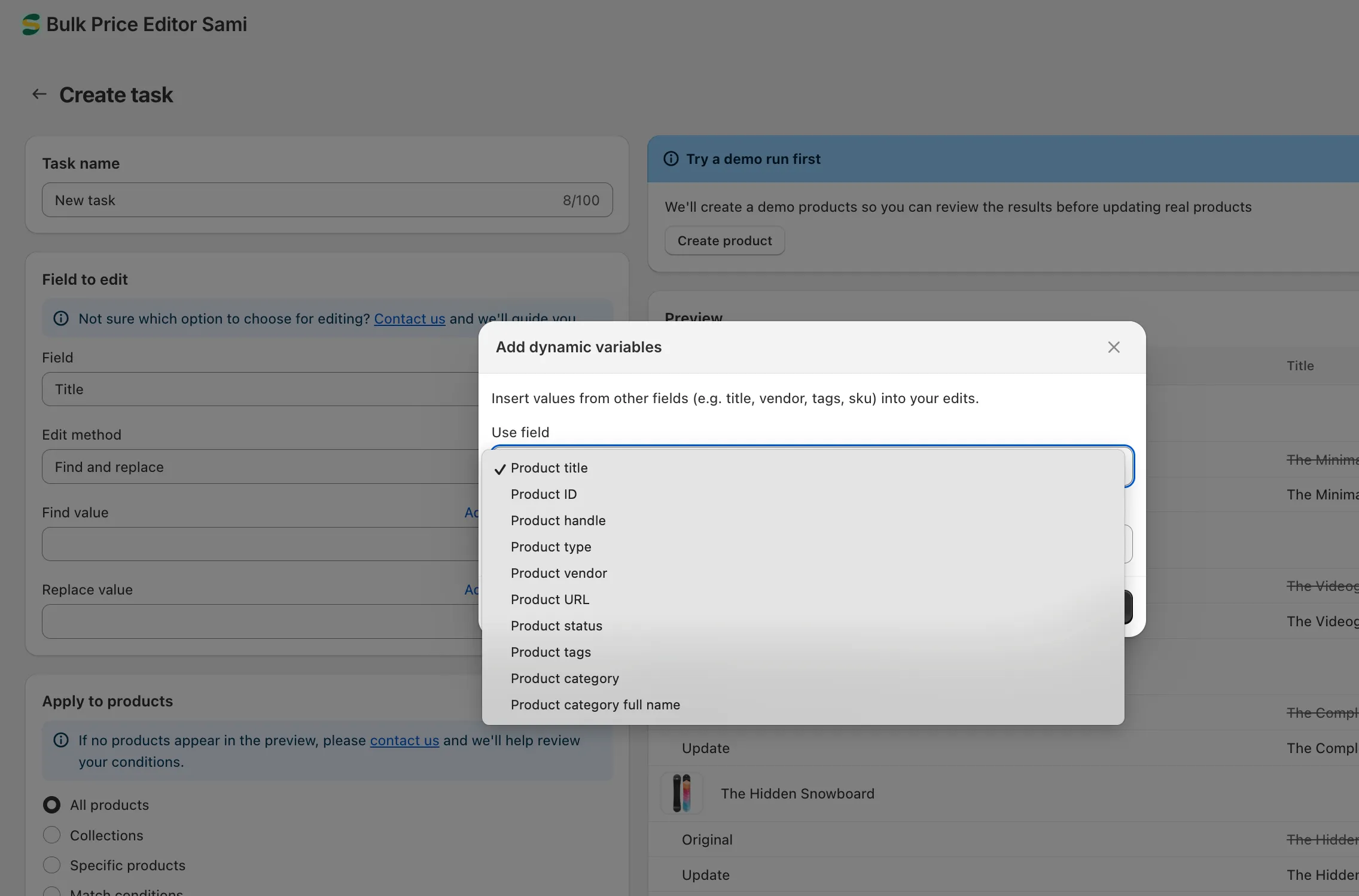
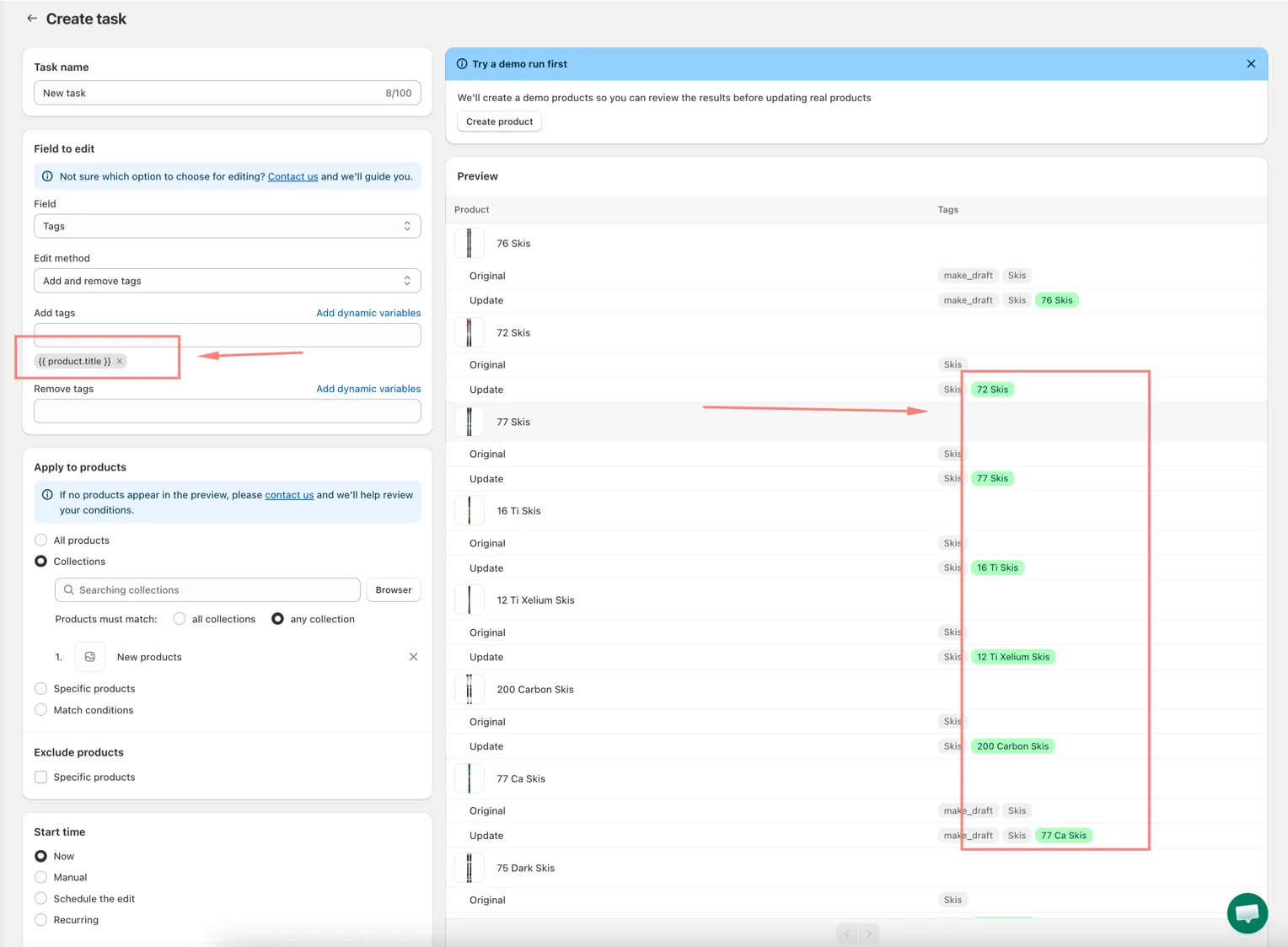
The feature allows you to insert dynamic values into your updates, making bulk edits more flexible and automated.
This feature is especially useful for text-based fields such as Title, Description, SKU, Barcode, and Tags.
Quick Create Discount Task
Section titled “Quick Create Discount Task”-
This feature allows you to quickly set up a discount task without going through full manual configuration.
Instead of configuring multiple settings, you only need to enter the discount value, and the app will automatically generate the appropriate Edit Field configuration for you.
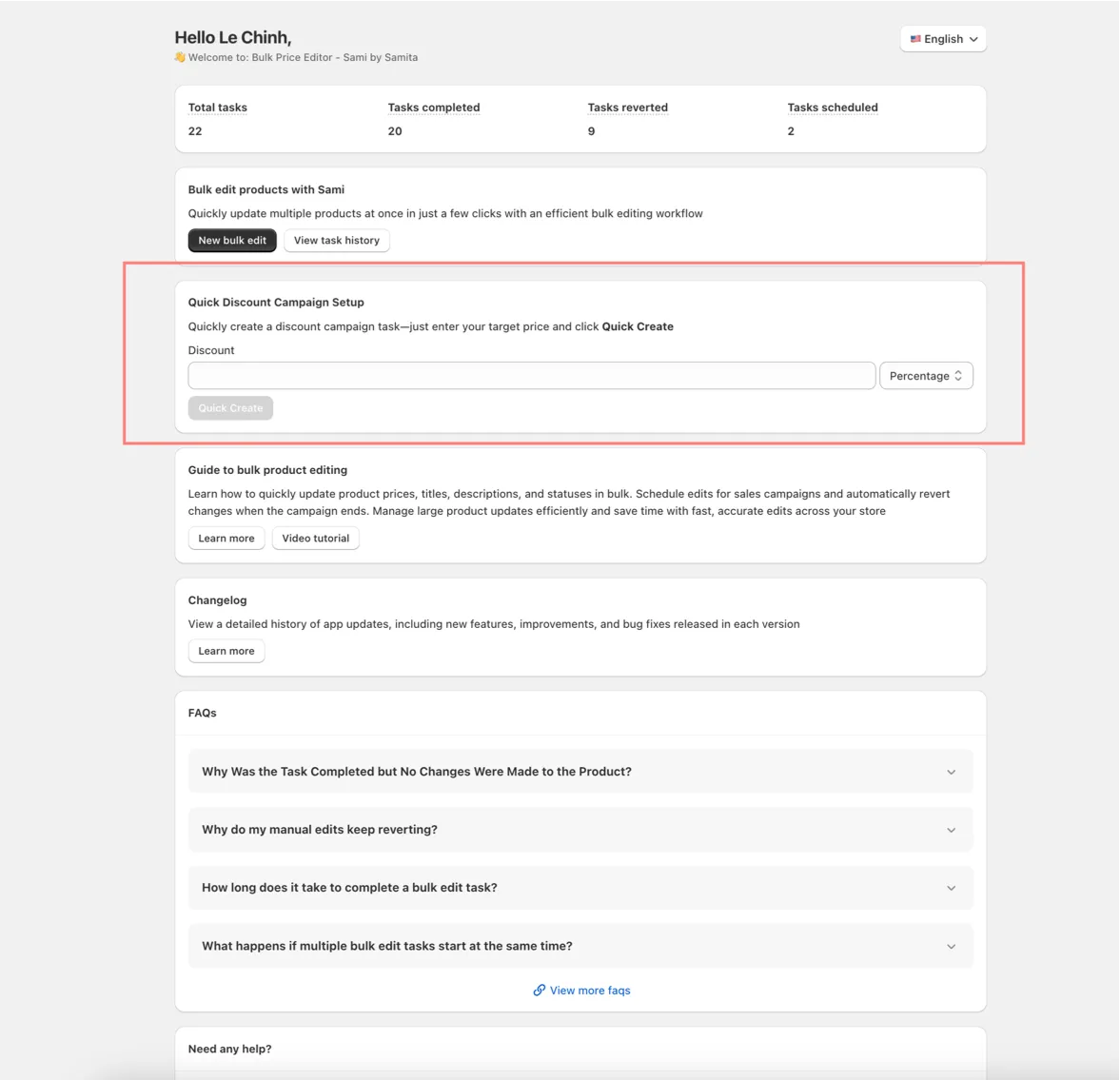
🎉 NEW FEATURES
Bulk edit SKU, Barcode of Products
Section titled “Bulk edit SKU, Barcode of Products”- The app now supports bulk editing of SKU and Barcode information, allowing you to quickly update product data across multiple items at once.
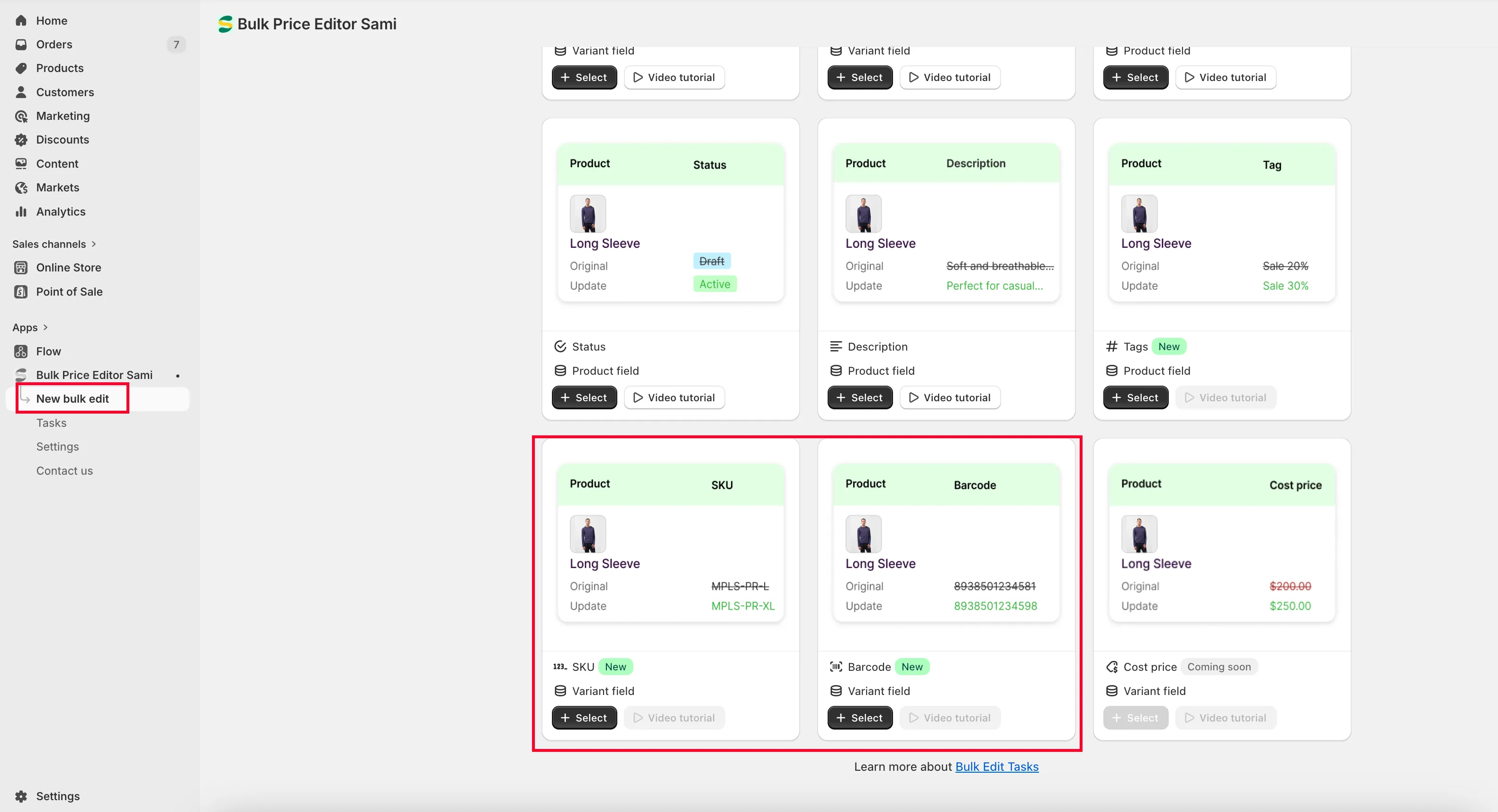
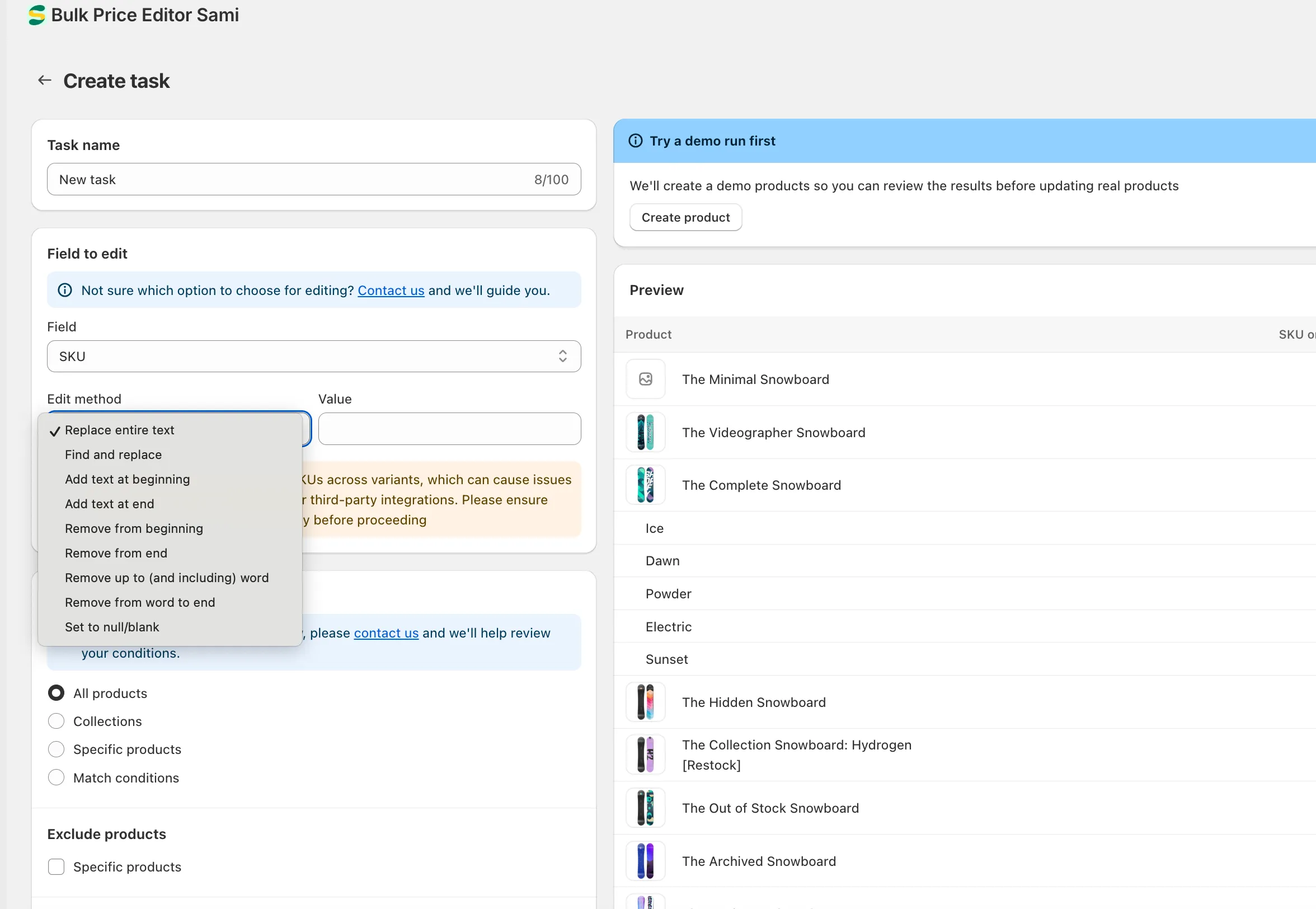
You can update SKU and Barcode fields using the same editing methods available for Title and Description. The app also enable a new option which allows you to set SKU or Barcode to null (empty value).
This is useful when you want to remove existing data in bulk without manually editing each product.
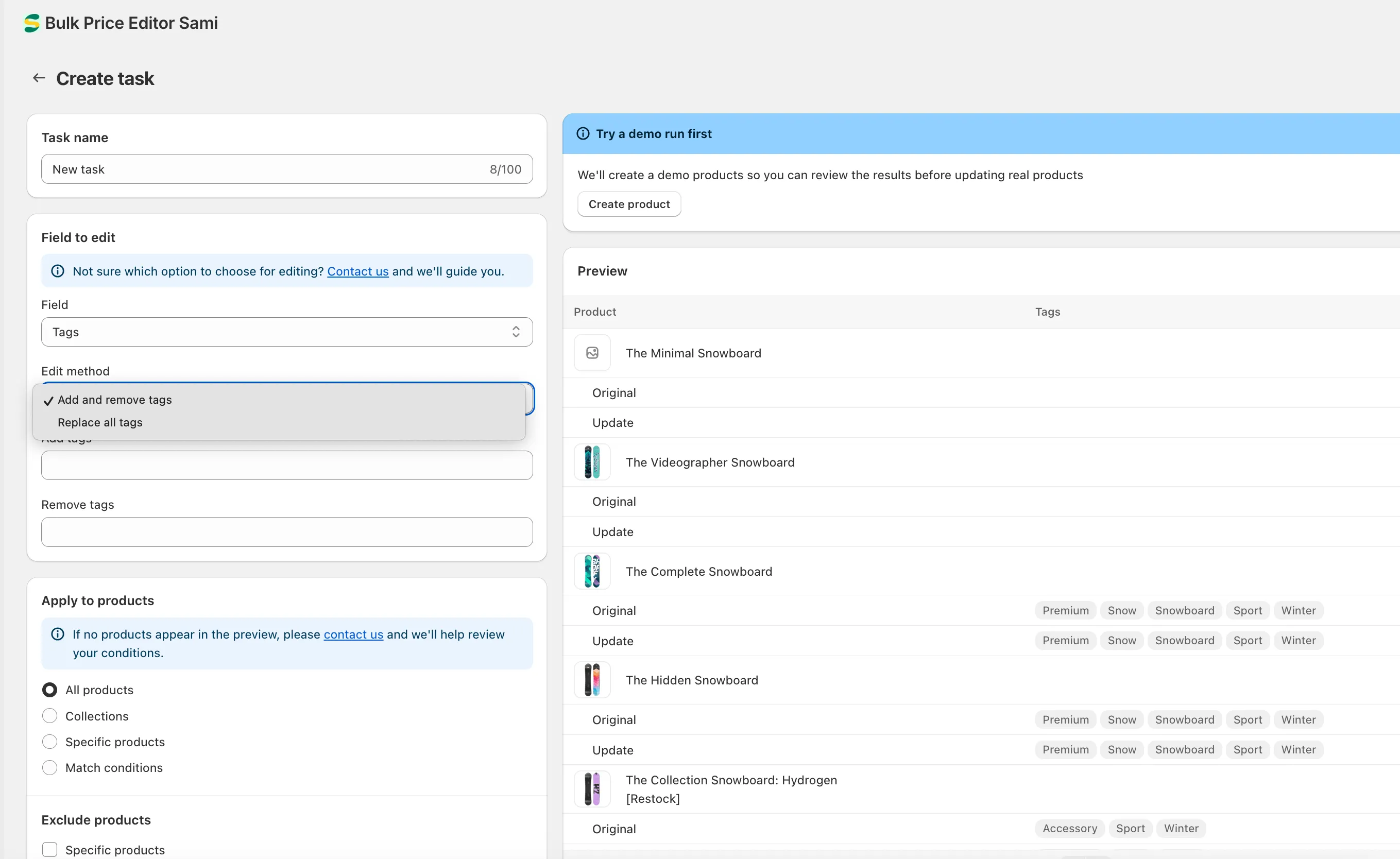
Bulk add/remove Product Tags
Section titled “Bulk add/remove Product Tags”- This feature supports dedicated editing for product tags, allowing you to efficiently manage and update tags across multiple products in bulk.
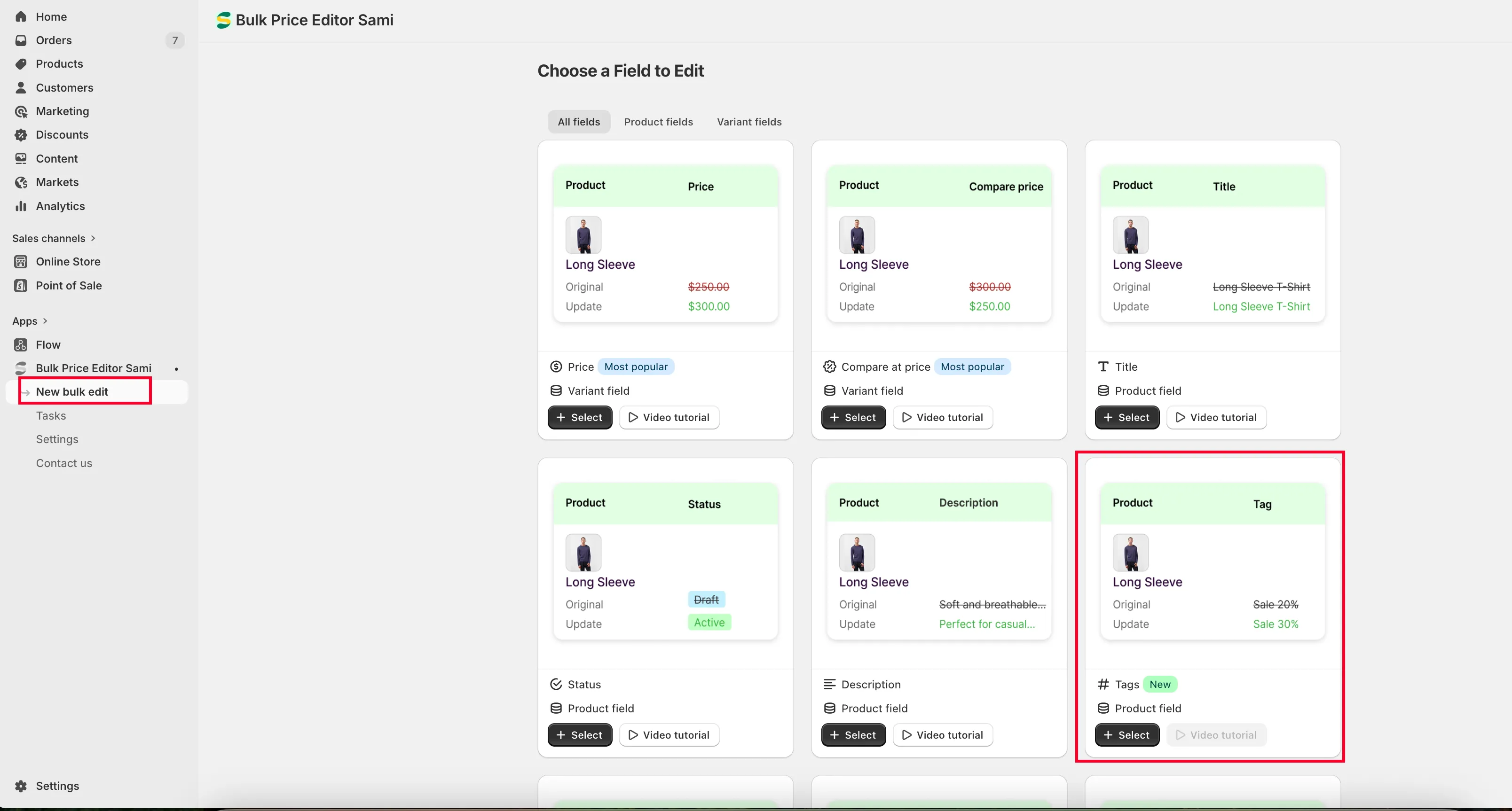
There are two key features:
Add & Remove Tags: Allows you to add new tags and remove existing ones at the same time.
This helps you quickly update product categorization without affecting other tags.
Replace All Tags: This option will overwrite all existing tags with a new set of tags.
It is useful when you want to completely reset or standardize tags across selected products.
🎉 NEW FEATURES
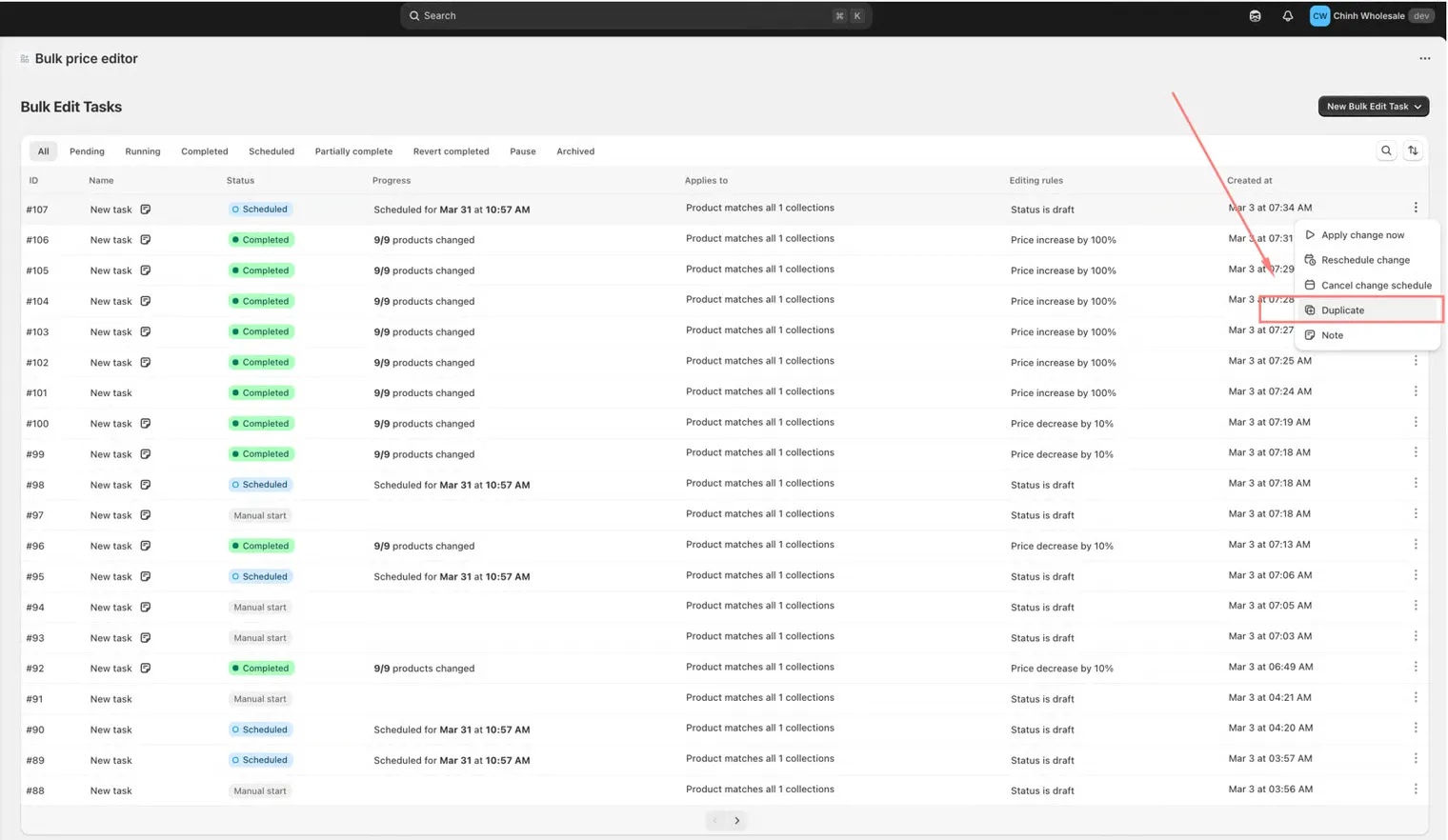
Duplicate task
Section titled “Duplicate task”It allows you to create a copy of an existing task with its configurations. The duplicated task will follow specific rules based on the original task’s Start and Revert settings.
- By default, the duplicated task will have Start Time set to Manual and Revert Time set to Disabled.
- After duplicating the task, merchants can reconfigure the Start and Revert conditions as needed.
This approach gives you full flexibility to adjust the timing, without being forced to run the task immediately or follow the original schedule.
- Recurring daily task: This feature allows tasks to automatically run and revert on a daily schedule within a defined time range. This helps you automate repetitive updates without needing to manually trigger tasks each day.
December, 2025
Section titled “December, 2025”Version 1.1
Section titled “Version 1.1”🎉 NEW FEATURES
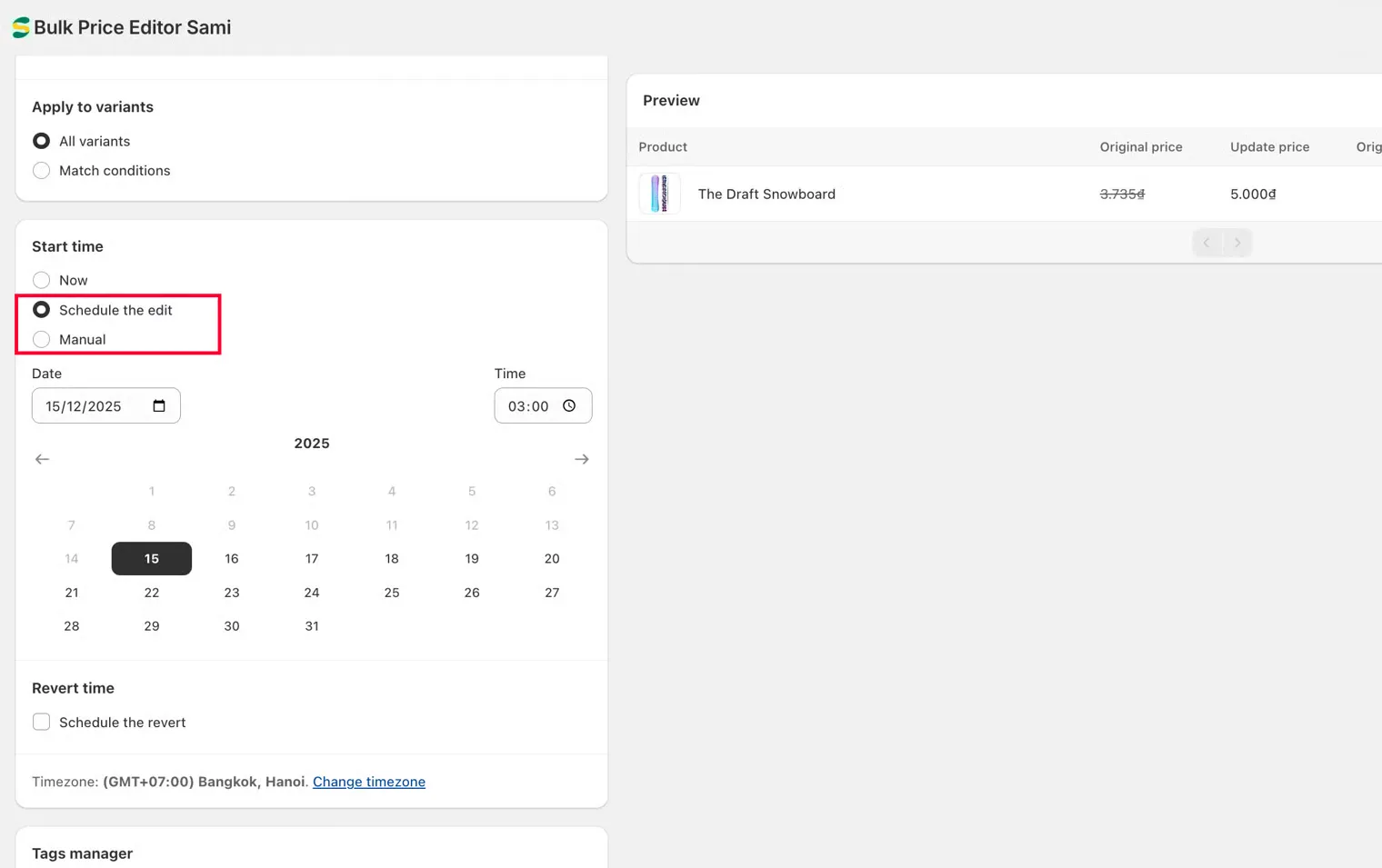
Set Task’s Start time as Manual and Edit task
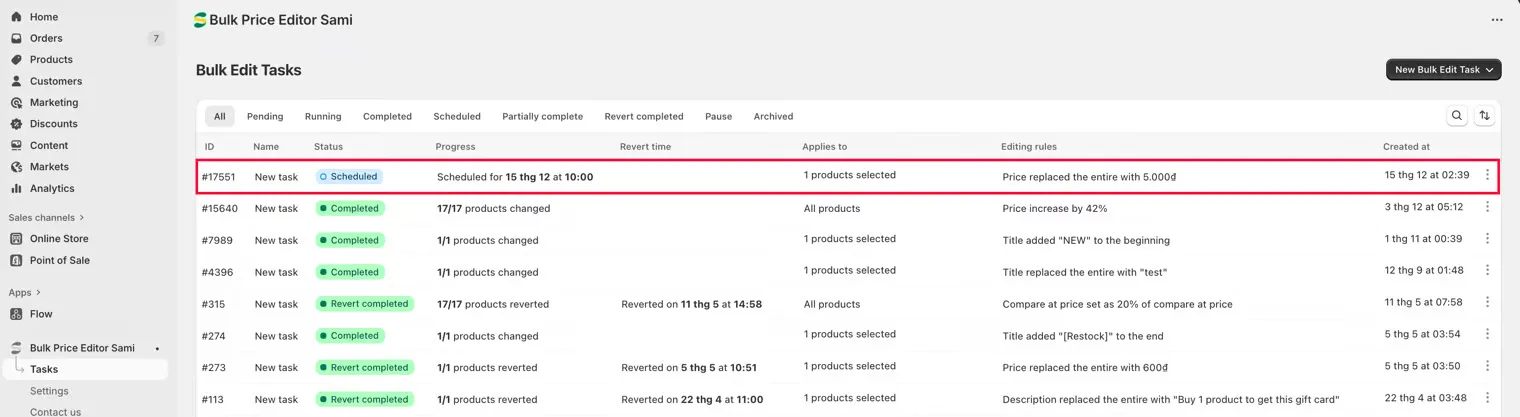
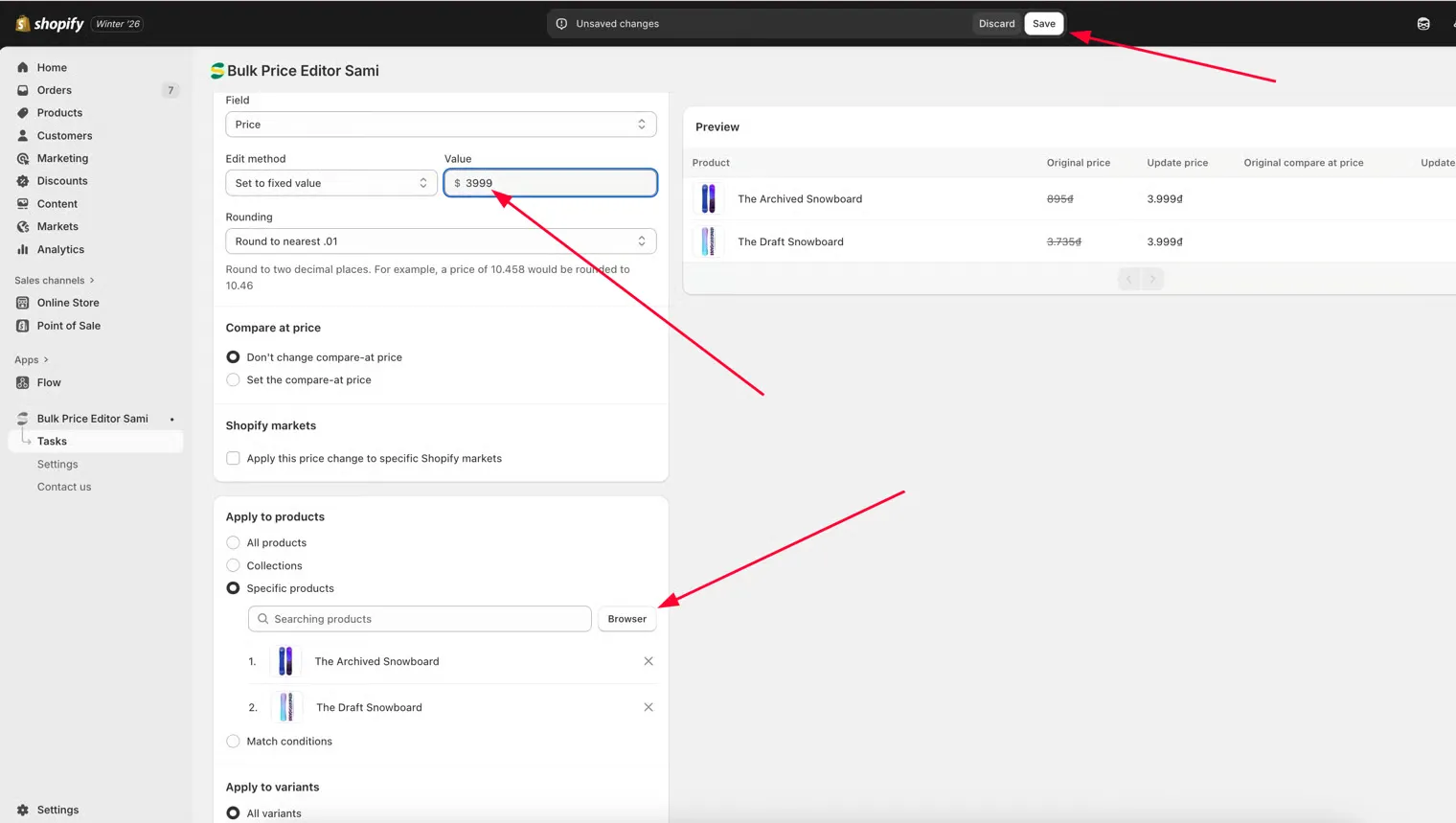
Section titled “Set Task’s Start time as Manual and Edit task”- The app now supports editing tasks that are set to run manually or are scheduled to run at a specific time. If you’re unsure whether a task has been configured correctly, you can set its start time to Manual or schedule it for a later time. This allows you to review and edit the task freely until the scheduled time is reached, or until you’re confident everything is set up correctly and choose to run it manually.
Set Rounding rule to End prices in a certain number
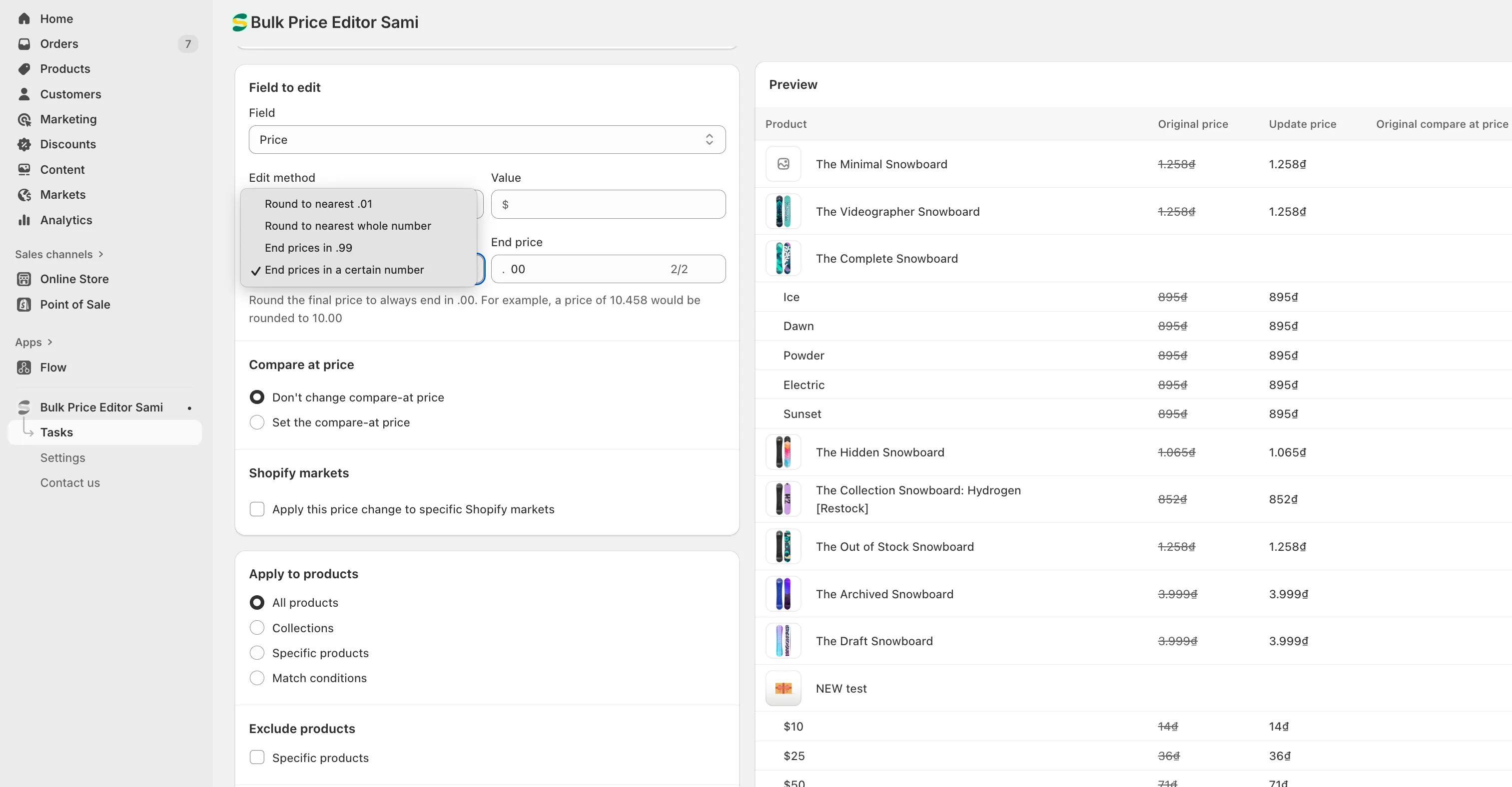
Section titled “Set Rounding rule to End prices in a certain number”- When creating a task to bulk-edit product prices, you can also configure how the updated prices should be rounded. This option allows you to define your own custom ending for product prices. Instead of being limited to preset options like .99, you can freely choose any ending such as .00, .49, .95, or any other value that fits your pricing strategy. After the price adjustment, the system will automatically modify each product price to end with the number you specify.
Exclude Specific Products from Task Execution
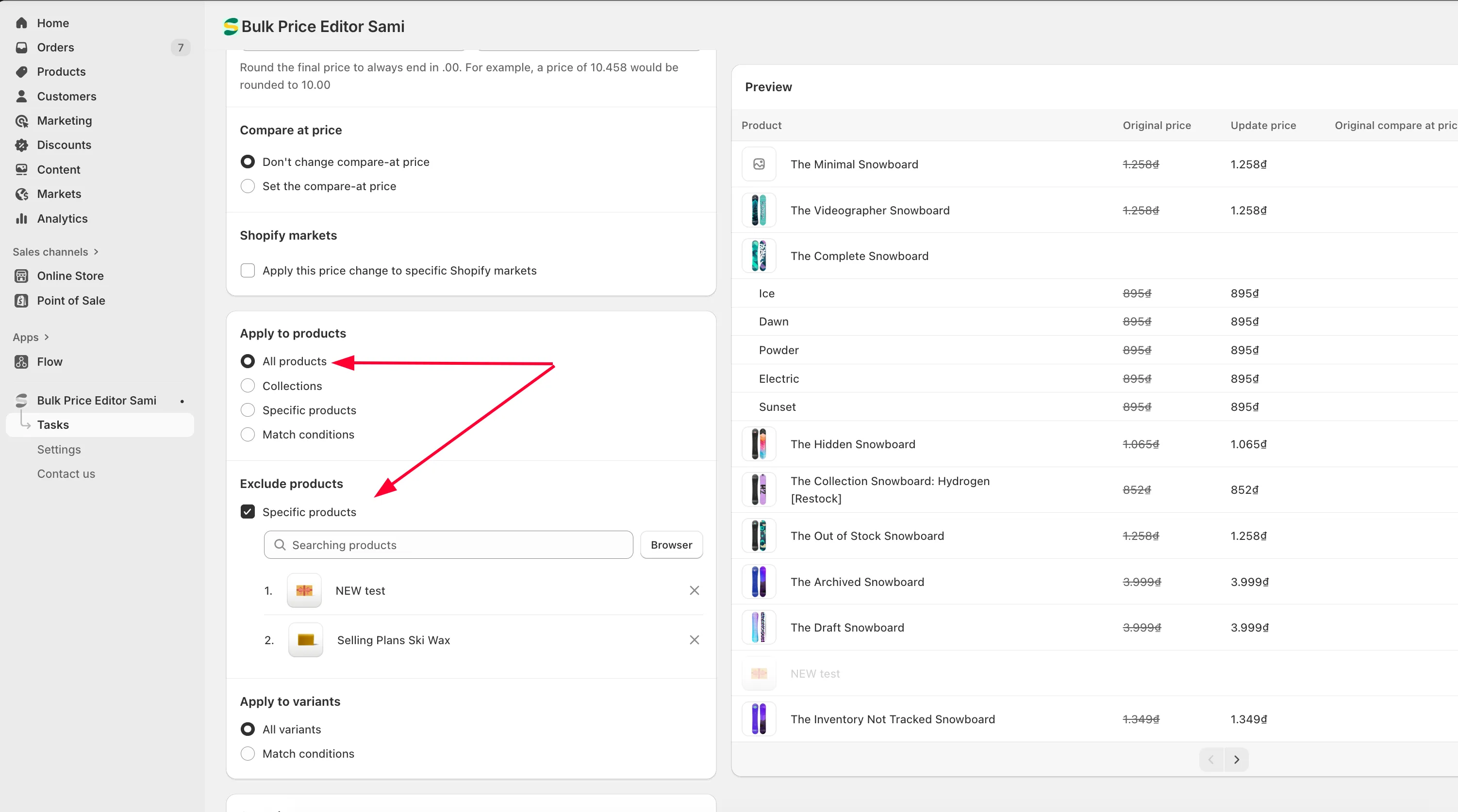
Section titled “Exclude Specific Products from Task Execution”- When setting up a task for All Products or Collections, you can exclude specific products from having the task applied. This allows you to prevent certain products from being affected by the changes, without needing to manually select every product you want to update, which is especially helpful when managing a large number of products.
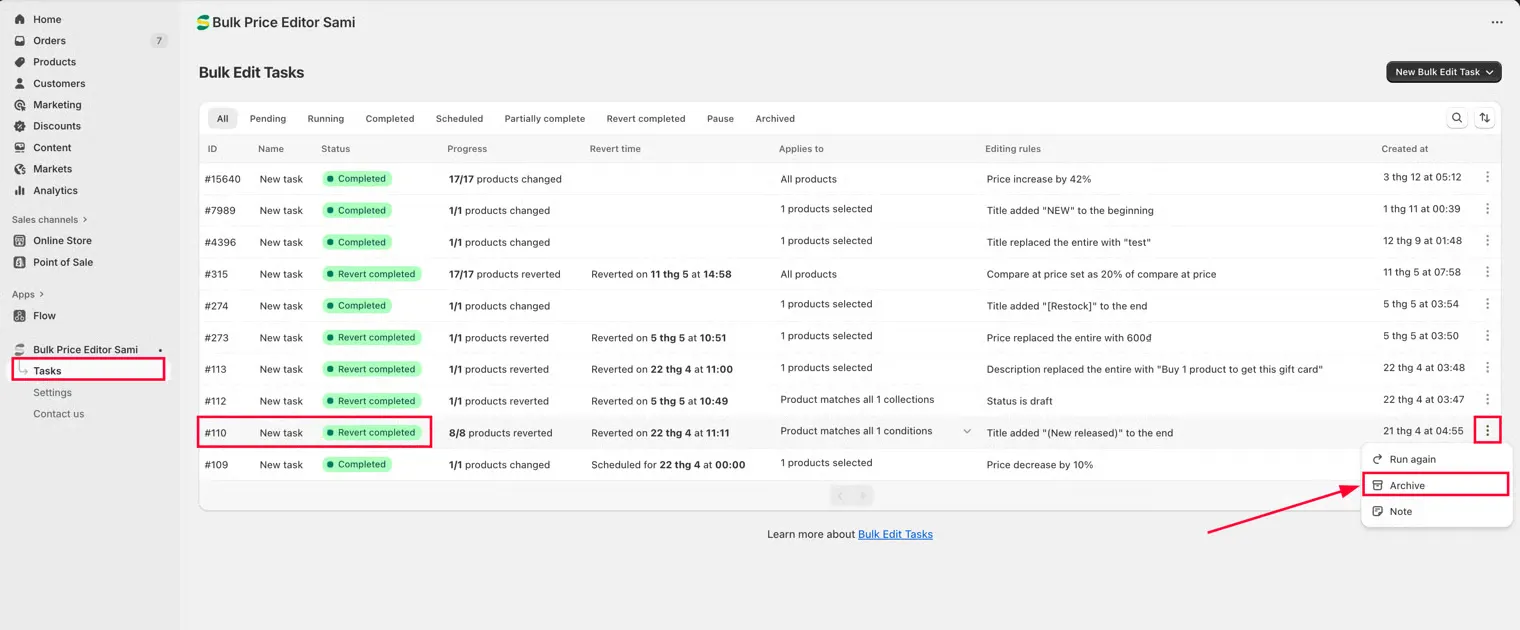
Archived/Unarchived Tasks
Section titled “Archived/Unarchived Tasks”- This setting works as a “soft delete” option for tasks. It helps you keep your Tasks page tidy by hiding any unnecessary or mistakenly created tasks - without permanently removing them from the app.
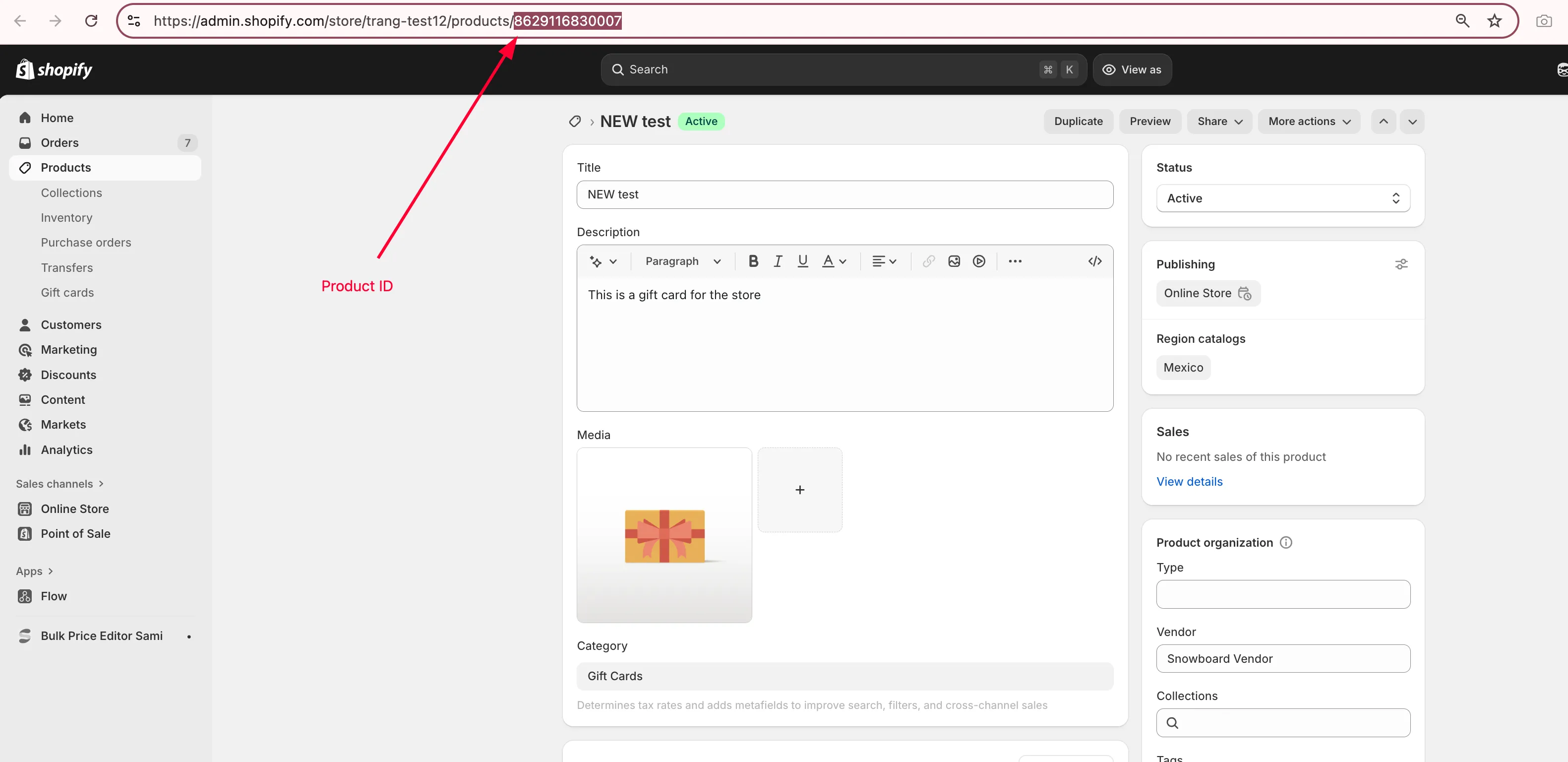
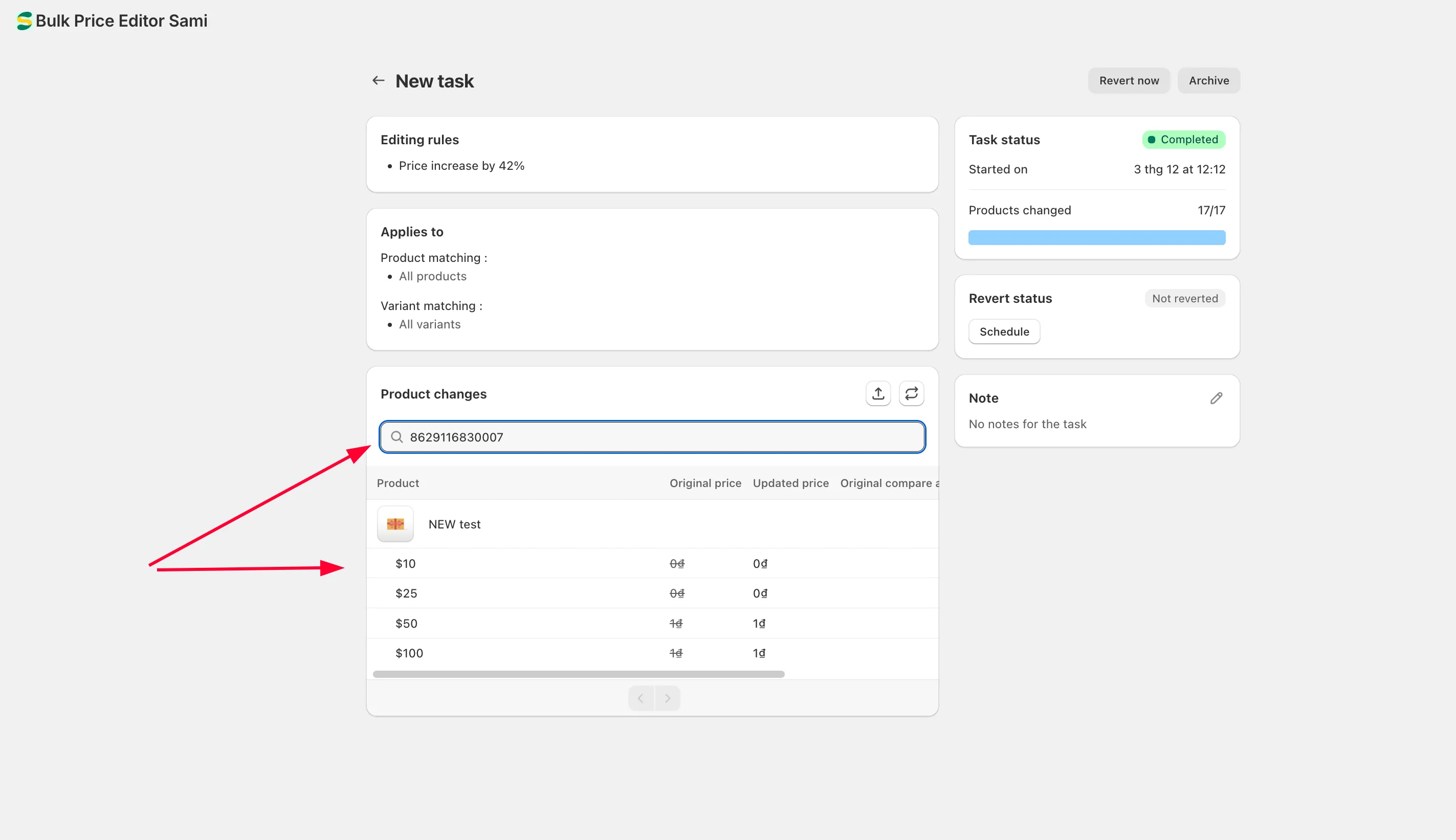
Search Product Changes
Section titled “Search Product Changes”- Allows you to search for modified products using multiple identifiers, including product ID, title, and handle - as well as variant-level details such as variant ID, title, and SKU.
🛠️ IMPROVEMENTS
- Improving & Optimize performance and Feature: Continue to learn and improve the app for the best user experience.