
Plans and pricing
What each plan includes, how plan limits show up in the app, and how trials, upgrades and downgrades work.
Open Pricing in the app menu to see the plans and switch between them.
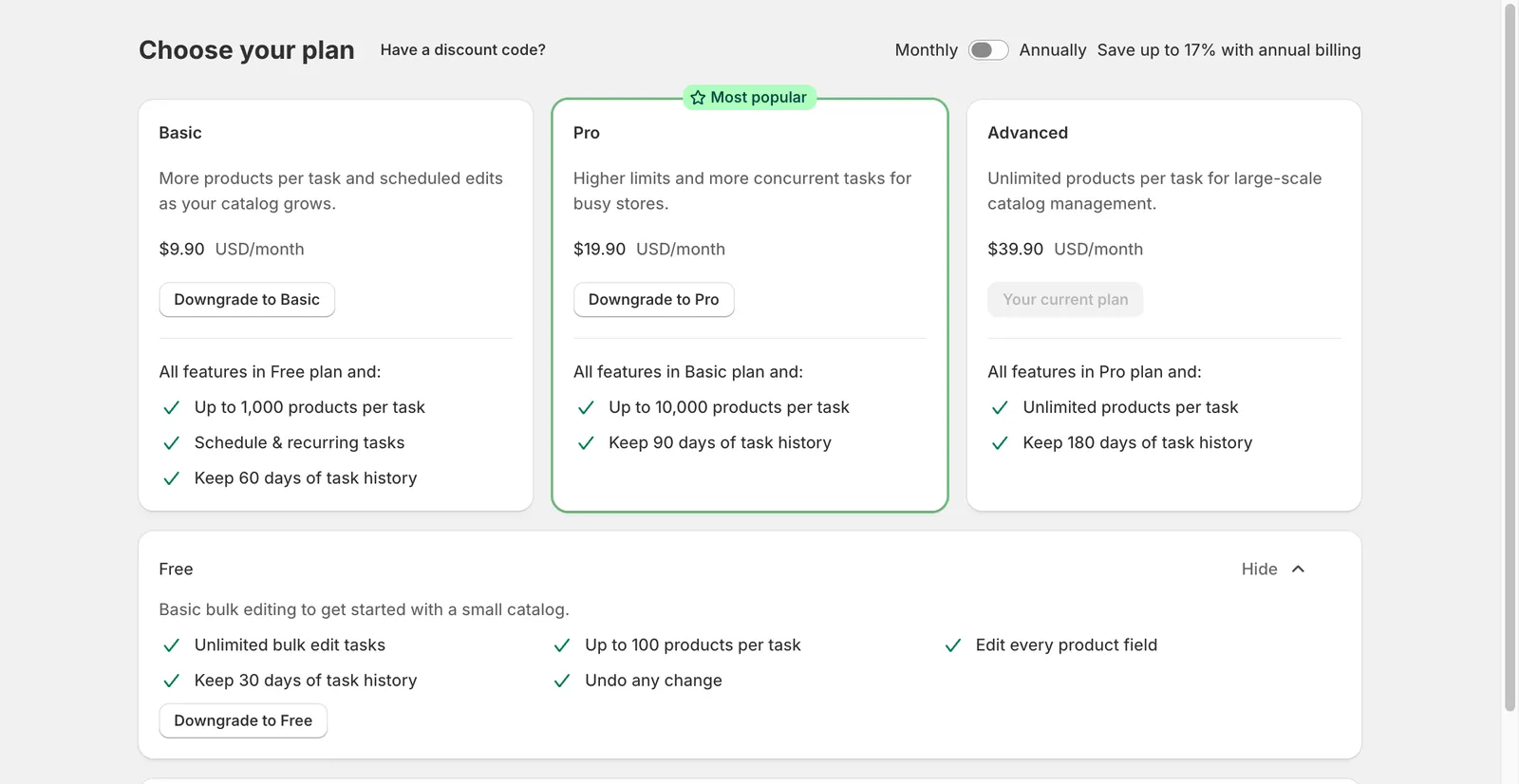
Choose your plan
| Free | Basic | Pro | Advanced | |
|---|---|---|---|---|
| Monthly price (USD) | 0 | 9.90 | 19.90 | 39.90 |
| Annual price (USD) | 0 | 99 | 199 | 399 |
| Products per task | 100 | 1,000 | 10,000 | Unlimited |
| Editable fields | All | All | All | All |
| Undo any change | Yes | Yes | Yes | Yes |
| Schedule and recurring tasks | No | Yes | Yes | Yes |
| Task history kept | 30 days | 60 days | 90 days | 180 days |
| Number of tasks | Unlimited | Unlimited | Unlimited | Unlimited |
Prices and limits are shown on the Pricing page in your store; the page is the source of truth if it differs from this table.
How the limits show up
Section titled “How the limits show up”- Products per task. If a task matches more products than the limit, the confirmation dialog warns you, and the task finishes as Partially complete with the message This task matched N products, but only the first M were processed under your current plan. Upgrade, then choose Continue change to process the rest.
- Schedule and recurring. On the Free plan the Schedule the edit, Recurring and Schedule the revert controls are disabled and show This option is available with the Basic plan.
- Task history. Tasks older than the history window are hidden from the Tasks list. They are not deleted; upgrading shows them again. The same number of days is the furthest date you can schedule a task for.
Trial, billing and discount codes
Section titled “Trial, billing and discount codes”- Paid plans start with a 14-day free trial. The Try 14 days for free button starts it. Trial days are counted while you are on a paid plan, so downgrading to Free and upgrading later continues where you left off.
- Switch Monthly / Annually at the top of the page. Annual billing shows the saving.
- Click Have a discount code? to apply a code before choosing a plan.
- Charges go through Shopify billing. After you choose a paid plan, Shopify asks you to approve the subscription.
Downgrading
Section titled “Downgrading”Choose Downgrade to … on a lower plan. The Downgrade plan dialog lists what changes, for example Products per task will be capped at 100 or You will lose access to scheduled and recurring tasks. Confirm with Yes, downgrade.
Existing scheduled or recurring tasks are not deleted by a downgrade, but new ones cannot be created until you upgrade again.