
Schedule, revert and save
Run a task now, save it for a manual start, schedule it, repeat it, and set an automatic revert.
The schedule card has two parts: Start time and Revert time. When a scheduled date is involved, the card footer shows the Timezone the app uses and a Change timezone link.
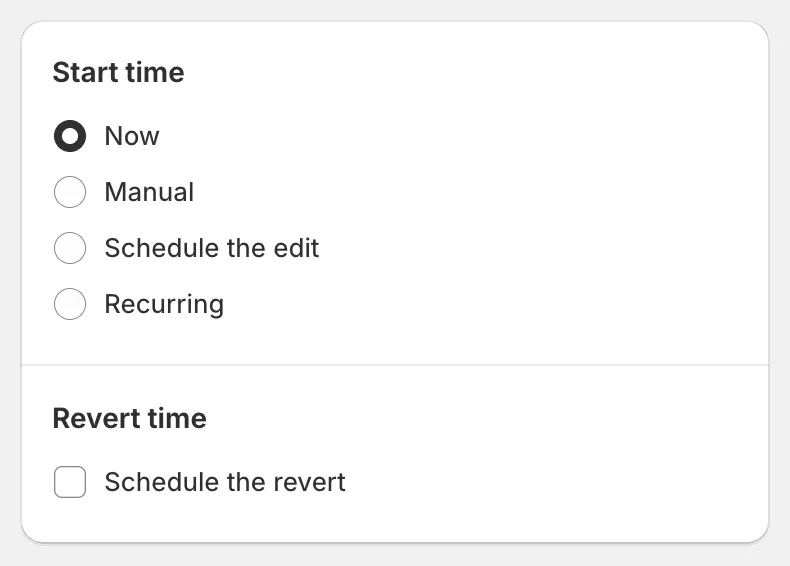
Start time and Revert time
Start time
Section titled “Start time”| Option | What happens when you save |
|---|---|
| Now | A Task confirmation dialog opens. After you confirm, the task starts immediately and you are taken to the task details page. |
| Manual | The task is saved with the status Manual start. Nothing runs. Start it later with Apply change now, and edit it as often as you like until then. |
| Schedule the edit | Pick a Date and Time. The task shows as Scheduled and starts at that time. You can still edit or reschedule it before it starts. |
| Recurring | The task runs and reverts on a repeating schedule. See Recurring tasks. |
Schedule the edit
Section titled “Schedule the edit”Select the date in the calendar or type it, then set the time. Past dates are disabled. The time is interpreted in the timezone shown in the card footer.
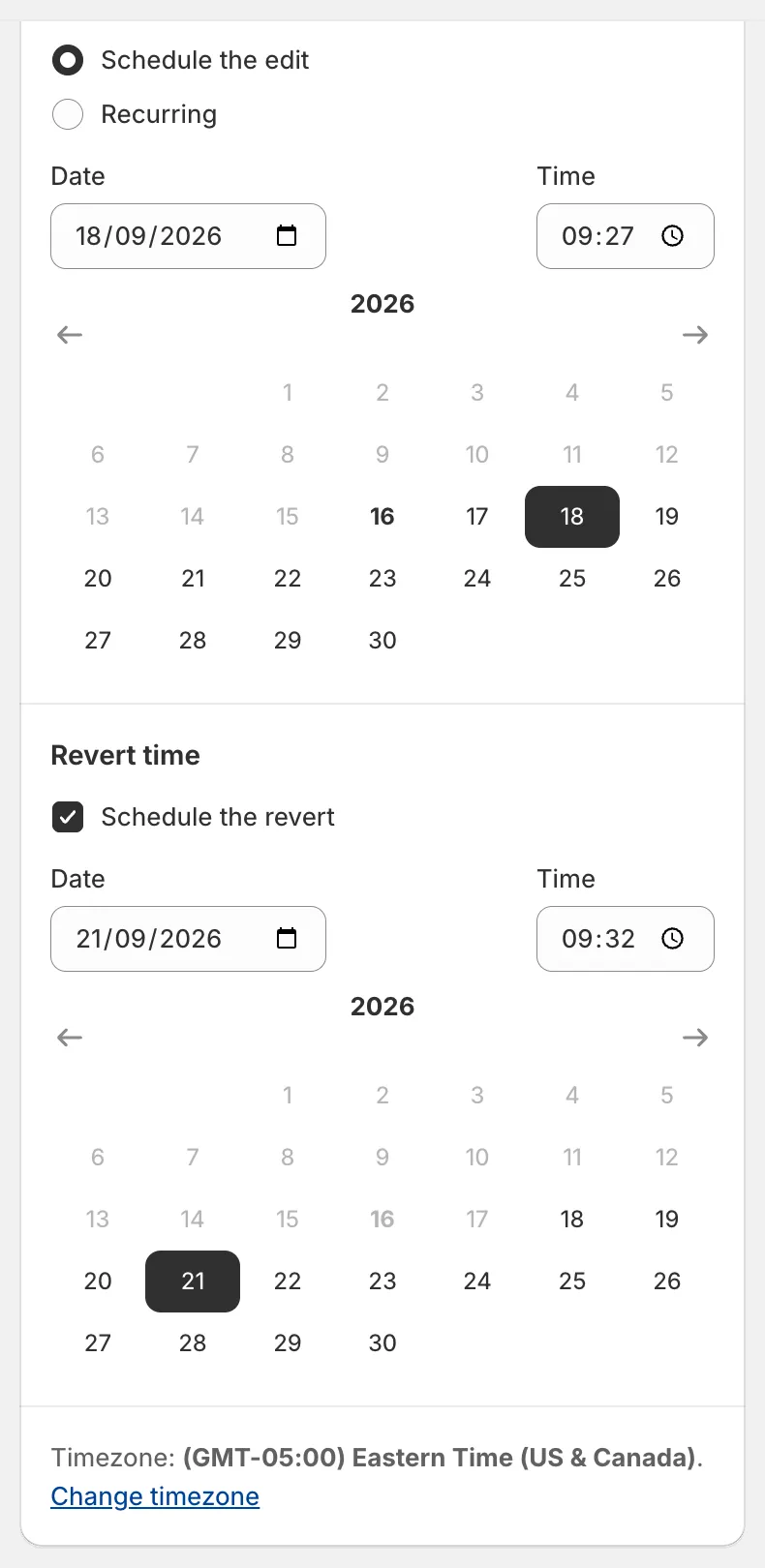
Scheduled edit with a scheduled revert
Revert time
Section titled “Revert time”Tick Schedule the revert to undo the task automatically. Pick the Date and Time. Rules:
- The revert must be at least 5 minutes after the start time (or after now, for Now and Manual tasks).
- If you move the start date later, the revert date moves with it.
- You can still revert manually at any time, whether or not a revert is scheduled. See Revert changes.
The revert section is hidden for Recurring tasks, because each recurrence has its own end time, and for the delete fields, because deletions cannot be undone.
Timezone
Section titled “Timezone”Scheduled times use the timezone set in Settings › Timezone. If you have not changed it, the app uses your Shopify store timezone. Click Change timezone in the card footer to open Settings. See Set your timezone.
Click Save in the Shopify top bar (the bar appears as soon as you change something).
- Now: the Task confirmation dialog lists the edit, the rounding, the connected field (if any) and the products it applies to. It also reminds you to check the preview, avoid manual product edits while the task runs, and contact support before reverting if something looks wrong. Click Save to run.
- Manual, Schedule the edit and Recurring: the task is saved directly and the task page reopens so you can review or edit it.
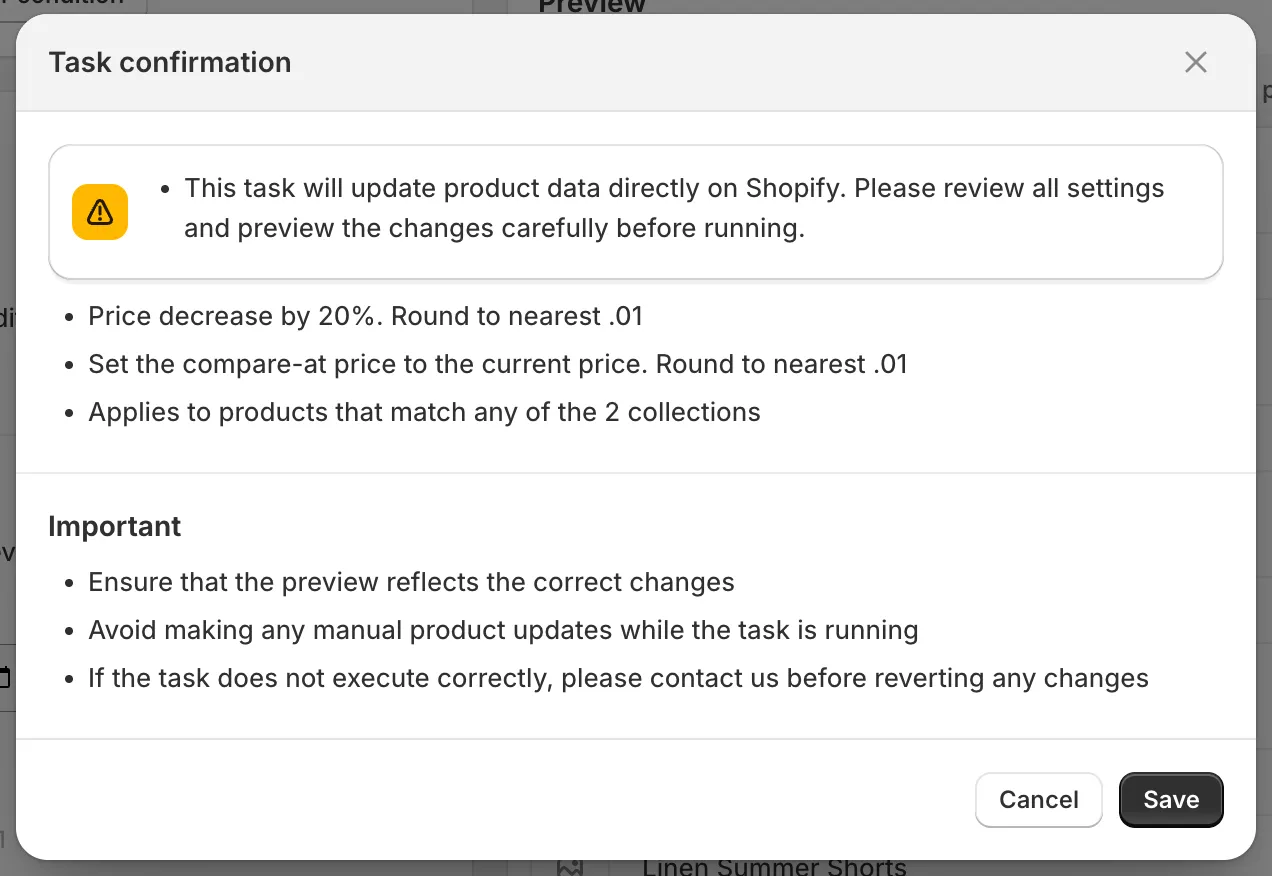
Task confirmation
If your selection contains more products than your plan allows, the dialog also says how many will be updated in this run.