> For the complete documentation index, see [llms.txt](https://docs.samita.io/llms.txt). Markdown versions of documentation pages are available by appending `.md` to page URLs; this page is available as [Markdown](https://docs.samita.io/b2b-lock-password-protect/access-rules/cart-conditions.md).

# Cart conditions

Match visitors based on what's currently in their cart — specific products, variants, item count, or subtotal.

Cart conditions are four related access rules that all look at the visitor's current shopping cart:

* **Cart contains selected products** — a specific product is currently in the cart.
* **Cart contains selected variants** — a specific variant is currently in the cart.
* **Cart quantity** — the total number of items in the cart is at least a number you set.
* **Cart total** — the cart's subtotal is at least a dollar amount you set.

They're a good fit for free-gift unlocks (add a specific product to reveal a bonus item) or minimum-order-value gating (unlock a discount or perk once the cart reaches a spending threshold).

Like most access rules (aside from the action-based ones such as Passcode, Secret link, Subscribe, and Confirmation prompt), each of these four can be set to match **If** the cart meets the condition, or **Unless** it doesn't — inverting it to match carts that don't meet the condition instead. See [Combining rules](/b2b-lock-password-protect/access-rules/combining-rules.md).

## Add a cart condition rule

1. Open **Locks** and create a new lock, or open an existing one to edit it.
2. Choose the content you want to protect. See [Access rules overview](/b2b-lock-password-protect/access-rules/overview.md) for how rules fit into a lock.
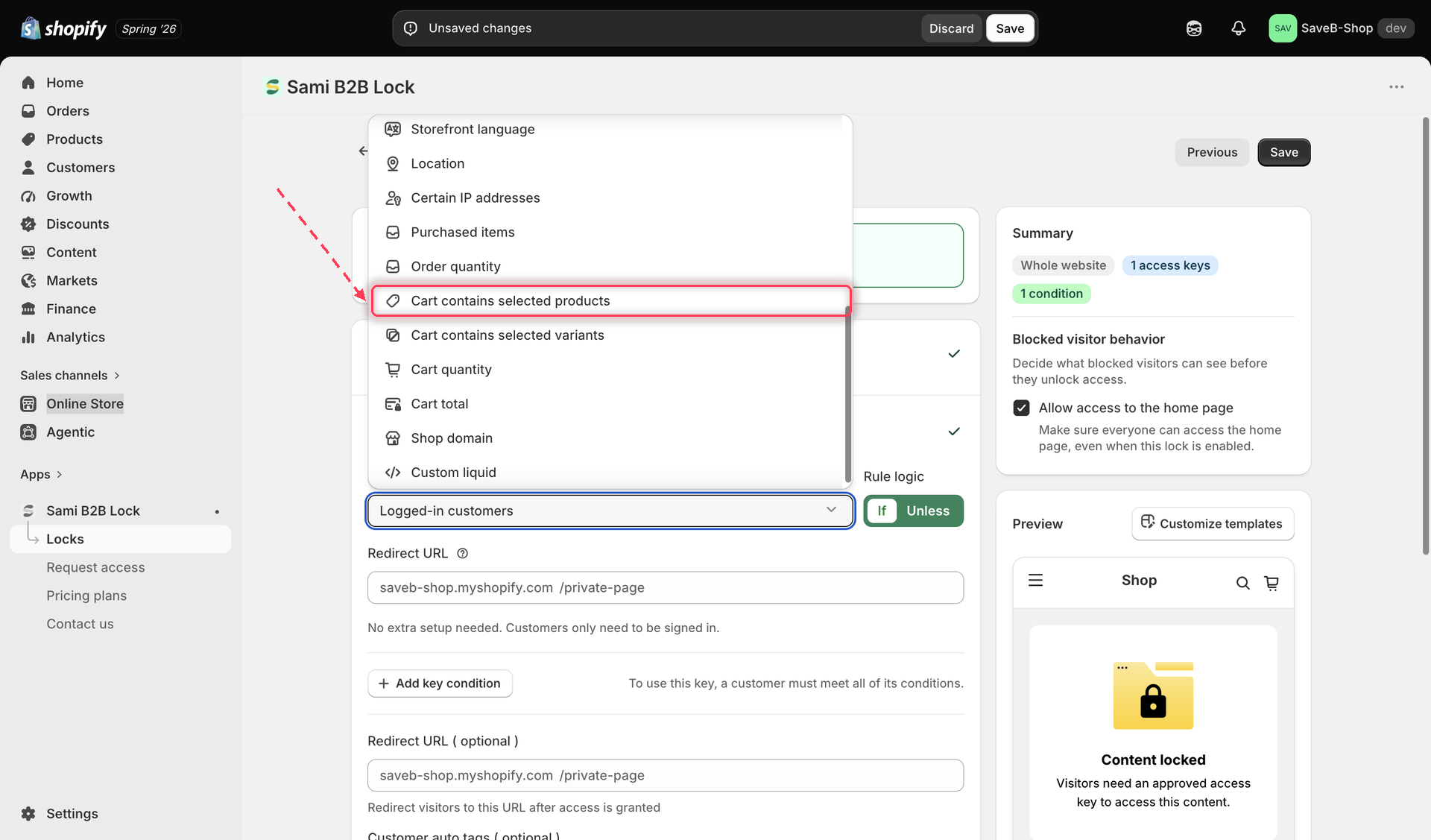
3. Click the **Unlock rules** tab, then in the **Condition type** dropdown, select **Cart contains selected products**, **Cart contains selected variants**, **Cart quantity**, or **Cart total**.

<figure><img src="https://27754559-files.gitbook.io/~/files/v0/b/gitbook-x-prod.appspot.com/o/spaces%2FF4qMYopXntYz9YgUqZSo%2Fuploads%2Fgit-blob-191700458314033a14f4d27773a248a0ac166992%2Fscreenshot-access-rules-picker-cart-conditions.png?alt=media" alt="The Unlock rules tab&#x27;s Condition type dropdown showing the four cart-related rule types: Cart contains selected products, Cart contains selected variants, Cart quantity, and Cart total."><figcaption><p>Select one of the four cart conditions from the Condition type dropdown on the Unlock rules tab.</p></figcaption></figure>

4. Configure that rule (see each section below).
5. Choose **If** or **Unless**.
6. Click **Save**.

### Cart contains selected products

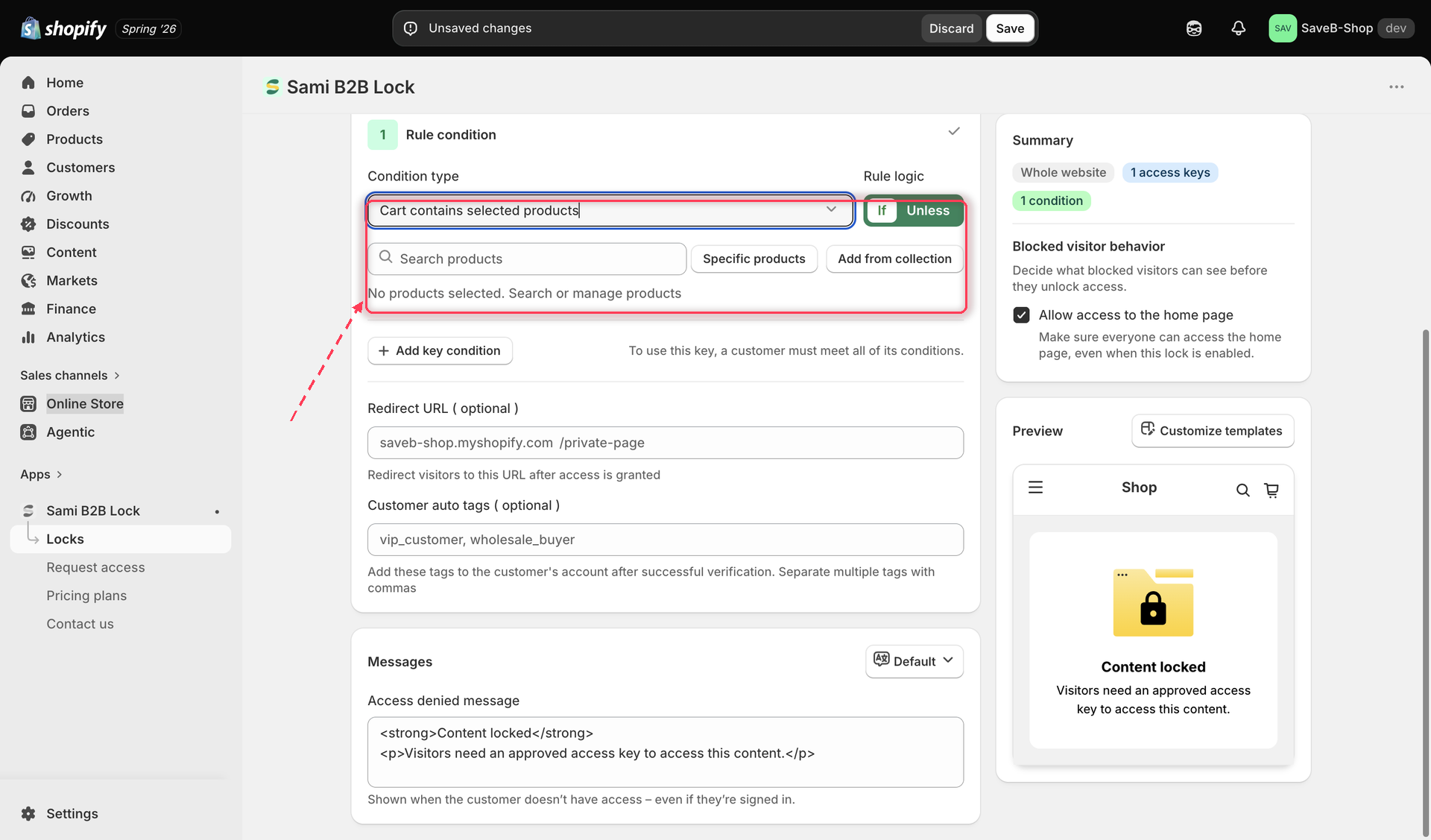
Select one or more products. The rule matches whenever any of those products is currently in the visitor's cart — this checks presence only, regardless of how many units or which specific variant.

<figure><img src="https://27754559-files.gitbook.io/~/files/v0/b/gitbook-x-prod.appspot.com/o/spaces%2FF4qMYopXntYz9YgUqZSo%2Fuploads%2Fgit-blob-126d75885fbea753598393cfa311365f409c70b6%2Fscreenshot-access-rules-cart-products-config.png?alt=media" alt="The Cart contains selected products rule settings, showing a product selection list."><figcaption><p>Select the product(s) that must be in the cart for this rule to match.</p></figcaption></figure>

### Cart contains selected variants

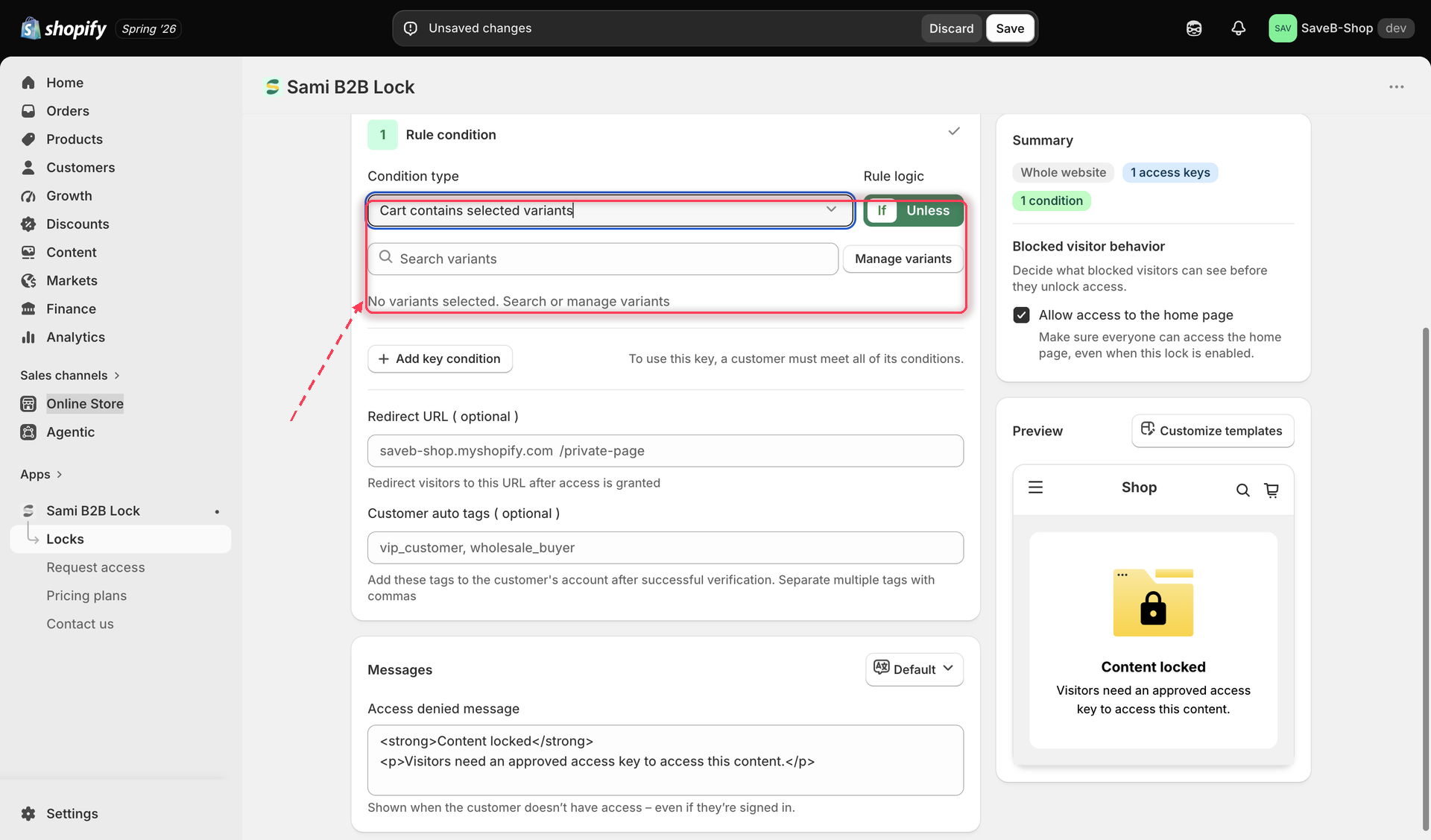
Select one or more specific variants. The rule matches whenever any of those exact variants is currently in the cart. Use this instead of Cart contains selected products when the condition should depend on a specific size, color, or other variant option, not just the product as a whole.

<figure><img src="https://27754559-files.gitbook.io/~/files/v0/b/gitbook-x-prod.appspot.com/o/spaces%2FF4qMYopXntYz9YgUqZSo%2Fuploads%2Fgit-blob-c2da48d54893f3eae22383e2fde3899f719ebfd7%2Fscreenshot-access-rules-cart-variants-config.png?alt=media" alt="The Cart contains selected variants rule settings, showing a variant selection list."><figcaption><p>Select the specific variant(s) that must be in the cart for this rule to match.</p></figcaption></figure>

### Cart quantity

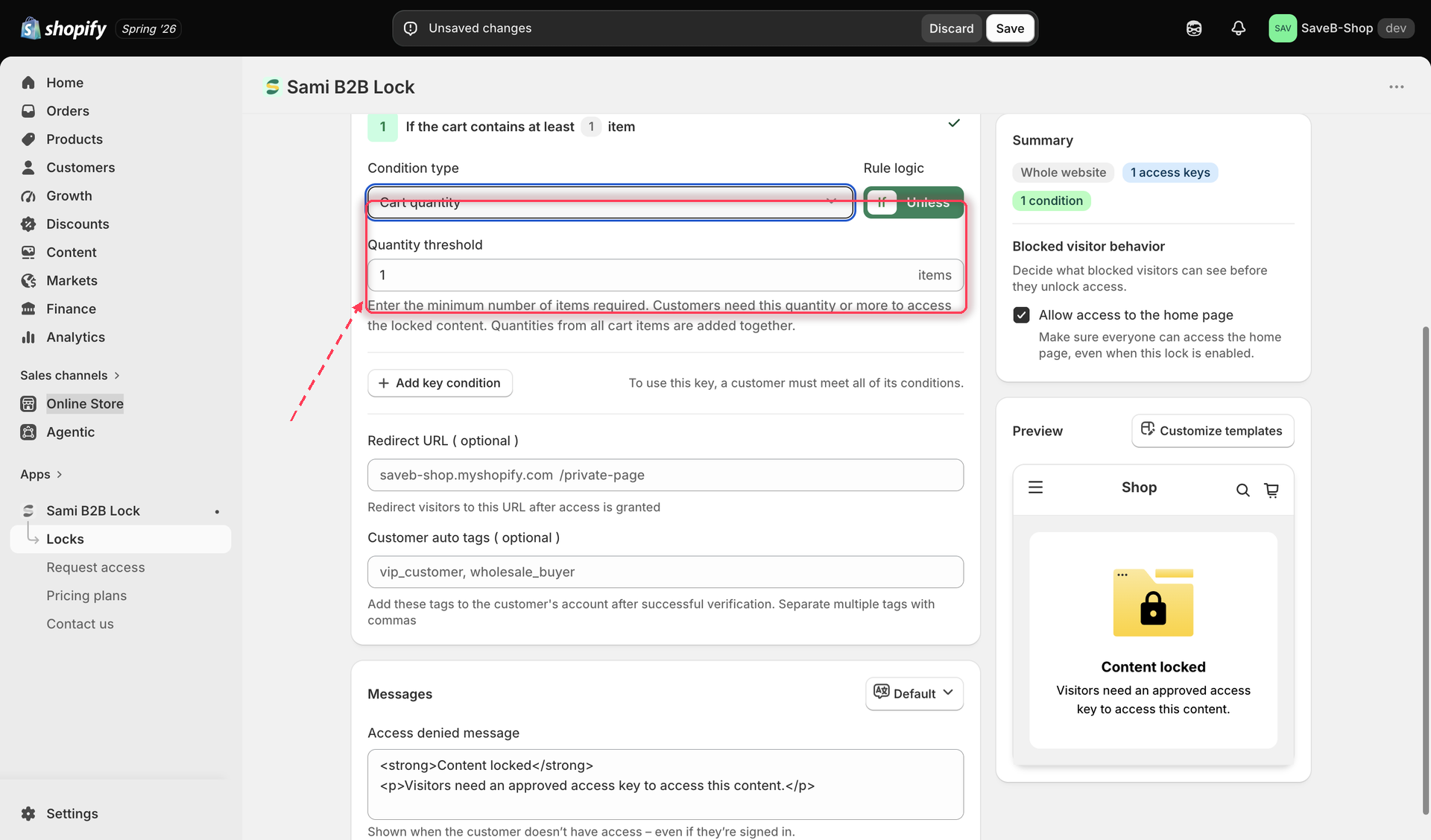
Set a number. The rule matches whenever the total number of items in the cart — across all products, not just a specific one — is **at least** that number.

<figure><img src="https://27754559-files.gitbook.io/~/files/v0/b/gitbook-x-prod.appspot.com/o/spaces%2FF4qMYopXntYz9YgUqZSo%2Fuploads%2Fgit-blob-6624519eb82fd21a165b69a83c90518114e5b2df%2Fscreenshot-access-rules-cart-quantity-config.png?alt=media" alt="The Cart quantity rule settings, showing a number input for the minimum total items required in the cart."><figcaption><p>Set the minimum total number of items the cart must contain for this rule to match.</p></figcaption></figure>

### Cart total

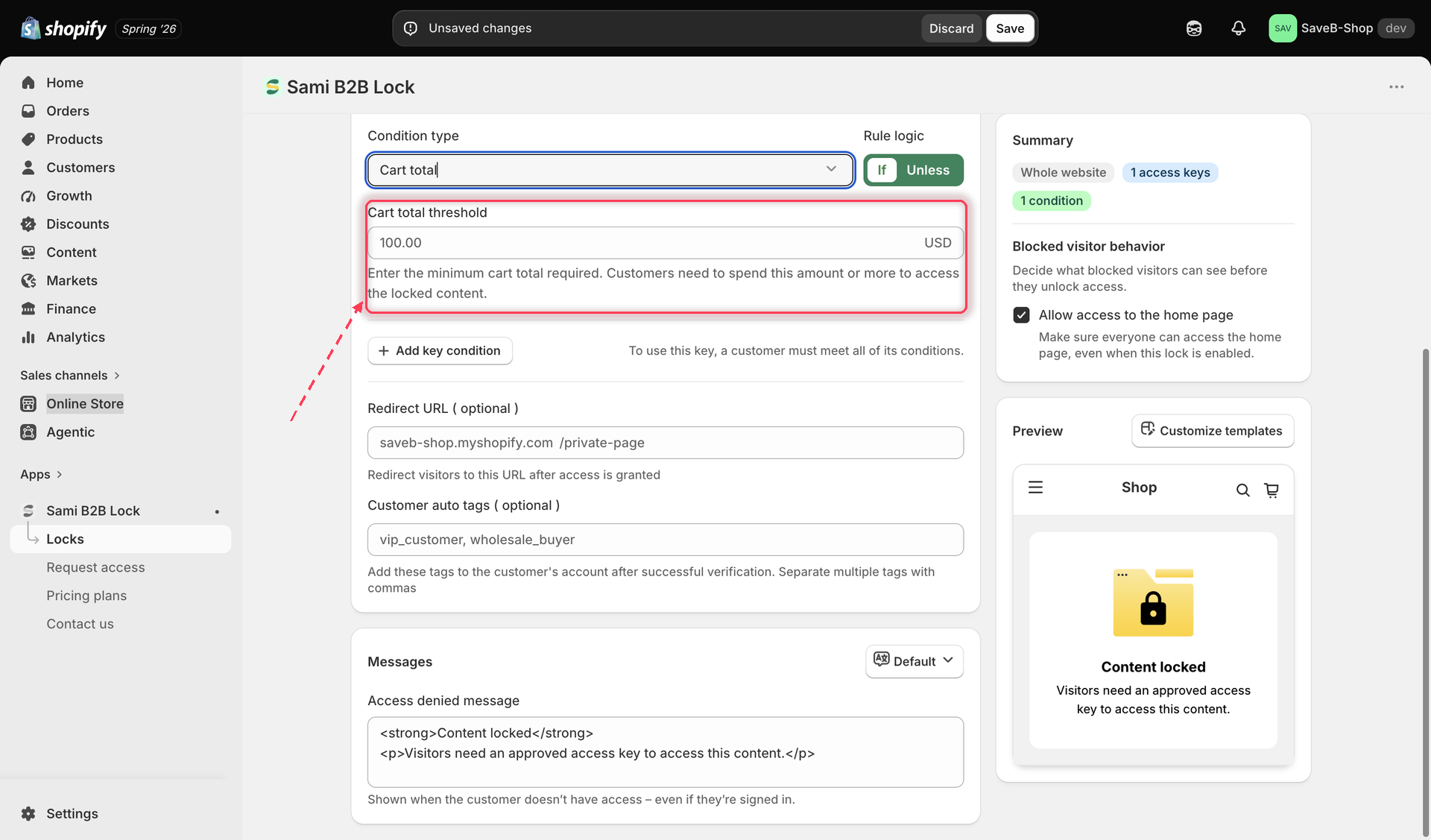
Set a dollar amount. The rule matches whenever the cart's subtotal is **at least** that amount.

<figure><img src="https://27754559-files.gitbook.io/~/files/v0/b/gitbook-x-prod.appspot.com/o/spaces%2FF4qMYopXntYz9YgUqZSo%2Fuploads%2Fgit-blob-197bf15cc64ca1a10c7d85ae3449c2de5f134a39%2Fscreenshot-access-rules-cart-total-config.png?alt=media" alt="The Cart total rule settings, showing a currency input for the minimum cart subtotal required."><figcaption><p>Set the minimum cart subtotal required for this rule to match.</p></figcaption></figure>

{% hint style="warning" %}
**Cart quantity and Cart total only support "at least" (≥) today.** Even though the number field might look like a general-purpose input, there's currently no way to configure "exactly," "at most," or "less than" for either of these two rules. If you need content to unlock only below a certain quantity or amount, use the **Unless** toggle together with a slightly higher threshold, or plan around the "at least" behavior directly — don't build a lock expecting a different comparison, since it isn't supported.
{% endhint %}

{% hint style="info" %}
Cart conditions are evaluated again when the cart changes. A visitor who is denied can qualify after adding the required product or variant, or after reaching the configured quantity or subtotal.
{% endhint %}

## Examples

Each example below represents a separate Lock. Leave the rule's **Redirect URL** empty so visitors who do not qualify see the configured message.

{% hint style="info" %}
None of the four cart conditions shows a **Guest message content** field — they don't look at who the visitor is, so only the **Access denied message** applies. See [Access rules overview](/b2b-lock-password-protect/access-rules/overview.md#what-a-blocked-visitor-sees).
{% endhint %}

### Cart contains selected products

Suppose a bonus-offer page should open after the visitor adds any variant of **The Complete Snowboard** to the cart.

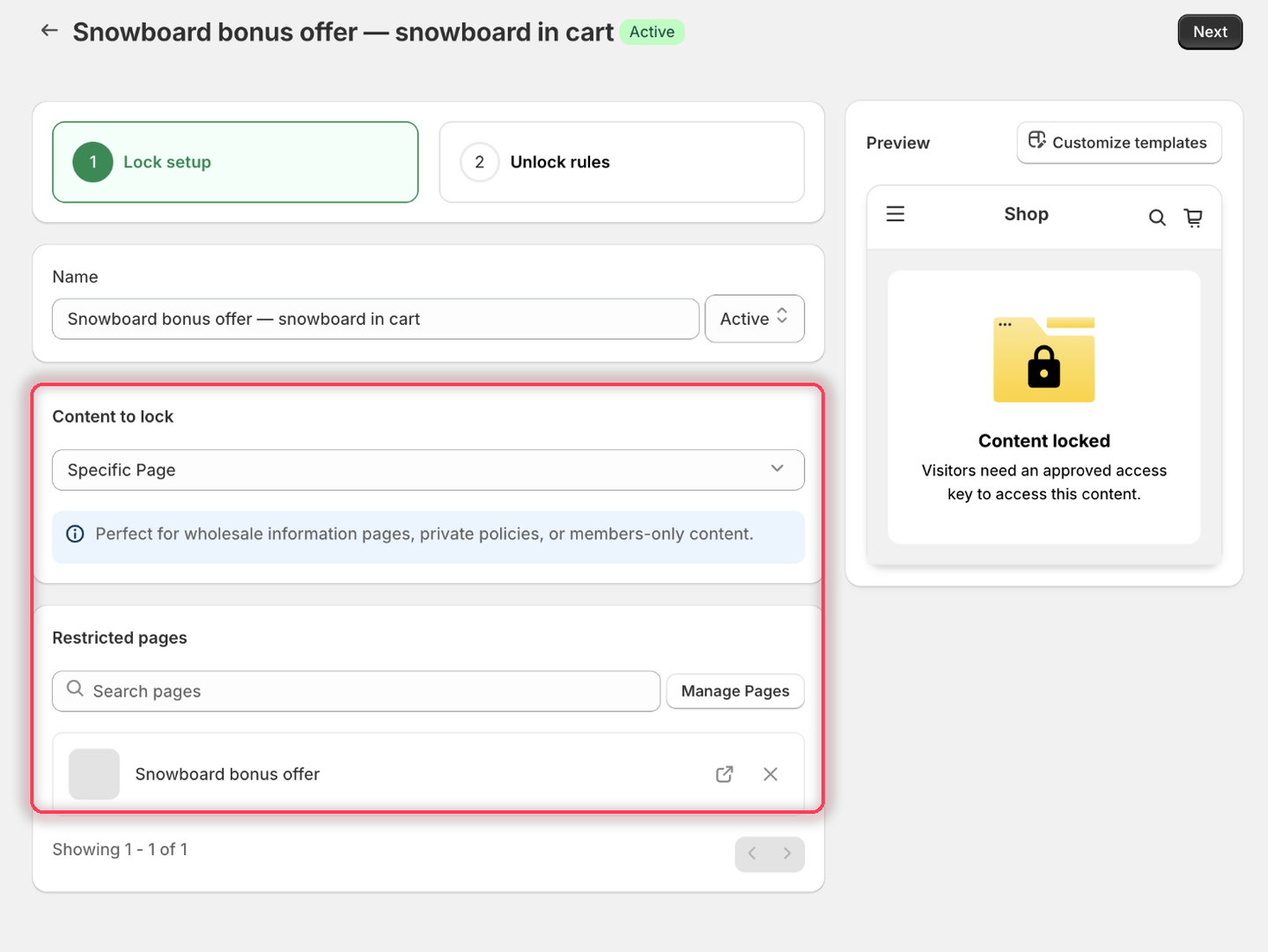
1. Select the **Snowboard bonus offer** page as the content to protect.

<figure><img src="https://27754559-files.gitbook.io/~/files/v0/b/gitbook-x-prod.appspot.com/o/spaces%2FF4qMYopXntYz9YgUqZSo%2Fuploads%2Fgit-blob-a051e08438a4e055867fef7d4039554261dba553%2Fscreenshot-example-cart-products-content.png?alt=media" alt="The Lock setup tab with Specific Page as the content type and the Snowboard bonus offer page listed under Restricted pages."><figcaption><p>Pick the page the cart should unlock.</p></figcaption></figure>

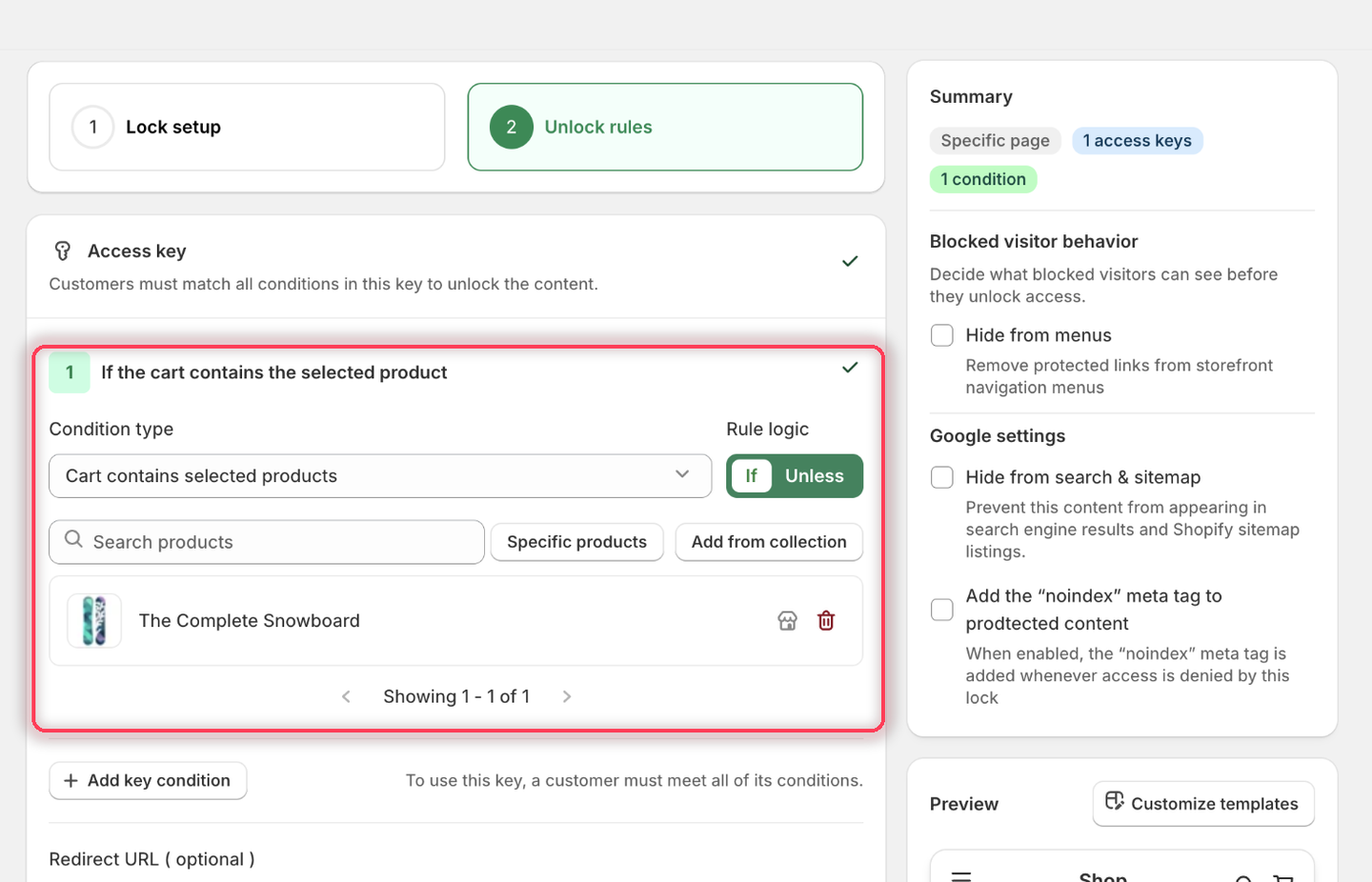
2. On the **Unlock rules** tab, set **Condition type** to **Cart contains selected products**, leave **Rule logic** on **If**, then click **Specific products** and add **The Complete Snowboard**.

<figure><img src="https://27754559-files.gitbook.io/~/files/v0/b/gitbook-x-prod.appspot.com/o/spaces%2FF4qMYopXntYz9YgUqZSo%2Fuploads%2Fgit-blob-473044dfbf448d278901722262f0fa2b96ef77e5%2Fscreenshot-example-cart-products-rule.png?alt=media" alt="The Cart contains selected products condition with Rule logic If and The Complete Snowboard in the product list."><figcaption><p>The condition heading reads: If the cart contains the selected product.</p></figcaption></figure>

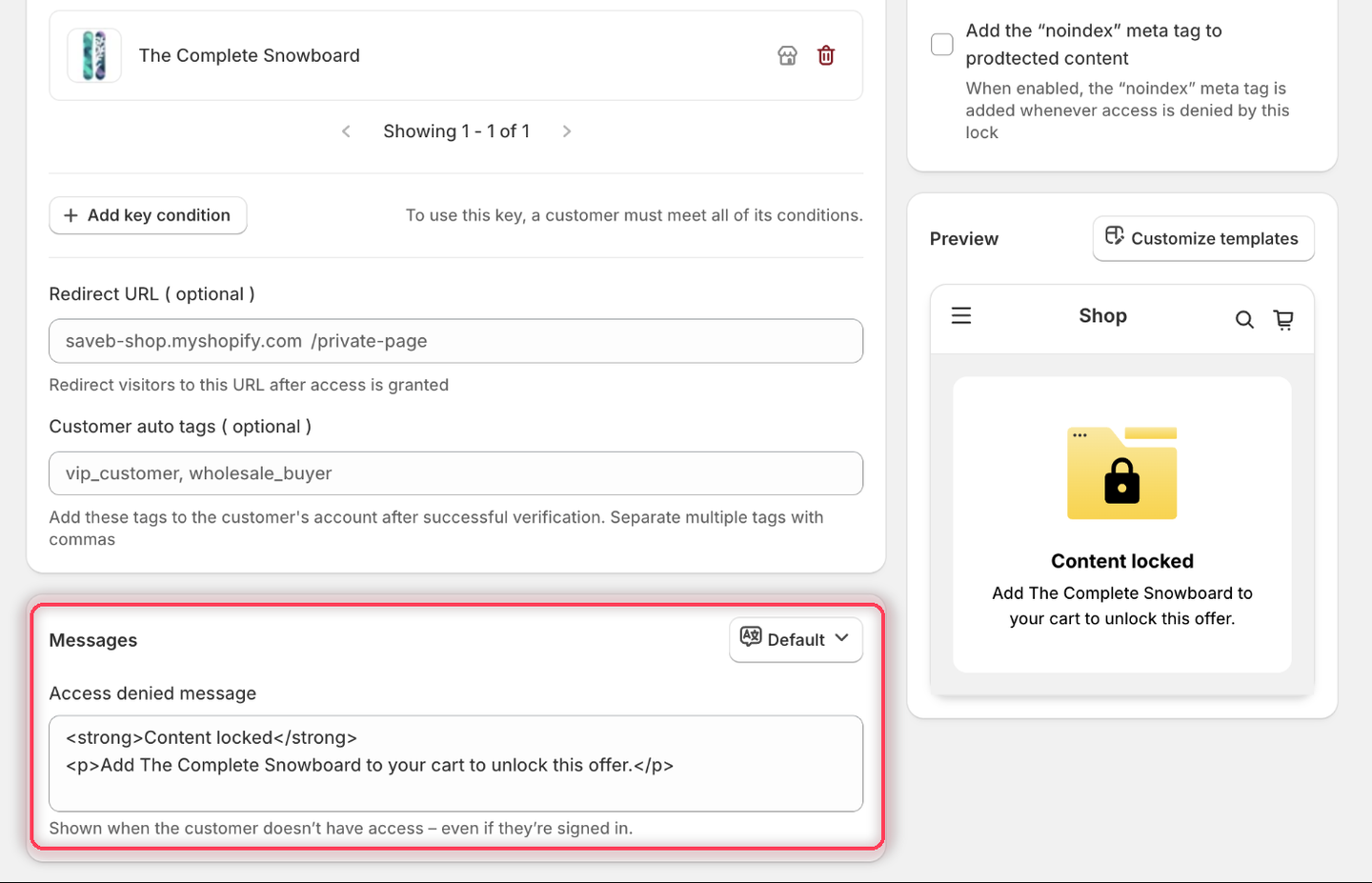
3. In **Messages**, set the **Access denied message** to:

> Add The Complete Snowboard to your cart to unlock this offer.

<figure><img src="https://27754559-files.gitbook.io/~/files/v0/b/gitbook-x-prod.appspot.com/o/spaces%2FF4qMYopXntYz9YgUqZSo%2Fuploads%2Fgit-blob-64152c2d26da3e5e0ffae7f81e277d8d1f54792b%2Fscreenshot-example-cart-products-message.png?alt=media" alt="The Messages card with the Access denied message set to the required-product wording, and the Preview panel rendering it."><figcaption><p>The Preview panel confirms the wording before you save.</p></figcaption></figure>

4. Click **Save**.

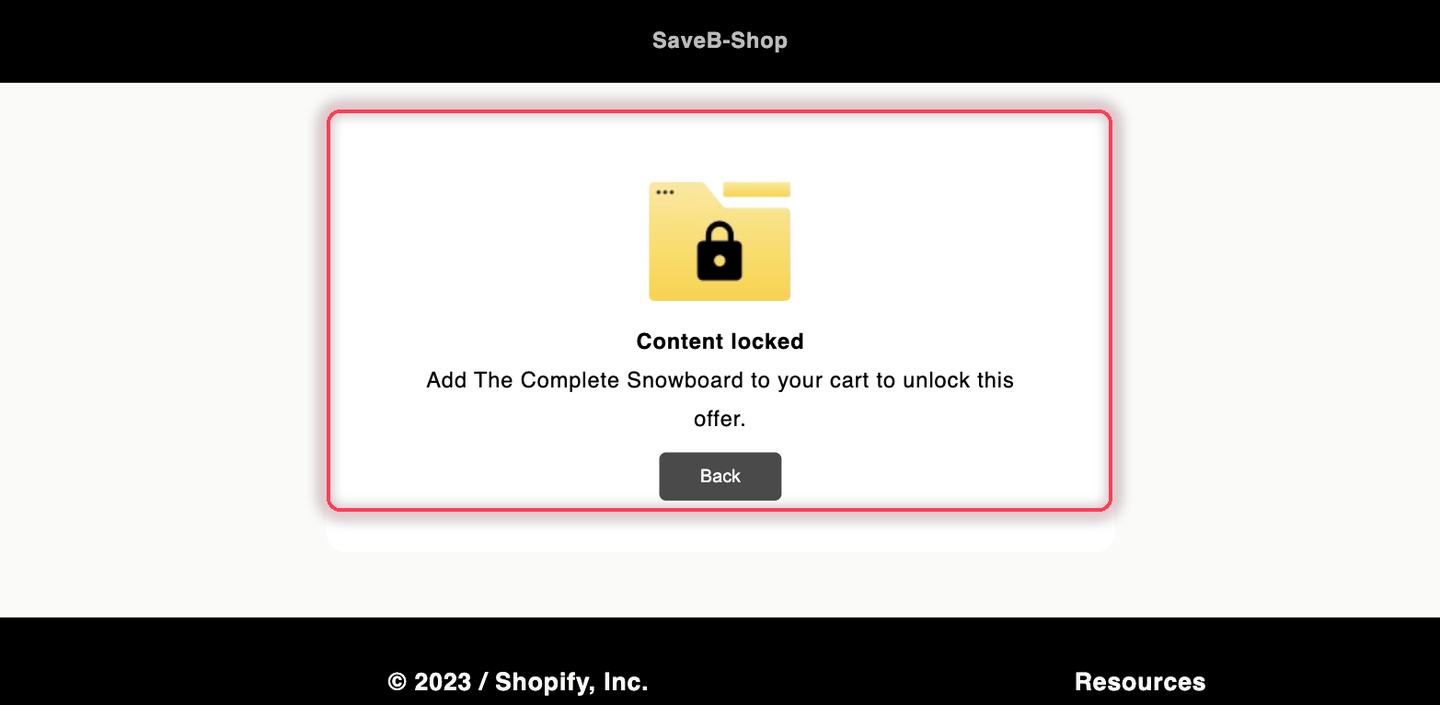
The page opens when any The Complete Snowboard variant is in the cart. Otherwise, the visitor sees the message above.

<figure><img src="https://27754559-files.gitbook.io/~/files/v0/b/gitbook-x-prod.appspot.com/o/spaces%2FF4qMYopXntYz9YgUqZSo%2Fuploads%2Fgit-blob-987b1c4dd45696e12528c6e672b7da8594cd9828%2Fscreenshot-example-cart-products-result.png?alt=media" alt="The Snowboard bonus offer page displaying the configured required-product message."><figcaption><p>Without the product in the cart, the visitor sees the Access denied message from this example.</p></figcaption></figure>

## Related docs

* [Access rules overview](/b2b-lock-password-protect/access-rules/overview.md)
* [Combining rules](/b2b-lock-password-protect/access-rules/combining-rules.md)
* [Purchased items](/b2b-lock-password-protect/access-rules/purchased-items.md)
* [Order quantity](/b2b-lock-password-protect/access-rules/order-quantity.md)


---

# Agent Instructions
This documentation is published with GitBook. GitBook is the documentation platform designed so that both humans and AI agents can read, navigate, and reason over technical content effectively. Learn more at gitbook.com.

## Querying This Documentation
If you need additional information that is not directly available in this page, you can query the documentation dynamically by asking a question.

Perform an HTTP GET request on the current page URL with the `ask` query parameter, and the optional `goal` query parameter:

```
GET https://docs.samita.io/b2b-lock-password-protect/access-rules/cart-conditions.md?ask=<question>&goal=<endgoal>
```

`ask` is the immediate question: it should be specific, self-contained, and written in natural language.
`goal` is optional and describes the broader end goal you are ultimately trying to accomplish on behalf of the user. GitBook uses it to tailor the answer towards what is most useful for that goal.

The response will contain a direct answer to the question and relevant excerpts and sources from the documentation.

Use this mechanism when the answer is not explicitly present in the current page, you need clarification or additional context, or you want to retrieve related documentation sections.