> For the complete documentation index, see [llms.txt](https://docs.samita.io/llms.txt). Markdown versions of documentation pages are available by appending `.md` to page URLs; this page is available as [Markdown](https://docs.samita.io/b2b-lock-password-protect/access-rules/purchased-items.md).

# Purchased items

Match customers who have already purchased specific products or variants, with quantity, lookback, and order-status options.

**Purchased items** matches a customer based on whether they've already bought specific products or variants. It's a good fit for gating exclusive restocks or upsells to people who've already bought the related item — for example, unlocking an accessory only for customers who bought the matching main product, or opening an early restock only to customers who already own the sold-out original.

Like most access rules (aside from the action-based ones such as Passcode, Secret link, Subscribe, and Confirmation prompt), Purchased items can be set to match **If** the customer meets the purchase condition, or **Unless** they don't — inverting it to match customers who haven't bought the item instead. See [Combining rules](/b2b-lock-password-protect/access-rules/combining-rules.md).

{% hint style="info" %}
This rule reads purchase history from a signed-in Shopify customer account. With **If**, a guest cannot meet the purchase condition; with **Unless**, a guest has no matching purchase history and therefore satisfies the inverted condition.
{% endhint %}

## Add the rule

1. Open **Locks** and create a new lock, or open an existing one to edit it.
2. Choose the content you want to protect. See [Access rules overview](/b2b-lock-password-protect/access-rules/overview.md) for how rules fit into a lock.
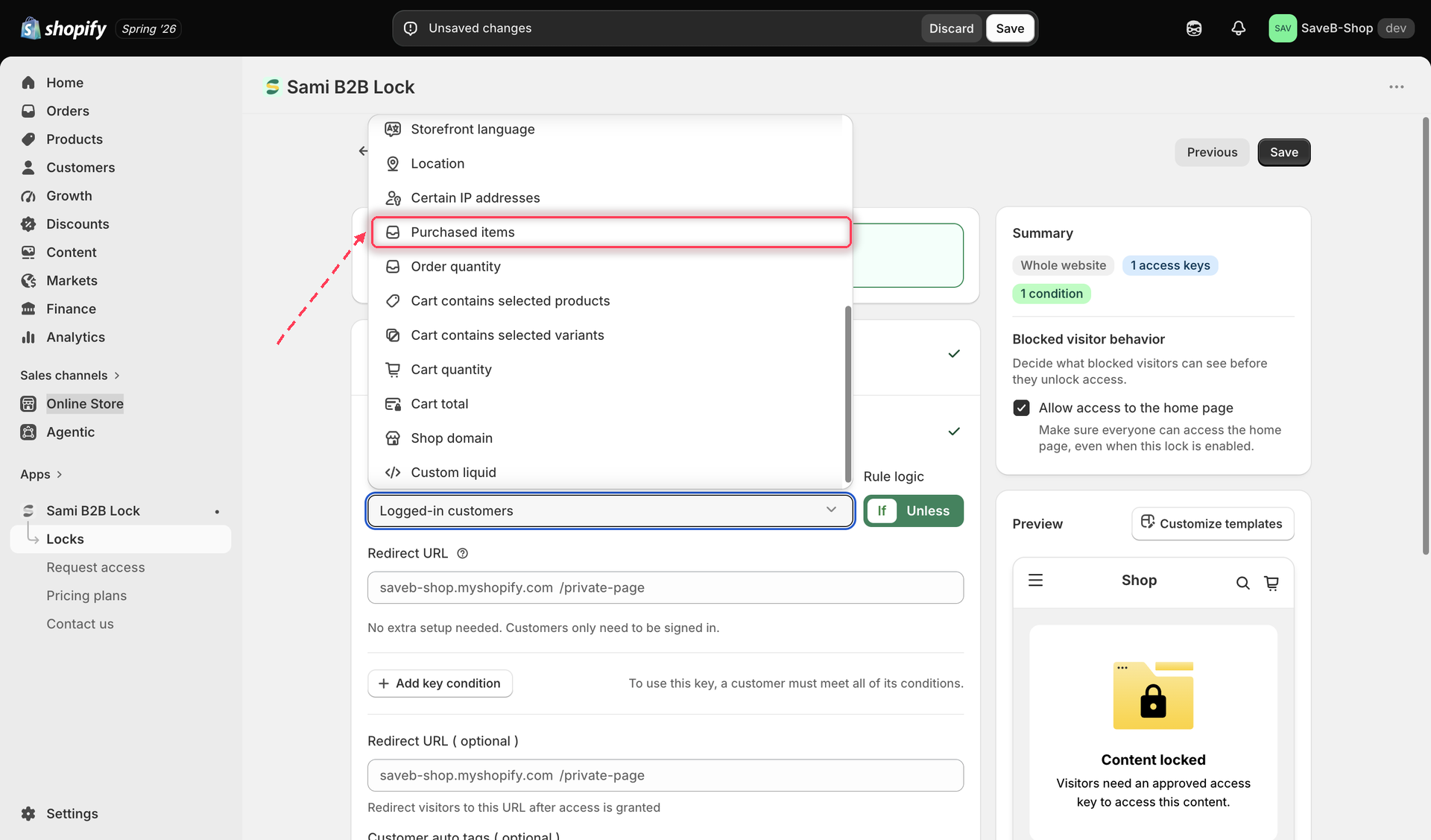
3. Click the **Unlock rules** tab, then in the **Condition type** dropdown, select **Purchased items**.

<figure><img src="https://27754559-files.gitbook.io/~/files/v0/b/gitbook-x-prod.appspot.com/o/spaces%2FF4qMYopXntYz9YgUqZSo%2Fuploads%2Fgit-blob-5af1505b703dd31455dd278739c2658f8170e896%2Fscreenshot-access-rules-picker-purchased-items.png?alt=media" alt="The Unlock rules tab with Purchased items selected in the Condition type dropdown."><figcaption><p>Select Purchased items from the Condition type dropdown on the Unlock rules tab.</p></figcaption></figure>

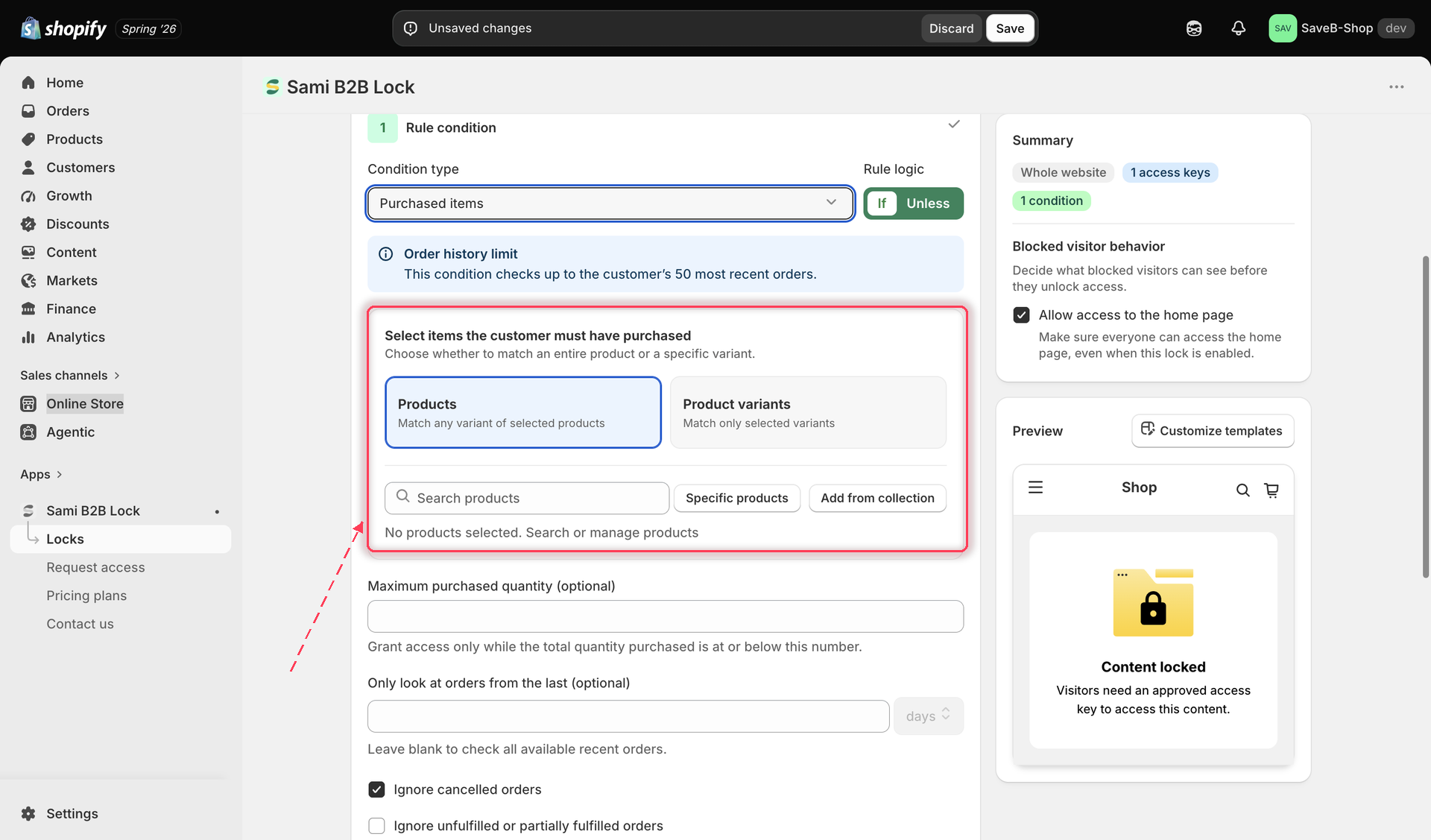
4. Choose whether to match **Products** (any variant of the selected products counts) or **Variants** (only the specific variants you select count), then pick the items.

<figure><img src="https://27754559-files.gitbook.io/~/files/v0/b/gitbook-x-prod.appspot.com/o/spaces%2FF4qMYopXntYz9YgUqZSo%2Fuploads%2Fgit-blob-7d127078faccbdea9387841880bec96822b7278d%2Fscreenshot-access-rules-purchased-items-selection.png?alt=media" alt="The Purchased items rule showing the Products/Variants type picker and a product selection list."><figcaption><p>Choose whether to match whole products or specific variants, then select the items.</p></figcaption></figure>

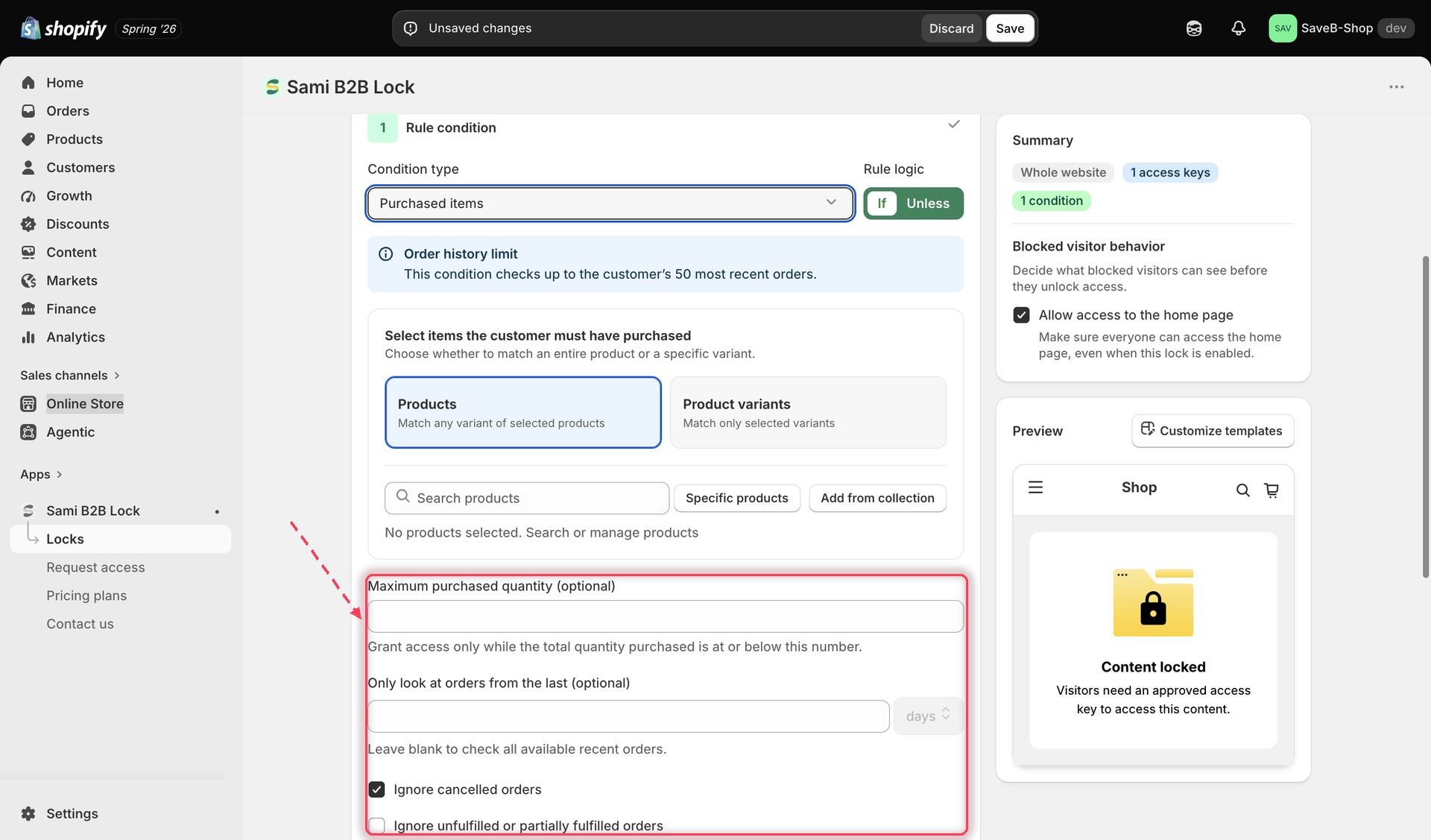
5. Optionally cap the matching purchase quantity, set a lookback window of up to 60 days, and choose which order statuses to ignore.
<figure><img src="https://27754559-files.gitbook.io/~/files/v0/b/gitbook-x-prod.appspot.com/o/spaces%2FF4qMYopXntYz9YgUqZSo%2Fuploads%2Fgit-blob-5bc396cfe0be3cb53204af4e18a428ebba08bfb6%2Fscreenshot-access-rules-purchased-items-config.png?alt=media" alt="The Purchased items rule settings, showing the maximum purchased quantity field, lookback window in days, and ignore-order-status checkboxes."><figcaption><p>Optionally cap the purchased quantity, set a lookback window of up to 60 days, and choose which order statuses to ignore.</p></figcaption></figure>

6. Choose **If** or **Unless**.
7. Click **Save**.

### The options

* **Maximum purchased quantity** (optional) — the rule always requires the customer to have bought at least one unit of the matching product or variant. Set this field to also cap it: the rule only matches while their total qualifying quantity is at or below the number you enter (useful for something like "unlock this add-on, but only for customers who bought 1-2 of the original — not bulk buyers"). Leave it blank to match on any purchase at all, with no upper limit.
* **Lookback window in days** (optional) — only count orders placed within the last N days. The maximum value is **60**; the field does not accept a number greater than 60. Leave it blank to use the full 60-day order-history window available to this rule. Use a smaller value, such as 30, when only more recent purchases should qualify.
* **Ignore cancelled orders** — on by default. Cancelled orders don't count toward a match.
* **Ignore unfulfilled or partially fulfilled orders** — off by default. Turn this on if you only want fully fulfilled orders to count.
* **Ignore orders that are not fully paid** — on by default. Unpaid or partially paid orders don't count toward a match.

{% hint style="warning" %}
This rule evaluates up to the customer's **50 most recent orders placed within the last 60 days**. Orders older than 60 days are not checked. If the customer placed more than 50 orders during that period, only the newest 50 are evaluated.
{% endhint %}

## Example: Unlock an accessory for previous buyers

Suppose only customers who purchased **The Complete Snowboard** within the last 60 days should be able to open a private accessories page.

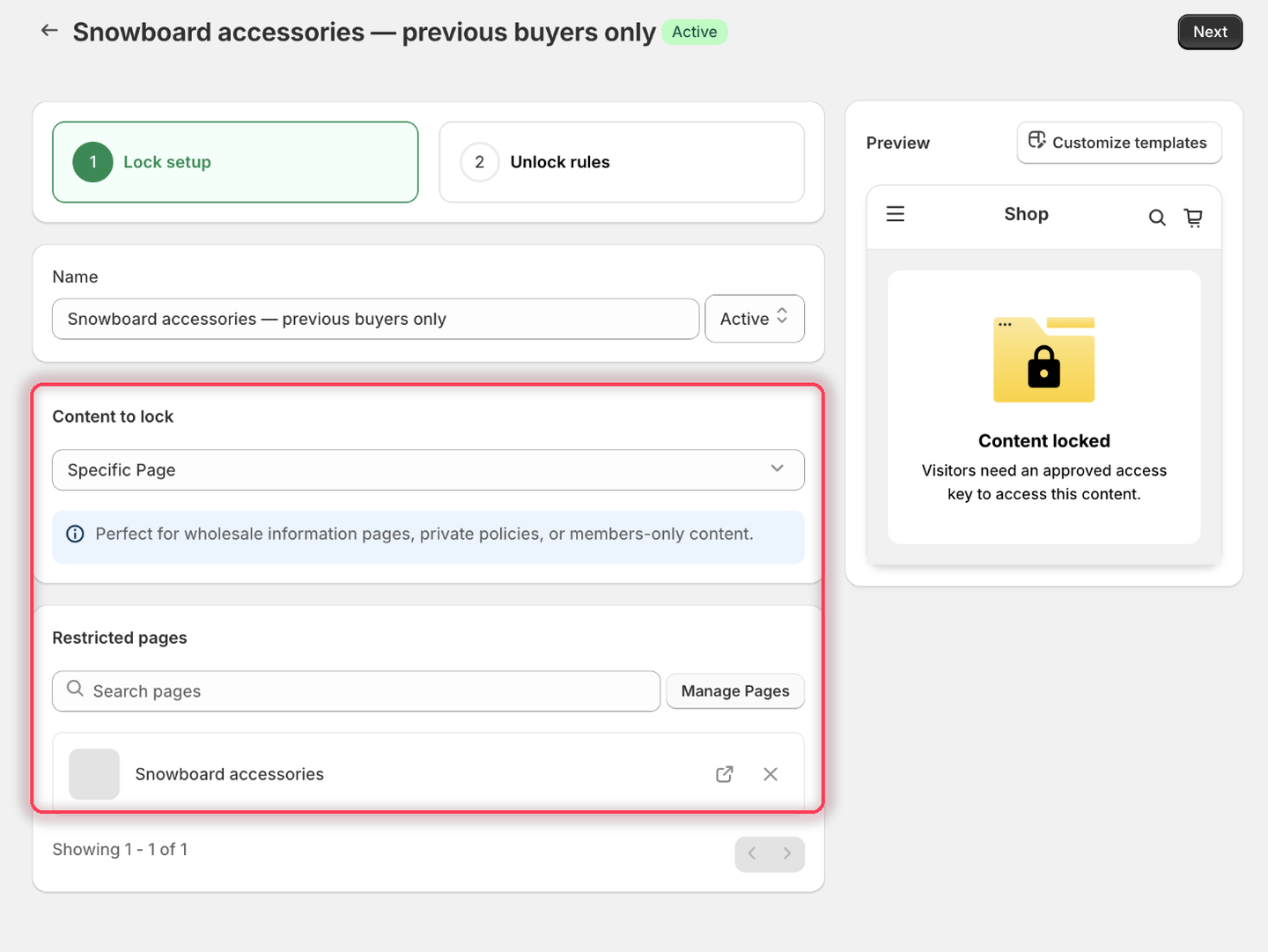
1. Select the **Snowboard accessories** page as the content to protect.

<figure><img src="https://27754559-files.gitbook.io/~/files/v0/b/gitbook-x-prod.appspot.com/o/spaces%2FF4qMYopXntYz9YgUqZSo%2Fuploads%2Fgit-blob-1afcb78f64188bced99444d196cc4b43c0b596e1%2Fscreenshot-example-purchased-items-content.png?alt=media" alt="The Lock setup tab with Specific Page as the content type and the Snowboard accessories page listed under Restricted pages."><figcaption><p>Pick the page that only previous buyers should reach.</p></figcaption></figure>

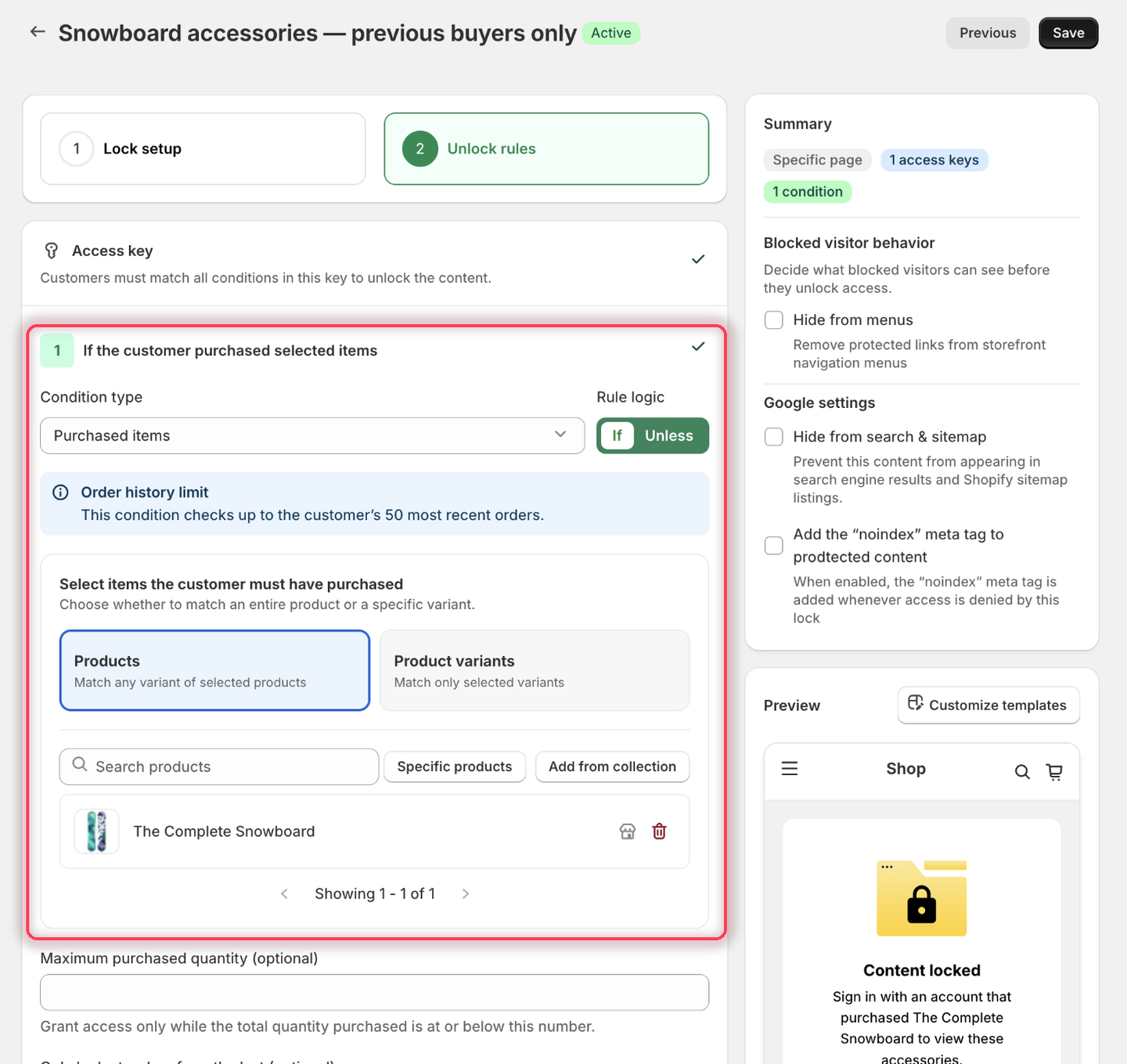
2. On the **Unlock rules** tab, set **Condition type** to **Purchased items** and leave **Rule logic** on **If**.
3. Under **Select items the customer must have purchased**, keep **Products** selected (it matches any variant), then click **Specific products** and add **The Complete Snowboard**.

<figure><img src="https://27754559-files.gitbook.io/~/files/v0/b/gitbook-x-prod.appspot.com/o/spaces%2FF4qMYopXntYz9YgUqZSo%2Fuploads%2Fgit-blob-c8f83acf3a4088ebe4bc539e8dad71c0eb0bac13%2Fscreenshot-example-purchased-items-rule.png?alt=media" alt="The Purchased items condition with Rule logic If, Products selected as the match type, and The Complete Snowboard in the product list."><figcaption><p>Products matches any variant; the condition heading confirms it reads "If the customer purchased selected items".</p></figcaption></figure>

4. Leave **Maximum purchased quantity** empty so any qualifying purchase quantity can pass, and set **Only look at orders from the last** to **60** days.
5. Leave the three order-status checkboxes at their defaults — **Ignore cancelled orders** and **Ignore orders that are not fully paid** are already on, and **Ignore unfulfilled or partially fulfilled orders** is off. Leave the rule's **Redirect URL** empty.
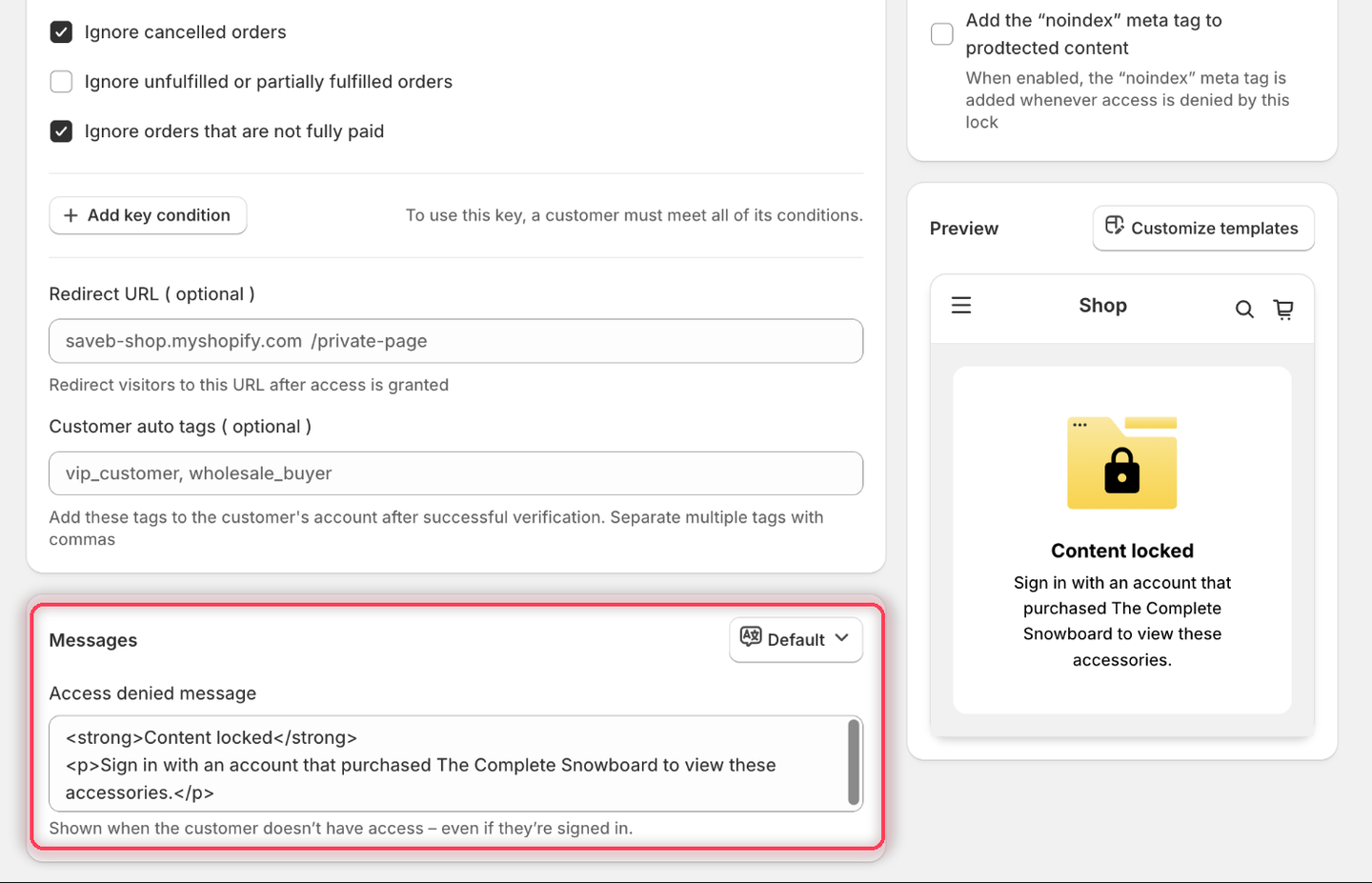
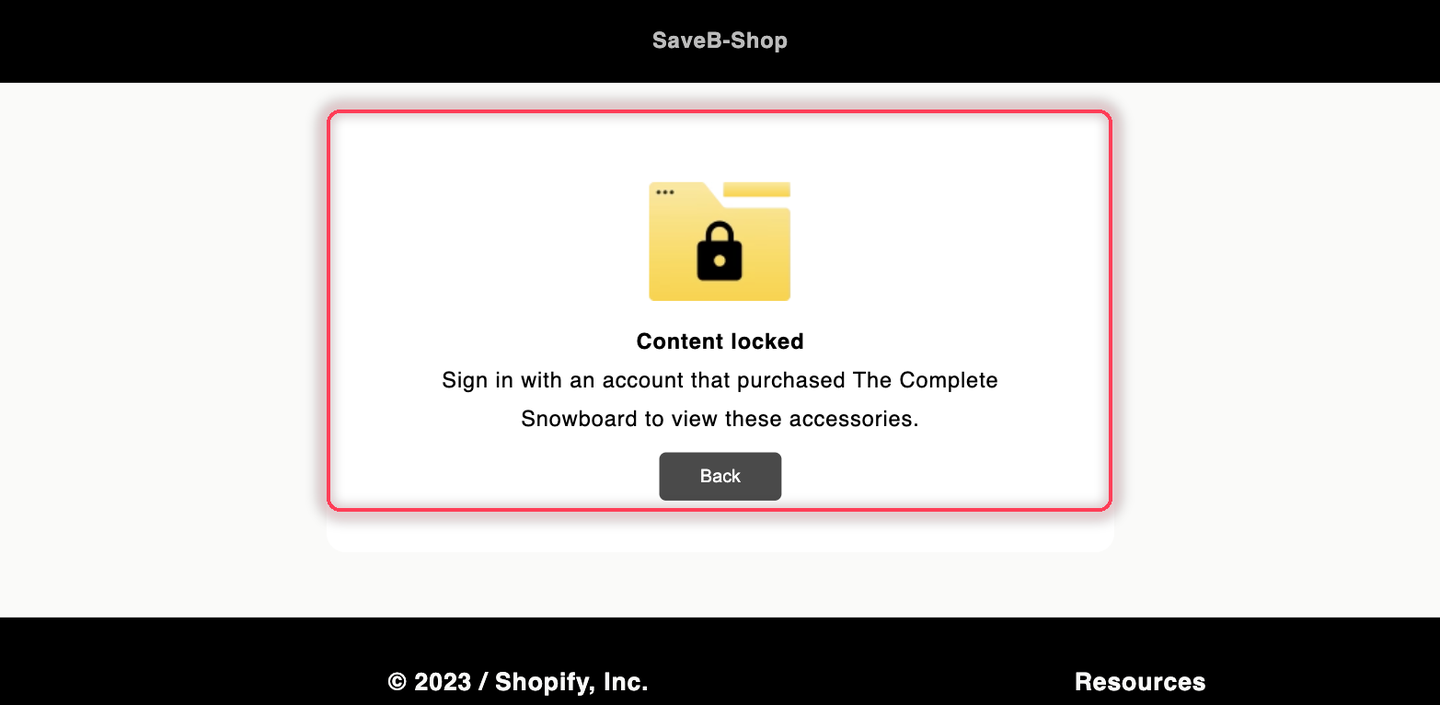
6. In **Messages**, set the **Access denied message** to:

> Sign in with an account that purchased The Complete Snowboard to view these accessories.

{% hint style="info" %}
Purchased items shows only the **Access denied message** — there's no Guest message field, because the rule isn't one of the five customer-identity rules. See [Access rules overview](/b2b-lock-password-protect/access-rules/overview.md#what-a-blocked-visitor-sees).
{% endhint %}

<figure><img src="https://27754559-files.gitbook.io/~/files/v0/b/gitbook-x-prod.appspot.com/o/spaces%2FF4qMYopXntYz9YgUqZSo%2Fuploads%2Fgit-blob-5856be8cda48d9026861b5dc0d7135bc7e56df12%2Fscreenshot-example-purchased-items-message.png?alt=media" alt="The Messages card with a single Access denied message field set to the previous-purchase wording, and the Preview panel rendering it."><figcaption><p>One message field only, and the Preview panel confirms the wording before you save.</p></figcaption></figure>

7. Click **Save**.

### Result on the storefront

A signed-in customer with a qualifying purchase of The Complete Snowboard from the last 60 days can open the accessories page. A purchase older than 60 days does not qualify. A guest or a signed-in customer without a qualifying purchase sees the Access denied message above.

<figure><img src="https://27754559-files.gitbook.io/~/files/v0/b/gitbook-x-prod.appspot.com/o/spaces%2FF4qMYopXntYz9YgUqZSo%2Fuploads%2Fgit-blob-a224d62dfc9e999a718163f32d65b91a6a008921%2Fscreenshot-example-purchased-items-result.png?alt=media" alt="The Snowboard accessories page displaying the configured previous-purchase requirement."><figcaption><p>A visitor whose purchase history does not satisfy the rule sees the Access denied message from this example.</p></figcaption></figure>

## Related docs

* [Access rules overview](/b2b-lock-password-protect/access-rules/overview.md)
* [Combining rules](/b2b-lock-password-protect/access-rules/combining-rules.md)
* [Order quantity](/b2b-lock-password-protect/access-rules/order-quantity.md)
* [Cart conditions](/b2b-lock-password-protect/access-rules/cart-conditions.md)


---

# Agent Instructions
This documentation is published with GitBook. GitBook is the documentation platform designed so that both humans and AI agents can read, navigate, and reason over technical content effectively. Learn more at gitbook.com.

## Querying This Documentation
If you need additional information that is not directly available in this page, you can query the documentation dynamically by asking a question.

Perform an HTTP GET request on the current page URL with the `ask` query parameter, and the optional `goal` query parameter:

```
GET https://docs.samita.io/b2b-lock-password-protect/access-rules/purchased-items.md?ask=<question>&goal=<endgoal>
```

`ask` is the immediate question: it should be specific, self-contained, and written in natural language.
`goal` is optional and describes the broader end goal you are ultimately trying to accomplish on behalf of the user. GitBook uses it to tailor the answer towards what is most useful for that goal.

The response will contain a direct answer to the question and relevant excerpts and sources from the documentation.

Use this mechanism when the answer is not explicitly present in the current page, you need clarification or additional context, or you want to retrieve related documentation sections.