Weekly schedule
Lock content on a recurring, per-day schedule with specific time windows — for example, every weekday 9am-5pm.
Weekly schedule matches visitors based on a recurring weekly pattern rather than a fixed calendar date: you turn specific days of the week on or off, and for each day you turn on, you can either make it active all day or set specific time windows (for example, 9am-5pm). It's a good fit for anything that repeats every week — locking checkout during a weekly flash-sale window, or restricting a live-drop page to only be reachable during your restock hours.
Like most access rules (aside from the action-based ones such as Passcode, Secret link, Subscribe, and Confirmation prompt), Weekly schedule can be set to match If the visitor arrives inside the scheduled window, or Unless they do — inverting it to match everything outside the schedule instead. See Combining rules.
Add the rule
Open Locks and create a new lock, or open an existing one to edit it.
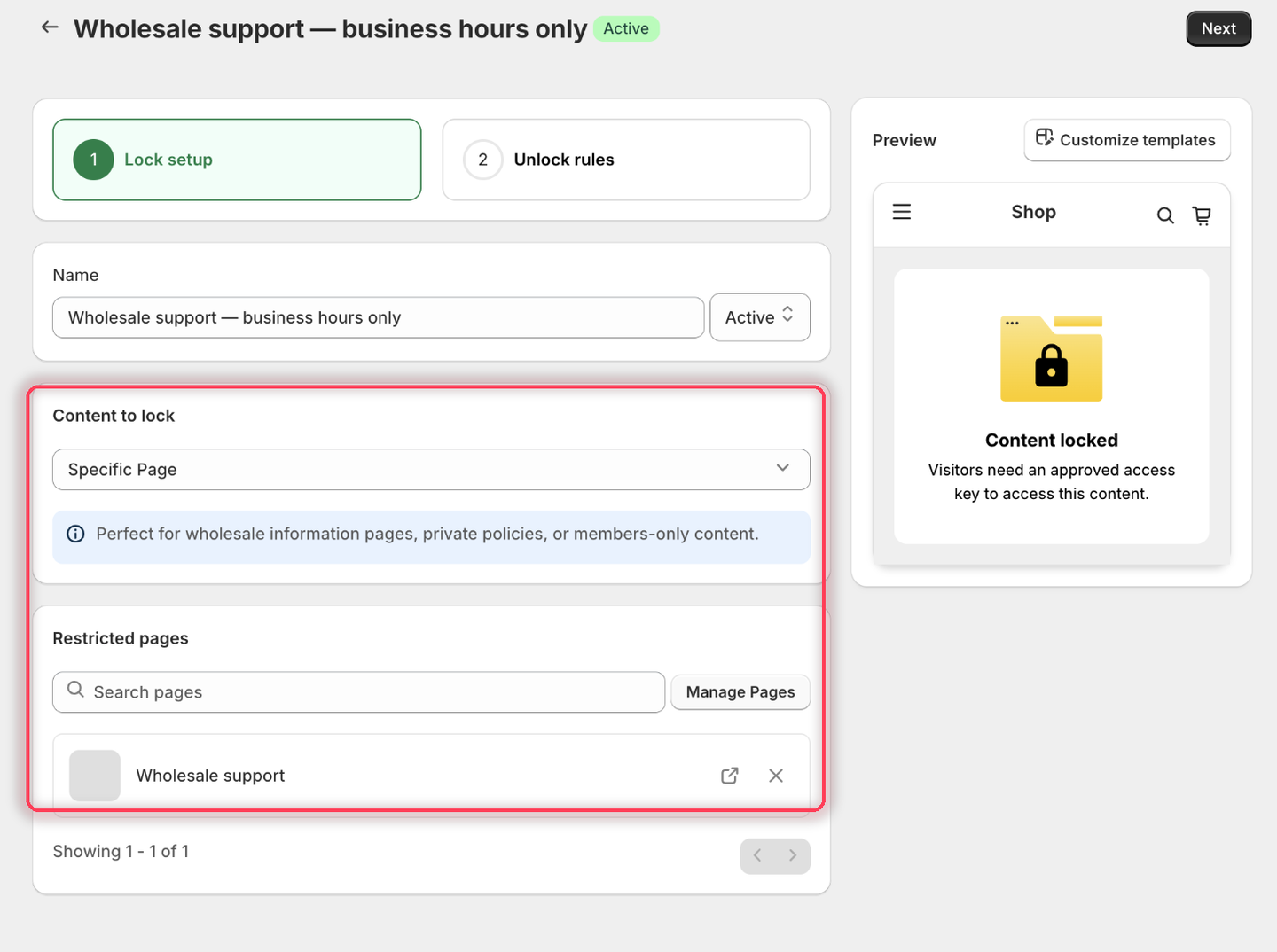
Choose the content you want to protect. See Access rules overview for how rules fit into a lock.
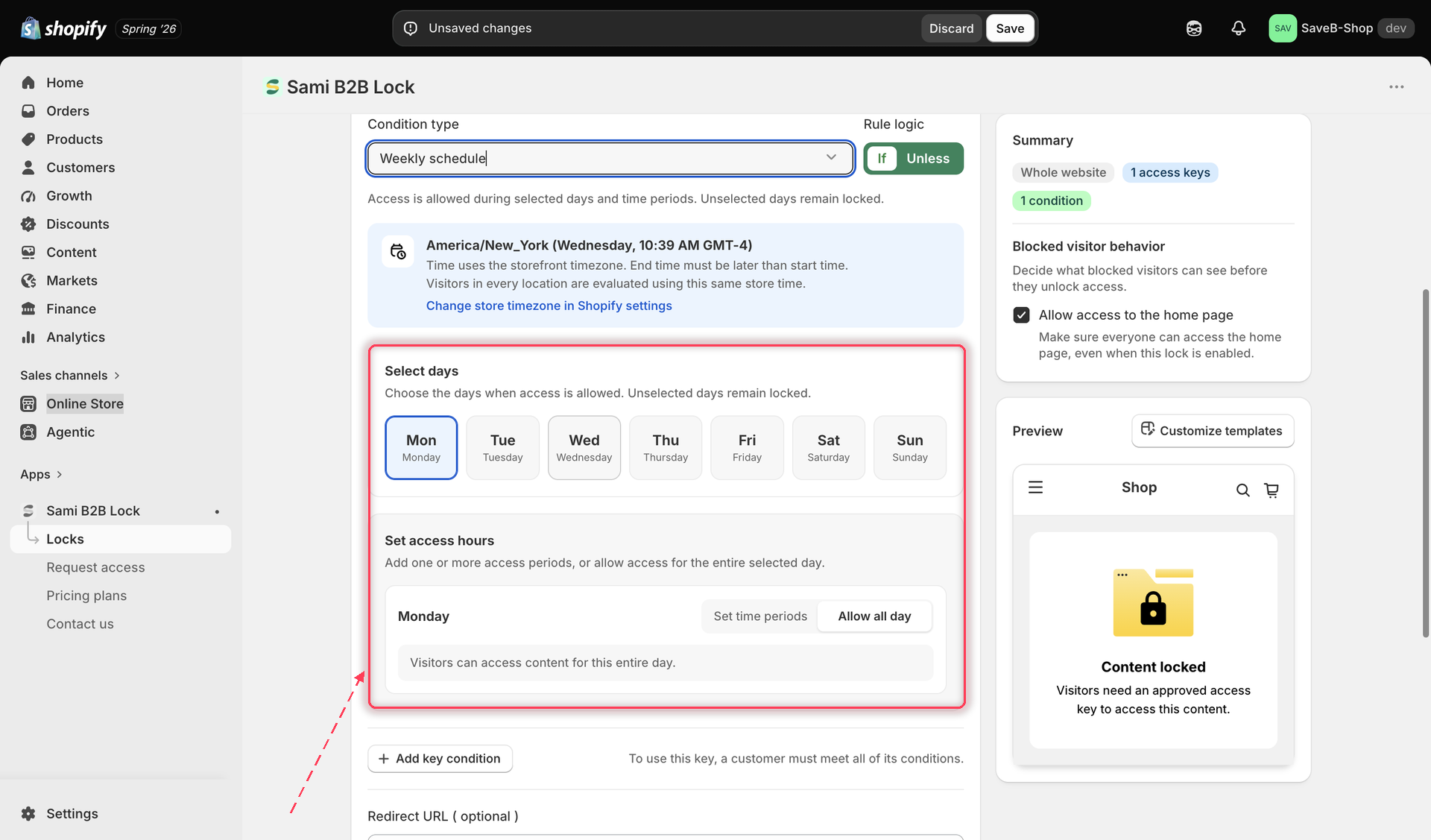
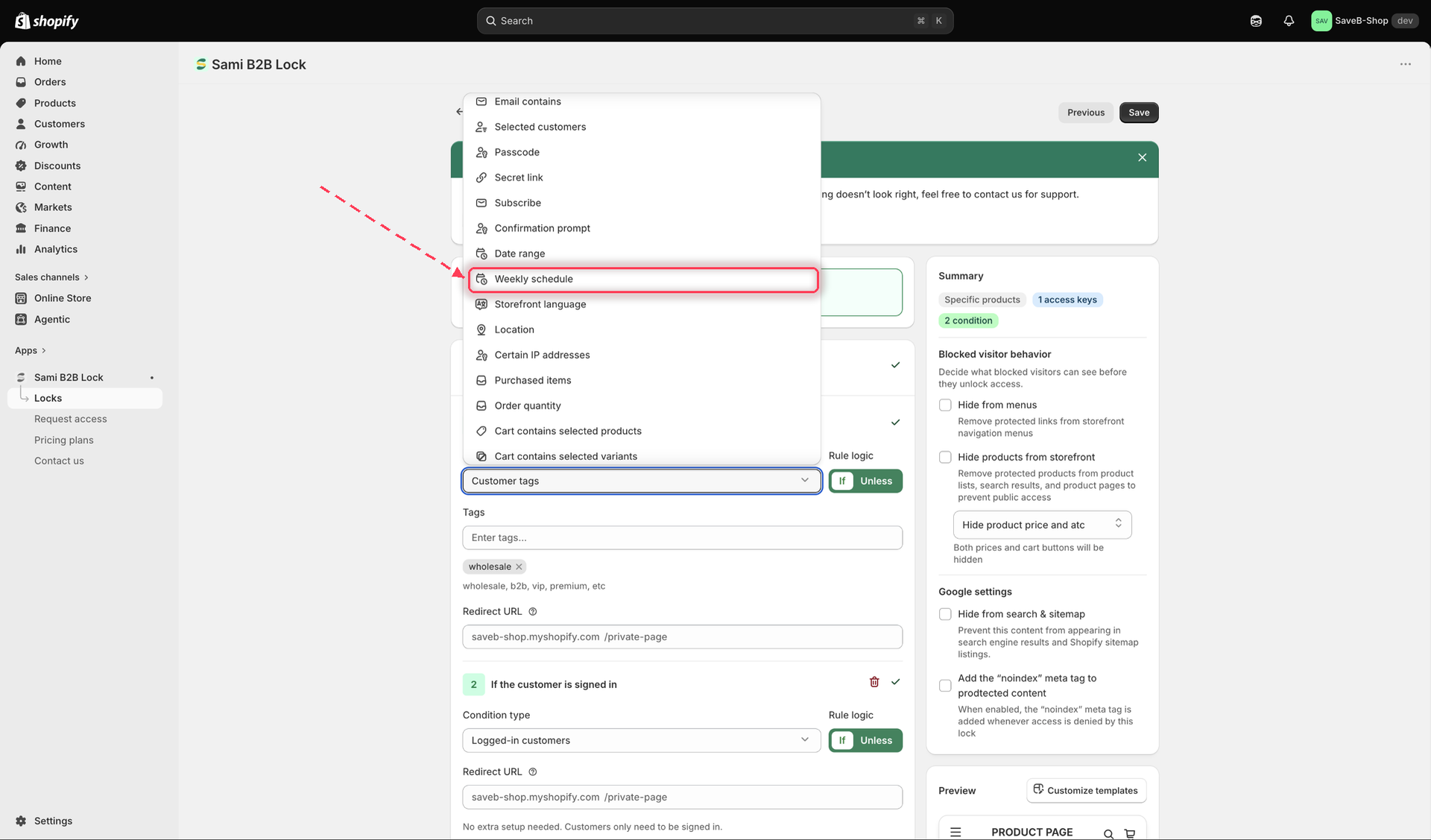
Click the Unlock rules tab, then in the Condition type dropdown, select Weekly schedule.

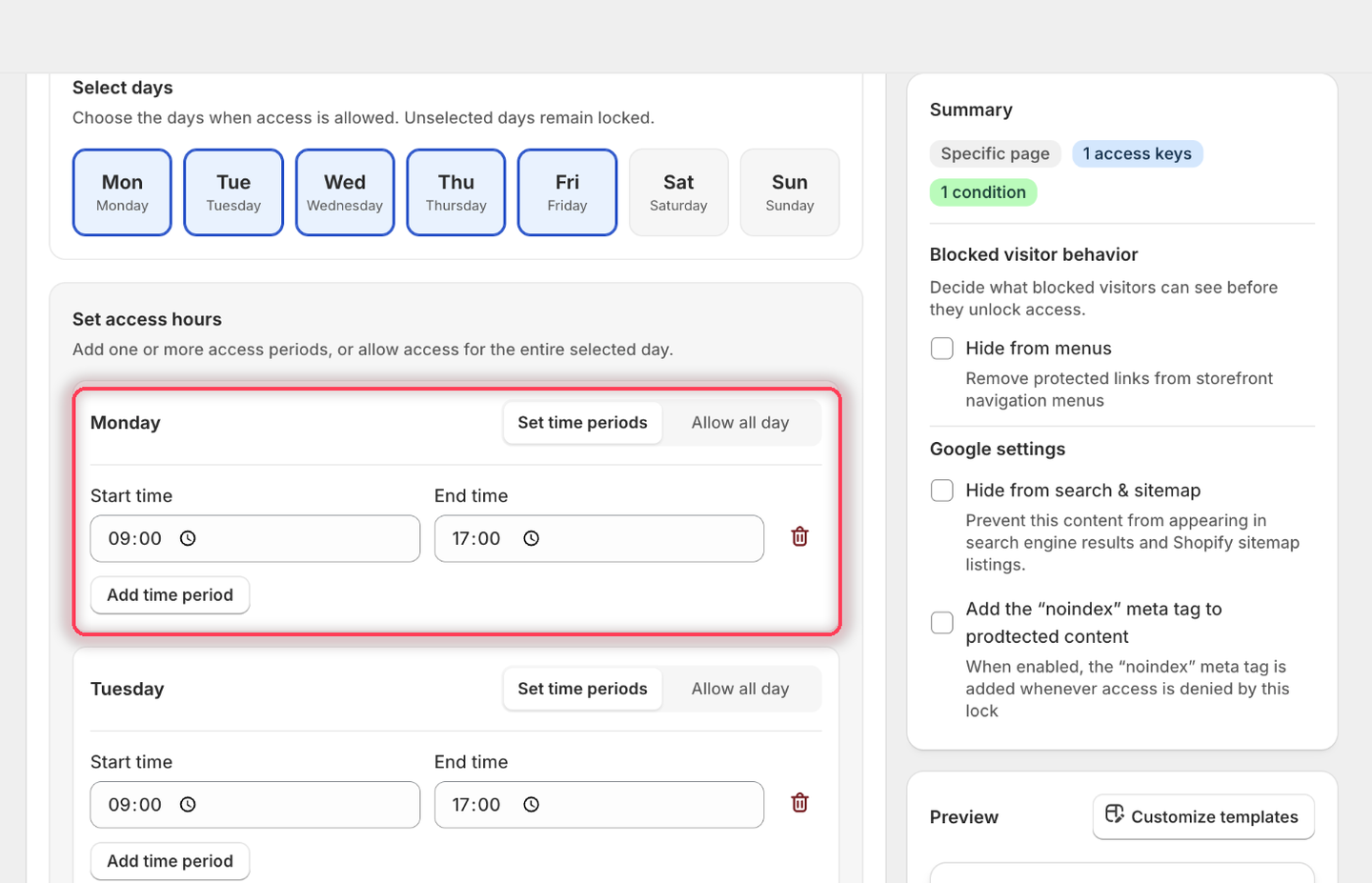
Turn each day on or off. For every day you turn on, choose whether it's active all day or set specific start and end times — you can add more than one time window on the same day if you need separate windows (for example, a morning slot and an evening slot).

Choose If or Unless depending on whether you want the lock active during the scheduled windows or outside them.
Click Save.
Edge case: if your shop's timezone information is ever unavailable at the moment the rule is checked, the schedule falls back to evaluating times using the visitor's own device time instead. This is rare, but it means a visitor in a very different timezone from your shop could, in that fallback scenario, see the schedule apply at different local hours than you'd expect. Keep this in mind if you notice the schedule behaving inconsistently for visitors in different regions.
Example: Open a wholesale support page during business hours
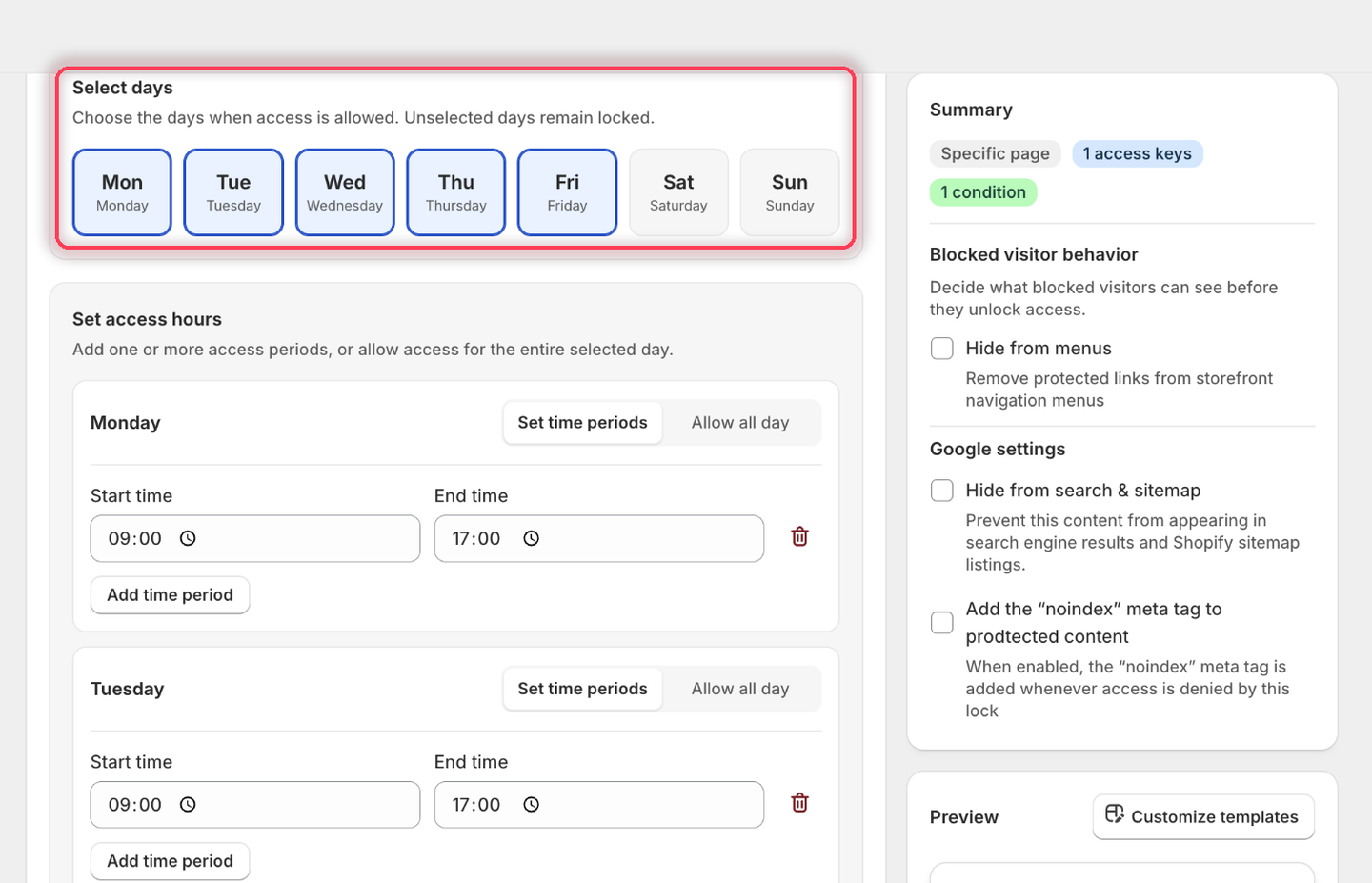
Suppose the page should be available from Monday to Friday, between 9:00 AM and 5:00 PM in your shop's timezone.
Select the Wholesale support page as the content to protect.

Add Weekly schedule and choose If. The rule shows your store's timezone and its current time — for example America/New_York (Friday, 06:09 AM GMT-4) — so you can tell what "9:00" will mean.
Under Select days, turn on Monday through Friday and leave Saturday and Sunday off. Unselected days stay locked all day.

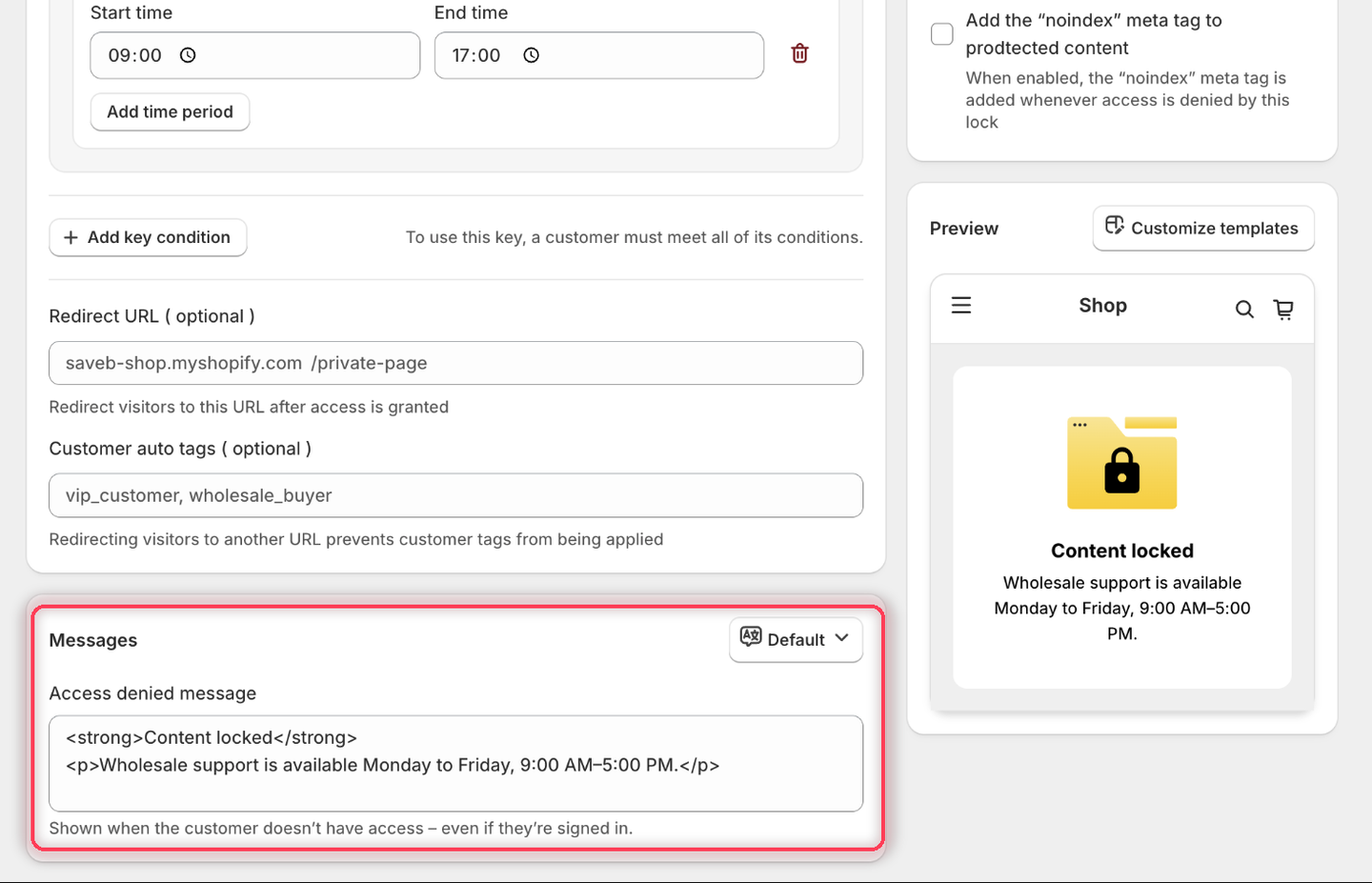
Under Set access hours, each selected day offers Set time periods or Allow all day. Choose Set time periods and set 09:00 to 17:00 for every day.

Leave the rule's Redirect URL empty.
Set the Access denied message to:
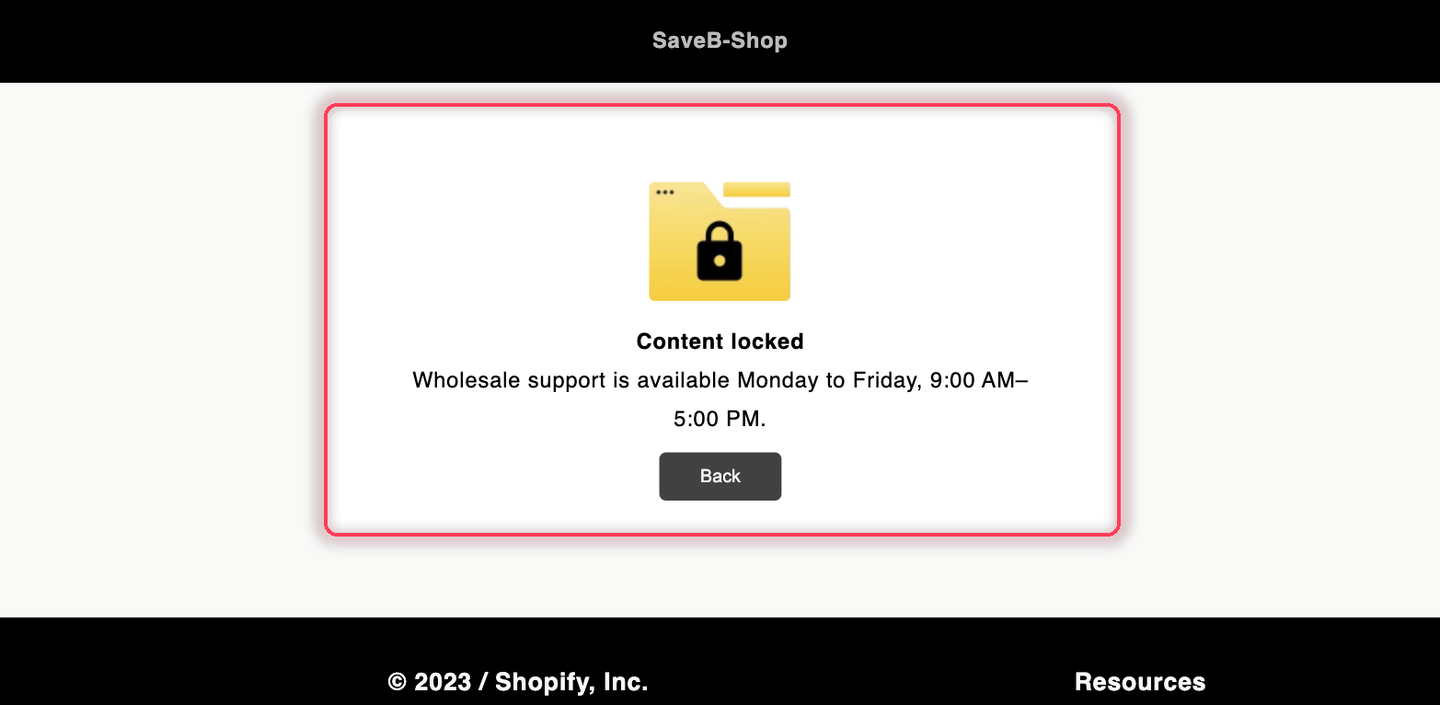
Wholesale support is available Monday to Friday, 9:00 AM–5:00 PM.

Click Save.
Result on the storefront
During the configured hours, visitors can open the Wholesale support page normally. Outside those hours, the page stays locked and displays the message above. Because the schedule uses the shop's timezone, every visitor is evaluated against the same business hours.

Related docs
Last updated
Was this helpful?