> For the complete documentation index, see [llms.txt](https://docs.samita.io/llms.txt). Markdown versions of documentation pages are available by appending `.md` to page URLs; this page is available as [Markdown](https://docs.samita.io/b2b-lock-password-protect/access-rules/location.md).

# Location

Match visitors based on their detected country, using a public IP-geolocation lookup.

**Location** matches a visitor based on their detected country. It's useful for restricting content by geography — for example, only showing a promotion to visitors in a specific country, or blocking a product page in a country you don't ship to.

{% hint style="warning" %}
**How country is detected — and its limits.** The app detects a visitor's country using a public IP-geolocation lookup on their current IP address — it does **not** look at the customer's saved shipping or billing address, and it doesn't require the visitor to be signed in. This means the detected country reflects where the visitor's internet connection currently appears to be, which is usually accurate but isn't guaranteed: a visitor using a **VPN or proxy** can appear to be browsing from a different country than they're physically in, which will change what this rule sees. Keep that in mind if you notice the rule behaving unexpectedly for a specific visitor.
{% endhint %}

Like most access rules (aside from the action-based ones such as Passcode, Secret link, Subscribe, and Confirmation prompt), Location can be set to match **If** the visitor's detected country is one of your selected countries, or **Unless** it is — inverting it to match every other country instead. See [Combining rules](/b2b-lock-password-protect/access-rules/combining-rules.md).

## Add the rule

1. Open **Locks** and create a new lock, or open an existing one to edit it.
2. Choose the content you want to protect. See [Access rules overview](/b2b-lock-password-protect/access-rules/overview.md) for how rules fit into a lock.
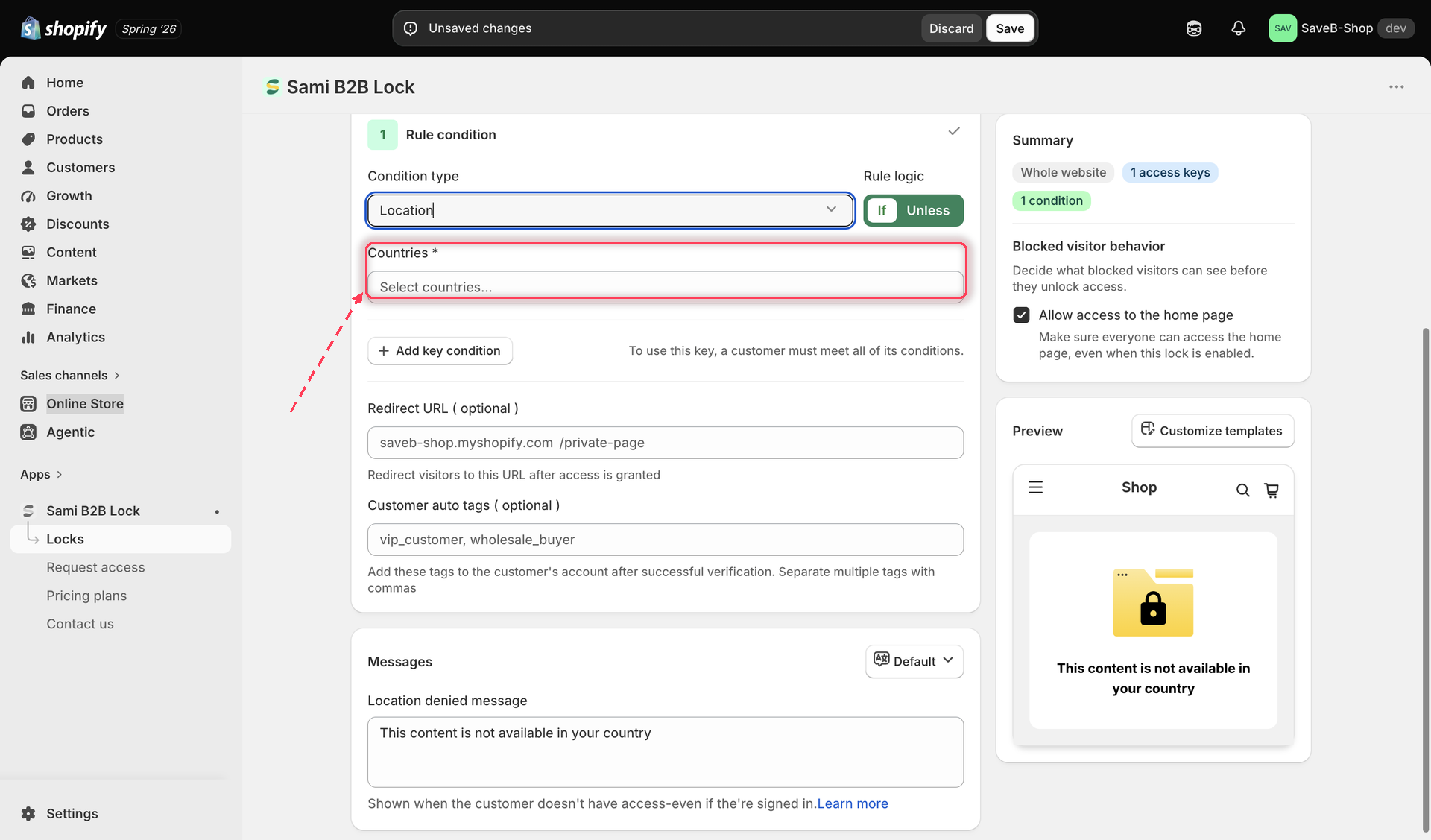
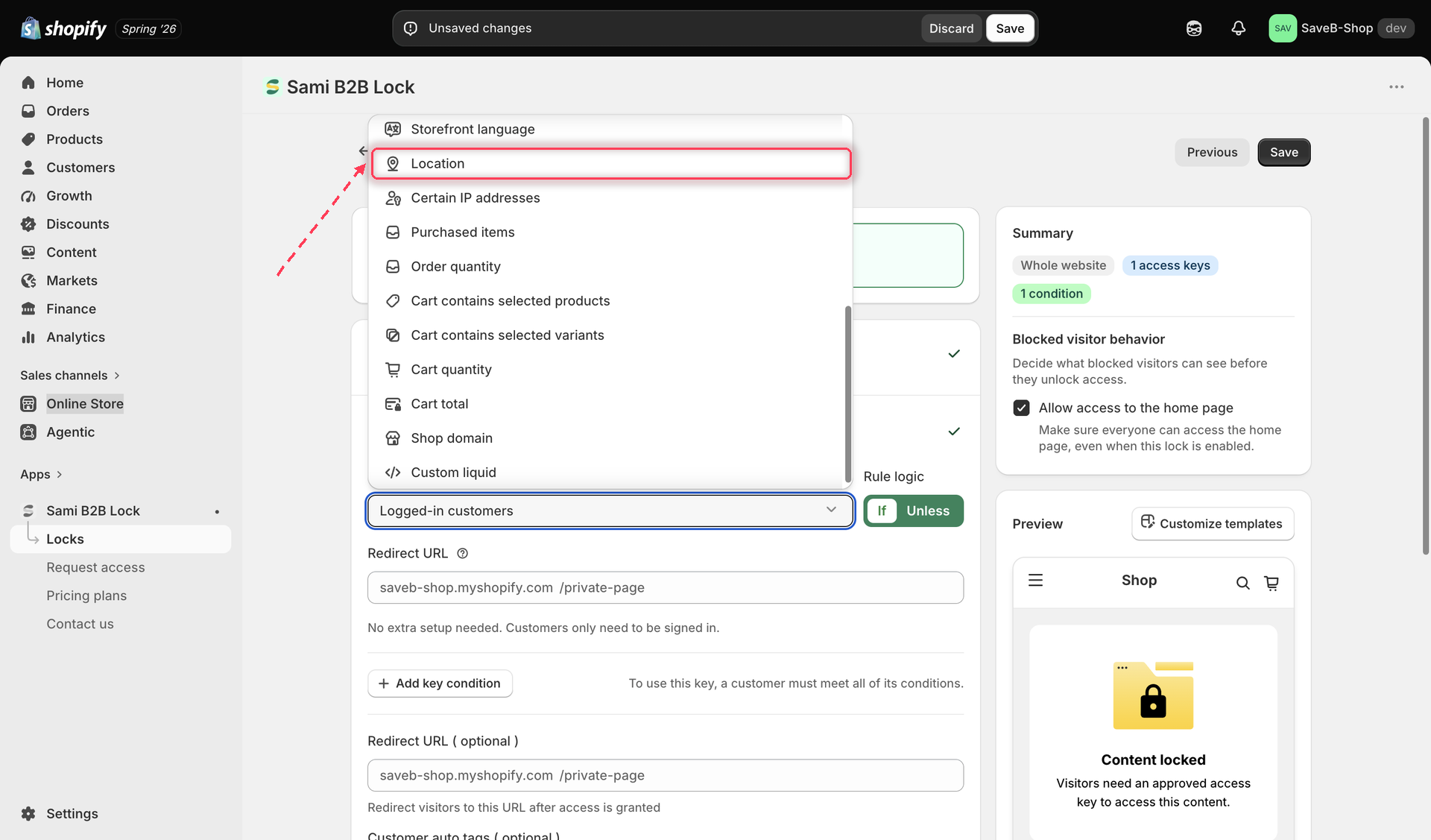
3. Click the **Unlock rules** tab, then in the **Condition type** dropdown, select **Location**.

<figure><img src="https://27754559-files.gitbook.io/~/files/v0/b/gitbook-x-prod.appspot.com/o/spaces%2FF4qMYopXntYz9YgUqZSo%2Fuploads%2Fgit-blob-899159f03e20a34ebe3108cdf704f462d534aaf8%2Fscreenshot-access-rules-picker-location.png?alt=media" alt="The Unlock rules tab with Location selected in the Condition type dropdown."><figcaption><p>Select Location from the Condition type dropdown on the Unlock rules tab.</p></figcaption></figure>

4. Search for and select one or more countries to match against.

<figure><img src="https://27754559-files.gitbook.io/~/files/v0/b/gitbook-x-prod.appspot.com/o/spaces%2FF4qMYopXntYz9YgUqZSo%2Fuploads%2Fgit-blob-04301205560dab6464bf9daaf4f795e64079a81d%2Fscreenshot-access-rules-location-config.png?alt=media" alt="The Location rule settings, showing a country picker with multiple countries selected."><figcaption><p>Select the countries this rule should match against the visitor's detected country.</p></figcaption></figure>

5. Choose **If** or **Unless**.
6. Click **Save**.

## Shopper-facing copy

When a Location rule denies a visitor and the lock shows a message rather than redirecting, the default text is:

* **"This content is not available in your country."**

This is editable per lock and per storefront language. See [Translate lock messages](/b2b-lock-password-protect/design-and-customization/translate-messages.md).

## Example: Make a product available only in the United States and Canada

Suppose a product can only be offered to visitors whose detected country is the United States or Canada.

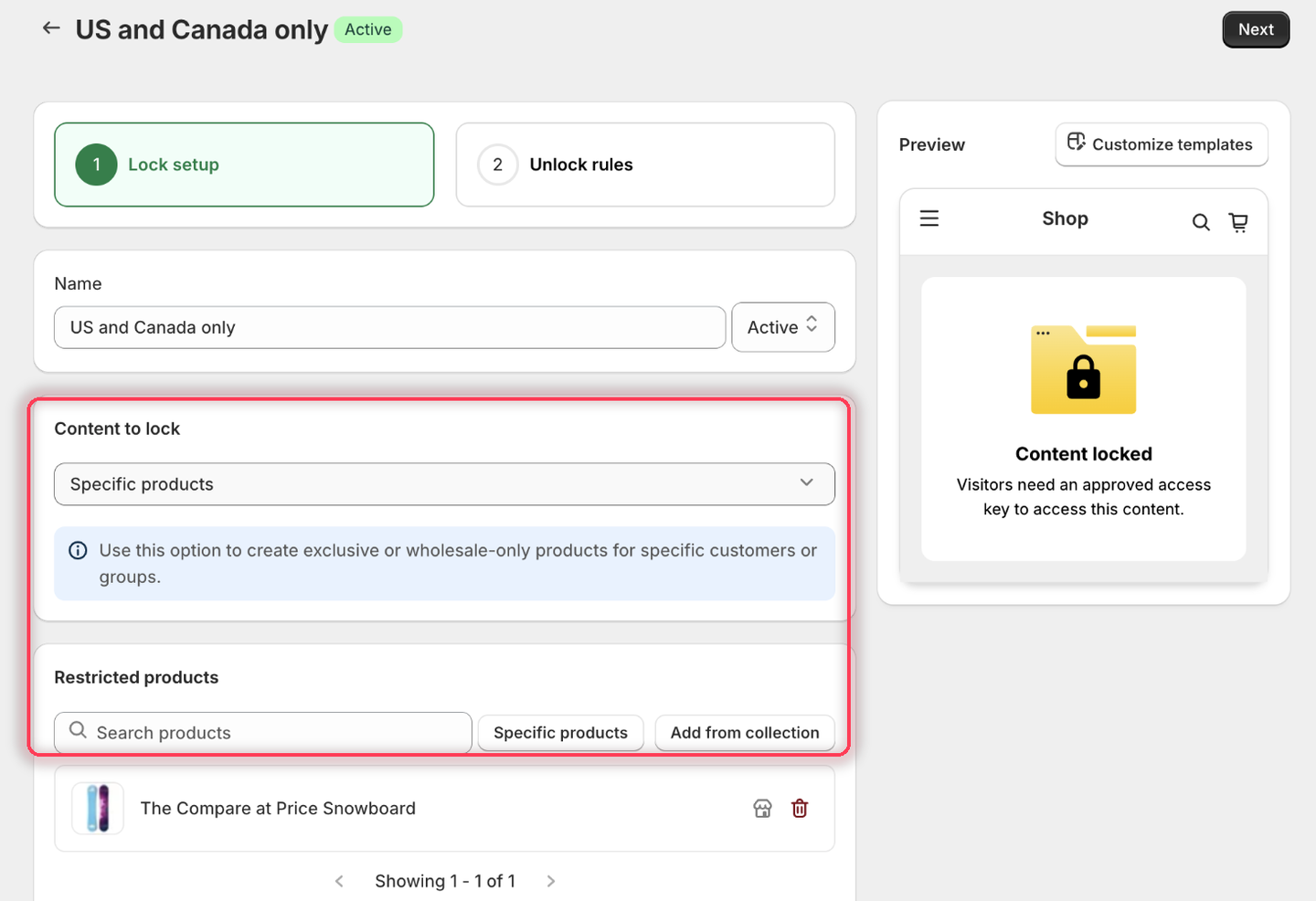
1. Select the product you want to protect.

<figure><img src="https://27754559-files.gitbook.io/~/files/v0/b/gitbook-x-prod.appspot.com/o/spaces%2FF4qMYopXntYz9YgUqZSo%2Fuploads%2Fgit-blob-5184a0c3417fce086d1c1cd887873fecb96f4d5a%2Fscreenshot-example-location-content.png?alt=media" alt="The Lock setup tab with Specific products as the content type and one product listed under Restricted products."><figcaption><p>Pick the product with the country restriction.</p></figcaption></figure>

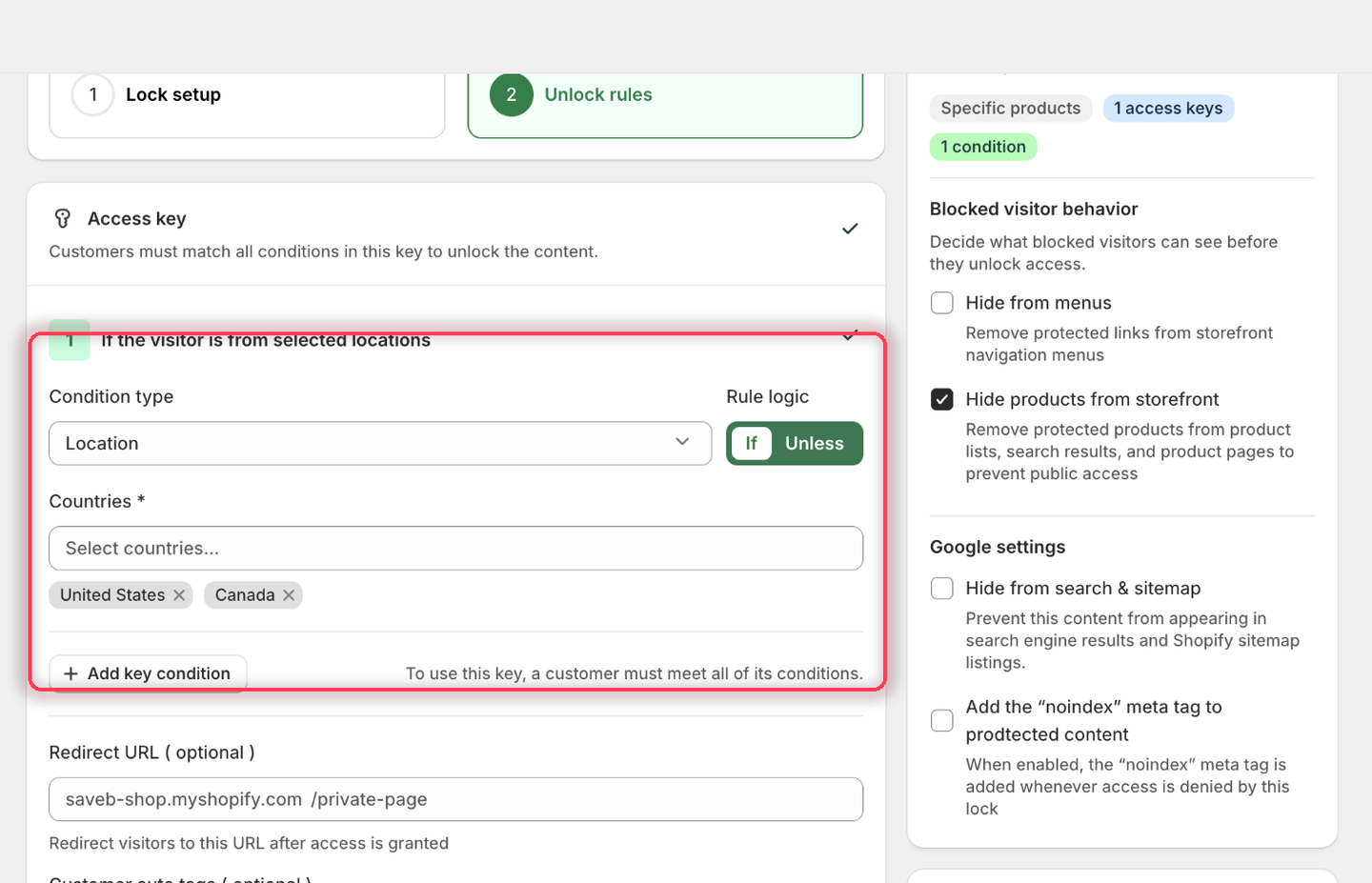
2. Add **Location**, choose **If**, then pick **United States** and **Canada** from the **Countries** field. Each choice becomes a removable chip.

<figure><img src="https://27754559-files.gitbook.io/~/files/v0/b/gitbook-x-prod.appspot.com/o/spaces%2FF4qMYopXntYz9YgUqZSo%2Fuploads%2Fgit-blob-1c135543e77e7e820b9e1e1267ab643b0dfd8e84%2Fscreenshot-example-location-rule.png?alt=media" alt="The Location condition with Rule logic set to If and United States and Canada added as chips under the Countries field."><figcaption><p>The condition heading reads: If the visitor is from selected locations.</p></figcaption></figure>

3. Leave the rule's **Redirect URL** empty.
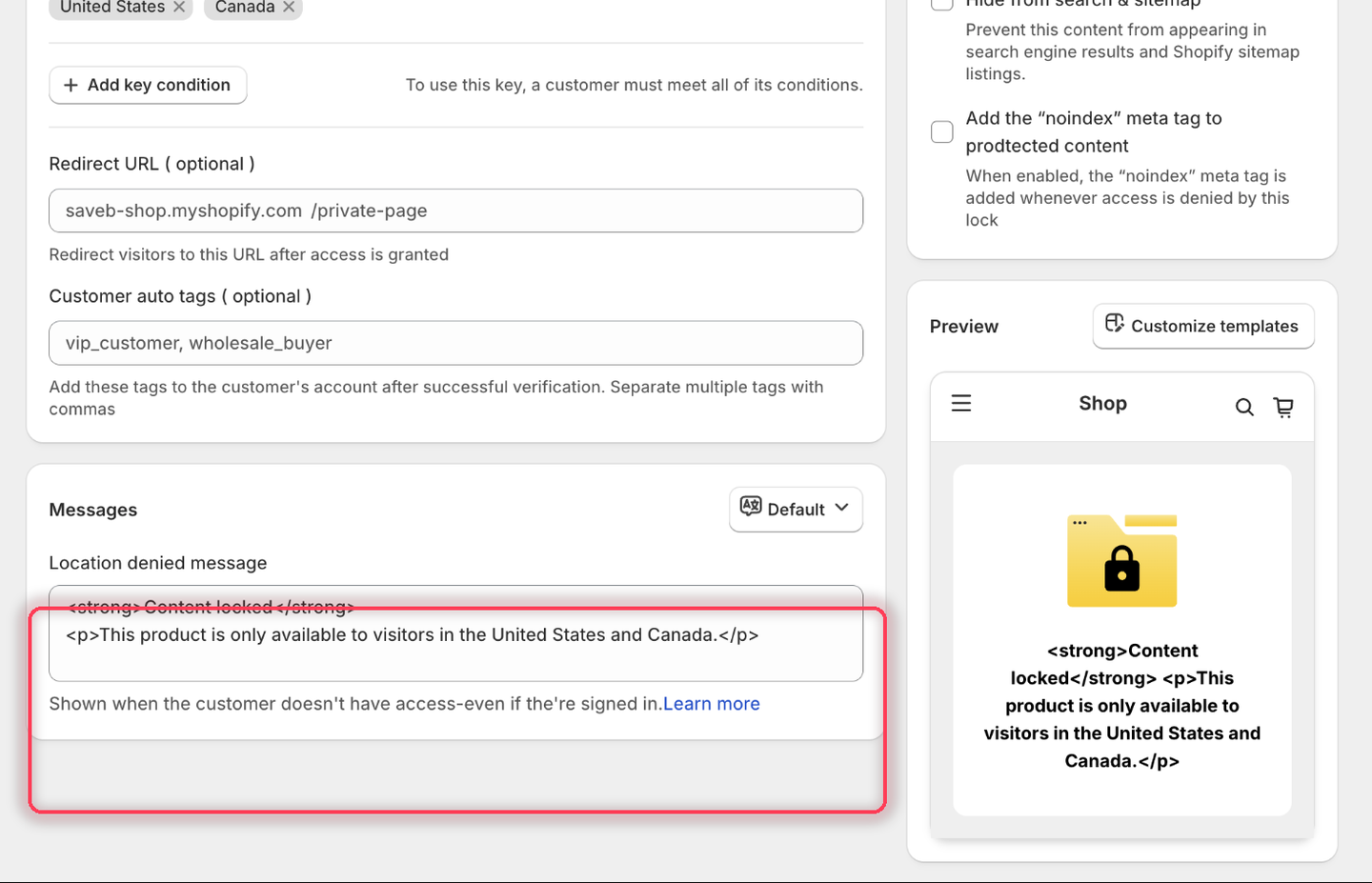
4. Set the **Location denied message** to:

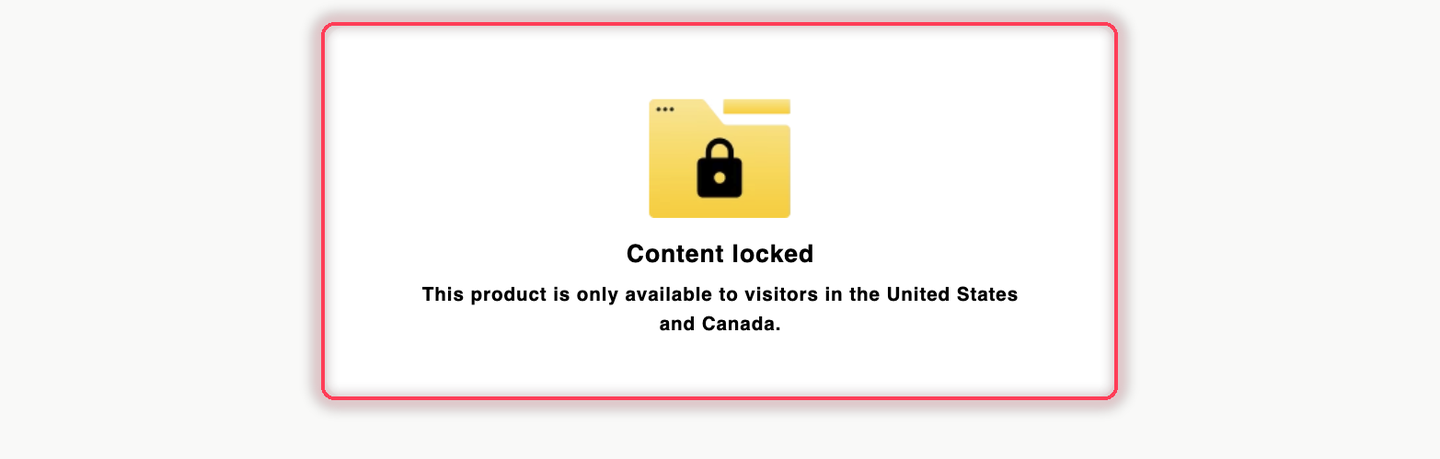
> This product is only available to visitors in the United States and Canada.

{% hint style="info" %}
This rule labels its message field **Location denied message** rather than Access denied message. The Preview panel shows this field's raw HTML instead of rendering it — that's a preview quirk only; the storefront renders the markup normally.
{% endhint %}

<figure><img src="https://27754559-files.gitbook.io/~/files/v0/b/gitbook-x-prod.appspot.com/o/spaces%2FF4qMYopXntYz9YgUqZSo%2Fuploads%2Fgit-blob-b56fa83ebf12706e7e4c4a5e0d03d2b0ebe374a5%2Fscreenshot-example-location-message.png?alt=media" alt="The Messages card showing the Location denied message field set to the United States and Canada availability wording."><figcaption><p>For Location, the field is named Location denied message.</p></figcaption></figure>

5. Click **Save**.

### Result on the storefront

A visitor detected in either selected country can view the product normally. A visitor detected anywhere else sees the locked content and the message above. The result is based on IP geolocation, not the customer's shipping address.

<figure><img src="https://27754559-files.gitbook.io/~/files/v0/b/gitbook-x-prod.appspot.com/o/spaces%2FF4qMYopXntYz9YgUqZSo%2Fuploads%2Fgit-blob-6b1bfb44e535e06e54fd6a78f636e2234aea0301%2Fscreenshot-example-location-result.png?alt=media" alt="A location-restricted product page replaced entirely by the Content locked card carrying the United States and Canada availability message."><figcaption><p>A visitor detected outside the selected countries sees the Location denied message from this example.</p></figcaption></figure>

{% hint style="info" %}
Because the lock covers a product, the app replaces the whole product page — the theme's header and footer included — rather than swapping the content inside your theme's layout. Page, collection, and blog locks keep the surrounding theme in place.
{% endhint %}

## Related docs

* [Access rules overview](/b2b-lock-password-protect/access-rules/overview.md)
* [Combining rules](/b2b-lock-password-protect/access-rules/combining-rules.md)
* [Certain IP addresses](/b2b-lock-password-protect/access-rules/certain-ip-addresses.md)
* [Storefront language](/b2b-lock-password-protect/access-rules/storefront-language.md)


---

# Agent Instructions
This documentation is published with GitBook. GitBook is the documentation platform designed so that both humans and AI agents can read, navigate, and reason over technical content effectively. Learn more at gitbook.com.

## Querying This Documentation
If you need additional information that is not directly available in this page, you can query the documentation dynamically by asking a question.

Perform an HTTP GET request on the current page URL with the `ask` query parameter, and the optional `goal` query parameter:

```
GET https://docs.samita.io/b2b-lock-password-protect/access-rules/location.md?ask=<question>&goal=<endgoal>
```

`ask` is the immediate question: it should be specific, self-contained, and written in natural language.
`goal` is optional and describes the broader end goal you are ultimately trying to accomplish on behalf of the user. GitBook uses it to tailor the answer towards what is most useful for that goal.

The response will contain a direct answer to the question and relevant excerpts and sources from the documentation.

Use this mechanism when the answer is not explicitly present in the current page, you need clarification or additional context, or you want to retrieve related documentation sections.