> For the complete documentation index, see [llms.txt](https://docs.samita.io/llms.txt). Markdown versions of documentation pages are available by appending `.md` to page URLs; this page is available as [Markdown](https://docs.samita.io/b2b-lock-password-protect/access-rules/selected-customers.md).

# Selected customers

Hand-pick specific individual customers who can access a lock, without relying on tags or emails.

The Selected customers rule lets you choose exactly which customer accounts should pass — a hand-picked list rather than anything based on tags, email, or B2B status. It's the right tool when access comes down to a short, specific list of named people rather than a pattern you can describe with a rule.

## How it works

You search for and select individual customers directly from your store's customer list inside the rule. Only the customers you've explicitly added to the list are checked — there's no tag or email pattern involved, so keeping the list current is entirely manual.

## Adding the rule

1. Open the lock you want to protect and click the **Unlock rules** tab.
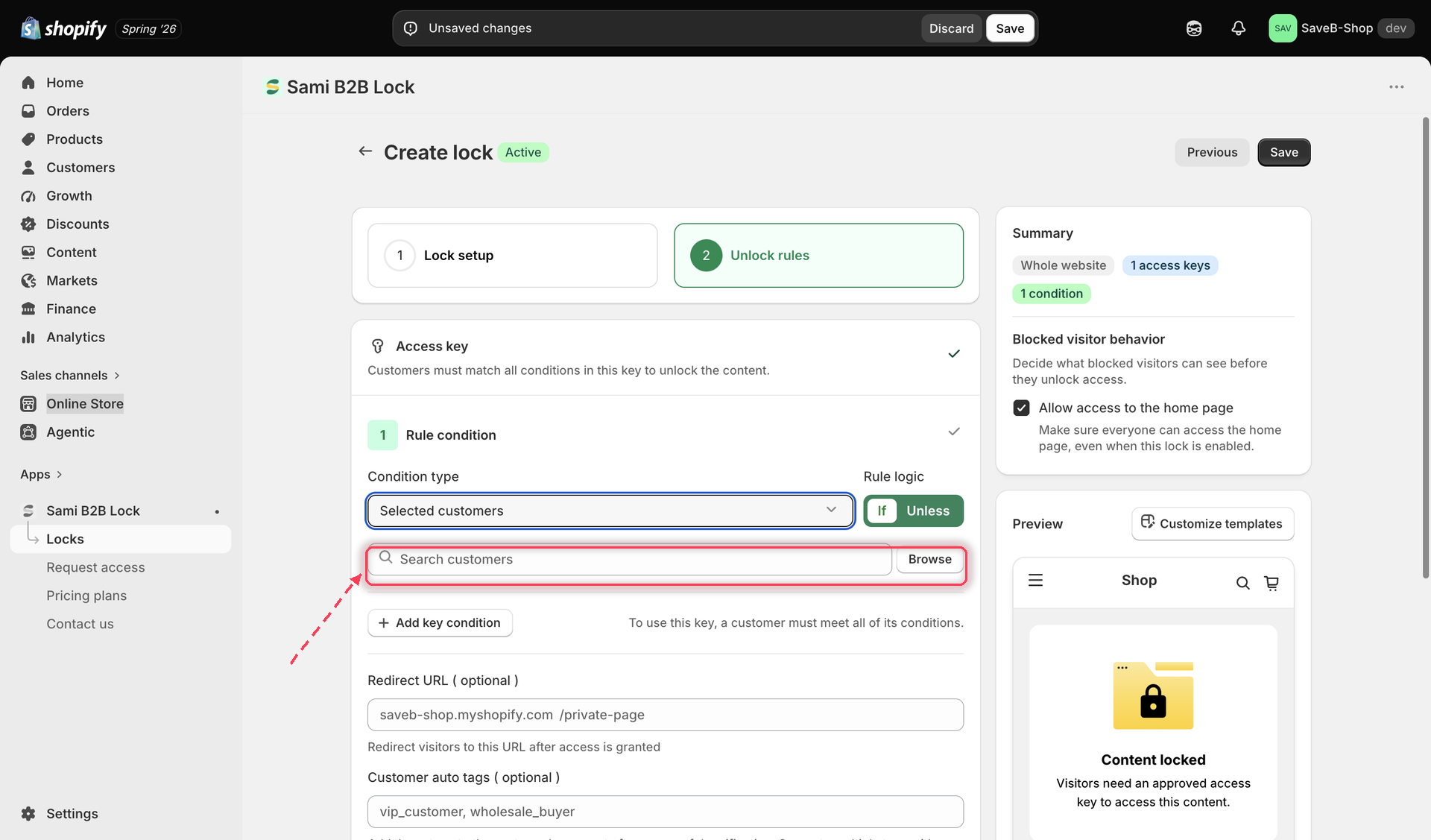
2. Add an access rule and choose **Selected customers** from the **Condition type** dropdown.

   <figure><img src="https://27754559-files.gitbook.io/~/files/v0/b/gitbook-x-prod.appspot.com/o/spaces%2FF4qMYopXntYz9YgUqZSo%2Fuploads%2Fgit-blob-1d443d1dba7a3d2ef70136a02ee52e12af737167%2Fscreenshot-access-rules-selected-customers-picker.png?alt=media" alt="Access rule picker with Selected customers selected and a customer search field"><figcaption><p>Searching for and selecting specific customers to add to the rule.</p></figcaption></figure>
3. Use **Search customers** to find customers by name or email, or click **Browse** to pick them from a list of your store's customers. Each one you add appears as a row you can remove later.
4. Choose whether the rule should match **If** (the customer is on the list) or **Unless** (they are not).
5. Optionally set a per-rule **Redirect URL**.
6. Save the lock.

## When to use this rule

Selected customers is a good fit for VIP or one-off access — for example, giving a handful of press contacts early access to a product page, or granting a single long-standing customer a permanent discount page, without tagging their account or generating a passcode just for them. For anything that grows past a short, manually maintained list, [Customer tags](/b2b-lock-password-protect/access-rules/customer-tags.md) or [B2B customer](/b2b-lock-password-protect/access-rules/b2b-customer.md) will scale better.

## Example: Give two customers early access

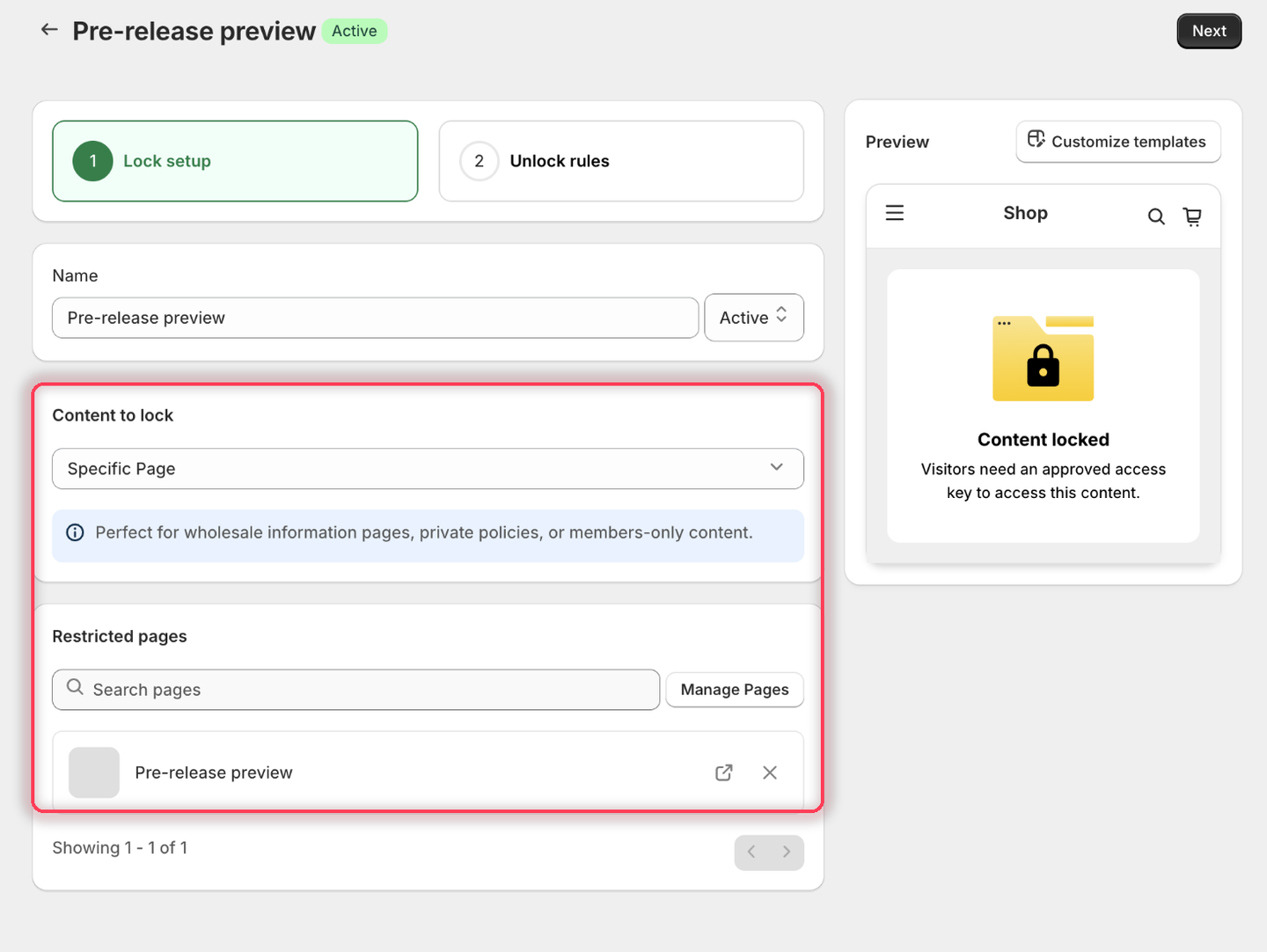
Suppose a pre-release page should only be available to Alex and Jamie, two customer accounts selected from your Shopify customer list.

1. Select the **Pre-release preview** page as the content to protect.

<figure><img src="https://27754559-files.gitbook.io/~/files/v0/b/gitbook-x-prod.appspot.com/o/spaces%2FF4qMYopXntYz9YgUqZSo%2Fuploads%2Fgit-blob-19b78ebeab3205b8f9dee7921b84e4d4e2337622%2Fscreenshot-example-selected-customers-content.png?alt=media" alt="The Lock setup tab with Specific Page as the content type and the Pre-release preview page listed under Restricted pages."><figcaption><p>Pick the page the two customers should get early access to.</p></figcaption></figure>

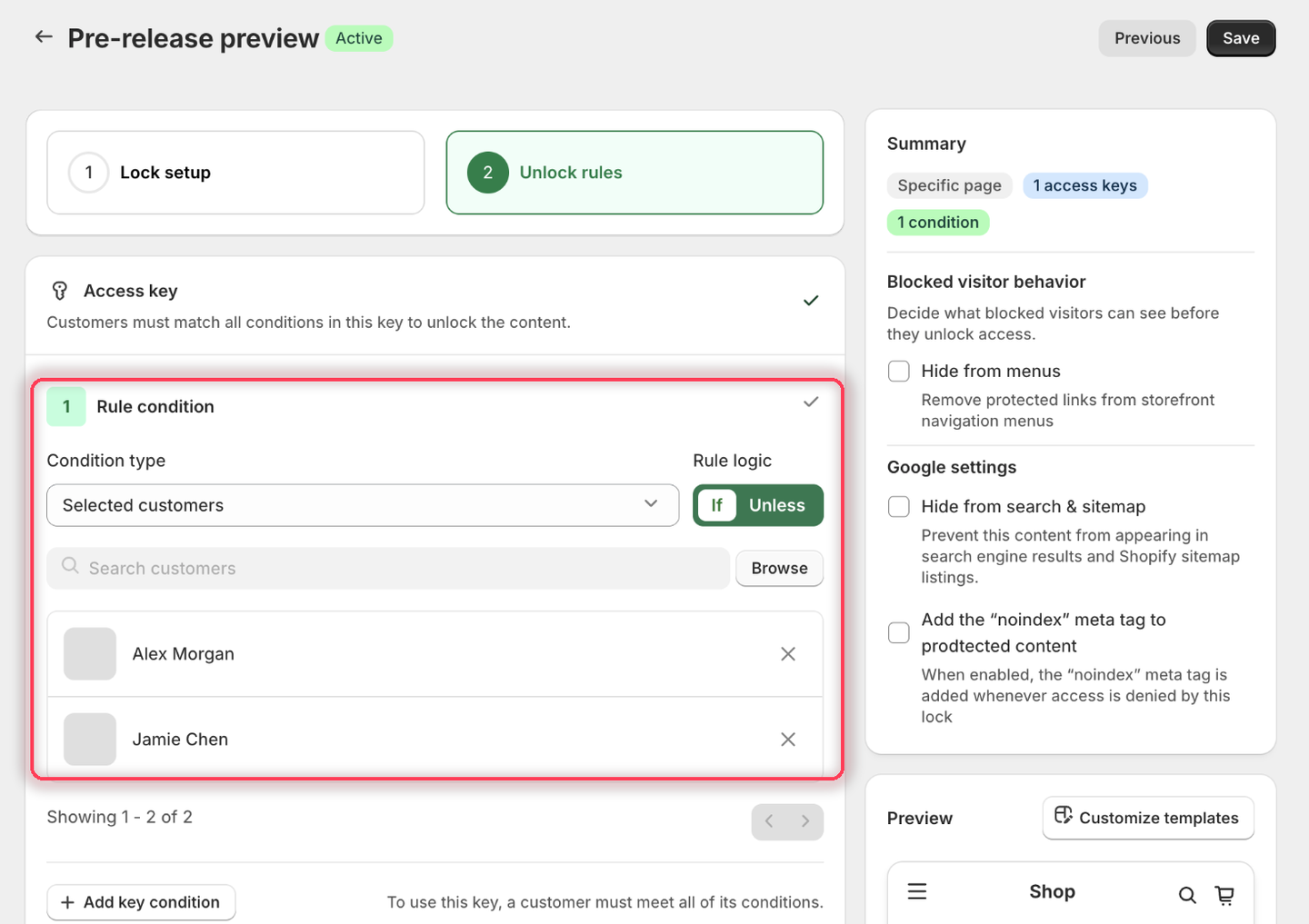
2. On the **Unlock rules** tab, set **Condition type** to **Selected customers** and leave **Rule logic** on **If**.
3. Click **Browse**, tick **Alex Morgan** and **Jamie Chen** in the **Add customers** dialog, then click **Add**. Both accounts appear as rows under the search field.

{% hint style="info" %}
You can also type a name or email into **Search customers** instead of browsing. Either way, only the accounts listed here pass the rule — remove one with the **✕** on its row.
{% endhint %}

<figure><img src="https://27754559-files.gitbook.io/~/files/v0/b/gitbook-x-prod.appspot.com/o/spaces%2FF4qMYopXntYz9YgUqZSo%2Fuploads%2Fgit-blob-27863c5e020c75b3001ca82146464ce477457e27%2Fscreenshot-example-selected-customers-rule.png?alt=media" alt="The condition set to Selected customers with Rule logic If and Alex Morgan and Jamie Chen listed as the two selected accounts."><figcaption><p>The two hand-picked accounts are the whole rule — there's no tag or pattern behind it.</p></figcaption></figure>

4. Leave the rule's **Redirect URL** empty.
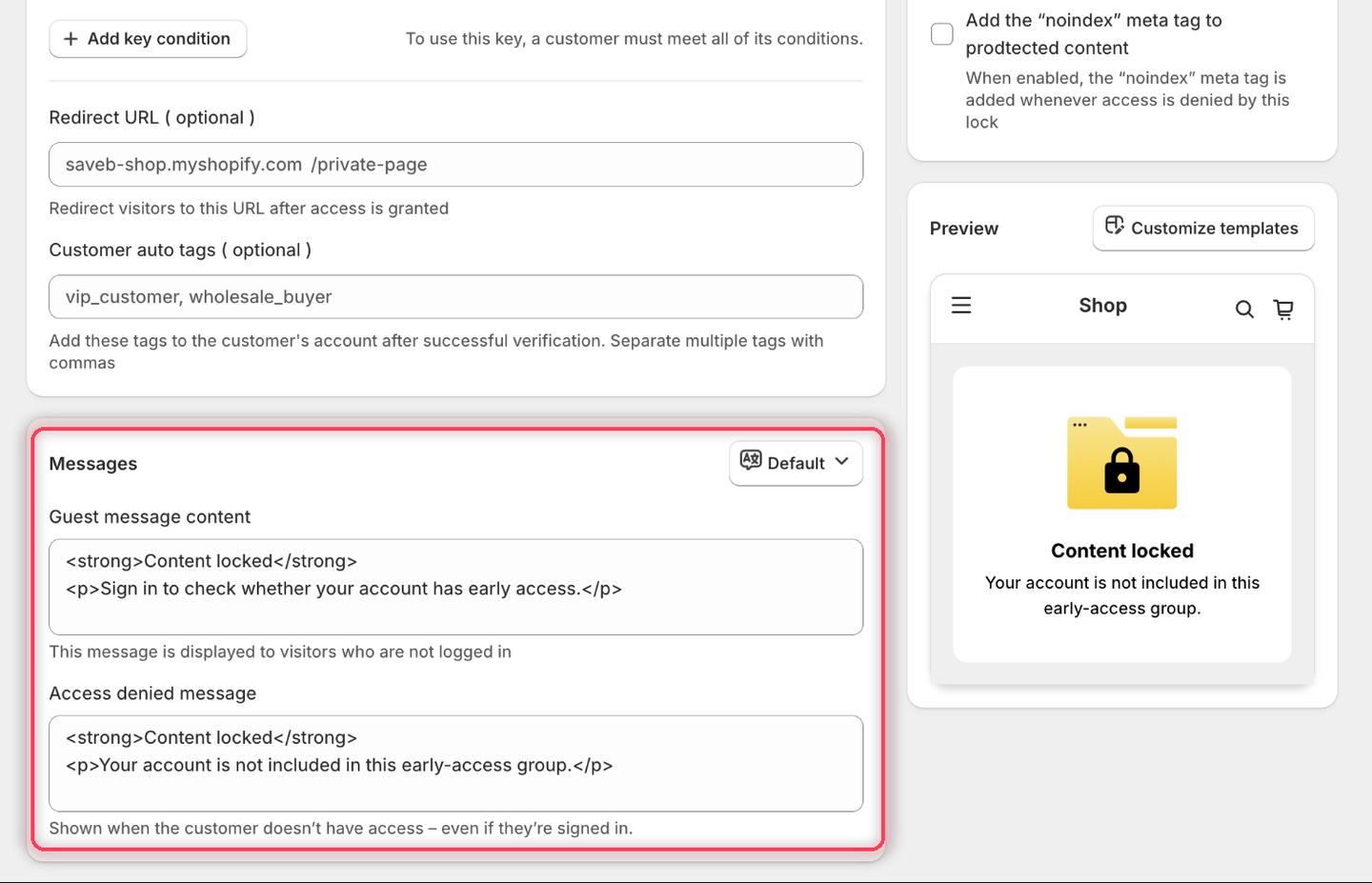
5. Set the messages to:
   * **Guest message content:** `Sign in to check whether your account has early access.`
   * **Access denied message:** `Your account is not included in this early-access group.`

{% hint style="info" %}
Both fields appear because Selected customers is one of the five customer-identity rules — see [Access rules overview](/b2b-lock-password-protect/access-rules/overview.md#what-a-blocked-visitor-sees). The guest message goes to signed-out visitors; the access-denied message goes to signed-in customers who aren't on the list.
{% endhint %}

<figure><img src="https://27754559-files.gitbook.io/~/files/v0/b/gitbook-x-prod.appspot.com/o/spaces%2FF4qMYopXntYz9YgUqZSo%2Fuploads%2Fgit-blob-fd5b3cdba40baab70fe8a3f5a56a14a1ed5c7f18%2Fscreenshot-example-selected-customers-message.png?alt=media" alt="The Messages card showing both the Guest message content and Access denied message fields filled in with the example wording."><figcaption><p>This rule needs both messages, because either kind of visitor can be blocked.</p></figcaption></figure>

6. Click **Save**.

### Result on the storefront

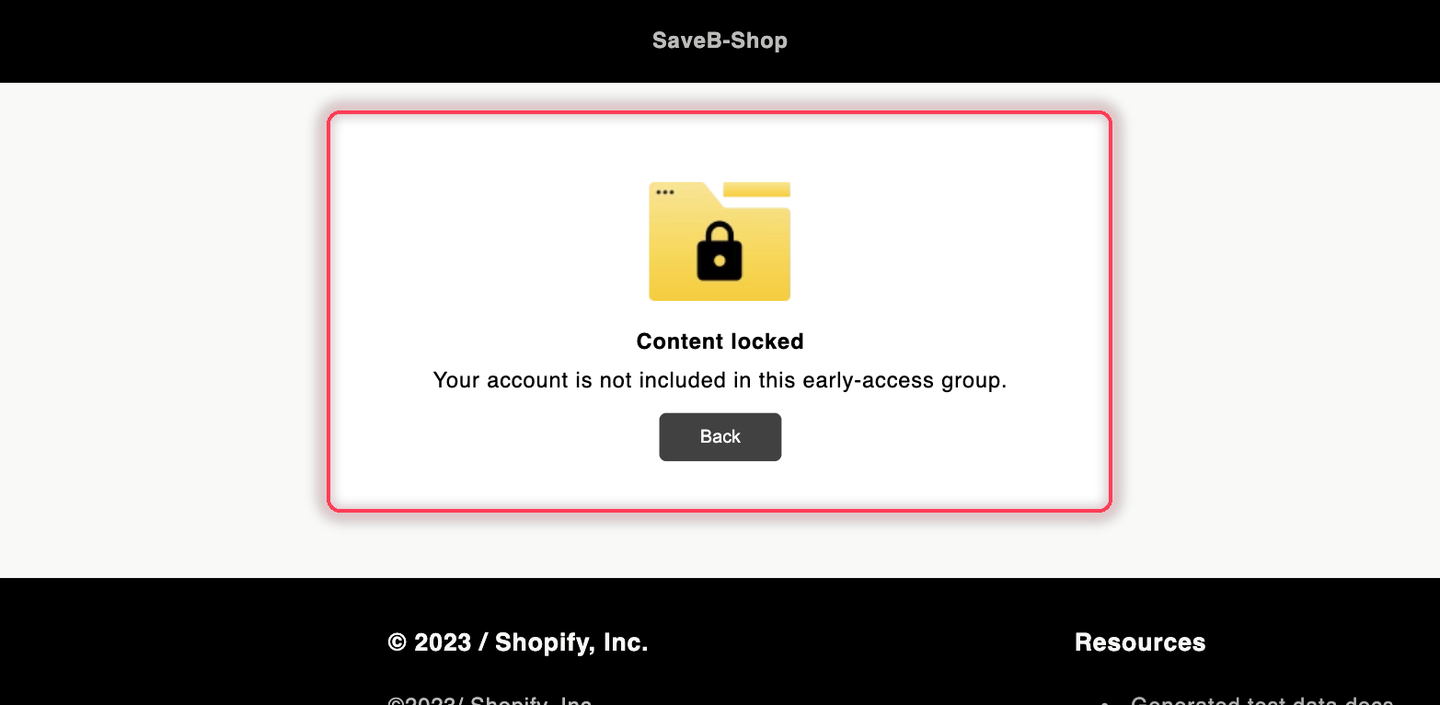
Alex and Jamie can open the page after signing in with the selected accounts. A signed-out visitor sees the Guest message. A different signed-in customer sees the Access denied message because their account is not on the selected list.

<figure><img src="https://27754559-files.gitbook.io/~/files/v0/b/gitbook-x-prod.appspot.com/o/spaces%2FF4qMYopXntYz9YgUqZSo%2Fuploads%2Fgit-blob-d6efc8d52177385ec369aaa285a809e796951e59%2Fscreenshot-example-selected-customers-result.png?alt=media" alt="The Pre-release preview page displaying the configured account-not-included message."><figcaption><p>A signed-in customer outside the selected list sees the Access denied message from this example.</p></figcaption></figure>

{% hint style="warning" %}
The list stores individual customer accounts, so it doesn't follow email changes or new accounts. If Alex signs up again with a second email, that new account is a different customer and won't pass — you'd need to add it here too.
{% endhint %}

## Related docs

* [Customer tags](/b2b-lock-password-protect/access-rules/customer-tags.md)
* [Email contains](/b2b-lock-password-protect/access-rules/email-contains.md)
* [Combining rules](/b2b-lock-password-protect/access-rules/combining-rules.md)
* [Request access overview](/b2b-lock-password-protect/request-access/overview.md)


---

# Agent Instructions
This documentation is published with GitBook. GitBook is the documentation platform designed so that both humans and AI agents can read, navigate, and reason over technical content effectively. Learn more at gitbook.com.

## Querying This Documentation
If you need additional information that is not directly available in this page, you can query the documentation dynamically by asking a question.

Perform an HTTP GET request on the current page URL with the `ask` query parameter, and the optional `goal` query parameter:

```
GET https://docs.samita.io/b2b-lock-password-protect/access-rules/selected-customers.md?ask=<question>&goal=<endgoal>
```

`ask` is the immediate question: it should be specific, self-contained, and written in natural language.
`goal` is optional and describes the broader end goal you are ultimately trying to accomplish on behalf of the user. GitBook uses it to tailor the answer towards what is most useful for that goal.

The response will contain a direct answer to the question and relevant excerpts and sources from the documentation.

Use this mechanism when the answer is not explicitly present in the current page, you need clarification or additional context, or you want to retrieve related documentation sections.