> For the complete documentation index, see [llms.txt](https://docs.samita.io/llms.txt). Markdown versions of documentation pages are available by appending `.md` to page URLs; this page is available as [Markdown](https://docs.samita.io/b2b-lock-password-protect/access-rules/logged-in-customers.md).

# Logged-in customers

Restrict a lock to signed-in customers, or the reverse — require visitors to be signed out.

The Logged-in customers rule checks one simple fact about the visitor: are they currently signed in to a customer account on your store. It's the most common access rule in the app, and it's usually the first one merchants reach for when they want to hide pricing or content from guests.

## How it works

The rule looks at whether the storefront visitor has an active customer session. It doesn't check anything about *who* they are — no tags, no order history, nothing — just whether they're logged in at all. If you need to also check something about the account itself, add [Customer tags](/b2b-lock-password-protect/access-rules/customer-tags.md), [B2B customer](/b2b-lock-password-protect/access-rules/b2b-customer.md), or another identity rule alongside it in the same access key.

## Adding the rule

1. Open the lock you want to protect and click the **Unlock rules** tab.
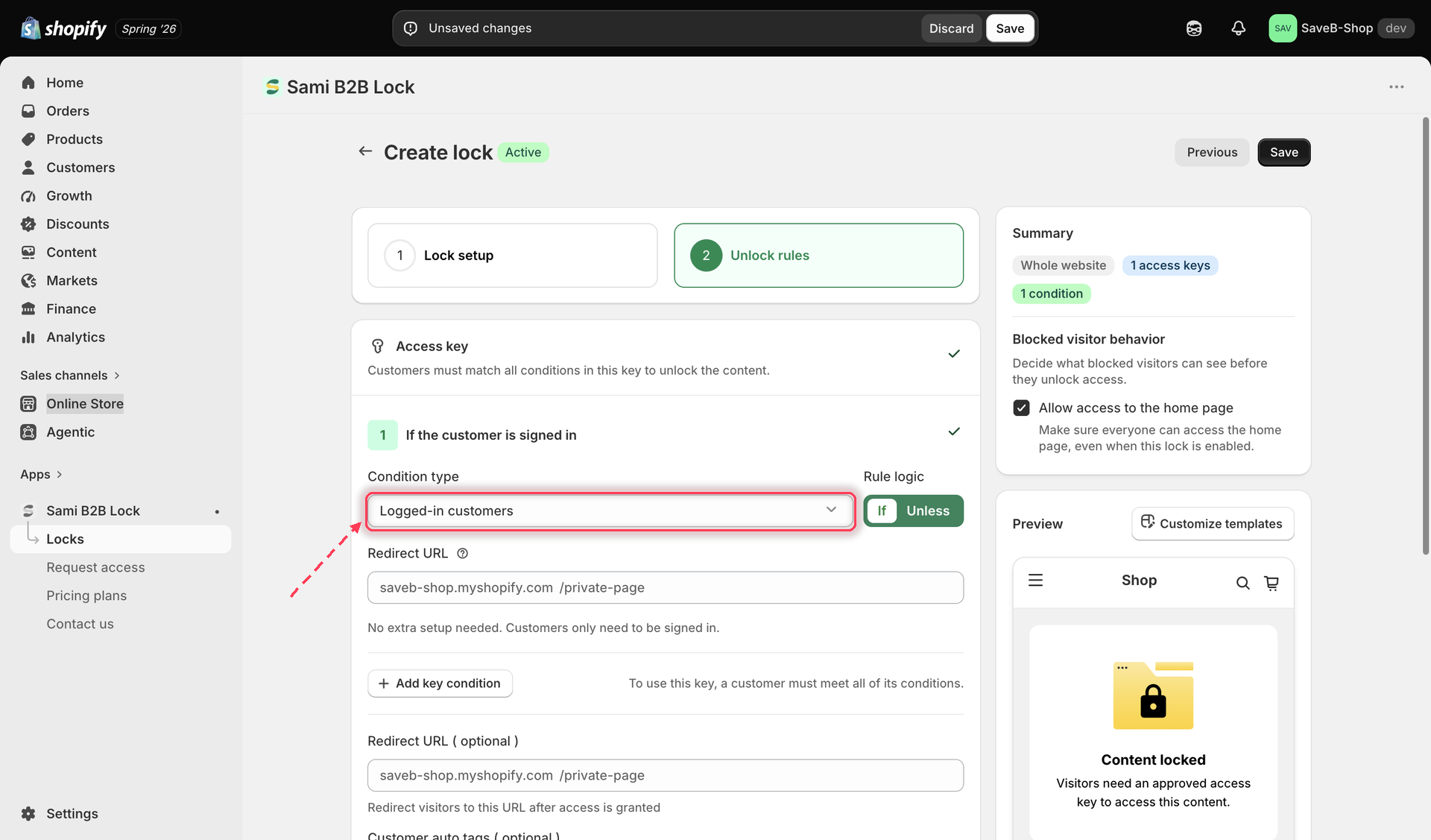
2. Add an access rule and choose **Logged-in customers** from the **Condition type** dropdown.

   <figure><img src="https://27754559-files.gitbook.io/~/files/v0/b/gitbook-x-prod.appspot.com/o/spaces%2FF4qMYopXntYz9YgUqZSo%2Fuploads%2Fgit-blob-ae280cd409997fd7bfa3534638a76b56249bc051%2Fscreenshot-access-rules-logged-in-customers-add.png?alt=media" alt="Access rule picker with Logged-in customers selected as the condition type"><figcaption><p>Adding the Logged-in customers rule to an access key.</p></figcaption></figure>
3. Choose whether the rule should match **If** or **Unless**.
4. Save the lock.

## If vs Unless for this rule

This is one of the clearest rules to reason about with If/Unless:

* **If** the visitor is signed in — the content unlocks only for customers who are logged in. Guests are blocked. This is the default, and what you want for most "members only" or "wholesale accounts only" locks.
* **Unless** the visitor is signed in — inverted: the content unlocks only for visitors who are **not** logged in. Use this when you want a page or offer aimed specifically at guests (for example, a new-visitor promotion that should disappear once someone logs in).

## Common example: hide price for guests

A frequent way to use this rule is paired with [Hide price and Add to cart](/b2b-lock-password-protect/lock-behavior/hide-price-and-add-to-cart.md) rather than a full block:

1. On the **Lock setup** tab, set the content to lock to the product or collection you want to gate.
2. Click the **Unlock rules** tab to continue.
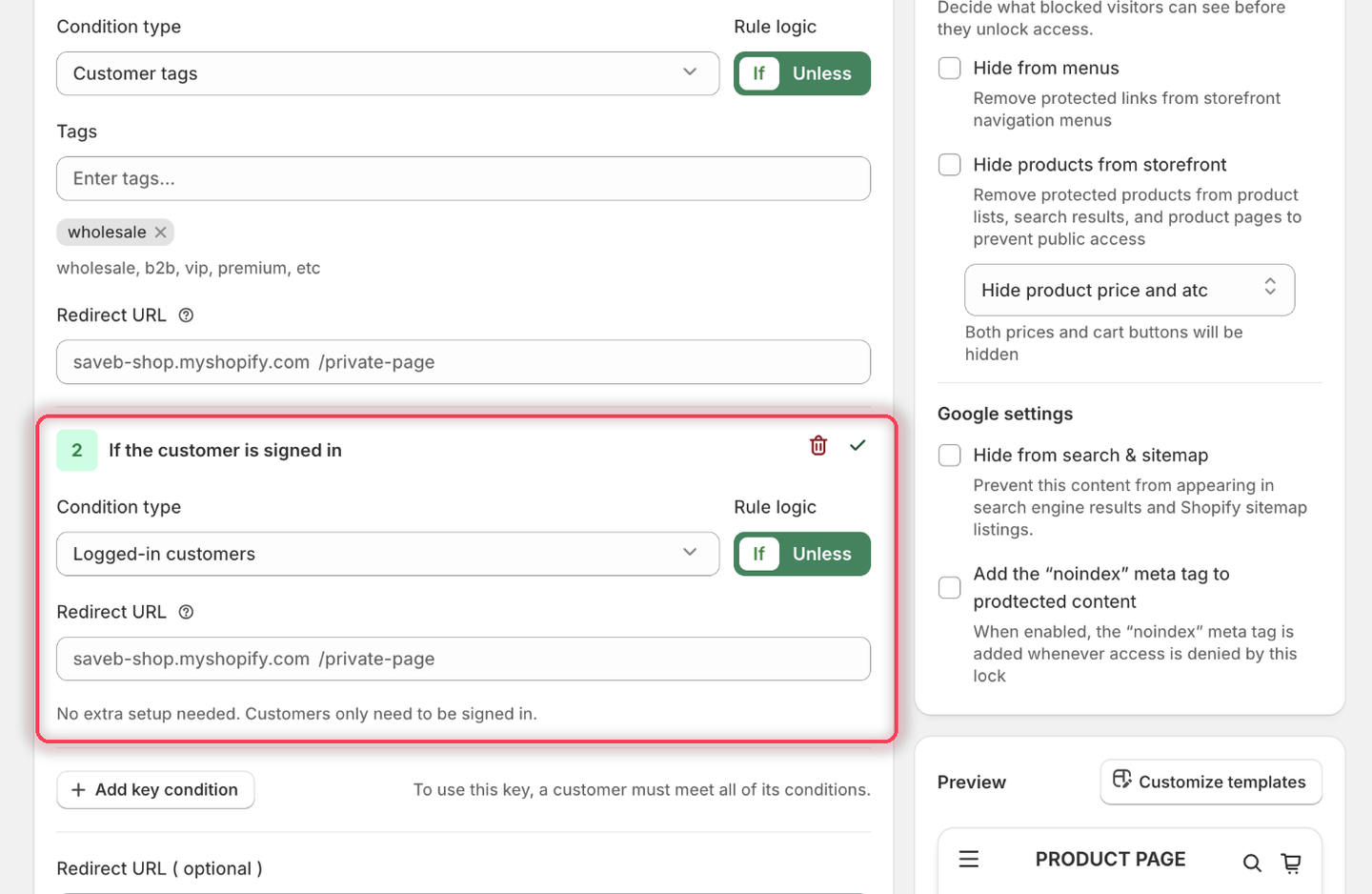
3. Add the Logged-in customers rule, matching **If**. There's nothing else to configure — the app confirms this with "No extra setup needed. Customers only need to be signed in."

<figure><img src="https://27754559-files.gitbook.io/~/files/v0/b/gitbook-x-prod.appspot.com/o/spaces%2FF4qMYopXntYz9YgUqZSo%2Fuploads%2Fgit-blob-e03f0611f93799f266f82c1aaf44fa6b059f6680%2Fscreenshot-example-guest-login-rule.png?alt=media" alt="The Logged-in customers condition with Rule logic set to If and a note that no extra setup is needed."><figcaption><p>The Logged-in customers condition has no settings of its own beyond If or Unless.</p></figcaption></figure>

4. In the same tab's right-hand sidebar, under **Blocked visitor behavior**, turn on Hide price, Hide Add to cart, or both.
5. Save.

## Result on the storefront

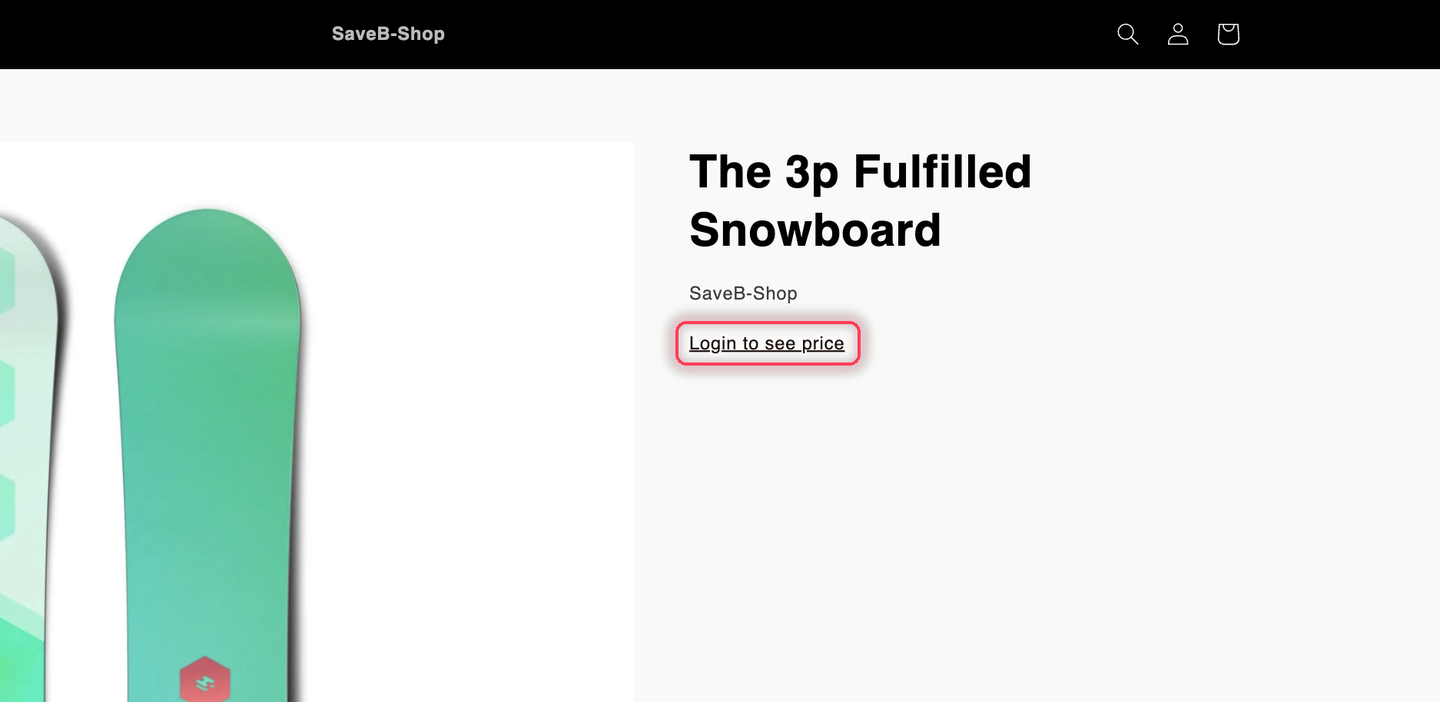
With the example above, guests can still browse the product page, but the price and **Add to cart** button are replaced with a login message. Signed-in customers who satisfy the Lock's other conditions see the normal price and buy box.

<figure><img src="https://27754559-files.gitbook.io/~/files/v0/b/gitbook-x-prod.appspot.com/o/spaces%2FF4qMYopXntYz9YgUqZSo%2Fuploads%2Fgit-blob-06d840945bb105ca934794c3a0fef8a5463c84be%2Fscreenshot-storefront-hide-price-guest.png?alt=media" alt="A live storefront product page seen by a signed-out visitor: the product image and title are visible, and a Login to see price link sits where the price would be, with no Add to cart or Buy it now button."><figcaption><p>The result of the example: guests can browse the product, but the price and buy buttons are replaced.</p></figcaption></figure>

## Related docs

* [Combining rules](/b2b-lock-password-protect/access-rules/combining-rules.md)
* [Hide price and Add to cart](/b2b-lock-password-protect/lock-behavior/hide-price-and-add-to-cart.md)
* [Customer tags](/b2b-lock-password-protect/access-rules/customer-tags.md)
* [Create your first lock](/b2b-lock-password-protect/quick-start/quickstart.md)


---

# Agent Instructions
This documentation is published with GitBook. GitBook is the documentation platform designed so that both humans and AI agents can read, navigate, and reason over technical content effectively. Learn more at gitbook.com.

## Querying This Documentation
If you need additional information that is not directly available in this page, you can query the documentation dynamically by asking a question.

Perform an HTTP GET request on the current page URL with the `ask` query parameter, and the optional `goal` query parameter:

```
GET https://docs.samita.io/b2b-lock-password-protect/access-rules/logged-in-customers.md?ask=<question>&goal=<endgoal>
```

`ask` is the immediate question: it should be specific, self-contained, and written in natural language.
`goal` is optional and describes the broader end goal you are ultimately trying to accomplish on behalf of the user. GitBook uses it to tailor the answer towards what is most useful for that goal.

The response will contain a direct answer to the question and relevant excerpts and sources from the documentation.

Use this mechanism when the answer is not explicitly present in the current page, you need clarification or additional context, or you want to retrieve related documentation sections.