For the complete documentation index, see llms.txt. This page is also available as Markdown.

Translate lock messages

Translate every message a lock can show, per storefront language, and understand how the store's default translation fits in.

Every lock keeps its own set of shopper-facing copy — the guest message, passcode or secret-link prompts, subscribe and confirmation-prompt text, notification wording, and request-access copy — and it keeps a separate version of that copy for each storefront language you choose to translate it into. Like a lock's design settings, translations are per lock: translating one lock's messages into French has no effect on any other lock.

Open a lock's translations

  1. Open the app and go to Locks, then open the lock whose wording you want to translate.

  2. Click the button that opens Customize design and translate templates.

  3. In the left rail of the Customize templates panel, pick the screen you want to translate — Placeholder card, Notification, Passcode, Subscription form, Confirmation prompt, Secret link, Country restriction, or Hide price and add to cart.

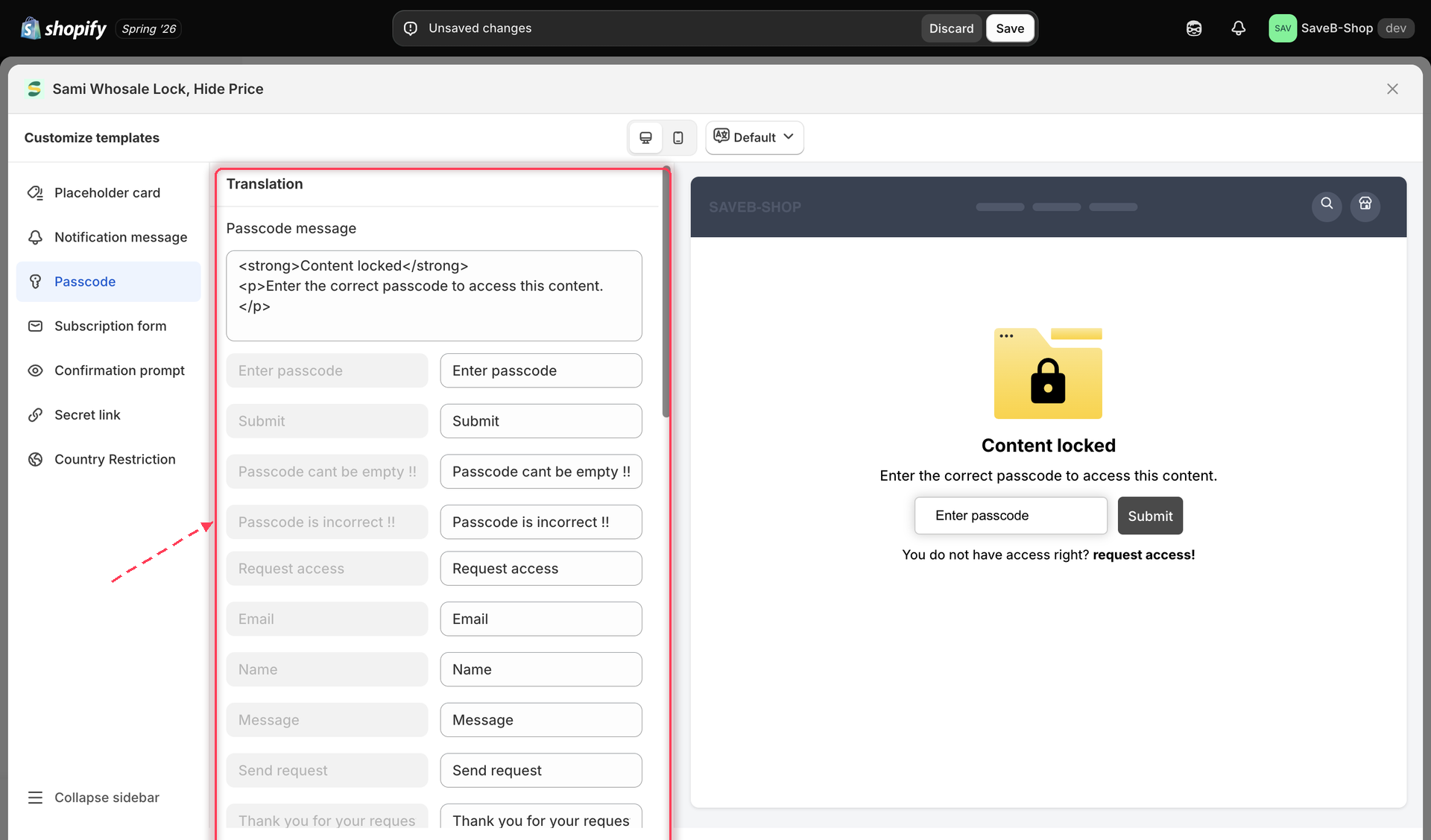
  4. In the middle column, the Translation section sits above the Design section (covered in Colors and templates) — that's where you edit copy for the screen you selected.

Customize templates panel with the Translation section open above the Design section
The Translation section sits above Design for whichever screen you have selected.
Pick a language

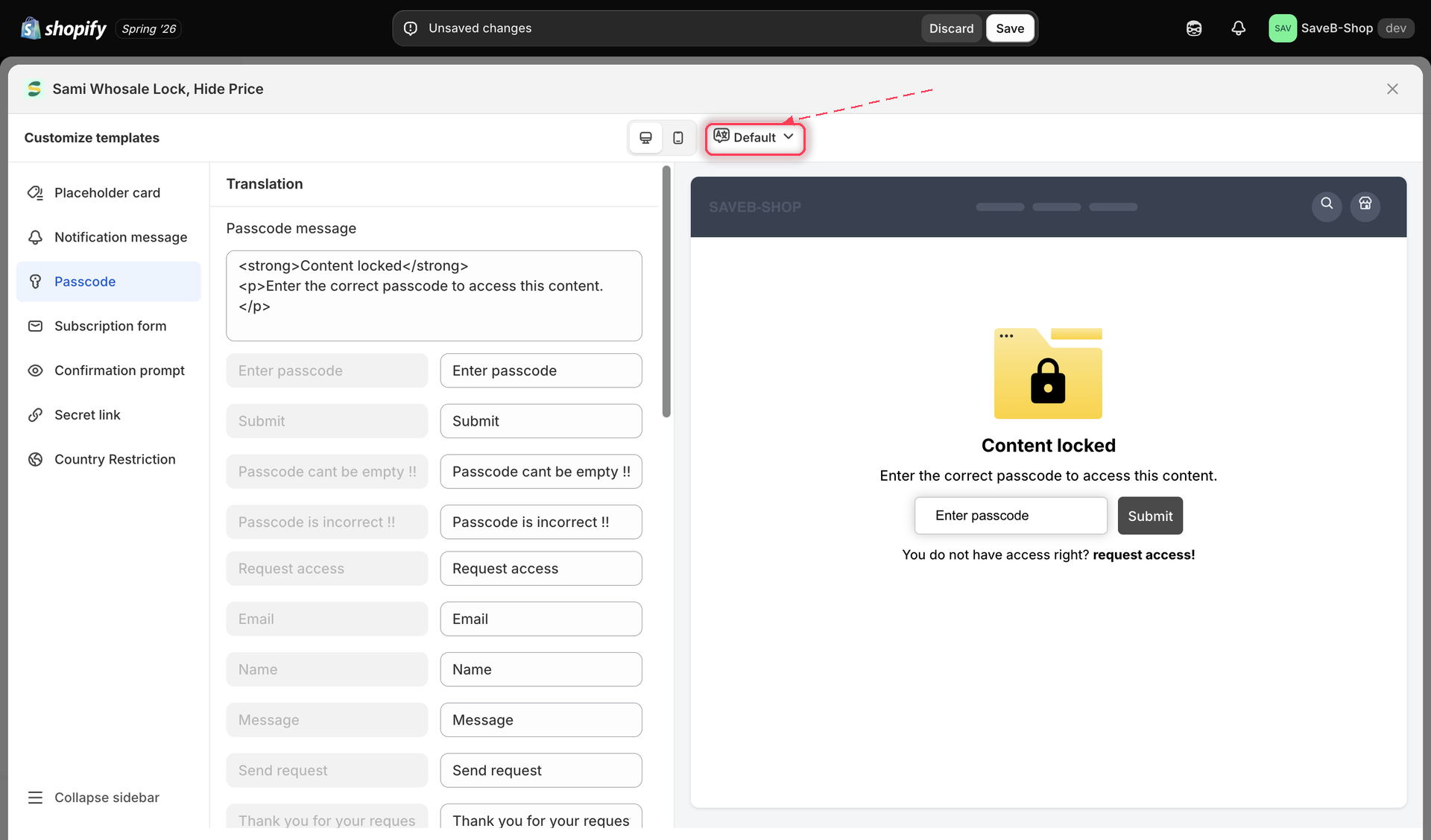
At the top of the Customize templates panel, a language button (starting on Default) opens a list of every language your store has published. Pick a language to start translating that screen's copy into it — if this lock doesn't have a translation for that language yet, one is created automatically so you can start typing; nothing is saved until you save the lock.

Language switcher open, showing Default plus the store's published languages
Switch languages to translate this lock's copy into any language your store has published.
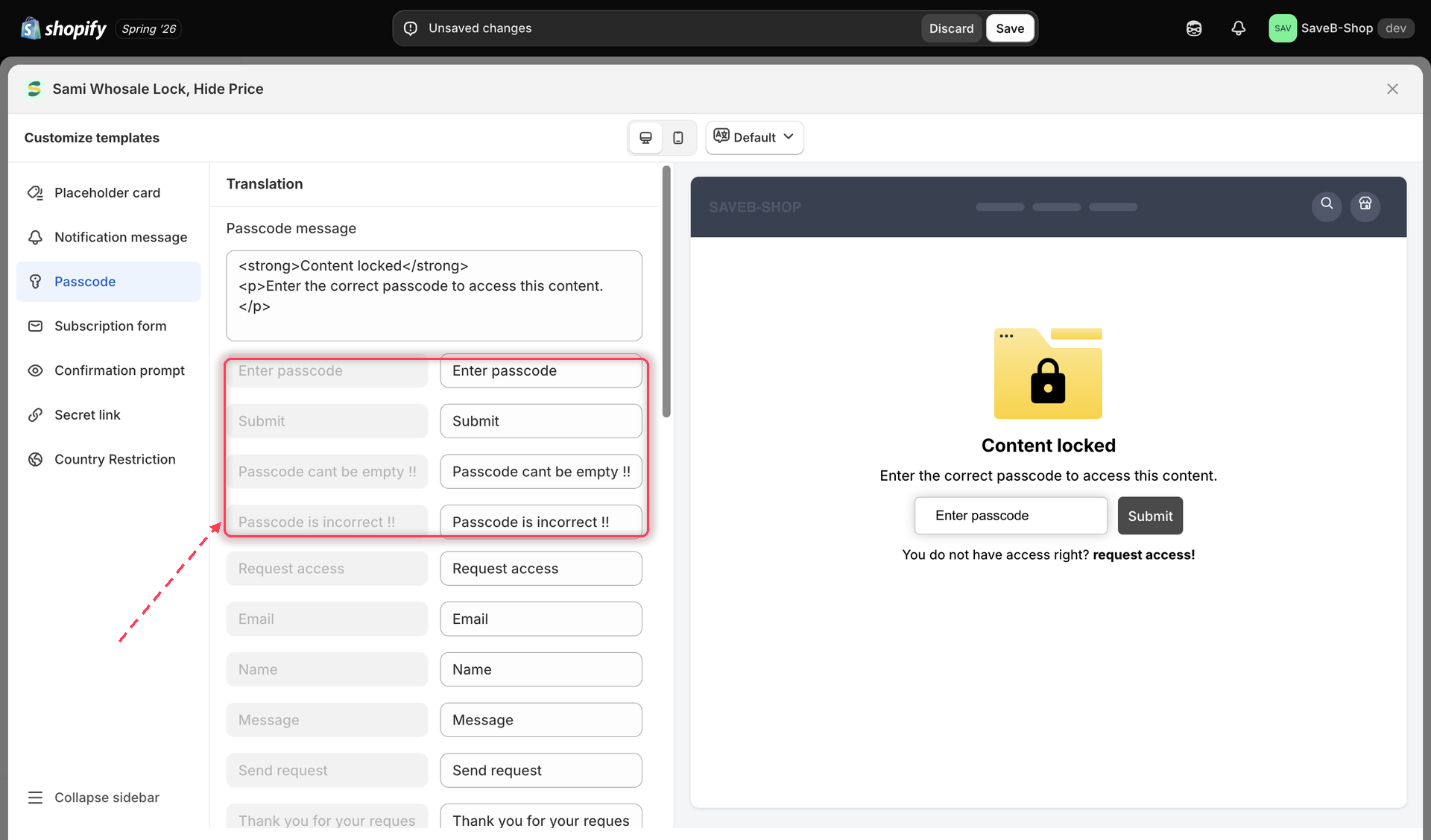
You don't have to translate for every published language — pick only the ones you actually want to support, and shoppers browsing in a language you haven't translated will see this lock's default-language copy instead.

What you can translate, by screen

Each field in the Translation section shows the current default English copy for reference, with an editable field next to it for your translation (or your reworded English, if you just want to change the wording without adding another language).

Screen
What you can translate

Notification

The notification message, and the Back button

Notification — two message fields

Access denied message is what most rules show. Guest message content is used only by the five customer-identity rules (Logged-in customers, Customer tags, B2B customer, Email contains, Selected customers), set to If, for signed-out visitors. Translate both. See Access rules overview

Passcode

The passcode message, input placeholder, Submit button, and the two error messages (empty passcode, incorrect passcode) — plus request-access copy if Form request access is turned on

Passcode input shown inline (e.g. in place of a hidden price)

The inline prompt message, input placeholder, button text, and the same two error messages

Subscription form

The subscribe message, email placeholder, Subscribe button, and its error messages (empty field, invalid email, subscribe failed)

Confirmation prompt

The prompt content and its confirm button text

Secret link

The access message and the Back button

Country restriction

The country-block message

Hide price and add to cart

"Login to see price" / "Login to add to cart" and the locked-price / locked-Add to cart messages

Modal (for lock types that show a login modal)

The modal's title, description, and its action button text

Placeholder card

The "this resource has been locked" message

Request access

The request-access title, message, action button text, and (for the built-in form) the email/name/message field labels and confirmation text

Translation fields for the Passcode screen, showing default copy next to editable translated fields
Each translatable string shows the default copy next to an editable field for your translation.
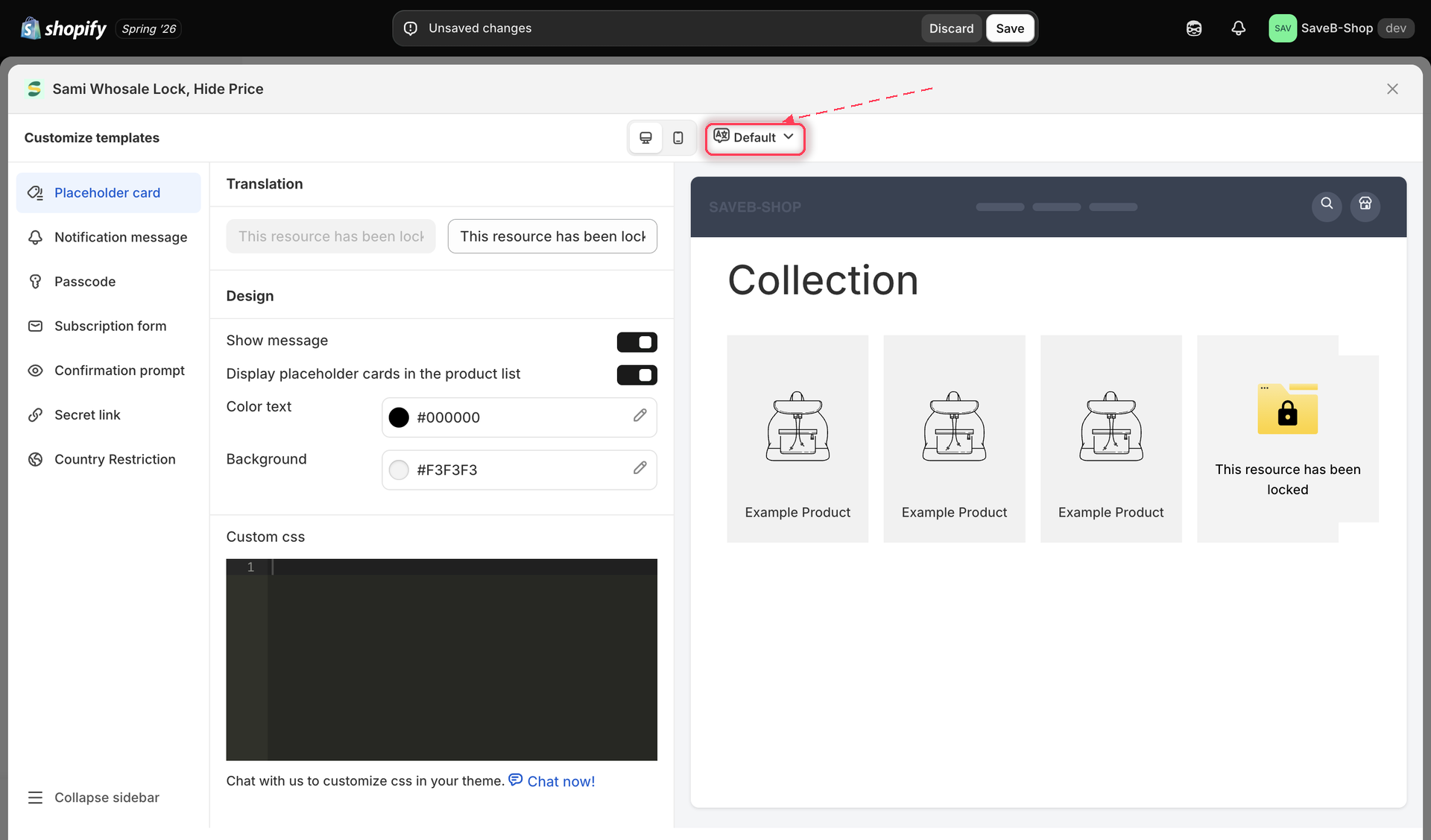
The exact fields you see always match the access rule(s) this lock actually uses — for example, request-access fields only appear if Form request access is turned on for that lock.

The default translation

Alongside each individual lock's own translations, your store keeps a set of default message settings that a lock falls back to when it doesn't have its own translation for the language a shopper is currently browsing in. Use that default location if you want to change your baseline wording once — for example your brand's tone or a store-wide rename — instead of repeating the change on every single lock. A lock's own translation, when you've set one, always takes priority over that store-wide default.

Live preview reflects your language choice

The live preview on the right side of the Customize templates panel always reflects the language you currently have selected at the top of the panel, alongside your Desktop/Mobile viewport choice — so you can proofread a translation in context before saving.

Live preview panel showing translated copy for a selected language
The live preview updates to show the translated copy for whichever language you have selected.

Last updated

Was this helpful?