For the complete documentation index, see llms.txt. This page is also available as Markdown.

Storefront language

Match visitors based on the storefront language they're currently browsing in.

Storefront language matches a visitor based on which published storefront language they're currently browsing your store in. It's only useful if your store has more than one published language — on a single-language store, every visitor matches the same language, so the rule wouldn't distinguish anyone.

Common uses: showing a market-specific promotion only to visitors browsing in a particular language, or restricting content that's only ready in certain languages so visitors browsing in an unsupported language don't see a half-translated experience.

Like most access rules (aside from the action-based ones such as Passcode, Secret link, Subscribe, and Confirmation prompt), Storefront language can be set to match If the visitor is browsing in the selected language(s), or Unless they are — inverting it to match every other language instead. See Combining rules.

Add the rule

  1. Open Locks and create a new lock, or open an existing one to edit it.

  2. Choose the content you want to protect. See Access rules overview for how rules fit into a lock.

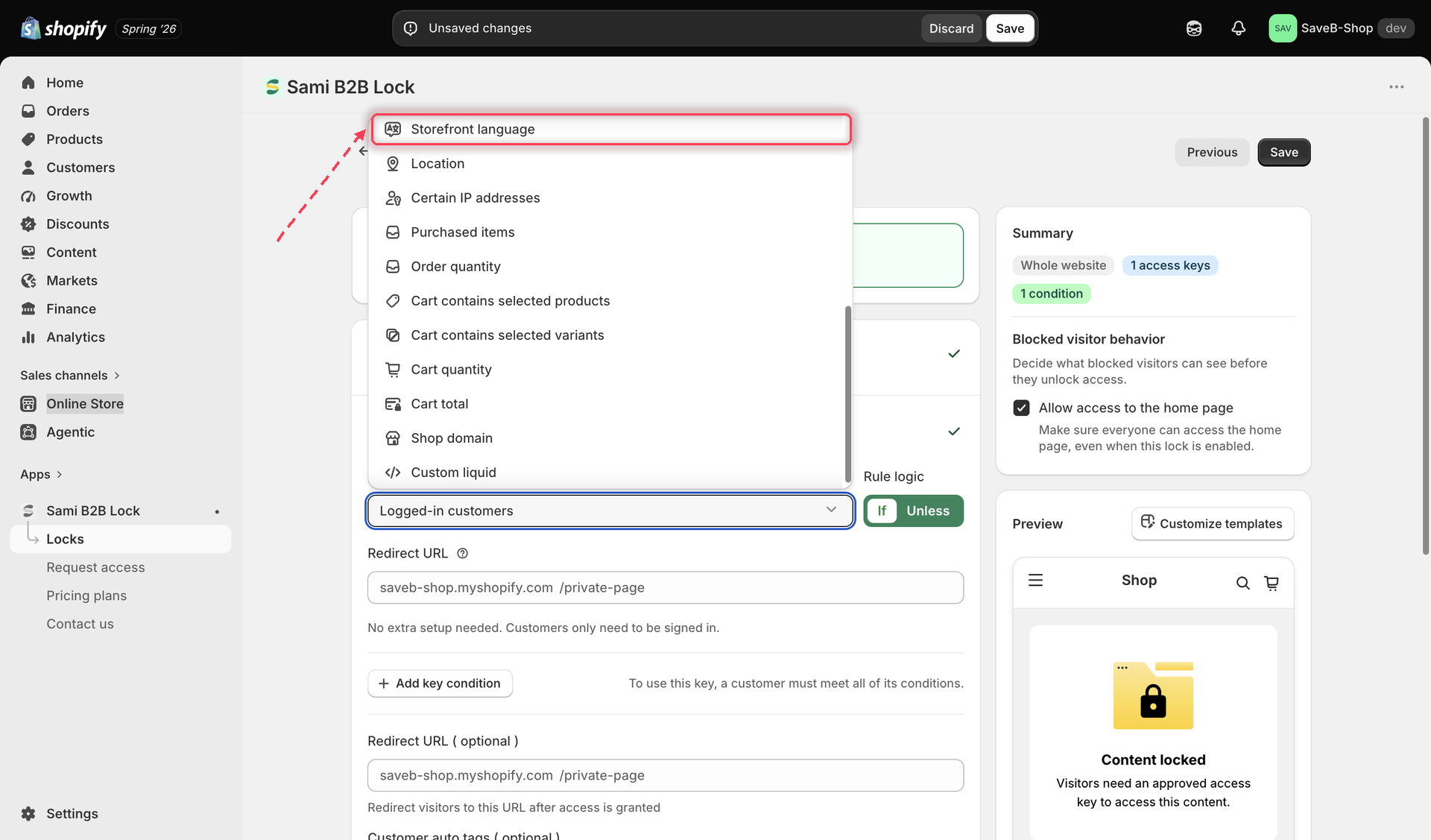
  3. Click the Unlock rules tab, then in the Condition type dropdown, select Storefront language.

The Unlock rules tab with Storefront language selected in the Condition type dropdown.
Select Storefront language from the Condition type dropdown on the Unlock rules tab.
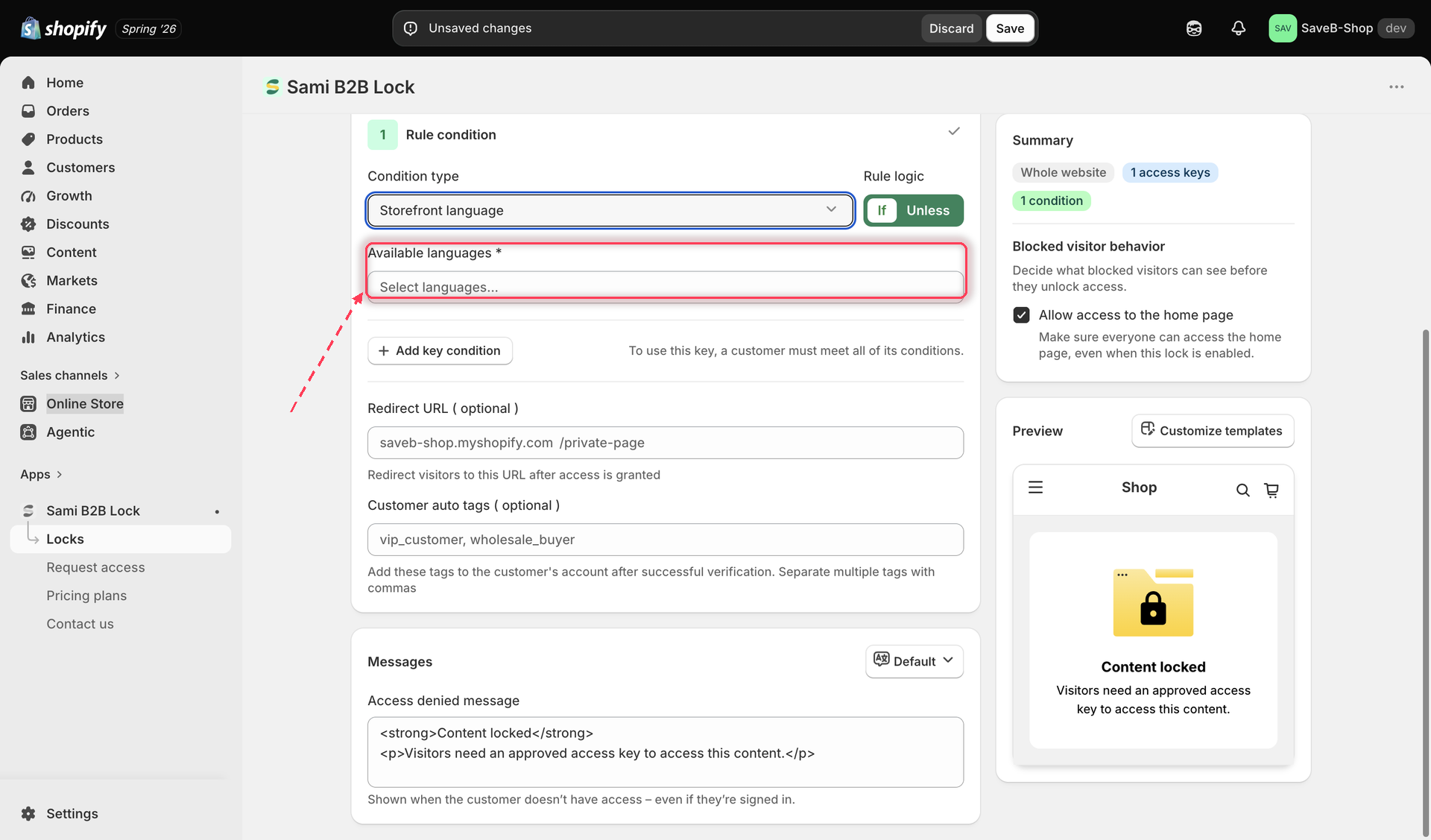
  1. Select one or more of your store's published languages to match against.

The Storefront language rule settings, showing a multi-select list of the store's published languages.
Choose which published storefront language(s) this rule should match.
  1. Choose If or Unless.

  2. Click Save.

This rule matches the language the storefront is currently displayed in — the language the visitor selected (or was routed to) via your store's language selector — not the visitor's browser or device language setting.

Example: Show a campaign page only on the French storefront

Suppose a campaign page has only been prepared in French and should not be available in the store's other published languages.

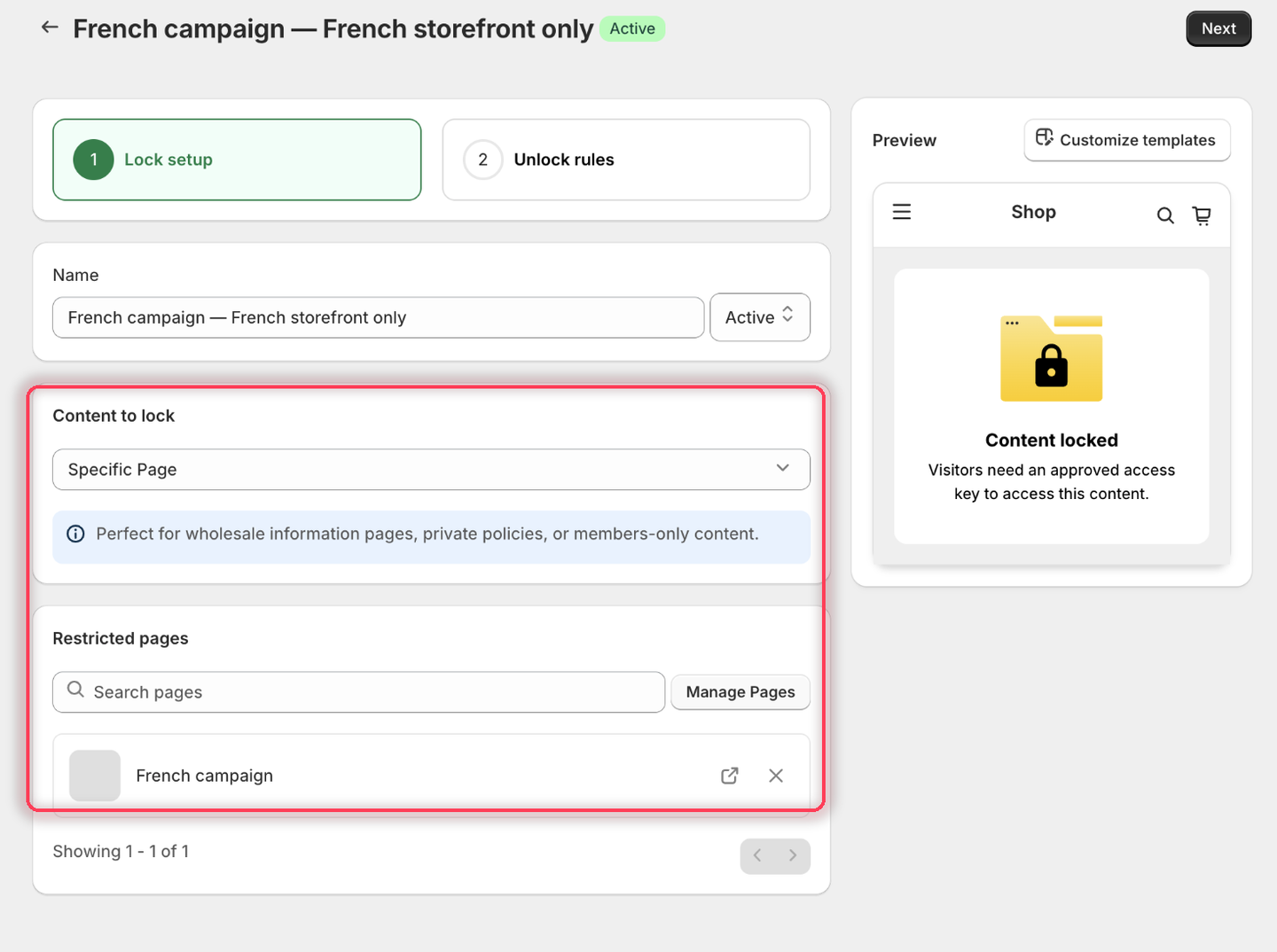
  1. Select the French campaign page as the content to protect.

The Lock setup tab with Specific Page as the content type and the French campaign page listed under Restricted pages.
Pick the campaign page that only exists in French.
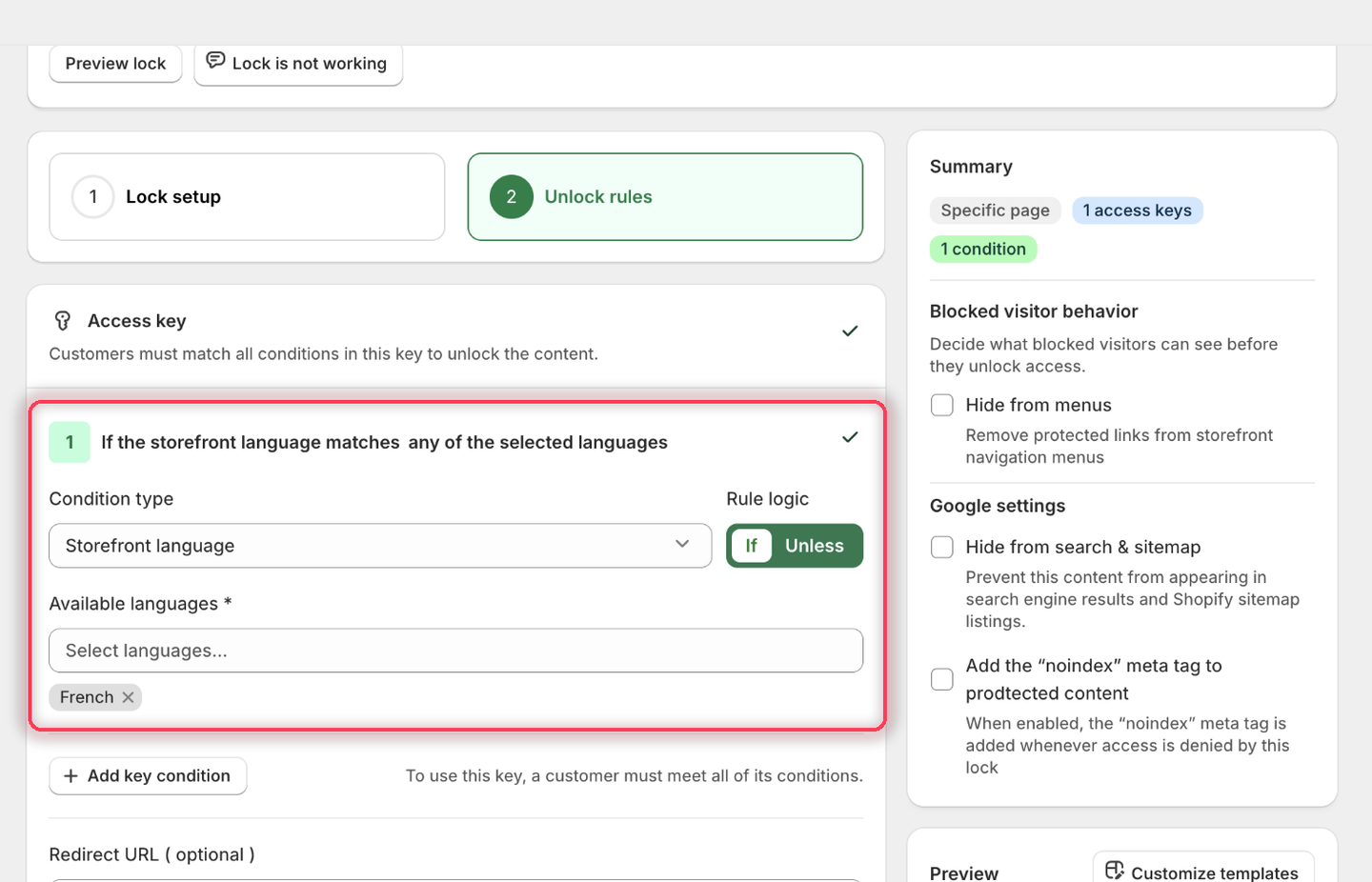
  1. Add Storefront language, choose If, then pick French from Available languages.

The picker only lists languages your store has published under Settings → Languages. If French isn't there, publish it first — a language that's only added but not published won't appear.

The Storefront language condition with Rule logic set to If and French added as a chip under Available languages.
The condition heading reads: If the storefront language matches any of the selected languages.
  1. Leave the rule's Redirect URL empty.

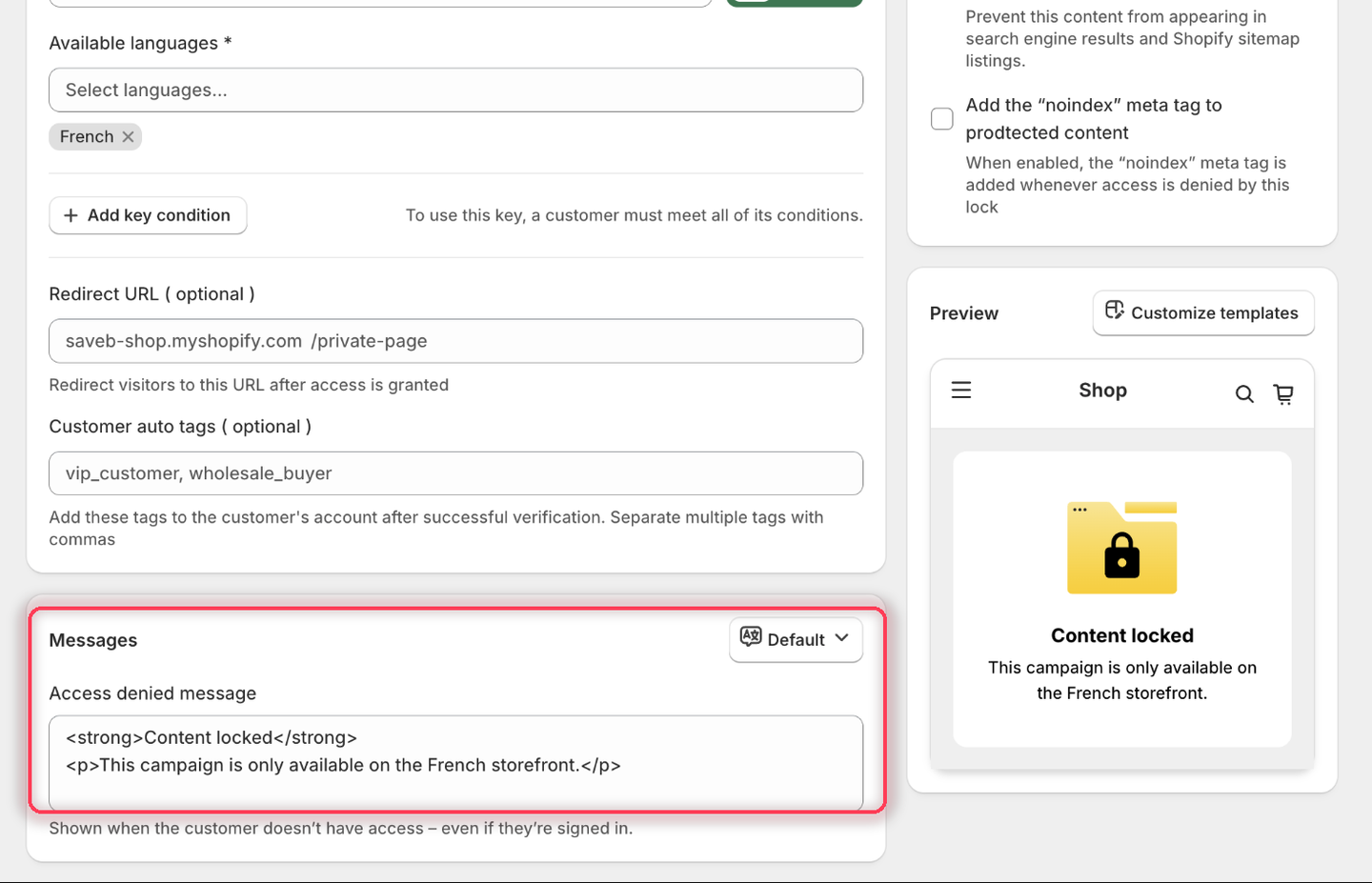
  2. Set the Access denied message to:

This campaign is only available on the French storefront.

The Messages card with the Access denied message set to the French-storefront-only wording, and the Preview panel rendering it.
The Preview panel confirms the wording before you save.
  1. Click Save.

Result on the storefront

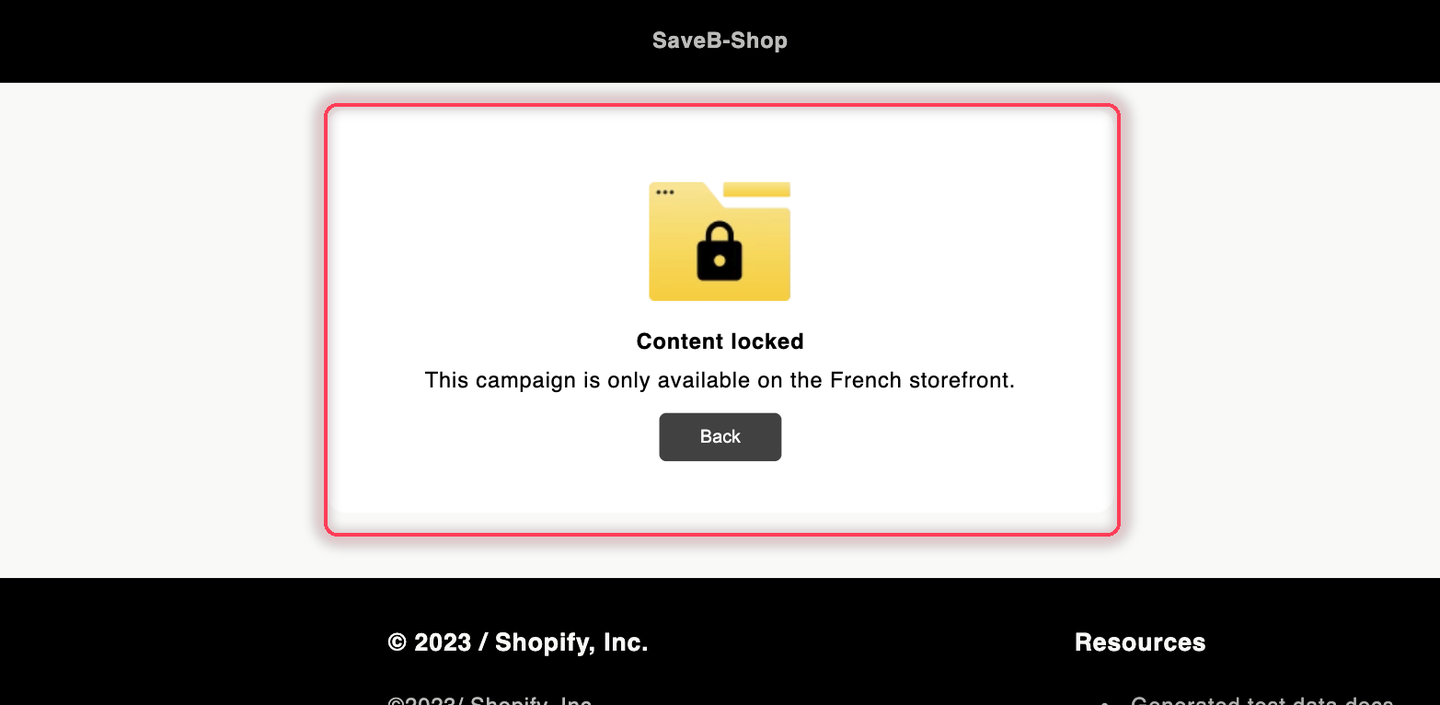
A visitor browsing the French version of the storefront can open the page normally. If the visitor switches the storefront to English or another language, the rule no longer matches and the page displays the message above.

The French campaign page displaying the configured French-storefront-only message.
In another storefront language, the visitor sees the Access denied message from this example.

Last updated

Was this helpful?