> For the complete documentation index, see [llms.txt](https://docs.samita.io/llms.txt). Markdown versions of documentation pages are available by appending `.md` to page URLs; this page is available as [Markdown](https://docs.samita.io/b2b-lock-password-protect/access-rules/subscribe.md).

# Subscribe to unlock

Let shoppers unlock content by subscribing with their email, through Shopify, Mailchimp, or Klaviyo.

**Subscribe to unlock** asks a visitor to enter their email address, then grants access once they subscribe (or, for a Klaviyo segment, once the app confirms they're already on your list). It's an action-based rule — like Passcode and Confirmation prompt, it doesn't have an If/Unless toggle, because the shopper unlocks the content by completing the subscribe step rather than by matching a yes/no condition.

Sami B2B Lock, Password Protect supports three email services for this rule. You pick one per rule:

* **Shopify** — uses your store's native email marketing consent. No extra account or API key needed. This is the default option and has no additional cost.
* **Mailchimp** — connects to your Mailchimp account with an API key so you can subscribe visitors straight into one of your audience lists.
* **Klaviyo** — connects to your Klaviyo account with an API key so you can subscribe visitors into a list, or check membership against a segment.

## Add the rule

1. Open **Locks** and create a new lock, or open an existing one to edit it.
2. Choose the content you want to protect. See [Access rules overview](/b2b-lock-password-protect/access-rules/overview.md) for how rules fit into a lock.
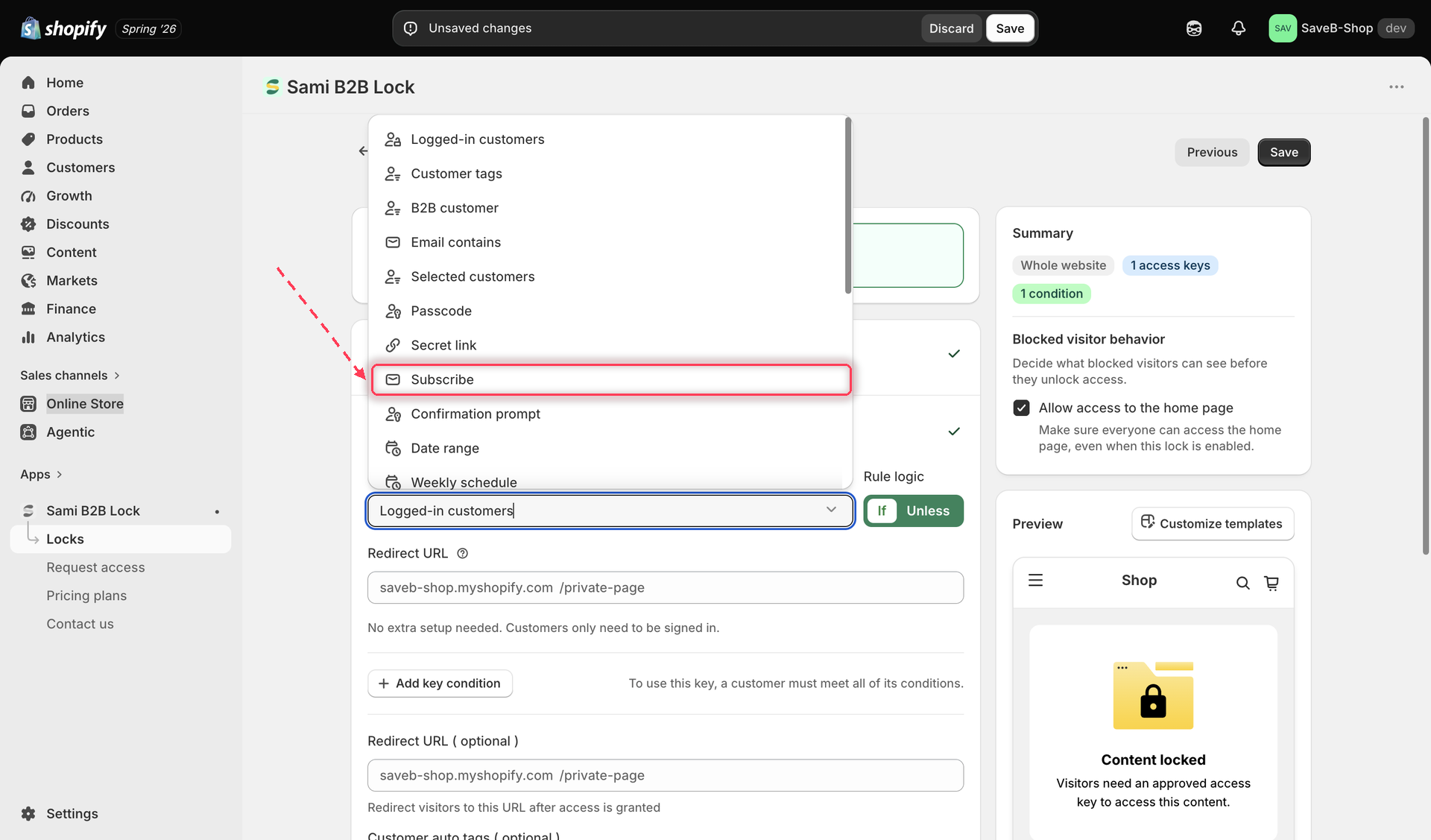
3. Click the **Unlock rules** tab, then in the **Condition type** dropdown, select **Subscribe to unlock**.

<figure><img src="https://27754559-files.gitbook.io/~/files/v0/b/gitbook-x-prod.appspot.com/o/spaces%2FF4qMYopXntYz9YgUqZSo%2Fuploads%2Fgit-blob-444982023140378fd58d0f1502270bfa1d019fdc%2Fscreenshot-access-rules-picker-subscribe.png?alt=media" alt="The Unlock rules tab with Subscribe to unlock selected in the Condition type dropdown."><figcaption><p>Select Subscribe to unlock from the Condition type dropdown on the Unlock rules tab.</p></figcaption></figure>

4. Choose an **Email service**: Shopify, Mailchimp, or Klaviyo.

### Shopify (default, no setup)

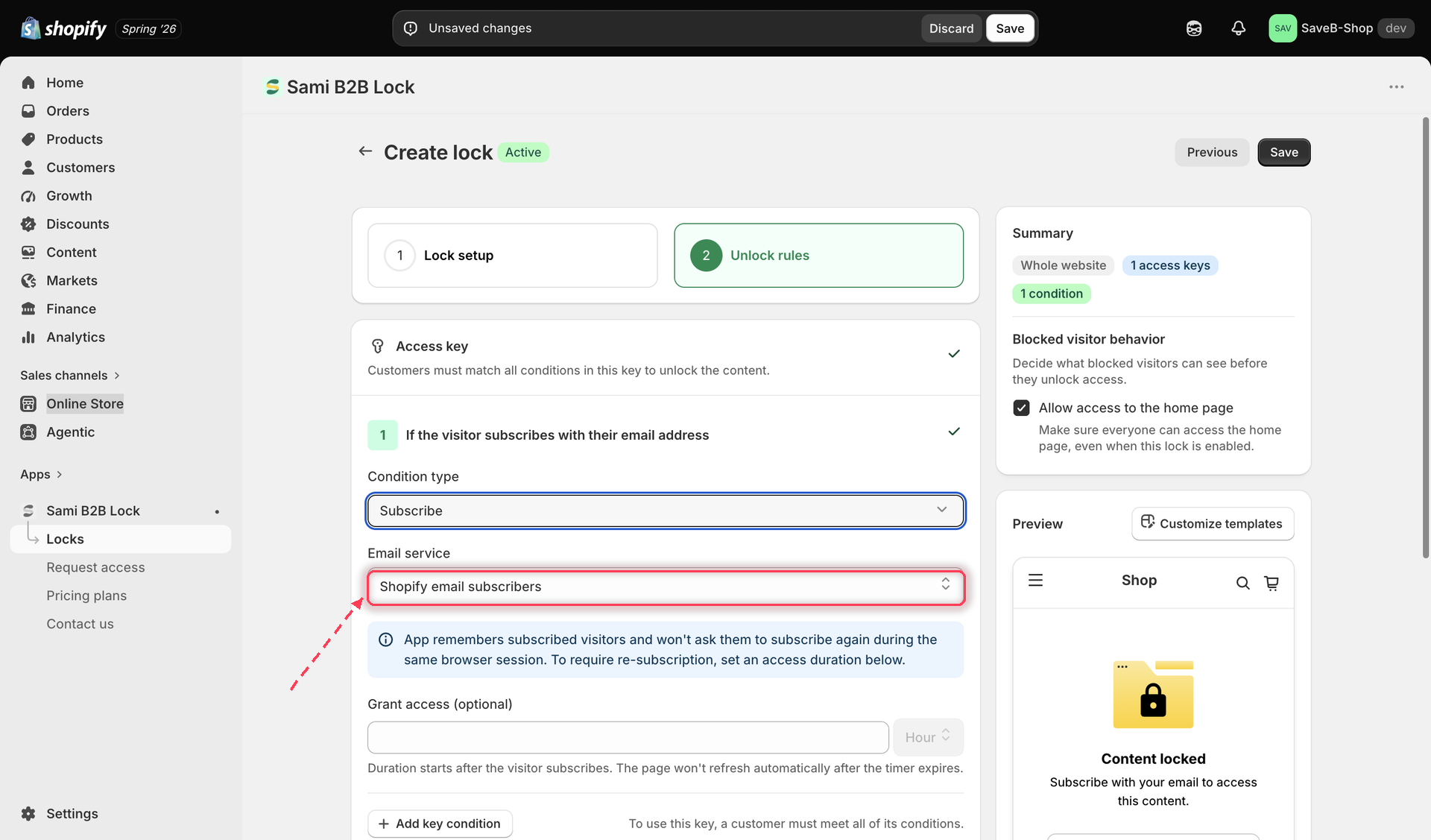
Shopify email marketing consent works out of the box — there's nothing to connect. Once selected, the app shows a note that it remembers a subscribed visitor for their current browser session and won't ask them to subscribe again until that session ends; to require re-subscription sooner or later than that, set a duration in the **Grant access (optional)** field below it.

<figure><img src="https://27754559-files.gitbook.io/~/files/v0/b/gitbook-x-prod.appspot.com/o/spaces%2FF4qMYopXntYz9YgUqZSo%2Fuploads%2Fgit-blob-9cc204a029aba2d6762c8157d4589d31de7da904%2Fscreenshot-access-rules-subscribe-shopify.png?alt=media" alt="The Subscribe to unlock rule with Shopify selected as the email service."><figcaption><p>Shopify email marketing consent requires no extra setup.</p></figcaption></figure>

### Mailchimp

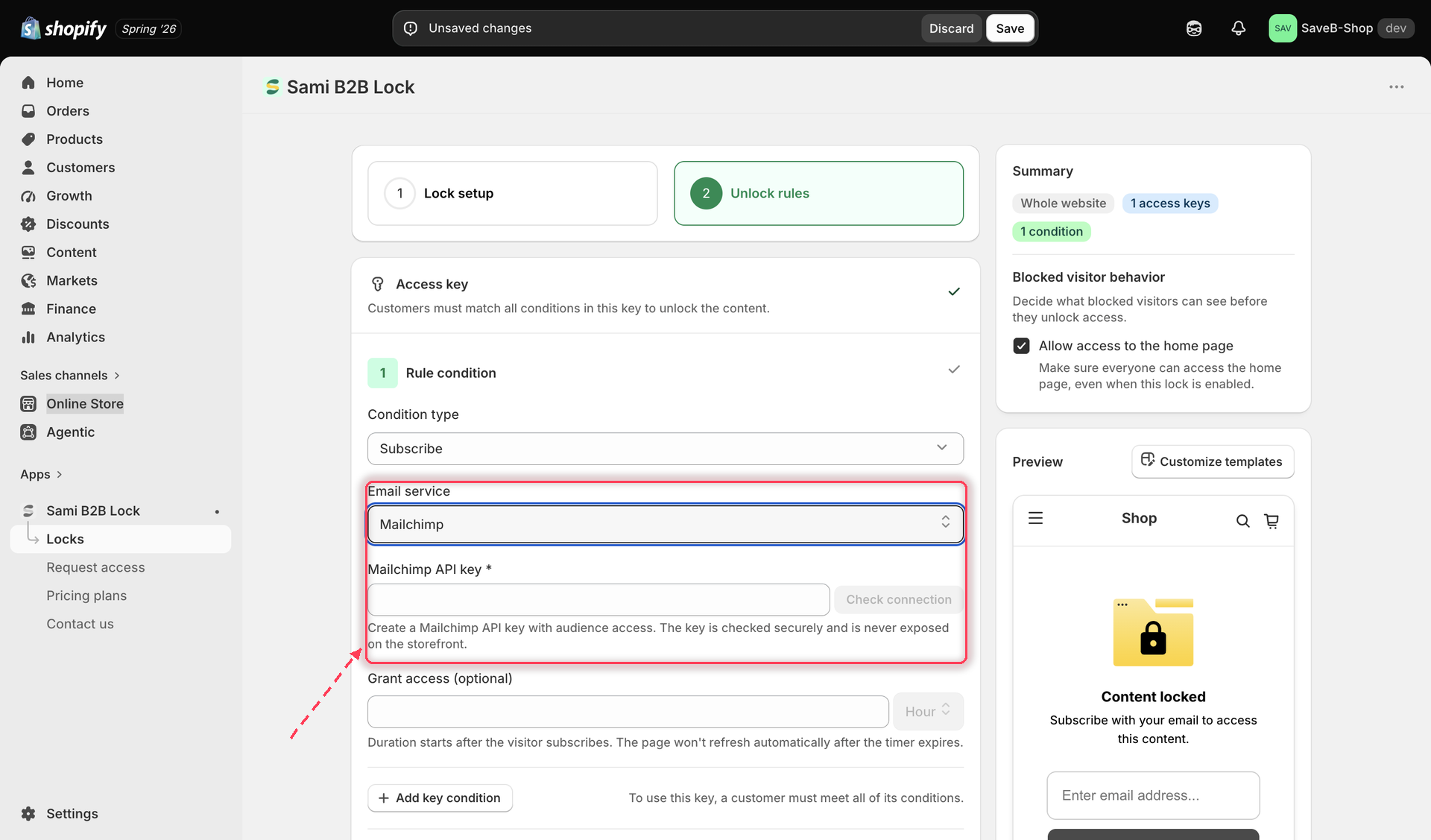
1. Enter your **Mailchimp API key** (an API key with audience access, generated from your Mailchimp account) and click **Check connection**.
2. Once connected, select which **audience list** the visitor should be subscribed to.
3. Set an optional **Grant access** duration, the same as with Shopify.

<figure><img src="https://27754559-files.gitbook.io/~/files/v0/b/gitbook-x-prod.appspot.com/o/spaces%2FF4qMYopXntYz9YgUqZSo%2Fuploads%2Fgit-blob-f6391561fc6d069cd72cc2bc4512549b4c60ecd5%2Fscreenshot-access-rules-subscribe-mailchimp.png?alt=media" alt="The Subscribe to unlock rule with Mailchimp connected and an audience list selected."><figcaption><p>Connect Mailchimp with an API key, then pick the audience list to subscribe visitors to.</p></figcaption></figure>

{% hint style="info" %}
Your Mailchimp API key is checked securely and is never exposed on the storefront. Once you save the lock, the key is stored encrypted.
{% endhint %}

### Klaviyo

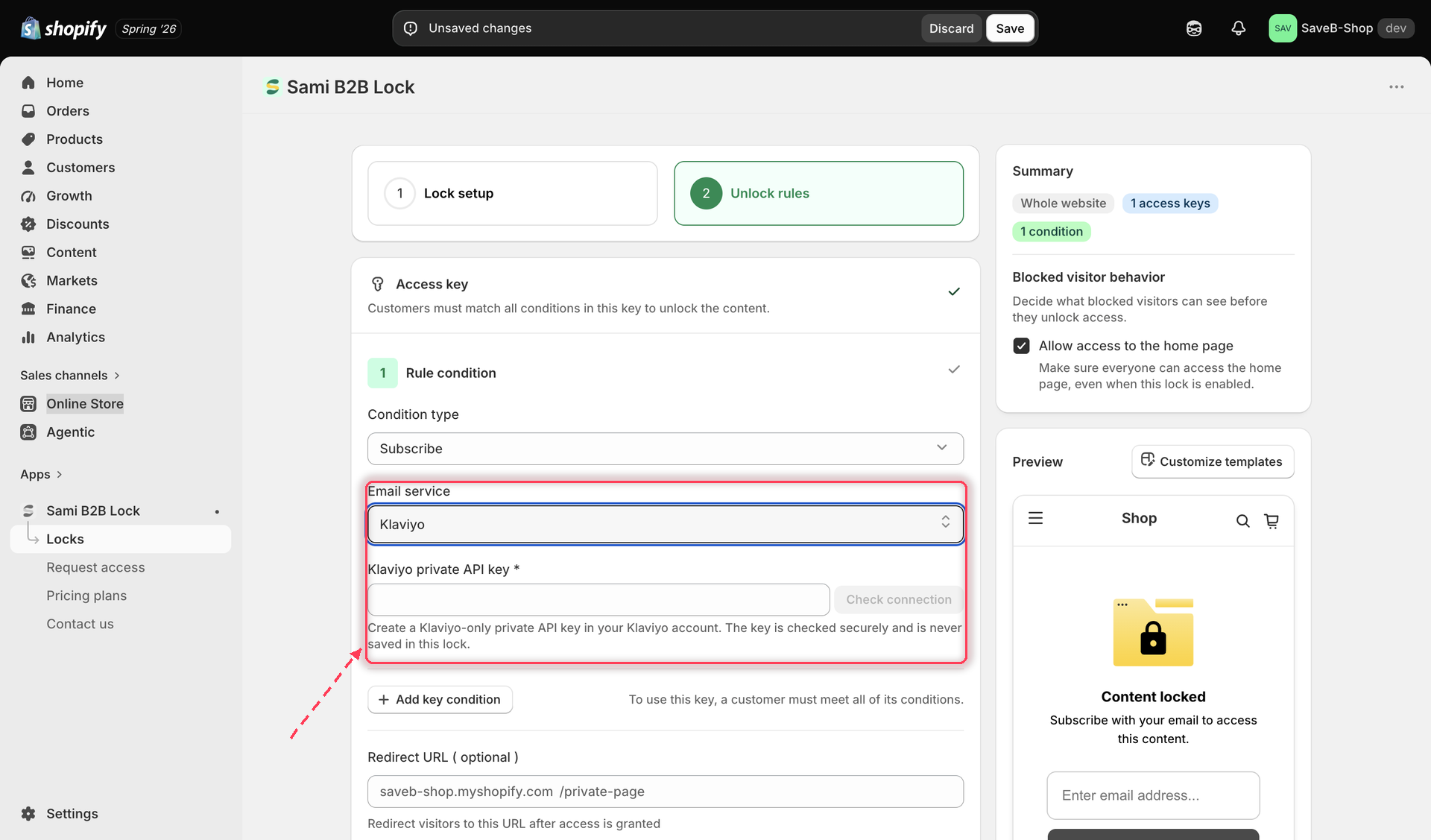
1. Enter your **Klaviyo private API key** and click **Check connection**.
2. Once connected, choose an **audience type**: **List** or **Segment**.
3. Select the specific list or segment.
4. Set an optional **Grant access** duration if you're using a list (Klaviyo segments don't use this field — see below).

<figure><img src="https://27754559-files.gitbook.io/~/files/v0/b/gitbook-x-prod.appspot.com/o/spaces%2FF4qMYopXntYz9YgUqZSo%2Fuploads%2Fgit-blob-d9d2164eb9d53b7f455c752ae942fc0a406e147f%2Fscreenshot-access-rules-subscribe-klaviyo.png?alt=media" alt="The Subscribe to unlock rule with Klaviyo connected, showing the audience type selector and list or segment picker."><figcaption><p>Connect Klaviyo, then choose whether to subscribe visitors to a list or check membership in a segment.</p></figcaption></figure>

{% hint style="warning" %}
**List and Segment behave very differently — don't mix them up.**

* Choosing a **list** actually subscribes the visitor: they type their email, the app adds them to that Klaviyo list, and access is granted. This is the same "subscribe and unlock" behavior as Shopify and Mailchimp.
* Choosing a **segment** does **not** add a new subscriber at all. It's a membership check only — the app looks at whether the visitor already belongs to that segment and grants access if they do. Because there's no email field to type into for a segment check, the visitor generally needs to be signed in to their customer account for the app to identify them and check their segment membership.

Use a list when your goal is to grow a specific Klaviyo list through this lock. Use a segment when you want to gate content to people who are already members of a group you've built in Klaviyo (for example, an existing "VIP" or "wholesale" segment) without collecting a new email address.
{% endhint %}

## Shopper-facing copy

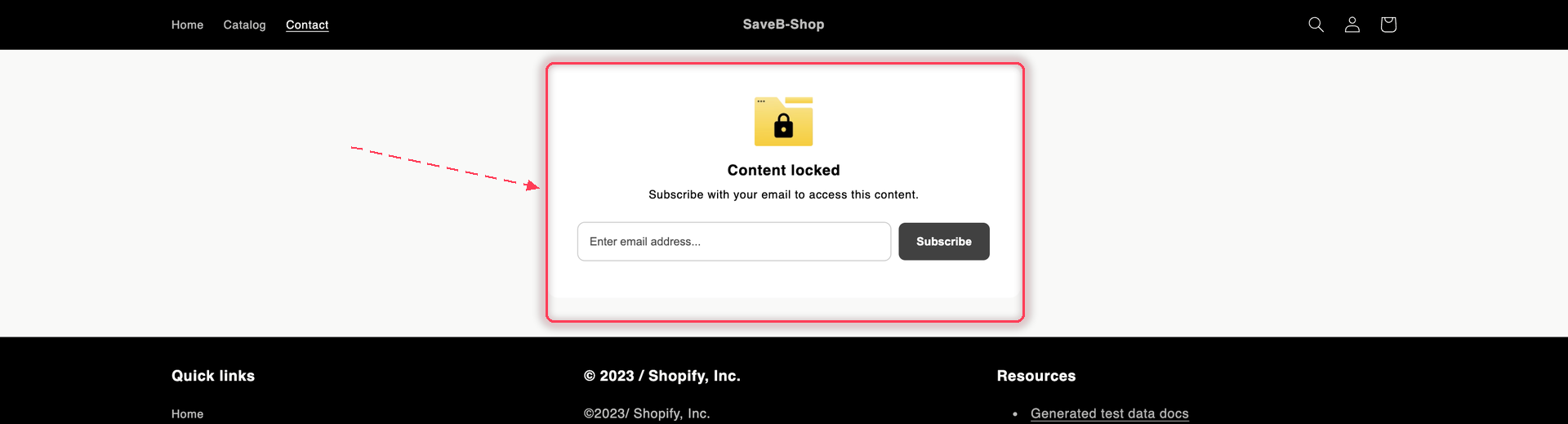
By default, shoppers who hit a Subscribe to unlock rule see:

* Notification: **"Content locked"** / **"Subscribe with your email to access this content."**
* Email input placeholder: **"Enter email address..."**
* Button: **"Subscribe"**
* Errors: **"Please fill in field"**, **"Invalid email"**, **"Unable to subscribe. Please try again."**

All of this text is editable per lock and per storefront language. See [Translate lock messages](/b2b-lock-password-protect/design-and-customization/translate-messages.md).

<figure><img src="https://27754559-files.gitbook.io/~/files/v0/b/gitbook-x-prod.appspot.com/o/spaces%2FF4qMYopXntYz9YgUqZSo%2Fuploads%2Fgit-blob-dcb66be1513163e55fa370b9740a978ac7f307df%2Fscreenshot-storefront-subscribe.png?alt=media" alt="A locked storefront page showing the Content locked card with an email field and a Subscribe button."><figcaption><p>An unsubscribed visitor gets the subscribe card instead of the page.</p></figcaption></figure>

## Save

5. Click **Save**. The rule takes effect on your storefront as soon as the app embed is enabled.

{% hint style="info" %}
API keys for Mailchimp and Klaviyo are stored encrypted and are only ever used to check or add subscribers for this rule — see [Permissions and data](/b2b-lock-password-protect/reference/permissions-and-data.md).
{% endhint %}

## Related docs

* [Access rules overview](/b2b-lock-password-protect/access-rules/overview.md)
* [Combining rules](/b2b-lock-password-protect/access-rules/combining-rules.md)
* [Confirmation prompt](/b2b-lock-password-protect/access-rules/confirmation-prompt.md)
* [Grant access duration](/b2b-lock-password-protect/lock-behavior/grant-access-duration.md)


---

# Agent Instructions
This documentation is published with GitBook. GitBook is the documentation platform designed so that both humans and AI agents can read, navigate, and reason over technical content effectively. Learn more at gitbook.com.

## Querying This Documentation
If you need additional information that is not directly available in this page, you can query the documentation dynamically by asking a question.

Perform an HTTP GET request on the current page URL with the `ask` query parameter, and the optional `goal` query parameter:

```
GET https://docs.samita.io/b2b-lock-password-protect/access-rules/subscribe.md?ask=<question>&goal=<endgoal>
```

`ask` is the immediate question: it should be specific, self-contained, and written in natural language.
`goal` is optional and describes the broader end goal you are ultimately trying to accomplish on behalf of the user. GitBook uses it to tailor the answer towards what is most useful for that goal.

The response will contain a direct answer to the question and relevant excerpts and sources from the documentation.

Use this mechanism when the answer is not explicitly present in the current page, you need clarification or additional context, or you want to retrieve related documentation sections.