
Place a countdown with a shortcode
Put a countdown at an exact spot in your theme using the app's shortcode and the Samita Countdown app block.
Automatic placement puts a countdown below the Add to cart button on product pages. For anywhere else — a homepage section, a collection banner, above your header, a landing page — you use the countdown’s shortcode.
A shortcode is a small piece of markup that says “put this countdown here”. You copy it from the app and paste it into a Samita Countdown block in your theme editor. No code editing, and you can move or remove the block any time.
What the shortcode looks like
Section titled “What the shortcode looks like”Every countdown has its own, built from its ID and type:
<div class="samita-countdown" data-id="12345" data-type="timer"></div>The data-id is that countdown’s ID — the number in the Id column on the Countdowns list — and data-type is one of timer, delivery, stock, or cart.
Steps to place a countdown
Section titled “Steps to place a countdown”-
Copy the shortcode
Section titled “Copy the shortcode”Open the countdown in the app and go to its Display tab. In the Display position section, find the Shortcode line and click Copy.
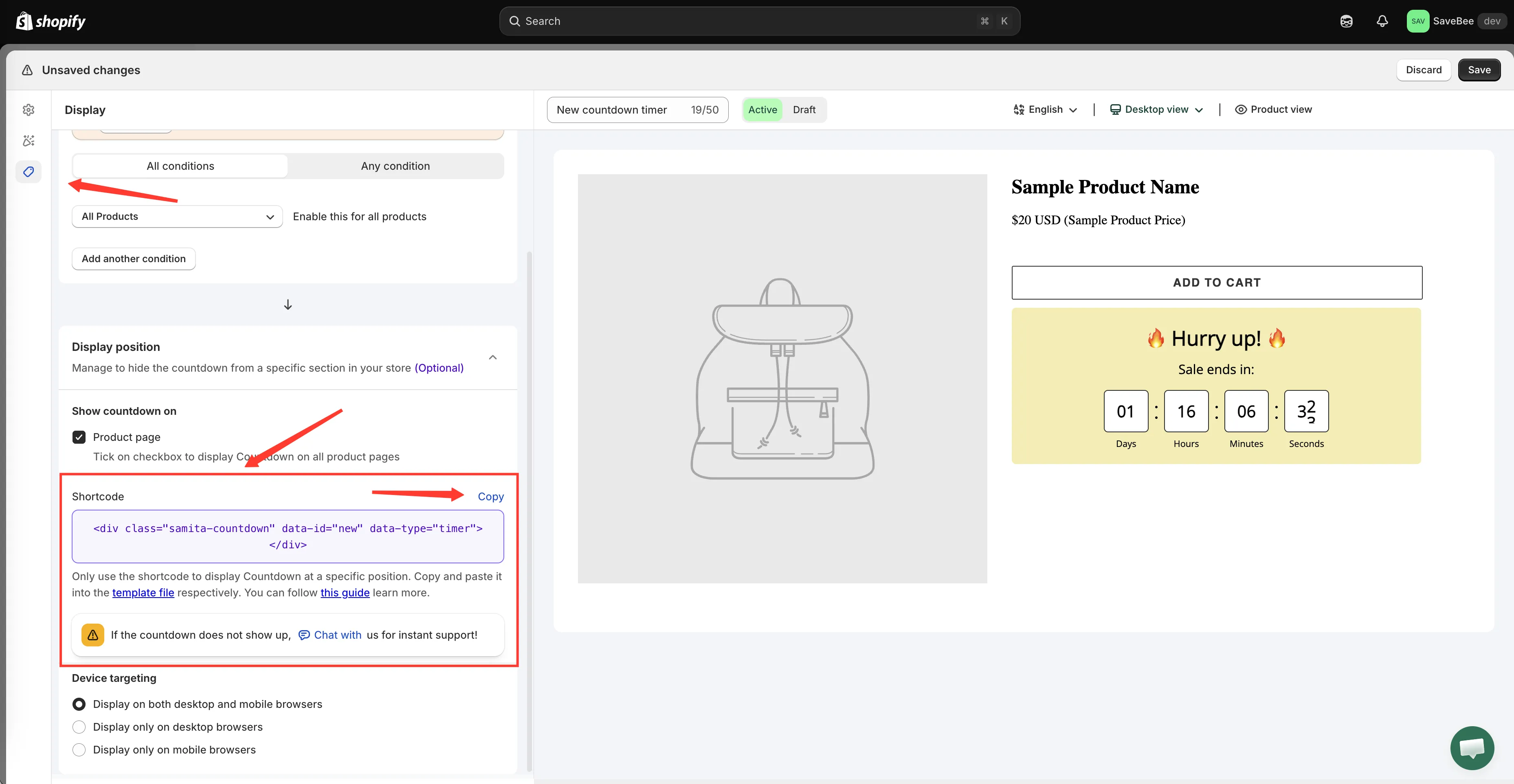
Each countdown’s shortcode is on its own Display tab.
-
Open your theme editor
Section titled “Open your theme editor”In your Shopify admin, go to Online Store → Themes, then click Customize on the theme you want to change.
-
Navigate to the page you want
Section titled “Navigate to the page you want”Use the template selector at the top of the theme editor to open the page the countdown should appear on — your home page, a product template, a collection template, a custom page.
The countdown will render exactly where you place the block on this template, so pick the right one before you add anything.
-
Add the Samita Countdown block
Section titled “Add the Samita Countdown block”Click Add block in the section where you want the countdown, and choose Samita Countdown from the Apps part of the list.
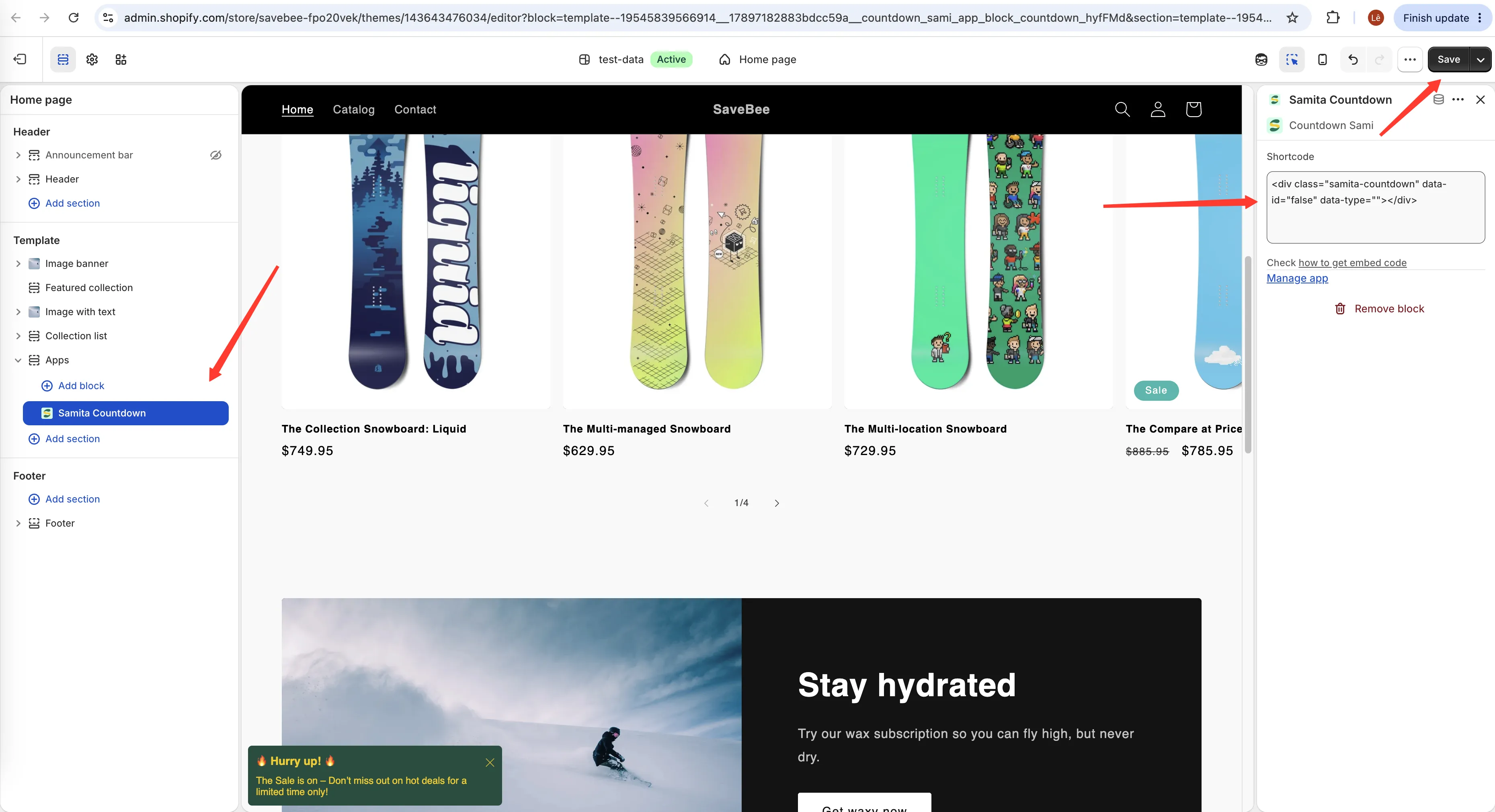
The app block appears as Samita Countdown in the Add block list.
-
Paste the shortcode into the block
Section titled “Paste the shortcode into the block”With the block selected, paste your shortcode into its Shortcode field, replacing the placeholder that’s there.
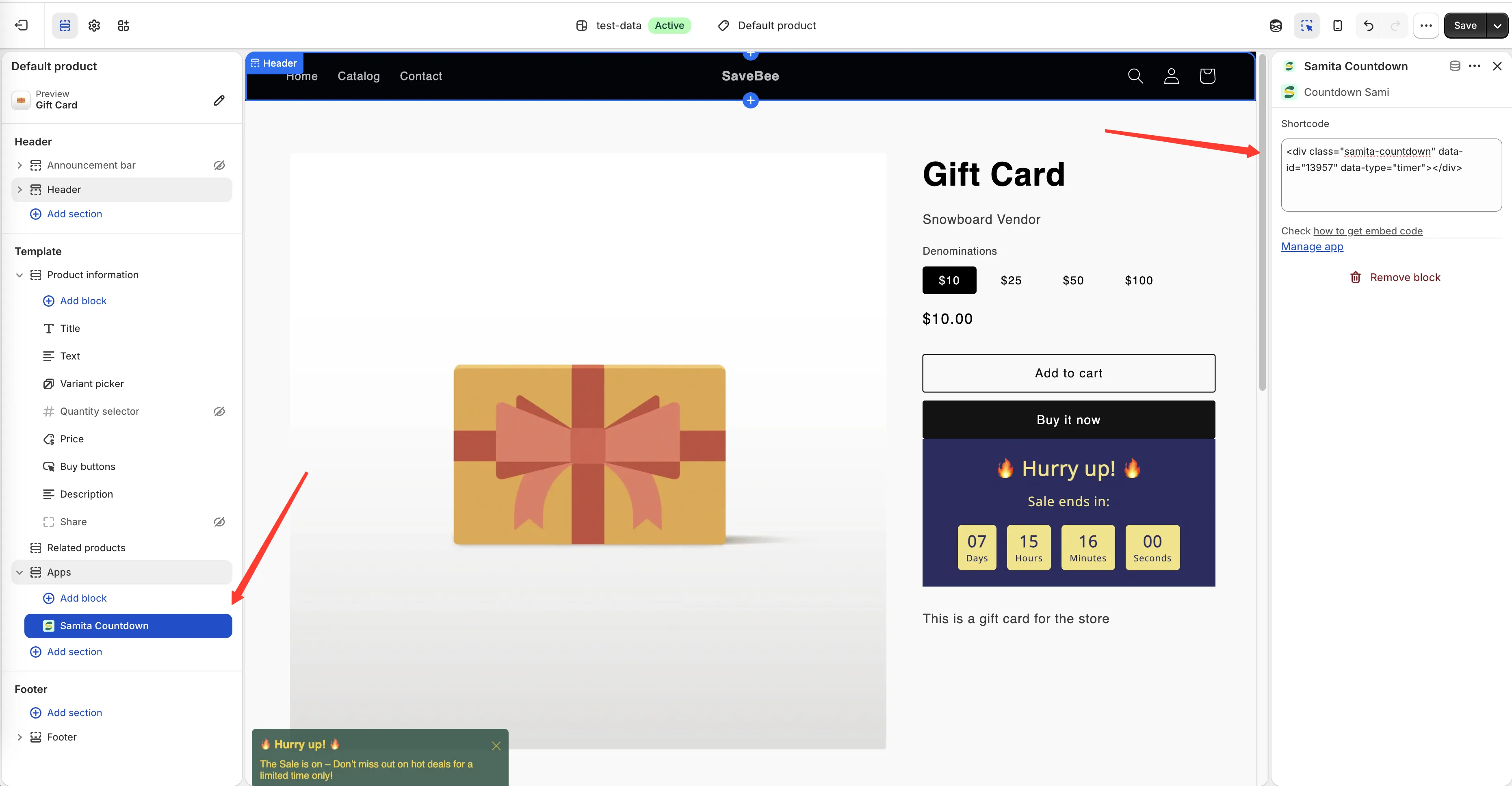
Paste the shortcode into the block’s Shortcode setting.
-
Drag the block where you want it
Section titled “Drag the block where you want it”Move the block up or down within its section until the countdown sits where you want it. The theme editor preview shows the block’s position; the countdown itself renders on the live page.
-
Click Save
Section titled “Click Save”Save the theme. The countdown appears on that page for shoppers straight away.
-
Check the live page
Section titled “Check the live page”Open the page on your live storefront and confirm the countdown renders where you placed the block.
If nothing appears, check that the countdown is Active, that its conditions match this page, and that its timing says it should be visible now.
Using a shortcode and automatic placement together
Section titled “Using a shortcode and automatic placement together”They’re independent. A countdown can have Product page ticked and a shortcode block on your home page, and it renders in both places.
That’s often what you want for a storewide sale: the timer under every Add to cart button, plus a banner at the top of the home page.
The same countdown in several places
Section titled “The same countdown in several places”You can paste the same shortcode into as many blocks as you like, on as many templates as you like. One countdown, one set of settings, rendering everywhere you’ve placed it — change the end date once and every copy follows.
Conditions still apply
Section titled “Conditions still apply”A shortcode gives a countdown somewhere to render; it doesn’t override its conditions.
A countdown restricted to one collection, with a shortcode block on your home page, shows nothing there — the home page isn’t in that collection. If a countdown should appear somewhere its conditions exclude, widen the conditions.
Removing a countdown placed this way
Section titled “Removing a countdown placed this way”Delete the Samita Countdown block from the theme editor and save. Deactivating or deleting the countdown in the app also stops it rendering, but leaves an empty block behind in your theme — tidy it up when you’re done with it.