
Sale popups overview
Small promotional notifications that float on your storefront, with their own list, editor, and settings.
A sale popup is a compact notification that appears in a corner of your storefront — an image, a heading, a line of text, and a close button, optionally linking somewhere. It’s the place to put “The Sale is on” or “Free shipping this weekend” without taking over the page.
Sale popups aren’t a countdown type. They live in their own section of the app, reached from Sale Popups in the app’s menu, and they have their own list page, their own editor, and a shared settings page.
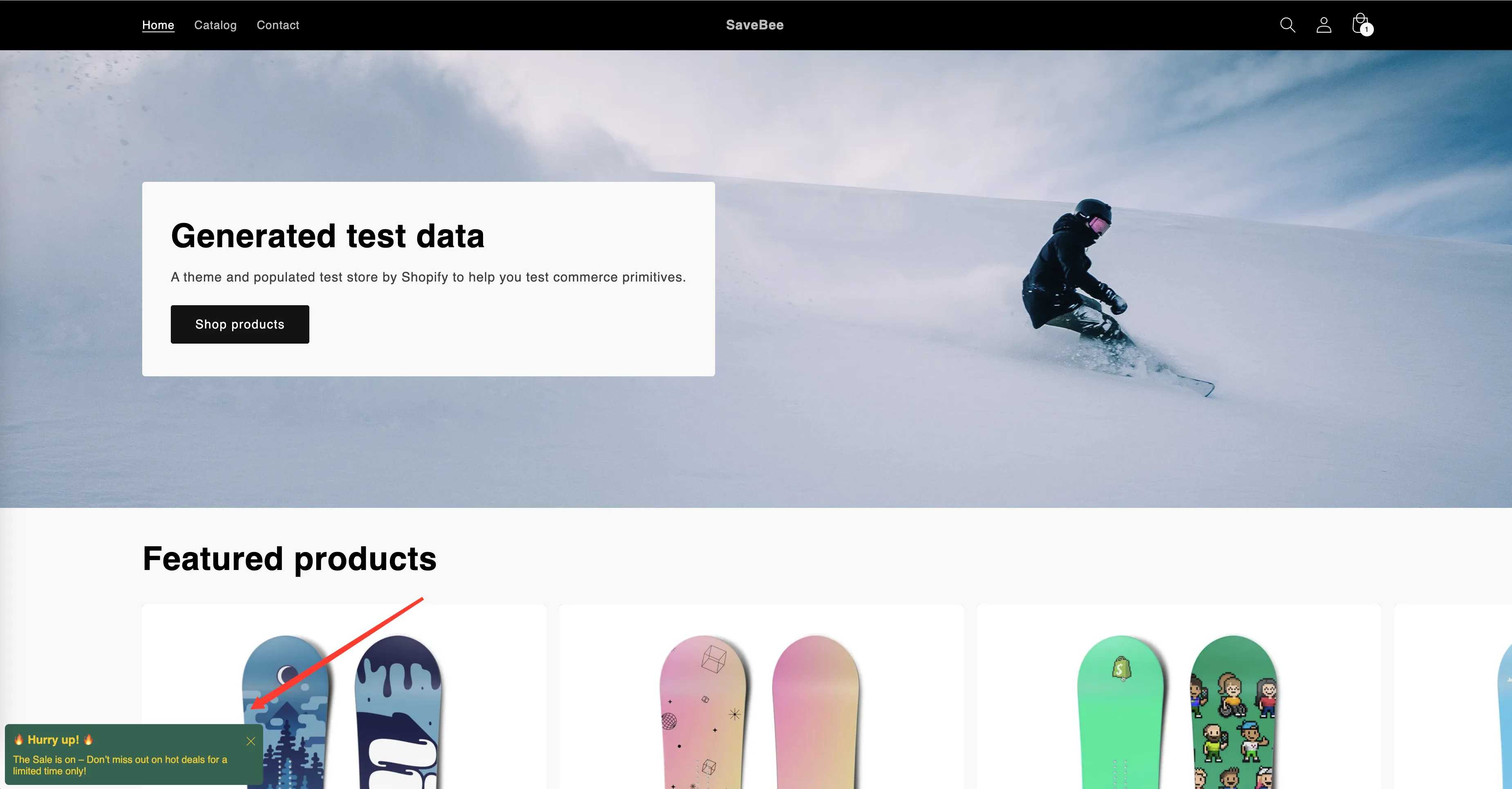
A sale popup on the storefront, in its default bottom-left position.
How a popup is built
Section titled “How a popup is built”The editor has four tabs:
| Tab | What it holds | Guide |
|---|---|---|
| Component | The image, heading, text, and link | Popup content and image |
| Design | Background, position, size, borders, fonts, custom CSS | Design and position |
| Schedule | When it runs, how long it shows, how often | Visibility and schedule |
| Display | Which pages and shoppers see it, plus the shortcode | Display conditions |
On top of those, one Popup General Settings page controls behaviour shared by every popup — timing between pops, how many at once, and the order they run in. See Sale popup general settings.
They place themselves
Section titled “They place themselves”You don’t have to put a popup anywhere. Once it’s Active and its conditions match, the app floats it over the page at the position you set in the Design tab — bottom left by default.
If you’d rather pin one into the page itself, the Display tab has a shortcode for that. See Design and position.
Where to start
Section titled “Where to start”Managing your popups
Section titled “Managing your popups”The Sale Popups page lists them all, with All, Active, and Draft tabs, search, and sorting by date or name. Select popups with the checkboxes to Set as active, Set as draft, Duplicate selected popup(s), or Delete selected popup(s) — the same pattern as the Countdowns list.
The list also shows each popup’s Priority, which decides what happens when more than one popup could show at the same time.