
Manage banners
Find, sort, duplicate, publish, and delete banners from the list page.
Banners in the app menu lists everything you’ve built.
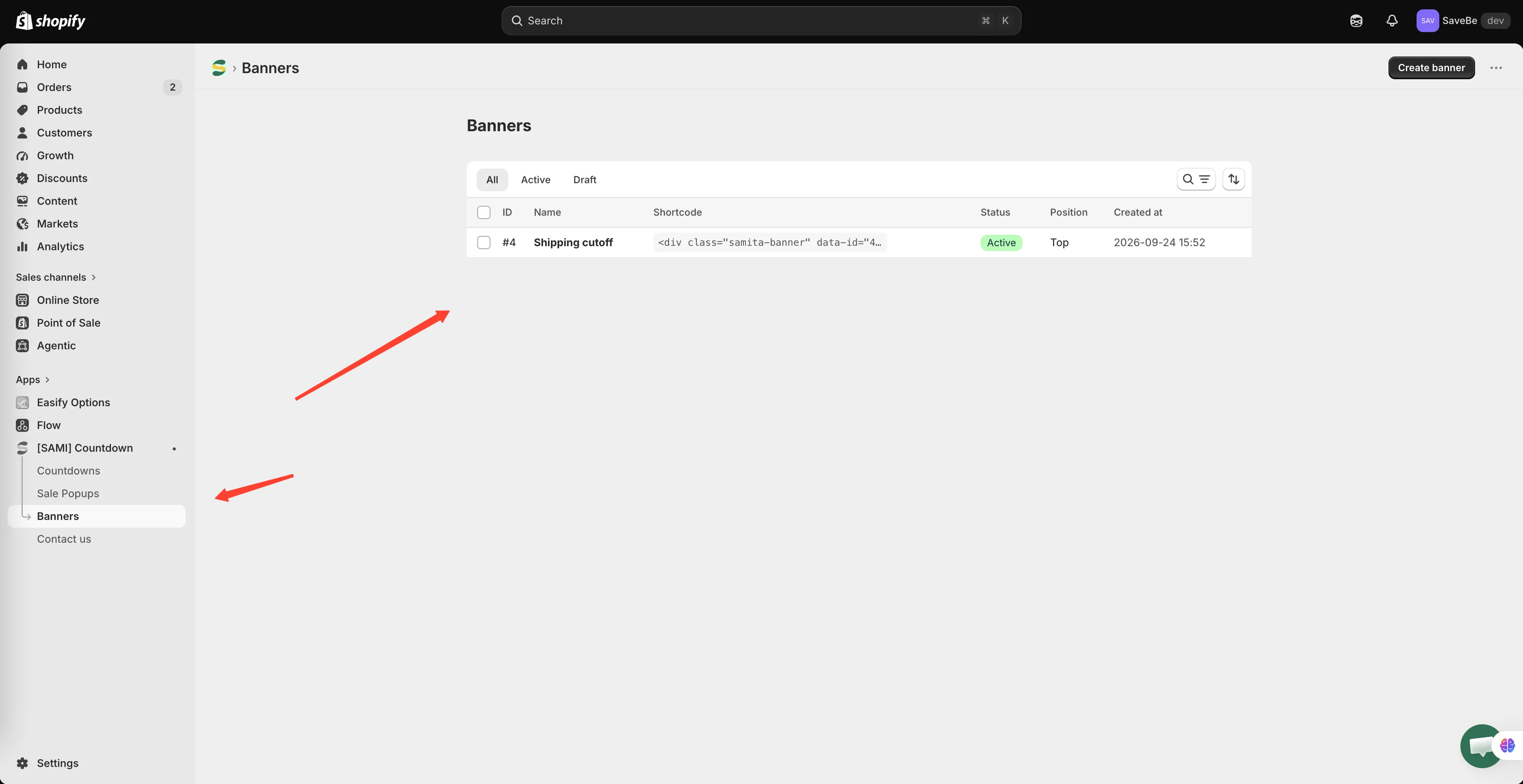
One row per banner, newest first.
The columns
Section titled “The columns”| Column | What it tells you |
|---|---|
| ID | The number the shortcode uses |
| Name | What you called it |
| Shortcode | The snippet to paste, for a banner placed at a custom position |
| Status | Active or Draft |
| Position | Top, Footer, Sticky, or Custom |
| Created at | When you made it |
Finding one
Section titled “Finding one”- All, Active, and Draft tabs narrow the list by status
- The search icon filters by name
- The sort icon orders by date or name, newest or oldest first
Working on several at once
Section titled “Working on several at once”Tick the checkboxes and a row of actions appears:
| Action | What it does |
|---|---|
| Set as active | Publishes them to the storefront |
| Set as draft | Takes them off the storefront, keeping the record |
| Duplicate | Copies them, so you can vary one without losing the original |
| Delete | Removes them for good |
Editing one
Section titled “Editing one”Click a row. The builder opens over the list; close it and you’re back where you were.
Why a banner might not be showing
Section titled “Why a banner might not be showing”It has to be Active, its conditions have to match the page, it has to be inside its schedule, and the shopper must not have closed it already.
The app embed also has to be on. See Turn on the app embed and Countdown not showing — the same checks apply.