
Create a cart countdown
Build a cart timer end to end, from message and duration to a live cart page.
This guide builds a complete cart countdown: a message with a running timer, a duration, a style, and an action for when the clock runs out.
Make sure the app embed is on before you start.
Steps to set it up
Section titled “Steps to set it up”-
Create the countdown
Section titled “Create the countdown”Click Create countdown from the dashboard or the Countdowns page.
-
Pick the Cart countdown layout
Section titled “Pick the Cart countdown layout”On the Countdown templates page, switch the type tab to Cart countdown and click Select on the default layout.
-
Name it
Section titled “Name it”Something like “Cart hold — 10 minutes”.
-
Write the message
Section titled “Write the message”On the Settings tab, open Content and edit the Message. A new cart countdown starts with:
🔥 Hurry up! Your cart will be lost in {timer} !!
{timer}is replaced with the running clock. Keep it in the sentence — without it there’s no countdown, just a warning.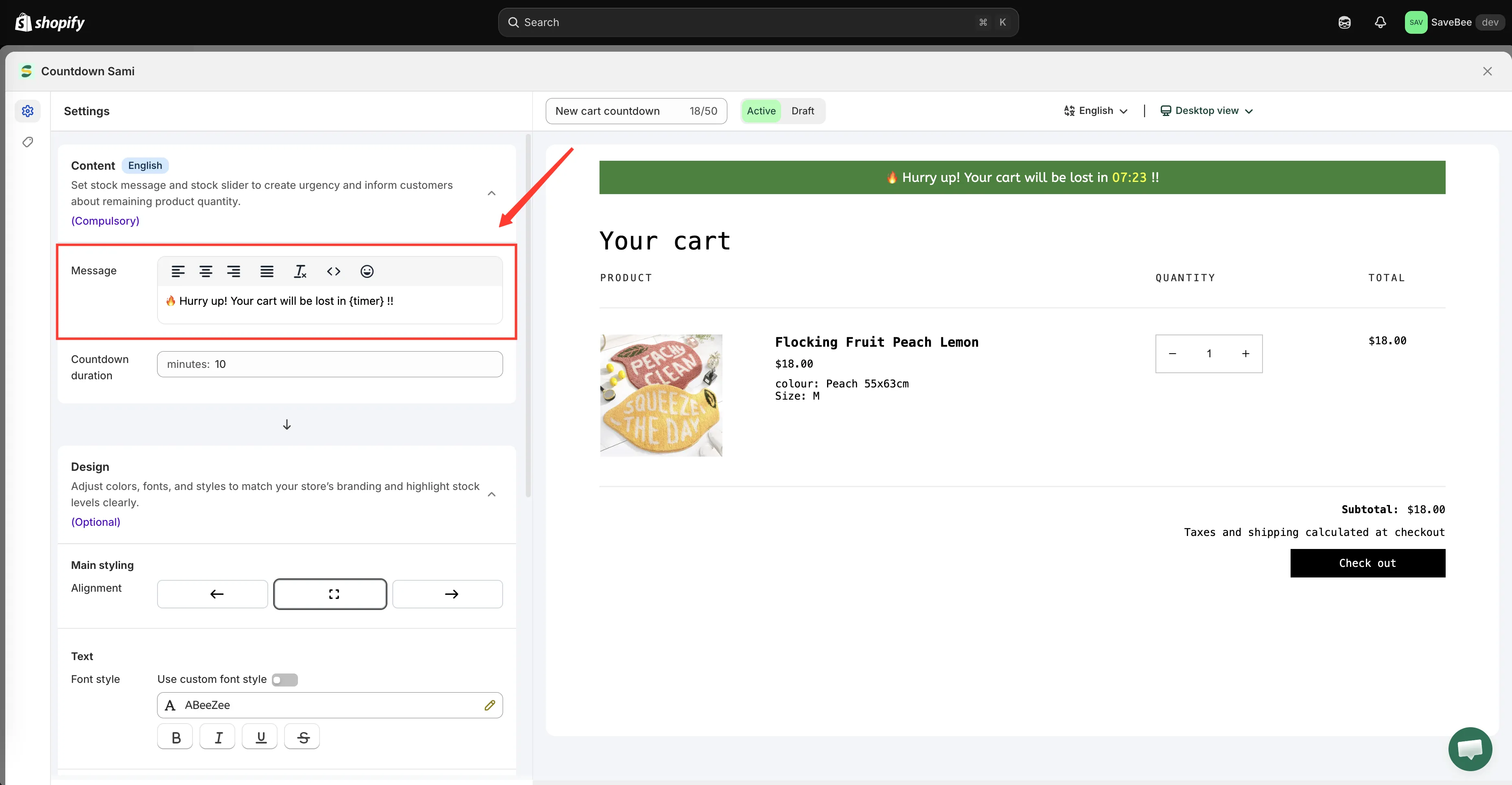
{timer} renders the running clock inside your message.
-
Set the duration
Section titled “Set the duration”Still in Content, set Countdown duration in minutes. The default is 10.
Long enough for a shopper to finish checking out without feeling chased, short enough to matter. Most stores land between 10 and 20 minutes.
-
Style it
Section titled “Style it”Use the design controls in the Settings tab to set the position, colors for the message, timer and background, borders, and fonts. A cart countdown doesn’t have a separate Design tab — its options live here.
The message sits at the top of the cart, so it’s worth keeping it visually quieter than your checkout button.
-
Choose what happens at zero
Section titled “Choose what happens at zero”Switch to the Display tab. For a cart countdown, this tab carries Action after time expired:
- Go to the homepage without clearing cart — the default
- Hide the message and do nothing
- Clear the cart and redirect to — with a URL field
Pick carefully: one of these deletes the shopper’s cart. See When the cart timer expires before choosing.
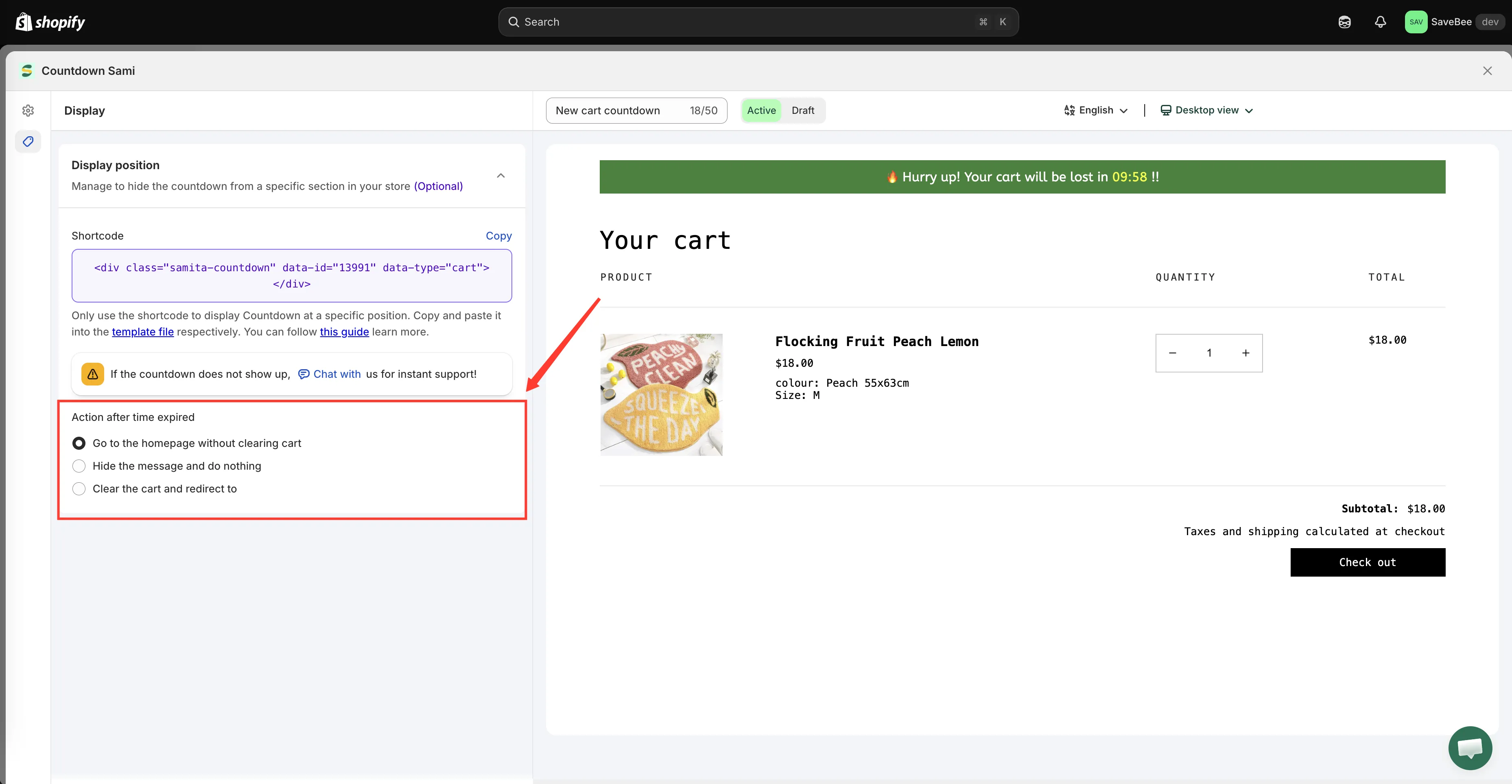
The Display tab of a cart countdown carries the expiry action.
-
Set conditions if you need them
Section titled “Set conditions if you need them”The Conditions section still applies — you can restrict the cart countdown by customer, language, or country, for instance. Leave it as it is to show the timer on every cart. See Display conditions.
-
Save it as Active
Section titled “Save it as Active”Set the status to Active and click Save.
-
Check it on your storefront
Section titled “Check it on your storefront”Add something to your cart on your live storefront and open the cart page. The timer should be at the top, counting down from your duration.
Open your cart drawer too, if your theme has one — the countdown appears there as well.
Then check the empty case: remove everything from the cart. With no items, the countdown correctly doesn’t appear.
-
Watch it expire once
Section titled “Watch it expire once”Let a timer run all the way down in a private browser window and confirm the expiry action does what you expect — especially if you chose Clear the cart and redirect to. It’s much better to discover a surprise here than in a support ticket.