
Preview a volume pricing before saving
Try a Volume pricing rule on your real store before you save it, and see what the product, collection and cart pages show.
Bu içerik henüz dilinizde mevcut değil.
Preview lets you check a volume pricing rule on your real store without saving it. Pick a product, a customer and a market, open your store in a new tab, and the app tells you what the product, collection and cart pages show — or, if the rule’s price is not showing, why.
Only you see the preview. Your customers keep getting the rules you have saved, and nothing is written to the rule until you click Save.

Steps to manage
Section titled “Steps to manage”-
Open Preview
Section titled “Open Preview”In the app, create a new volume pricing or open an existing one, set it up the way you want to test it, and click Preview at the top of the page. It works the same for a new rule and for a saved rule with changes you have not saved yet.
The rule is checked first, the same way as when you save it. If something is missing, the error banner opens at the top of the page and Preview does not open until you fix it.
-
Choose what to test
Section titled “Choose what to test”- Product — the product the preview opens on your store. The app starts with a product of the rule; click Change product to pick another one. If the rule applies to Specific products, you choose from the rule’s products instead.
- Customer — who you want to preview as:
- Guest (not logged in) — a visitor who is not signed in.
- A customer — search for one of your Shopify customers. The customer’s name, email and tags are shown; click Refresh to read the tags again from Shopify, or Change to pick another customer.
- Customer tags — type the tags separated by commas, for example
wholesale, vip, to test a customer who has those tags.
- Market — Default market or one of your Shopify markets.
- Rule summary — the rule as it is in the editor right now: Who gets this price?, Which products?, What price?, Where? and When?. The What price? row lists the price tiers, up to four of them (then +N more tiers), and how items are counted: Same Variant, Mix Variants or Mix Products. Click Edit next to a row to close the preview and go to that part of the rule.
-
Click Open preview
Section titled “Click Open preview”Click Open preview. Your store opens in a new browser tab on the product page, with a bar across the top. Keep that tab open.
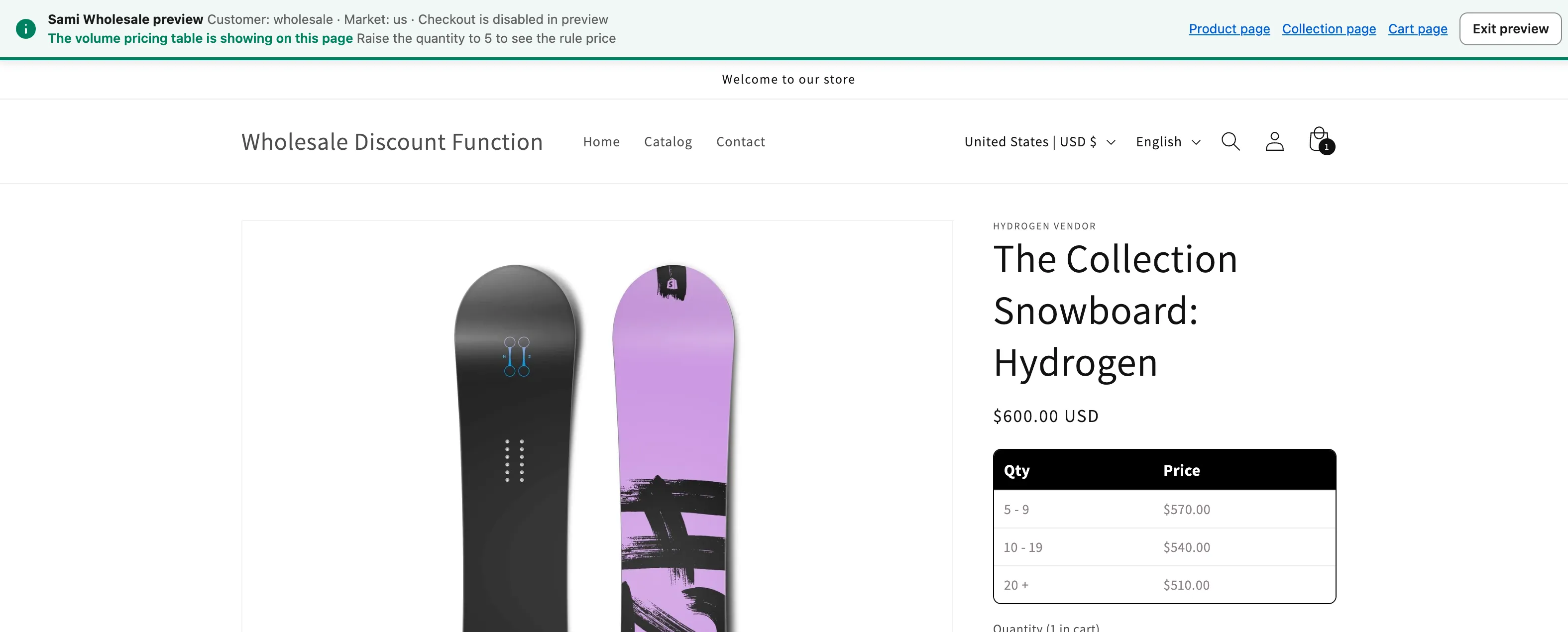
The bar shows the Customer and Market you are previewing as, tells you that Checkout is disabled in preview, and shows what the current page shows. The bar’s colour follows the result: green when the rule price is showing, amber when the rule does not apply, red when your theme is not showing the price, and blue while it waits. For a rule with Specific products it also lists the products the preview runs with. The links Product page, Collection page and Cart page take you to those pages, and Exit preview takes the store back to normal.
If your store has a password, the new tab opens on the password page first. Enter the password there, then click Open preview again.
-
Check the results
Section titled “Check the results”Back in the app, the Results column shows what each page reported. Results come from the store tab: they refresh every 10 seconds, or when you click Refresh results.
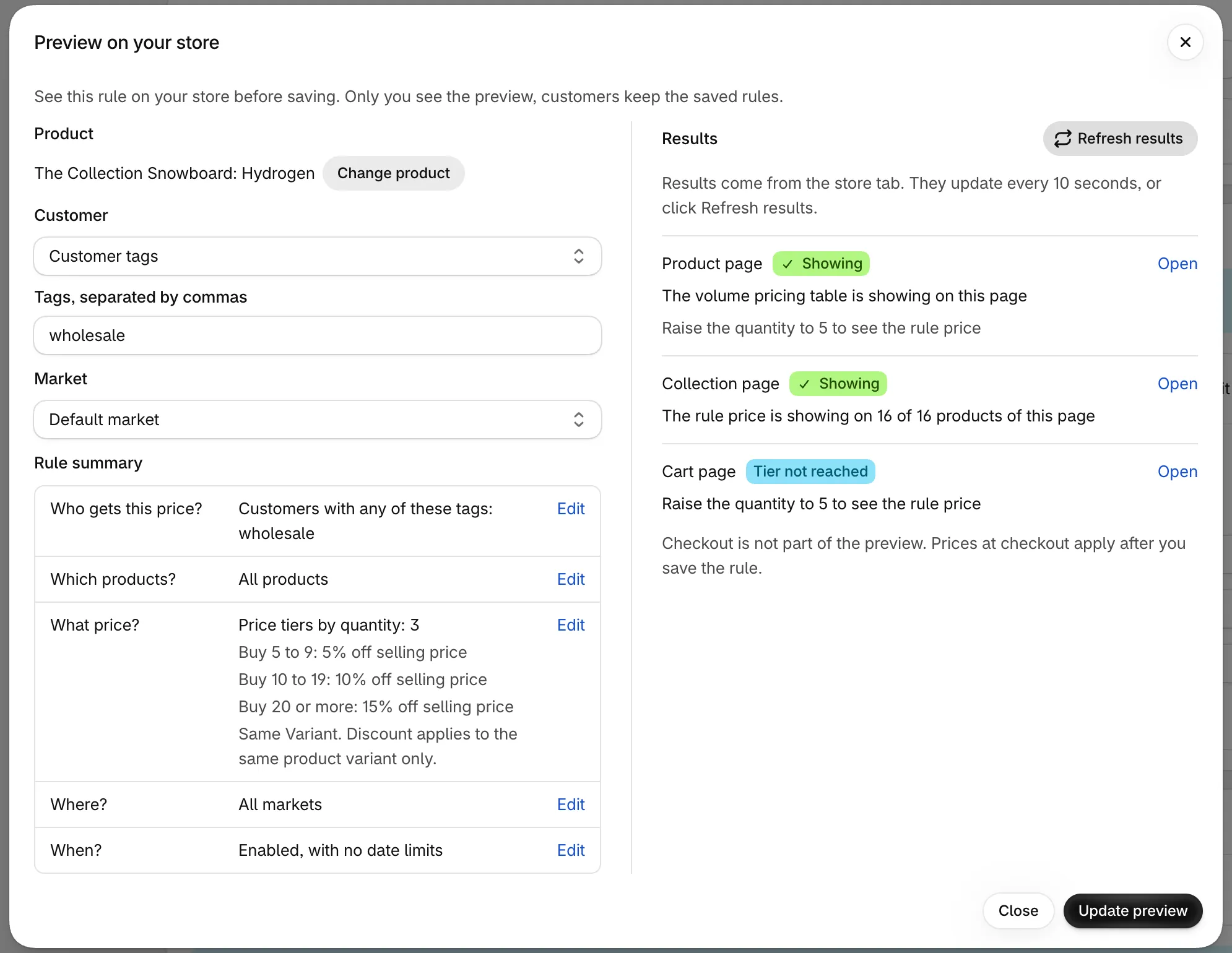
Browse your store in the preview tab to fill each page:
- Product page — opens automatically.
- Collection page — open a collection that lists the product (click Collection page in the bar or Open in the app).
- Cart page — add the product to the cart, then open the cart.
Click Open next to a page to open it in the store tab.
-
Change the rule and update the preview
Section titled “Change the rule and update the preview”Close the preview, change the rule in the editor, and click Preview again. The app remembers your product, customer and market, and a banner says The rule or your choices changed after the store tab was opened. Click Update preview to see them on the store. The same banner appears when you change your choices in the preview. Click Update preview and the store tab uses the new rule.
When you are happy with the result, click Save in the editor as usual.
What the results mean
Section titled “What the results mean”Each page gets a status next to its name.
- Showing — the rule price is showing on the page. The app tells you the price and the original price, for example The rule price is showing ($510.00, original price $600.00). On a page with several products it says how many show the price, for example The rule price is showing on 16 of 16 products of this page, and names the products that do not.
- Not applied — the rule does not apply to this product, customer or market. The reasons are listed under the status. See Why a rule is not applied.
- Theme issue — your rule applies, but your theme is not showing the price. The app tells you to save the rule and contact support so we can fix the theme integration. Click Contact support to open the support chat (or an email, if chat is off) with a ready-made message that names your theme and the page.
- Tier not reached — the rule applies, but the quantity on the page is below the rule’s first price tier. The app tells you what to do: Raise the quantity to 5 to see the rule price, or, for a rule by order amount, Reach $200.00 of this product to see the rule price. On a collection page that has no quantity field, it adds This page has no quantity field. Check it on the product page.
- No status — Waiting for the store page (open the page in the store tab), Waiting. Add the product to the cart, then open the cart. for the cart page, or No preview product on this page. Open a page that lists one of them. when the page you opened does not list the preview product.
On the product page, the volume pricing table can show while the price waits for the first tier. The app then says The volume pricing table is showing on this page and tells you the quantity to reach.

Why a rule is not applied
Section titled “Why a rule is not applied”When a page is Not applied, the reasons come from the same checks your storefront uses for customers. The store tab’s bar shows The rule does not apply here and points you to the details in the app.
| Reason shown | When |
|---|---|
| The rule is outside its active dates | The rule has a start or end date and today is outside it. |
| This market is not one of the rule markets (…) | The market you picked is not one of the markets selected in the rule. |
| Your plan does not include customer tags or specific customers, so this rule does not apply | The rule is set to Customer tags or Specific customers, which your plan does not include. |
| You are previewing as a guest (not logged in). This rule is for customers with the tags (…) | The rule needs customer tags and you previewed as a guest. |
| You are previewing as a guest (not logged in). This rule is for logged-in customers | The rule is for logged-in customers and you previewed as a guest. |
| The rule is only for customers who are not logged in | The rule is for guests only and you previewed as a customer. |
| This customer is not in the rule customer list | The rule is set to Specific customers and this customer is not one of them. |
| The customer has the tags (…), the rule needs (…) / The customer has no tags, the rule needs (…) | None of the customer’s tags matches the rule’s customer tags. |
| This customer is excluded from the rule | The customer is in the rule’s excluded customers or has an excluded tag. |
| The product is not part of the rule products | The product is not one of the rule’s products or tags. |
| On your store, this product is not in the rule collections. A collection that is not available on the Online Store sales channel does not count. | The rule applies to collections, and the store does not list the product in them. |
| The product is over the number of products your plan allows in a rule | The product is beyond the number of products your plan allows in one rule. |
| This variant is not part of the rule / This variant is excluded from the rule | The variant on the page is not selected in the rule, or is excluded from it. |
| The product is excluded from the rule | The product is in the rule’s excluded products or collections. |
| A Volume pricing rule has priority on this product (#id), so customers get that rule / Another Wholesale pricing rule has priority on this product (#id), so customers get that rule | Your preview rule matches, but another active rule is the one the store uses for this product and customer. |
Good to know
Section titled “Good to know”- Checkout is not part of the preview. The checkout buttons are disabled in the preview tab, and the app shows Checkout is disabled in preview. Prices at checkout apply after you save the rule.
- A draft rule is shown as active. If the rule’s status is Draft, a banner tells you the preview shows it as active, but customers will not see it until you set it to Active.
- The app embed must be on. If the app embed is off on your live theme, a banner tells you to turn it on, and Open preview is disabled. See Activate/Deactivate app in the theme.
- No signal from the store tab. If nothing comes back after a few seconds, a warning lists the likely causes: the store has a password (enter it in the store tab, then click Open preview again), the browser blocked the new tab or an extension blocks the app script, or the app embed is off on the live theme.
- How long a preview lasts. A preview lasts 30 minutes. Each time the store tab reports a result, it lasts another 30 minutes, up to 2 hours from when you first opened it. After that the app says The preview expired. Open it again.
- Markets. The store tab switches to the market you picked. If you change the market on the store yourself afterwards, the preview follows the store’s market. The bar always shows the market the tab is on.
- Rules with Specific products. The preview runs with up to 15 products of the rule, the one you chose first, and lists them in the app (Preview runs with … products of this rule) and in the bar.
- Your plan still applies. The preview follows your plan: if your plan’s revenue limit is reached, or your plan does not allow more rules or does not show this rule, the app tells you instead of opening the preview.
Need support?
Section titled “Need support?”If you do encounter any difficulty while proceeding these steps, don’t show any hesitation to contact us promptly via the email address support@samita.io.