
Dynamic variables
Reference for dynamic variables that auto-populate text badges with live product and customer data.
Dynamic variables insert live product, inventory, customer, discount, and review data into your text badges. Instead of writing a static message like “20% Off,” use {sale} and the badge automatically shows the correct discount percentage for each product.
Available variables
Section titled “Available variables”Insert dynamic text groups the variables into four categories, and this table follows the same grouping.
Product
Section titled “Product”| Variable | Description | Example output |
|---|---|---|
{product_vendor} |
Product vendor | By Nike |
{product_type} |
Product type | T-Shirt |
{product_sku} |
Product SKU | SKU: TS-BLK-001 |
{inventory} |
Total items available in inventory | Only 5 left |
{product_variant_count} |
Number of variants | 3 options available |
{product_metafield} |
Value of a product metafield you pick | Organic Cotton |
{variant_metafield} |
Value of a variant metafield you pick | Size EU 42 |
Pricing
Section titled “Pricing”| Variable | Description | Example output |
|---|---|---|
{sale} |
Discount percentage off the compare-at price | Save 20% |
{sale_amount} |
Discount amount off the compare-at price | Save $36.00 |
Sami Discount
Section titled “Sami Discount”| Variable | Description | Example output |
|---|---|---|
{sami_discount_value_percent} |
Percentage of the Sami discount on the product | 20% |
{sami_discount_value_amount} |
Amount of the Sami discount on the product | Save $10.00 |
{sami_discount_code} |
The discount code (code discounts only) | SUMMER20 |
{sami_new_price} |
The price after the Sami discount | Now $40.00 |
Advanced
Section titled “Advanced”| Variable | Description | Example output |
|---|---|---|
{customer_order_total} |
Customer’s total order count | 12 orders placed |
{customer_spent_total} |
Customer’s total spend | $1,250.00 spent |
{product_rating_star} |
Product’s average star rating, from your review app | 4.8 stars |
{product_number_of_star} |
Number of reviews on the product | 126 reviews |
{countdown} |
Countdown to the visibility end date, Style 1 | 12Days 20Hrs 50Mins 40Secs |
{countdown_2} |
The same countdown in Style 2, with each unit boxed | 12 : 20 : 50 : 40 |
Money values follow your store’s currency format, so the examples above appear in your own currency.
How to insert a variable
Section titled “How to insert a variable”-
Open a text badge
Section titled “Open a text badge”Create a Text badge or open an existing one. In Design, expand Content and find the Badge text editor.
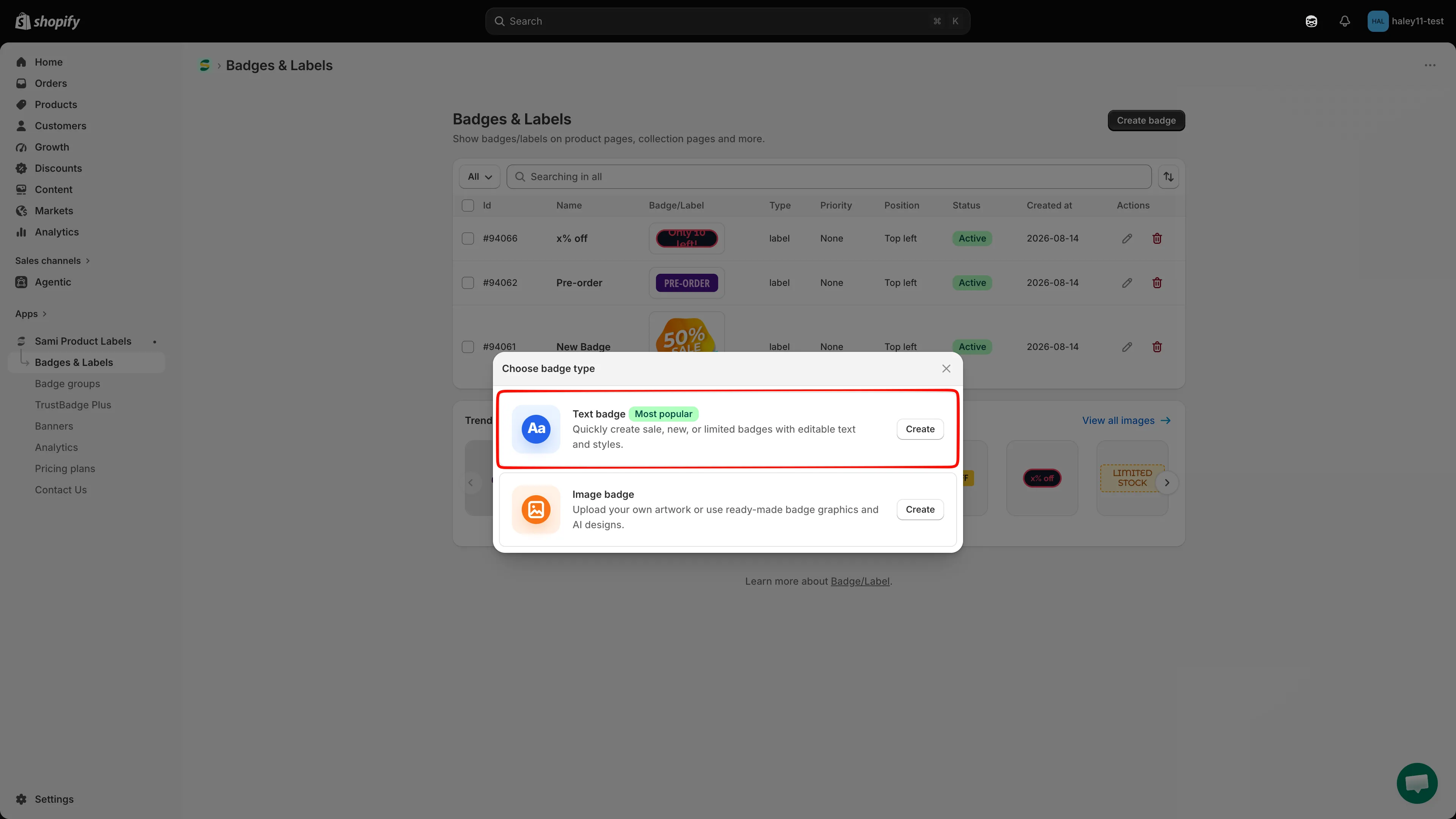
In Choose badge type, select Text badge to create a badge that supports dynamic variables.
-
Open Dynamic text
Section titled “Open Dynamic text”Click Dynamic text in the Badge text toolbar. The Insert dynamic text dialog opens with every available variable, each showing its token, a sample value, and what it does.
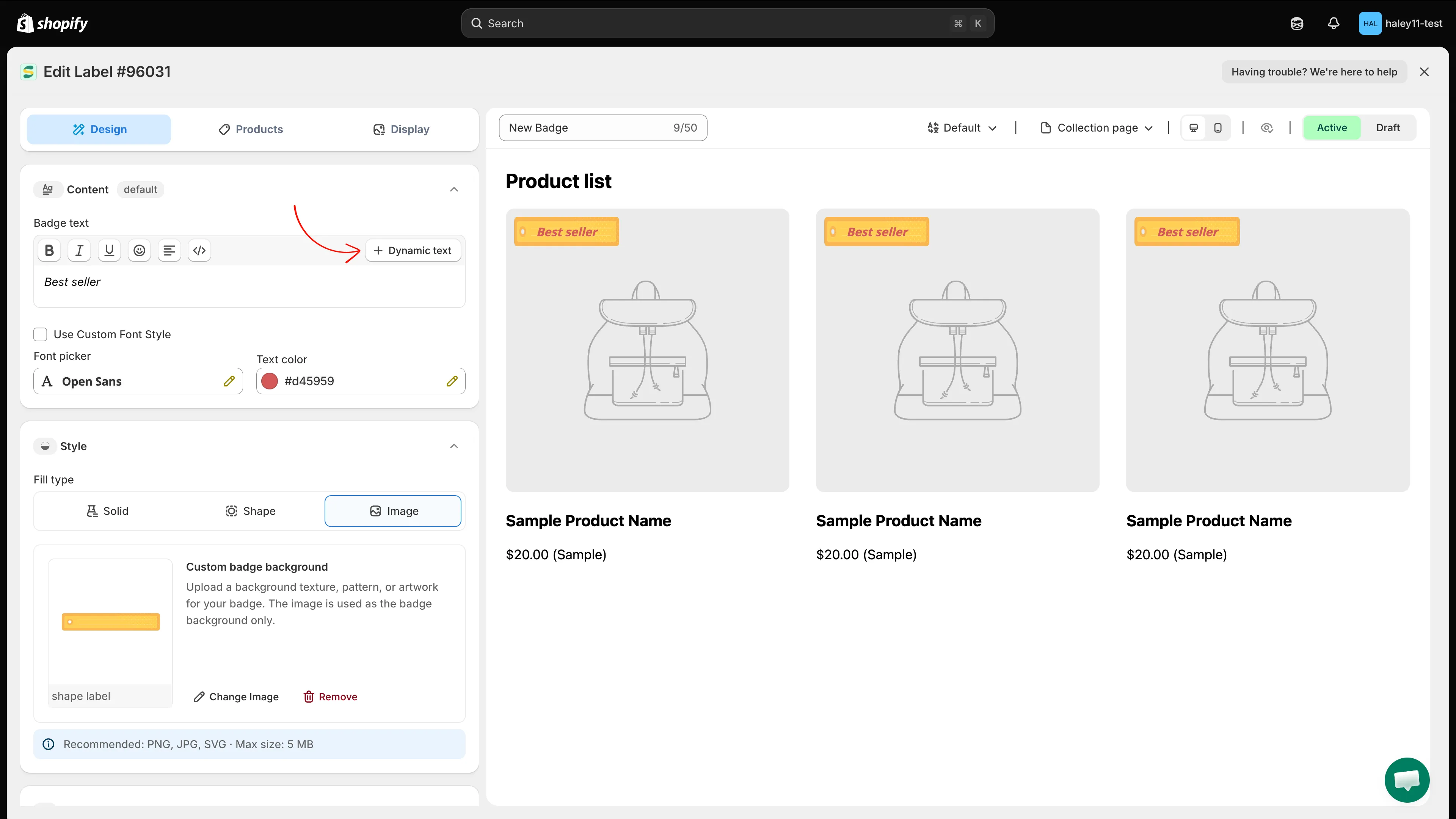
Dynamic text sits in the Badge text toolbar, beside the formatting buttons.
-
Find the variable you want
Section titled “Find the variable you want”Two ways to narrow the list:
- Search — type into the field at the top. It matches the token, the description, and related words, so
stockfinds{inventory}andratingfinds{product_rating_star}. - Category tabs — All, Pricing, Sami Discount, Product, and Advanced, each with a count of how many variables it holds. All keeps the categories as headed groups so the list stays readable.
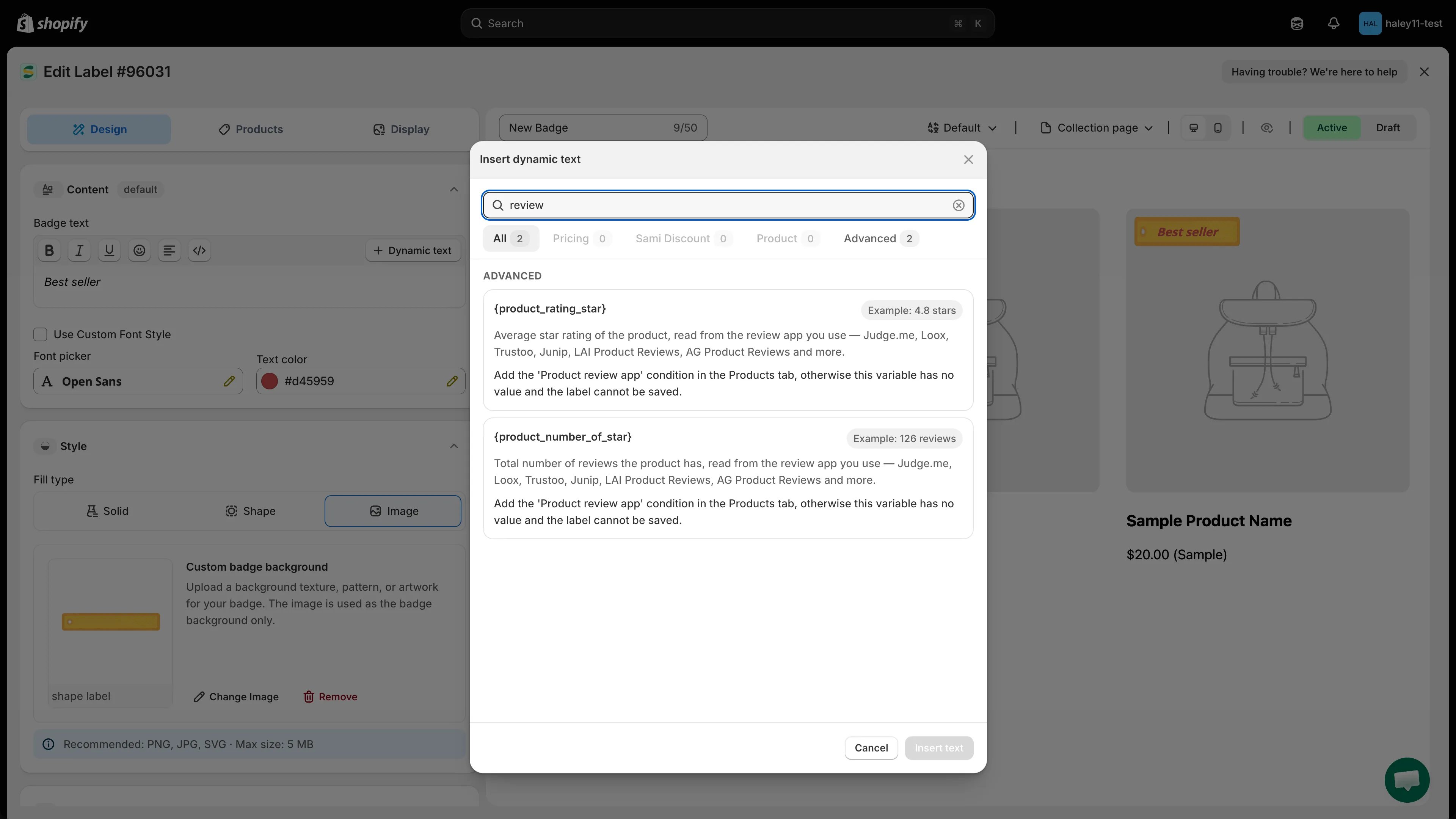
Search by keyword or switch tabs to narrow a long list.
- Search — type into the field at the top. It matches the token, the description, and related words, so
-
Select the variable
Section titled “Select the variable”Click the variable’s row. It highlights to show it is the one that will be inserted.
Some variables have options on the row — see Variables that need setting up below.
-
Click Insert text
Section titled “Click Insert text”Insert text is the dialog’s primary button, and it stays disabled until you have selected something. Clicking it closes the dialog and adds the variable to the end of your badge text, so the wording you already wrote stays where it is.
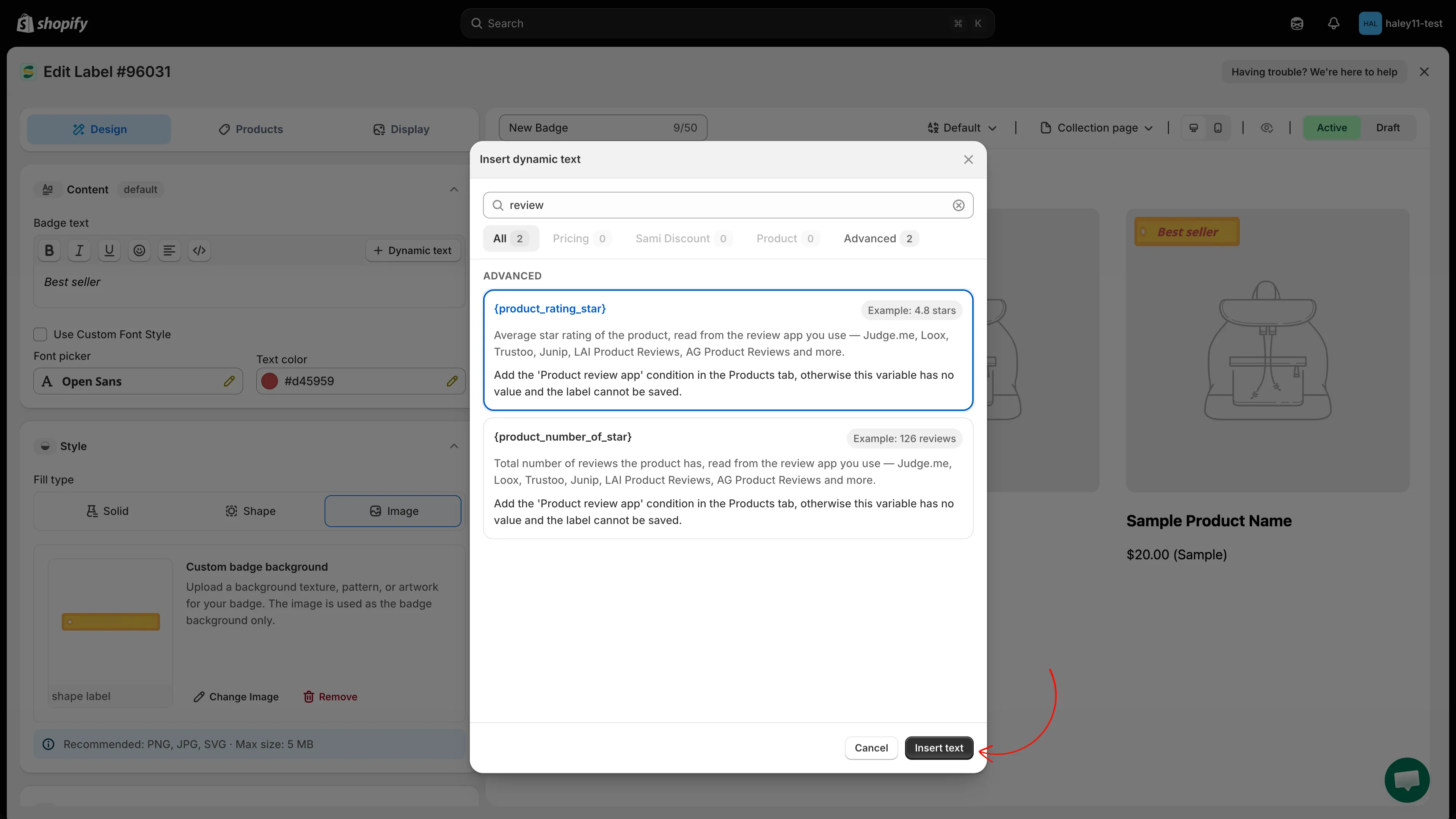
Insert text adds the variable to the end of the badge text and closes the dialog.
Position it by dragging the token in the editor, or type the rest of your message around it.
-
Preview and save
Section titled “Preview and save”Check the badge preview — variables show sample values there, not the live data. Configure Products and Display as needed, then click Save & Enable.
You can also type a token such as {sale} or {inventory} straight into the editor, exactly as shown, including the curly braces. Use Dynamic text for metafields and the countdown styles, because those tokens are built for you.
Variables that need setting up
Section titled “Variables that need setting up”Four kinds of variable need something in place before they resolve.
Product and variant metafields
Section titled “Product and variant metafields”Select the {product_metafield} or {variant_metafield} row and it expands into the metafield definitions in your store — no namespace or key to type. Tick the ones you want, use the panel’s own search to narrow a long list, and click Load more to see the rest. A badge on the row counts how many you have ticked.
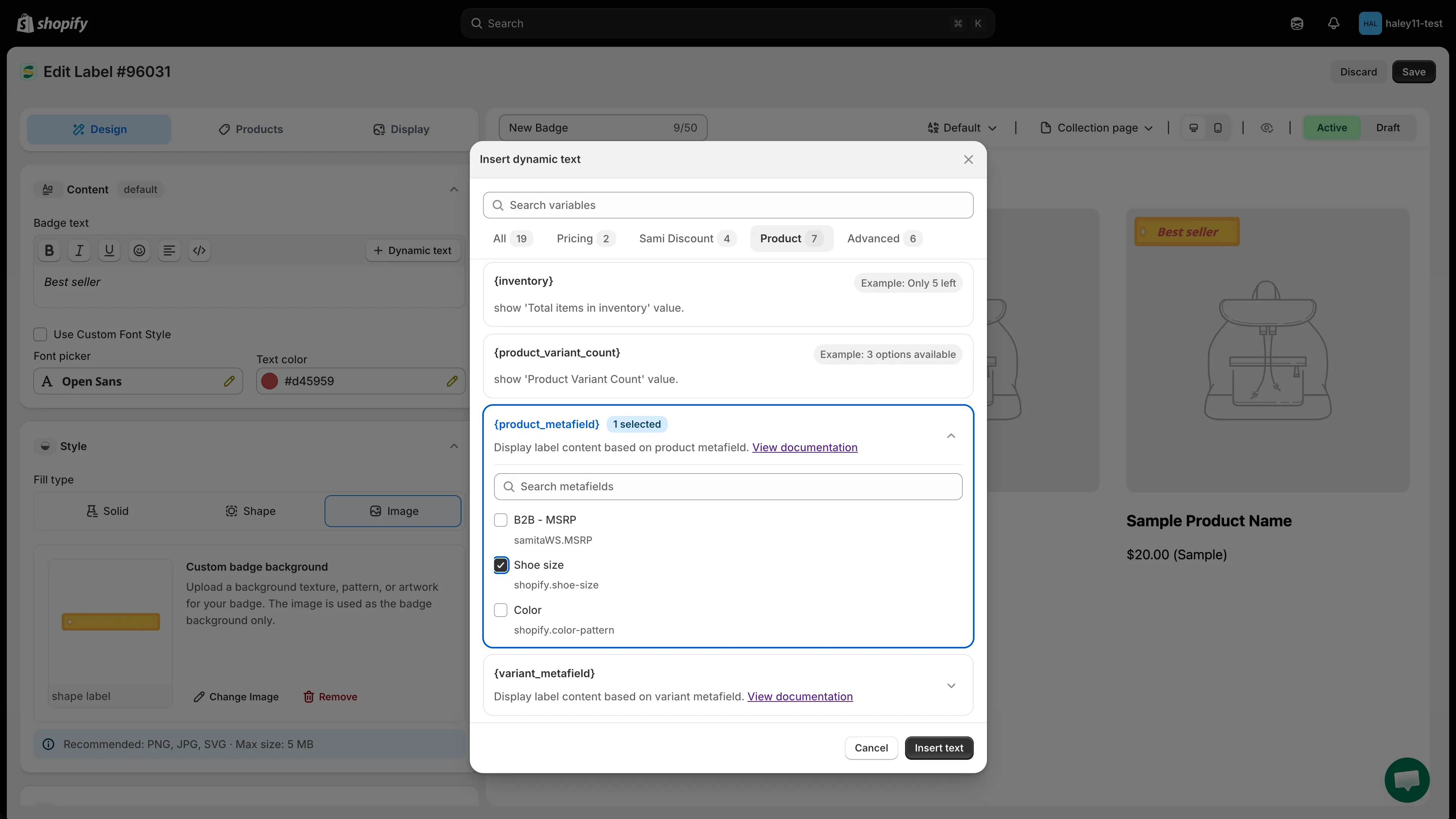
Tick a metafield to attach it to the badge; the panel lists the definitions your store already has.
Insert text then writes a token for every metafield you ticked, in the app’s own form — {product.metafields.custom.material} rather than the generic {product_metafield}. Tick one metafield at a time if you want to place them separately in the text.
Countdown
Section titled “Countdown”The countdown comes as two separate tokens, listed as Style 1 and Style 2 with a preview of each on the row. Pick the style you want before inserting — {countdown} gives the plain run of units, {countdown_2} boxes each number.
Both read the end date under Display > Visibility Date & Countdown, so set that date or the countdown has nothing to count to.
Sami discount
Section titled “Sami discount”The four {sami_discount_*} variables read a discount you built on the Discounts page, so the badge has to be scoped to it: the Products tab needs Products matching conditions with the Sami discount condition. Saving a discount and clicking Create badge sets that up for you.
Without the condition, the variable’s row warns you in red and the save is blocked.
Product review
Section titled “Product review”{product_rating_star} and {product_number_of_star} read your review app, so the badge needs the Product review app condition on the Products tab. The same red warning and save block apply. See Show badges from your review app.
Sale auto-hide
Section titled “Sale auto-hide”{sale} and {sale_amount} each carry a Hide label if the product/variant is not on sale checkbox on their row. Tick it and the badge disappears on full-price products instead of printing “Save 0%”.
Important notes
Section titled “Important notes”Example use cases
Section titled “Example use cases”Here are some common ways merchants use dynamic variables in their text badges:
| Badge text | What customers see | Use case |
|---|---|---|
| Save {sale}! | Save 25%! | Highlight the discount percentage on sale items |
| Only {inventory} left! | Only 3 left! | Create urgency with low-stock warnings |
| Ships from {product_vendor} | Ships from Nike | Show the product vendor for multi-vendor stores |
| {product_variant_count} options available | 5 options available | Let customers know a product comes in multiple variants |
| {countdown} left! | 2d 05h 30m left! | Create urgency with a countdown to the end of a sale |
| VIP: {customer_order_total} orders | VIP: 8 orders | Reward loyal customers with personalized badges |
| You have spent {customer_spent_total} | You have spent $450.00 | Show customers their spending history for loyalty programs |
| {product_rating_star} star | 4.8 star | Put the product’s own rating on the badge as social proof |
| Loved by {product_number_of_star} customers | Loved by 126 customers | Turn a high review count into a reason to buy |
| Use {sami_discount_code} for {sami_discount_value_percent} off | Use SUMMER20 for 20% off | Advertise a discount code on the products it covers |
Next steps
Section titled “Next steps”- Dynamic variables reference — Review the complete variable list and availability notes.
- Create a text badge — Build a text badge and insert dynamic variables.
- Schedule badge visibility — Set start and end dates to control when badges appear, and pair with the countdown variable.
- Target products — Control which products display each badge using conditions.
- Show badges from your review app — Target products by rating and print the score on the badge.