
Use matching conditions
Discount every product that matches a collection, a title keyword, or a tag — and leave the exceptions out — instead of picking products one by one.
Matching conditions is the third mode on the Product conditions tab. Instead of listing products, you describe them: a collection they belong to, a word in their title, a tag they carry. Any product that fits is discounted, including the ones you add to your catalogue later.
How the rules combine
Section titled “How the rules combine”Two rules govern the whole tab:
- Between conditions — AND. A product gets the discount only when it matches every condition you turn on.
- Within one condition — OR. Matching a single value of that condition is enough.
An exclusion overrides everything: a product that matches an exclusion never gets the discount, even when it matches every condition above.
Set up matching conditions
Section titled “Set up matching conditions”-
Switch the product mode
Section titled “Switch the product mode”Open a discount, go to the Product conditions tab, and select Matching conditions — Discount every product that matches the collections, titles or tags you set.
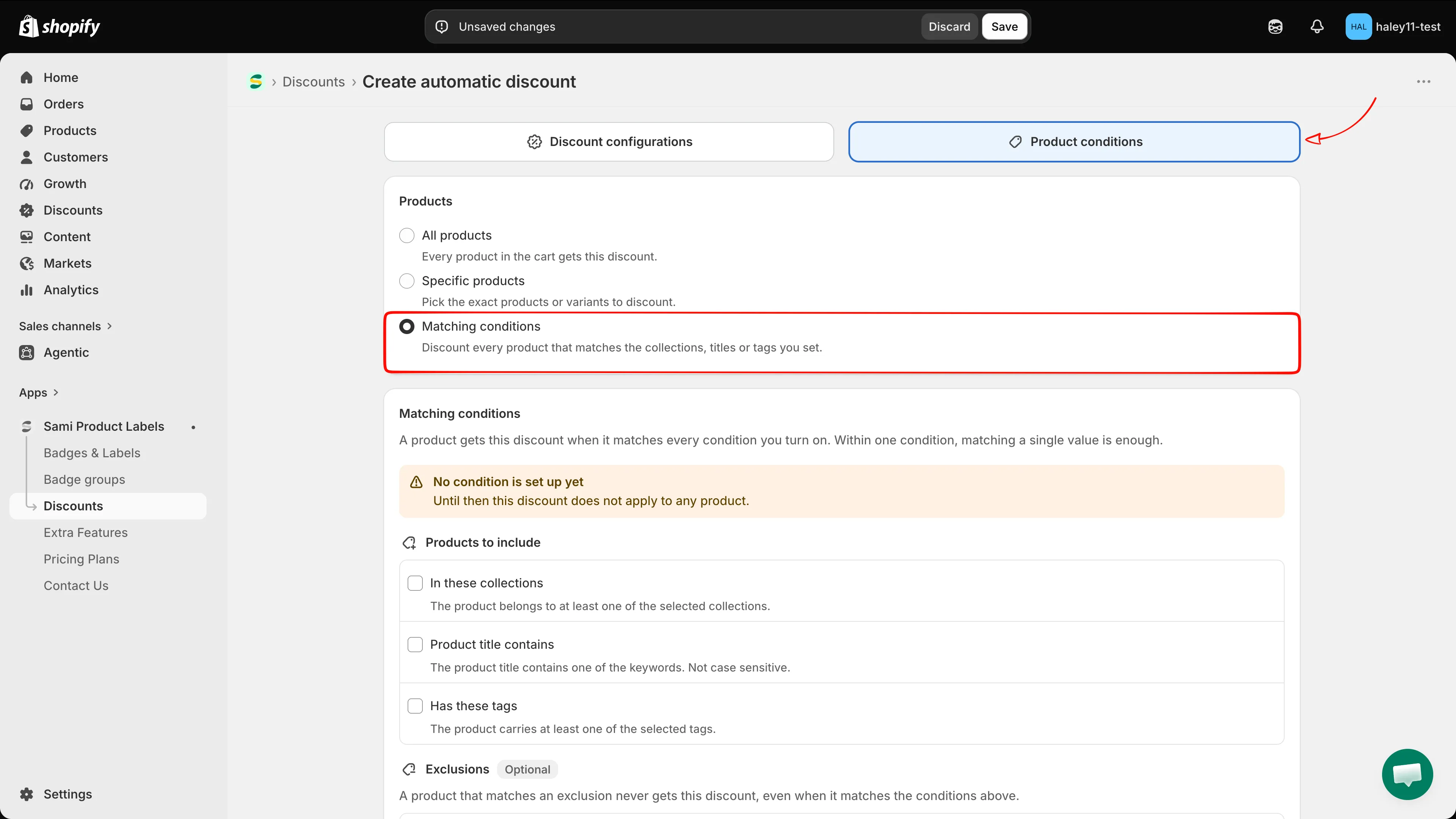
Choosing Matching conditions reveals the condition list below.
The section opens with an orange banner — No condition is set up yet. Until then this discount does not apply to any product. It clears as soon as one condition is turned on and given a value.
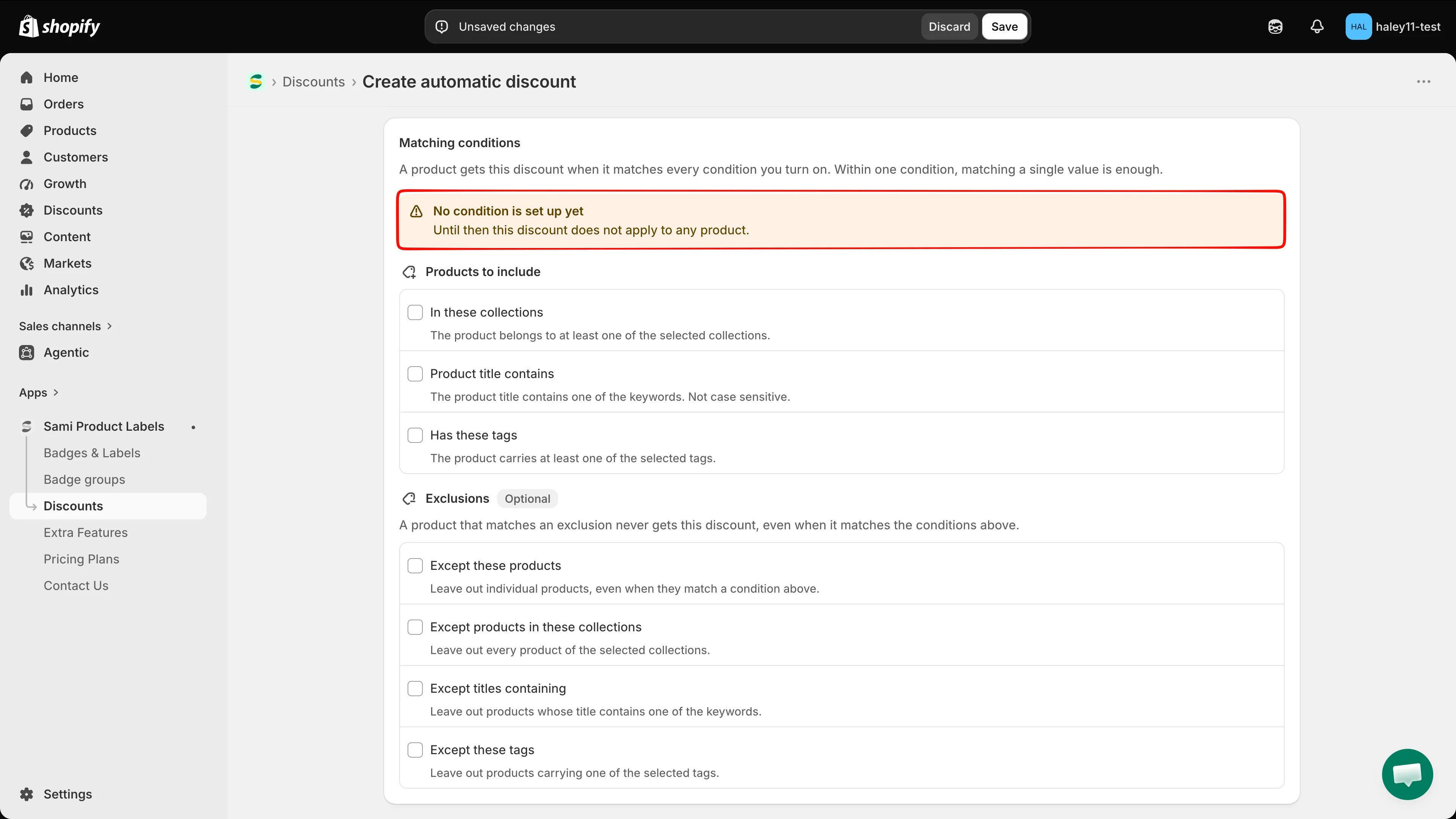
A discount with no condition matches nothing, so the warning stays until you set one.
-
Turn on the conditions that describe your products
Section titled “Turn on the conditions that describe your products”Products to include holds three conditions. Tick the ones you need — each opens its own editor underneath.
Condition Matches when… You add In these collections The product belongs to at least one of the selected collections. Collections, through the Shopify collection picker. Product title contains The product title contains one of the keywords. Not case sensitive. Keywords you type. Has these tags The product carries at least one of the selected tags. Product tags from your store. 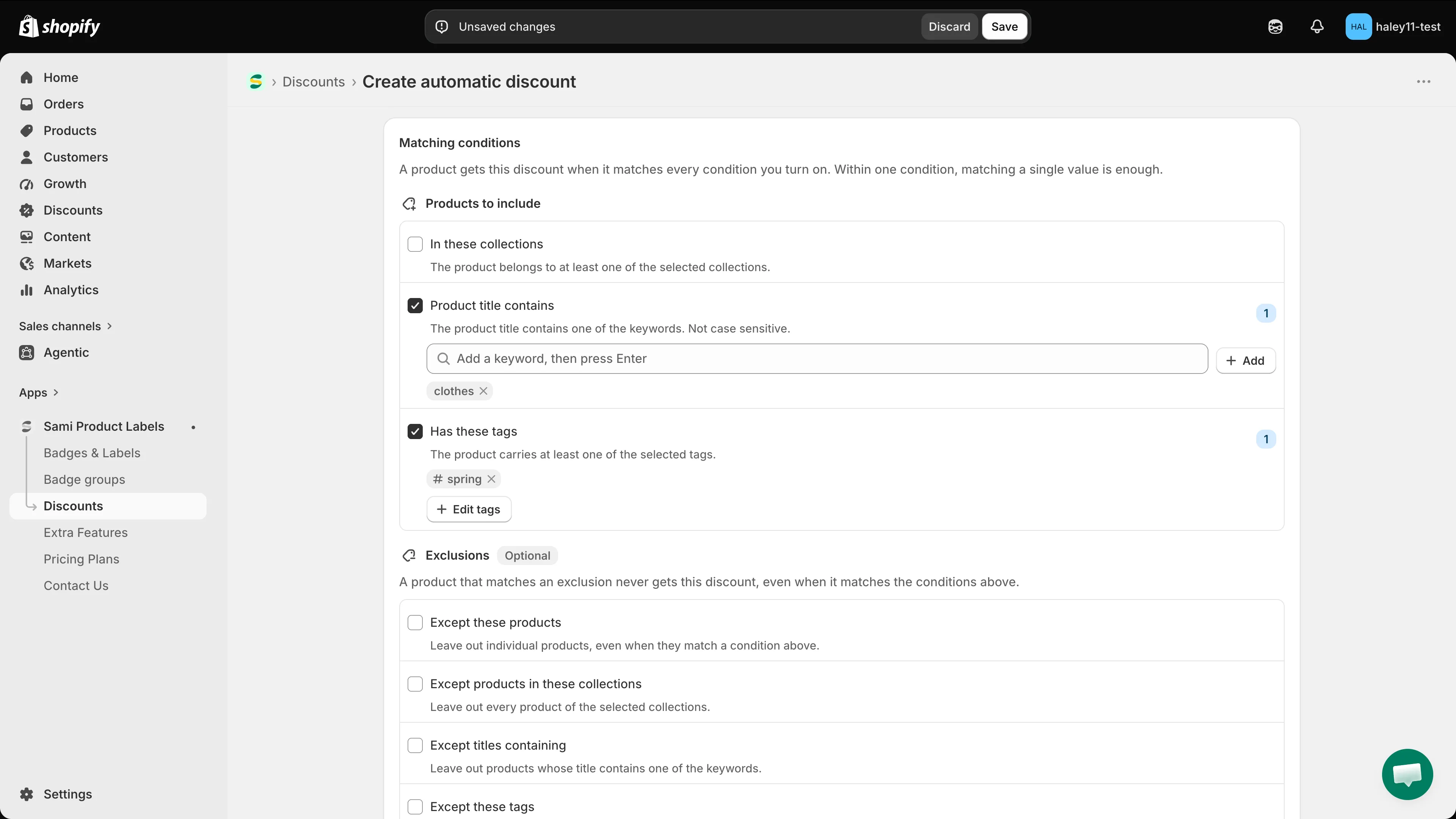
Each row explains how it matches, so you never have to guess.
A counter on the right of each active row shows how many values it holds. A row with no value yet shows an orange Not set badge instead, and the banner at the top changes to Some conditions have no value yet.
-
Add collections
Section titled “Add collections”Under In these collections, click Add collections to open the Shopify collection picker, select the collections, and confirm. They appear as chips; the x on a chip removes it, and the button becomes Edit collections once at least one is selected.
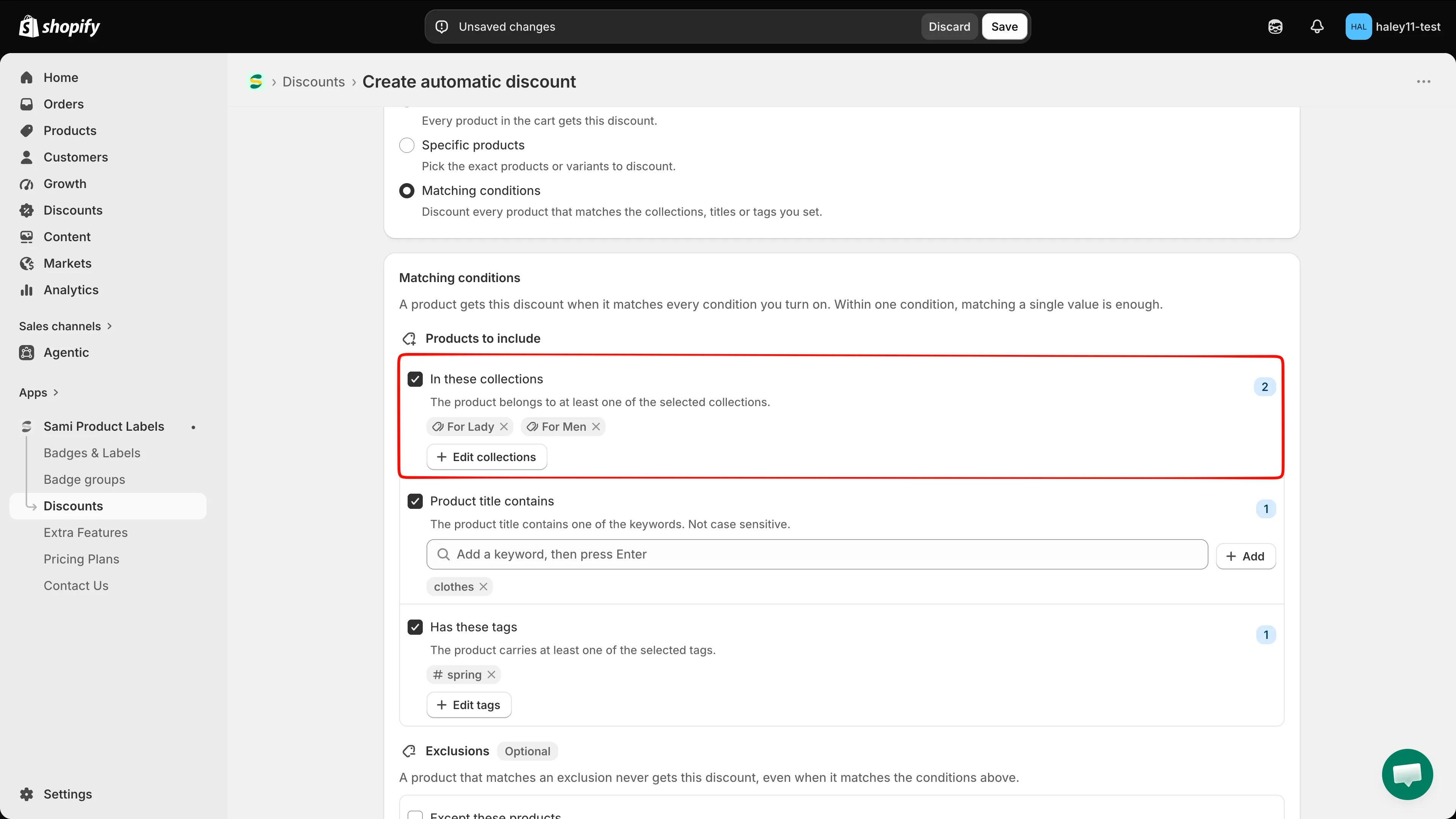
Any product in one of these collections matches the condition.
-
Add title keywords
Section titled “Add title keywords”Under Product title contains, type a word into the keyword field and press Enter — or click Add. Each keyword becomes a chip you can remove with its x.
Matching is not case sensitive, and a keyword matches anywhere in the title:
hoodiematches Blue Hoodie and Hoodie Classic alike.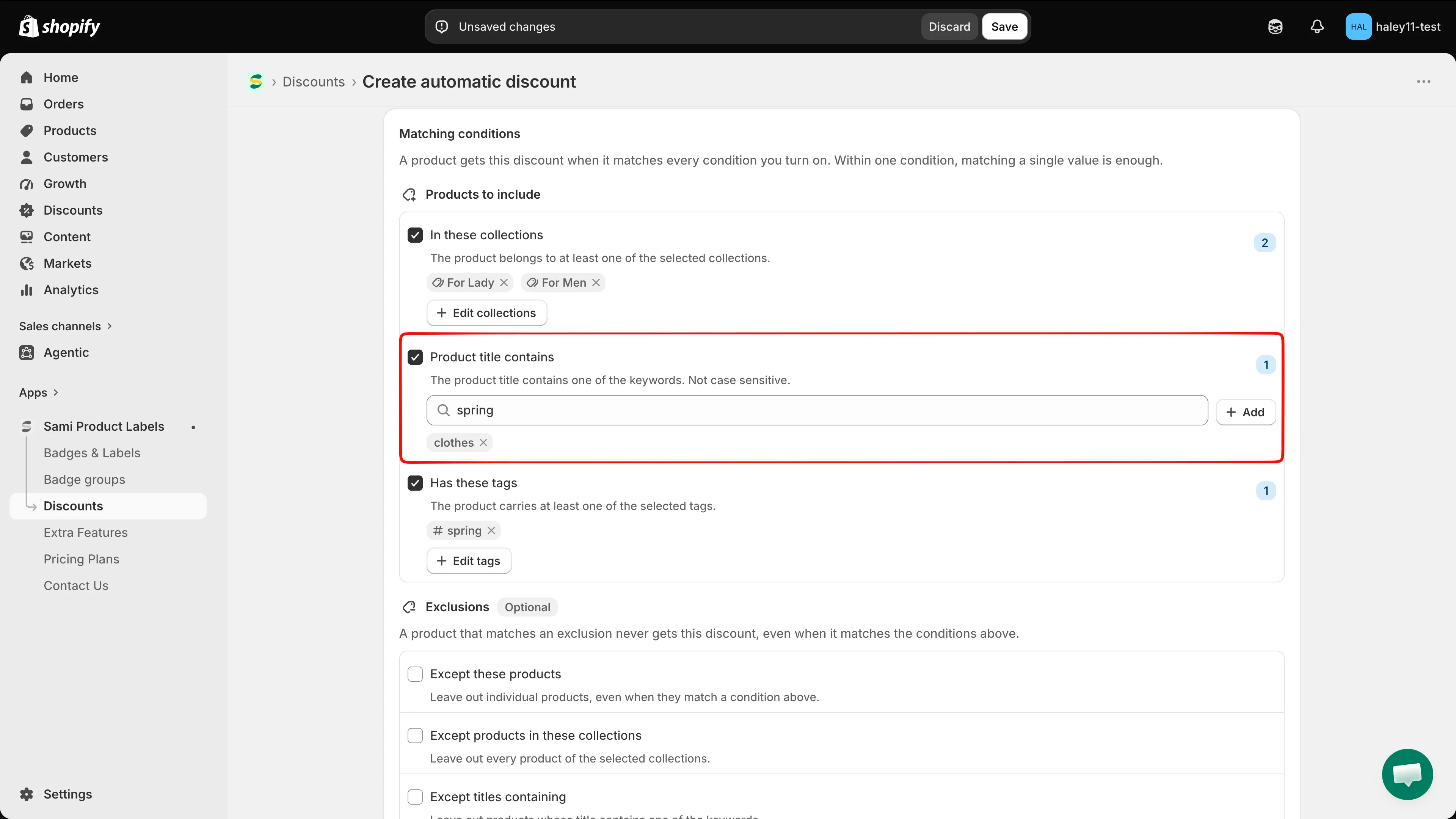
Press Enter after each keyword to add it to the list.
-
Add product tags
Section titled “Add product tags”Under Has these tags, click Add tags to open the Product tags popover, which lists the tags used in your store. Tick the ones you want, use the search field to narrow a long list, or click Load more tags to fetch the rest.
To use a tag that is not in the list yet, type it into the search field and click Add tag “…”.
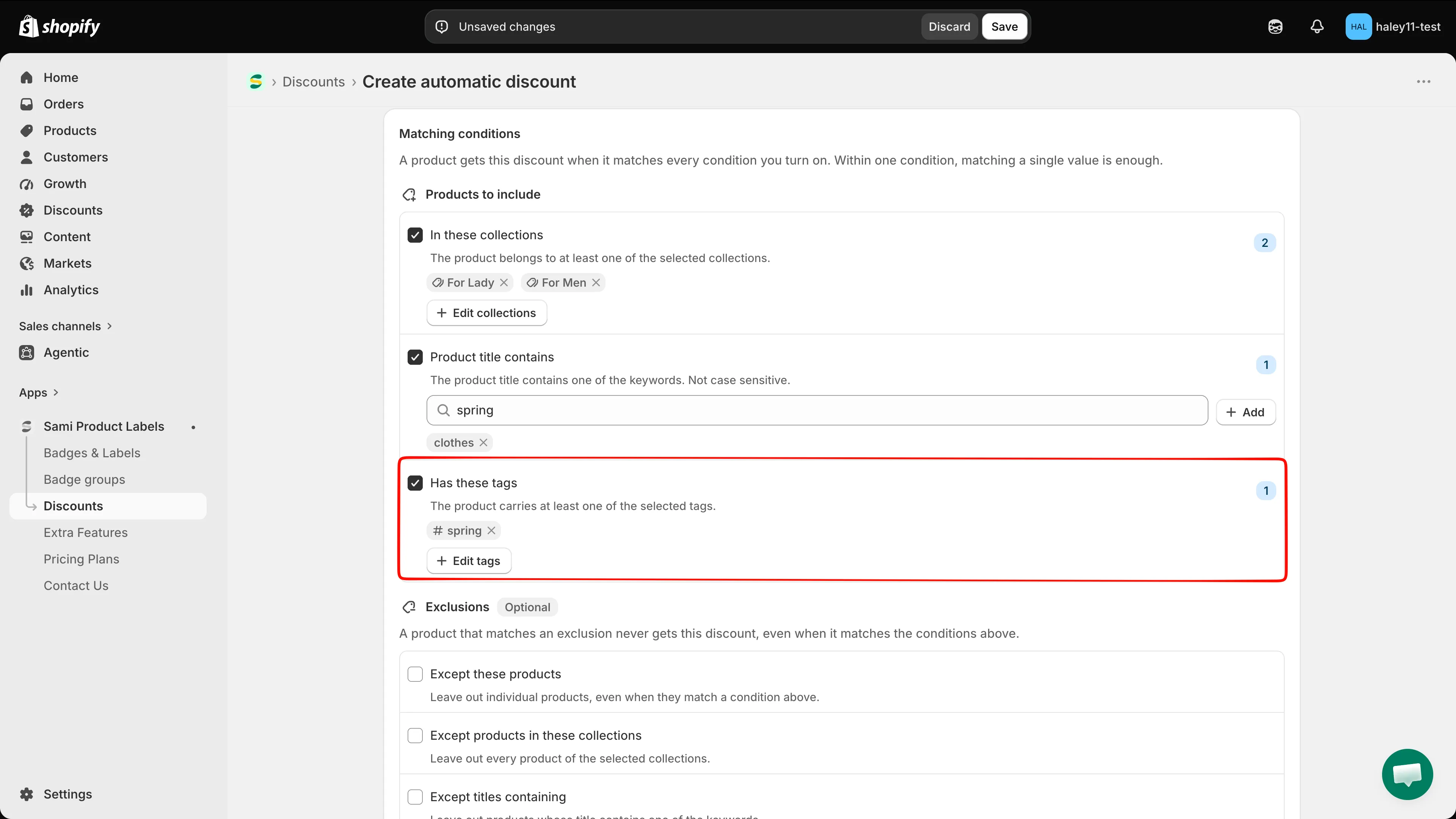
The tag list comes from the products in your store.
-
(Optional) Leave products out
Section titled “(Optional) Leave products out”Exclusions is optional and sits below the include conditions. It holds four conditions, each working like the ones above:
Exclusion Leaves out Except these products Individual products, even when they match a condition above. Except products in these collections Every product of the selected collections. Except titles containing Products whose title contains one of the keywords. Except these tags Products carrying one of the selected tags. 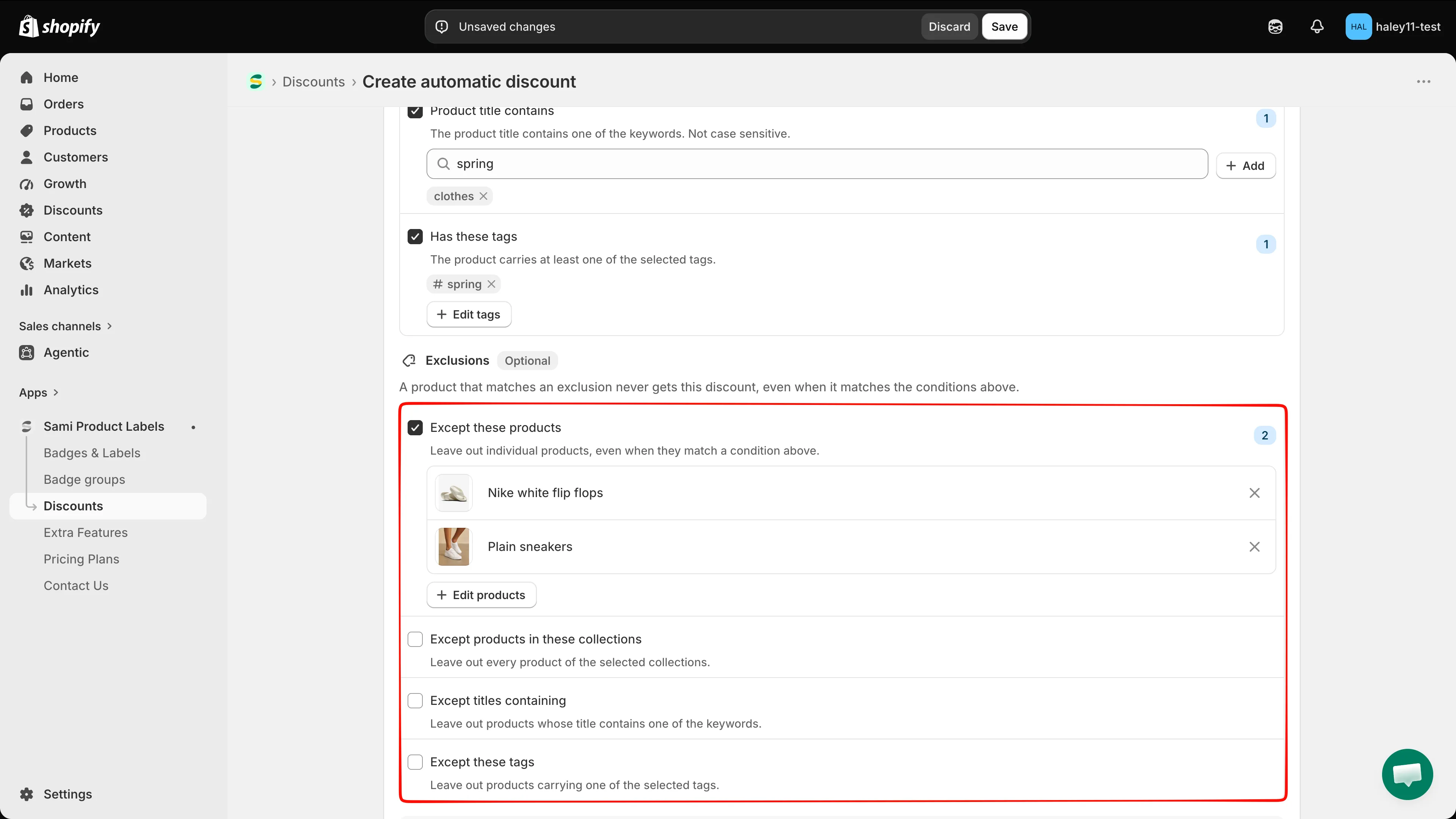
An exclusion always wins over the conditions above it.
-
Check the summary
Section titled “Check the summary”A This discount applies to box appears at the bottom of the tab as soon as a condition has values. It lists each active condition and its values, so you can read back what the discount covers before saving.
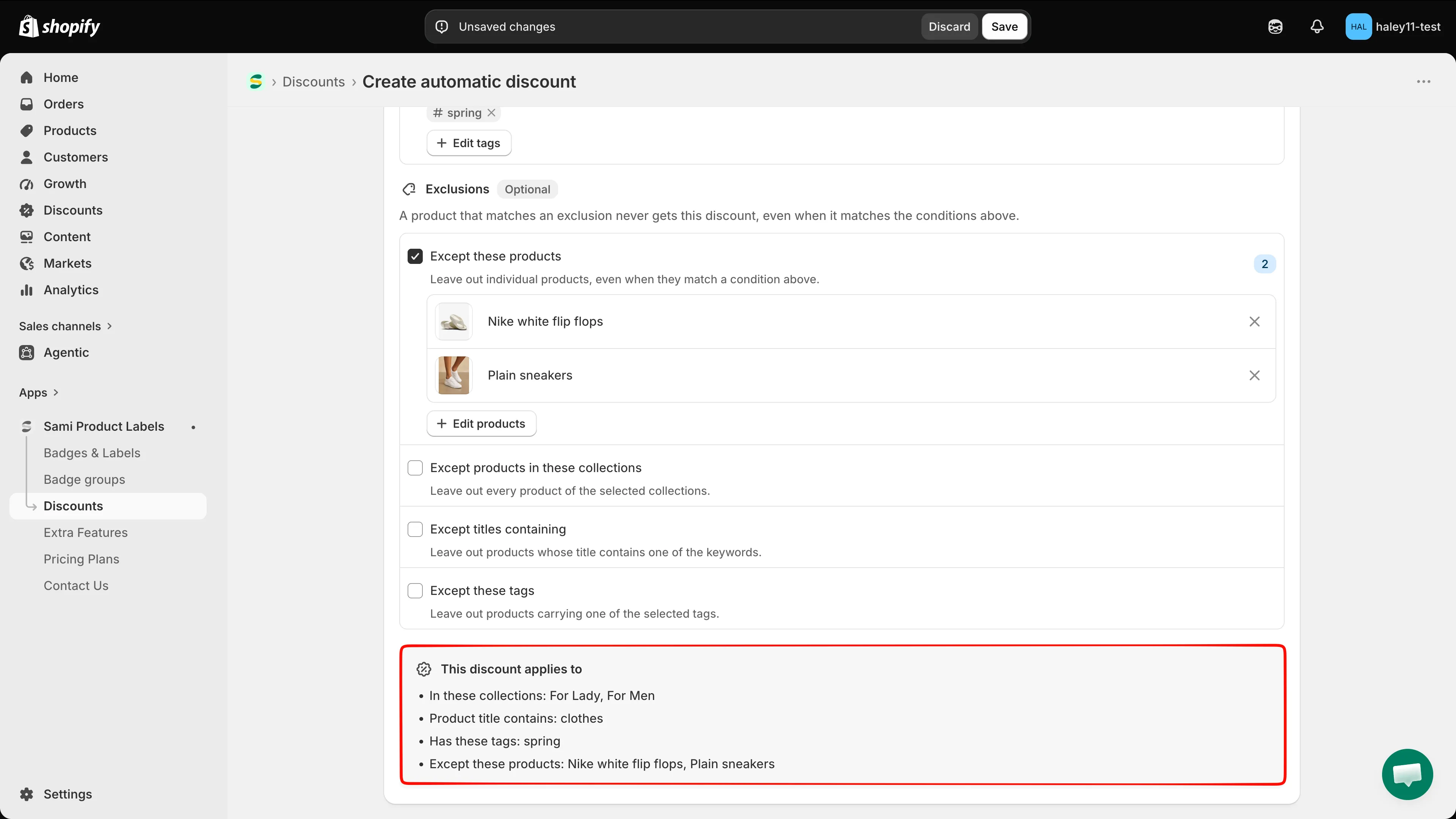
The summary is the quickest way to confirm the rules say what you meant.
Click Save when it matches your campaign.
Worked examples
Section titled “Worked examples”| Goal | Conditions to turn on |
|---|---|
| Discount one collection | In these collections → Winter Sale. |
| Discount one collection, but not clearance items | In these collections → Winter Sale, plus Except these tags → clearance. |
| Discount hoodies inside a collection | In these collections → Apparel, plus Product title contains → hoodie. A product must be in the collection and have hoodie in its title. |
| Discount two tags at once | Has these tags → snowboard, winter. A product with either tag matches. |
| Discount everything except two products | Only Except these products, with those two products. |
Common mistakes
Section titled “Common mistakes”Next steps
Section titled “Next steps”- Create an automatic discount — the full setup for a discount that applies at checkout.
- Create a discount code — the same conditions, behind a code.
- Discounts overview — statuses, plan limits, and how discounts connect to badges.