
Place a trust badge with shortcode
Place a trust badge at an exact position in your Shopify theme using its shortcode.
Turn on Product page in the trust badge editor when the app’s built-in position works for your store. When you need the trust badge somewhere else — for example directly below the buy buttons — copy its shortcode and add the Samita Trust Badge app block at that exact position in your theme.
Where to find the shortcode
Section titled “Where to find the shortcode”The shortcode is available in two places:
- Trust badge table — open Sami Product Labels → Extra Features → Trust Badges. Copy the snippet from the Shortcode column of the trust badge you want to place.
- Trust badge editor — click the row’s edit action, open Placement, then click Copy in the Shortcode section.
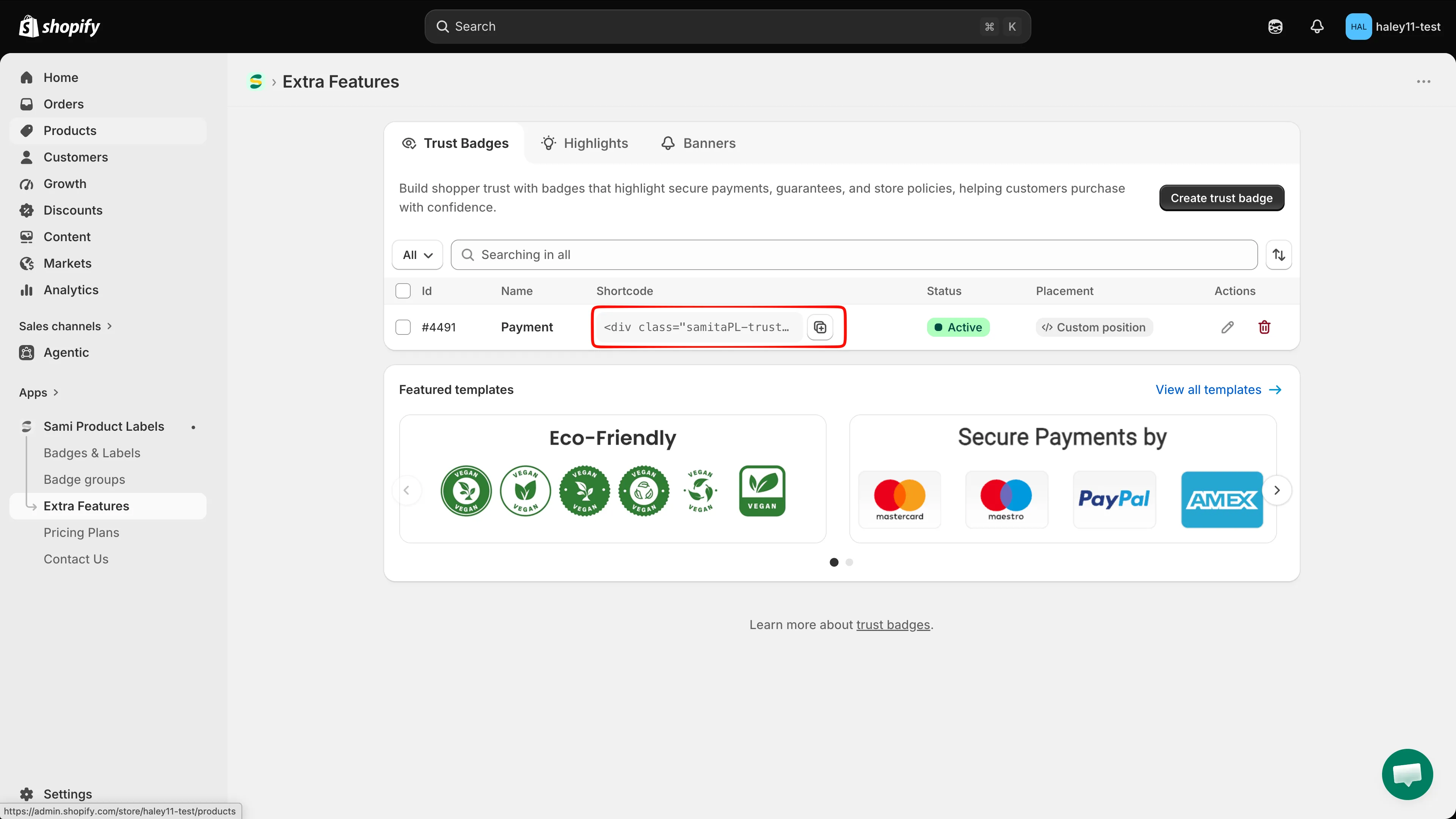
Copy the shortcode directly from the updated Trust Badges table.
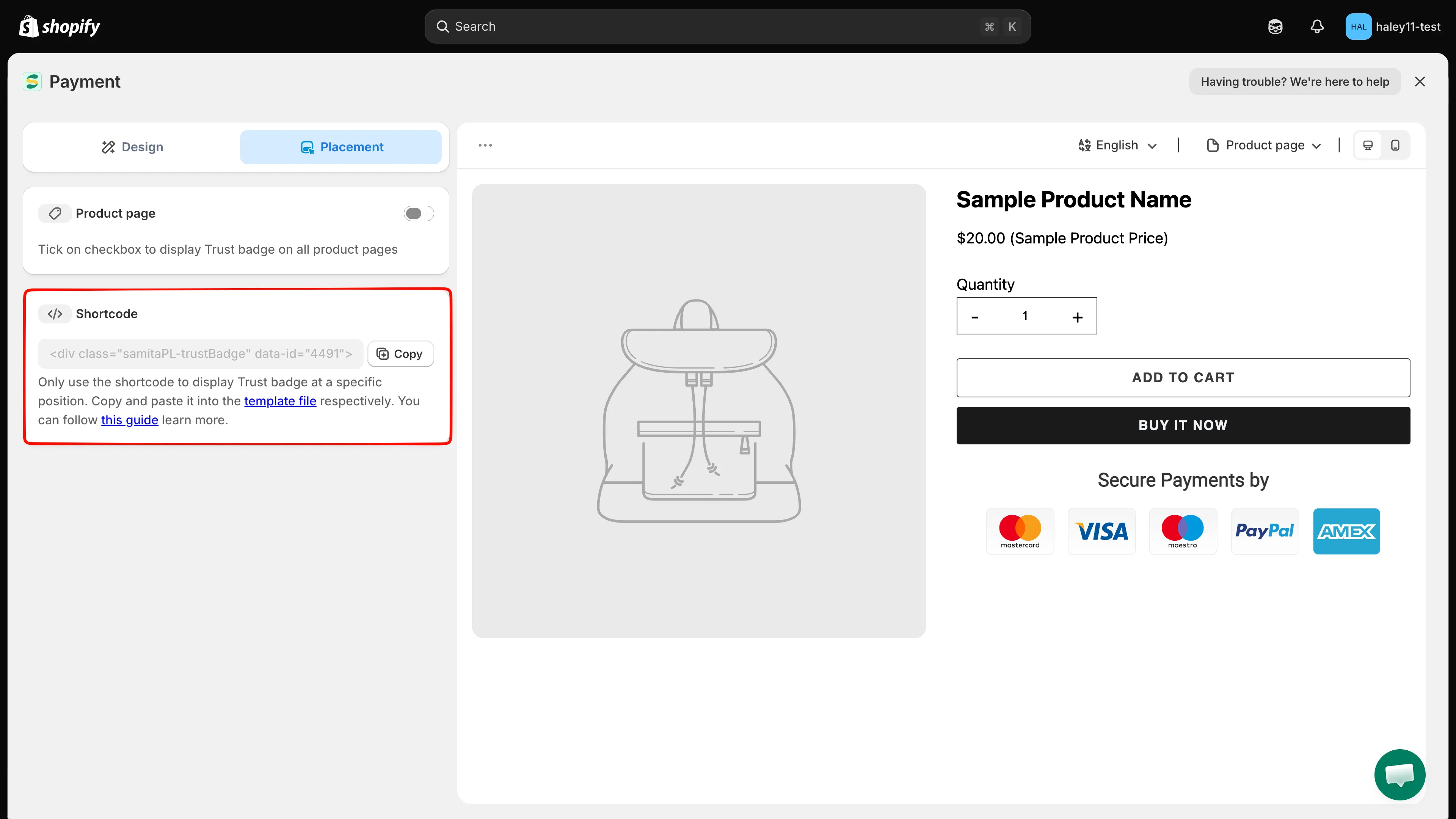
The Placement tab also provides the shortcode and a Copy button.
Place the shortcode in your theme
Section titled “Place the shortcode in your theme”-
Copy the saved trust badge’s shortcode
Section titled “Copy the saved trust badge’s shortcode”Copy the snippet from the table or the editor. It looks like this, with a unique ID for your trust badge:
<div class="samitaPL-trustBadge" data-id="4477"></div>Do not reuse a snippet from another row. Each trust badge has its own
data-id. -
Open the theme editor
Section titled “Open the theme editor”In your Shopify admin, open Online Store. Find the theme you want to update and click Edit theme.
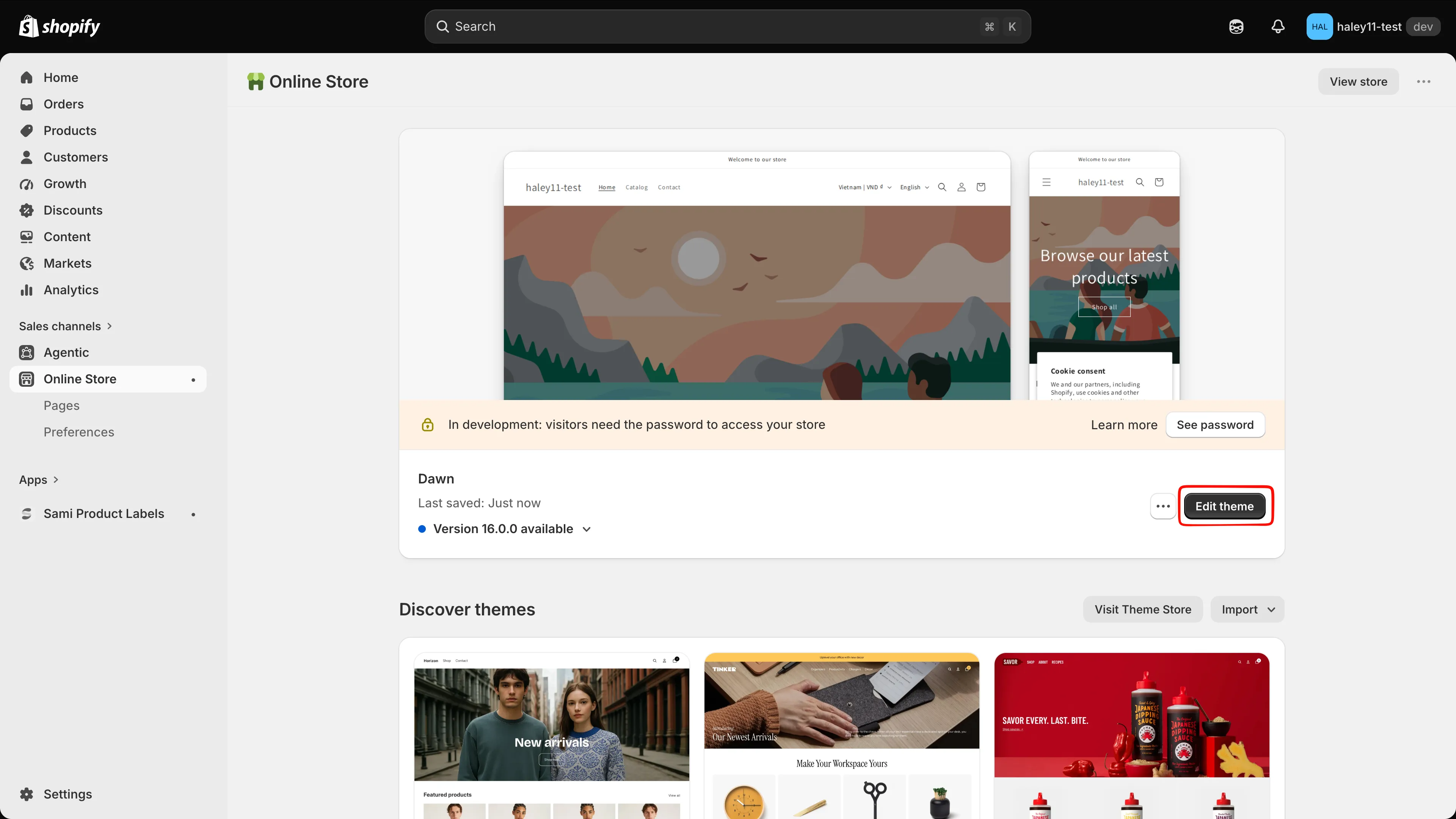
Open the theme that should display the trust badge.
-
Open the product template
Section titled “Open the product template”Use the page selector at the top of the theme editor, then choose Products → Default product or another product template used by your store.
In the sections panel, expand Product information. The existing blocks — such as Title, Price, Buy buttons, and Description — show where the trust badge can be inserted.
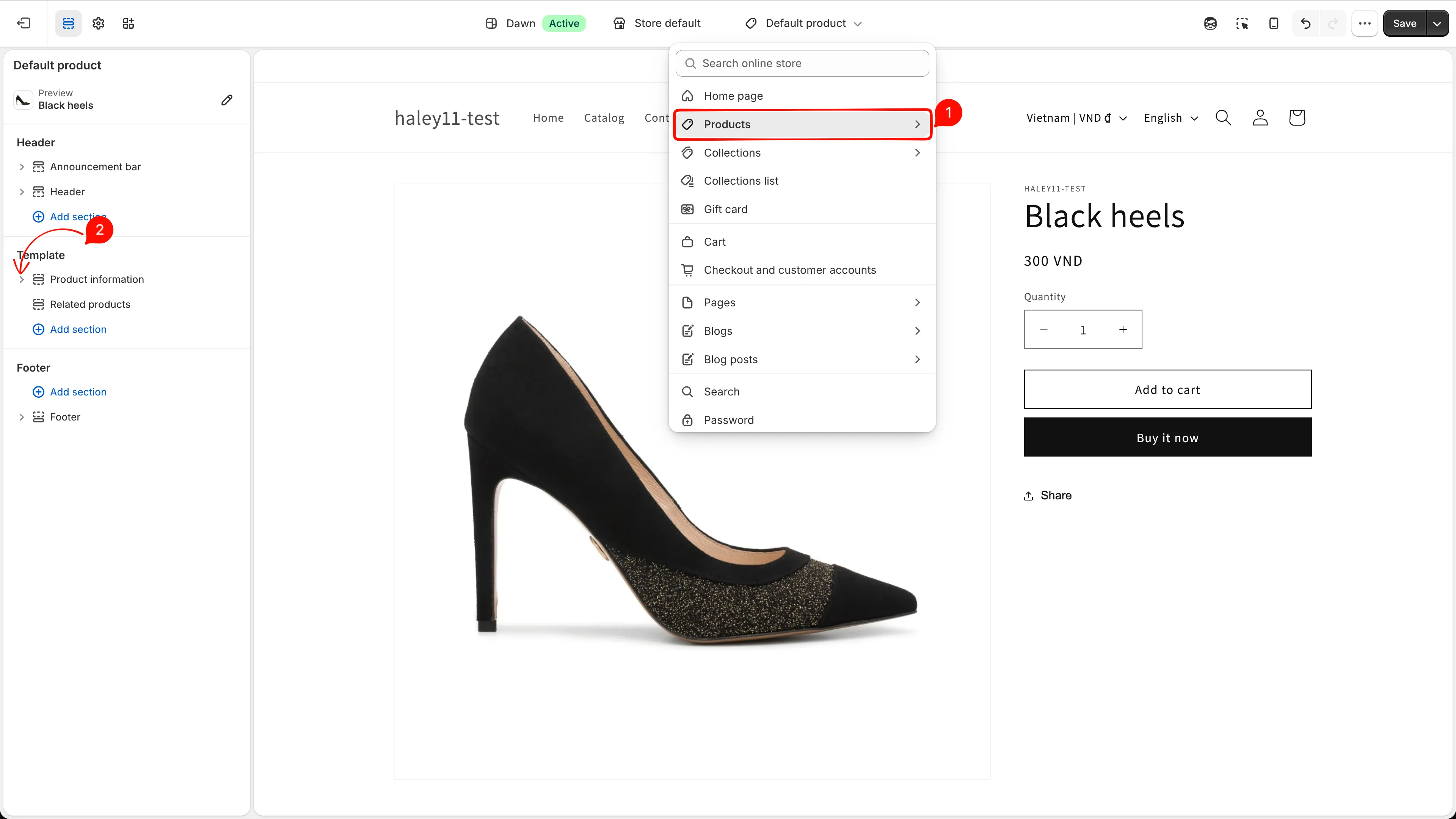
Open the product template and expand Product information before adding the app block.
-
Add the Samita Trust Badge block
Section titled “Add the Samita Trust Badge block”Click Add block, select the Apps tab, then choose Samita Trust Badge from Sami Product Labels. Drag the new block to the position you want, such as directly below Buy buttons.
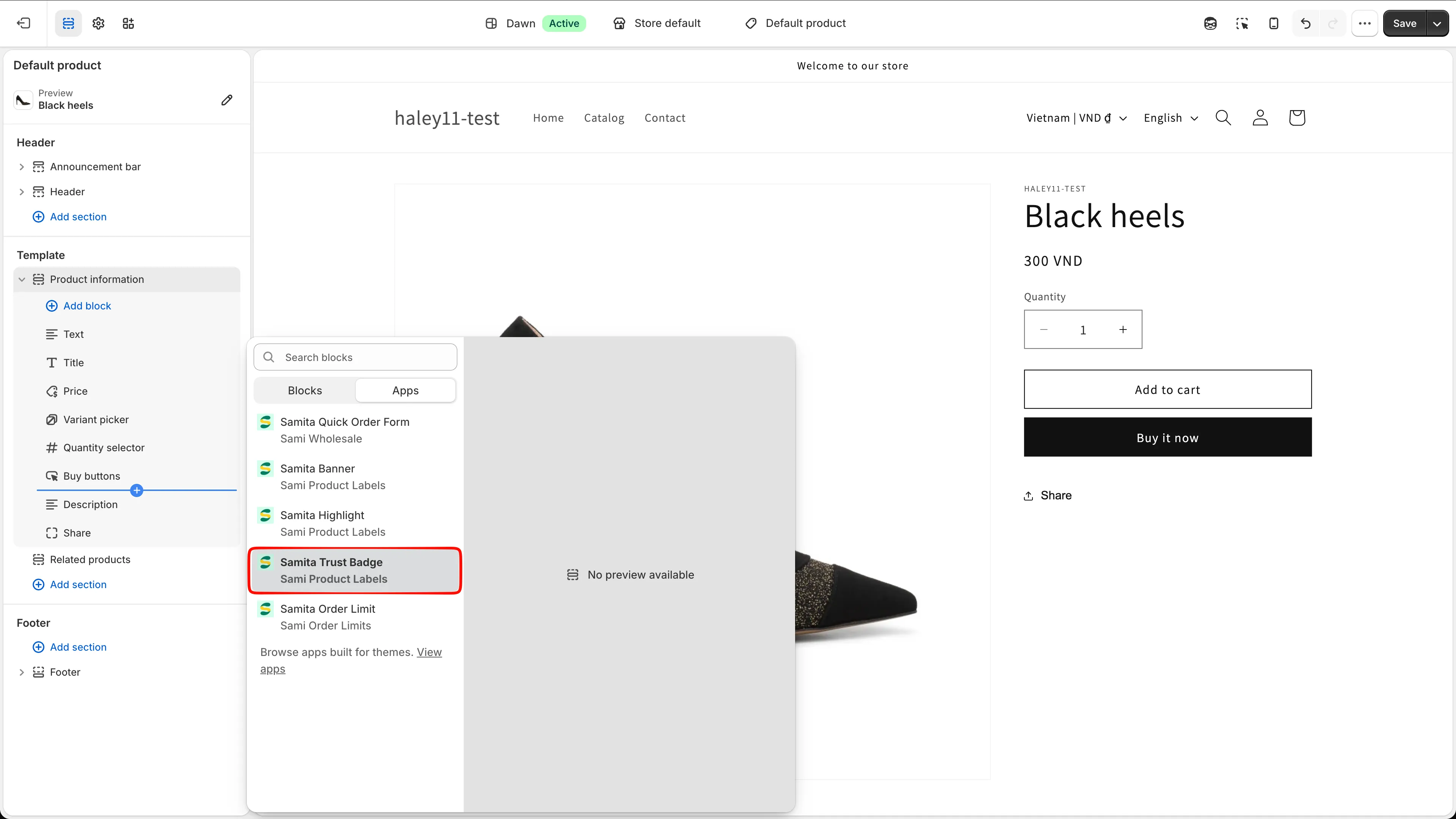
Select Samita Trust Badge from the Apps list, then place it in Product information.
-
Paste the shortcode and save the theme
Section titled “Paste the shortcode and save the theme”Select the Samita Trust Badge block and paste the complete snippet into its Shortcode field. Click Save in the theme editor.
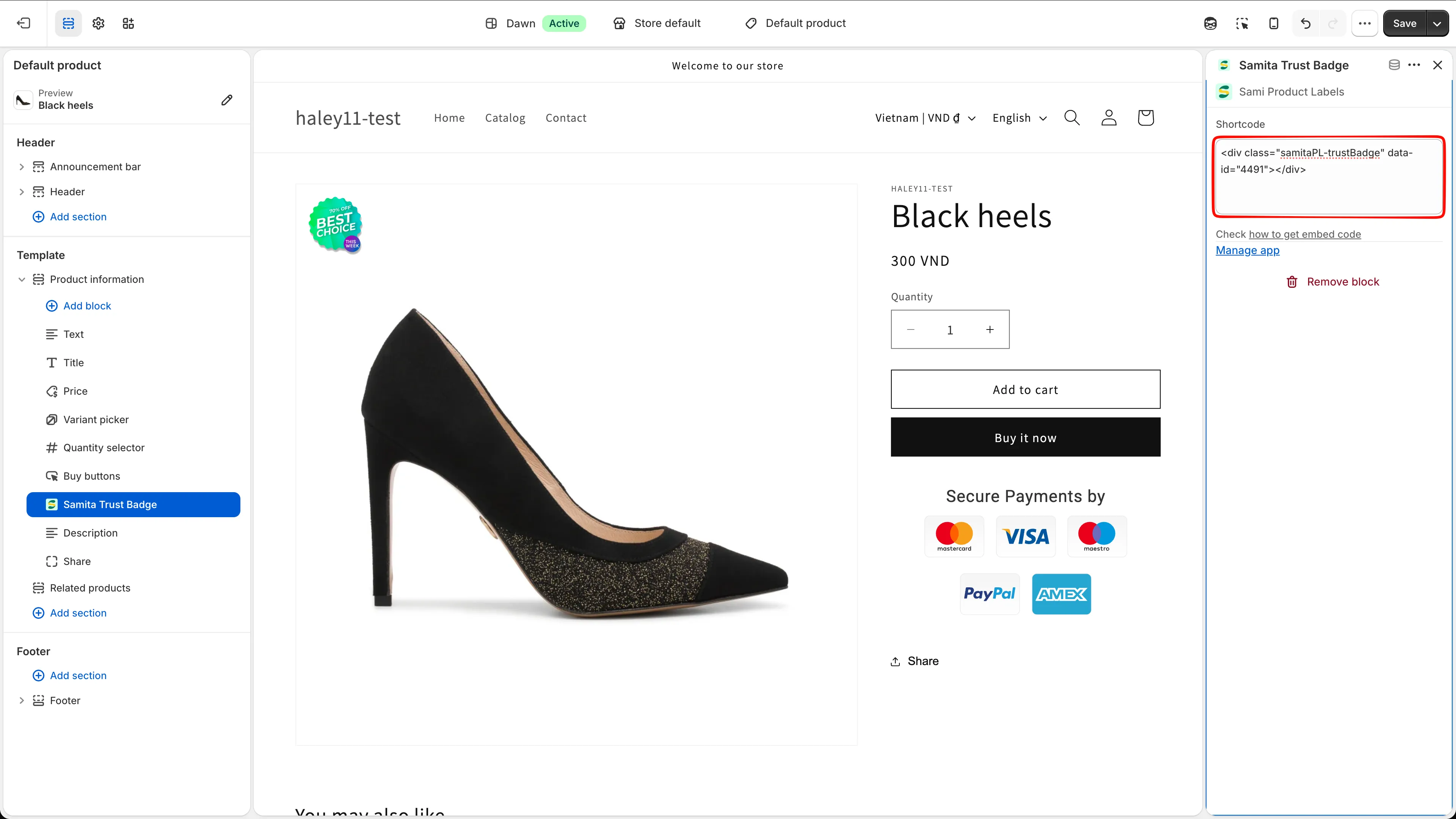
Paste the complete shortcode into the app block, then save the theme.
-
Check the storefront
Section titled “Check the storefront”Open a product that uses the edited template and confirm that the trust badge appears in the expected position.
If it does not appear, verify that:
- the trust badge is Active, not Draft;
- the shortcode contains the saved trust badge’s exact
data-id; - the full
<div class="samitaPL-trustBadge" ...></div>snippet is in the Shortcode field; - the product uses the theme template you edited;
- the Samita Trust Badge block is visible and the theme changes were saved.
Built-in placement vs. shortcode
Section titled “Built-in placement vs. shortcode”| Method | How it works |
|---|---|
| Product page | Turn on the switch in Placement to show the trust badge at the app’s built-in position on all product pages. No theme editing is required. |
| Shortcode | Paste the saved trust badge’s snippet into a Samita Trust Badge app block to control its exact position. |
If you enable both methods on the same product template, the trust badge can appear twice. Use the product-page switch for the built-in position or the shortcode app block for a custom position.
Next steps
Section titled “Next steps”- Create a trust badge — create the content and design before placing it.
- Trust badge overview — manage saved trust badges and copy shortcodes from the table.