
Place a highlight with shortcode
Place a highlight block at an exact position in your theme using its shortcode.
By default a highlight block is shown at the app’s built-in position on your product pages. When you need it somewhere else — above the description, further down the page, on another template — copy the block’s shortcode and place it there yourself.
Where to find the shortcode
Section titled “Where to find the shortcode”The shortcode is available in two places:
- In the editor — open the highlight and go to the Placement tab. The Shortcode card at the bottom shows the snippet with a Copy button.
- In the list — on the Extra Features page, the Highlights tab has a Shortcode column with a copy icon for each block.
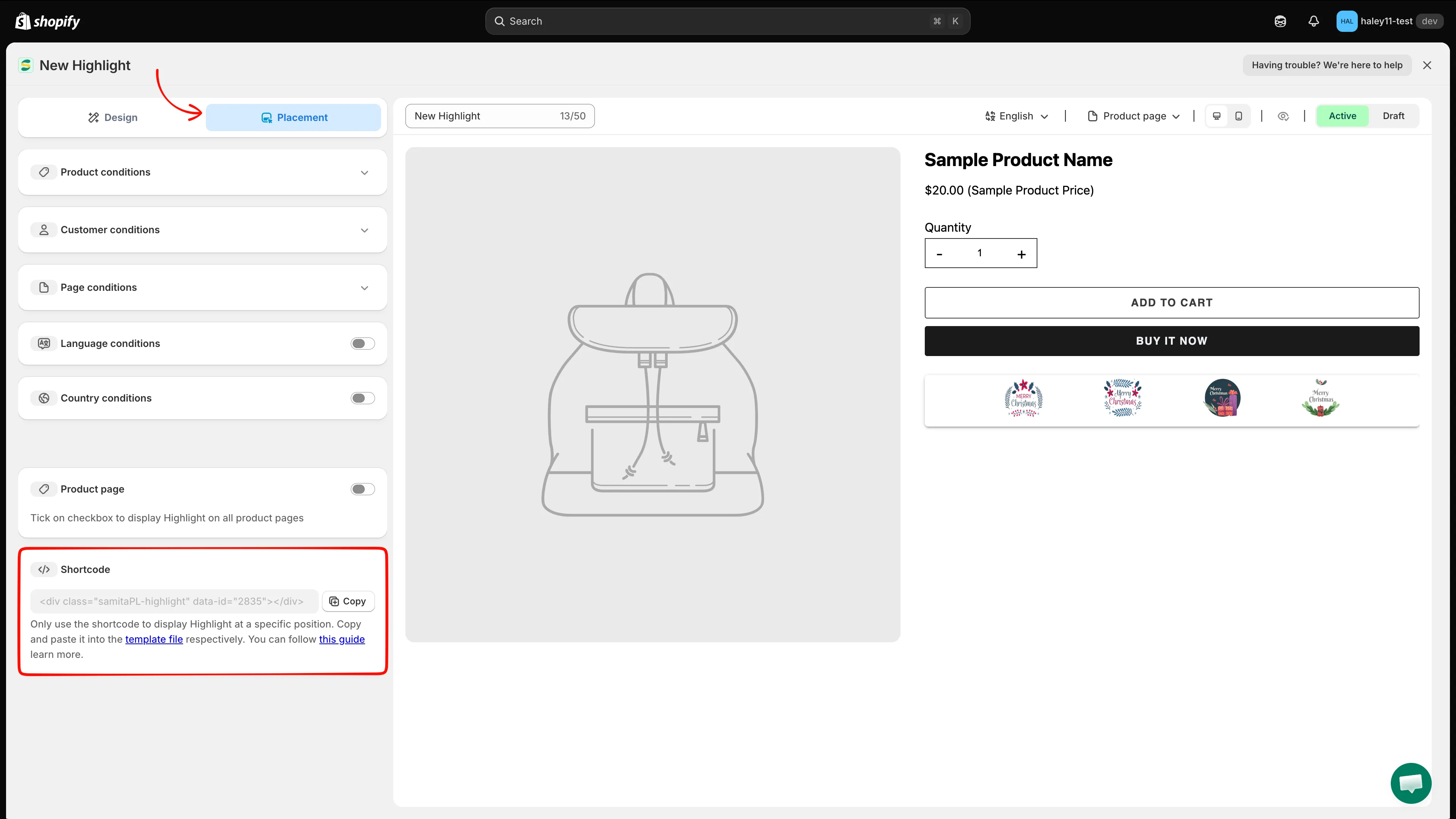
The Shortcode card sits below the Product page toggle on the Placement tab.
Place the shortcode in your theme
Section titled “Place the shortcode in your theme”-
Copy the shortcode
Section titled “Copy the shortcode”Open the highlight, switch to the Placement tab, and click Copy. The snippet looks like this, with your block’s own ID:
<div class="samitaPL-highlight" data-id="4482"></div>Each highlight has its own
data-id, so copy the snippet from the block you actually want to display. -
Open the theme editor
Section titled “Open the theme editor”In your Shopify admin, go to Online Store and click Edit theme on the theme you want to change.
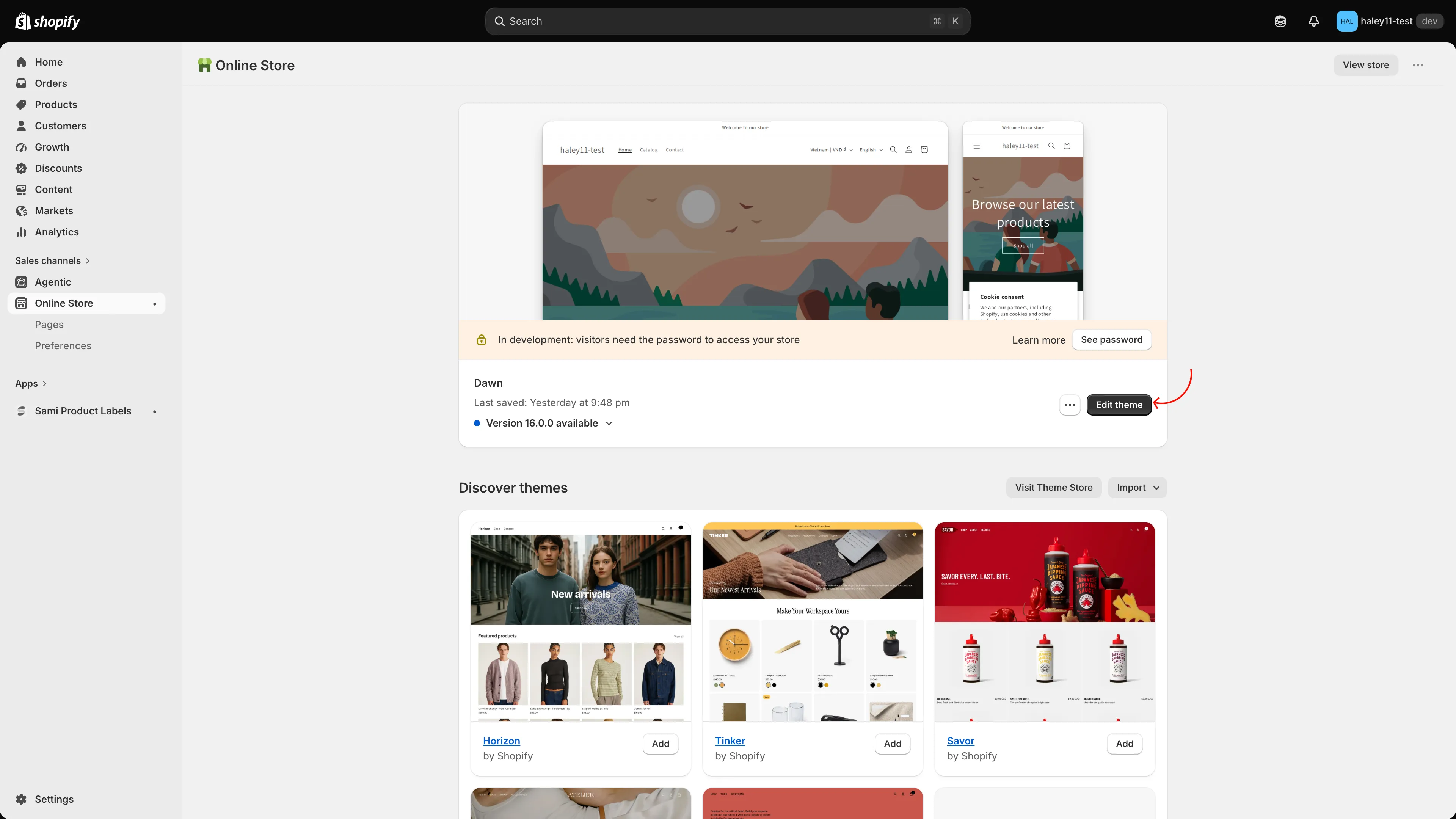
Open the theme you want to add the highlight to with Edit theme.
-
Add the Samita Highlight block
Section titled “Add the Samita Highlight block”Navigate to the page and section where you want the block — for example Product information on the product template. Click Add block, switch to the Apps tab, and choose Samita Highlight (from Sami Product Labels). Drag the block to the exact position you want, such as between Buy buttons and Description.
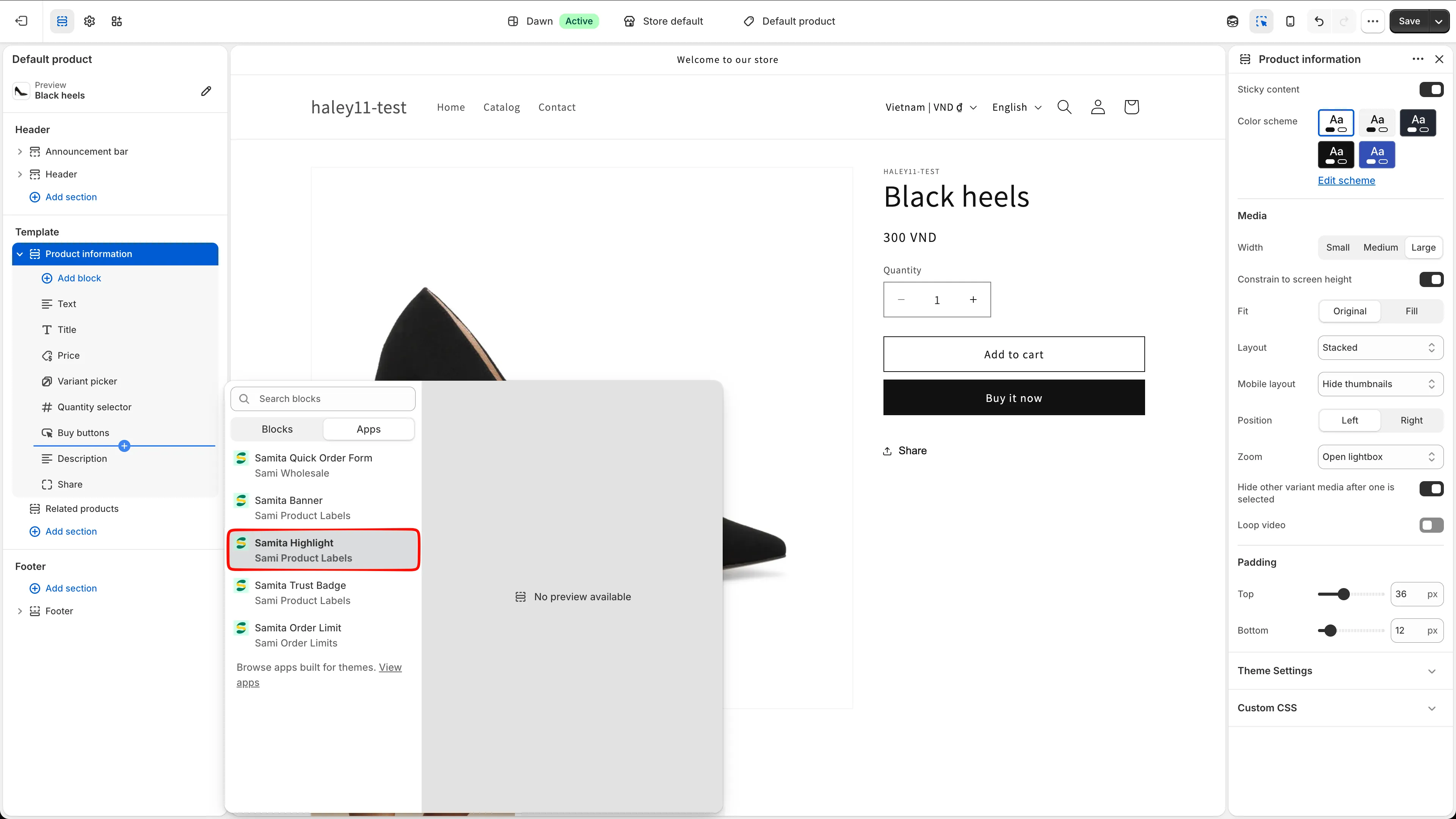
Pick Samita Highlight from the Apps tab of the Add block menu.
-
Paste the shortcode into the block
Section titled “Paste the shortcode into the block”With the block selected, paste the snippet into its Shortcode field, then click Save.
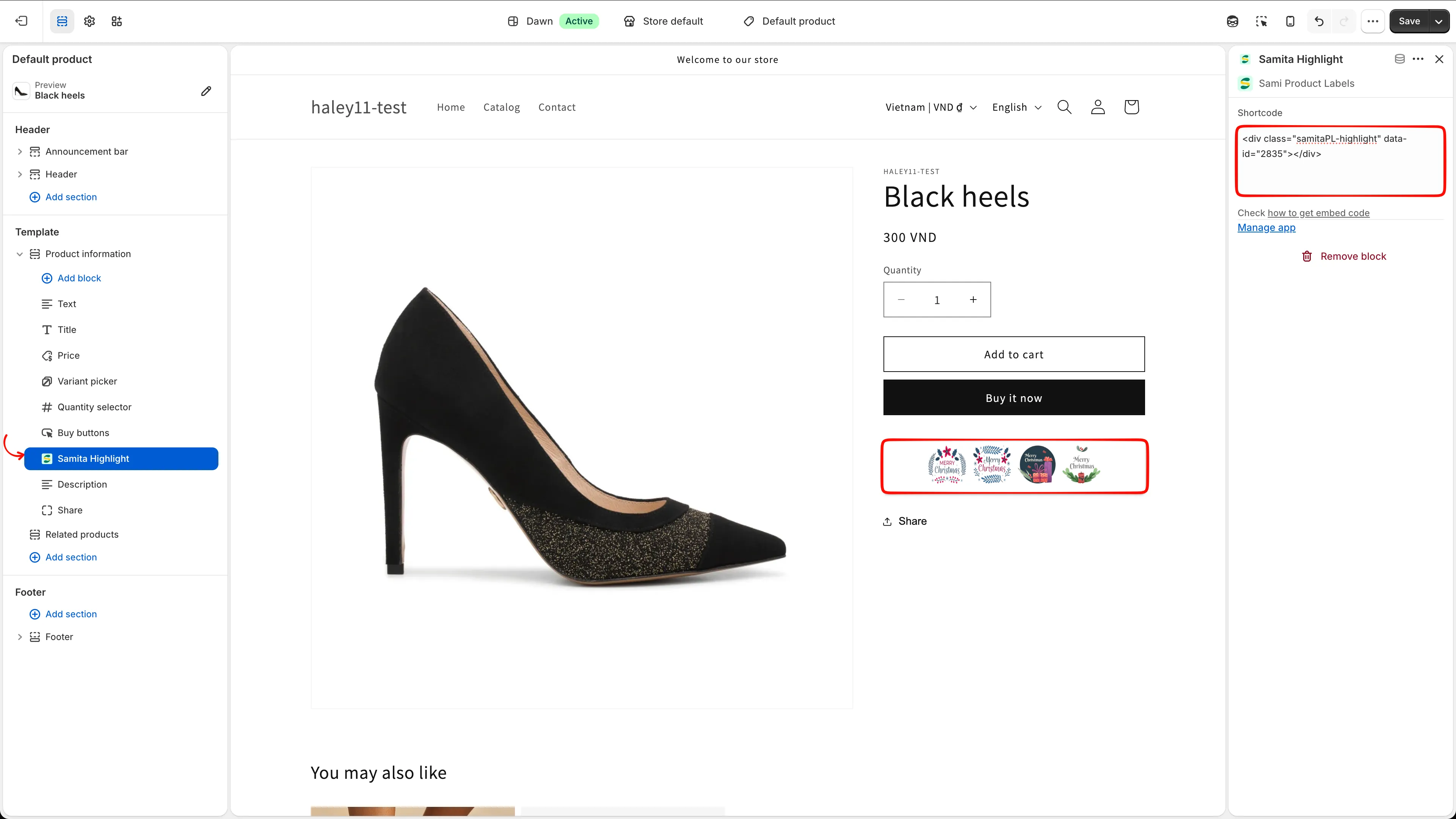
Paste the highlight shortcode into the block’s Shortcode field and save.
-
Check your storefront
Section titled “Check your storefront”Open the page on your storefront and confirm the block renders in the right place. If nothing appears, check that:
- the highlight status is Active, not Draft;
- the
data-idin the block matches the highlight; - the conditions on the Placement tab do not exclude this page — see Target highlight display.
Built-in placement vs. shortcode
Section titled “Built-in placement vs. shortcode”| Method | How it works |
|---|---|
| Product page toggle | Turn on Product page on the Placement tab to show the highlight at the app’s built-in position on every product page. No theme editing. |
| Shortcode | Paste the snippet into an app block for an exact position. Use it when the built-in position isn’t where you want the block. |
Display conditions still apply either way — the shortcode controls where the block sits, the conditions control whether it shows.
Next steps
Section titled “Next steps”- Create a highlight — build the block and style its grid.
- Target highlight display — control which pages and customers see it.
- Place a trust badge with shortcode — the same flow for trust badges.