
Check the Wholesale access of registration customers
See which approved registration customers are linked to a Shopify customer, have the right tags and company, and are included in your wholesale or volume pricing rules.
Deze inhoud is nog niet vertaald.
Approving a registration does not tell you whether the customer will actually get a price. Wholesale access does: for every approved customer it shows whether the Shopify customer exists, which tags and company the customer has, and which of your Wholesale pricing and Volume pricing rules include the customer.
You see it in two places on the Registration Form / Customers pages: the Wholesale access column in the list, and the Wholesale access card on each customer’s page.
Wholesale access in the customers list
Section titled “Wholesale access in the customers list”From the app, click Registration Form, then click Views registered customers at the top of the page. The Wholesale access column sits right after Status.
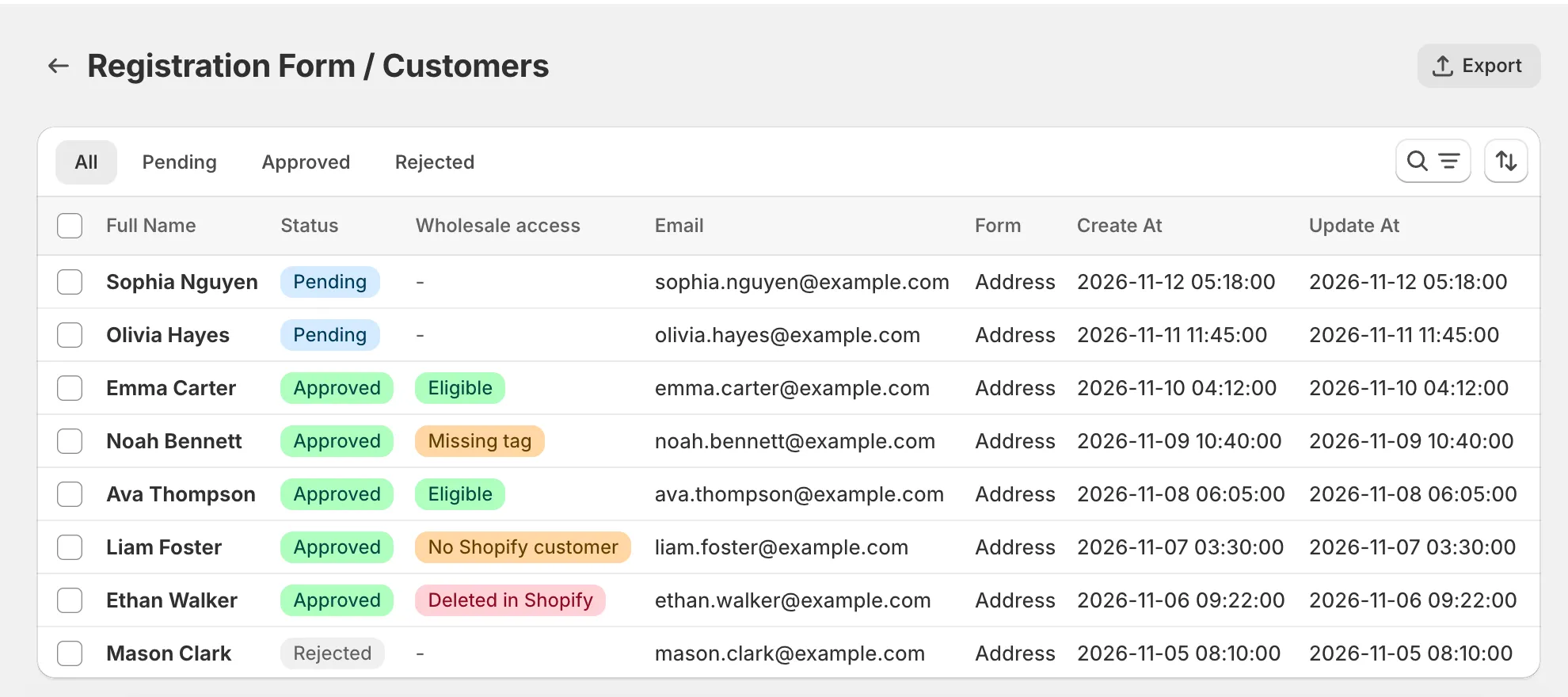
The column only checks Approved customers. Pending, Rejected and Deleted applications show a dash (-). While the list loads, approved customers show Checking, then their result. Hover over a result to read what it means.
| Result | What it means |
|---|---|
| Eligible | A wholesale or volume rule includes this customer. Product and market conditions of the rule still apply. |
| Missing tag | No rule includes this customer yet. Some rules need a tag the customer does not have. |
| No matching rule | No published rule includes this customer. |
| No Shopify customer | The application is approved but no Shopify customer is linked to it. |
| Deleted in Shopify | The Shopify customer was deleted, so no rule applies. |
| Unknown | The customer could not be read from Shopify. Try again later. |
Wholesale access on the customer page
Section titled “Wholesale access on the customer page”Click a customer’s name in the list. In the right column of the customer page, below Customer overview, the Wholesale access card shows the same result in its header, then walks through four steps. The card loads a moment after the page, so the rest of the page does not move when it appears.
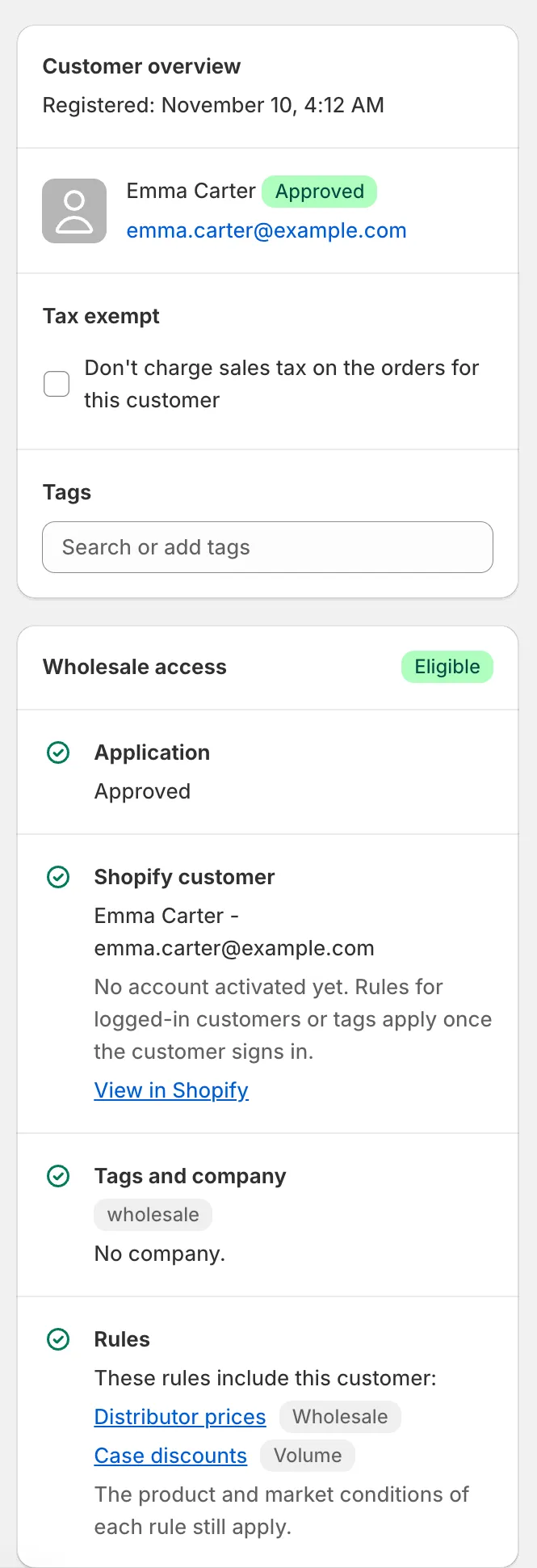
Each step has an icon: a green tick when it is fine, a warning when something needs your attention, a clock while it waits for an earlier step, and a cross when it failed.
-
Application — Approved, Waiting for approval, Rejected, or The Shopify customer was deleted.
-
Shopify customer — the customer’s name and email in Shopify, a View in Shopify link, and the state of the customer’s account:
- Account active: the customer can sign in.
- Invited: the customer has not activated the account yet.
- No account activated yet. Rules for logged-in customers or tags apply once the customer signs in.
- The customer declined the account invitation.
When there is no customer to show, the step tells you why: The Shopify customer is created when the application is approved., The form is set not to create Shopify customers., No Shopify customer is linked. Check the form Shopify integration, then save this customer again., This customer was deleted in Shopify, so no rule applies., or The customer could not be read from Shopify. Try again later.
-
Tags and company — the customer’s Shopify tags, or The customer has no tags. If the form adds tags the customer does not have, a warning lists them: This form adds the tags …, which the customer does not have. The company shows as Company: … when the customer is in a company in Shopify, Company from the form: … when it only comes from the answers on the form, or No company. If the form is set to add customers to a company but the customer is not in one in Shopify, a warning says so. See Automatically add customer to a Company (B2B).
-
Rules — These rules include this customer: followed by a link to each rule, with a Wholesale or Volume label. When no rule includes the customer, the step says No published rule includes this customer. If some rules only need a tag, it adds Add one of these tags to include the customer: with up to 5 rules and the tags each one needs. The step ends with The product and market conditions of each rule still apply.
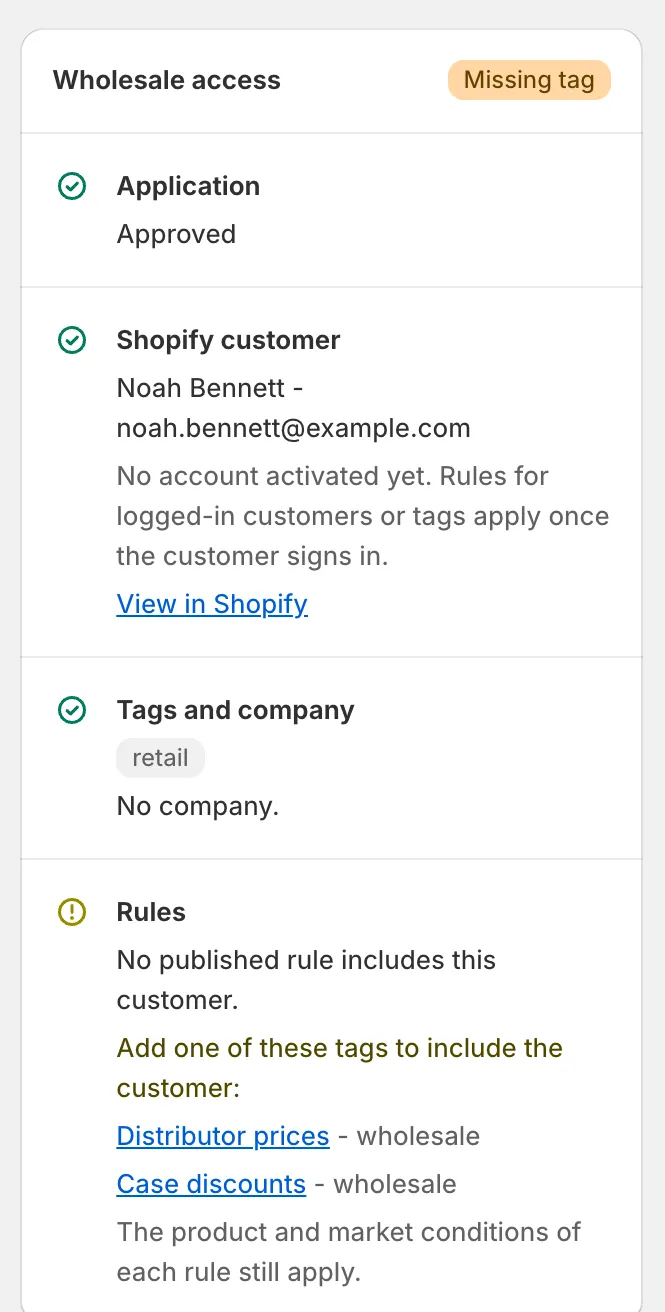
Until the application is approved and the Shopify customer exists, the Tags and company and Rules steps show Checked once the application is approved and the Shopify customer exists. If the card cannot be loaded, it says The wholesale access could not be loaded. Reload the page to try again.
Which rules count
Section titled “Which rules count”The result uses the customer’s tags and company as they are in Shopify when the page opens, and your rules as they are now. A rule counts when:
- it is Active, inside the number of rules your plan shows on your store, and inside its dates (when your plan includes scheduling);
- its Customer condition includes the customer: All customers, Logged-in customers, Customer tags with a tag the customer has, or Specific customers that include the customer, and the customer is not in the rule’s excluded tags or customers.
Rules for Customer tags or Specific customers do not count when your plan does not include them. Rules for guests only never include an approved customer.
Approve or reject several customers at once
Section titled “Approve or reject several customers at once”In the list, tick the customers, then click Approve customers (For pending, rejected customers), or open More actions and choose Reject customers (For pending).
When it finishes, a banner at the top of the list tells you what happened, for example Approved 0, Skipped 2, Failed 1. It is green when every customer was updated and amber when any was skipped or failed.

Under the counts, the banner lists up to 10 customers that were not updated, each with a link to the customer and the reason, then And N more if there are more. After an approval that updated at least one customer, it also reminds you to check the Wholesale access column to see what each approved customer still needs.
| Reason | When |
|---|---|
| Already approved | The customer is already approved. |
| Already rejected | The customer is already rejected. Rejecting only applies to pending customers. |
| The Shopify customer was deleted | The application is marked as deleted. |
| Linked to a Shopify account that signed in with it | The application already has a Shopify customer linked to it, so it is not changed here. |
| Shopify said: … | Shopify refused the customer and gave this message. If Shopify gives none: Shopify did not accept the customer. |
| The customer could not be updated | Something else went wrong. |
Delete applications and Shopify customers
Section titled “Delete applications and Shopify customers”Tick the customers, open More actions, and choose one of three delete options. Each one asks you to confirm and tells you exactly what it will do.
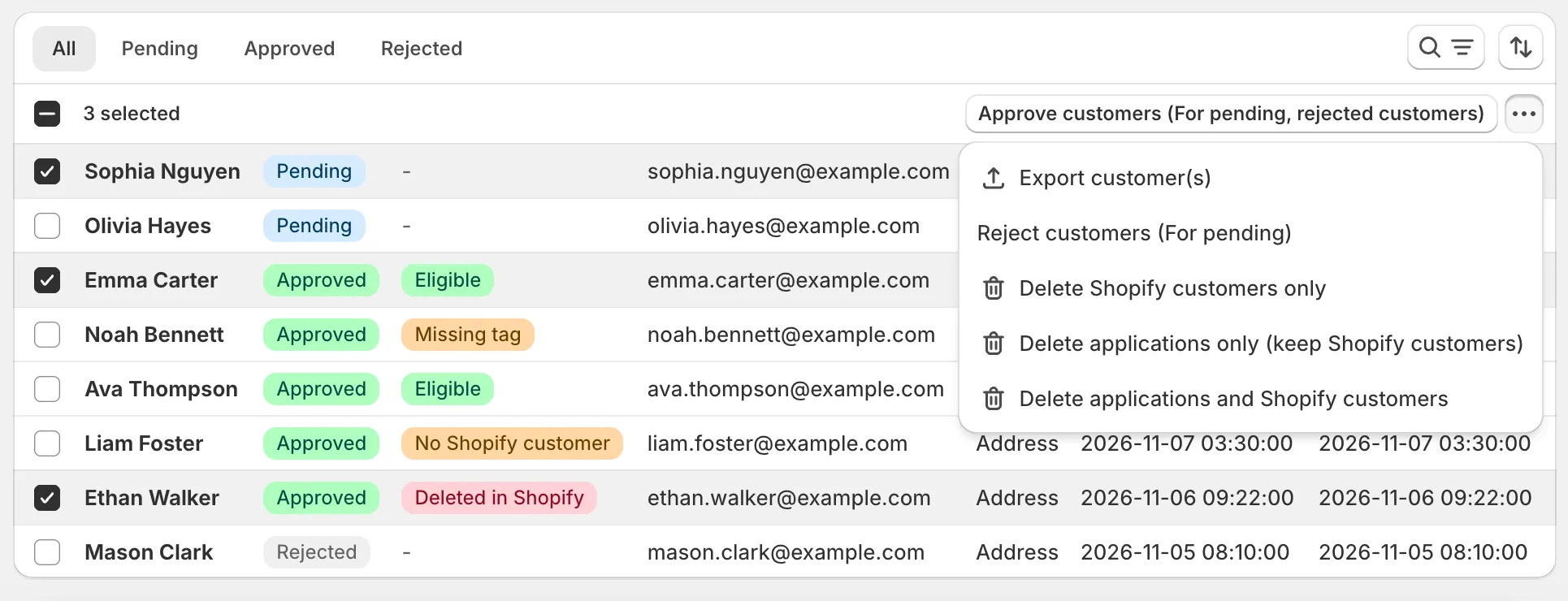
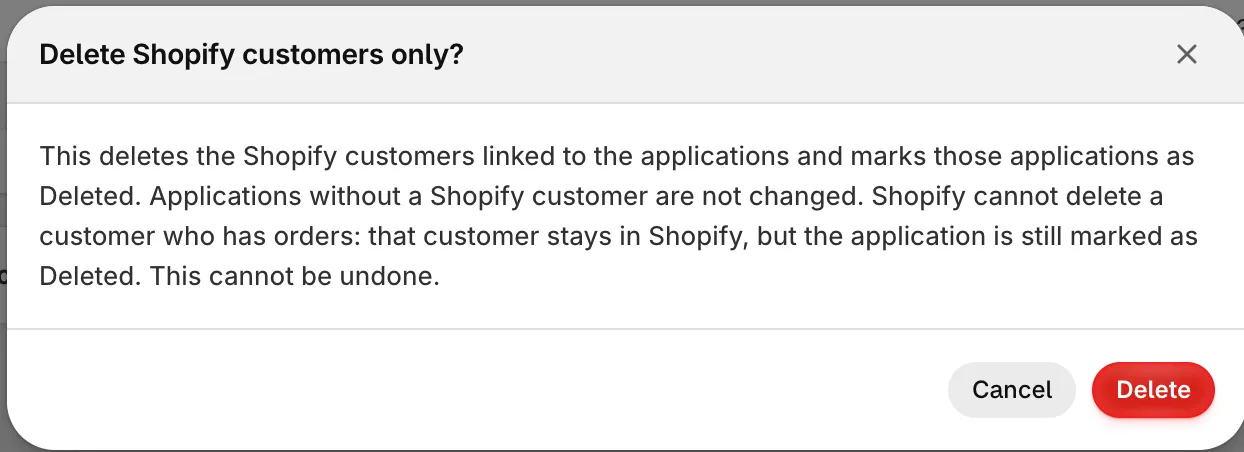
- Delete Shopify customers only — deletes the Shopify customers linked to the applications and marks those applications as Deleted. Applications without a Shopify customer are not changed.
- Delete applications only (keep Shopify customers) — removes the applications from the app. The Shopify customers are not touched, so they keep their tags and keep getting wholesale prices.
- Delete applications and Shopify customers — removes the applications from the app and deletes the Shopify customers linked to them.
Need support?
Section titled “Need support?”If you do encounter any difficulty while proceeding these steps, don’t show any hesitation to contact us promptly via the email address support@samita.io.