
Target by country and language
Display badges based on your visitor's country or the language they are viewing your store in.
Show badges based on where a visitor is located or which language version of your store they’re browsing — useful for region-specific promotions and multilingual content.
Both settings live in the Display tab of the badge editor, as two separate sections: Language conditions and Country conditions. Each one is a switch you turn on, not a rule you add.
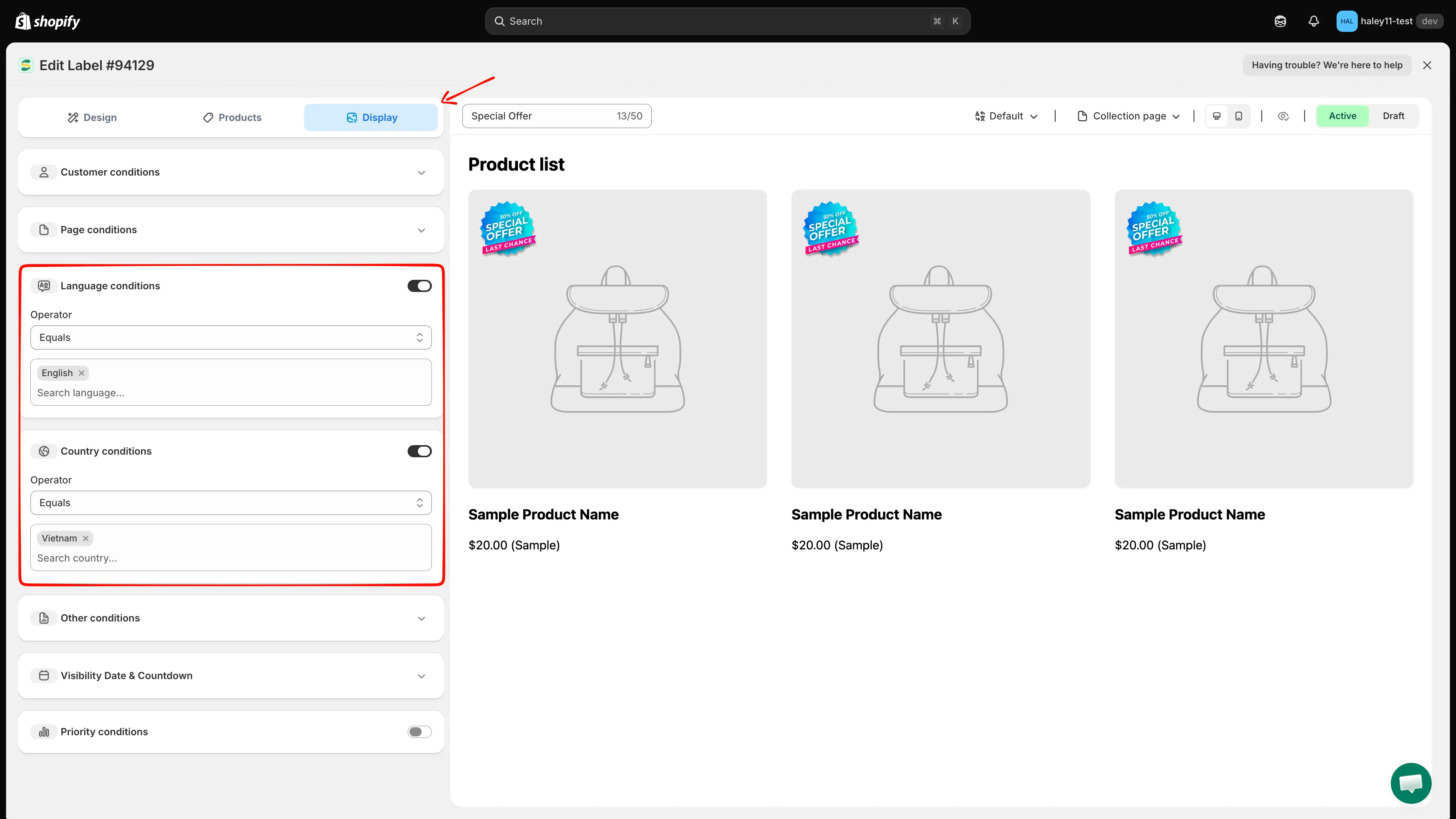
The Display tab: Language conditions and Country conditions each have their own on/off toggle.
Country targeting
Section titled “Country targeting”How to set up country targeting
Section titled “How to set up country targeting”-
Open the Display tab
Section titled “Open the Display tab”In the badge editor, open Display.
-
Turn on Country conditions
Section titled “Turn on Country conditions”Click the toggle on the right of the Country conditions row. The section expands to show an Operator dropdown and a country search field.
-
Choose the operator
Section titled “Choose the operator”Leave Operator on Equals to show the badge only in the countries you pick, or switch it to the opposite option to exclude them instead.
-
Select the countries
Section titled “Select the countries”Click Search country… to open the country list. Every country is listed with its ISO code — for example
Vietnam (VN),South Africa (ZA)— and each has a checkbox. Type to filter the list, then tick the countries you want.Selected countries appear as removable chips inside the field. The list stays open after each pick, so you can tick several countries in one go; remove one by clicking the × on its chip.
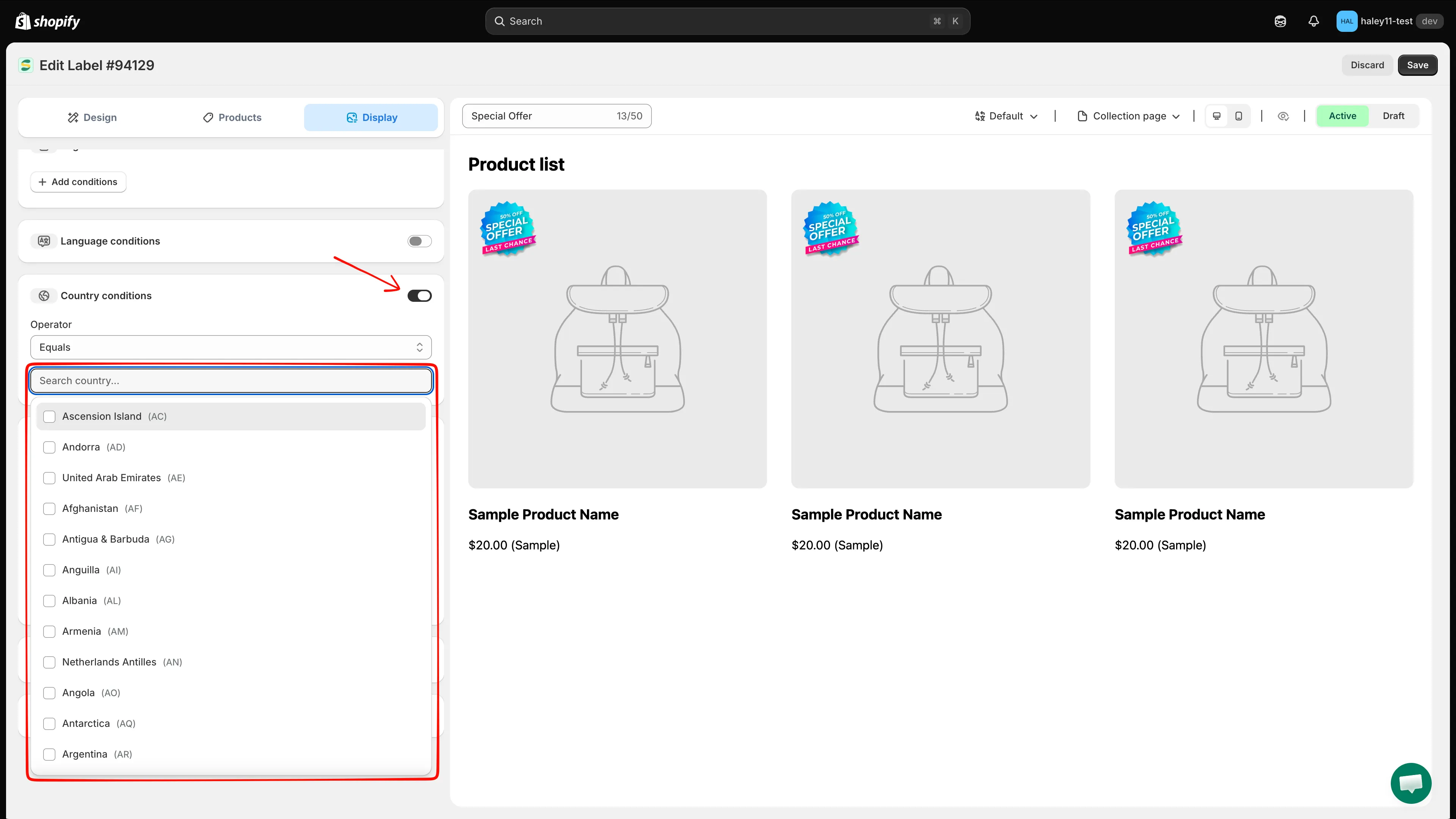
Search the country list and tick one or more countries. Each entry shows the country name and its ISO code.
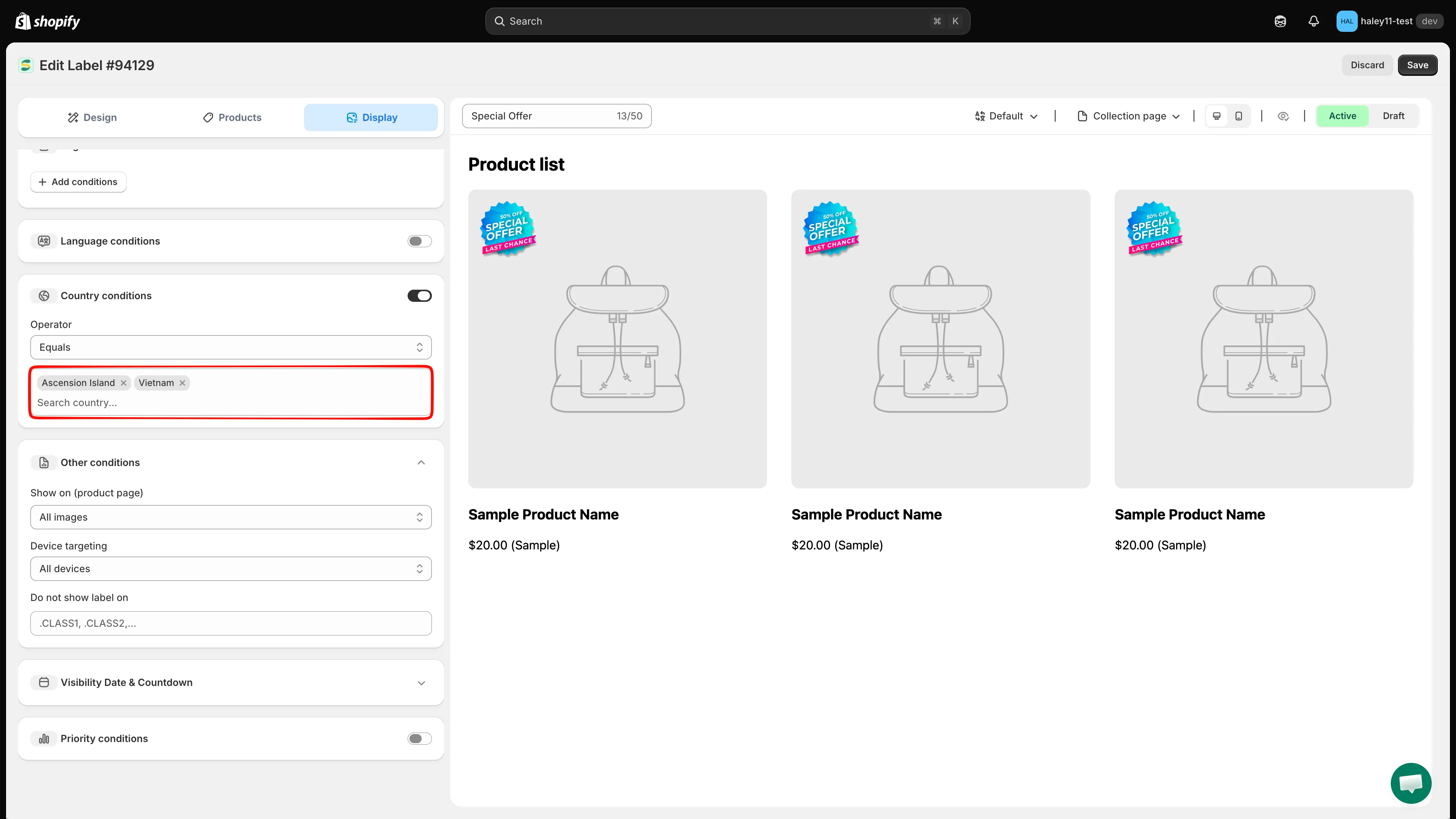
Selected countries appear as chips you can remove with the × button.
-
Click Save in the top-right corner. A Badge/Label updated confirmation appears, and the badge will only show for visitors detected in the selected countries.
Country targeting use cases
Section titled “Country targeting use cases”| Use case | Setup |
|---|---|
| Region-specific promotion | Show a “Free Shipping to US” badge only for US visitors |
| Local holiday sale | Display a holiday badge only in countries where the holiday applies |
| Compliance notice | Show a regulatory badge only in countries where it is required |
| Market-specific pricing badge | Display “Best Price in EU” only for European customers |
Language targeting
Section titled “Language targeting”Language targeting shows badges only when the storefront is viewed in a selected language.
How to set up language targeting
Section titled “How to set up language targeting”-
Open the Display tab
Section titled “Open the Display tab”In the badge editor, open Display. Language conditions sits just above Country conditions.
-
Turn on Language conditions
Section titled “Turn on Language conditions”Click the toggle on the Language conditions row. The section expands to show an Operator dropdown and a language search field.
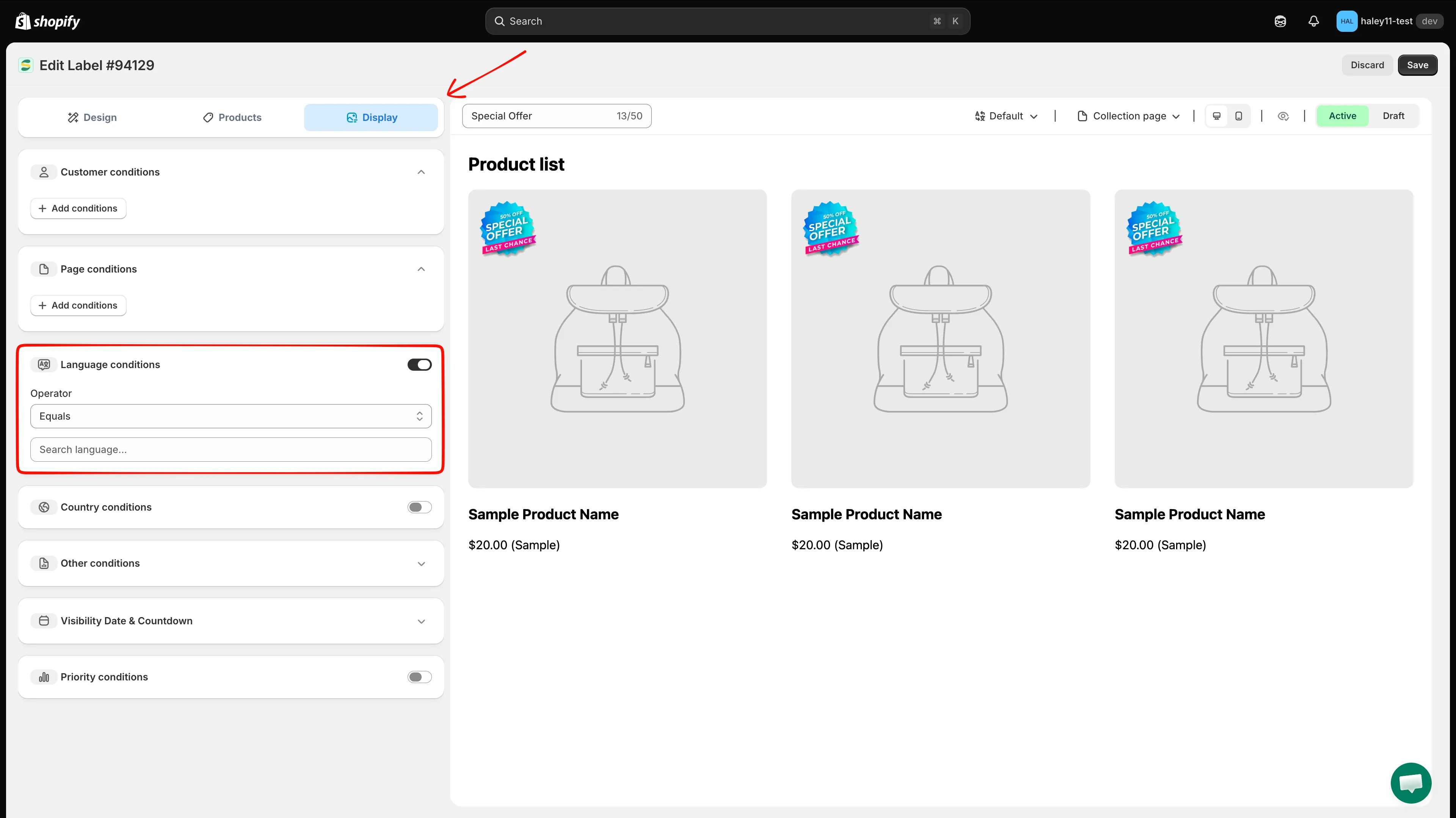
Turn on the Language conditions toggle to reveal the operator and language list.
-
Choose the operator
Section titled “Choose the operator”Leave Operator on Equals to show the badge only in the languages you pick, or switch it to the opposite option to exclude them instead.
-
Select the languages
Section titled “Select the languages”Click Search language… to open the language list. Languages are listed with their ISO codes —
English (en),German (de),Hindi (hi)— with a checkbox each. Type to filter, then tick the languages you want.Selected languages appear as removable chips inside the field.
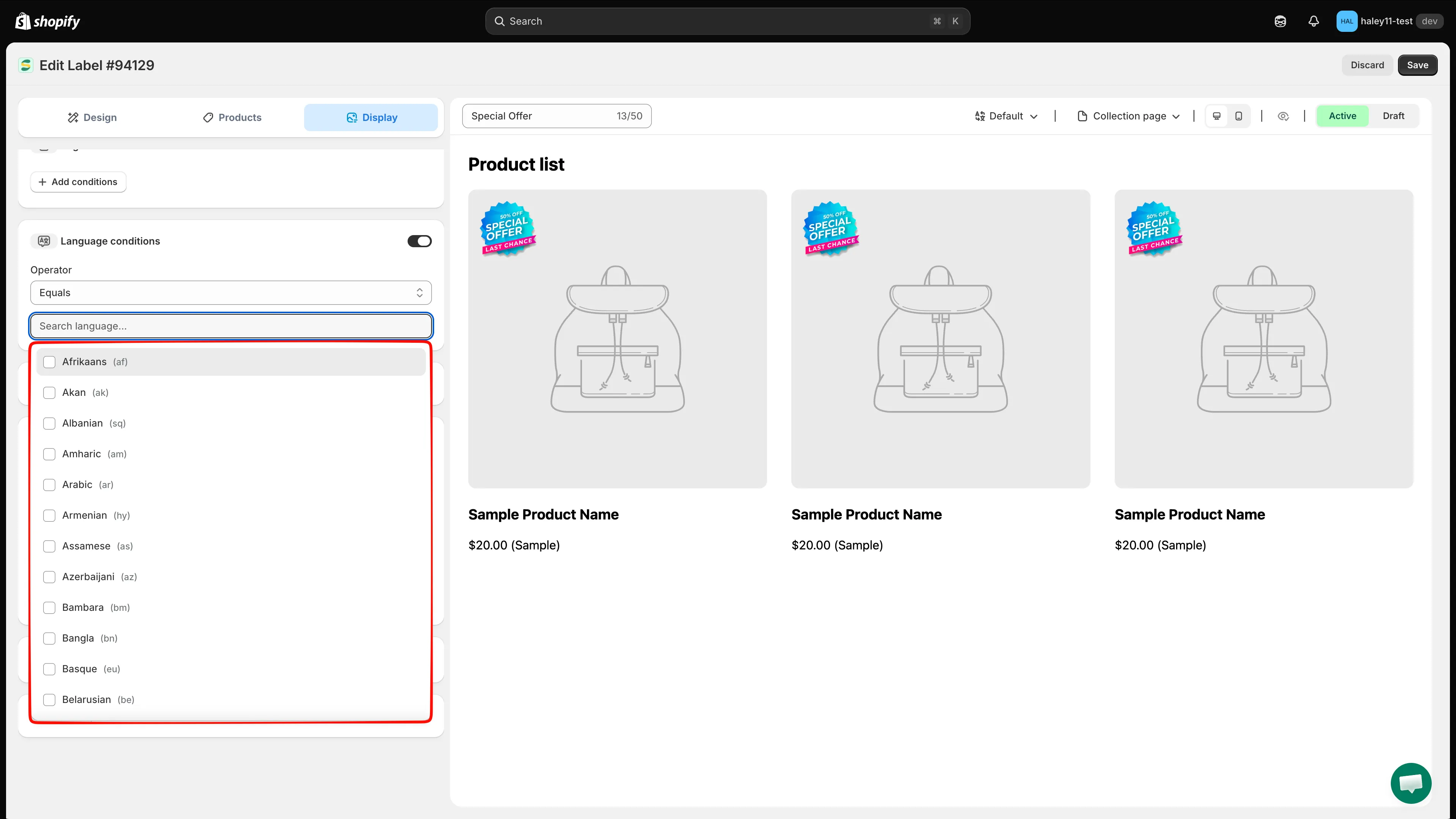
The language list covers all ISO languages, not only the ones published in your store.
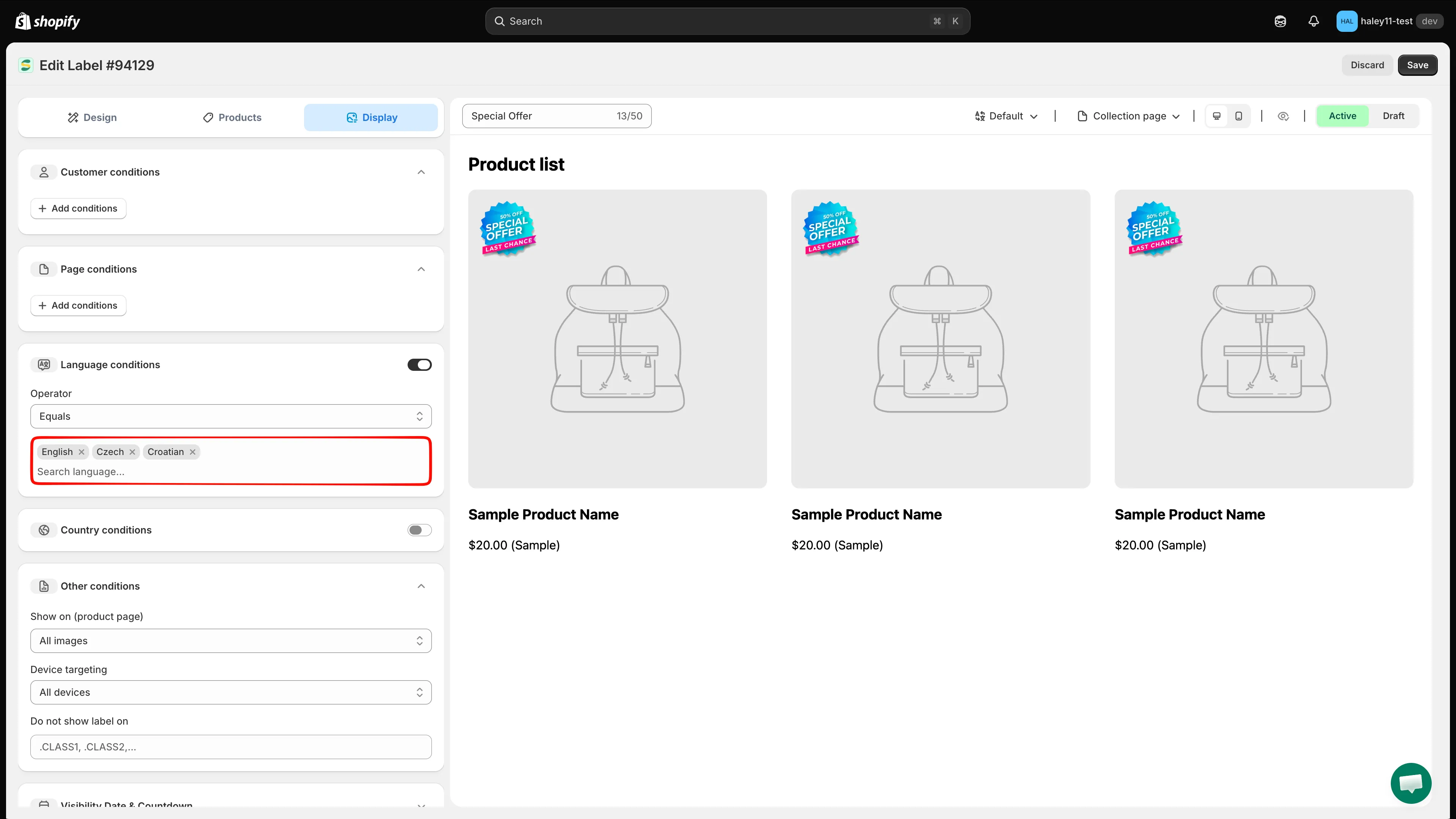
Example: target the badge to visitors browsing the English version of the store.
-
Click Save in the top-right corner. The badge will only appear when the store is viewed in the selected languages.
Language targeting use cases
Section titled “Language targeting use cases”| Use case | Setup |
|---|---|
| Localized promotion | Show a badge with French text only on the French version of your store |
| Language-specific campaign | Run a promotion visible only to Spanish-speaking customers |
| Translated badge content | Create separate badges for each language with matching translated text |
Combining country and language conditions
Section titled “Combining country and language conditions”Country and language conditions can be turned on at the same time and are saved together. They also work alongside the product scope from the Products tab. For example:
- Country is “Canada” AND Language is “French”
- Result: The badge appears only for visitors in Canada who are viewing the store in French.
Useful for multilingual markets like Canada, Belgium, or Switzerland.
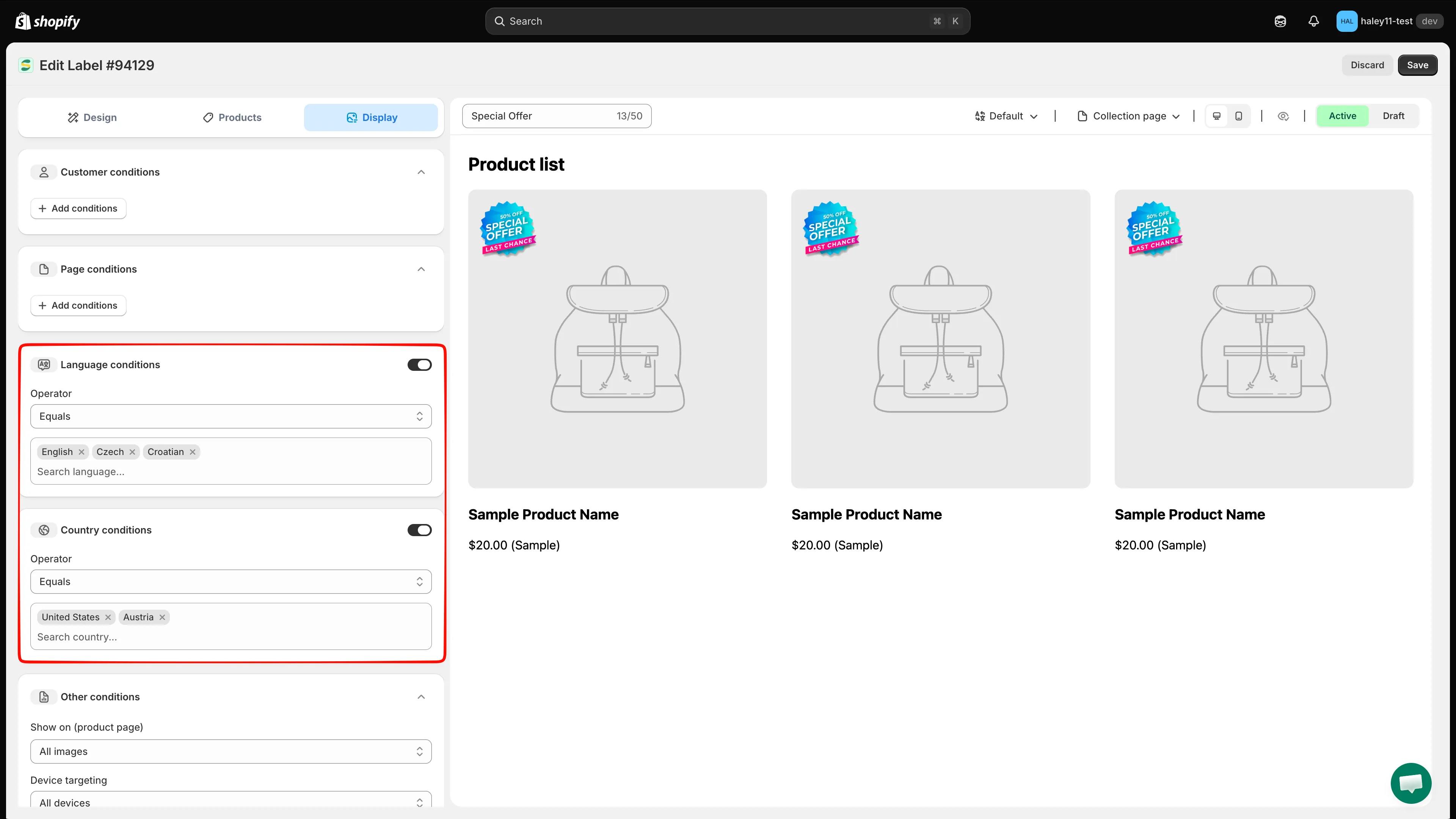
Both sections turned on at once: the visitor must match the language rule and the country rule.
Next steps
Section titled “Next steps”- Target by variant & metafield — Target badges based on product variants and metafield values.
- Target by product attribute — Filter badges by product title, type, vendor, price, and more.