
Auto-translate with AI
Translate every text of a badge, trust badge, highlight, or banner in one click with AI, then review and save.
Auto-translate fills in every translation field of the selected item at once. AI writes the first draft; you review it, adjust anything that doesn’t sound right, and save.
Auto-translate an item
Section titled “Auto-translate an item”-
Select the item
Section titled “Select the item”On the Translation page, open a language, pick a tab, and click the item in the list on the left. See Translate your content if you’re new to the page.
-
Click Auto-translate
Section titled “Click Auto-translate”Click Auto-translate at the top right of the item. A progress bar runs at the top of the page while AI works — usually a few seconds.
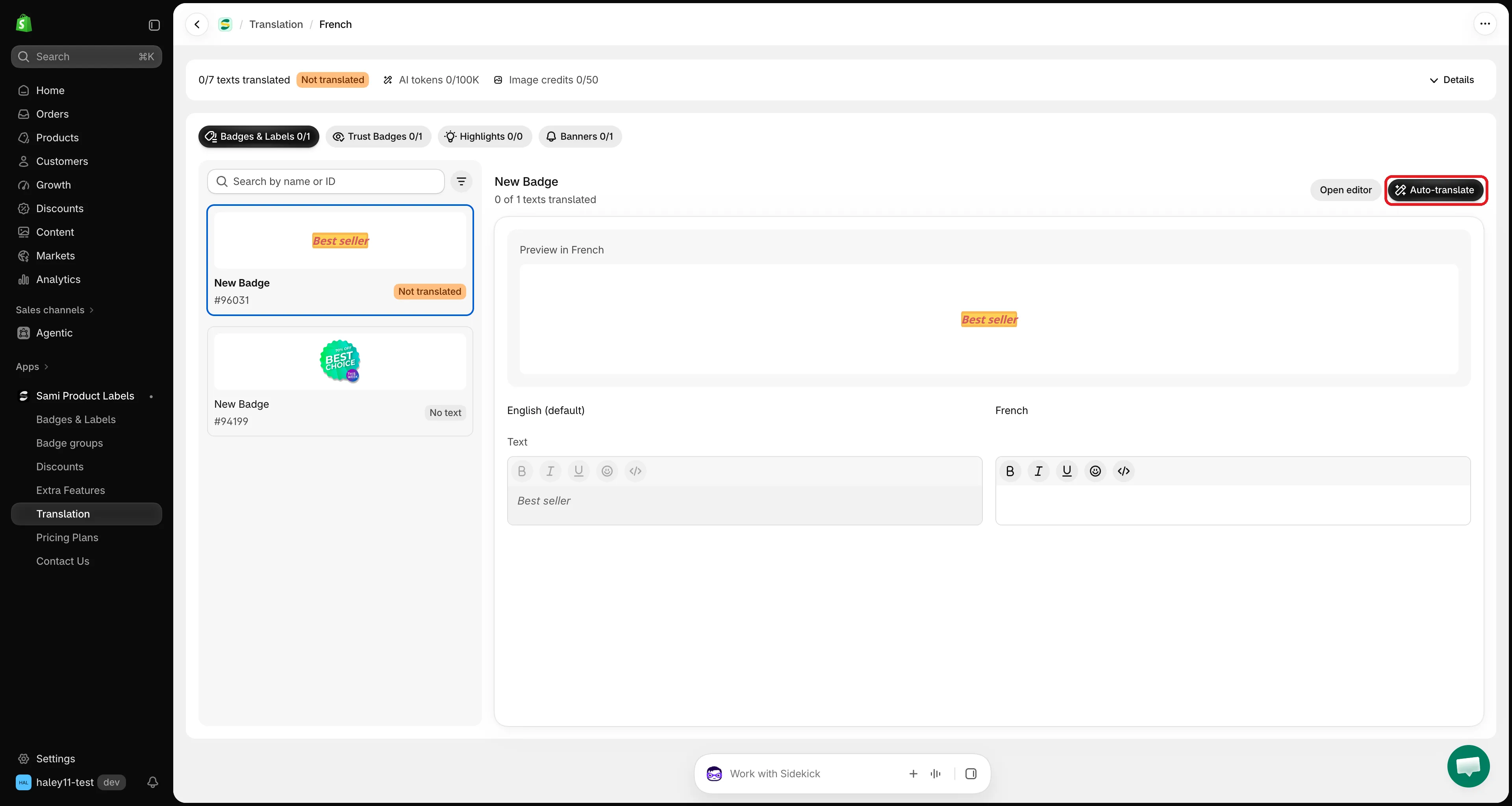
Click Auto-translate to fill in every field of the item.
-
Review the translations
Section titled “Review the translations”When it finishes, a message such as Translated 4 texts. Review them, then save. appears, and the translation fields are filled in. Check each one in the fields and in Preview in [language], and edit anything you want to change.
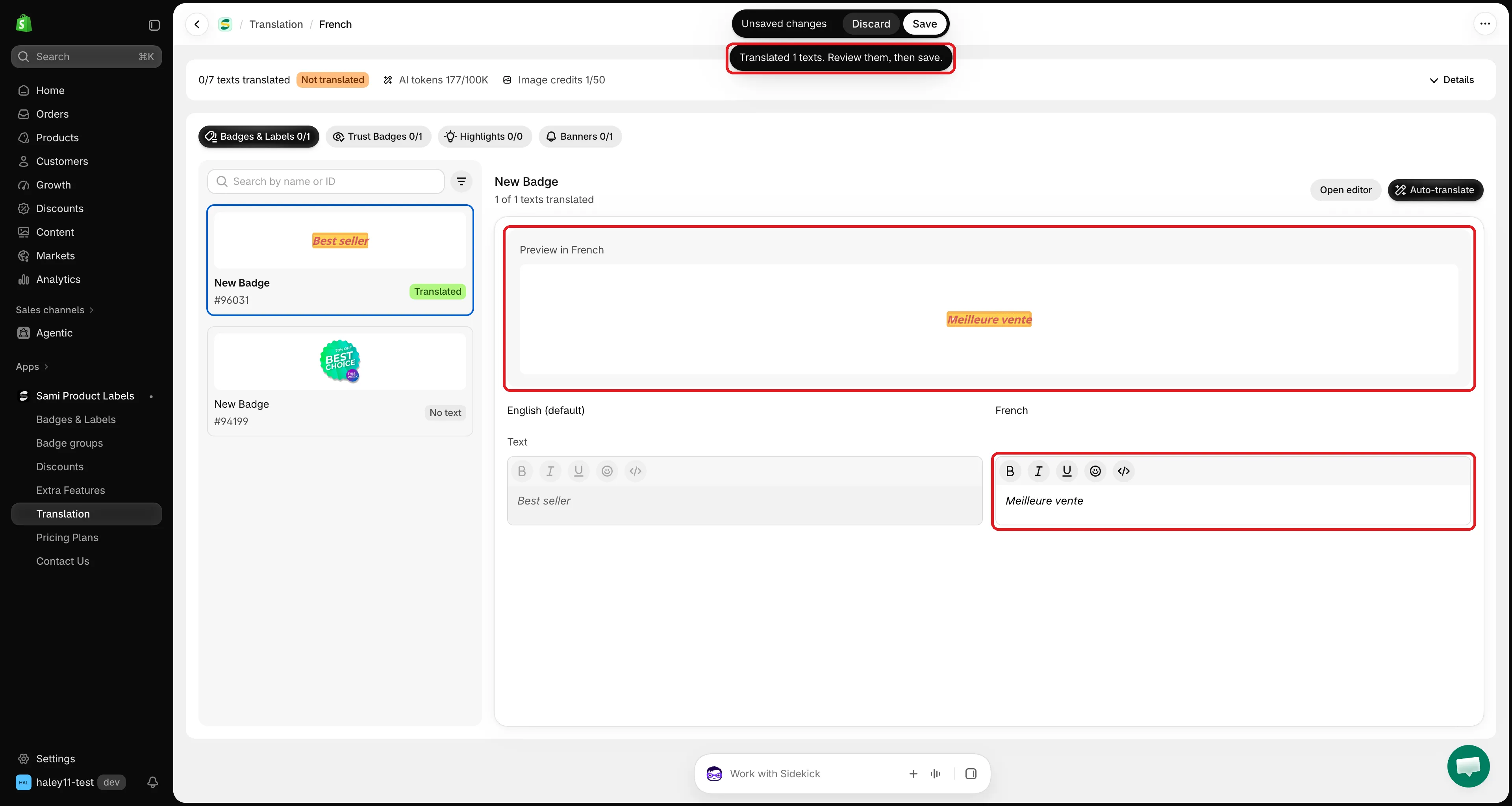
AI fills in the fields. Review them before you save.
-
Click Save in the save bar at the top of the screen. Nothing is published until you save — click Discard to throw the AI translations away.
What Auto-translate does
Section titled “What Auto-translate does”| Field | What happens |
|---|---|
| Texts (text, tooltip, title, description, message, button, countdown, copied message, SEO alt text) | Translated into the language of the page. Existing translations are replaced with the new ones. |
Placeholders such as {sale}, {countdown}, {sami_discount_code} |
Kept as they are, so dynamic values keep working. |
| Link | Not translated. If the link field is empty, the original URL is copied in; a link you already set for this language is kept. |
| Image (image badges) | Translated with Translate text in image at the same time, if you have an AI image credit left and the image hasn’t been translated yet. See Translate image badges. |
Check your AI token usage
Section titled “Check your AI token usage”The bar at the top of the translation page shows AI tokens, for example 12K/100K. Click Details to see the Auto-translate text meter and the date it resets.
When you reach the limit, Auto-translate shows You’ve used all AI translation tokens for this month. You can still type translations yourself until the limit resets on the 1st of next month.
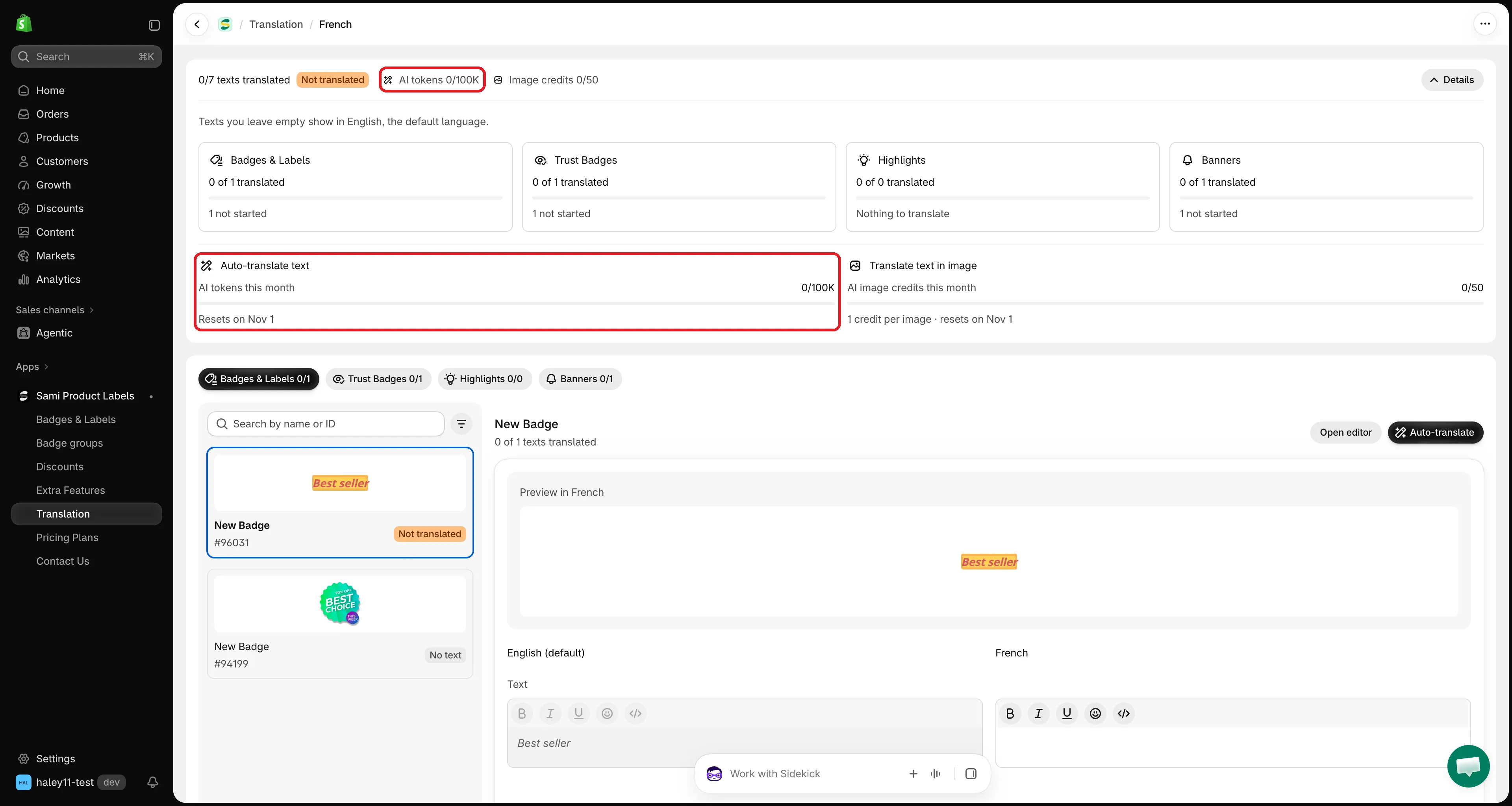
Details shows the AI tokens used this month and when they reset.
Troubleshooting
Section titled “Troubleshooting”| Message | What to do |
|---|---|
| This item has no text to translate. | The item has no original text. Add text in the editor with Open editor, then try again. |
| Couldn’t auto-translate. Try again. | The AI service didn’t answer. Wait a moment and click Auto-translate again. |
| Auto-translate is available on the Diamond plan. | Upgrade from Pricing Plans. |
Next steps
Section titled “Next steps”- Translate image badges — translate the words inside an image badge.
- Translate your content — the full translation workflow.