
Customer accounts
Add the app's pages and banners to your Shopify customer accounts, so buyers can apply, follow their application and manage their company.
Sami B2B Onboarding adds three pieces to your store’s customer accounts. A signed-in buyer can see where their application stands, find your application form, and, once approved, look after their own company. Nothing shows until you place each piece in Shopify’s checkout and accounts editor.
| What the app adds | Where buyers see it | What it’s for |
|---|---|---|
| Company application page | A page of its own in the account, linked from the account menu | Shows where the buyer’s application stands, with a button to your form. |
| Account banners | The Orders page and the Profile page | Invites a buyer to apply, shows their application status, or links an approved buyer to their company. |
| Company self-service page | A page of its own in the account, linked from the account menu | Lets an approved buyer update their company’s details and add, change or remove colleagues. |
How it fits together
Section titled “How it fits together”- One place to check. In the app, Settings › Customer accounts lists the three pieces with a status for each (Active or Not added). Its Add blocks in Customer accounts button opens Shopify’s checkout and accounts editor, where you add them. Only admins see this section of Settings.
- The form stays on your store. The account pages never show the form itself. They link to the form’s own page on your store. A buyer signed in to their account is signed in on the store too, so the application is filed under their account and their email is filled in for them.
- Self-service runs on account forms. The details a buyer can edit there come from the Account forms on the Forms page. You choose their fields, and you decide which edits wait for your approval.
- Edits you approve. Buyer edits that need approval, and new locations while you approve them first, wait on the Change requests page until someone on your team approves or rejects them.
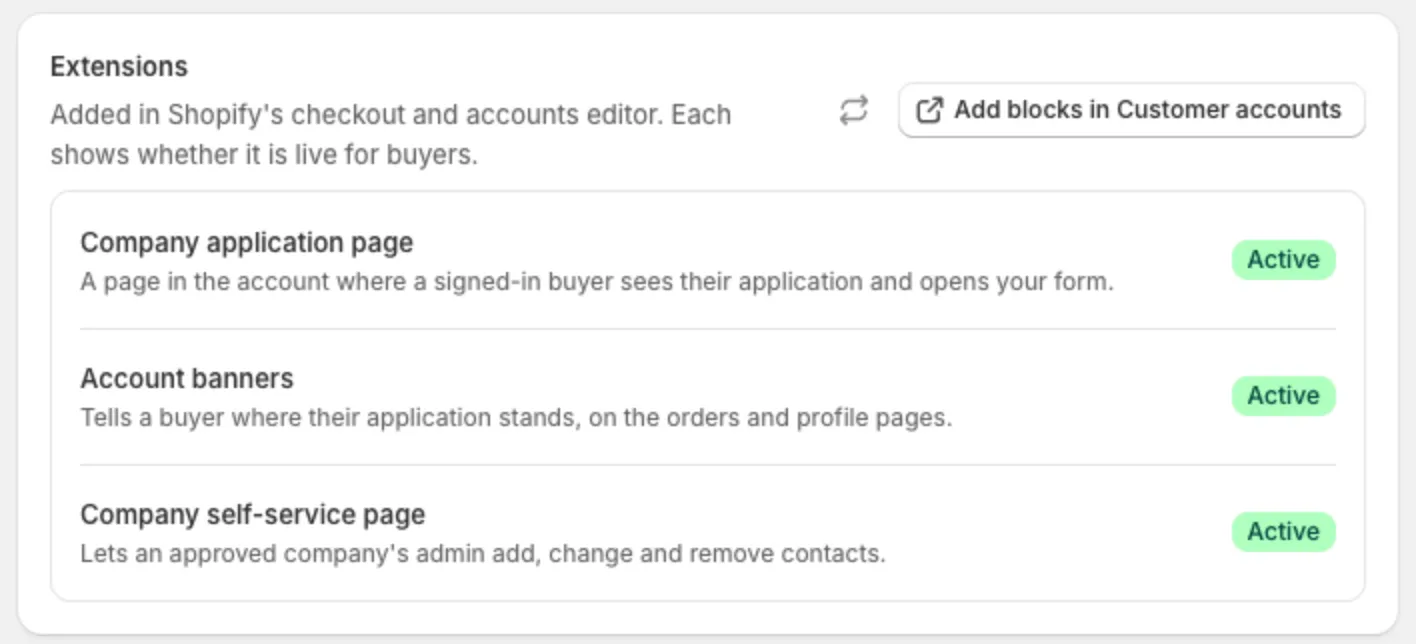
Each row tells you whether that piece is live for buyers in their customer account.
In this section
Section titled “In this section”Company application pageAdd the page where signed-in buyers apply and follow their application.Account bannersShow application status and an apply link on the Orders and Profile pages.Company self-service pageLet approved buyers manage their company and its people.Account formsChoose what buyers can edit about their company, location and themselves.Account change requestsApprove or reject the edits and new locations that wait for you.
Next steps
Section titled “Next steps”- Company application page — start here, so signed-in buyers can find your form.
- Account banners — point buyers to the application page from the pages they already visit.
- Account forms — turn on the forms the self-service page shows.