
Use the form page the app creates
Find the page the app makes for your form, add it to your store's menu and check it on the storefront.
For each application form, Sami B2B Onboarding makes a page on your online store that holds the form. It’s the quickest way to take applications: copy the page’s link, add it to your store’s menu, and buyers can apply.
The page the app makes
Section titled “The page the app makes”- When. The Wholesale application form the app creates at install gets its page when you install the app. A form you create gets its page the first time you save it.
- Where. The page is listed in Online Store › Pages, with the form’s name as its title. Its address is
/pages/followed by a handle made from the form’s name, for example/pages/wholesale-application. A form you create gets a short code at the end of its handle, for example/pages/reseller-application-x7k2. - An existing page. If your store already has a page at that address, the app uses it rather than making a second one. It adds the form only if the page is empty, and otherwise leaves the content as it is. In that case the page has no form until you add one: paste the form’s embed code into the page, as described in Paste the embed code.
- Visible or hidden. The page is visible on your store while the form is published (Active in Forms), and hidden while it’s a Draft.
The handle can differ from what you expect, so always copy the link from Forms rather than typing it.

The app’s page for each form is a normal Online Store page, titled with the form’s name.
Copy the page’s link
Section titled “Copy the page’s link”-
Find the form
Section titled “Find the form”In the app, go to Forms. Under Application forms, each row shows the form’s number of steps and fields, then its page address, for example
/pages/wholesale-application. -
Copy the link
Section titled “Copy the link”Click Copy link beside the address. A Link copied message appears, and the page’s full address is ready to paste.
The same link is in the builder: open the form, click … (More actions) in the toolbar and choose Copy public link.
Add the page to your store’s menu
Section titled “Add the page to your store’s menu”-
Open your menus
Section titled “Open your menus”In your Shopify admin, go to Online Store › Navigation (newer admins call it Content › Menus) and click the menu you want, for example Main menu.
-
Add a menu item
Section titled “Add a menu item”Under Menu items, click Add menu item. A new row opens in the list. In Label, type the words buyers will see, for example
Wholesale. -
Link it to the form’s page
Section titled “Link it to the form’s page”Click Link, choose Pages, then pick the page with your form’s name, for example Wholesale application. You can also paste the link you copied from Forms.
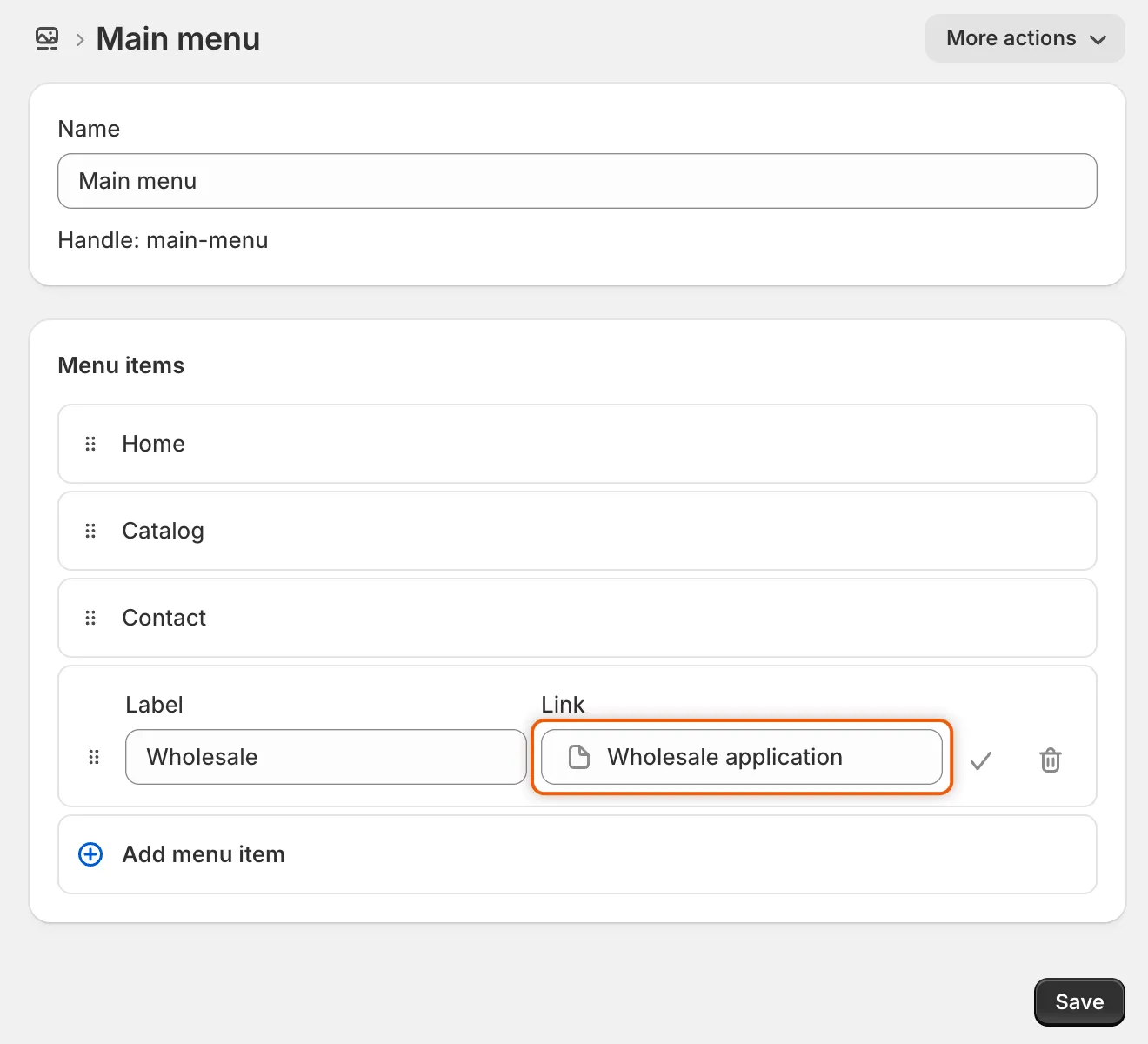
Link the menu item to the page that has your form’s name.
-
Save the menu
Section titled “Save the menu”Click the check mark beside the new item, then click Save.
Check it on your store
Section titled “Check it on your store”-
Open your store as a guest
Section titled “Open your store as a guest”Open your store in a private browser window, so you see it as a buyer who isn’t signed in. A signed-in customer who has already applied sees a message about their application instead of the form.
-
Open the page
Section titled “Open the page”Click the new Wholesale item in your menu. The page opens with your form on it. While the form loads, a light outline of it shows in its place.
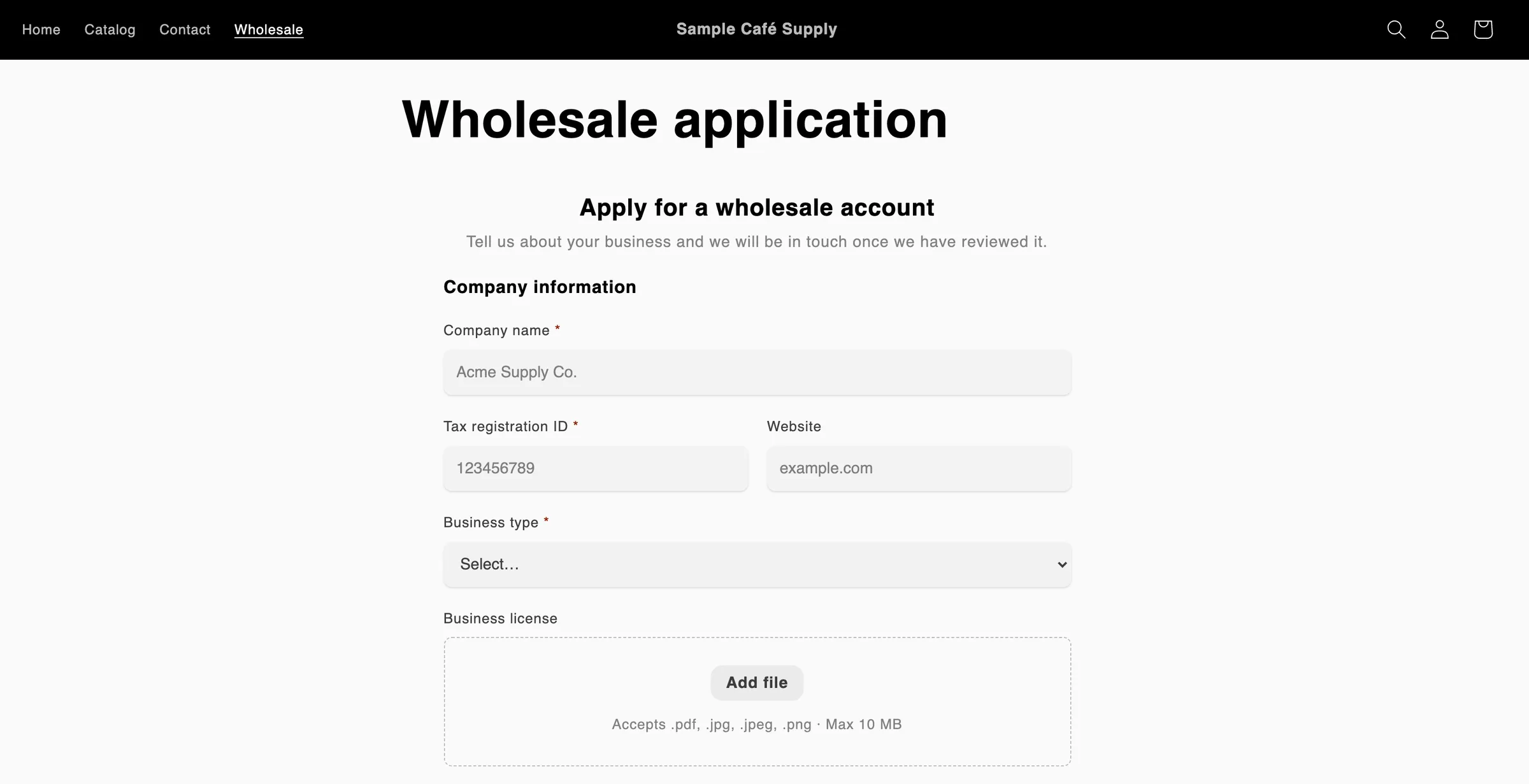
Wholesale, the new last item in your main menu, opens the page the app created with your form on it.
If something is wrong:
- Your store’s “page not found” page opens. The form is a Draft, so its page is hidden. Go to Forms, click … (More actions) on its row and choose Publish.
- The page shows no form at all. Check that the app embed is on.
- The page reads This form is not available right now. Make sure the form is Active in Forms, then reload the page.
When you change the form
Section titled “When you change the form”| You | What happens to the page |
|---|---|
| Rename the form and save | The page’s title changes to the new name. Its address stays the same, so your menu item and shared links keep working. |
| Unpublish the form | The page is hidden. Anyone who opens its link gets your store’s “page not found” page. |
| Publish it again | The page is visible again, at the same address. |
| Delete the form | The page is hidden, not deleted, so anything you wrote on it is kept. Delete it yourself in Online Store › Pages if you don’t need it. |
| Delete the page in Shopify | The app makes a new page at the same address the next time you rename, publish or unpublish the form. |
If you lock your store, the pages of all published forms stay open to visitors, and the lock’s link to apply goes to your default form’s page. See Lock the store.
Next steps
Section titled “Next steps”- Add the form block in the theme editor — show the form inside a page you design, between other sections.
- Paste the embed code — put the form in a page builder or a custom section.
- Lock the store — keep the store private while the form stays open.