> For the complete documentation index, see [llms.txt](https://docs.samita.io/llms.txt). Markdown versions of documentation pages are available by appending `.md` to page URLs; this page is available as [Markdown](https://docs.samita.io/sami-b2b-onboarding/customer-accounts/account-banners.md).

# Account banners

Show each signed-in buyer an apply link, their application status or a link to their company on the Orders and Profile pages of their account.

Account banners are two small blocks that Sami B2B Onboarding adds to the pages buyers already visit in their customer account. A banner on the **Orders** page and a line on the **Profile** page tell each buyer what to do next: apply, answer your request, or manage their company. In Shopify's editor both blocks appear under one name, **B2B account banners**.

{% hint style="info" %}
Add the [Company application page](/sami-b2b-onboarding/customer-accounts/company-application-page.md) and the [Company self-service page](/sami-b2b-onboarding/customer-accounts/company-self-service-page.md) too. The banners link to them, for example when your form has no page on your store or when an approved buyer clicks **Manage company**.
{% endhint %}

## Add the banners

You place the block twice: once on the Orders page and once on the Profile page.

{% stepper %}
{% step %}

### Open the checkout and accounts editor

In the app, go to **Settings › Customer accounts**. In the **Extensions** card, click **Add blocks in Customer accounts**. Shopify opens its checkout and accounts editor.
{% endstep %}

{% step %}

### Add the banner to the Orders page

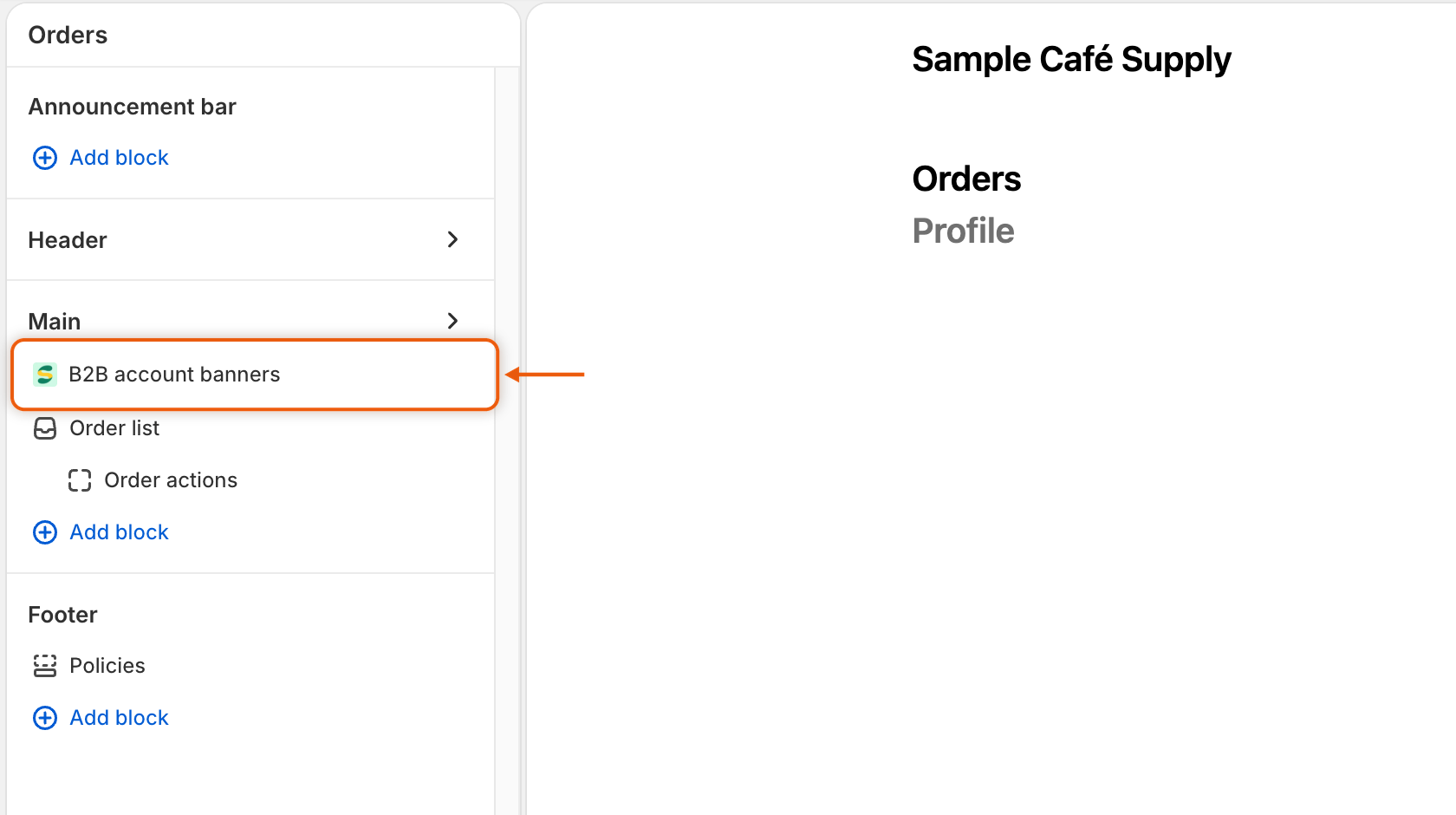
In the editor's list of app blocks, under **Sami B2B Onboarding**, click **+** beside **B2B account banners** and choose **Orders**. Shopify puts the block at the top of the page's **Main** section, above the order list, so buyers see it as soon as they open their orders. To move it, open the **Sections** list and drag it.
<figure><img src="https://3844812229-files.gitbook.io/~/files/v0/b/gitbook-x-prod.appspot.com/o/spaces%2FRrf4pQPgjvb3GW7IN3Ci%2Fuploads%2Fgit-blob-b4e10eb57bd4778c6ea10d2295af2ade97c7ac35%2Fscreenshot-shopify-accounts-editor-orders-banner.png?alt=media" alt="The Sections list of Shopify&#x27;s checkout and accounts editor for the Orders page, with B2B account banners above Order list in the Main section."><figcaption><p>The banner sits above the order list, where buyers see it as soon as they open their orders.</p></figcaption></figure>
{% endstep %}

{% step %}

### Add the block to the Profile page

Click **+** beside **B2B account banners** again and choose **Profile**. On this page it shows as a single line among the profile's cards.
{% endstep %}

{% step %}

### Save and check the status

Save your changes in the editor. Back in the app, open **Settings › Customer accounts** and click **Refresh statuses** (the circular arrow). **Account banners** shows **Active**.

**Active** appears as soon as the block is on one of the two pages, so check that you placed it on both.
{% endstep %}
{% endstepper %}

## What the banner on the Orders page shows

| The buyer…                                                                                | What they see                                                                                                                                                                                                                                             |
| ----------------------------------------------------------------------------------------- | --------------------------------------------------------------------------------------------------------------------------------------------------------------------------------------------------------------------------------------------------------- |
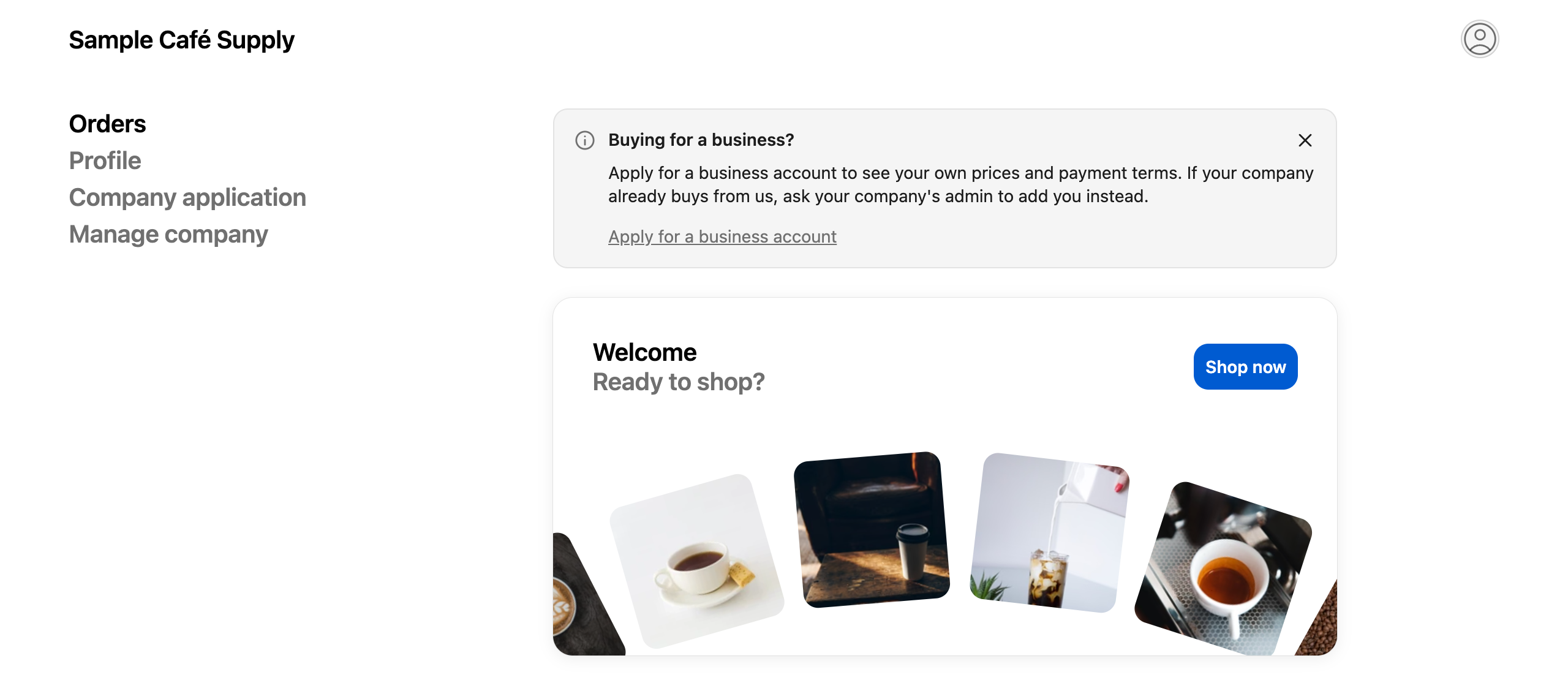
| Hasn't applied and isn't a company contact                                                | "Buying for a business?" with "Apply for a business account to see your own prices and payment terms. If your company already buys from us, ask your company's admin to add you instead." and an **Apply for a business account** link to your form page. |
| Has applied                                                                               | Their application status, the same as on the [Company application page](/sami-b2b-onboarding/customer-accounts/company-application-page.md#what-buyers-see), for example "Your application is being reviewed".                                            |
| Was asked for more information, or rejected with **Let them update it and send it again** | The status and an **Update your application** link to your form page, reopened on their application.                                                                                                                                                      |
| Already buys for a company                                                                | No banner.                                                                                                                                                                                                                                                |

Buyers can close the banner. An application a buyer sent as a guest shows once they sign in with the same email address.

<figure><img src="https://3844812229-files.gitbook.io/~/files/v0/b/gitbook-x-prod.appspot.com/o/spaces%2FRrf4pQPgjvb3GW7IN3Ci%2Fuploads%2Fgit-blob-5aa700c346a5eb46ec3375bc4f280d9c0be38b3e%2Fscreenshot-accounts-banners-orders-apply-prompt.png?alt=media" alt="The Orders page of a customer account with a banner that reads Buying for a business? and an Apply for a business account link."><figcaption><p>Buyers who haven't applied are invited to, straight from their orders.</p></figcaption></figure>

## What the block on the Profile page shows

Every signed-in buyer gets one line on the Profile page.

| The buyer…                                        | What they see                                                                                                       |
| ------------------------------------------------- | ------------------------------------------------------------------------------------------------------------------- |
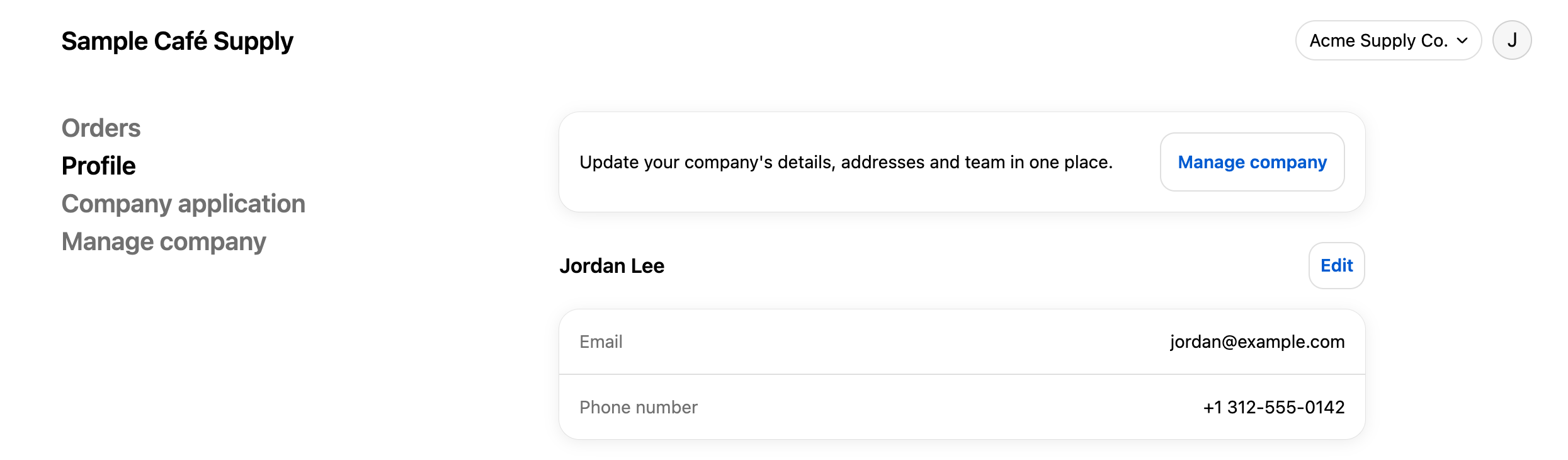
| Is a company contact with the Location admin role | "Update your company's details, addresses and team in one place." and a **Manage company** button.                  |
| Is a company contact with another role            | "See your company's details and who else can order for it." and a **Manage company** button.                        |
| Has applied                                       | Their application status, with an **Update your application** button when there's something for them to do.         |
| Hasn't applied                                    | "Buying for a business?" with the same message as the Orders banner and an **Apply for a business account** button. |

**Manage company** opens the [Company self-service page](/sami-b2b-onboarding/customer-accounts/company-self-service-page.md).

<figure><img src="https://3844812229-files.gitbook.io/~/files/v0/b/gitbook-x-prod.appspot.com/o/spaces%2FRrf4pQPgjvb3GW7IN3Ci%2Fuploads%2Fgit-blob-b2b01390ffc3a3a5047c077afc3d3e0527259737%2Fscreenshot-accounts-banners-profile-company.png?alt=media" alt="The Profile page of a customer account with a line about updating the company&#x27;s details and a Manage company button."><figcaption><p>Approved buyers reach their company's self-service page from their profile.</p></figcaption></figure>

## Change the wording

The banners' sentences and buttons are in **Settings › Translate**. Open your default language (**Edit**) to reword the English, or another language (**Translate**) to translate it. Choose **Storefront messages** and find the **Customer account pages** card. The banner rows include:

| Row                               | Default wording                                                                                                                                           |
| --------------------------------- | --------------------------------------------------------------------------------------------------------------------------------------------------------- |
| **Apply prompt heading**          | Buying for a business?                                                                                                                                    |
| **Apply prompt message**          | Apply for a business account to see your own prices and payment terms. If your company already buys from us, ask your company's admin to add you instead. |
| **Apply link**                    | Apply for a business account                                                                                                                              |
| **Update application button**     | Update your application                                                                                                                                   |
| **Company card message, admin**   | Update your company's details, addresses and team in one place.                                                                                           |
| **Company card message, contact** | See your company's details and who else can order for it.                                                                                                 |
| **Manage company button**         | Manage company                                                                                                                                            |

The status rows start with "Status heading" and "Status message". The Company application page uses them too, so a change shows in both places. See [Translate](/sami-b2b-onboarding/settings/translate.md).

## Next steps

* [Company application page](/sami-b2b-onboarding/customer-accounts/company-application-page.md) — the page the banners link to when your form has no page.
* [Company self-service page](/sami-b2b-onboarding/customer-accounts/company-self-service-page.md) — what **Manage company** opens.
* [Request more information](/sami-b2b-onboarding/reviewing-applications/request-more-information.md) — how a buyer gets an **Update your application** link.


---

# Agent Instructions
This documentation is published with GitBook. GitBook is the documentation platform designed so that both humans and AI agents can read, navigate, and reason over technical content effectively. Learn more at gitbook.com.

## Querying This Documentation
If you need additional information that is not directly available in this page, you can query the documentation dynamically by asking a question.

Perform an HTTP GET request on the current page URL with the `ask` query parameter, and the optional `goal` query parameter:

```
GET https://docs.samita.io/sami-b2b-onboarding/customer-accounts/account-banners.md?ask=<question>&goal=<endgoal>
```

`ask` is the immediate question: it should be specific, self-contained, and written in natural language.
`goal` is optional and describes the broader end goal you are ultimately trying to accomplish on behalf of the user. GitBook uses it to tailor the answer towards what is most useful for that goal.

The response will contain a direct answer to the question and relevant excerpts and sources from the documentation.

Use this mechanism when the answer is not explicitly present in the current page, you need clarification or additional context, or you want to retrieve related documentation sections.