
Hide prices and add to cart
Replace prices with a log-in link and remove the buy buttons for visitors who aren't approved.
Sami B2B Onboarding can hide your prices and buy buttons from visitors who aren’t approved. Where a price was, they see a link that asks them to log in. Approved buyers see your store as normal.
Hide prices and the buy buttons
Section titled “Hide prices and the buy buttons”-
Open Access
Section titled “Open Access”In Shopify admin, open Apps › Sami B2B Onboarding and click Settings. Access opens first. If another section opens, click Access in the settings menu.
-
Choose a visibility that allows these rules
Section titled “Choose a visibility that allows these rules”Under Storefront visibility, set Who can browse, who can buy to one of these:
- Public catalog, private purchasing: everyone can browse, and prices and buy buttons are hidden from visitors who aren’t approved.
- Private wholesale store: the whole store is locked, so prices and buy buttons are hidden only on the pages the lock leaves open. Under each switch you see Only on the pages the store lock leaves open. See Lock the store.
With Public catalog, public purchasing, these switches are hidden, because everyone can buy.
-
Hide prices
Section titled “Hide prices”Under Prices and checkout, turn on Hide prices from retail visitors. A Replacement text box appears below the switch.
Type what visitors see instead of each price, up to 255 characters. The text starts as
Log in to see prices. The box can’t be empty while the switch is on. -
Hide add to cart
Section titled “Hide add to cart”Turn on Hide add to cart. You can use it with hidden prices or on its own.
-
Keep checkout blocked
Section titled “Keep checkout blocked”Leave Block checkout while pending on. Hiding prices and buttons only changes what the page shows. The checkout block is what stops a visitor who isn’t approved from paying. See Block checkout until approved.
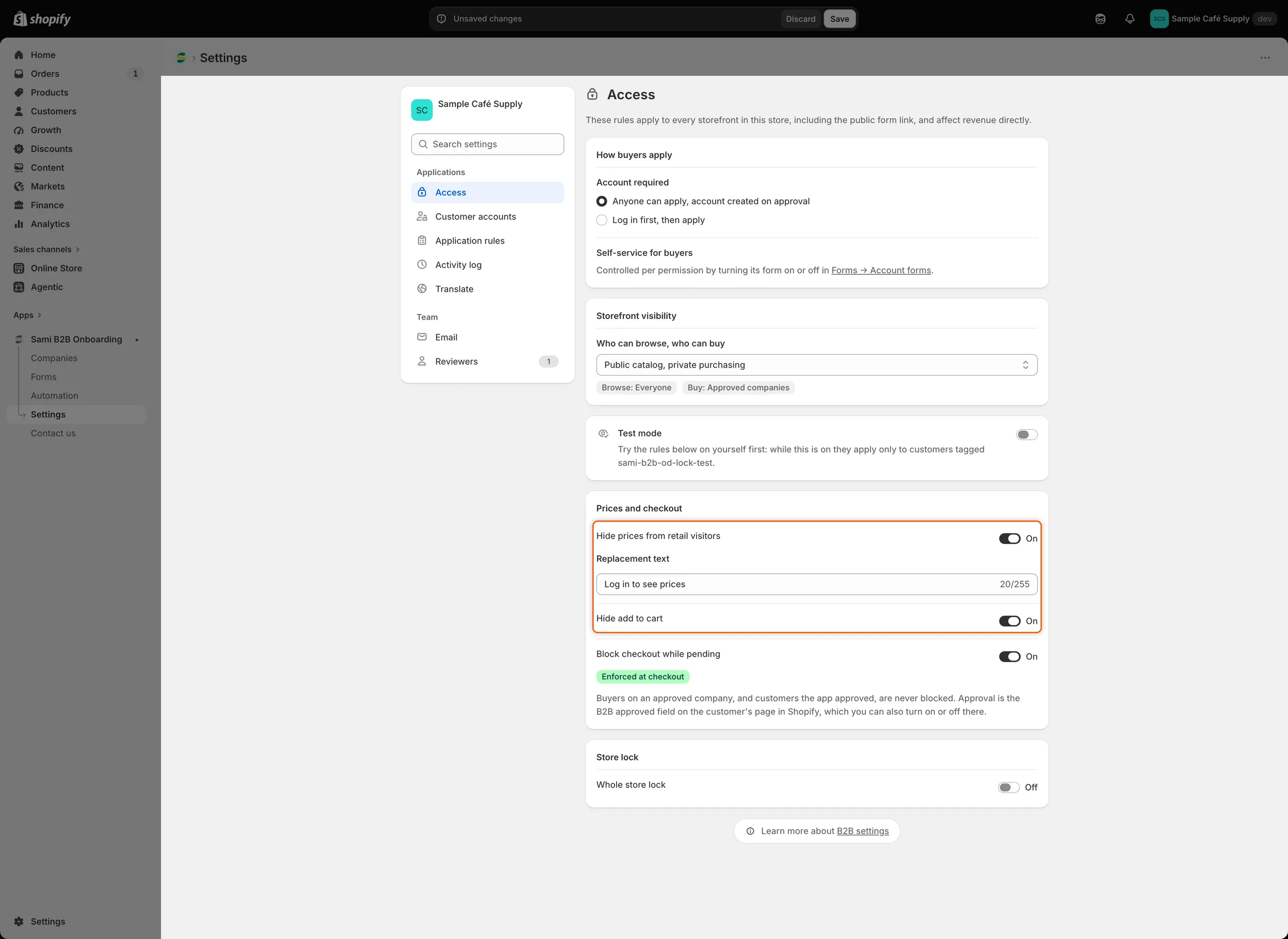
With Hide prices on, the Replacement text box sets what visitors see in place of each price.
-
Click Save in the save bar. Settings saved appears, and the change reaches your storefront.
Check it on your storefront
Section titled “Check it on your storefront”- As a guest. Open your store in a private browser window. On a product page, such as one of your coffee beans, the price is replaced by your replacement text. Add to cart, Buy it now and the quantity picker are gone. Collection pages and search results show the text in place of each price too.
- Click the text. It opens your store’s log-in page. After logging in, the buyer comes back to the page they were on.
- As a logged-in customer who isn’t approved. Prices and buttons stay hidden. The replacement text opens the customer’s account instead of the log-in page.
- As an approved buyer. Log in as a customer who buys for a company, or whose B2B approved is on. Prices and buy buttons show as normal.
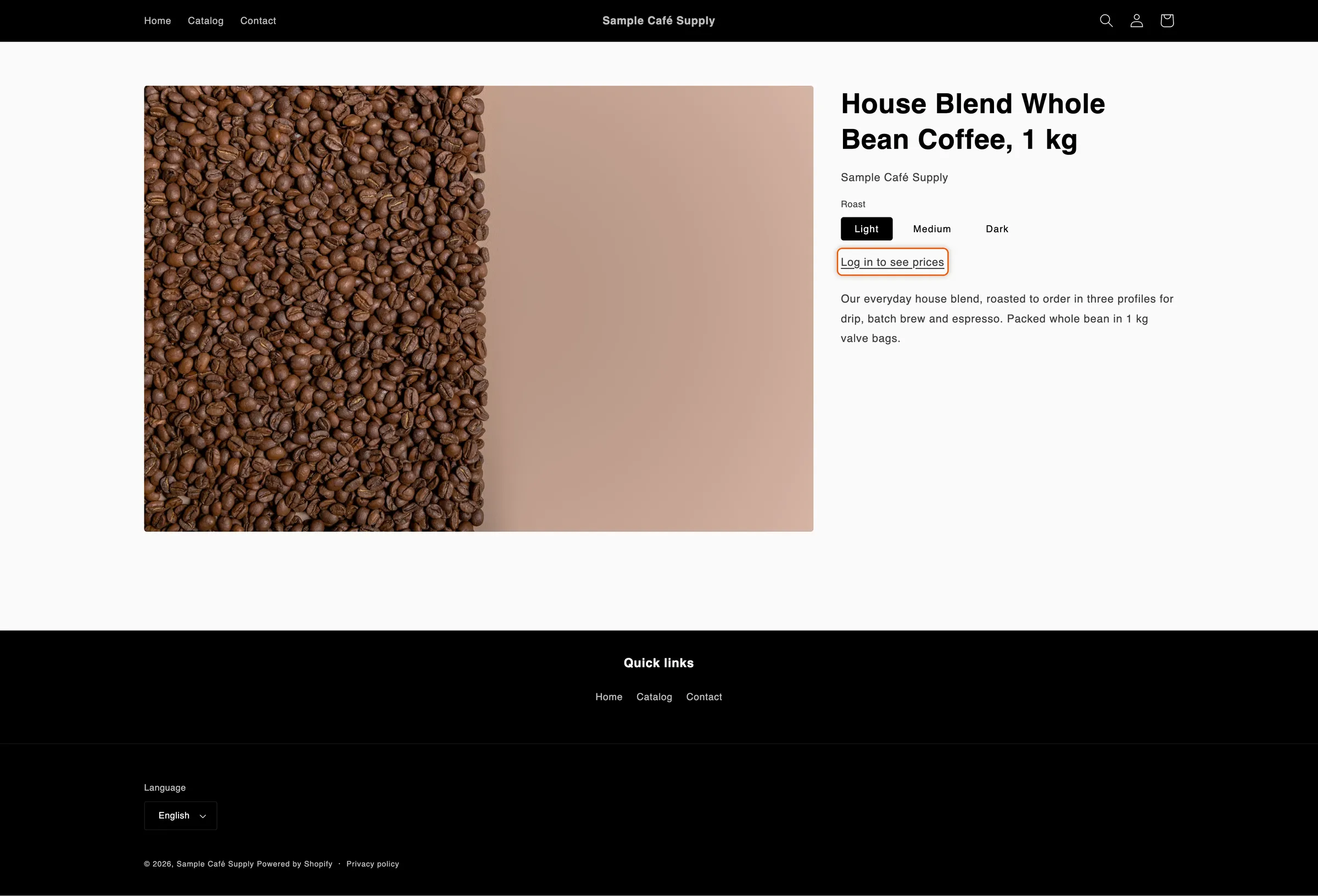
Visitors who aren’t approved see your replacement text as a log-in link instead of the price and buy buttons.
What is hidden and what isn’t
Section titled “What is hidden and what isn’t”| Hidden from visitors who aren’t approved | Still shown |
|---|---|
| Prices on product pages, collection pages, search results, quick view and quick add | Prices in the cart page and cart drawer, so a cart always adds up |
| Add to cart, Buy it now and other express checkout buttons on product pages | Prices at checkout |
| The quantity picker on product pages, and quick add buttons | Prices on a logged-in customer’s own account pages, such as their orders |
| Gift card pages |
The app recognizes the price and buy-button markup of most themes, including Online Store 2.0 themes such as Dawn. If a price or button still shows somewhere in your theme, contact support.
A product can still reach the cart in other ways, for example from a link straight to the cart. That’s why the checkout block matters: it stops the order at checkout.
Translate the replacement text
Section titled “Translate the replacement text”The text you type on Access is your store’s default wording. To show it in another language:
-
Open the language
Section titled “Open the language”Go to Settings › Translate. Next to the language, click Translate. If the language isn’t listed, click Add language first.
-
Find the text
Section titled “Find the text”In the list on the left, under Storefront, click Storefront messages. In the Store access card, find Hidden price text.
-
Translate and save
Section titled “Translate and save”Type the translation and click Save in the save bar.
Buyers see the translation when they browse your store in that language. In a language you haven’t translated, they see the text from Access.
Next steps
Section titled “Next steps”- Lock the store — hide the whole store, not just its prices.
- Block checkout until approved — stop unapproved buyers at checkout.
- Test your access rules — try the rules on your own account first.
- Translate — translate everything else buyers read.